
How to fix Game Bar recording error 0x82323619 in Windows?

Prefer to fix it yourself? The manual steps follow.
- 7methods
- 5 to 30 minutes
- Easy
Applies to Windows 11 and Windows 10; Xbox Game Bar clip recording (Win + G, Win + Alt + R); any game or app you record
7 methods in this guide
I can't record anything with Game Bar. I keep getting the 0x82323619 error code instead. What can I do to fix this?
Error 0x82323619 is Xbox Game Bar's "Recording isn't working" message: a clip will not start, or stops after a few minutes. In most reports the Captures folder is the reason, because its drive is full or the folder is out of reach. Move old clips out of Videos\Captures and free space first.
0x82323619 means Game Bar could not write or keep writing a clip. Microsoft does not document the code, but the fix that most users report is about storage: move old clips out of C:\Users\<name>\Videos\Captures and free space on that drive (Fix 1), or move Captures to a drive with room (Fix 2). If the drive has plenty of space, update the graphics driver and repair Game Bar (Fixes 3 and 4).
| Error | "Recording isn't working" with "Error: 0x82323619" in a Game Bar notification. Searched as 0x82323619, error 0x82323619 and game bar error 0x82323619. |
|---|---|
| Where it appears | Top right of the screen when you press the record button in Game Bar (Win + G) or Win + Alt + R, or a few minutes into a recording. |
| Main cause | Game Bar cannot save the clip: the drive with the Captures folder is full, or the folder is missing, moved or unreachable. |
| Fastest fix | Move or delete old clips in Videos\Captures and free space on that drive (Fix 1). |
| Also written as | "game bar recording isn't working error 0x82323619", "game bar error 0x82323" (cut off), and the related codes 0x8232360F and 0x82323673 with the same "Recording isn't working" text. |
| Default save folder | C:\Users\<your name>\Videos\Captures. Shown in Settings > Gaming > Captures. |
| Affects | Windows 11 and Windows 10, any game. Often on a nearly full system drive or after the Videos or Captures folder was moved. |
| Microsoft's status | Not documented. The Microsoft Q&A thread on the code has 40 or more "same question" votes and no official fix; the most helpful answer is a user who moved clips out of Captures. |
| Time to fix | About 5 minutes for Fixes 1 and 2. Up to 30 minutes if you need a driver, a reinstall or Windows updates. |
Facts checked on 15 October 2026. Steps written for Windows 11 (25H2 and 26H2) and Windows 10 22H2.
What Game Bar error 0x82323619 means
Xbox Game Bar records a clip in two parts: the graphics chip encodes the picture, and Game Bar writes the result as an MP4 file into the Captures folder. Error 0x82323619 shows up when that chain breaks. Game Bar then shows a short notification and either never starts the clip or stops it.
- First line
- Recording isn't working
- Second line
- Error: 0x82323619
- Under it
- Press Win + G for Xbox Game Bar
- What is blocked
- The record button, Win + Alt + R, and in some reports a recording that runs for a few minutes and then stops by itself.
- What still works
- Usually screenshots with Win + Alt + PrtScn, because a single picture needs very little space.
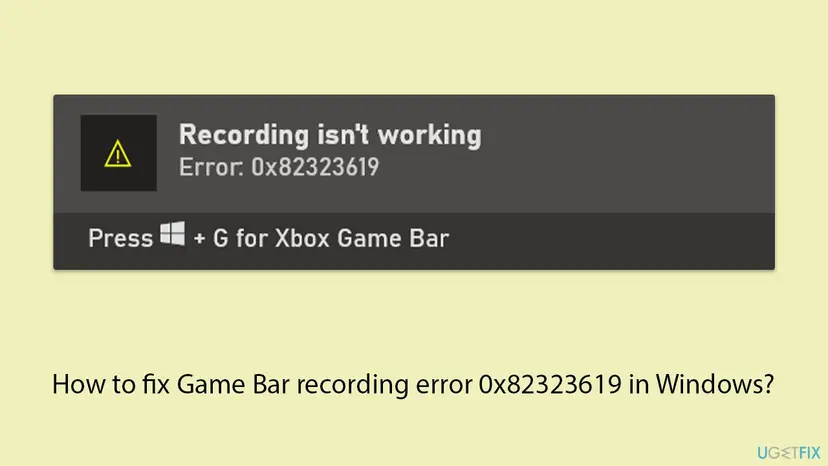
Microsoft has not published what the code means. The reports agree on when it appears and on the fix that works. In the Microsoft Q&A thread, the person who started it could record a couple of minutes before the recording stopped. The answer most people found helpful was to move the old clips out of Captures. That points to the save folder, not to the game.
A full drive or a Captures folder that Windows cannot reach is quick to check and quick to fix. Driver updates, repairs and reinstalls take longer and help only when the folder is fine.
Why error 0x82323619 appears: the causes, ranked
Most often the drive with the Captures folder is full or nearly full, often because Game Bar's own old clips fill it. Less often the folder was moved, sits on a drive that is gone, or Game Bar's settings and files are damaged. Rarely the graphics driver or another recorder holding the encoder is the reason.
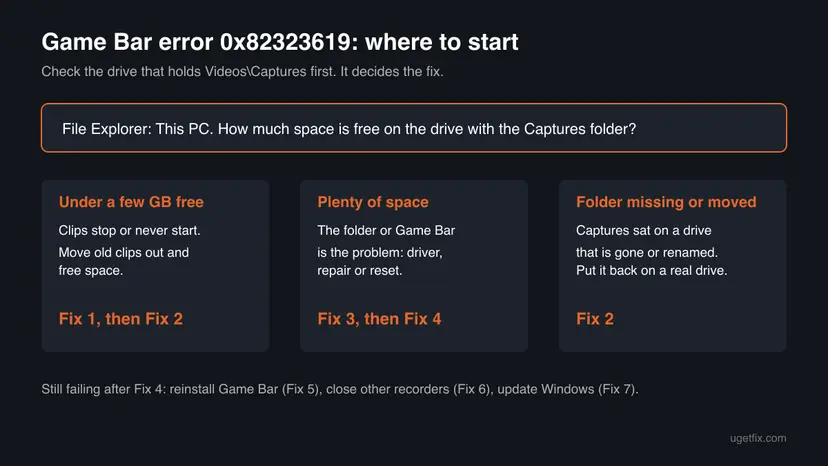
| Cause | How often | How to tell | Fix |
|---|---|---|---|
| The drive that holds Captures is full or nearly full. | Most often | File Explorer shows a red bar for the drive, or the Captures folder holds many large clips. Recording stops after a few minutes. | Fix 1 |
| The Captures folder was moved, renamed, or sits on a drive that is not connected. | Often after moving folders or drives | Settings > Gaming > Captures shows an odd path, or Open folder fails. | Fix 2 |
| The graphics driver is old or damaged. | Sometimes | The error started after a Windows or driver update, and the drive has space. | Fix 3 |
| Game Bar's settings or files are damaged. | Sometimes | Space and driver are fine; other Game Bar widgets misbehave too. | Fix 4, then Fix 5 |
| Another recorder or overlay holds the encoder. | Rarely | OBS, a GPU maker's recorder or a streaming app runs at the same time. | Fix 6 |
| Windows or Game Bar itself is out of date. | Rarely | Updates are pending in Windows Update or Microsoft Store. | Fix 7 |
"How often" is our reading of the Microsoft Q&A thread and the write-ups we read. Microsoft publishes no numbers for this code.
How to fix Game Bar recording error 0x82323619 in Windows 11 and 10
Fixes 1 and 2 deal with the save folder and solve most cases. Fixes 3 to 5 are for a PC with enough space. Fixes 6 and 7 are the last checks. Paths are given for Windows 11 and Windows 10 where they differ.
| What you see or have | Start with |
|---|---|
| The system drive is nearly full, or Captures holds many clips. | Fix 1 |
| Recording runs for a few minutes and then stops with the error. | Fix 1, then Fix 2 |
| You moved the Videos or Captures folder, or a second drive was removed. | Fix 2 |
| Plenty of free space, and the error began after an update. | Fix 3, then Fix 4 |
| Another recorder, overlay or streaming app runs in the background. | Fix 6 |
Fix 1. Move old clips out of the Captures folder and free space on the drive
5 minutesLow riskEveryone first, above all when the drive is nearly full or the recording stops after a few minutes.
Game Bar writes the clip to Captures while you play. When the drive runs out of room, it cannot keep writing and shows 0x82323619. Moving clips out is the fix most users in the Microsoft Q&A thread confirmed.
- Stop any recording and close Game Bar.
- Press Win + E to open File Explorer and select This PC. Note how much space is free on the drive with your Videos folder, usually C:.
- Open
C:\Users\<your name>\Videos\Captures. - Move the clips you want to keep to another drive, an external disk or cloud storage. Delete the ones you do not need.
- Free more space if the drive is still nearly full: Free up disk space and delete temporary files
- Open a game and press Win + Alt + R to test.
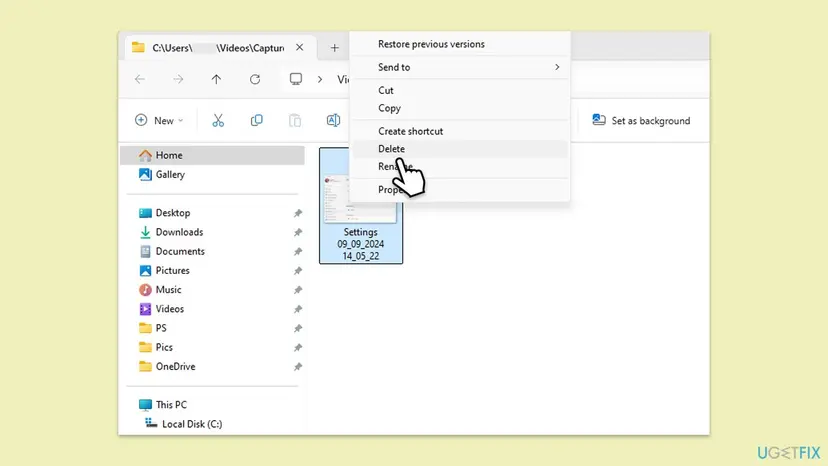
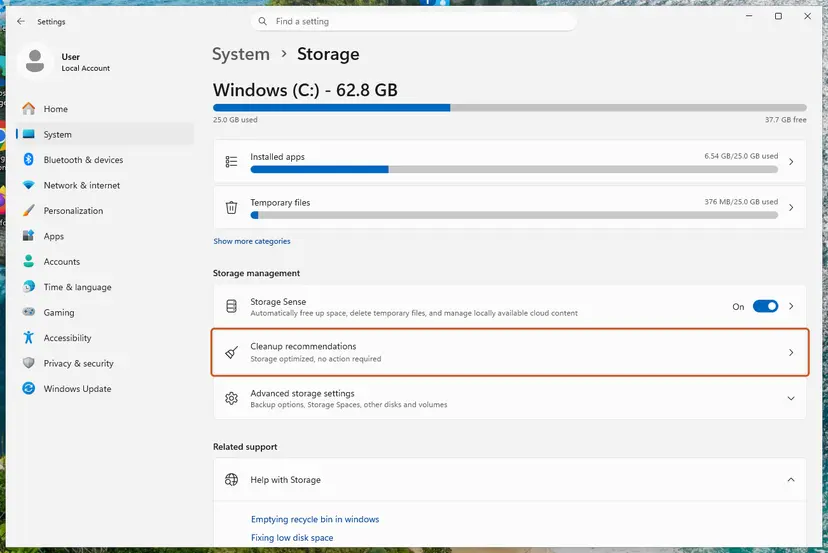
A one hour clip at high quality can take several gigabytes. Keep enough free space for the longest clip you plan to record, plus room for Windows itself.
It worked if: The drive has free space again and the record button starts a timer that keeps running.
If not: If the drive is small or always full, go to Fix 2 and move Captures to a bigger drive.
Fix 2. Move the Captures folder to a drive with more space, or put it back
5 minutesLow riskThe system drive is small, or the Captures or Videos folder was moved to a drive that is now gone or renamed.
Game Bar has no setting to pick another save folder; it saves to the Captures folder wherever Windows says it is. If that place is full or missing, the clip has nowhere to go.
- Press Win + I and open Gaming > Captures. Select Open folder to see where Game Bar saves now.
- In File Explorer go one level up to Videos.
- Right-click Captures and select Cut.
- Open a drive with more space, right-click an empty place and select Paste.
- Go back to Gaming > Captures, select Open folder again and check that it opens the new place.
- Test with Win + Alt + R.
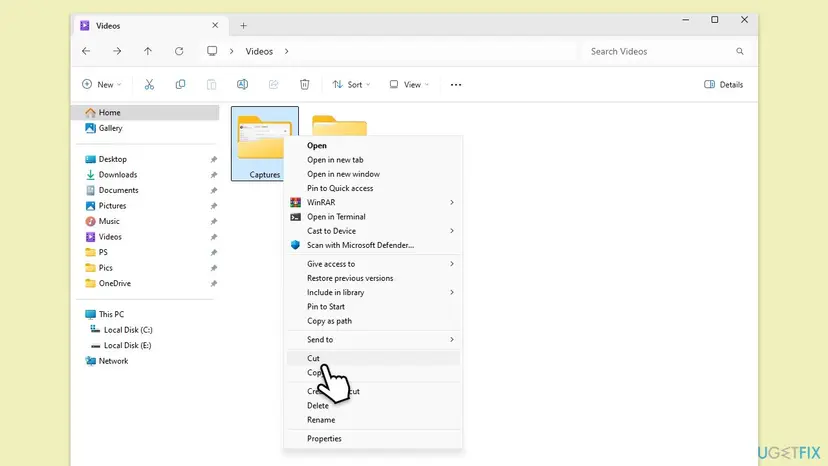
- Open folder fails or opens an old path: the folder is on a drive that is gone. Right-click Videos in File Explorer, select Properties > Location, select Restore Default, and Windows makes a new Videos folder with Captures on C:.
- You want all videos elsewhere: on the same Location tab, select Move and pick a folder on the bigger drive. Captures moves with Videos.
- Do not point Videos at an external drive you often unplug. When it is missing, Game Bar has nowhere to save.
It worked if: Open folder in Gaming > Captures opens the new folder, and a test clip appears there.
If not: If space and folder are fine and the error stays, go to Fix 3.
Fix 3. Update or reinstall the graphics driver
10 to 20 minutesLow riskThe drive has space, and the error began after a Windows or driver update.
Game Bar does not encode the video itself. The graphics driver opens the encoder on your graphics chip. An old or damaged driver can fail mid clip, and Game Bar then reports the same "Recording isn't working" text.
- Press Win + I, open Windows Update > Advanced options > Optional updates and install any graphics driver listed under Driver updates.
- Or download the current driver from Intel, NVIDIA, AMD or your laptop maker and install it.
- If that does not help: right-click Start, open Device Manager, expand Display adapters, right-click the card and select Uninstall device.
- Restart the PC. Windows installs a driver again; then install the maker's current one.
- Test recording.
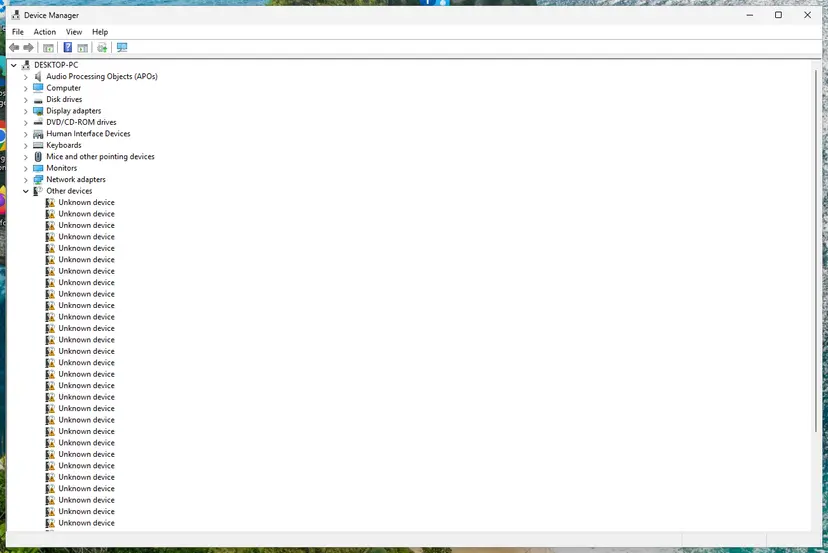
Update, roll back and clean reinstall, with screenshots: Update, roll back or reinstall a driver. If the error began right after a new driver, use Roll Back Driver on the card's Driver tab instead.
It worked if: Device Manager shows your Intel, NVIDIA or AMD chip by name with the new driver, and clips record to the end.
If not: If the error is still there, go to Fix 4 and repair Game Bar.
Fix 4. Repair or reset Xbox Game Bar
5 minutesLow riskSpace, folder and driver are fine, and Game Bar still shows the error.
Repair fixes Game Bar's files and keeps its settings. Reset also clears its saved data, including a stale capture path or broken recording settings. Your clips in Captures are not touched.
- Close Game Bar and the game.
- Press Win + I and open System > System components (on older Windows 11 builds Apps > Installed apps; on Windows 10 Apps > Apps & features).
- Find Game Bar (older builds: Xbox Game Bar), select the three dots and Advanced options.
- Select Terminate, then Repair. Test recording.
- If it still fails, select Reset, restart the PC and test again.
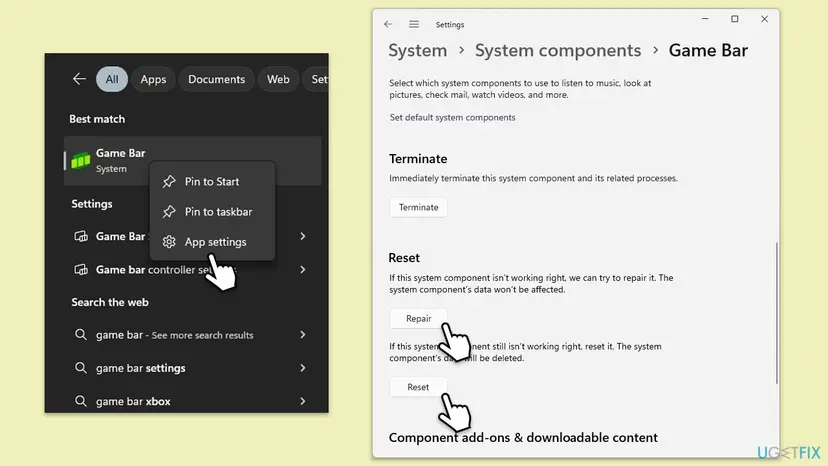
The same steps for any app, with screenshots: How to repair or reset an app in Windows
It worked if: Game Bar opens with default settings and a clip records to the end.
If not: If the error stays, reinstall Game Bar in Fix 5.
Fix 5. Reinstall Xbox Game Bar with PowerShell and Microsoft Store
10 minutesLow riskRepair and Reset did not help, or Game Bar shows other errors too.
A reinstall replaces the whole Game Bar package (Microsoft.XboxGamingOverlay) with a fresh copy from Microsoft Store. It reaches damage that Repair cannot. Your clips stay in Captures.
- Select Start, type
PowerShell, right-click Windows PowerShell and select Run as administrator. Select Yes. - Type the command below and press Enter.
- Restart the PC.
- Open Microsoft Store, search for Xbox Game Bar and select Get or Install.
- Open a game, press Win + G and test the record button.
Remove Game Bar
Get-AppxPackage Microsoft.XboxGamingOverlay | Remove-AppxPackage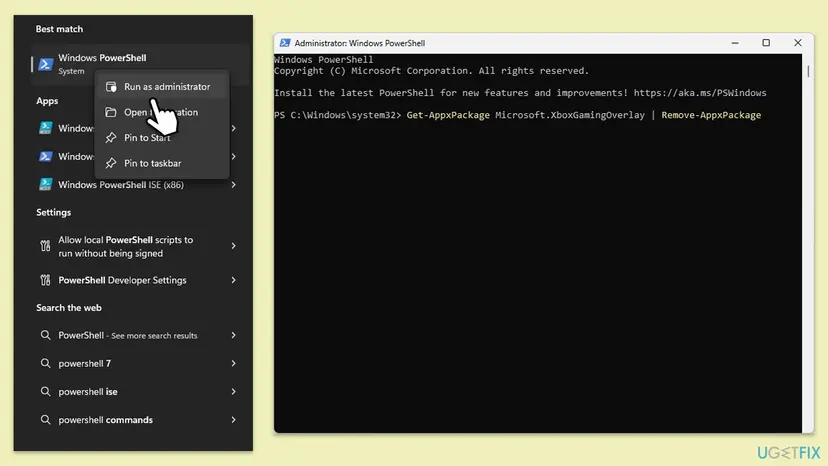
A lighter option that downloads nothing is to register the package again: How to re-register Microsoft Store apps with PowerShell
It worked if: Game Bar is installed fresh from Microsoft Store and the record button starts a clip.
If not: If the error stays, go to Fix 6 and look for programs that conflict.
Fix 6. Close other recorders and test in a clean boot
10 minutes plus restartsLow riskOBS, a graphics maker's recorder, a streaming app or a game overlay runs at the same time.
The graphics chip's encoder and the capture path can be held by another recorder. A clean boot starts Windows without other companies' services, so you see whether one of them causes 0x82323619.
- Press Ctrl + Shift + Esc to open Task Manager.
- Find other recorders and overlays, such as OBS, NVIDIA's or AMD's recorder or a streaming app, right-click each and select End task.
- Test recording with Win + Alt + R.
- If it still fails, start Windows in a clean boot and test again: How to perform a clean boot in Windows
- If it works in the clean boot, turn services back on in halves to find the one that blocks Game Bar, then return to normal startup.

It worked if: Game Bar records with the other program closed, which tells you which one to keep off while you record.
If not: If it fails even in a clean boot, go to Fix 7.
Fix 7. Update Windows and Game Bar
10 to 30 minutesLow riskUpdates are pending in Windows Update or Microsoft Store, or the error began after an update stopped half way.
Game Bar is a Store app that is updated apart from Windows, and the capture parts it uses come with Windows. A finished update replaces old or damaged parts on both sides.
- Press Win + I and open Windows Update (Windows 10: Update & Security > Windows Update).
- Select Check for updates and Install all. Also install drivers under Advanced options > Optional updates.
- Restart the PC.
- Open Microsoft Store, select Library (Windows 10: Downloads and updates) and select Get updates.
- If Store updates stall, press Win + R, type
wsreset.exeand select OK to clear the Store cache.
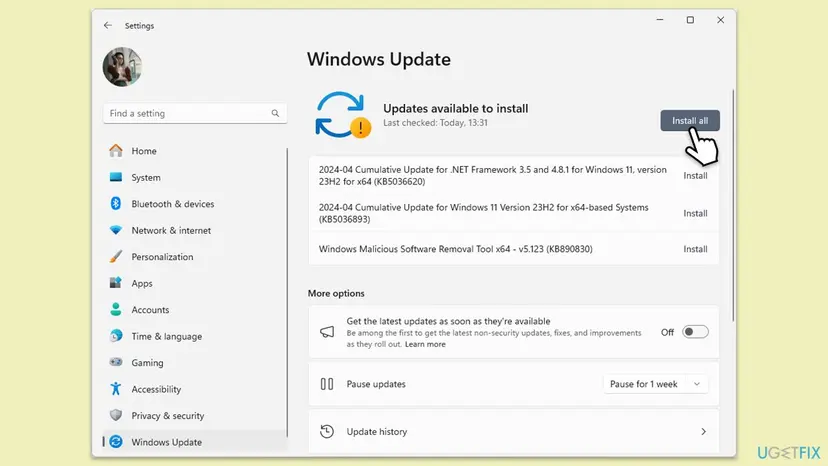
Windows 10 left support on 14 October 2025. Game Bar still works there, but without updates the PC keeps an old Game Bar and old drivers. When an update will not install: Install an update from the Microsoft Update Catalog
It worked if: Windows and Game Bar are up to date and a clip records to the end.
If not: Read "If 0x82323619 is still there" below.
If 0x82323619 is still there: test another account and what to send Microsoft
- Test a second Windows account. A volunteer in the Microsoft Q&A thread suggests this to tell a damaged user profile from a damaged Windows. Create a local account, sign in, and record there: Create a new user account to test a problem
- It works in the new account: the old profile holds the fault. Move your files to the new account or keep using Game Bar there.
- It fails in every account: repair Windows with an in-place reinstall that keeps your files and apps: Reinstall Windows without losing files
- Report it: open the Feedback Hub app and file it under Gaming and Xbox. Include the error code, your Windows build from Settings > System > About, the graphics card and driver version, and the fixes you tried.
This code is not a sign of a broken disk or graphics card. If a different recorder can save clips to the same drive, the hardware is fine and the problem sits in Game Bar or Windows.
How to stop error 0x82323619 from coming back
- Move clips out of Captures after each session you want to keep. Game Bar never deletes old clips on its own.
- Keep tens of gigabytes free on the drive that holds Captures, or move Captures to a larger drive (Fix 2).
- Do not keep Captures on a drive you unplug.
- Let Game Bar update from Microsoft Store with Windows, and keep the graphics driver current.
- Run one recorder at a time.
Frequently asked questions
What is error 0x82323619?
It is the code Xbox Game Bar shows with "Recording isn't working" when it cannot record or save a clip. Microsoft does not document what the code stands for. In the reports we read, it is tied to the Captures folder: the drive is full, or the folder is missing or out of reach. Less often a graphics driver or damaged Game Bar data is behind it. Start by moving old clips out of Videos\Captures (Fix 1).
Why does Game Bar say "Recording isn't working"?
Game Bar shows that line whenever a clip fails, and the code under it tells which kind of failure. With 0x82323619 the clip usually cannot be written, so check free space and the Captures folder first. Related codes such as 0x8232360F and 0x82323673 show the same first line and are fixed in a similar order: storage, graphics driver, then a repair or reset of Game Bar.
Why does my recording stop after a few minutes with 0x82323619?
Because Game Bar runs out of room while it writes the file. The recording starts fine, the clip grows, and when the drive fills up the recording stops with the error. That is what the person in the Microsoft Q&A thread described, and moving clips out of Captures fixed it for the user whose answer was marked most helpful. Free space (Fix 1) or move Captures to a larger drive (Fix 2).
Where does Game Bar save clips, and can I change the folder?
By default in C:\Users\<your name>\Videos\Captures. Settings > Gaming > Captures shows the folder and has an Open folder button. Game Bar has no setting to pick a new path, but you can move the Captures folder in File Explorer, or move the whole Videos folder with Properties > Location > Move. Check with Open folder afterwards that Game Bar uses the new place (Fix 2).
How do I reset or reinstall Game Bar?
Reset is in Settings: open System > System components (older builds: Apps > Installed apps), find Game Bar, open Advanced options and select Repair first, then Reset. Your clips stay. To reinstall, remove the Microsoft.XboxGamingOverlay package in PowerShell as administrator, restart, and install Xbox Game Bar from Microsoft Store again. Fix 4 and Fix 5 have the steps.
Does the Windows Store apps troubleshooter fix 0x82323619?
We do not list it as a fix. The old Windows Store apps troubleshooter does not look at the Captures folder or the graphics driver, which are what this error is about, and Microsoft has been moving the old troubleshooters into the Get Help app. If you want to try it, it does no harm, but freeing space and repairing Game Bar deal with the actual cause.
Do microphone permissions cause error 0x82323619?
We found no source that ties this code to microphone access. Microphone permission decides whether your voice is recorded with the clip, under Settings > Privacy & security > Microphone. If it is off, the clip records without your voice; it does not stop the clip. Check it if your voice is missing from clips, but for 0x82323619 start with the Captures folder.
Should I turn off Game Bar or use another recorder instead?
Only if you do not need it. Turning Game Bar off in Settings > Gaming does not fix the error, it just removes the recorder. If you record often, another recorder such as OBS can save to any drive you choose, and one user in the Microsoft Q&A thread moved to it. Do not run two recorders at once, because they can block each other (Fix 6).
I searched in another language, or for "site:ugetfix.com". Is this the right page?
Yes, if Game Bar shows "Recording isn't working" with Error: 0x82323619. Searches such as "что за ошибка", "что делать", "что это значит", "що це за помилка", "lỗi này là sao", "como solucionar", "como resolver", "como soluciono ese problema" and "que significa" reach this page from people who see the same message. The answer is the same in every language: free space in Videos\Captures first (Fix 1), then follow the fixes in order.
Sources
- Microsoft Q&A: Xbox Game Bar Won't Record (Error code 0x82323619) (learn.microsoft.com)
- The Windows Club: Xbox Game Bar Recording isn't working Error 0x82323619 (thewindowsclub.com)
Did this fix work?
One click, no account. It tells the next reader which guides are worth their time.
Questions and experiences: fix Game Bar recording error 0x82323619 in Windows
Still broken, or found a fix we did not cover? Ask here: members and our editors answer. Reading is open; writing needs a free account.
…