
How to fix Google Chrome error ERR_ADDRESS_INVALID in Windows?

Prefer to fix it yourself? The manual steps follow.
- 8methods
- 2 to 15 minutes
- Easy
Applies to Google Chrome on Windows 11 and Windows 10; Chrome on macOS; Edge, Brave and other Chromium-based browsers
8 methods in this guide
So, sometimes, I get an ERR_ADDRESS_INVALID message in Google Chrome. I don't know what causes it, and it happens on random websites or when I try to check my Google account, for example. How can I fix this?
ERR_ADDRESS_INVALID is Chromium network error -108: Chrome tried to connect to an IP address or port that cannot be used, and on Windows that address is almost always 0.0.0.0. Something told Chrome that the site lives at "no address": a line in the hosts file, a blocking DNS filter, or a link that literally contains 0.0.0.0. Start by checking which address the site name gets (Fix 1).
Your internet connection is fine. Chrome was given the address 0.0.0.0 for the site, which Windows refuses to connect to. Open PowerShell and run Resolve-DnsName with the site name (Fix 1). If it shows 0.0.0.0, delete that line from the hosts file (Fix 2) or let the site through your DNS filter (Fix 3). If you opened a link like http://0.0.0.0:8000, use http://localhost:8000 instead (Fix 4).
| Error | ERR_ADDRESS_INVALID, Chromium network error -108. Chromium's source describes it as: "The IP address or port number is invalid (e.g., cannot connect to the IP address 0 or the port 0)." |
|---|---|
| Where it appears | On Chrome's grey page headed This site can't be reached, with the code under the text. In DevTools as net::ERR_ADDRESS_INVALID or Failed to load resource: net::ERR_ADDRESS_INVALID. |
| Main cause | The site name resolves to 0.0.0.0. A hosts file line, Pi-hole, AdGuard, Cloudflare 1.1.1.2 or 1.1.1.3, or a parental filter answers blocked names that way. |
| Fastest fix | Check the address with Resolve-DnsName (Fix 1), then remove the hosts line (Fix 2) or allow the site in the filter (Fix 3). |
| Also written as | net::ERR_ADDRESS_INVALID, err address invalid, error address invalid, address invalid Chrome, (failed) net::ERR_ADDRESS_INVALID. |
| Affects | Chrome, Edge, Brave and every Chromium browser on Windows 11 and Windows 10. On a Mac the same 0.0.0.0 usually gives a different code (Fix 7). |
| Chrome's status | Not a Chrome bug. The code passes on what Windows reports: Chromium turns the Windows socket error WSAEADDRNOTAVAIL (10049) into ERR_ADDRESS_INVALID. |
| Not the cause | Cookies, cached files, extensions that block ads (they show ERR_BLOCKED_BY_CLIENT) or a slow connection. Clearing browsing data does not change the address Chrome is given. |
| Time to fix | 2 minutes for the check. 5 minutes to edit the hosts file or a filter's allow list. |
| Where the cause shows | Resolve-DnsName in PowerShell, Chrome's chrome://net-internals/#dns lookup, and the DevTools Network panel. |
Facts checked on 14 October 2026. Steps written for Chrome 155 on Windows 11 (25H2 and 26H2) and Windows 10 22H2, with Mac notes for macOS 26.
What ERR_ADDRESS_INVALID means in Chrome
Every Chrome network error has a number in Chromium's list of errors, net/base/net_error_list.h. ERR_ADDRESS_INVALID is -108. Its entry reads: "The IP address or port number is invalid (e.g., cannot connect to the IP address 0 or the port 0)." The "IP address 0" in that sentence is 0.0.0.0, the address that means "no particular address".
Chrome does not invent the code itself. It asks Windows to open a connection, and Windows refuses with the socket error WSAEADDRNOTAVAIL (10049). Microsoft's list of Windows Sockets errors says this happens when "the remote address or port is not valid for a remote computer (for example, address or port 0)". Chromium's file net_errors_win.cc maps that Windows error straight to ERR_ADDRESS_INVALID.
| Where | What it looks like |
|---|---|
| A Chrome tab | Heading This site can't be reached, the text "The webpage at [address] might be temporarily down or it may have moved permanently to a new web address", and the code ERR_ADDRESS_INVALID below it. |
| DevTools Console | Failed to load resource: net::ERR_ADDRESS_INVALID for one image, script or API call. |
| DevTools Network panel | (failed) net::ERR_ADDRESS_INVALID in the Status column. |
| Edge, Brave, Opera, Vivaldi | The same code, because they use Chromium's network code. |
Chromium's error page has no special text for this code, so it falls back to the general "might be temporarily down" sentence. The site is almost never down. The address Chrome was given is the problem, and the fixes below find who gave it.
What causes ERR_ADDRESS_INVALID, from most to least common
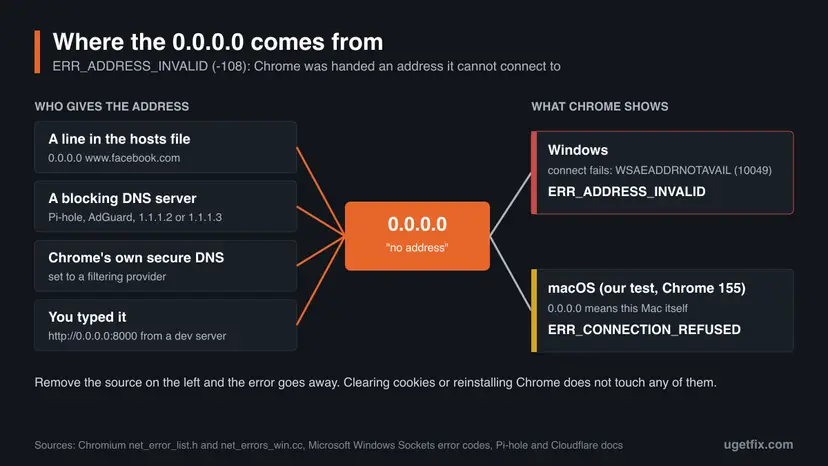
Every real case we could trace has the same shape: something between you and the site answers the name lookup with 0.0.0.0. Programs that block sites use that answer on purpose, because a computer should not even try to connect to it. On Windows, Chrome reports the failed attempt as ERR_ADDRESS_INVALID.
| How often | Cause | Typical sign | Fix |
|---|---|---|---|
| Most often | A hosts file line such as 0.0.0.0 www.facebook.com, added by you, a blocking list, a parental tool or unwanted software. | One or a few sites fail on this PC only. Other devices on the same Wi-Fi open them. | Fix 1, then Fix 2 |
| Often | A DNS filter: Pi-hole (default NULL mode), AdGuard Home or AdGuard DNS, Cloudflare 1.1.1.2 or 1.1.1.3, a router's parental control. | The same sites fail on every device at home, or only when that DNS is in use. | Fix 1, then Fix 3 |
| Often for developers | You opened http://0.0.0.0:port, often the link a local server prints when it listens on all addresses. | The address bar itself shows 0.0.0.0. | Fix 4 |
| Less often | Chrome's own Use secure DNS set to a filtering provider, or a VPN or security app that filters DNS. | Chrome fails, another browser or app opens the site. | Fix 3, then Fix 6 |
| Rarely | Windows or macOS cannot use the local address for new connections after a network change, a VPN or a long uptime. | Every new site fails, pages already open still work, and a restart clears it. | Fix 5, Fix 6, Fix 7 |
An ad blocking extension that stops a request shows ERR_BLOCKED_BY_CLIENT, not this code. A broken proxy setting shows ERR_PROXY_CONNECTION_FAILED; in our test Chrome 155 with a proxy set to 0.0.0.0 gave exactly that. They only matter here when they also filter DNS.
How to fix ERR_ADDRESS_INVALID in Chrome
Fix 1 takes two minutes and tells you which of the next fixes is yours. Fixes 2 to 4 remove the 0.0.0.0 at its source. Fixes 5 and 6 are for the rare case where every new site fails. Fix 7 is for Mac users and Fix 8 for developers.
| What you see or have | Start with |
|---|---|
| One or a few sites fail, such as Facebook, and you do not know why. | Fix 1, then Fix 2 or Fix 3 |
| You (or a tool) once blocked sites in the hosts file. | Fix 2 |
| You use Pi-hole, AdGuard, NextDNS, Cloudflare 1.1.1.2 or 1.1.1.3, or a router with parental control. | Fix 3 |
The address bar shows 0.0.0.0, for example http://0.0.0.0:8000/. | Fix 4 |
| Every new site fails with the code, while open tabs still work. | Fix 5, then Fix 6 |
| You are on a Mac. | Fix 7 |
You see net::ERR_ADDRESS_INVALID in the DevTools Console. | Fix 8 |
Fix 1. Check which address the site name gets
2 minutesNo riskEveryone who sees the error on a normal website, before changing anything.
The error is about the address, so the quickest way to the cause is to look at it. Windows' own resolver reads the hosts file, its cache and the DNS servers, while the -NoHostsFile switch skips the hosts file. Comparing the two shows where a 0.0.0.0 comes from.
- Right-click Start and select Terminal. On Windows 10 select Windows PowerShell.
- Run this command, with the name of the site that fails in place of
www.facebook.com:Resolve-DnsName www.facebook.com - Run it again with the hosts file left out:
Resolve-DnsName www.facebook.com -NoHostsFile - Look at the IPAddress column of both results and compare them with the table below.
- In Chrome, open
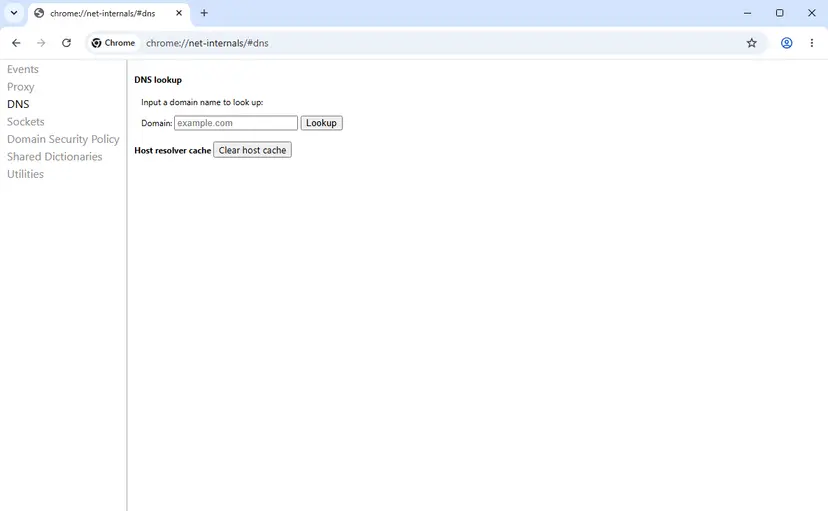
chrome://net-internals/#dns, type the same name in the Domain box and select Lookup. This shows the address Chrome itself received, including through Use secure DNS.
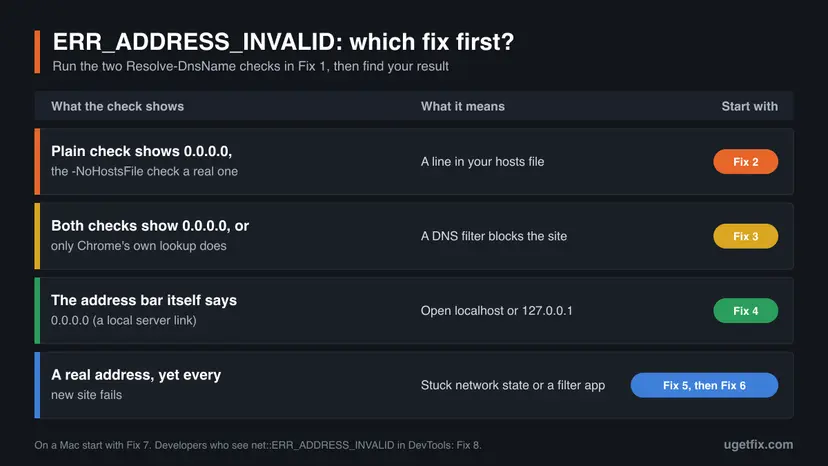
| Result | Meaning | Go to |
|---|---|---|
First command shows 0.0.0.0, the -NoHostsFile command shows a normal address | A hosts file line blocks the site | Fix 2 |
Both commands show 0.0.0.0 (or :: for IPv6) | The DNS server you use blocks the site | Fix 3 |
Both commands show a normal address, but Chrome's lookup shows 0.0.0.0 | Chrome's own secure DNS provider blocks it | Fix 3 |
| All three show a normal address | The address is fine, the problem is the connection itself | Fix 5 |
It worked if: You know whether the site resolves to 0.0.0.0 and whether the hosts file, the DNS server or Chrome's own DNS setting gives it.
If not: If PowerShell says the name does not exist at all, the error is a different one: read the DNS fixes in the sister guide linked in Fix 3. If the address is normal, go to Fix 5.
Fix 2. Delete the 0.0.0.0 line from the Windows hosts file
5 minutesLow riskFix 1 showed 0.0.0.0 only when the hosts file was read, or you once blocked sites there.
Windows reads the hosts file before it asks any DNS server, so a line like 0.0.0.0 www.facebook.com wins over the real address. Microsoft's own sample hosts file contains only comment lines, so any active line was added later.
- Select Start, type Notepad, right-click Notepad and select Run as administrator. Select Yes. Step by step: How to run a program as administrator or in compatibility mode
- In Notepad select File, then Open.
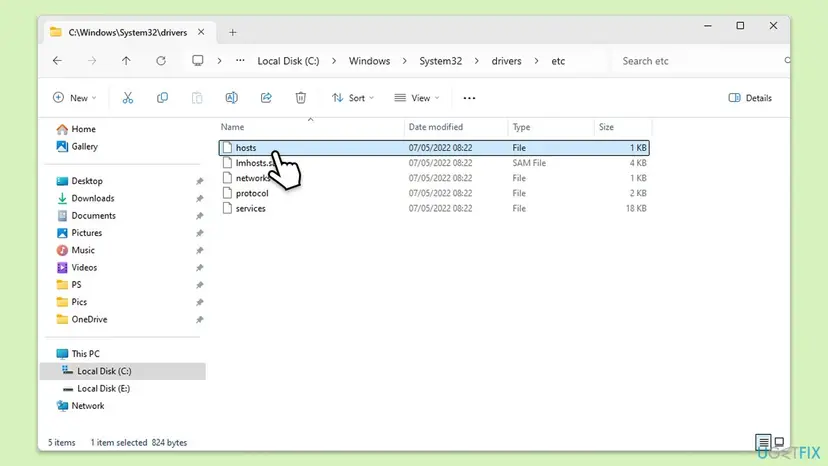
- In the File name box type
C:\Windows\System32\drivers\etc\hostsand select Open. Without the full path, set the type list to **All files (*.*)**, because the file has no extension. - Find the lines that start with
0.0.0.0or127.0.0.1followed by the site that fails, for examplewww.facebook.comandfacebook.com. - Put a
#at the start of each such line. A line that starts with#is a comment and Windows ignores it. - Select File, then Save. If Windows says you do not have permission, Notepad was not opened as administrator: start again at step 1.
- Close Chrome completely and open it again, then load the site.
A hosts line that causes ERR_ADDRESS_INVALID, and the same line switched off
0.0.0.0 www.facebook.com
# 0.0.0.0 www.facebook.comA file with hundreds of 0.0.0.0 lines comes from a blocking list or a privacy tool. If you want it gone, Microsoft's support page "How to reset the Hosts file back to the default" shows the default text and how to replace the file. Rename the old one to hosts.old first, so you can bring it back.
Lines you do not recognise can also come from unwanted software. If the file changes back after you saved it, or you find lines for banking or security sites, run a full scan with Microsoft Defender: How to scan for malware with Microsoft Defender.
It worked if: Resolve-DnsName now shows the site's real address and the site opens in Chrome after a restart of the browser.
If not: If the line comes back after a reboot, a program rewrites it: check parental control and privacy tools in Settings > Apps > Installed apps, then run Fix 6.
Fix 3. Let the site through your DNS filter or change Chrome's secure DNS provider
5 minutesLow riskFix 1 showed 0.0.0.0 even without the hosts file, or only in Chrome's own lookup.
Filtering DNS services answer blocked names with 0.0.0.0. Pi-hole's documentation says its default NULL mode replies with "the unspecified address". AdGuard does the same for adblock-style rules, and Cloudflare says 1.1.1.1 for Families returns 0.0.0.0 for blocked domains.
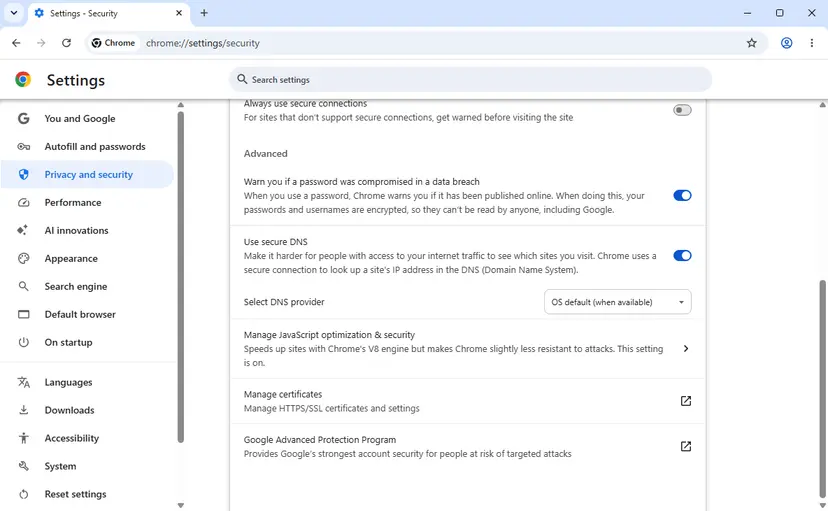
- In Chrome select More (the three dots), then Settings, Privacy and security and Security.
- Under Advanced find Use secure DNS and look at Select DNS provider.
- If it names a filtering service, such as Cloudflare 1.1.1.1 for Families or a custom AdGuard or NextDNS address, select OS default (when available).
- Reload the site. If it opens, the provider blocked it; add the site to that provider's allow list if you want to keep the filter.
- If Chrome was already on OS default, open Settings in Windows, then Network & internet, your Wi-Fi or Ethernet connection, and look at DNS server assignment.
- Addresses
1.1.1.2,1.0.0.2,1.1.1.3or1.0.0.3are Cloudflare's filtering resolvers. The address of a Pi-hole or of your router points to a home filter. - Allow the site in that filter: in Pi-hole or AdGuard Home add the domain to the allow list, on a router open its parental control page. On a work or school network, ask the administrator.
| Filter | What it returns for a blocked name |
|---|---|
| Pi-hole, blocking mode NULL (the default) | 0.0.0.0 for IPv4 and :: for IPv6 |
| AdGuard DNS and AdGuard Home, default mode | Zero IP address for adblock-style rules; the IP in the rule for hosts-style rules |
| Cloudflare 1.1.1.1 for Families (1.1.1.2 and 1.1.1.3) | 0.0.0.0 for domains it classifies as malicious or adult |
A filter set up by a parent, a school or an employer is there on purpose. Switching DNS to get past it can break their rules. Ask the person who runs it to allow the site.
If the name does not resolve at all and Chrome shows a DNS code instead of this one, the steps in our guide to DNS_PROBE_POSSIBLE in Chrome fit better.
It worked if: Chrome's lookup on chrome://net-internals/#dns shows the real address and the site loads.
If not: If no filter is in use and the address is still 0.0.0.0, a VPN or security app filters DNS: go to Fix 6.
Fix 4. Open localhost or 127.0.0.1 instead of a 0.0.0.0 link
1 minuteNo riskThe address bar shows 0.0.0.0, usually after you clicked a link printed by a local server.
A server that listens on 0.0.0.0 accepts connections on all of the computer's addresses, but 0.0.0.0 is not an address you can connect to. Windows refuses it, which Microsoft documents for "address or port 0". The loopback address reaches the same server.
- Look at the link you opened. Python's built-in server, for example, prints
Serving HTTP on 0.0.0.0 port 8000 (http://0.0.0.0:8000/)when started with--bind 0.0.0.0. - Replace
0.0.0.0withlocalhostand keep the port:http://localhost:8000/. - If
localhostdoes not answer, tryhttp://127.0.0.1:8000/. - To open the server from a phone or another PC, use this computer's network address, which
ipconfigshows as IPv4 Address, for examplehttp://192.168.1.20:8000/. - Also replace 0.0.0.0 in any setting that the page uses to reach its API, such as a base URL in a
.envfile.
Same server, three addresses
http://0.0.0.0:8000/      -> ERR_ADDRESS_INVALID on Windows
http://localhost:8000/    -> works on this PC
http://127.0.0.1:8000/ -> works on this PCA typed port of 0 is not this case in Chrome. In our test with Chrome 155, http://127.0.0.1:0/ ended in ERR_UNSAFE_PORT, and a port that nothing listens on gives ERR_CONNECTION_REFUSED. Check the address part of the link first.
It worked if: The local site opens at http://localhost:port/ or http://127.0.0.1:port/.
If not: If localhost gives ERR_CONNECTION_REFUSED, the server is not running or uses another port: read the port it prints at start-up. For a page that loads 0.0.0.0 inside its code, see Fix 8.
Fix 5. Clear Chrome's host cache and flush the Windows DNS cache
3 minutesNo riskYou changed the hosts file or the DNS filter and Chrome still shows the error, or every new site fails.
Chrome and Windows keep looked-up addresses for a while. After Fix 2 or Fix 3 an old 0.0.0.0 answer can stay in either cache, and Chrome keeps idle connections that a flush closes.
- In Chrome open
chrome://net-internals/#dnsand select Clear host cache. - Open
chrome://net-internals/#socketsand select Flush socket pools. - Right-click Start, select Terminal (Admin) and select Yes.
- Flush the Windows DNS cache:
ipconfig /flushdns - Close every Chrome window, open Chrome again and load the site.

If every new site still fails, run the rest of the network reset: Winsock, TCP/IP, a new IP address and, last, the full network reset. Step by step: Reset the network and flush DNS.
It worked if: The site loads, and Resolve-DnsName and Chrome's lookup agree on a real address.
If not: Restart the PC once. If the error remains after a restart, go to Fix 6.
Fix 6. Test without the VPN and the web filter of your security app
5 minutesLow riskA VPN, a parental control app or security software with web protection runs on the PC.
These programs can answer DNS lookups themselves or reroute connections through their own driver. When they block a name with 0.0.0.0, or leave a network adapter in a bad state after disconnecting, Chrome gets an address it cannot use.
- Disconnect the VPN in its own app, then quit the app from the notification area.
- Load the site in Chrome. If it opens, look in the VPN's settings for DNS filtering, "block ads" or "threat protection" and allow the site there.
- If no VPN runs, pause the web or DNS protection of your security app for one test. For Microsoft Defender: Turn off Microsoft Defender protection for a moment.
- Load the site, then turn the protection back on right away.
- If the site opened only while protection was paused, add it to that app's allow list instead of leaving protection off.
Pause security software only for the one test. Leaving web protection off exposes the PC. The fix is an allow list entry or a setting in the app, never protection switched off for good.
It worked if: The site opens with the VPN off or protection paused, and you know which program to adjust.
If not: If nothing changes, the PC's own setup is fine. Read the still-broken section below for what to collect, and try the site from another network.
Fix 7. On a Mac: restart, check the VPN and the hosts file
5 minutesLow riskYou see ERR_ADDRESS_INVALID in Chrome on macOS.
On macOS the code comes from the system error EADDRNOTAVAIL, which Apple's manual describes as "The specified address is not available on this machine". Users report it on every new site at once, and the reports that end well end with a restart.
- Save your work and choose Apple menu > Restart. Users in Google's Chrome forum report that a restart cleared the error when cache, Incognito and reinstalling did not.
- If it returns, open System Settings > VPN and turn every VPN off, then test the site.
- Open Terminal and show the hosts file:
cat /etc/hosts - If a line blocks the site, open the file as administrator, put
#before that line and save with Control + O, then Control + X:sudo nano /etc/hosts - In Chrome open
chrome://net-internals/#dns, select Clear host cache, and reload the site.
macOS treats 0.0.0.0 as the Mac itself. In our test with Chrome 155 on macOS 26, both http://0.0.0.0/ and a name mapped to 0.0.0.0 ended in ERR_CONNECTION_REFUSED, not ERR_ADDRESS_INVALID. So a Mac that shows this code usually has a network-state problem, not a blocked name.
It worked if: After the restart new sites open in Chrome again, and cat /etc/hosts shows no line for the site.
If not: Test Safari on the same site. If Safari fails too, the Mac's network or a filter app is the cause; if only Chrome fails, run Fix 3 for Chrome's secure DNS setting.
Fix 8. Find the failing request in DevTools (for developers)
5 minutesNo riskYou build the site, or the Console shows Failed to load resource: net::ERR_ADDRESS_INVALID.
On a page that loads, the code is attached to one request, and DevTools shows its full URL. That URL contains the 0.0.0.0, or a host name that resolves to it, and that is what to change.
- Open the page and press F12 or Ctrl + Shift + I.
- Open the Network panel, tick Preserve log and reload the page.
- Find rows with
(failed) net::ERR_ADDRESS_INVALIDin the Status column and select one. - Read the Request URL on the Headers tab. If it contains
0.0.0.0, change that URL in your code or configuration tolocalhost,127.0.0.1or the real host. - If the URL holds a host name, run
Resolve-DnsNameon it (Fix 1). A tracker or ad host that resolves to 0.0.0.0 is simply blocked on this network.
| Request URL | Meaning | Action |
|---|---|---|
Contains 0.0.0.0 | A setting or hard-coded URL uses the listen address as a target | Use localhost, 127.0.0.1 or a real host name |
| A third-party host that resolves to 0.0.0.0 | A DNS filter blocks it on this network | Nothing to fix in your code if the page works without it |
| Your own API host that resolves to 0.0.0.0 | A hosts line or filter on the test machine | Fix 2 or Fix 3 on that machine |
Since about Chrome 129, Chrome blocks public websites from sending requests to 0.0.0.0, because the address reached local services on macOS and Linux. Chrome Platform Status lists the flag as block-null-ip-address. We could not confirm which error code that block shows in DevTools.
It worked if: You know which request fails and the request no longer points at 0.0.0.0.
If not: Export a log with chrome://net-export while you reproduce the error and look for the failed connect event of that request.
If ERR_ADDRESS_INVALID is still there: what to check and what to send
Try the same site on another device on the same network, then on mobile data. If it fails everywhere at home but works on mobile data, the home DNS or router filter is the cause (Fix 3). If it fails only on this PC, the cause is on the PC: the hosts file, a VPN, a security app or Chrome's secure DNS.
- Record what Chrome does: open
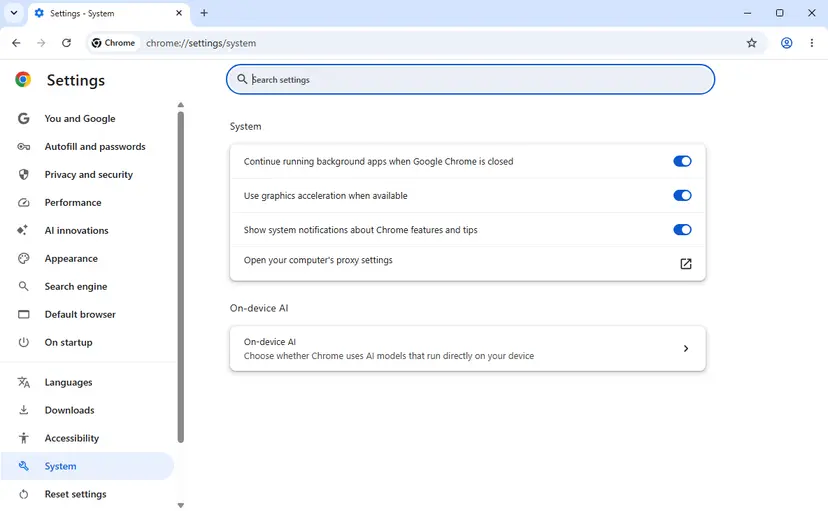
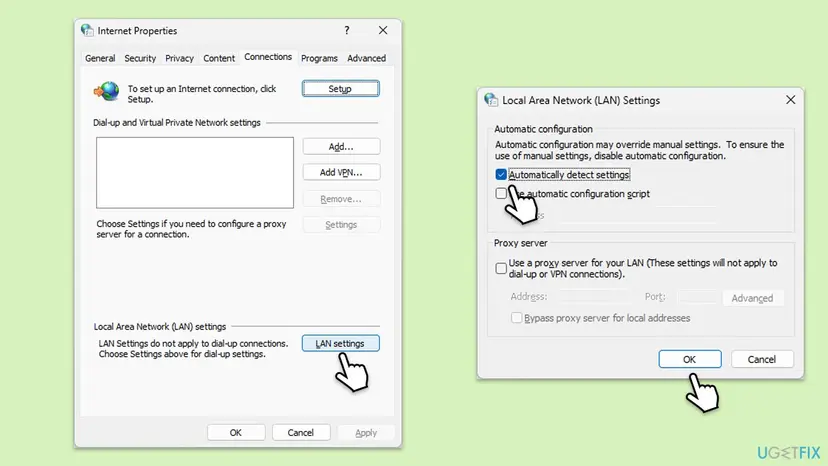
chrome://net-export, start logging, reproduce the error, stop logging. The file shows the address Chrome connected to and the error it got. - Check the Windows proxy: in Chrome open Settings > System > Open your computer's proxy settings. A leftover proxy usually gives a proxy error, but turn off Use a proxy server if you did not set it.
- Check the Chrome version: More > Help > About Google Chrome and note the number for a support request.
- Note the results of Fix 1: both
Resolve-DnsNameoutputs and Chrome's own lookup.
This error is not a hardware fault and not a broken Chrome install. Reinstalling Chrome does not change the hosts file, the DNS server or the VPN, which is why users who reinstalled still saw it. Spend the time on the address instead.
How to keep ERR_ADDRESS_INVALID from coming back
- Keep a note of every site you block in the hosts file or a DNS filter, so you know where to look later.
- Use the filter's allow list for a site you need, instead of turning the whole filter off.
- Open local servers at
localhostor127.0.0.1and keep 0.0.0.0 only as the listen address. - Check
C:\Windows\System32\drivers\etc\hostsafter installing privacy or blocking tools.
- Do not paste long blocking lists into the hosts file without reading what they block.
- Do not leave antivirus web protection off after a test.
- Do not switch DNS to get around a filter that a parent, school or employer runs.
- Do not reinstall Chrome for this error before you have checked the address.
If you run Pi-hole or AdGuard Home for the whole house, tell the others in it which sites it blocks. Most ERR_ADDRESS_INVALID reports from families are a blocked domain that someone needs, such as a sign-in or video host.
Frequently asked questions
What does ERR_ADDRESS_INVALID mean in Chrome?
It means Chrome tried to connect to an IP address or port that cannot be used. The code is Chromium network error -108, and Chromium's source gives the IP address 0 and the port 0 as examples. On Windows the address is almost always 0.0.0.0, which a hosts file line or a DNS filter returned for the site. The site itself is usually up. Check the address with Resolve-DnsName in PowerShell (Fix 1) to see where the 0.0.0.0 comes from.
Why does only Facebook show ERR_ADDRESS_INVALID?
Because something on your PC or network blocks Facebook by answering its name with 0.0.0.0. The usual sources are a hosts file line such as 0.0.0.0 www.facebook.com, a parental control on the router, or a DNS filter like Pi-hole, AdGuard or Cloudflare 1.1.1.3. Other sites open because they are not on the block list. Run Fix 1 to see which one it is, then remove the line (Fix 2) or ask whoever runs the filter to allow Facebook (Fix 3).
Why do I get ERR_ADDRESS_INVALID in Chrome on a Mac?
On macOS the code comes from the system error EADDRNOTAVAIL, "the specified address is not available on this machine". Users who see it on a Mac typically report it on every new site at once, while open tabs still work. Restarting the Mac is the step that cleared it in the reports we read. Then check the VPN and /etc/hosts (Fix 7). A 0.0.0.0 hosts line on a Mac usually shows ERR_CONNECTION_REFUSED instead, as our test with Chrome 155 on macOS 26 showed.
Why does http://0.0.0.0 work on a Mac but not on Windows?
macOS and Linux treat a connection to 0.0.0.0 as a connection to the computer itself, so a local server answers. Windows refuses the connection with the socket error WSAEADDRNOTAVAIL, which Microsoft documents for an address or port of 0, and Chrome reports that as ERR_ADDRESS_INVALID. The portable choice is http://localhost:port/ or http://127.0.0.1:port/, which works on all three systems (Fix 4).
Will clearing cookies or reinstalling Chrome fix ERR_ADDRESS_INVALID?
Rarely. Cookies and cached files do not hold the address Chrome connects to, and a reinstall leaves the hosts file, the Windows DNS server and any VPN untouched. Users in Google's Chrome forum report that clearing data, Incognito and a reinstall changed nothing. Clearing Chrome's host cache on chrome://net-internals/#dns is the one cache step that matters, and only after you removed the cause (Fix 5).
Does ERR_ADDRESS_INVALID appear in Brave and Edge too?
Yes. Brave, Microsoft Edge, Opera and Vivaldi use Chromium's network code, so they show the same code for the same cause. The fixes are the same, with one difference: each browser keeps its own secure DNS setting, separate from Chrome's. If only one browser fails while the others open the site, look for that browser's secure DNS provider in its privacy settings first (Fix 3).
What is the difference between ERR_ADDRESS_INVALID and ERR_ADDRESS_UNREACHABLE?
ERR_ADDRESS_INVALID (-108) means the address or port itself cannot be used, such as 0.0.0.0. ERR_ADDRESS_UNREACHABLE (-109) means the address is valid but Chromium's source says there is "no route to the specified host or network". That second code points to routing or a disconnected network, not to a blocked name. The fixes on this page are for -108 only.
Can a wrong port number cause ERR_ADDRESS_INVALID?
In principle yes, because Chromium's definition includes port 0. In practice Chrome stops such links earlier. In our test with Chrome 155, http://127.0.0.1:0/ and http://example.com:0/ both ended in ERR_UNSAFE_PORT, and a port that nothing listens on gives ERR_CONNECTION_REFUSED. When you see ERR_ADDRESS_INVALID, look at the address part of the link first, not the port.
Why did the error start after I set up Pi-hole or an ad blocking DNS?
Because that is how those filters block. Pi-hole's default NULL mode answers blocked names with 0.0.0.0, and AdGuard does the same for adblock-style rules. Chrome on Windows then shows ERR_ADDRESS_INVALID for any page or part of a page on a blocked domain. When a site you need breaks, find the blocked domain in the filter's query log and add it to the allow list (Fix 3). The filter is working as designed.
Is ERR_ADDRESS_INVALID a sign of a virus?
Usually not. Blocking lists, parental controls and DNS filters cause most cases on purpose. Unwanted software can add hosts file lines, though, so be suspicious if you find lines for security, update or banking sites that you did not add, or if the lines come back after you remove them. In that case run a full Microsoft Defender scan, then clean the hosts file again (Fix 2).
Sources
- Chromium source: net/base/net_error_list.h (ADDRESS_INVALID, -108, and ADDRESS_UNREACHABLE, -109) (github.com)
- Chromium source: net/base/net_errors_win.cc (WSAEADDRNOTAVAIL mapped to ERR_ADDRESS_INVALID) (github.com)
- Chromium source: net/base/net_errors_posix.cc (EADDRNOTAVAIL mapped to ERR_ADDRESS_INVALID) (github.com)
Did this fix work?
One click, no account. It tells the next reader which guides are worth their time.
Questions and experiences: fix Google Chrome error ERR_ADDRESS_INVALID in Windows
Still broken, or found a fix we did not cover? Ask here: members and our editors answer. Reading is open; writing needs a free account.
…