
How to fix the IntcAudioBus.sys blue screen (BSOD) in Windows

Prefer to fix it yourself? The manual steps follow.
- 6methods
- 10 to 30 minutes
- Beginner
Applies to Windows 11 and Windows 10 laptops with Intel Smart Sound Technology audio
6 methods in this guide
Hello. My Windows PC has started crashing quite frequently with the IntcAudioBus.sys Blue Screen of Death error. What should I do to fix this?
IntcAudioBus.sys is the driver of the Intel Smart Sound Technology (Intel SST) Audio Controller, the audio processor built into many Intel laptops. Microsoft confirmed that old versions of it crash Windows 11 with a blue screen. Install the newer Intel SST driver from your laptop maker first.
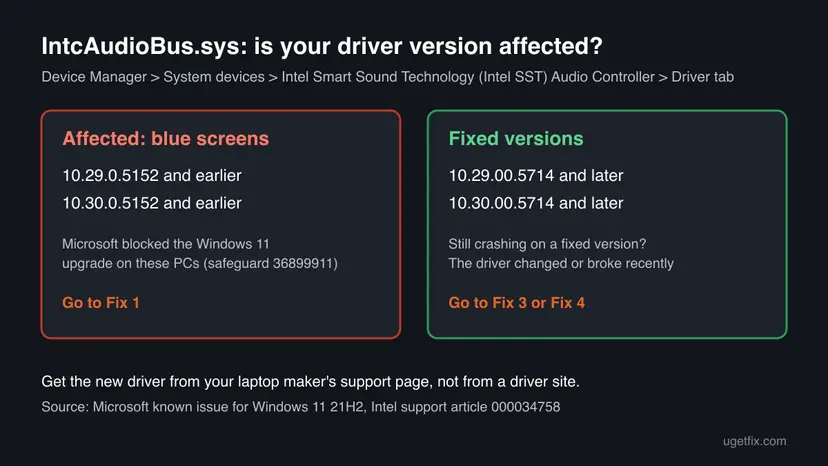
IntcAudioBus.sys belongs to the Intel SST Audio Controller driver, and versions 10.29.0.5152, 10.30.0.5152 and earlier are known to crash Windows 11. Check the version in Device Manager, then install the Intel SST driver for your exact laptop model from its maker's support page (Fix 1). Microsoft says versions 10.29.00.5714 and 10.30.00.5714 or later fix it.
| Error | A stop screen (blue, or black on Windows 11 24H2 and later) that names IntcAudioBus.sys on its What failed line. |
|---|---|
| Where it appears | On laptops with Intel Smart Sound Technology audio, during normal use, after an upgrade to Windows 11, or while an Intel SST driver is being installed. |
| Main cause | An old Intel SST Audio Controller driver: version 10.29.0.5152 or 10.30.0.5152 and earlier is incompatible with Windows 11. |
| Fastest fix | Install the Intel SST driver for your exact model from the laptop maker's support page (Fix 1). |
| Also written as | intcaudiobus, intcaudiobus sys, IntcAudioBus.sys failed, the setup file intcaudiobus.inf, the device Intel Smart Sound Technology (Intel SST) Audio Controller. |
| Who makes it | Intel writes the driver, but Intel sends laptop owners to the laptop maker (OEM) for the version that fits their model. |
| Vendor status | A known issue Microsoft confirmed for Windows 11 21H2. It blocked the upgrade on affected PCs with safeguard ID 36899911 and lists 10.29.00.5714 and 10.30.00.5714 or later as the fix. |
| Affects | Windows 11 and Windows 10 laptops with Intel SST. Intel's own article on SST install blue screens lists 11th Gen Core i3, i5, i7 and i9 laptops. |
| Time to fix | 10 to 30 minutes for a driver update and restart. |
Facts checked on 16 October 2026. Steps written for Windows 11 (25H2 and 26H2) and Windows 10 22H2.
What IntcAudioBus.sys is and why it causes a blue screen
Intel Smart Sound Technology is an audio digital signal processor built into recent Intel Core and Atom processors. It handles audio, voice and speech, for example the microphone array of a laptop. Windows talks to it through a driver, and IntcAudioBus.sys is the file of that driver.
In Device Manager the driver appears as Intel Smart Sound Technology (Intel SST) Audio Controller under System devices, not under the sound devices. A driver runs inside the Windows kernel, so when it makes a fatal mistake Windows cannot just close it: the whole PC stops with a blue screen that names the file.
| What you see or search | What it means |
|---|---|
| What failed: IntcAudioBus.sys on the stop screen | The Intel SST audio driver was the code that crashed Windows |
intcaudiobus.inf | The setup information file of the same driver package. Windows uses it to install IntcAudioBus.sys |
| Intel SST Audio Controller with a yellow mark | The driver is missing or failed to start. It can come before or after the blue screens |
| Windows 11 upgrade not offered, safeguard ID 36899911 | Microsoft's upgrade block for PCs with an affected Intel SST driver |
IntcAudioBus.sys is a genuine Intel driver file. Do not download the .sys file from DLL or driver sites. It only works as part of the full driver package made for your laptop.
Why IntcAudioBus.sys crashes: the causes, most common first
Microsoft and Intel found one main cause: Intel SST driver versions from before late 2021 were not compatible with Windows 11. Laptops that kept the driver they shipped with, and then upgraded, are the typical case.
| How often | Cause | Sign | Fix |
|---|---|---|---|
| Most often | An old Intel SST driver, 10.29.0.5152 or 10.30.0.5152 and earlier | The Driver tab shows one of those versions or older | Fix 1, Fix 2 |
| Often | A generic Intel driver installed over the laptop maker's package | The crash began right when you installed an Intel SST driver | Fix 3, Fix 1 |
| Less often | A driver update from Windows Update that does not fit the model | Crashes started the day a driver appeared in update history | Fix 3 |
| Less often | A half-finished or damaged driver install | Yellow mark on the Intel SST device, no sound or microphone | Fix 4 |
| Rarely | Damaged Windows files | Other stop codes too, SFC finds errors | Fix 5, Fix 6 |
Intel's support article on SST install blue screens says the drivers for Intel SST on laptops come from the laptop or motherboard maker, who can provide the required support. A driver from Intel's generic download pages may not fit your audio hardware.
Check which IntcAudioBus.sys version your laptop has
The version number decides your first fix. It takes a minute and works even if the PC crashes now and then. If the blue screen comes back at every start, do these steps in Safe Mode: Start Windows or a Mac in Safe Mode
- Right-click Start and select Device Manager.
- Expand System devices and find Intel Smart Sound Technology (Intel SST) Audio Controller. Some laptops also list other Intel SST entries there.
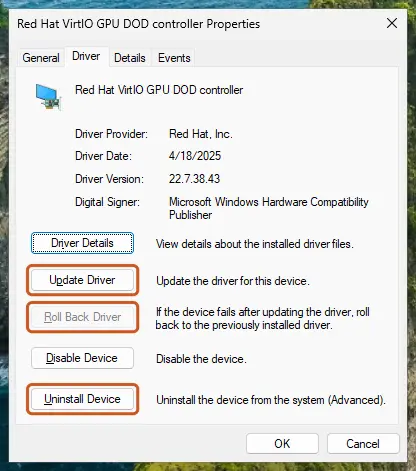
- Right-click it, select Properties and open the Driver tab. Note Driver Version and Driver Date.
- Select Driver Details to confirm that
IntcAudioBus.sysis in the list of files. - Compare the version with the picture below.
How to fix the IntcAudioBus.sys blue screen
Fixes 1 and 2 replace the old Intel SST driver, which is the cause for most readers. Fixes 3 and 4 are for a driver that changed or broke recently. Fixes 5 and 6 are the general repairs for when the driver is already current.
| What you see or what your laptop has | Start with | Then |
|---|---|---|
| Driver version 10.29.0.5152, 10.30.0.5152 or older | Fix 1 | Fix 2 |
| The maker's support page has no newer Intel SST driver | Fix 2 | Fix 5 |
| The crash started right after you installed or updated an audio driver | Fix 3 | Fix 4 |
| Yellow mark on the Intel SST device, or no sound or microphone | Fix 4 | Fix 1 |
| The driver is already 5714 or later and crashes go on | Fix 5 | Fix 6 |
Fix 1. Install the Intel SST audio driver from your laptop maker
15 minutesLow riskYour driver is 10.29.0.5152, 10.30.0.5152 or older, or you upgraded the laptop to Windows 11 and the crashes began after it.
Microsoft states that updating the Intel SST drivers to 10.30.00.5714 or 10.29.00.5714 and later resolves this issue. Intel says the right package for a laptop comes from its maker, because the audio hardware differs from model to model.
- Press Win + R, type
msinfo32and press Enter. Note System Manufacturer and System Model. - Open the support page of your laptop maker, search for that exact model and open the drivers list for your Windows version.
- Look in the Audio or Chipset section for Intel Smart Sound Technology (sometimes Intel SST or Intel SST OED).
- Check that the version is 10.29.00.5714, 10.30.00.5714 or newer, then download it.
- If the page also lists a newer chipset driver or an audio codec driver, install them in the order the maker gives.
- Run the Intel SST installer, then restart the PC.
- Open Device Manager again and confirm the new version on the Driver tab.
Microsoft said that after the driver update it can take up to 48 hours before Windows Update offers Windows 11, if no other safeguard blocks the PC. Do not force the upgrade with the Media Creation Tool while the old driver is still installed.
It worked if: The Driver tab shows 5714 or a later build, and the laptop runs a full day without the IntcAudioBus.sys stop screen.
If not: If the maker lists no newer Intel SST driver, try Fix 2. If the crash began when you installed this driver, go to Fix 3.
Fix 2. Get the Intel SST driver through Windows Update optional updates
10 minutesLow riskThe maker's support page has no newer Intel SST driver, or you cannot find your model there.
Laptop makers publish many of their drivers through Windows Update as optional updates. Windows offers only packages marked for your hardware, so this is a safe second channel for the fixed Intel SST version.
- Open Settings > Windows Update and select Check for updates. Install what is offered and restart.
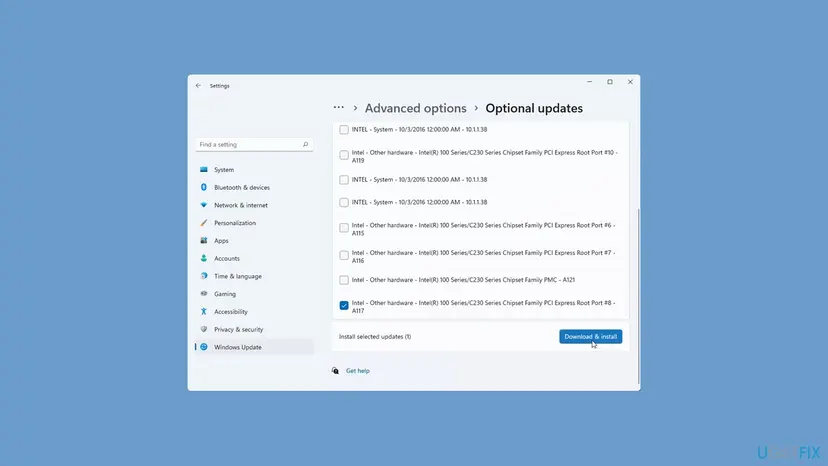
- Go to Settings > Windows Update > Advanced options > Optional updates.
- Expand Driver updates and look for an Intel entry for audio, System or Smart Sound Technology.
- Tick it, select Download & install and restart when asked.
- Check the version on the Driver tab in Device Manager.
On Windows 10 22H2 the same list is under Settings > Update & Security > Windows Update > View optional updates > Driver updates. Windows 10 left support on 14 October 2025, so new drivers for it get rarer.
It worked if: Optional updates installs an Intel driver, and Device Manager then shows 5714 or later for the Intel SST Audio Controller.
If not: If no Intel audio driver is offered, contact the laptop maker's support with your model and the version you read. Meanwhile try Fix 5.
Fix 3. Roll back the Intel SST driver that started the crashes
5 minutesLow riskThe blue screens began right after you installed an Intel SST driver from Intel's site, or after a driver arrived through Windows Update.
Intel lists blue screens during the install of an Intel SST driver as a known problem on laptops. Rolling back returns the previous package that worked with your hardware, while you look for the maker's version.
- Right-click Start and select Device Manager.
- Expand System devices, right-click Intel Smart Sound Technology (Intel SST) Audio Controller and select Properties.
- Open the Driver tab and select Roll Back Driver. Choose a reason and select Yes.
- Restart the PC.
- Check the version again. Then install the maker's driver from Fix 1 when it is available.
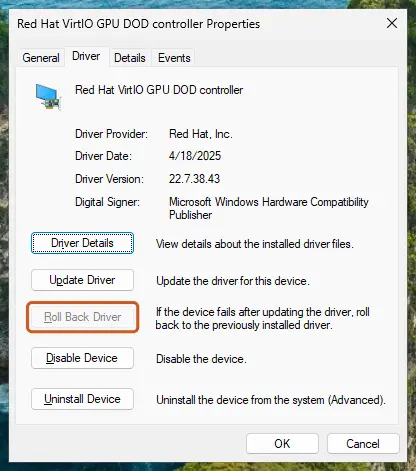
Windows keeps only the one previous driver. If the button is greyed out, there is nothing to return to, so reinstall the device in Fix 4 instead. Full steps: Update, roll back or reinstall a driver
It worked if: The Driver tab shows the older version and the date before the crashes, and no new IntcAudioBus.sys stop screen appears.
If not: If the rolled back version is one of the affected 5152 builds, the crash may return: install the maker's driver from Fix 1.
Fix 4. Reinstall the Intel SST Audio Controller
10 minutesLow riskThe Intel SST device shows a yellow mark, the microphone or speakers stopped working, or the driver install was cut off by a crash.
A crash during a driver install can leave half of the package in place. Removing the device and its driver package makes Windows start clean, and the maker's installer can then put a complete driver in.
- Download the maker's Intel SST driver from Fix 1 first, so it is ready offline.
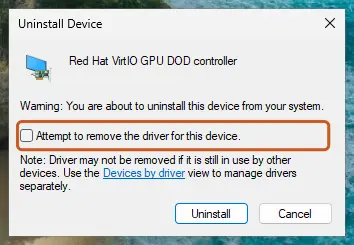
- In Device Manager, right-click Intel Smart Sound Technology (Intel SST) Audio Controller and select Uninstall device.
- Tick Attempt to remove the driver for this device and select Uninstall.
- Restart the PC. Windows finds the device again and installs a driver for it.
- Run the maker's Intel SST installer you downloaded and restart once more.
Start Windows in Safe Mode, which loads only basic drivers, and uninstall the device there: Start Windows or a Mac in Safe Mode
It worked if: The Intel SST Audio Controller appears without a yellow mark, sound and microphone work, and the Driver tab shows the maker's version.
If not: If Windows reinstalls an affected 5152 version on its own after the restart, run the maker's installer again or use Fix 2.
Fix 5. Go back to a restore point from before the crashes
20 minutesLow riskThe crashes started after a change you cannot pin down, such as several drivers or programs installed on the same day.
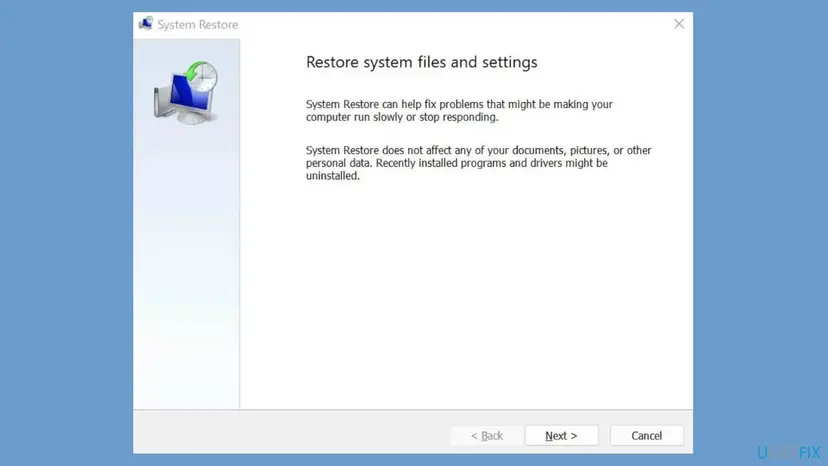
System Restore returns drivers and system settings to an earlier point, so it undoes a driver package that came in with other software. Your documents and pictures are not touched.
- Press Win + R, type
rstruiand press Enter. - Choose a restore point dated before the first IntcAudioBus.sys crash.
- Select Scan for affected programs to see which drivers will be removed.
- Select Next and Finish, and let the PC restart. Full steps: Undo recent changes with System Restore
It worked if: Windows reports that the restore succeeded, and the crashes do not return.
If not: If there is no restore point from before the crashes, repair the system files in Fix 6.
Fix 6. Repair Windows system files
20 minutesNo riskThe Intel SST driver is already 5714 or later, and other stop codes appear as well.
IntcAudioBus.sys itself is not a Windows file, so SFC does not replace it. The repair rules out damaged Windows components that the audio driver depends on.
DISM fixes the Windows image, then SFC checks the protected files. Step by step with screenshots: Run DISM and SFC to repair Windows system files
DISM.exe /Online /Cleanup-Image /RestoreHealth
sfc /scannow
It worked if: SFC reports that it found no integrity violations, or that it repaired them.
If not: If the blue screen still names IntcAudioBus.sys, collect the facts below and send them to the laptop maker.
Still crashing: what to send and to whom
Intel answers this crash by pointing to the laptop maker, so the maker's support is the place for a model that still crashes on a current driver. Collect the facts once.
- The model from
msinfo32and the Windows version and build. - The Intel SST Audio Controller driver version and date from the Driver tab.
- The newest
.dmpfiles fromC:\Windows\Minidump, zipped. - The BugCheck events, ID 1001, from Event Viewer under Windows Logs > System.
- Which fixes above you tried and what happened.
| Where to report | When |
|---|---|
| Your laptop maker's support | No newer Intel SST driver on the support page, or crashes on 5714 or later |
| Intel support | A desktop board or a PC whose maker no longer exists |
| Microsoft Feedback Hub | Crashes that start with a Windows build and stop when it is removed |
Other files whose names start with Intc, such as IntcSdwBus.sys or IntcUSB.sys, can also be named on a stop screen. We could not confirm from Intel which device each one serves. Driver Details on the Intel SST entries shows which device uses the file, and the same maker driver steps apply.
How to keep the IntcAudioBus.sys blue screen from coming back
- Install audio and chipset drivers from your laptop maker's support page.
- Check the Intel SST driver version before a big Windows upgrade.
- Let Windows create restore points before driver installs.
- Keep the maker's support tool, if it has one, for driver updates.
- Download IntcAudioBus.sys alone from DLL or driver sites.
- Force a Windows 11 upgrade past a compatibility hold.
- Install Intel's generic audio driver over the maker's package.
- Delete or rename the driver file to stop the crash.
Frequently asked questions
What is intcaudiobus.sys?
IntcAudioBus.sys is the driver file of the Intel Smart Sound Technology (Intel SST) Audio Controller. Intel SST is an audio processor built into many Intel Core and Atom laptops that handles audio, voice and speech. In Device Manager the driver appears under System devices. It is a genuine Intel file, not a virus. When an old version of it crashes, the stop screen names it on the What failed line.
Which Intel intcaudiobus.sys driver version fixes the blue screen?
Microsoft names versions 10.30.00.5714 and 10.29.00.5714 and later as the fix. The affected versions are 10.29.0.5152 and earlier, and 10.30.0.5152 and earlier. Your laptop may have a newer build than 5714, which is fine. Read the version on the Driver tab of the Intel SST Audio Controller in Device Manager, as shown in the section on checking your version.
How do I update intcaudiobus.sys?
Update the whole Intel SST driver package, not the single file. Open your laptop maker's support page, find your exact model, and install the Intel Smart Sound Technology driver from the audio or chipset section (Fix 1). If the maker has none, check Windows Update optional updates (Fix 2). Restart afterwards and confirm the new version in Device Manager.
Where do I download the intcaudiobus.sys driver for Windows 11?
From your laptop maker's support page for your model and Windows 11. Intel itself says that drivers for Intel SST on laptops come from the laptop or motherboard maker. Avoid sites that offer IntcAudioBus.sys as a single download: the file only works inside the full package, and such sites may bundle unwanted software.
What is intcaudiobus.inf?
intcaudiobus.inf is the setup information file of the Intel SST Audio Controller driver package. Windows reads it to install IntcAudioBus.sys and register the device. You do not open or edit it yourself. If a driver install fails on this file, uninstall the device with its driver in Fix 4 and run the maker's installer again.
What is intcsdwbus.sys?
IntcSdwBus.sys is another Intel driver file whose name starts with Intc, the prefix Intel uses for these audio drivers. We could not confirm from Intel's own pages which device it serves. If a blue screen names it, open Device Manager, check Driver Details on the Intel SST entries under System devices to find the device, and update it from the laptop maker as in Fix 1.
What is intcusb.sys?
IntcUSB.sys is also an Intel driver file with the Intc prefix. We could not confirm its exact role from Intel. The way to find out on your PC is the same: Driver Details in Device Manager lists the files of each device. If it appears on a stop screen, update or roll back the device that uses it, with the steps of Fixes 1 and 3.
Why can't I upgrade to Windows 11 with an old Intel SST driver?
Microsoft placed a compatibility hold, safeguard ID 36899911, on PCs with the affected Intel SST driver, because they could crash with a blue screen after the upgrade. Update the driver to 5714 or later first. Microsoft said it can then take up to 48 hours before Windows Update offers the upgrade, if no other hold applies.
Does the Excalibur G770 get the intcaudiobus.sys blue screen?
Any laptop with Intel Smart Sound Technology audio can, and the Excalibur G770 is one of the models whose owners search for this error. We could not confirm which Intel SST version it shipped with. Check the version in Device Manager and take the Intel SST driver from that laptop maker's support page for the exact model.
Is it safe to delete intcaudiobus.sys?
No. Deleting it leaves the Intel SST Audio Controller without a driver, so the laptop's speakers or microphone can stop working, and Windows may install an old version again. Replace the driver properly instead: install the maker's version in Fix 1, or remove the device with its driver package in Fix 4.
Sources
Did this fix work?
One click, no account. It tells the next reader which guides are worth their time.
Questions and experiences: fix the IntcAudioBus.sys blue screen (BSOD) in Windows
Still broken, or found a fix we did not cover? Ask here: members and our editors answer. Reading is open; writing needs a free account.
…