
Make sure your face is centered in the frame: how to fix Windows Hello setup in Windows 11

Prefer to fix it yourself? The manual steps follow.
- 7methods
- 2 to 30 minutes
- Easy
Applies to Windows 11 and Windows 10 laptops, monitors and external webcams with a Windows Hello infrared (IR) camera
7 methods in this guide
I tried to set up facial recognition on Windows and it does not work. I reach the "Make sure your face is centered in the frame" phase, and there is nothing but a Cancel button available. How do I fix this?
Make sure your face is centered in the frame is the Windows Hello face setup telling you that its infrared camera cannot find a usable face. It is rarely about where you sit. Open the privacy shutter, clean the lens, then remove the face setup and run it again.
The setup waits for its infrared camera to see a face, and it never does. Check that the camera shutter is open and the lens is clean (Fix 1). Then cancel, sign in with your PIN, open Settings > Accounts > Sign-in options, select Remove under Facial recognition (Windows Hello), restart and select Set up again (Fix 3). If it still hangs, check the IR camera and its driver in Device Manager (Fix 4 and Fix 5).
| Error | Make sure your face is centered in the frame. The Windows Hello face setup shows it under the camera preview, often with only Cancel available. |
|---|---|
| Where it appears | In Settings > Accounts > Sign-in options > Facial recognition (Windows Hello) > Set up, after you confirm your PIN, while the camera should scan your face. |
| Main cause | The infrared camera gets no usable image: a closed shutter or dirty lens, a missing or disabled IR camera, or a broken camera driver. Position and light are a smaller part. |
| Fastest fix | Open the shutter and clean the lens (Fix 1), then Remove the face setup, restart and Set up again (Fix 3). |
| Also written as | Windows Hello stuck on make sure your face is centered, make sure your face is visible, position your face within the frame, keep your face inside the frame. |
| Not the same as | Couldn't recognize you. That message appears at sign-in, after setup, when the scan does not match. Microsoft's answer there is Improve recognition. |
| Needs | A camera built for Windows Hello with near infrared imaging. Dell and Microsoft both say a standard webcam does not support Windows Hello face sign-in. |
| Affects | Windows 11 and Windows 10. Windows 10 left support on 14 October 2025. |
| Microsoft's status | No known issue is listed for this message. Microsoft's troubleshooting page covers recognition failures, Improve recognition and Remove plus Set up (checked 15 October 2026). |
| Time to fix | 2 minutes for the shutter and a new scan. Up to 30 minutes with a driver reinstall and updates. |
Facts checked on 15 October 2026. Steps written for Windows 11 (25H2 and 26H2) and Windows 10 22H2, read against Microsoft's Windows Hello support and hardware pages and Dell's face recognition guide.
What "Make sure your face is centered in the frame" means in Windows Hello
Windows Hello face sign-in does not use the normal colour picture of your webcam. Microsoft's hardware page says it uses a camera configured for near infrared (IR) imaging. During setup Windows first finds your face and its landmarks (eyes, nose, mouth) in that infrared stream.
Next it checks that you face the device within about 15 degrees. Only then does it build the representation it stores. Make sure your face is centered in the frame is the prompt shown while the first two checks fail. When the infrared image is black, blocked or missing, they fail forever, so the setup stays on this line with only Cancel active.
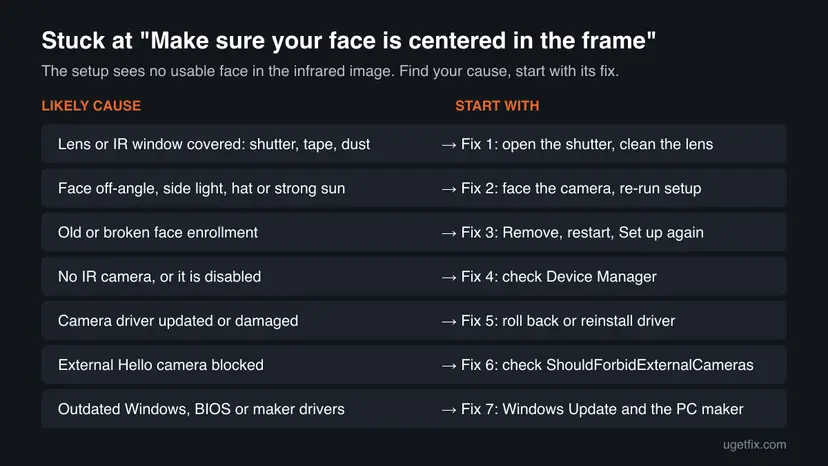
| What you see | What it means | Start with |
|---|---|---|
| Make sure your face is centered in the frame. during setup, nothing changes | The IR camera sees no face it can use | Fix 1, then Fix 3 |
| The preview is black or frozen | The IR camera is covered, disabled or has no working driver | Fix 1, Fix 4, Fix 5 |
| Couldn't recognize you. at the sign-in screen | Setup finished, but the scan did not match | Fix 2, Improve recognition |
| This option is currently unavailable under Facial recognition | Windows finds no Windows Hello camera | Fix 4 |
| We couldn't find a camera compatible with Windows Hello Face | The PC has no IR camera Windows Hello can use | Fix 4, the hardware section |
The text sounds like a position problem, and users who report it often sit square in front of the screen. An infrared camera that sends no image cannot see you anywhere in the frame. Rule out the camera first, then think about angle and light.
Why Windows Hello setup gets stuck on the centered face prompt, from the most common
The ranking below is our reading of Microsoft's and Dell's guidance together with what users report on Microsoft Q&A. It is not a statistic. Each cause points to the fix that answers it.
| How often | Cause | Typical sign | Fix |
|---|---|---|---|
| Most often | Privacy shutter closed, tape, a sticker or dust over the camera and its IR window | Dark or grey preview, no change when you move | Fix 1 |
| Often | A stale or damaged face enrollment from an earlier setup | Setup worked before, or hangs after an upgrade | Fix 3 |
| Often | Camera driver changed by an update, or a generic driver replaced the maker's one | It started after Windows Update or a new driver | Fix 5 |
| Less often | Side light, strong sunlight, a hat, or the head turned more than about 15 degrees | Works in one room, fails in another | Fix 2 |
| Less often | The IR camera is disabled in Device Manager or missing | Only one camera is listed, or none with IR | Fix 4 |
| Rarely | An external Windows Hello camera blocked by a registry value | Only an external camera fails | Fix 6 |
| Rarely | Old BIOS or maker firmware for the camera module | A new laptop, or a maker update is pending | Fix 7 |
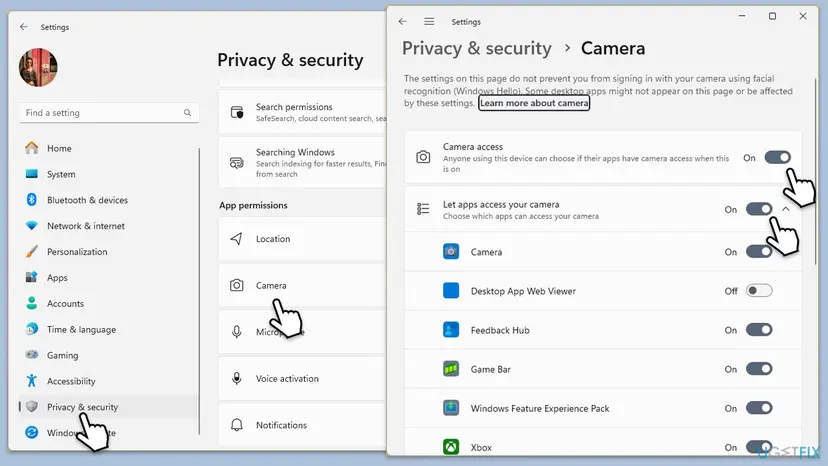
Older guides, this one included, told you to turn on Let apps access your camera. Windows itself says on that page that its settings do not prevent you from signing in with your camera using facial recognition (Windows Hello). Leave your privacy choices as they are.
How to fix Windows Hello stuck on "Make sure your face is centered in the frame"
Start at the top: the first fixes take a minute and change nothing on the PC. You are done when the setup finishes the scan and says your face is ready to use.
| Your situation | Start with | Then |
|---|---|---|
| A laptop with a camera shutter or a cover | Fix 1 | Fix 3 |
| The preview looks fine but the setup never moves on | Fix 2 | Fix 3 |
| Face sign-in worked before, or it broke after an update | Fix 3 | Fix 5 |
| This option is currently unavailable under Facial recognition | Fix 4 | Fix 5 |
| An external Windows Hello webcam or monitor camera | Fix 6 | Fix 5 |
| Nothing changed after the steps above | Fix 7 | Still stuck section |
Fix 1. Open the camera shutter and clean the camera and its IR window
2 minutesLow riskEveryone, and first on laptops with a sliding privacy shutter, a camera key or a cover.
The face setup can only centre what the infrared camera sees. Dell lists a closed shutter, tape and dust as obstructions to check first, and Microsoft says the camera must be clean and unobstructed.
- Select Cancel to leave the stuck setup.
- Look at the camera area above the screen. Slide any privacy shutter open and remove tape, stickers or a cover.
- Check for a camera key on the keyboard or a camera switch on the side of the laptop. Some models turn the camera off there.
- Shut down the PC and wipe the camera area with a soft, dry microfiber cloth. Do not use harsh cleaners.
- Start the PC and open Settings > Accounts > Sign-in options > Facial recognition (Windows Hello) > Set up again.
A Windows Hello camera has more than one small window: the normal lens and the infrared parts beside it. A smudge or a narrow sticker over just one of them is enough to block the face scan.
It worked if: The setup scans for a few seconds and moves on without the centered face prompt.
If not: If the prompt stays, check your position and light with Fix 2.
Fix 2. Face the camera directly and remove side light, hats and glare
3 minutesLow riskThe camera is clear, and the setup shows a preview but never moves past the prompt.
Microsoft's hardware page says the engine needs your face turned towards the device within about 15 degrees. Its support page names harsh side light, hats that shade the face and some make-up as reasons for failed scans.
- Sit at arm's length and raise or tilt the screen so the camera is at eye level.
- Look straight at the camera, not at the preview on the screen.
- Take off a hat, a hood or anything that frames and shades your face.
- Turn off a desk lamp or close the blind if strong light falls on one side of your face, and move out of direct sunlight.
- Run Set up again and hold still until the scan finishes.
Microsoft also notes that a PC managed by a work or school may use enhanced anti-spoofing, which sets a higher bar and can fail in dark rooms. On such a PC, try in a normally lit room before you change anything else.
Microsoft says some users need a second enrollment, for example with and without glasses, or after moving into bright outdoor light. Once setup succeeds, use Improve recognition to add those scans.
It worked if: The scan moves on within a few seconds of facing the camera squarely.
If not: If nothing changes in any light, the camera image itself is the problem: go to Fix 3.
Fix 3. Remove the Windows Hello face setup, restart and set it up again
5 minutesLow riskFace sign-in was set up before, a setup was interrupted, or the problem began after a Windows upgrade.
Remove deletes the stored face templates of your account, so the new setup starts clean. Microsoft and Dell both give Remove followed by Set up as the step for a face scan that does not work.
- Select Cancel, then sign in with your PIN if Windows asks.
- Press Win + I and open Accounts > Sign-in options.
- Expand Facial recognition (Windows Hello) and select Remove. If no Remove button is shown, there is no saved face yet: go on to step 5.
- Restart the PC.
- Back in Sign-in options, select Facial recognition (Windows Hello) > Set up and follow the screens.
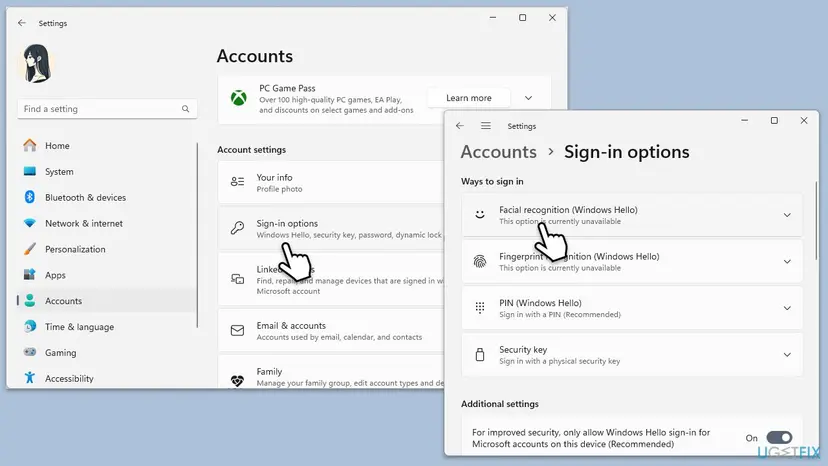
Windows Hello face sign-in sits on top of a Windows Hello PIN. If you have no PIN, Windows asks you to create one first. If the PIN itself fails, see our guide on the incorrect PIN message.
It worked if: The new setup scans your face and ends with a confirmation that face sign-in is ready.
If not: If Facial recognition says This option is currently unavailable, or the prompt is back, check the camera in Device Manager with Fix 4.
Fix 4. Check that the PC has an IR camera and that it is enabled in Device Manager
5 minutesLow riskThe face option is unavailable, the preview is black, or you are not sure the PC supports Windows Hello face.
Windows Hello face needs a camera built for near infrared imaging. Dell says standard webcams do not support it. A PC with no IR camera, or with the IR camera turned off, can never pass the centered face check.
- Look up your PC or webcam model in the maker's specifications. It should list an IR camera or Windows Hello face support.
- Right-click Start and select Device Manager.
- Expand Cameras. On many PCs with Windows Hello there are two entries, one of them with IR in its name.
- If an entry has a down arrow on its icon, right-click it and select Enable device.
- If an entry has a yellow warning sign, note it and go to Fix 5.
- Open the Camera app from Start. Dell uses it to confirm Windows sees a working camera.

The Camera app normally shows the colour camera, not the infrared one. A working picture there proves the camera module talks to Windows, not that the IR part works. We could not confirm one device name for IR cameras across makers.
It worked if: Device Manager lists an IR camera with no warning sign, and the face setup can scan.
If not: If no IR camera is listed and the specifications show none, the PC cannot use Windows Hello face. If it is listed with a warning, go to Fix 5.
Fix 5. Roll back, update or reinstall the camera driver
10 minutesLow riskThe problem started after Windows Update or a driver update, or the IR camera shows a warning in Device Manager.
Dell names outdated or malfunctioning drivers as a cause of face recognition failures. Users on Microsoft Q&A report face sign-in stopping when a generic camera driver replaced the maker's driver, so rolling back is the first try after an update.
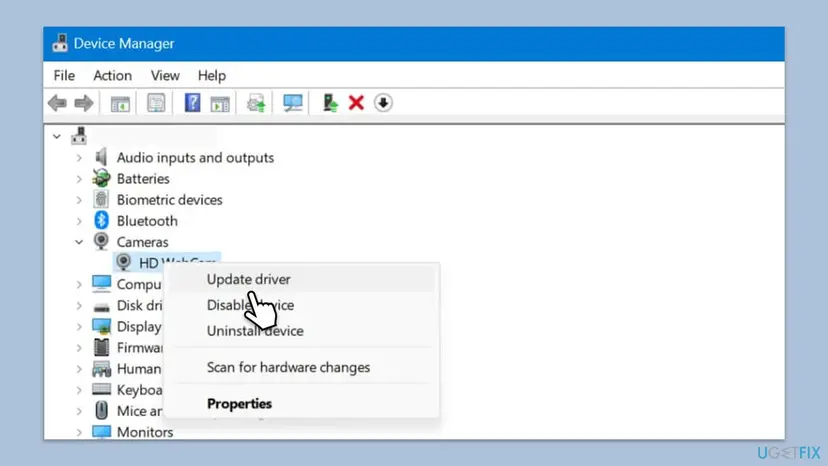
Use the driver procedure on the IR camera entry under Cameras. Roll back if the problem began after an update, otherwise update, and reinstall last. Step by step: Update, roll back or reinstall a driver.
- Open the device's Driver tab. Expand the category (for example Display adapters), right-click the device, select Properties and open the Driver tab. Driver Date and Driver Version show what is installed now.
- Update the driver. Select Update Driver and let Windows search automatically. To use a driver you downloaded from the device maker, select Browse my computer for drivers instead and point to the unpacked folder.
- Or roll back the driver. If the problem started after a driver update, select Roll Back Driver, choose a reason and select Yes. The button is greyed out when Windows has no earlier driver to return to.
- Or reinstall the driver. Select Uninstall Device. Tick Attempt to remove the driver for this device only if you want Windows to delete the driver package too, then select Uninstall.
- Restart. Restart the PC. Windows detects the device again and installs a driver for it.
These steps were written for Windows 11 24H2 and later. The full page with the other versions and what each result means: Update, roll back or reinstall a driver
It worked if: After the restart the IR camera has no warning sign and the face setup finishes.
If not: If Windows only offers a generic driver, install the camera driver from your PC maker with Fix 7.
Fix 6. Allow an external Windows Hello camera in the registry
5 minutesRead the warningYou use a Windows Hello webcam or a monitor with a Windows Hello camera, and only that camera fails.
Microsoft documents a registry value that forbids external Windows Hello cameras completely. If it is set, the external camera cannot be used for face sign-in, and the setup cannot see you through it.
A wrong registry change can stop Windows from working properly. Back up first: Back up the registry before editing it. On a work or school PC the value may be set on purpose for security, so ask IT instead.
- Plug the camera or monitor straight into the PC, not through a hub, and check that Windows lists it under Cameras.
- Press Win + R, type
regeditand press Enter. - Go to
HKEY_LOCAL_MACHINE\Software\Microsoft\Windows\CurrentVersion\Authentication\LogonUI\FaceLogon. - If you see the DWORD value
ShouldForbidExternalCameraswith the data1, right-click it and select Delete. - If the key or the value does not exist, close the editor: this is not your cause.
- Restart the PC and run the face setup again.
Microsoft also asks you to keep Windows updated for camera security, including the July 2021 fix for external Windows Hello cameras (CVE-2021-34466). Run Windows Update before you rely on an external camera.
It worked if: The external camera is accepted and the face scan completes.
If not: If the value was not there, update the camera's driver and firmware from its maker (Fix 5 and Fix 7).
Fix 7. Update Windows, the BIOS and the PC maker's camera drivers, then run the camera troubleshooter
20 minutesLow riskNothing above helped, or your PC maker has pending driver or BIOS updates.
Dell lists driver, BIOS and Windows updates among its steps for face recognition that does not work. The maker's camera driver can carry the IR support a generic driver lacks.
- Open Settings > Windows Update and select Check for updates. Install everything, then restart.
- Open Settings > Windows Update > Advanced options > Optional updates and install any camera driver listed there.
- Open your PC maker's support app or website and install its camera driver and BIOS updates for your exact model.
- Open Settings > System > Troubleshoot > Other troubleshooters, find Camera and select Run.
- Restart and run the face setup again.
On Windows 10 the update page is Settings > Update & Security > Windows Update. If the update itself fails, start with Run the Windows Update troubleshooter.
It worked if: After updates and a restart the face setup passes the centered face prompt.
If not: Read the section below to tell a software fault from a hardware one.
If Windows Hello face setup is still stuck: hardware or software?
Windows writes no plain log that names this message. Use the clues below to decide whether to keep trying or to contact the maker.
- No IR camera in the specifications: the PC or webcam cannot do Windows Hello face. Sign in with a PIN or fingerprint, or buy a webcam certified for Windows Hello.
- IR camera listed, colour camera works, scan never starts: likely a faulty IR part of the camera module. Contact the PC maker's support while the warranty runs.
- IR camera missing from Device Manager after a BIOS or Windows update: check the BIOS setup for a camera option, then reinstall the maker's camera driver.
- Work or school PC: ask IT. Enhanced anti-spoofing, policies or a blocked external camera are set centrally.
- For support, have ready: the PC model, the Windows version from Settings > System > About, the camera names under Cameras and the date it last worked.
Some forum answers tell you to delete Windows Hello data folders under ProgramData by hand. Microsoft does not document that step, and Remove in Settings (Fix 3) does the supported job. We could not confirm the folder trick is safe.
How to keep Windows Hello face sign-in working
- Keep the camera area clean and the shutter open when you want face sign-in.
- Use Improve recognition after you start wearing glasses, grow a beard or work in a new room. Microsoft says it adds a face template rather than replacing the old one.
- Install the PC maker's camera driver, not only the generic one Windows offers.
- After a big Windows update, try face sign-in once. If it fails, roll back the camera driver early (Fix 5).
- Keep a PIN you remember. It is the way in when the face scan fails.
Frequently asked questions
Why is Windows Hello stuck on "Make sure your face is centered"?
Because the setup's infrared camera cannot find a usable face, so it never gets past the first check. The usual reasons are a closed privacy shutter or dirty lens, a stale face enrollment, a camera driver changed by an update, or a PC without an IR camera. Moving your head helps only when the camera works. Open the shutter, clean the lens, then remove the face setup in Sign-in options, restart and set it up again.
How do I fix "Make sure your face is centered in the frame" in Windows 11?
Work through the cheap checks first. Open the camera shutter and wipe the lens. Face the camera at eye level with no strong side light. Then open Settings > Accounts > Sign-in options, select Remove under Facial recognition (Windows Hello), restart and choose Set up. If it still hangs, look for the IR camera under Cameras in Device Manager, and roll back or reinstall its driver.
Does Windows Hello face recognition work with any webcam?
No. Windows Hello face uses a camera configured for near infrared imaging, as Microsoft's hardware page states. Dell's guide says standard webcams do not support Windows Hello face recognition. If your PC or webcam has no IR camera, the face option shows as unavailable or the setup cannot complete. Check the specifications for an IR camera or Windows Hello support before spending time on drivers.
What does "Make sure your face is visible" mean?
It is a close relative of the centered face prompt and means the same thing: the face camera does not see a face it can use. Check the shutter, the lens and the light first. If the camera image is black or missing, the cause is the camera or its driver, not your face. The fixes on this page apply to both lines.
Do the camera privacy settings block Windows Hello?
No. The Windows 11 Camera privacy page states that its settings do not prevent you from signing in with your camera using facial recognition (Windows Hello). Turning on Let apps access your camera, which older guides suggested, does not fix the setup. You can leave your privacy choices as they are and look at the camera hardware and driver instead.
Why does Windows Hello say "Couldn't recognize you" after setup?
That message comes at sign-in, after a successful setup, when the scan does not match your stored face. Microsoft's advice is to sign in with your PIN, then use Improve recognition under Facial recognition (Windows Hello). It adds another face template. If you changed your look a lot, Remove and Set up again. Light, hats and some make-up also play a part.
Does lighting matter if the camera is infrared?
Less than with a normal webcam, but it still matters. Microsoft says infrared images stay consistent in low light and side light, which is why Windows Hello uses IR. Its support page still warns about harsh light from one side, and its hardware page says strong sunlight with high near infrared can need a new enrollment. A normally lit room without a lamp beside you is best.
The setup worked before and broke after an update. What should I do?
Start with the camera driver. Open Device Manager, expand Cameras, open the IR camera's Properties and select Roll Back Driver on the Driver tab, then restart. Users on Microsoft Q&A report face sign-in stopping when a generic driver replaced the maker's one. If roll back is greyed out, install the camera driver from your PC maker's support page, then remove and set up the face again.
Can I skip face recognition and still sign in?
Yes. Select Cancel and keep using your PIN, password or fingerprint. On the sign-in screen, Sign-in options switches between them. Face sign-in is optional and needs a PIN underneath anyway, so nothing breaks if you leave it unset while you sort out the camera. You can return to Settings > Accounts > Sign-in options and run Set up at any time.
Sources
- Microsoft Support: Windows Hello common issues and troubleshooting tips (clean camera, lighting, Improve recognition, Remove and Set up) (support.microsoft.com)
- Microsoft Learn: Windows Hello face authentication (near infrared camera, 15 degree head orientation, enrollment, ShouldForbidExternalCameras) (learn.microsoft.com)
- Dell Support: Face Recognition Isn't Working (IR camera requirement, privacy shutter, drivers and BIOS, camera troubleshooter) (dell.com)
Did this fix work?
One click, no account. It tells the next reader which guides are worth their time.
Questions and experiences: Make sure your face is centered in the frame: how to fix Windows Hello setup in Windows 11
Still broken, or found a fix we did not cover? Ask here: members and our editors answer. Reading is open; writing needs a free account.
…