
How to fix the Microcode Revision Mismatch BSOD in Windows

Prefer to fix it yourself? The manual steps follow.
- 5methods
- 15 to 45 minutes
- Intermediate
Applies to Windows 11 and Windows 10 PCs, and Windows virtual machines in VMware
5 methods in this guide
Hello. For the past few weeks, my Windows keeps crashing with the Blue Screen error Microcode Revision Mismatch. I thought the problem would go away by itself, but I was wrong, as the issues continue. I would appreciate some tips on how to resolve this. Thanks.
MICROCODE_REVISION_MISMATCH is a stop code that Windows shows when the processor cores do not all run the same microcode revision. Microsoft puts the blame on the system firmware, so the fix is almost always a BIOS update or the BIOS defaults, not a Windows repair.
Microcode Revision Mismatch (bug check 0x17E) means the BIOS loaded a microcode update into only some of your processor cores. Install the newest BIOS or UEFI firmware from your PC or motherboard maker (Fix 1), then load the BIOS defaults (Fix 2). If the crashes began right after a Windows update, remove that update (Fix 3). In a VMware guest, update or roll back VMware (Fix 4).
| Error | A stop screen (blue, or black on Windows 11 24H2 and later) with Stop code: MICROCODE_REVISION_MISMATCH. Bug check value 0x0000017E. |
|---|---|
| Where it appears | Usually while Windows starts, sometimes in a restart loop. It also appears inside a Windows virtual machine that is starting in VMware Workstation. |
| Main cause | Faulty system firmware that applied a microcode update to only part of the processors, according to Microsoft. |
| Fastest fix | Update the BIOS or UEFI firmware (Fix 1), then load its default settings (Fix 2). |
| Also written as | MICROCODE_REVISION_MISMATCH, microcode_revision_mismatch, Microcode Revision Mismatch, stop code 0x17E, 0x0000017E, bug check 0x17E. |
| Affects | Windows 11 and Windows 10 on Intel and AMD PCs, physical or virtual. Windows 10 left support on 14 October 2025. |
| Vendor status | Microsoft documents it as a firmware fault: firmware must apply microcode updates to all processors in a uniform way. The fix comes from the PC, board or hypervisor maker. |
| Where the cause is logged | C:\Windows\Minidump and Event Viewer, Windows Logs > System, source BugCheck, event ID 1001. The dump names the core and both revisions. |
| Time to fix | 15 to 30 minutes for a BIOS update, 5 minutes for BIOS defaults, 10 minutes to remove an update. |
Facts checked on 15 October 2026. Steps written for Windows 11 (25H2 and 26H2) and Windows 10 22H2.
What MICROCODE_REVISION_MISMATCH means
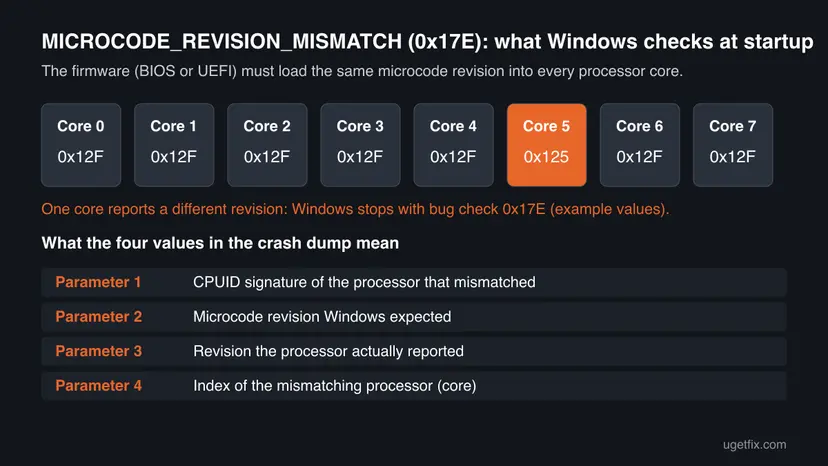
Microcode is a small patch layer inside the processor. The BIOS or UEFI firmware loads a microcode update into every core when the PC starts, and Windows can load a newer one on top through its own loader, mcupdate_GenuineIntel.dll for Intel CPUs. Every core must end up on the same revision.
When Windows finds a core with a different revision, it stops the PC on purpose. Microsoft's bug check reference says the cause is faulty system firmware that has mistakenly applied a microcode update to only a subset of processors. Firmware must apply microcode updates to all processors in a uniform fashion.
| What you see | What it means |
|---|---|
| Your PC ran into a problem and needs to restart. with Stop code: MICROCODE_REVISION_MISMATCH | The standard Windows stop screen for this bug check |
| 0x0000017E or 0x17E | The numeric value of the same bug check, used in Event Viewer and dumps |
microcode_revision_mismatch in a dump or log | The same name in lowercase, as tools and forums often write it |
| Microcode Revision Mismatch in a VMware virtual machine | The guest Windows saw different revisions on its virtual processors |
The stop is a safety check. Malware scans, driver updaters and registry cleaners do not change which microcode the firmware loads, so they do not fix it.
What causes revision mismatch errors, most common first
Since the processor reports its own revision, the question is always why one core got different microcode. The table ranks the reasons we found, each tied to the fix that removes it.
| How often | Cause | Sign | Fix |
|---|---|---|---|
| Most often | Old or faulty BIOS that does not load microcode on every core, or does not fully know this CPU | New build, a CPU swap, a BIOS from before the CPU was released | Fix 1 |
| Often | A BIOS update or setting that left the cores in a mixed state | Crashes began after flashing the BIOS or changing CPU settings | Fix 2 |
| Sometimes | A Windows update that changed the microcode Windows loads at startup | Crashes began the day after an update | Fix 3 |
| Sometimes | A hypervisor version that passes different revisions to the virtual CPUs | Only a VMware guest crashes, the host runs fine | Fix 4 |
| Rarely | A damaged Windows microcode loader file | SFC reports files it could not repair | Fix 5 |
Old guides list RAM tests, malware scans and driver updates for this error. None of them touches the microcode on the cores, so we left them out. If your stop codes change from crash to crash, see the section on hardware below.
Read the crash: which core and which revisions
The dump file tells you which core mismatched and by how much. Microsoft lists four parameters: the CPUID signature, the expected revision, the reported revision and the index of the processor. Write them down before you change anything, because the PC or board maker will ask for them.
- Press Win + R, type
msinfo32and press Enter. Note Processor, BIOS Version/Date and BaseBoard Product. - Press Win + R, type
eventvwr.mscand press Enter. Open Windows Logs > System and find the newest BugCheck event, ID 1001. - Check that it names bug check
0x0000017eand copy its four parameters. - Open
C:\Windows\Minidumpin File Explorer. One.dmpfile is written per crash, named by date. - For more detail, install WinDbg from Terminal with
winget install Microsoft.WinDbg, open the newest dump as administrator and run!analyze -v.
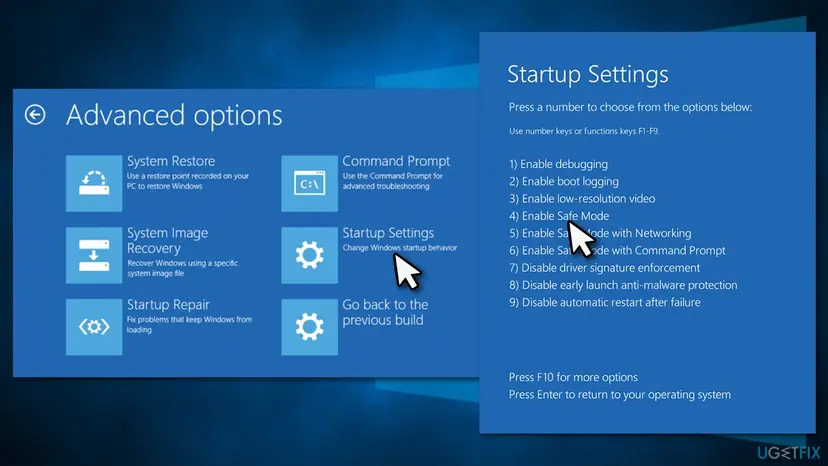
Turn the PC off while Windows is loading three times in a row and it opens the recovery screen. There, Troubleshoot > Advanced options gives you Uninstall Updates, System Restore and Startup Settings for Safe Mode. Step by step: Start Windows or a Mac in Safe Mode
How to fix the Microcode Revision Mismatch BSOD
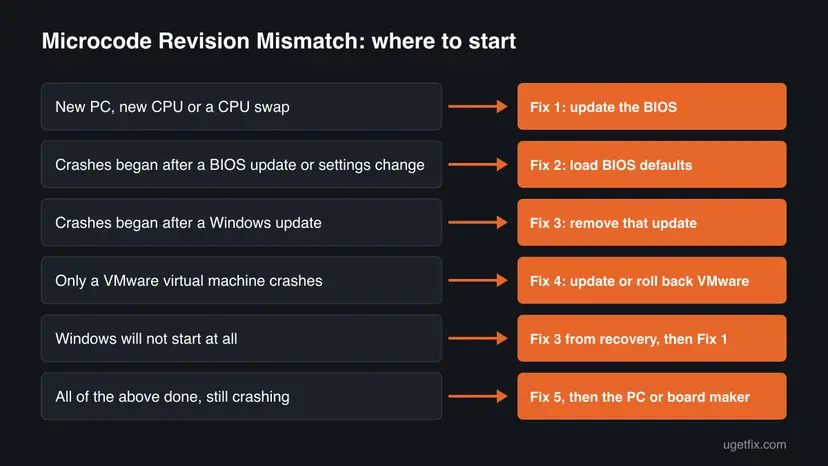
Fixes 1 and 2 work on the firmware, which is where Microsoft places the cause. Fix 3 is for crashes that began with a Windows update. Fix 4 is only for VMware virtual machines. Fix 5 rules out a damaged Windows file.
| What you see or what your PC has | Start with | Then |
|---|---|---|
| New PC, new processor or a processor swap | Fix 1 | Fix 2 |
| Crashes began after a BIOS update or a BIOS settings change | Fix 2 | Fix 1 |
| Crashes began right after a Windows update | Fix 3 | Fix 1 |
| Only a Windows guest in VMware Workstation crashes | Fix 4 | Fix 1 on the host |
| Windows will not start, restart loop | Fix 3 from the recovery screen | Fix 1 |
| Everything above done, still crashing | Fix 5 | Contact the PC or board maker |
Fix 1. Update the BIOS or UEFI firmware
15 to 30 minutesRead the warningEvery PC with this error, and above all a new build, a new processor or a BIOS that is older than your CPU.
Microsoft names faulty system firmware as the cause of 0x17E. A newer BIOS carries corrected microcode for your processor and the code that loads it on every core, which is the only place this mismatch can really be fixed.
A BIOS update that is interrupted can leave the PC unable to start. Plug a laptop into power, do not switch off during the update, and note your custom BIOS settings first, because the update usually resets them. Your files are not touched.
- Press Win + R, type
msinfo32and press Enter. Note System Model (or BaseBoard Product on a self-built PC) and BIOS Version/Date. - Open the support page of your PC or motherboard maker and search for that exact model.
- Open the BIOS downloads and compare the newest version with yours. Read the notes for microcode or CPU support updates.
- Download the newest BIOS and follow the maker's own flashing instructions, usually from a USB drive inside the BIOS menu.
- Let the PC restart on its own when the flash is done.
- Start Windows and check BIOS Version/Date in
msinfo32again.
It worked if: msinfo32 shows the new BIOS date and Windows starts several times in a row without the stop screen.
If not: Go to Fix 2 to clear settings that the update kept. If no newer BIOS exists, ask the maker whether one is planned for your processor.
Fix 2. Load the BIOS defaults or clear the CMOS
5 to 10 minutesRead the warningThe crashes began after a BIOS update, a CPU or overclock setting change, or a CPU swap on the same board.
Saved settings from an older BIOS or a tuning profile can survive an update and leave the board in a state its makers never tested. Loading the defaults makes the firmware start every core the same way again.
Custom BIOS settings go back to factory values: boot order, fan curves, XMP or EXPO memory profiles, overclocks and virtualization switches. Photograph or write down the pages you changed first. Your files on the drive are not touched.
- Restart the PC and press the BIOS key shown on the first screen, usually Del, F2, F10 or Esc.
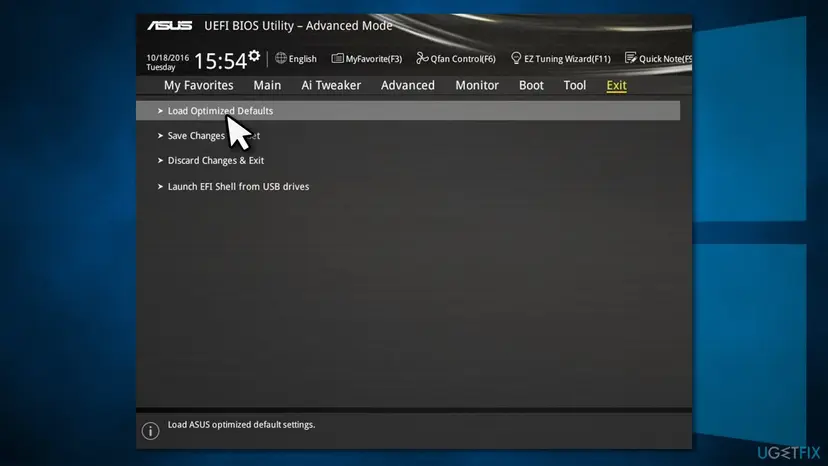
- Open the Exit or Save & Exit tab.
- Select Load Optimized Defaults (the name may be Load Setup Defaults or Restore Defaults).
- Save and exit, then let Windows start.
- If the BIOS menu does not open, clear the CMOS with the jumper or button described in your motherboard manual.
It worked if: Windows starts normally and no new file appears in C:\Windows\Minidump after several restarts.
If not: Re-enable your settings one at a time and restart after each, so you find the one that brings the crash back. If the crash came with a Windows update, go to Fix 3.
Fix 3. Remove the Windows update that started the crashes
10 to 15 minutesLow riskThe blue screens began right after a Windows update, including a standalone Intel microcode update on Windows 10.
Windows loads its own microcode at startup through mcupdate_GenuineIntel.dll, which Windows Update replaces. Microsoft's Intel microcode packages, such as KB4589212 for Windows 10 2004 and 20H2, say to install them for the listed processors only and to check with the device maker first.
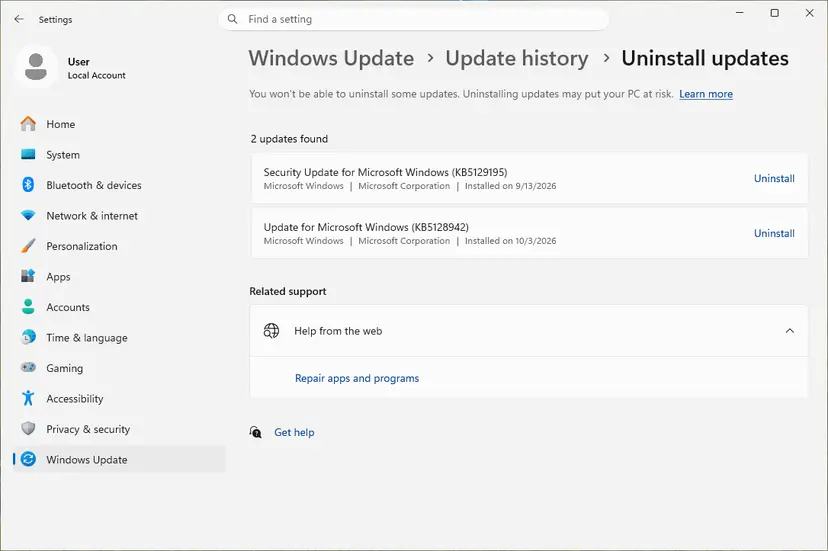
- Open Settings > Windows Update > Update history and note the KB number and date of the newest update.
- Compare that date with the first BugCheck event (ID 1001) in Event Viewer.
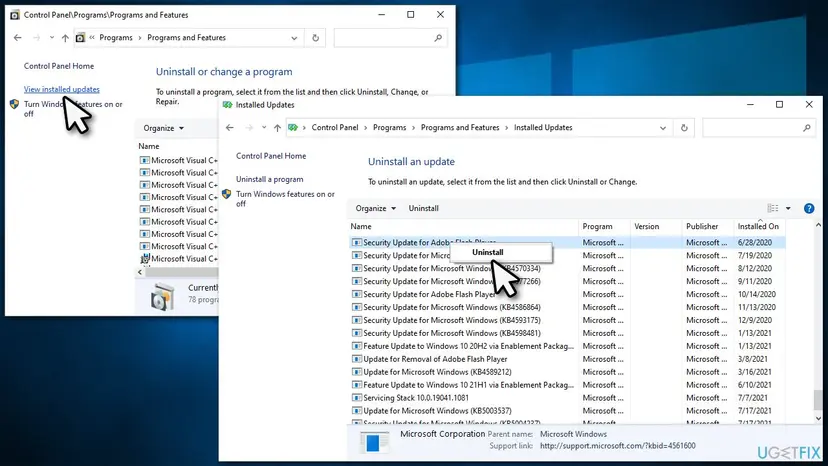
- If they match, uninstall that update. Step by step: How to uninstall a Windows update
- If Windows will not start, open the recovery screen and choose Troubleshoot > Advanced options > Uninstall Updates, then Uninstall latest quality update.
- Pause updates for a week or two and check your PC maker's page for a newer BIOS before you install the update again.
It worked if: Windows starts and runs through the days that used to crash without the stop code.
If not: Install the update again once your BIOS is current, because updates carry security fixes. If the crash returns without any update, go back to Fix 1.
Fix 4. Update or roll back VMware Workstation when a virtual machine crashes
20 minutesLow riskOnly a Windows virtual machine in VMware Workstation shows Microcode Revision Mismatch, and the host PC runs fine.
Inside a virtual machine, VMware decides what microcode revision each virtual CPU reports. On VMware's community forum a user with an Intel Core i9-14900K host reported this crash in a Windows 11 guest after updating to Workstation 17.5.1, and reported that it stopped after going back to 17.5.0.
- Note your VMware Workstation version in Help > About VMware Workstation.
- Shut down the virtual machine completely, not suspend it.
- Install the newest Workstation release from Broadcom's download portal and start the guest again.
- If the crash started right after a Workstation update and the newest release still crashes, uninstall it and install the previous version you used, then start the guest. Step by step: Uninstall a program or app in Windows
- Update the host PC's BIOS as in Fix 1, because the host firmware loads the microcode the guest sees.
- Keep the guest's
vmware.logfile from the virtual machine folder for a report to Broadcom.
A user on the same thread suggested that performance and efficiency cores on 12th, 13th and 14th Gen Intel CPUs might report different revisions to a guest. We could not confirm this from VMware or Intel, so treat it as a report only.
It worked if: The virtual machine starts to the Windows desktop several times in a row without the stop screen.
If not: Run Fix 1 on the host. If the host itself also shows 0x17E, follow Fixes 1 to 3 on the host first.
Fix 5. Repair Windows system files
20 minutesNo riskFixes 1 to 3 did not help, or SFC has never run on this PC.
The microcode loader mcupdate_GenuineIntel.dll is a protected Windows file. DISM and SFC put back a clean copy if it is damaged, which rules out the Windows side of the problem.
- Right-click Start and select Terminal (Admin).
- Run
DISM.exe /Online /Cleanup-Image /RestoreHealth, thensfc /scannow. Step by step with screenshots: Run DISM and SFC to repair Windows system files - Restart the PC when SFC is done.
If Windows will not start, System Restore on the recovery screen can take Windows back to a restore point from before the crashes: Undo recent changes with System Restore. It does not change the BIOS.
It worked if: SFC reports that it found no integrity violations or that it repaired them, and Windows starts without the stop code.
If not: Collect the dumps as described below and contact your PC or motherboard maker.
Still crashing: hardware signs and what to send
Because Microsoft places the fault in the firmware, the real fix for a stubborn case comes from the maker of the BIOS. Send them the facts once, in one message.
- The three newest
.dmpfiles fromC:\Windows\Minidump, zipped. - The four bug check parameters from Event Viewer, ID 1001.
- Processor, BIOS version and date, and board model from
msinfo32. - What changed just before the first crash: a new CPU, a BIOS flash, a Windows update, a VMware update.
- Which of the fixes above you tried and what happened.
| Where to report | When |
|---|---|
| Your PC or laptop maker | Prebuilt PCs and laptops, or no newer BIOS on the support page |
| Your motherboard maker | Self-built PCs, a CPU that is newer than the newest BIOS |
| Broadcom VMware support or community | Only VMware guests crash and the host is fine |
| Microsoft Q&A or Feedback Hub | Crashes that start with one Windows update and stop when it is removed |
If the stop codes change from crash to crash, for example WHEA_UNCORRECTABLE_ERROR one day and 0x17E the next, or the PC also freezes in the BIOS menu, the processor or board may be faulty. Test with the default BIOS settings and ask the seller about the warranty.
How to keep the Microcode Revision Mismatch error from coming back
- Update the BIOS before you install a newer processor on an older board.
- Check your PC or board maker's BIOS page twice a year.
- Note your BIOS settings before every BIOS flash.
- Read the release notes of a VMware update before installing it on a work machine.
- Install standalone microcode packages on processors they do not list.
- Interrupt a BIOS update or flash a BIOS made for another model.
- Download a replacement mcupdate file from DLL sites.
- Switch Secure Boot or other protections off to make the error go away.
Windows 10 left support on 14 October 2025, so it no longer gets new Microsoft fixes. Windows 11 with a current BIOS is the setup that still gets them.
Frequently asked questions
What is Microcode Revision Mismatch?
It is a Windows stop code, bug check 0x0000017E, named MICROCODE_REVISION_MISMATCH. Windows raises it when one or more processor cores run a different microcode revision from the others. Microsoft documents the cause as faulty system firmware that applied a microcode update to only a subset of processors. In plain words, the BIOS or UEFI did not patch every core the same way, so Windows stops the PC rather than run on inconsistent processors.
What causes revision mismatch errors?
Most often an old or faulty BIOS that does not load the same microcode on every core, typically after a new build or a processor swap. Less often a BIOS update or setting change that left the cores in a mixed state, a Windows update that changed the microcode Windows loads at startup, or a VMware version in a virtual machine. A damaged Windows file is rare. The causes table above ties each one to its fix.
Is MICROCODE_REVISION_MISMATCH a hardware problem?
Usually it is a firmware problem, which sits between hardware and software. The processor itself is normally fine; the BIOS loaded microcode unevenly. A BIOS update or loading the BIOS defaults fixes most cases. It points to faulty hardware only when the crashes continue on the newest BIOS with default settings, or when the stop codes keep changing between crashes. Then ask the seller or maker about the warranty.
How do I fix Microcode Revision Mismatch in VMware?
Shut the virtual machine down and install the newest VMware Workstation release. A user on VMware's community forum reported this crash in a Windows 11 guest after the update to Workstation 17.5.1 and reported it was gone after reinstalling 17.5.0, so rolling back is an option if the crash came with an update. Also update the host PC's BIOS, because the host firmware loads the microcode the guest sees. Fix 4 has the steps.
What do the four parameters of bug check 0x17E mean?
Microsoft lists them in this order. Parameter 1 is the CPUID signature of the processor that mismatched. Parameter 2 is the microcode revision Windows expected. Parameter 3 is the revision the processor actually reported. Parameter 4 is the index of the mismatching processor, that is, which core. You find them in Event Viewer under Windows Logs, System, BugCheck event ID 1001, or with !analyze -v in WinDbg.
Can a Windows update cause Microcode Revision Mismatch?
It can be the trigger. Windows loads its own microcode at startup through mcupdate_GenuineIntel.dll, and Windows Update replaces that file. Microsoft's standalone Intel microcode packages, such as KB4589212, say to install them only on the listed processors and to check with the device maker first. If the first crash matches the date of an update, remove it as in Fix 3 and update the BIOS before you install it again.
My PC is stuck in a restart loop with this error. What do I do?
Turn the PC off while Windows is loading three times in a row. Windows then opens its recovery screen. Choose Troubleshoot, then Advanced options. From there you can uninstall the latest quality update, run System Restore, or start Safe Mode through Startup Settings. Since the cause is usually the firmware, also enter the BIOS during startup and load its defaults, or flash a newer BIOS from a USB drive.
Does Secure Boot cause Microcode Revision Mismatch?
No. Some pages suggest switching it off, but Secure Boot does not decide which microcode the firmware loads into the cores, and switching it off leaves the PC less protected against boot malware. The fixes that address the actual cause are a BIOS update, the BIOS defaults and, when an update started it, removing that update. Keep Secure Boot on.
Will reinstalling or resetting Windows fix Microcode Revision Mismatch?
Rarely. A reset replaces Windows, but the microcode is loaded by the BIOS before Windows starts, so the same mismatch comes back on the fresh system. Old guides suggest Reset this PC as a last step. We recommend it only after the BIOS update and defaults have failed and the SFC check found damaged files it could not repair.
Sources
- Microsoft Learn: Bug Check 0x17E MICROCODE_REVISION_MISMATCH (parameters and cause) (learn.microsoft.com)
- Microsoft Support: KB4589212, Intel microcode updates for Windows 10, version 2004 and 20H2 (support.microsoft.com)
- Broadcom VMware community: Microcode Revision Mismatch Bluescreen Starting Windows 11 Guest (user reports) (community.broadcom.com)
Did this fix work?
One click, no account. It tells the next reader which guides are worth their time.
Questions and experiences: fix the Microcode Revision Mismatch BSOD in Windows
Still broken, or found a fix we did not cover? Ask here: members and our editors answer. Reading is open; writing needs a free account.
…