
How to fix "Microsoft Office encountered an error during setup" in Windows?

Prefer to fix it yourself? The manual steps follow.
- 7methods
- 5 to 45 minutes
- Intermediate
Applies to Microsoft Office Professional Plus and Standard 2016, 2013, 2010 and 2007 installed from an ISO, DVD or volume licence media, and Office 2019, 2021, 2024 and Microsoft 365 when an older Office blocks them
7 methods in this guide
I had an Office suite before, but I stopped using it for a couple of years. Now I need it again and tried to install the same version (Office 2021) again, but I immediately received an error saying "Microsoft Office encountered an error during setup." Is there something I can do here?
"Microsoft Office encountered an error during setup" is the generic failure message of the Windows Installer (MSI) setup used by Office 2016, 2013, 2010 and 2007 volume editions. Setup rolls back and gives no code. Most often a leftover Office folder in Task Scheduler or a Click-to-Run Office on the same PC blocks it.
Open Task Scheduler, go to Task Scheduler Library > Microsoft > Office and delete that Office folder if no other Office is installed, then restart and run setup again (Fix 1). If a Microsoft 365 or other Click-to-Run Office is on the PC, uninstall it first (Fix 2). Still failing? Read the SetupExe(...).log file in %temp%: it names the step that broke.
| Error | Microsoft Office Professional Plus 2016 encountered an error during setup. The product name changes with your edition (Standard 2016, Professional Plus 2013, 2010 and so on). There is no error code, only a Close button. |
|---|---|
| Where it appears | In the Office setup window, usually near the end of the installation, after the progress bar has run and setup has rolled back. |
| Main cause | A setup step failed and Windows Installer undid everything. Users most often trace it to a scheduled task setup could not create under Microsoft\Office in Task Scheduler. |
| Fastest fix | Delete the leftover Office folder in Task Scheduler and run setup again (Fix 1). Remove any Click-to-Run Office first (Fix 2). |
| Also written as | Office encountered an error during setup, MS Office encountered an error during setup, Office 2016 encountered an error during setup, Microsoft encountered an error during setup. |
| Affects | MSI editions of Office 2016, 2013, 2010 and 2007 on Windows 11 and Windows 10. Office 2019, 2021, 2024 and Microsoft 365 install with Click-to-Run instead. |
| Microsoft's status | No Microsoft page covers this message. Microsoft documents that Click-to-Run and Windows Installer Office of the same version can't be installed on the same computer (checked 15 October 2026). |
| Support end | Office 2016 support ended on 14 October 2025, Office 2013 on 11 April 2023, Office 2010 on 13 October 2020. They can still install, but get no security updates. |
| Where the cause is logged | %temp%, in a file named SetupExe(date and time).log, for example SetupExe(201807031334471680).log. |
| Time to fix | 5 minutes for the Task Scheduler fix. 30 to 45 minutes when you have to remove another Office first. |
Facts checked on 15 October 2026. Steps written for Windows Installer (MSI) and Click-to-Run setups of Office on Windows 11 (25H2 and 26H2) and Windows 10 22H2, read against Microsoft's documentation and Microsoft Q&A cases.
What "Microsoft Office encountered an error during setup" means
Older volume editions of Office, such as Professional Plus and Standard 2016, 2013 and 2010, install with Windows Installer technology (MSI). Setup runs many small actions: it copies files, writes registry keys and creates scheduled tasks. If one action fails, Windows Installer rolls the whole installation back and the setup window shows one sentence.
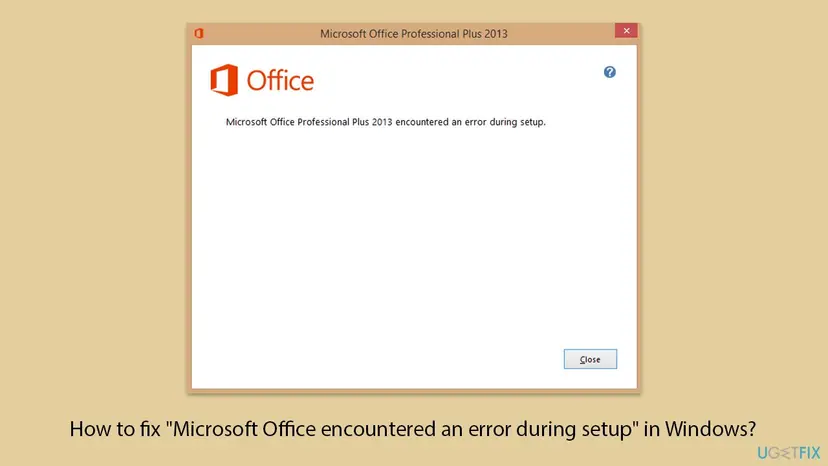
Microsoft Office Professional Plus 2016 encountered an error during setup. The window has a Close button and nothing else: no error code and no link.
- When it appears: users on Microsoft Q&A describe the same pattern. The installation runs almost to the end, then rolls back and shows the message.
- Typical moment: after Windows was reset or reinstalled, after an older Office was removed, or on a PC that came with Microsoft 365 preinstalled.
- Other spellings people search: MS Office encountered an error during setup, Office 2016 encountered an error during setup, Microsoft Office Standard 2016 encountered an error during setup, and the same with 2013, 2010 or Enterprise 2007.
- What it is not: a licence or activation error. Setup has not reached activation yet.
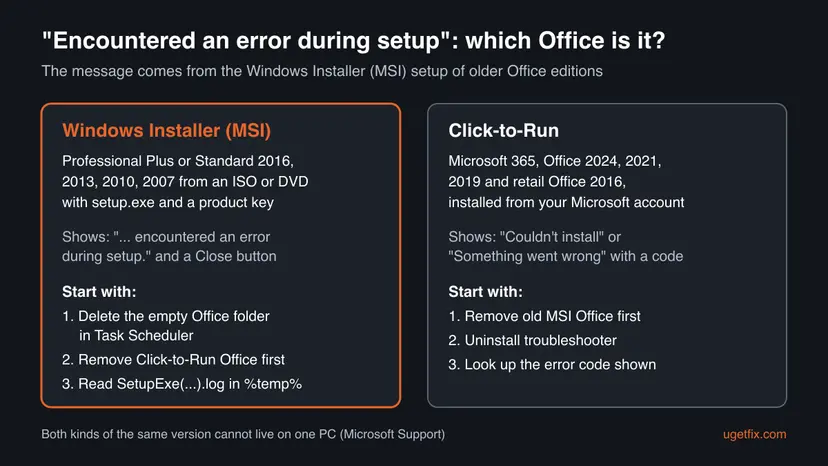
These install with Click-to-Run and normally report failures as Couldn't install or Something went wrong with an error code. We could not confirm when Click-to-Run setup shows this exact wording. If you see it there, an older MSI Office or its leftovers are the likely blocker: start with Fix 2 and Fix 5.
What causes the Office setup error, from the most common to the rare
Microsoft publishes no list of causes for this message. The ranking below comes from the setup logs users posted on Microsoft Q&A and from Microsoft's rule about installation technologies. It is an order of likelihood, not a statistic.
| How often | Cause | Typical sign | Fix |
|---|---|---|---|
| Most often | Setup cannot create its scheduled tasks because a Microsoft\Office folder is already in Task Scheduler | Office was on the PC before. The log shows schtasks.exe with cannot find the path specified or file already exists. | Fix 1 |
| Often | A Click-to-Run Office of the same version is installed, such as a preinstalled Microsoft 365, Visio, Project or Skype for Business | A message about Click-to-Run programs, or Microsoft 365 apps in Installed apps. | Fix 2 |
| Often | Damaged or incomplete setup files, or setup run from a network share or zip file | Setup cannot find or validate an installation file, or failure at the same file every time. | Fix 3 |
| Less often | Missing rights or a locked folder, for example Microsoft Help in %ProgramData% | Access is denied lines in the log, or setup started without administrator rights. | Fix 4 |
| Less often | Parts of an older Office left behind after a failed removal | An earlier uninstall stopped halfway, or Office still shows in Installed apps but does not open. | Fix 5 |
| Rarely | A background program or damaged Windows files | Fails on this PC only, while the same media installs on another PC. | Fix 6, Fix 7 |
Many websites list low disk space, old Windows updates and the registry as main causes. No Microsoft page ties them to this message. Disk space still matters for any installation, so Fix 3 checks it.
Office versions that show this message and their support status
| Office version | Installer | Shows this message | Support |
|---|---|---|---|
| Professional Plus or Standard 2016 (volume) | Windows Installer (MSI) | Yes | Ended 14 October 2025 |
| Professional Plus or Standard 2013 | Windows Installer (MSI) | Yes | Ended 11 April 2023 |
| Professional Plus or Standard 2010 | Windows Installer (MSI) | Yes | Ended 13 October 2020 |
| Enterprise 2007 | Windows Installer (MSI) | Yes | Ended 10 October 2017 |
| Office 2019, 2021, 2024, Microsoft 365 | Click-to-Run | Usually a coded message instead | 2019 ended 14 October 2025; the others are supported |
An unsupported Office still installs on Windows 11 and Windows 10 22H2, but it gets no security fixes. Windows 10 itself left support on 14 October 2025. If you have a choice, a supported Office avoids the MSI setup and this message altogether.
How to fix "Microsoft Office encountered an error during setup"
Fix 1 and Fix 2 solve most cases and take minutes. Fix 3 to Fix 5 deal with the setup files, rights and leftovers. Fix 6 and Fix 7 are general Windows repairs for the rare case where nothing specific is found. If you want certainty first, read the log as shown under the methods and jump to the fix it points to.
| What you see or have | Start with |
|---|---|
| Office was installed before, or Windows was reset, and setup rolls back near the end | Fix 1 |
| Microsoft 365, Visio, Project or another Office from your account is installed | Fix 2 |
| Setup cannot find or validate an installation file, or setup runs from a share or zip | Fix 3 |
| Setup did not ask for administrator rights, or the log says Access is denied | Fix 4 |
| An earlier uninstall of Office failed or stopped halfway | Fix 5 |
| The same media installs on another PC without trouble | Fix 6, then Fix 7 |
Fix 1. Delete the leftover Office folder in Task Scheduler and run setup again
5 minutesRead the warningOffice 2016 or 2013 was on this PC before, or Windows was reset, and setup rolls back near the end.
Setup creates scheduled tasks under Microsoft\Office, such as OfficeTelemetryAgentLogOn. A user's verbose log on Microsoft Q&A showed schtasks.exe failing on that path, and deleting the existing Office folder in Task Scheduler let setup finish. That answer was marked helpful by more than 1,300 people.
The tasks in that folder keep an installed Office updated and running. If another Office is still installed, remove it first (Fix 2) or export each task with right-click and Export before you delete anything. On a PC with no Office installed, the folder holds nothing you need.
- Close the Office setup window and restart the PC.
- Press Win + R, type
taskschd.mscand press Enter. - In the left pane, expand Task Scheduler Library > Microsoft and select Office.
- Look at the list in the middle. Note any tasks that are there.
- Right-click the Office folder and select Delete Folder. If Windows refuses because the folder is not empty, delete the tasks inside it first, then the folder.
- Close Task Scheduler and run Office
setup.exeagain with right-click and Run as administrator.
Another user on the same thread saw a related failure: setup could not create the Office 15 Subscription Heartbeat task because it already existed. The fix is the same. Some users find no Office folder at all; for them the cause is elsewhere, so go on to Fix 2.
It worked if: Setup runs to the end and shows that Office was installed. The Office folder in Task Scheduler is created again by the new installation.
If not: If there was no Office folder or setup still rolls back, check for a Click-to-Run Office with Fix 2.
Fix 2. Uninstall Click-to-Run Office before you install the MSI edition
15 to 30 minutesRead the warningMicrosoft 365, a preinstalled Office, or a Click-to-Run Visio, Project, Access, Skype for Business or OneDrive for Business is on the PC.
Microsoft says you can't install the same version of Office products that use two different installation technologies on the same computer, and this includes standalone apps such as Visio and Project. Microsoft's fix is to remove one of them and retry.
Uninstalling removes the Office apps, not your documents. Make sure you can sign in to the Microsoft account that owns Microsoft 365 before you remove it. Copy custom templates and Outlook signatures you need: Back up your files (Windows Backup, File History, Time Machine).
- Open Settings > Apps > Installed apps (Windows 10: Apps & features).
- Type
office, then365,visioandprojectin the search box. Note every entry. - Decide which Office you keep. Microsoft notes you can also stay with the Windows Installer version and not install the Click-to-Run one.
- Uninstall each Click-to-Run entry with the three dots and Uninstall: Uninstall a program or app in Windows.
- If an entry refuses to go, use Microsoft's uninstall troubleshooter from the page Uninstall Microsoft 365 or Office from a PC.
- Restart the PC and run the MSI setup again.

The opposite case also exists. Users who install Microsoft 365 over an old MSI Office report a message that starts with We're sorry, Microsoft Office installer encountered a problem because you have these Click-to-Run Office programs installed. The same rule applies: remove the MSI edition first, then install Microsoft 365.
If you have a volume licence for Project 2016 or Visio 2016 and want to keep Microsoft 365 Apps for enterprise, Microsoft points to the Office Deployment Tool to install Click-to-Run versions of them instead of the MSI ones.
It worked if: Installed apps lists only the Office you want to keep, and the setup finishes.
If not: If no Click-to-Run Office was installed, or setup still fails, try fresh setup files with Fix 3.
Fix 3. Run setup from a fresh copy of the files on the local disk
15 to 30 minutesNo riskSetup says it cannot find or validate an installation file, or you run it from a network share, a zip file or an old DVD.
MSI setup reads every package from its source while it runs. A damaged file, a share that drops for a moment or an unpacked zip makes one action fail, and the whole installation rolls back.
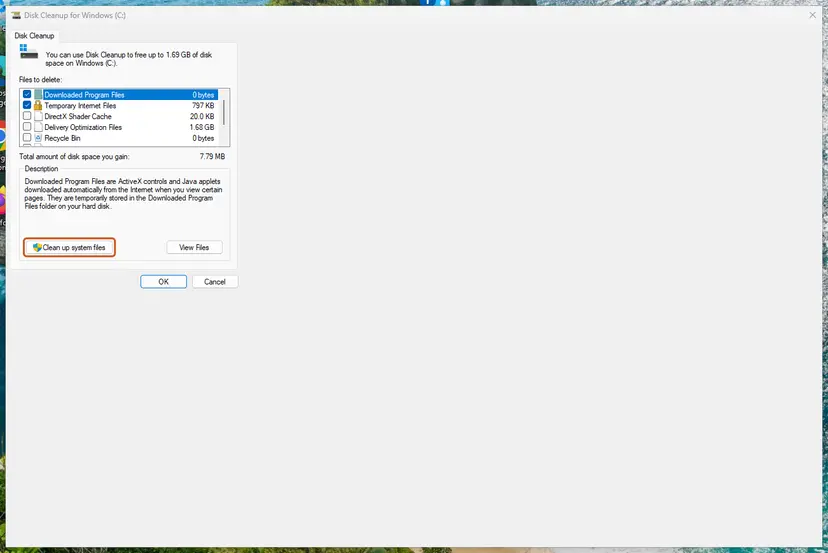
- Check that drive C: has free space for the installation. Free some if it is low: Free up disk space and delete temporary files.
- Download the ISO again from the place your licence comes from, for example your organisation's volume licensing portal.
- In File Explorer, double-click the
.isofile. Windows opens it as a new drive, for example (E:). - Create a folder such as
C:\OfficeSetupand copy everything from that drive into it. - Open
C:\OfficeSetup, right-clicksetup.exeand select Run as administrator. - Enter the product key when asked and choose Install Now or Customize.
One user on Microsoft Q&A downloaded both 32-bit and 64-bit setup files and still failed, because the cause was in Task Scheduler. Fresh files help only when the old ones were the problem, so check the log if this fix changes nothing.
It worked if: Setup reads the files from the local copy and installs without rolling back.
If not: If it rolls back at the same point, the files were fine. Go to Fix 4.
Fix 4. Rename the Microsoft Help folder and run setup as administrator
5 minutesLow riskSetup was started without administrator rights, or the log mentions Access is denied.
An answer on Microsoft Q&A to this exact message recommends renaming the Microsoft Help folder in %ProgramData% before the next attempt. Setup writes help files there, and a damaged folder can stop it. Running setup as administrator gives it the rights its actions need.
- Press Win + R, type
%ProgramData%and press Enter. - Find the Microsoft Help folder. If File Explorer hides it, select View > Show > Hidden items.
- Right-click it, select Rename and name it
Microsoft Help.OLD. - Restart the PC.
- Right-click
setup.exeand select Run as administrator. Select Yes when User Account Control asks: How to run a program as administrator or in compatibility mode.
If the setup works, you can delete Microsoft Help.OLD later. If it does not, rename it back to Microsoft Help so nothing else is affected.
It worked if: Setup finishes with Office installed, and a new Microsoft Help folder appears.
If not: If it still rolls back, remove what is left of older Office versions with Fix 5.
Fix 5. Remove what is left of older Office versions
20 to 40 minutesRead the warningAn earlier uninstall stopped halfway, Office still shows in Installed apps but does not open, or you moved from one Office version to another.
The Microsoft Q&A answers to this message start with removing all traces of Office before the next attempt. One user's failure began after a broken change to Office 2013 turned into a partial uninstall, and setup kept failing until the leftovers were cleared.
Every Office on the PC is removed, documents stay. Keep the product keys or the account details of each Office you will install again, and back up templates and signatures: Back up your files (Windows Backup, File History, Time Machine).
- Uninstall every Office, Visio and Project entry in Settings > Apps > Installed apps.
- Open Microsoft's page Uninstall Microsoft 365 or Office from a PC and run the uninstall troubleshooter. Choose all versions when it asks.
- Restart the PC.
- Repeat Fix 1: check Task Scheduler for an Office folder left behind.
- Run the Office setup again as administrator.
If the troubleshooter cannot remove an entry, Microsoft's manual removal deletes the services, scheduled tasks and registry keys in a fixed order. We describe it step by step in our guide to error code 30015-25, Fix 8. Back up the registry before you start: Back up the registry before editing it.
It worked if: Installed apps shows no Office, and the new setup finishes.
If not: If setup still fails on a clean PC, test it without background programs with Fix 6.
Fix 6. Install Office in a clean boot
15 minutes plus restartsLow riskThe same Office media installs on another PC, or you use security or system tools that watch installations.
A program from another maker can lock a file or a scheduled task while setup runs, and one failed action rolls the whole installation back. A clean boot starts Windows with only Microsoft services, so setup runs without them.
- Open System Configuration. Select Search on the taskbar, type msconfig and select System Configuration from the results.
- Hide Microsoft services. On the Services tab, select the Hide all Microsoft services check box. Only services from other companies stay in the list.

With Hide all Microsoft services ticked, only third-party services stay in the list. Screenshot: Windows 11 26H2. - Disable the remaining services. Select Disable all, then select Apply.
- Open Task Manager. On the Startup tab of System Configuration, select Open Task Manager.

The Startup tab only links to Task Manager. Screenshot: Windows 11 26H2. - Disable the startup apps. On the Startup apps tab in Task Manager, select each item whose status is Enabled and select Disable. Write down or take a screenshot of the items you disable: you need the list to turn them back on.

Select an app, then Disable. Screenshot: Windows 11 26H2.
These steps were written for Windows 11 25H2 and 26H2. The full page with the other versions and what each result means: How to perform a clean boot in Windows
Run Office setup in the clean boot. If it now works, return to normal startup with the last steps of How to perform a clean boot in Windows. If your security program still runs and you suspect it, pause it for this one attempt only and turn it back on: Turn off Microsoft Defender protection for a moment.
It worked if: Setup finishes in the clean boot, and Office still opens after a normal start.
If not: Return to normal startup and repair Windows files with Fix 7.
Fix 7. Repair Windows system files with SFC and DISM
20 to 30 minutesNo riskOther programs also fail to install, or Windows Installer itself shows errors.
MSI setup depends on Windows Installer and other system components. If they are damaged, any MSI installation can roll back. This is a general repair, so it comes last.
- Open an elevated command window. Right-click Start and select Terminal (Admin), or type cmd in the search box, right-click Command Prompt and select Run as administrator. Select Yes when Windows asks for permission.

Search for cmd and choose Run as administrator. Screenshot: Windows 11 26H2. - Run DISM first. Type the command below and press Enter. DISM downloads clean copies of damaged components from Windows Update, so it can take several minutes. Wait until it says The operation completed successfully.
DISM.exe /Online /Cleanup-Image /RestoreHealth
DISM /RestoreHealth running. Screenshot: Windows 11 26H2. - Run System File Checker. In the same window, type the command below and press Enter. Do not close the window until the verification reaches 100%.
sfc /scannow
sfc /scannow at 100%. Screenshot: Windows 11 26H2. - Read the result and restart. Compare the last message with the table below this guide, then restart the PC so that repaired files are loaded.

The result line tells you what SFC did. Screenshot: Windows 11 26H2.
These steps were written for Windows 11 24H2 and 25H2. The full page with the other versions and what each result means: Run DISM and SFC to repair Windows system files
It worked if: SFC reports that it found no integrity violations or repaired them, and Office setup finishes after a restart.
If not: Read the setup log as shown below and search for the failing action.
If Office setup still fails: read the setup log
The setup window says nothing, but the log does. Office MSI setup writes a file named SetupExe(date and time).log to your %temp% folder. A user on Microsoft Q&A found this line in it: Error: Failed to install product: C:\MSOCache\All Users\{90160000-0011-0000-1000-0000000FF1CE}-C\ProPlusWW.msi ErrorCode: 1603(0x643).
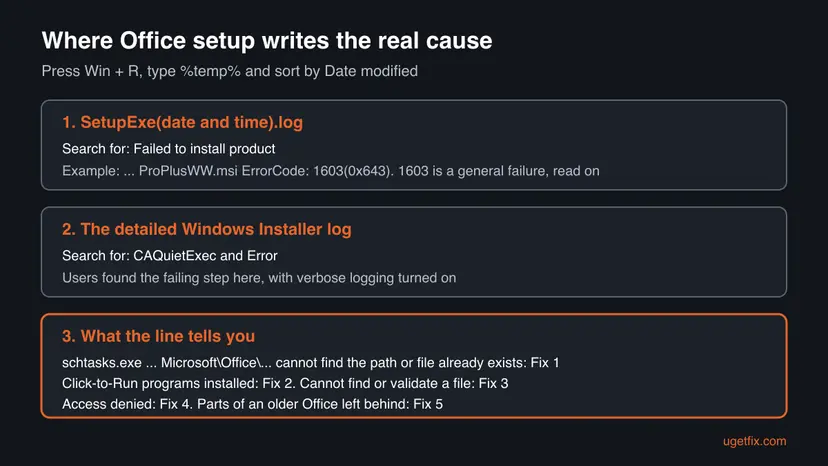
- Run setup once more and note the time it fails.
- Press Win + R, type
%temp%and press Enter. - Sort by Date modified, newest first, and open the newest
SetupExe(...).login Notepad. - Press Ctrl + F and search for
Failed to install product. Note the.msifile and the error code. - Open the other
.logfiles from the same minute and search forCAQuietExecandError. The first failing line names the action. - Compare it with the log map above and go to that fix.
Error code 1603 alone only says the installation failed. The user who solved it on Microsoft Q&A turned on verbose Windows Installer logging and found the schtasks.exe line for OfficeTelemetryAgentLogOn with The system cannot find the path specified. We could not confirm whether the default logs always contain that detail.
- What to send to support: the
SetupExe(...).log, the Windows and Office versions and whether the media is retail or volume licence. - When it is the hardware: setup fails at a different file each time, or other large copies fail too. Check the disk: Check a disk for errors (chkdsk).
- When it is the licence: MSI volume editions need a volume licence key or activation through your organisation. A home Microsoft 365 or Office 2021 key does not install them.
How to avoid the setup error next time
- Uninstall one Office completely and restart before you install another.
- Keep only one installation technology of the same Office version on a PC.
- Copy the setup files to the local disk and run setup.exe as administrator.
- Keep the SetupExe log of a failed attempt until the problem is solved.
- Use Change on an old Office if you are not sure what it removes.
- Install an MSI Office on a PC with preinstalled Microsoft 365 without removing it first.
- Run setup from a zip file or a share that may drop.
- Leave security software paused after a test.
Frequently asked questions
Why does Microsoft Office say it encountered an error during setup?
Because one of the actions of the Windows Installer setup failed and the whole installation was rolled back. The window does not say which action. Users who read their logs most often found that setup could not create its scheduled tasks under Microsoft\Office in Task Scheduler, or that a Click-to-Run Office of the same version was already on the PC. Microsoft does not allow both installation technologies of the same Office version on one computer. The SetupExe log in %temp% names the step that broke.
How do I fix Microsoft Office Professional Plus 2016 encountered an error during setup?
Open Task Scheduler with taskschd.msc, go to Task Scheduler Library, Microsoft, and delete the Office folder if no other Office is installed. Restart and run setup.exe as administrator. If a Microsoft 365 or another Click-to-Run Office is installed, uninstall it first, because Microsoft says the two kinds can't live on one PC. If it still fails, copy the setup files to the local disk, rename the Microsoft Help folder in %ProgramData% and read the SetupExe log in %temp%.
Does the same fix work for Office Standard 2016, Professional Plus 2013 and 2010?
Yes. Office Standard 2016, Professional Plus 2013, Office 2010 and Enterprise 2007 all use the same Windows Installer setup and show the same message with their own product name. The Task Scheduler fix applies mostly to Office 2013 and 2016, which create Office tasks there. Removing Click-to-Run Office, fresh setup files and the log apply to all of them. Keep in mind that all these versions are past their end of support and get no security updates.
I get this error installing Office 2021. Is the fix different?
Office 2021 installs with Click-to-Run, not with Windows Installer, and normally shows a different message with an error code. We could not confirm when Click-to-Run setup uses this exact wording. In practice, the blocker is usually an older MSI Office, a half-removed Office or leftovers from before a Windows reset. Uninstall every Office entry, run Microsoft's uninstall troubleshooter, restart and install Office 2021 again from your Microsoft account page. If you then get a code, look it up by that code.
What does "Windows Installer and Click-to-Run editions of Office programs don't get along" mean?
It means setup found Office programs of the other installation technology on the PC. Microsoft explains that you can't install the same version of Office products that use two different installation technologies on the same computer, including Visio, Project, Access, Skype for Business and OneDrive for Business. Choose which Office you keep. Uninstall the other one in Installed apps or with Microsoft's uninstall troubleshooter, restart and run the setup again.
What does setup cannot find or validate an installation file mean in Office 2016?
It means setup could not read one of its packages from the source or the file did not match what setup expected. The usual reasons are a damaged download, a scratched disc, a share that dropped during setup or files unpacked from a zip with missing parts. Download the ISO again from your licence source, open it in File Explorer, copy all files to a folder on drive C: and run setup.exe from there as administrator.
The Office 2016 uninstall did not complete successfully. What now?
Restart the PC and try the uninstall once more from Installed apps. If it fails again, use Microsoft's uninstall troubleshooter from the page Uninstall Microsoft 365 or Office from a PC and choose all versions. If that also stops, Microsoft's manual removal deletes the services, scheduled tasks and registry keys of Office in a fixed order. Back up the registry first. Then check Task Scheduler for a leftover Office folder before you install again.
Where is the Office setup log file?
In your temporary folder. Press Win + R, type %temp% and press Enter, then sort by Date modified. The file is named SetupExe followed by the date and time in brackets, for example SetupExe(201807031334471680).log. Search it for Failed to install product. The line shows the .msi package and an error code such as 1603. Other .log files from the same minute can hold the detailed action that failed.
Is this page about other languages or other products?
This page is about the Microsoft Office setup message in Windows. People search for it in many languages, for example Vietnamese and Indonesian searches for what the error is and how to fix it. The steps are the same in every language of Windows and Office; only the menu names are translated. If the message names another product, such as Visio or Project, the same fixes apply.
Sources
- Microsoft Support: Office installed with Click-to-Run and Windows Installer on same computer isn't supported (support.microsoft.com)
- Microsoft Q&A: Microsoft Office 2016 encountered an error during Setup (accepted answer and setup log) (learn.microsoft.com)
- Microsoft Q&A: Error: Microsoft Office Professional Plus 2016 encountered an error during setup (learn.microsoft.com)
Did this fix work?
One click, no account. It tells the next reader which guides are worth their time.
Questions and experiences: fix "Microsoft Office encountered an error during setup" in Windows
Still broken, or found a fix we did not cover? Ask here: members and our editors answer. Reading is open; writing needs a free account.
…