
How to fix Microsoft Office error 30045-29 in Windows?

Prefer to fix it yourself? The manual steps follow.
- 7methods
- 5 to 40 minutes
- Easy to intermediate
Applies to Microsoft 365, Office 2024, 2021, 2019 and 2016 installed with Click-to-Run on Windows 11 and Windows 10
7 methods in this guide
I keep getting this strange error 30045-29 (1) at random times when using Office apps, which makes them almost unusable. I am using Windows 11 Home and had no problems with Office until a few days ago. Any ideas how to deal with this?
Error Code: 30045-29 (1) means the Click-to-Run part of Office could not finish an update or a background check, so you see it after Update Now or as a pop-up while Word or Excel is open. Close Office, restart and run Online Repair first. If the pop-up keeps coming, check the licence in File > Account.
Close every Office app, restart Windows and run Online Repair from Installed apps (Fix 1). That is the first step Microsoft's community staff give for 30045-29 (1). If the pop-up returns, open File > Account in Word and make sure Office is licensed to your account (Fix 2). If the update itself keeps failing, uninstall Office and install it again (Fix 6). Your documents stay where they are.
| Error | Something went wrong, Sorry, we ran into a problem., Go online for additional help. and Error Code: 30045-29 (1) in a small Microsoft window. |
|---|---|
| Where it appears | After you select Update Now in an Office app, or as a pop-up at random moments while Word, Excel, Outlook or PowerPoint is open. |
| Main cause | Damaged Office program files that stop the Click-to-Run update. Less often an expired or half removed Office trial whose update service still runs. |
| Fastest fix | Restart, then Online Repair (Fix 1). Microsoft says Online Repair makes sure everything gets fixed, while Quick Repair only replaces files it finds damaged. |
| Also written as | 30045-29, error code 30045-29 (1), 30045-29(1), error code: 30045-29 (1), microsoft error code 30045-29, 3004529. |
| Affects | Click-to-Run Office of version 16.0: Microsoft 365, Office 2024, 2021, 2019 and 2016, on Windows 11 and Windows 10. |
| Microsoft's status | No support page for 30045 (checked 15 October 2026). Microsoft community staff answer 30045-29 (1) with the Office repair tool, then a full uninstall and new installation. |
| Your files | Safe. A repair or a reinstall replaces the Office programs, not the documents you created. |
| Time to fix | 5 to 15 minutes for a restart and Online Repair. 30 to 40 minutes when Office must be removed and installed again. |
Facts checked on 15 October 2026. Steps written for Click-to-Run versions of Microsoft 365, Office 2016 to 2024 on Windows 11 (25H2 and 26H2) and Windows 10 22H2, read against Microsoft's documentation and Microsoft Q&A.
What error code 30045-29 (1) means in Microsoft Office
Every current desktop Office is installed and kept up to date by Click-to-Run. It runs in the background as Microsoft Office Click-to-Run Service and downloads updates while you work. Codes that begin with 30045 come from this Click-to-Run window, and 30045-29 is the one that shows when an update or its background check stops halfway.
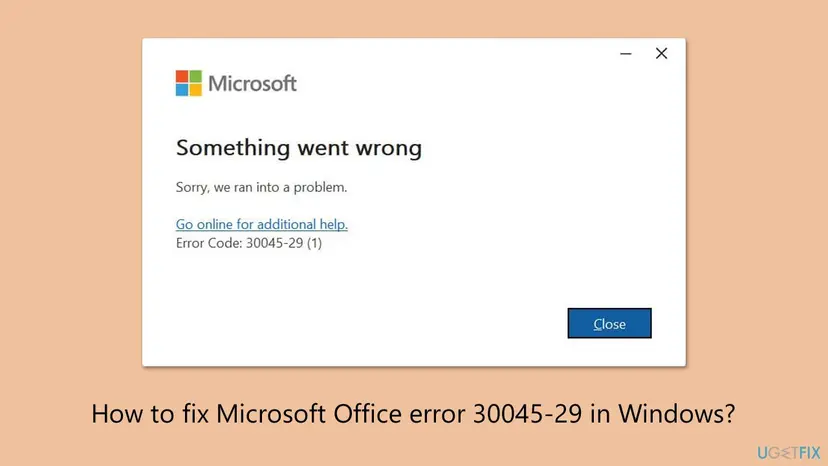
- After Update Now. In the Microsoft Q&A thread with the most matching reports, Office said updates were ready to install, and selecting Update Now gave Error Code 30045-29 (1). A repair from Apps & Features changed nothing. More than 100 people marked that they had the same question.
- At random times. Our reader and many others see the window pop up while they type, sometimes several times an hour. The update service retries in the background, so the window comes back until the cause is gone.
- The (1) in brackets is Windows' generic error 1, Incorrect function. It says that an action failed, not why, so the 29 is the part that matters.
Both show the same window. 30045-29 comes from an Office that is already installed and tries to update. 30045-44 comes from setup while it installs or removes Office. If your code ends in 44, the fixes are different: see our guide to Office error 30045-44.
Microsoft has no support page for 30045 and does not document what the 29 means. The order of fixes on this page follows Microsoft's own repair page and the answers of Microsoft community staff to 30045-29 (1). We say where a step is a user report and not Microsoft's advice.
What causes Office error 30045-29, from the most common to the rare
Microsoft names no single cause. The order below is our reading of the reports and of what Microsoft's staff advised in them. It is an order of likelihood, not a statistic.
| How often | Cause | Typical sign | Fix |
|---|---|---|---|
| Most often | Damaged Office program files, so the update cannot be applied | The error appears every time you select Update Now, and Office itself still opens. | Fix 1 |
| Often | An expired trial or a licence Office can no longer check | The pop-up comes at random, and File > Account shows a product notice or a trial. | Fix 2 |
| Often | The update download breaks off | Wi-Fi drops, a VPN or a metered connection, or the error comes only on one network. | Fix 3 |
| Less often | The Click-to-Run service is stuck or set to Disabled | Update Now does nothing for a long time before the error, or a tuning tool changed services. | Fix 4 |
| Less often | A removed trial left its update service behind | You uninstalled the preinstalled Microsoft 365 trial, yet the window still pops up. | Fix 5 |
| Rarely | An installation the repair cannot save | Online Repair fails or ends with another code such as 30045-27 (1). | Fix 6 |
| Rarely | Damaged Windows system files | Other programs also fail to install or update. | Fix 7 |
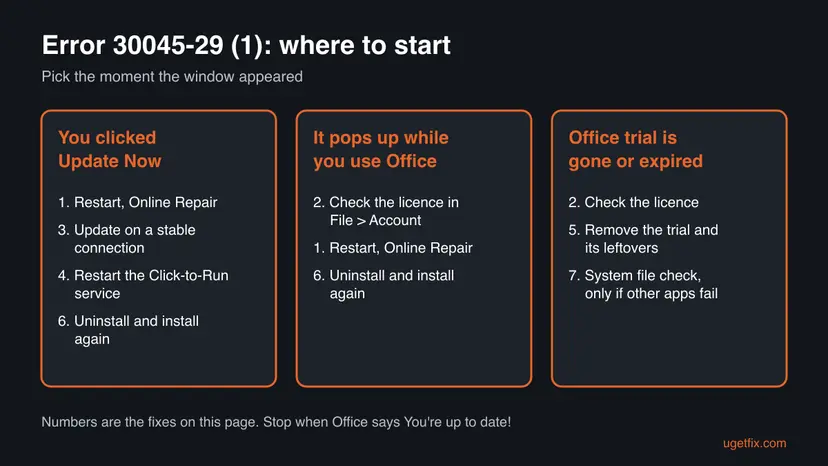
How to fix error code 30045-29 (1) in Office
Fix 1 helps most readers and takes about 15 minutes. Fix 2 to Fix 5 are for the pop-up that keeps coming back or an update that never finishes. Fix 6 and Fix 7 are for the rare cases. Stop as soon as Update Now ends with You're up to date!
| What you see or what your PC has | Start with |
|---|---|
| The error appears after you select Update Now | Fix 1 |
| The window pops up at random while you work | Fix 1, then Fix 2 |
| Word shows a trial, a product notice or asks you to sign in | Fix 2 |
| You are on Wi-Fi, a VPN, a hotspot or a metered connection | Fix 3 |
| Update Now spins for minutes before the error | Fix 4 |
| You already uninstalled the Office trial, yet the window still comes | Fix 5 |
| Online Repair failed or ended with 30045-27 (1) | Fix 6 |
Fix 1. Close Office, restart Windows and run Online Repair
10 to 20 minutesLow riskEveryone first, above all when the error appears after Update Now.
An update that stopped halfway leaves Office files the next update cannot replace. Online Repair downloads a fresh copy of the programs and replaces them. It is the first step Microsoft's community staff gave for 30045-29 (1), after a repair from Apps & Features had changed nothing.
- Save your work and close Word, Excel, Outlook, PowerPoint and Teams.
- Select Start > Power > Restart. Use Restart, not Shut down, so the Click-to-Run service starts fresh.
- Right-click Start and select Installed apps. On Windows 10: Apps and Features.
- Find Microsoft 365 or Microsoft Office, select the three dots next to it and select Modify. On Windows 10, select the entry and then Modify.
- Select Yes at the User Account Control prompt.
- In How would you like to repair your Office programs, select Online Repair, then Repair, and confirm.
- Wait for the repair to finish, restart once more and select File > Account > Update Options > Update Now in Word.
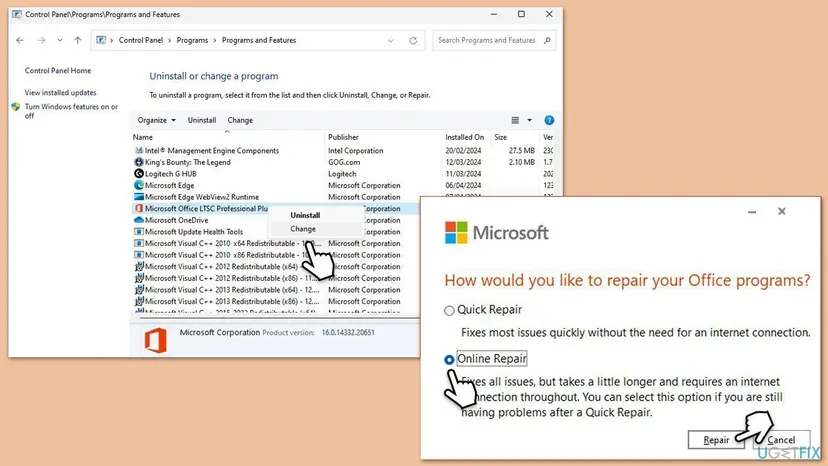
Microsoft's repair page says Online Repair makes sure everything gets fixed, while the faster Quick Repair only detects and replaces corrupted files. The reader in the Q&A thread had already tried a plain repair with no change. Online Repair needs an internet connection for the whole time. More on both options: How to repair Microsoft 365 or Office.
It worked if: The repair ends without an error, and Update Now shows You're up to date! or installs the waiting update.
If not: If the pop-up still comes while you work, check the licence with Fix 2. If the repair itself ends with 30045-27 (1) or another code, go to Fix 6.
Fix 2. Check the Office licence in File > Account
5 minutesNo riskThe window pops up at random, or Office shows a trial, a product notice or a sign-in prompt.
Click-to-Run checks the licence in the background and updates only licensed Office. An expired Microsoft 365 trial, or an Office signed in with an account that no longer owns it, gives that background check nothing to work with. A pop-up that starts on a PC where nothing else changed, as in our reader's case, often points here.
- Open Word and select File > Account. In Outlook it is File > Office Account.
- Read Product Information on the right. A working licence says Subscription Product or Product Activated.
- If you see a yellow or red bar such as Product Notice, Unlicensed Product or a trial end date, select Sign out under User Information.
- Sign in again with the Microsoft account that bought Office.
- Sign in at
account.microsoft.comand open Services & subscriptions to check that Office is listed and the subscription is active.
| What File > Account shows | What to do |
|---|---|
| Subscription Product or Product Activated, your own account | The licence is fine. Go to Fix 3 or Fix 4. |
| A trial that has ended, and you do not want to buy Office | Remove the trial and its leftovers with Fix 5. |
| A trial, but you bought Office 2021 or 2024 separately | Remove the trial with Fix 5, then install your own Office. |
| Another person's or a work account | Sign out, sign in with your own account, or ask your IT team. |
It worked if: Product Information shows your licence, and the window stops popping up within a day.
If not: If the licence is fine and the error comes after Update Now, try the connection in Fix 3.
Fix 3. Run Update Now again on a stable connection
10 to 20 minutesNo riskYou are on Wi-Fi, a phone hotspot, a VPN or a metered connection, or the update stops at the same point.
Click-to-Run downloads each Office update while it runs. A dropped connection leaves a broken download behind, and the next try fails on it with the same code.
- Connect the PC to the router with a cable, or move close to it.
- Disconnect any VPN and pause other large downloads such as Windows Update or game launchers.
- Select Start > Settings > Network & internet, select your connection and make sure Metered connection is off.
- Close every Office app except Word.
- In Word select File > Account > Update Options > Update Now and leave the PC on until it finishes.
If Update Options offers Enable Updates, select it first: updates were turned off, and Click-to-Run keeps failing on the waiting update. To find where a connection breaks, follow How to check your internet connection in Windows.
It worked if: The update window shows a progress bar and then You're up to date!
If not: If it fails on a cable connection too, restart the Click-to-Run service with Fix 4.
Fix 4. Restart Microsoft Office Click-to-Run Service
5 minutesLow riskUpdate Now spins for a long time before the error, or a tuning tool was used on the PC.
The update is done by this service, not by Word. A service that hangs, or one set to Disabled, cannot apply the update, and Office reports that as a failed update.
- Close every Office app.
- Press Ctrl + Shift + Esc to open Task Manager. If Microsoft Office Click-to-Run (SxS) is listed under Background processes, select it and select End task.
- Press Win + R, type
services.mscand select OK. - Find Microsoft Office Click-to-Run Service. If Startup Type says Disabled, double-click it, set Startup type to Automatic and select Apply.
- Right-click the service and select Start, or Restart if it is already running.
- Open Word and run File > Account > Update Options > Update Now.

How the Services console works, with every screen: Check and restart Windows services. If the service is not in the list at all while Office is installed, the installation is damaged. Go to Fix 6.
It worked if: The service shows Running with the startup type Automatic, and Update Now finishes.
If not: If you no longer have Office but the window still comes, go to Fix 5. Otherwise go to Fix 6.
Fix 5. Remove the expired trial and its leftovers
15 to 30 minutesLow riskOffice came preinstalled as a trial that has ended, or you already uninstalled it and the window still pops up.
A trial removed in part can leave Click-to-Run and its scheduled update check on the PC. They keep trying to update an Office that is no longer licensed, or no longer there, and show 30045-29 each time. Removing every piece stops it.
- Right-click Start and select Installed apps. On Windows 10: Settings > Apps > Apps & features.
- Type
officeand then365in the search box above the list. - Select the three dots next to each Office or Microsoft 365 entry you do not use, select Uninstall and confirm.
- Restart the PC.
- If the window still comes, run Microsoft's uninstall troubleshooter from Uninstall Microsoft 365 or Office from a PC on the Click-to-Run tab. It removes the service and the leftovers too.

How Installed apps works on Windows 11 and Windows 10, with every screen: Uninstall a program or app in Windows. If you want to keep Word and Excel, buy or redeem a licence and install Office again from your account after the removal.
It worked if: No Office entry is left in Installed apps, and the window no longer appears after a restart.
If not: If the troubleshooter fails, follow Fix 6 to remove Office and install it again.
Fix 6. Uninstall Office and install it again from your account
30 to 40 minutesRead the warningOnline Repair failed or ended with another code, such as 30045-27 (1), and Update Now still fails.
When the repair cannot save the installation, Microsoft's staff advised the 30045-29 (1) reader to uninstall and install again. A new installation brings the latest version, so no update is waiting to fail.
This removes Office settings, custom templates and Outlook signatures stored on the PC. Your documents are not removed. Before you start, make sure Office is listed under Services & subscriptions in your Microsoft account or that you have the product key. Copy what you would miss first: Back up your files (Windows Backup, File History, Time Machine).
- Right-click Start and select Installed apps.
- Select the three dots next to Microsoft 365 or Microsoft Office, select Uninstall and confirm.
- If the uninstall fails, use the uninstall troubleshooter from Microsoft's uninstall page, as in Fix 5.
- Restart the PC.
- Sign in at
microsoft365.comwith the account that owns Office and select Install apps. - Run the setup file, select Yes at the User Account Control prompt and wait for You're all set!
If setup then stops with a code that ends in 44, the removal left something behind. That case has its own steps in the guide linked under What the error means.
It worked if: Office installs with the newest version, and Update Now shows You're up to date!
If not: If the new Office shows 30045-29 again, check Windows itself with Fix 7.
Fix 7. Repair Windows system files
20 minutesLow riskOffice keeps failing after a new installation, or other programs also fail to install or update.
Click-to-Run relies on Windows components to download and apply updates. When those are damaged, every Office update fails, whatever you do inside Office. This is rare for 30045-29, so it comes last.
- Open an elevated command window. Right-click Start and select Terminal (Admin), or type cmd in the search box, right-click Command Prompt and select Run as administrator. Select Yes when Windows asks for permission.
- Run DISM first. Type the command below and press Enter. DISM downloads clean copies of damaged components from Windows Update, so it can take several minutes. Wait until it says The operation completed successfully.
DISM.exe /Online /Cleanup-Image /RestoreHealth - Run System File Checker. In the same window, type the command below and press Enter. Do not close the window until the verification reaches 100%.
sfc /scannow - Read the result and restart. Compare the last message with the table below this guide, then restart the PC so that repaired files are loaded.
These steps were written for Windows 11 24H2 and 25H2. The full page with the other versions and what each result means: Run DISM and SFC to repair Windows system files
It worked if: The scan reports that it repaired files or found none to repair, and Update Now finishes after a restart.
If not: Read the update log as described under Still there.
If 30045-29 is still there: read the Click-to-Run log
The window shows only the code. Click-to-Run writes more to log files in the %temp% folder of your user, and in %windir%\Temp for the update service that runs as the system account. The log often names the file or step that failed.
- Run Update Now once more and note the time of the error.
- Press Win + R, type
%windir%\Tempand press Enter. Switch to Details and sort by Date modified, newest first. - Open the newest
.logfile whose name begins with the name of your PC. Press Ctrl + F and search for30045, then forerror. - Repeat it in
%temp%.
We could not confirm from Microsoft which log line goes with 30045-29, so read it as a hint. A licence or account line points back to Fix 2. A download or network line points to Fix 3. A file that cannot be replaced points to Fix 6.
- A managed work or school PC may control Office updates by policy. Only IT can change that, so send them the code.
- What to send to Microsoft support: the full code with the number in brackets, the Office product and year, and whether it appeared after Update Now or on its own. Add the Windows version from Settings > System > About and the newest log from both folders.
How to stop error 30045-29 from coming back
Most reports come from an update interrupted halfway or from a trial left to expire. Letting updates finish and keeping one licensed Office per PC avoids most of it.
- Leave the PC on and connected until an Office update finishes.
- Remove the preinstalled Microsoft 365 trial when you decide not to buy it.
- Link your Office to your Microsoft account, so a reinstall needs nothing else.
- Try Online Repair first when updates start to fail.
- Shut the PC down while Office shows an update in progress.
- Set Microsoft Office Click-to-Run Service to Disabled to stop update pop-ups.
- Delete Office folders by hand before you have tried the repair and the troubleshooter.
- Use registry or system cleaning tools on Office keys.
Frequently asked questions
What does error code 30045-29 (1) mean?
It means the Click-to-Run part of Office could not finish an update or a background check. You see it after selecting Update Now, or as a pop-up while an Office app is open. Microsoft has no page that explains the 29, and the (1) is Windows' generic error 1, Incorrect function. Microsoft's community staff answer it with the Office repair tool first and a full reinstall second, which is the order of Fix 1 and Fix 6 on this page.
Why does 30045-29 pop up at random times while I work?
Click-to-Run checks for updates and the licence in the background, not only when you select Update Now. When that check fails, the window appears in the middle of your work and returns at the next check. The usual reasons are damaged Office files, an expired trial or a licence Office cannot reach. Run Online Repair (Fix 1), then look at Product Information under File > Account (Fix 2).
Is 30045-29 (1) the same as 30045-29?
Yes. They are the same error. The number in brackets is part of the code line and is usually (1). People search for it as 30045-29(1), error code: 30045-29 (1), microsoft error code 30045-29 and other spellings, and they all lead to the same fixes on this page. A different number in brackets comes from a different Windows error, so note it if you contact Microsoft support.
I ran the repair and now get 30045-27 (1). What next?
That happened to the reader in the Microsoft Q&A thread too. After the repair tool, the code changed from 30045-29 (1) to 30045-27 (1), and Microsoft's staff then advised uninstalling Office and installing it again. Follow Fix 6: back up templates and signatures, uninstall Office in Installed apps or with Microsoft's uninstall troubleshooter, restart and install again from microsoft365.com.
Will fixing 30045-29 delete my documents?
No. Online Repair and a reinstall replace the Office programs, not the files you created. Documents in your Documents folder or OneDrive stay where they are. A full uninstall does remove Office settings, custom templates and Outlook signatures stored on the PC, so copy those before Fix 6. Email in a Microsoft 365, Outlook.com or Gmail account stays on the server and comes back when you sign in.
Can I just turn off Office updates to stop the pop-up?
You can select File > Account > Update Options > Disable Updates, but it hides the problem and leaves Office without security fixes. Do not set Microsoft Office Click-to-Run Service to Disabled either: the service also runs repairs and installs, so later fixes fail. Fix the cause with Online Repair or a reinstall, and keep updates on.
Is error code 30045-4 the same as 30045-29?
No. 30045-4 is usually a shortened search for 30045-44, which appears while Office setup installs or removes Office. 30045-29 appears when an installed Office updates or checks itself in the background. The windows look alike, so read the full code. If yours ends in 44, follow the 30045-44 guide linked under What the error means instead of this one.
What are 30045 and ce 30045 2 searches about?
30045 alone is the group of Office Click-to-Run errors, and the part after the dash tells them apart. We found no Microsoft or Office code written as ce 30045 2. It may be a shortened search for one of these codes. Read the full code under Error Code in your window: 30045-29 is covered on this page, and 30045-44 on its own guide.
Do I need a new product key after reinstalling Office?
No, as long as your Office is linked to your Microsoft account. Sign in at account.microsoft.com and open Services & subscriptions. If Office is listed there, you install it again from microsoft365.com and it activates when you sign in. If it is not listed, redeem your product key with that account first. Keep the key or receipt until Office works again.
Does this fix work on Windows 10?
Yes. Every step works on Windows 10 22H2, and we give the Windows 10 menu names where they differ. Windows 10 left support on 14 October 2025, and Office 2016 and Office 2019 reached the end of support on the same day. They still run and can still show 30045-29, but they get no more security updates. Answers in other languages, such as como solucionar, are the same steps.
Sources
- Microsoft Q&A: Microsoft 365 Office Updates, Error Code 30045-29 (1) (learn.microsoft.com)
- Microsoft Support: Repair an Office application (support.microsoft.com)
Did this fix work?
One click, no account. It tells the next reader which guides are worth their time.
Questions and experiences: fix Microsoft Office error 30045-29 in Windows
Still broken, or found a fix we did not cover? Ask here: members and our editors answer. Reading is open; writing needs a free account.
…