
How to fix Office error 30045-44 in Windows?

Prefer to fix it yourself? The manual steps follow.
- 8methods
- 5 to 45 minutes
- Intermediate
Applies to Microsoft 365, Office 2024, 2021, 2019 and 2016 installed with Click-to-Run on Windows 11 and Windows 10
8 methods in this guide
Hello. I tried to install Microsoft Office on Windows several times, but I keep getting the 30045-44 error code. What should I do?
Error Code: 30045-44 (1) means Office setup could not read the Office that is already on the PC, so it stops while installing or removing Microsoft 365 or Office. Restart and install again from your Microsoft account. If it returns, remove the old or trial Office first, and use Microsoft's uninstall troubleshooter when a normal removal fails.
Restart the PC and install Office again from the Microsoft account that owns it (Fix 1). If the code returns, remove any trial, older or work-account Office first (Fix 2). If you see 30045-44 (1) while uninstalling, run Quick Repair, then Microsoft's uninstall troubleshooter (Fix 4 and Fix 5). Your documents are not touched by any of this.
| Error | Something went wrong, Sorry, we ran into a problem., Go online for additional help. and Error Code: 30045-44 (1) in the Microsoft or Office setup window. |
|---|---|
| Where it appears | While you install Microsoft 365 or Office 2016 to 2024, and also while you uninstall it. Reports on Microsoft Q&A cover both. |
| Main cause | Setup cannot correctly detect the Office that is already there: a preinstalled trial, an older version, a copy tied to a work account, or a half removed installation. Microsoft's support staff also name an unstable connection. |
| Fastest fix | A restart and a new installation from your Microsoft account (Fix 1), then removing the old Office in Installed apps (Fix 2). |
| Also written as | 30045-44, error code 30045-44 (1), 30045-44(1), error code: 30045-44 (1), error 30045-44 office, 3004544. Mistyped as 30045-4 or 30145-4. |
| Affects | Click-to-Run Office of version 16.0: Microsoft 365, Office 2024, 2021, 2019 and 2016, on Windows 11 and Windows 10. |
| Microsoft's status | No support page of its own (checked 15 October 2026). Microsoft community staff answer it with a clean removal and a new installation. No Office update fixes it, because the cause is on the PC. |
| Your files | Safe. Microsoft says uninstalling Office removes only the apps, not files, documents or workbooks you created. |
| Time to fix | 5 to 10 minutes when a restart or removing the trial is enough. 30 to 45 minutes when Office must be removed by hand. |
Facts checked on 15 October 2026. Steps written for Click-to-Run versions of Microsoft 365, Office 2016 to 2024 on Windows 11 (25H2 and 26H2) and Windows 10 22H2, read against Microsoft's documentation and Microsoft Q&A.
What error code 30045-44 (1) means in Office setup
Every current desktop Office, from Office 2016 to Office 2024 and Microsoft 365, is installed, updated and removed by Click-to-Run. The small setup window checks what Office is already on the PC before it changes anything. Error 30045-44 is shown when that check or the change that follows fails.
A Microsoft community support specialist who answered a 30045-44 (1) report wrote that the error may be caused by the system not correctly detecting the program information during installation, or by an unstable network connection. That matches the reports: almost all of them involve a second Office already on the PC.
The title says Something went wrong, the text says Sorry, we ran into a problem., then comes the link Go online for additional help. and the line Error Code: 30045-44 (1). The Office or Microsoft logo sits in the top left corner, and there is a Close button.
- On install. One reader bought Office 2021 Home and Business through an employer's discount program, entered the product key and got 30045-44 (1) during setup on 64-bit Windows. The first reply asked whether the preinstalled Microsoft 365 Family trial had been removed.
- On uninstall. Another user had signed a personal Office into a work account during the pandemic. After signing out, Office would not accept the personal subscription, repair failed with 30015-13 (255), and uninstall failed with 30045-44 (1).
- The (1) in brackets is Windows' generic error 1, Incorrect function. It says that an action failed, not why, so it does not point to one fix the way some other numbers do.
Microsoft has no support page for 30045 and does not document what the 44 means. The steps on this page come from Microsoft's own uninstall and install pages and from the answers of Microsoft support staff to 30045-44 reports. We say where a step is a user report and not Microsoft's advice.
What causes Office error 30045-44, from the most common to the rare
Microsoft names no single cause. The order below is our reading of the reports on Microsoft Q&A and of what Microsoft's staff asked and advised in them. It is an order of likelihood, not a statistic.
| How often | Cause | Typical sign | Fix |
|---|---|---|---|
| Most often | A stuck setup or a pending restart after an earlier Office change | You removed, updated or tried Office minutes ago and did not restart. | Fix 1 |
| Most often | A preinstalled trial or an older Office still on the PC | A new laptop with a Microsoft 365 trial, or Office 2016 or 2019 still in Installed apps, while you install Office 2021 or 2024. | Fix 2 |
| Often | Setup cannot download all its files | Wi-Fi drops, a VPN or a metered connection. Microsoft staff name an unstable network as a possible cause. | Fix 3 |
| Often | The installed Office is damaged, so it cannot be removed | 30045-44 (1) when you uninstall, often with a failed repair such as 30015-13. | Fix 4, Fix 5 |
| Less often | An Office removed only in part | Office is gone from Installed apps, but setup still behaves as if it were there. | Fix 6 |
| Less often | Old product keys or a work account left on the PC | Office installs but asks for a licence, or shows the trial or company product. | Fix 7 |
| Rarely | Microsoft Office Click-to-Run Service is disabled | A tuning tool or a manual tweak set the service to Disabled. | Fix 8 |
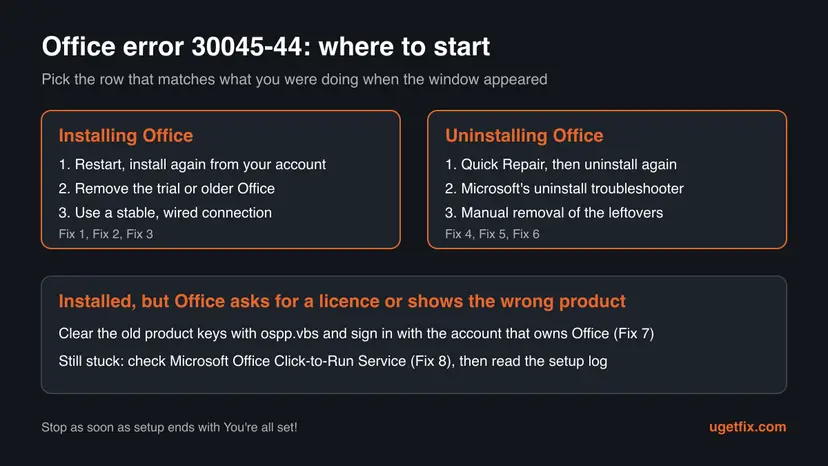
How to fix error code 30045-44 when you install or remove Office
Fix 1 to Fix 3 are for a failed installation. Fix 4 to Fix 6 are for a failed uninstall, and Fix 6 also helps an installation that keeps failing. Fix 7 and Fix 8 are for the rare cases. Stop as soon as setup ends with You're all set!
| What you see or what your PC has | Start with |
|---|---|
| Setup fails with 30045-44 (1) and you have not restarted since the last Office change | Fix 1 |
| A new PC that came with a Microsoft 365 trial, or an older Office in Installed apps | Fix 2 |
| You are on Wi-Fi, a VPN, a hotspot or a metered connection | Fix 3 |
| The error appears when you try to uninstall Office | Fix 4, then Fix 5 |
| The uninstall troubleshooter finished or failed, and setup still stops | Fix 6 |
| Office installed, but it asks for a licence or shows the wrong product | Fix 7 |
| Nothing above helped | Fix 8, then the setup log |
Fix 1. Restart Windows and install Office again from your Microsoft account
10 minutesNo riskEveryone first, above all when you changed or removed Office earlier and did not restart.
Setup checks the Office that is already on the PC. A pending restart after an earlier installation or removal leaves files and the Click-to-Run service in use, so the check can fail. A fresh installer from your account also replaces a setup file that may be damaged.
- Close the error window with Close.
- Select Start > Power > Restart. Use Restart, not Shut down, so Windows starts fully fresh.
- Sign in at
account.microsoft.comand open Services & subscriptions. Make sure your Office is listed under this account. Microsoft staff ask for this check first. - Sign in at
microsoft365.comwith the same account and select Install apps or Install Office. - Run the new setup file, select Yes at the User Account Control prompt and wait for You're all set!
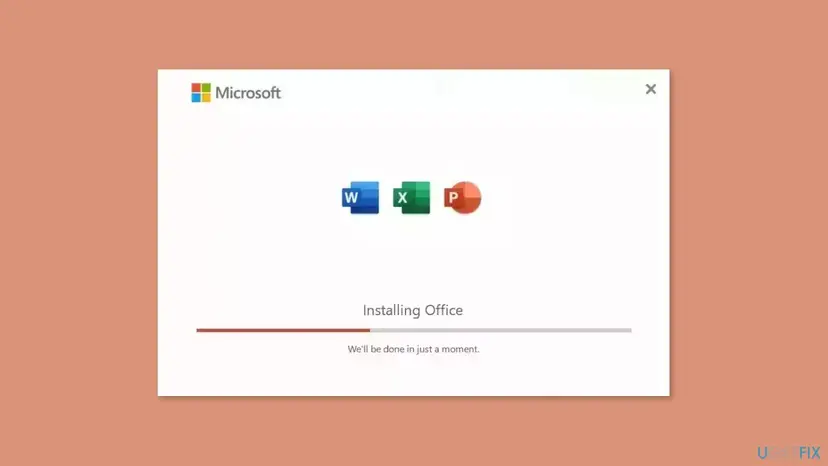
- Bought a product key? Redeem it first, so Office is listed under Services & subscriptions in your Microsoft account. The installer then comes from the account.
- Office 2016 and Office 2019 reached the end of support on 14 October 2025. They still install and run, but get no more security updates. Windows 10 left support on the same day.
It worked if: Setup runs past the point where it stopped and ends with You're all set!, and Word, Excel and PowerPoint appear in the Start menu.
If not: If the same code comes back, look for a second Office with Fix 2.
Fix 2. Remove the preinstalled trial or the older Office before you install
10 minutesLow riskA new PC that came with Microsoft 365, or any older Office, trial or work copy is still in Installed apps.
Setup checks the Office already on the PC, and Microsoft staff describe 30045-44 as a failure to detect that program information correctly. A second Office of another edition is the most common thing for it to trip over. The first question asked in one 30045-44 (1) thread was whether the preinstalled Microsoft 365 Family trial had been removed.
- Right-click Start and select Installed apps. On Windows 10: Settings > Apps > Apps & features.
- Type
officeand then365in the search box above the list. - Note every entry such as Microsoft 365, Microsoft Office Home and Student, Microsoft 365 Apps for business or a language pack.
- Select the three dots next to each one you do not want and select Uninstall, then Uninstall again to confirm.
- Restart the PC and install your Office again as in Fix 1.

How Installed apps works on Windows 11 and Windows 10, with every screen: Uninstall a program or app in Windows. If the uninstall here also ends with 30045-44 (1), go to Fix 4.
It worked if: Only the Office you want to install, or none, is left in the list, and the new setup ends with You're all set!
If not: If setup still fails, check the connection with Fix 3. If removal fails, use Fix 4 and Fix 5.
Fix 3. Install Office on a stable connection, without a VPN
10 to 30 minutesNo riskYou install over Wi-Fi, a phone hotspot, a VPN or a metered connection, or the download pauses.
The small setup file downloads the rest of Office while it runs. Microsoft's support specialist named an unstable network as the second possible cause of 30045-44. A dropped download can leave setup with files it cannot read.
- Connect the PC to the router with a cable, or move close to it.
- Disconnect any VPN and pause other large downloads, such as Windows Update or game launchers.
- Select Start > Settings > Network & internet, select your connection and make sure Metered connection is off.
- Run the installer again from your account, as in Fix 1.
To find where a connection breaks, follow How to check your internet connection in Windows. Microsoft also offers an offline installer for Microsoft 365 and Office, which downloads everything first and installs afterwards. Its page is linked from Microsoft's install help as Use the Office offline installer.
One Microsoft staff answer suggests a different DNS server and resetting the Internet Options advanced settings. If you try a DNS change, note the old setting and set it back to automatic afterwards. We found no report where that alone cleared 30045-44.
It worked if: The download finishes without a pause and setup ends with You're all set!
If not: If the code returns on a cable connection, the cause is on the PC. Remove Office completely with Fix 5.
Fix 4. Repair Office first when 30045-44 appears on uninstall
5 to 30 minutesLow riskYou see 30045-44 (1) when you try to remove Office, and Office is still in Installed apps.
An uninstall uses the files of the installed Office. When those files are damaged, the removal stops. A repair replaces them, and the uninstall that follows can then finish.
- Open Installed apps. Right-click the Start button and select Installed apps.
- Find Microsoft 365 or Office. Find your Microsoft 365 or Office product in the list. If you have a standalone app such as Visio or Project, search for it by its own name.
- Open the repair window. Select the three dots next to the product and select Modify.
- Start with Quick Repair. In the repair window, select Quick Repair, then Repair. It is the faster option: it finds damaged files and replaces them.
- Finish and test. Follow the instructions on the screen until the repair is done. Restart the PC if you are asked to, then open the app that had the problem.
- Run Online Repair if the problem is still there. Open the same repair window again and select Online Repair, then Repair. Microsoft recommends this option to make sure everything gets fixed. It takes longer than Quick Repair.
These steps were written for Windows 11 25H2 and 26H2. The full page with the other versions and what each result means: How to repair Microsoft 365 or Office
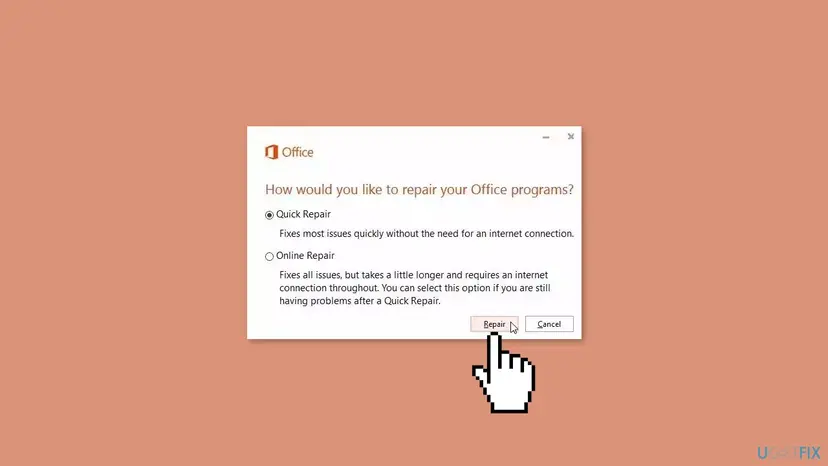
When the repair has finished, restart the PC and uninstall Office again from Installed apps. If the repair itself fails with a 30015 code, as in one report, skip it and use Fix 5.
It worked if: The repair ends without an error and the uninstall that follows removes Office from Installed apps.
If not: If the repair or the uninstall fails, use Microsoft's uninstall troubleshooter in Fix 5.
Fix 5. Remove every Office with Microsoft's uninstall troubleshooter, then install again
20 to 45 minutesRead the warningFix 2 or Fix 4 did not remove Office, or setup still fails after them.
This is Microsoft's own tool for an Office that will not go. It clears all Click-to-Run versions, trials and leftovers, so setup no longer finds an installation it cannot read.
This removes every Microsoft 365 and Office product on the PC. Microsoft says uninstalling Office does not remove files, documents or workbooks you created. Before you start, make sure your Office is listed under Services & subscriptions or you have the product key. Copy custom templates and Outlook signatures if you would miss them: Back up your files (Windows Backup, File History, Time Machine).
- Sign in to Windows with an administrator account.
- Open Microsoft's page Uninstall Microsoft 365 or Office from a PC and select the Click-to-Run tab.
- Select the Uninstall button under the uninstall troubleshooter, and Open when the browser says This site is trying to open Get Help.
- Follow the prompts on the remaining screens.
- Restart the PC when you are prompted.
- Check Installed apps for any Office left, then install Office again as in Fix 1.
| Microsoft's limit | What it means for you |
|---|---|
| The uninstall troubleshooter currently can't uninstall Office 2024 | Remove Office 2024 in Installed apps or Control Panel, or by hand with Fix 6. |
| You need to be on Windows 10 or higher | It still runs on Windows 10 22H2, even after the end of support. |
| Run it on the same PC with the Office you want to uninstall | It cannot clean another computer over the network. |
| The old SetupProd_OffScrub.exe download | Older answers, including one for 30045-44, point to it. It needs .NET Framework 4.6.2, and one user on Windows 8 could not start it. Today the Uninstall button opens Get Help instead. |
It worked if: Installed apps shows no Office, and the new installation ends with You're all set! without 30045-44.
If not: If the troubleshooter fails, or setup still stops with 30045-44, remove the leftovers by hand with Fix 6.
Fix 6. Delete the leftover Office folders and the old service, then install again
30 minutesRead the warningThe troubleshooter finished or failed, and setup still stops with 30045-44.
Microsoft's tip for a troubleshooter that does not remove everything is to uninstall Office by hand, and its support specialist sent the 30045-44 (1) reader to the same manual removal. With no old Office left, setup has nothing to misread.
Deleting these folders resets your Office settings, recent file lists and cached sign-ins. Your documents are not in them. Outlook data files may be nearby, so copy any .pst file under AppData\Local\Microsoft\Outlook first: Back up your files (Windows Backup, File History, Time Machine). Do not delete other folders under AppData\Local\Microsoft.
- Restart the PC so no Office process holds the files.
- Select Start, type
cmd, right-click Command Prompt and select Run as administrator. - Type
sc delete ClickToRunSvcand press Enter. If the service no longer exists, the command says so, which is fine. - Press Win + R, type
%localappdata%\Microsoftand select OK. Delete the Office folder. - Press Win + R, type
%appdata%\Microsoftand select OK. Delete the Office folder. - Press Win + R, type
%ProgramData%\Microsoftand select OK. Delete the Office folder. - Restart the PC and install Office as in Fix 1.
If setup still finds an old Office, the program folders, scheduled tasks and registry keys of Click-to-Run are left too. Microsoft's full manual removal, with every path and key, is written out in our guide to error 30015-25. It needs a registry backup first: Back up the registry before editing it. A closely related setup error with the same cleanup is error 30068-44.
It worked if: The folders are gone, setup creates them again, and it ends with You're all set!
If not: If Office installs but asks for a licence, go to Fix 7. If setup still fails, check the service with Fix 8.
Fix 7. Clear old Office product keys with ospp.vbs
10 minutesLow riskOffice installs, but it asks for a licence, keeps a trial or work product, or will not take your own subscription.
Microsoft's support specialist gave these commands to the 30045-44 (1) reader after the reinstall, to clear keys left by an earlier Office. The user with the work account had the same symptom: Office would not take the personal subscription.
- Select Start, type
cmd, right-click Command Prompt and select Run as administrator. - Type
cd "C:\Program Files\Microsoft Office\Office16"and press Enter. If Windows says the path is not found, usecd "C:\Program Files (x86)\Microsoft Office\Office16". - Type
cscript ospp.vbs /dstatusand press Enter. Note the Last 5 characters of installed product key for each licence listed. - For each key you do not own, type
cscript ospp.vbs /unpkey:followed by its last 5 characters, for examplecscript ospp.vbs /unpkey:ABCDE, and press Enter. - Open Word, sign in with the Microsoft account that owns Office and choose your product when asked.
If Office still signs in with a work or school account, open Control Panel > User Accounts > Credential Manager and remove the old Office entries there, as Microsoft's community answer to the work account report suggests. On Windows 11 also check Settings > Accounts > Access work or school.
It worked if: /dstatus lists only your own licence, and Word shows your product under File > Account.
If not: If no licence is listed at all, install Office again from your account with Fix 1.
Fix 8. Check that Microsoft Office Click-to-Run Service is not disabled
5 minutesLow riskNothing above helped, or a tuning tool was used on the PC.
Click-to-Run setup and removal both hand their work to this service. If it is set to Disabled, setup cannot read or change the installed Office. It is a rare cause of 30045, but it takes a minute to rule out.
- Press Win + R, type
services.mscand select OK. - Scroll to Microsoft Office Click-to-Run Service.
- If Startup Type says Disabled, right-click the service and select Properties.
- Set Startup type to Automatic, select Apply, then Start if the service is not running, and OK.
- Run the Office installer or the uninstall again.
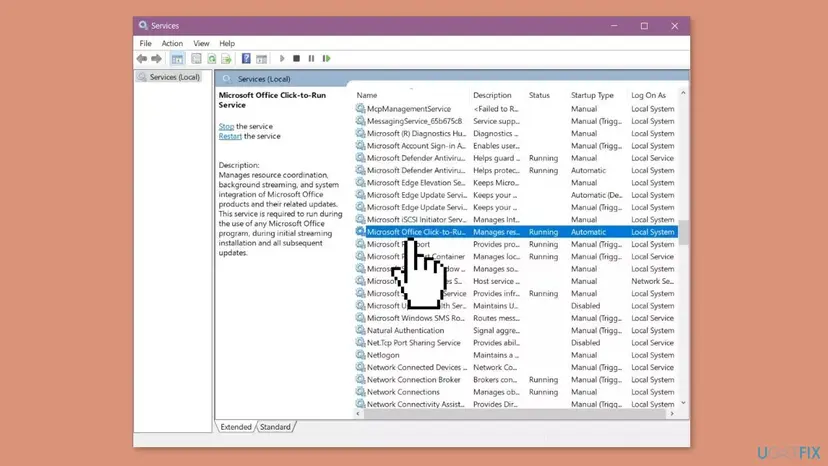
How the Services console works, with every screen: Check and restart Windows services. If the service is not in the list at all, the old Office was removed only in part. Go back to Fix 5 or Fix 6.
It worked if: The service shows Running with the startup type Automatic, and setup ends with You're all set!
If not: Read the setup log as described under Still there.
If 30045-44 is still there: read the setup log
The setup window shows only the code. Click-to-Run writes more to its log files in the %temp% folder of the user who ran setup, and in %windir%\Temp for the system account. The log often names the product or file it could not read.
- Run the installer or the uninstall once more and note the time.
- Press Win + R, type
%temp%and press Enter. Switch to Details and sort by Date modified, newest first. - Open the newest
.logfile whose name begins with the name of your PC. Press Ctrl + F and search for30045, then forerror. - Repeat it in
%windir%\Temp.
We could not confirm from Microsoft which log line goes with 30045-44, so read it as a hint. A product name you do not own points back to Fix 2 or Fix 7. A file or folder that cannot be opened points to Fix 6.
- Check Windows itself as a last test. If other programs also fail to install, damaged system files are possible. Run the system file check once: Run DISM and SFC to repair Windows system files.
- A managed work or school PC may block installations by policy. Only IT can change that.
- What to send to Microsoft support: the full code with the number in brackets, the Office product and year, and how you got it. Add whether it happened on install or uninstall, the Windows version from Settings > System > About and the newest log from both folders.
How to avoid error 30045-44 the next time you install Office
Almost every report of this code involves a second Office on the PC: a trial, an older version or a copy signed in with another account. Keeping one Office per PC and restarting between changes avoids most of it.
- Remove the preinstalled Microsoft 365 trial before you install an Office you bought.
- Restart the PC after every uninstall, before you install again.
- Link your product key to your Microsoft account, so a reinstall needs nothing else.
- Try Quick Repair first when one app misbehaves: How to repair Microsoft 365 or Office.
- Install two Office editions side by side.
- Remove Office by deleting folders before you have tried the troubleshooter.
- Use registry or system cleaning tools on Office keys.
- Set Microsoft Office Click-to-Run Service to Disabled with a tuning tool.
Frequently asked questions
What does error code 30045-44 (1) mean?
It means Office setup failed while it checked or changed the Office already on your PC. A Microsoft community support specialist wrote that 30045-44 may be caused by the system not correctly detecting the program information during installation, or by an unstable network connection. The (1) is Windows' generic error 1, Incorrect function, which says only that an action failed. Start with a restart and a new installation from your Microsoft account, then remove any trial or older Office.
Why do I get 30045-44 when installing Office on a new laptop?
Many new laptops come with Microsoft 365 already installed as a trial. When you install an Office you bought, such as Office 2021 or 2024, setup finds that trial and can fail to read it. Open Installed apps, remove every Microsoft 365 or Office entry you do not own, restart and install again from your account (Fix 2). The first reply in one 30045-44 (1) thread on Microsoft Q&A asked exactly this question.
Why do I get error 30045-44 when uninstalling Office?
The uninstall uses the files of the installed Office. When the installation is damaged, or tied to an account it can no longer reach, the removal stops with 30045-44 (1) and Office stays in the list. Run Quick Repair or Online Repair first and try the uninstall again (Fix 4). If that fails, use Microsoft's uninstall troubleshooter from its uninstall page (Fix 5), and remove leftovers by hand if needed (Fix 6).
Is 30045-44 (1) different from 30045-44?
No. They are the same error. The number in brackets is part of the code line and is usually (1). People search for it in many spellings, such as 30045-44(1), error code: 30045-44 (1) and microsoft error code 30045-44 (1). They all lead to the same fixes on this page. A different number in brackets would come from a different Windows error, so note it if you contact Microsoft support.
Will fixing 30045-44 delete my documents or emails?
No. Microsoft says uninstalling Office removes only the apps, not files, documents or workbooks you created. Fix 6 deletes the Office settings folders under AppData, which hold settings, recent lists and caches. Outlook data files can sit near them, so copy any .pst file under AppData Local Microsoft Outlook before Fix 6. Email in a Microsoft 365, Outlook.com or Gmail account stays on the server and comes back when you sign in again.
Do I need a new product key after I remove Office?
No, as long as your Office is linked to your Microsoft account. Sign in at account.microsoft.com and open Services & subscriptions. If your Office is listed there, you install it again from the account and it activates when you sign in. If it is not listed, redeem your product key with that account first. Keep your key or receipt until Office is working again.
Is error code 30045-4 or 30145-4 the same as 30045-44?
30045-4 is usually a shortened 30045-44, and it is fixed the same way. 30145-4 is a different Office setup code, though its window looks the same: Something went wrong and Sorry, we ran into a problem. The fixes for a failed Office setup overlap a lot, so a restart, a clean removal and a new installation from your account are a sensible start. Check the exact code on your screen before you follow a guide for another number.
Does the old Support and Recovery Assistant still fix 30045-44?
Not in its old form. Older answers for 30045-44 tell you to download SetupProd_OffScrub.exe. It needs .NET Framework 4.6.2, and one user could not start it on Windows 8. Microsoft's uninstall page now opens the Get Help app from its Uninstall button, which runs the same removal. It needs Windows 10 or higher and currently cannot remove Office 2024, which you remove in Installed apps or Control Panel instead.
Should I start Windows in Safe Mode to install or remove Office?
No. One older forum answer for 30045-44 suggests a restart in Safe Mode, but Office setup needs Microsoft Office Click-to-Run Service, and Windows error 1084 reads This service cannot be started in Safe Mode. Install and remove Office in a normal Windows session. If your PC keeps starting in Safe Mode, press Win + R, type msconfig and clear Safe boot on the Boot tab, then restart.
What about 45054 and other searches that lead here?
This page is about the Office setup error 30045-44 only. A search for 45054 or error 4500 is not related to it, and we found no link between those numbers and Office setup. If your window shows another code, search for that exact code. Questions in other languages, such as how to solve this or the same error, are answered by the steps above, which are the same in every language of Office.
Sources
- Microsoft Support: Uninstall Microsoft 365 or Office from a PC (support.microsoft.com)
- Microsoft Q&A: Error Code 30045-44 (1) (answer by a Microsoft community support specialist) (learn.microsoft.com)
- Microsoft Q&A: Error code 30045-44(1), uninstall problems (user report) (learn.microsoft.com)
Did this fix work?
One click, no account. It tells the next reader which guides are worth their time.
Questions and experiences: fix Office error 30045-44 in Windows
Still broken, or found a fix we did not cover? Ask here: members and our editors answer. Reading is open; writing needs a free account.
…