
How to fix Microsoft Office installation error 30016-22 in Windows?

Prefer to fix it yourself? The manual steps follow.
- 6methods
- 15 to 45 minutes
- Easy
Applies to Microsoft 365 for home and business, Office 2024, 2021, 2019 and 2016 installed with the online Click-to-Run installer on Windows 11 and Windows 10
6 methods in this guide
When trying to install Office, I get an error code 30016-22. Obviously this prevents me from using all the important apps like Word, Excel, PowerPoint, and others. How do I fix this?
Error code 30016-22 appears in the Something went wrong window when the small online Office installer stops partway. In the reports we read, Windows itself was fine and the cure was a different way to install. Start with Microsoft's offline installer, run as administrator.
Close the error, sign in to your Microsoft account and download the Offline installer instead of the normal setup file (Fix 1). Open the downloaded image, right-click Setup64.exe (or Setup32.exe) and choose Run as administrator. Work or school accounts use the Office Deployment Tool (Fix 2). If setup still stops at 30016-22, remove the old Office entry or Store version first (Fix 3 and Fix 4).
| Error | Something went wrong. Sorry, we ran into a problem. Go online for additional help. Error Code: 30016-22. |
|---|---|
| Where it appears | In the small Office setup window, while the online installer downloads or installs Word, Excel and the other apps. The progress bar stops and the error replaces it. |
| Main cause | The online (lightweight) Click-to-Run installer fails on that PC. Microsoft does not say why. Less often an old Office entry, a Store version of Office or a half removed Office is in the way. |
| Fastest fix | Download the offline installer from your Microsoft account and run Setup64.exe or Setup32.exe as administrator (Fix 1). |
| Also written as | 30016-22, 30016 22, error code 30016-22 (2), office 30016-22, error 30016 Office. Related codes of the same family: 30016-27, 30016-4, 30016-2. |
| Affects | Microsoft 365, Office 2024, 2021 and 2019 setup on Windows 11 and Windows 10. Most reports come from a fresh or reinstalled Windows. |
| Microsoft's status | No Microsoft page explains 30016-22 (checked 15 October 2026). A Microsoft community support answer said no Windows update was known to break Office 2021 setup. |
| Office 2016 and 2019 | Support ended on 14 October 2025. They still install and run, but get no more security updates. |
| Time to fix | 15 to 30 minutes with the offline installer, about 45 minutes with the Office Deployment Tool. |
Facts checked on 15 October 2026. Steps written for Click-to-Run setup of Microsoft 365, Office 2024, 2021 and 2019 on Windows 11 (25H2 and 26H2) and Windows 10 22H2, read against Microsoft's documentation and the Microsoft Q&A reports of this error.
What Office error code 30016-22 means and how the message reads
When you install Office from your Microsoft account, you get a small setup file of a few megabytes. It is a Click-to-Run downloader: it fetches the full Office from Microsoft and installs it in one go. Error 30016-22 is what that downloader shows when it gives up.
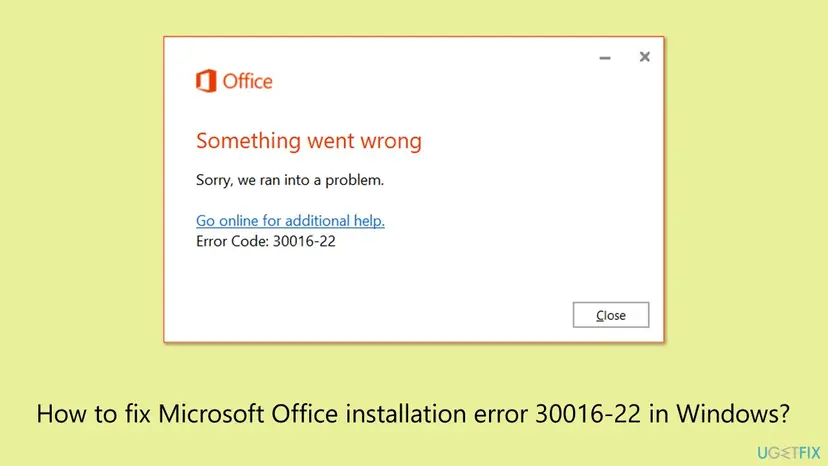
Something went wrong. Sorry, we ran into a problem. Go online for additional help. Error Code: 30016-22
- 30016 is the family. The same first number appears with other endings, such as 30016-27, 30016-4 and 30016-2, during Office setup.
- 22 marks the step that failed. Microsoft does not publish what the step is, and we could not confirm it from any official source.
- The window has no other detail. The real reason, if any is written, is in the setup log described under If it is still there.
The error is about setup, not about Word or Excel. People who search for 30016 in Word usually saw it while installing Word as part of Office. If Office is already installed and a Word document shows an error, that is a different problem.
Error 30182-39 shows System restart required and is caused by two Office products that cannot share a PC. We explain it in our guide to Office installation error 30182-39. This page is about 30016-22.
Why error 30016 22 appears when you install Office
The best documented case is a Microsoft Q&A thread from January 2023. A user installing Office 2021 on a fresh Windows 10 Pro tried SFC, turned off antivirus and firewall, changed networks, ran Microsoft's removal tool and deleted the Office registry keys. Nothing worked until the offline installer.
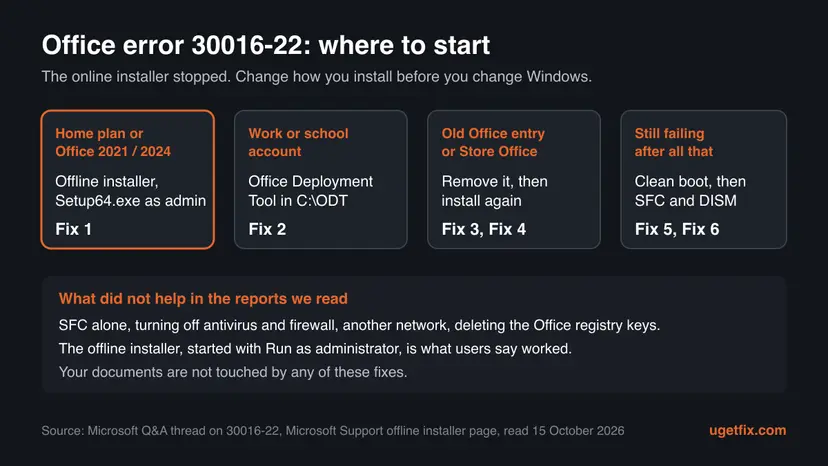
| Cause | How often | Fix |
|---|---|---|
| The online installer fails on this PC, often right after Windows was installed or reset | Most often | Fix 1, Fix 2 |
| Setup started without administrator rights | Often | Fix 1 |
| An old Office entry, such as the small Microsoft Office link Windows 10 ships with, or a Store version of Office | Sometimes | Fix 3 |
| A half removed Office from an earlier attempt | Sometimes | Fix 4 |
| Security or VPN software blocking the download | Rarely | Fix 5 |
| Damaged Windows system files or too little free space | Rarely | Fix 6 |
Old guides put antivirus first. In the Microsoft Q&A report, turning off the antivirus and Windows Firewall did not help, and neither did uninstalling the security product. That is why it comes late here, as a clean boot test.
How to fix error code 30016-22 when you install Office
Fix 1 and Fix 2 change how Office is installed, which is what worked in the reports. Fix 3 and Fix 4 remove what can block setup. Fix 5 and Fix 6 are the generic checks, last.
| What you see or have | Start with |
|---|---|
| Microsoft 365 Personal or Family, or Office 2024, 2021 or 2019 for home | Fix 1 |
| Microsoft 365 through work or school | Fix 2 |
| Windows was just installed or reset, and Installed apps already shows a Microsoft Office entry | Fix 3, then Fix 1 |
| An earlier Office install or uninstall stopped halfway | Fix 4, then Fix 1 |
| The offline installer fails too | Fix 5, then Fix 6 |
Fix 1. Install Office with the offline installer and run it as administrator
15 to 30 minutesLow riskYou have a Microsoft 365 home plan or a one-time Office such as Office 2024, 2021 or 2019, and the normal setup stops with 30016-22.
The offline installer downloads all of Office as one image first and installs from it, so the step where the online installer fails is skipped. Users in the Microsoft Q&A thread solved 30016-22 this way, one only after running Setup as administrator.
- Close the error with Close. Sign in to your Microsoft account in your browser first, with the account that owns Office.
- Open Microsoft's page Use the Office offline installer, select the Office for home tab and then Download.
- In the Install window, choose Offline installer from the Choose a version list, pick your language and select Install.
- Open your Downloads folder and double-click the image file, for example
O365HomePremRetail.img. Select Open if asked. - A new virtual drive opens, such as (D:) or (E:). Open its Office folder.
- Right-click Setup64.exe (or Setup32.exe if you need 32-bit Office) and select Run as administrator. Select Yes.
- Wait for You're all set, then open Word, select Accept and sign in to activate.
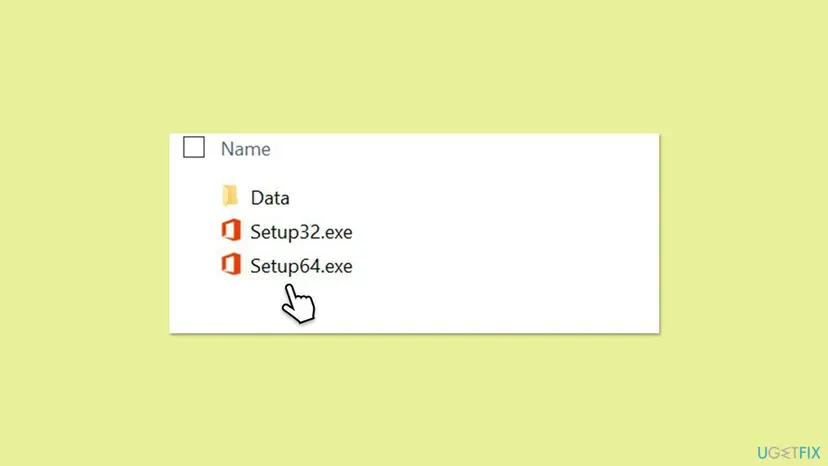
Despite the name, you need a connection to download the image and to activate. Users report that the license is picked up automatically when you are signed in to your Microsoft account in the default browser before you run setup.
After it works, open any Office app, select File > Account > Update Options > Update Now. The image is not always the newest build, and Microsoft asks you to update right after installing.
It worked if: Setup shows a progress window and ends with You're all set. Word, Excel and the other apps appear in Start.
If not: If the offline setup also stops with 30016-22, go to Fix 3. Work or school accounts go to Fix 2.
Fix 2. Use the Office Deployment Tool for a work or school Microsoft 365
30 to 45 minutesLow riskYour Microsoft 365 comes from work or school, or the home offline installer is not offered to your account.
For business plans Microsoft gives the Office Deployment Tool as the offline way. It downloads Office into a folder first and then installs from that folder, again skipping the online installer that stopped at 30016-22.
- Create a folder
C:\ODT. - Download the Office Deployment Tool from the Microsoft Download Center, run it, accept the terms and extract it to
C:\ODT. - Open Notepad, paste the configuration below and save it as
install64.xmlinC:\ODT. UseO365BusinessRetailfor Microsoft 365 Apps for business andO365ProPlusRetailfor every other business plan. - Press Win + R, type this and select OK. Select Yes at the prompt. A blank window titled
c:\ODT\setup.exestays open while Office downloads.c:\odt\setup.exe /download install64.xml - Wait until the window closes on its own and a new Office folder appears in
C:\ODT. - Press Win + R again, run the install and select Yes:
c:\odt\setup.exe /configure install64.xml - Open Word, select File > Account and let Office activate with your work or school account.
install64.xml for 64-bit Microsoft 365 Apps for enterprise in English
<Configuration>
  <Add OfficeClientEdition="64">
    <Product ID="O365ProPlusRetail">
      <Language ID="en-us" />
    </Product>
  </Add>
</Configuration>On a company PC, your IT department may install Office its own way or block setup by policy. Ask them before you use the tool, and send them the code 30016-22.
It worked if: The second command shows the Office installation progress window, and the apps open and activate with your work account.
If not: If the tool stops with an error too, go to Fix 3 and Fix 4, then run the second command again.
Fix 3. Remove the old Office entry and the Store version of Office
10 minutesLow riskWindows was just installed or reset, the PC came with Office, or Installed apps shows a Microsoft Office entry you never installed.
Windows 10 lists a small Microsoft Office entry by default, and older PCs shipped Office as a Store app package named Microsoft.Office.Desktop. Setup can trip over either. The user in the Q&A thread removed the small entry first, so it is worth ruling out.
- Windows 11: right-click Start and select Installed apps. Windows 10: select Apps and Features.
- Type
officein the search box. If you see a Microsoft Office or Microsoft 365 entry you do not use, select it (Windows 11: the three dots) and then Uninstall. - Right-click Start and select Terminal (Admin) (Windows 10: Windows PowerShell (Admin)). Select Yes.
- Check for the Store version of Office:
Get-AppxPackage -Name "Microsoft.Office.Desktop*" | Select-Object Name, Version - If the list is empty, there is no Store version. Close the window.
- If packages are listed, remove them:
Get-AppxPackage -Name "Microsoft.Office.Desktop*" | Remove-AppxPackage - Run the first command again. When nothing is listed, restart the PC and run Fix 1.
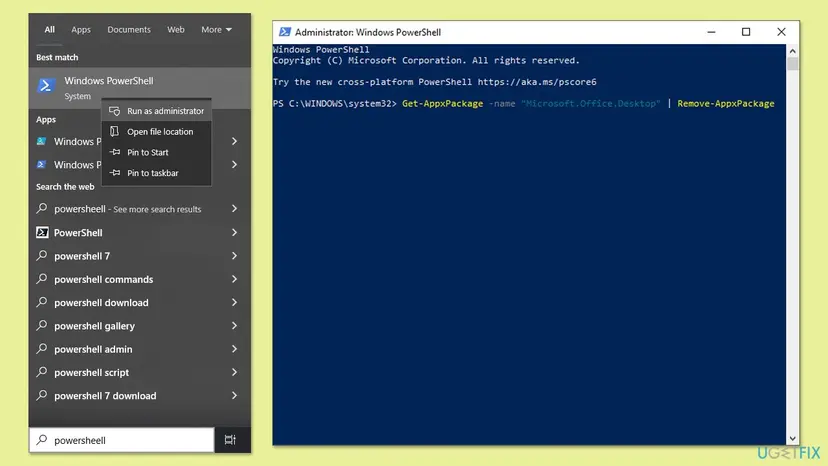
Step by step with screenshots for the uninstall part: Uninstall a program or app in Windows. Uninstalling Office removes the apps, not your documents, Microsoft says.
It worked if: Installed apps shows no unwanted Office entry, the PowerShell check lists nothing, and setup gets past the point where it stopped.
If not: If an earlier Office install is half there, go to Fix 4.
Fix 4. Clean up a half installed Office with Microsoft's uninstall troubleshooter
20 to 40 minutesRead the warningAn earlier Office install or uninstall stopped halfway, Office apps exist but do not open, or Fix 3 found nothing and setup still fails.
A broken Click-to-Run install leaves files and registrations that the next setup tries to reuse. The troubleshooter removes Office completely so that setup starts from zero.
Your documents stay, but every Office app is removed and has to be installed again. Check that you can sign in to the Microsoft account that owns Office, or have the product key at hand, before you start.
- Sign in to Windows with an administrator account.
- Open Microsoft's page Uninstall Microsoft 365 or Office from a PC and select the Uninstall button of the uninstall troubleshooter.
- When the browser shows This site is trying to open Get Help, select Open.
- Follow the prompts and restart the PC when you are asked to.
- Install Office again with Fix 1 or Fix 2.
The old Microsoft Support and Recovery Assistant (SetupProd_OffScrub.exe) that many guides still show has been replaced by this troubleshooter in the Get Help app. It needs Windows 10 or later and cannot remove Office 2024; use Installed apps for that one.
It worked if: Installed apps lists no Office, and a fresh setup with Fix 1 runs to You're all set.
If not: If setup still stops with 30016-22 on a clean PC, go to Fix 5.
Fix 5. Install Office in a clean boot to rule out other software
15 minutes plus a restartLow riskFix 1 to Fix 4 did not help, and the PC runs third-party antivirus, VPN, firewall or download tools.
A clean boot starts Windows with only Microsoft services. If Office installs there, a program running in the background blocked setup. It tests security software without switching it off for good.
- Open System Configuration. Select Search on the taskbar, type msconfig and select System Configuration from the results.
- Hide Microsoft services. On the Services tab, select the Hide all Microsoft services check box. Only services from other companies stay in the list.

With Hide all Microsoft services ticked, only third-party services stay in the list. Screenshot: Windows 11 26H2. - Disable the remaining services. Select Disable all, then select Apply.
- Open Task Manager. On the Startup tab of System Configuration, select Open Task Manager.
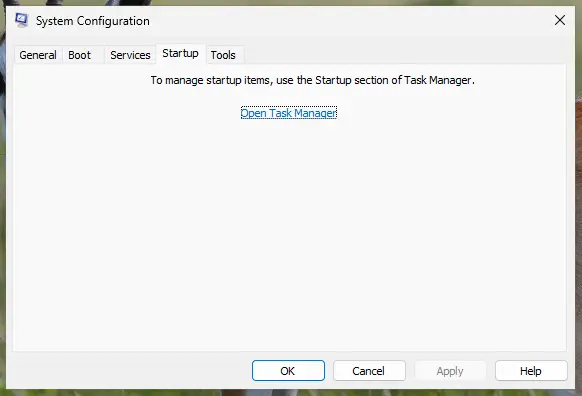
The Startup tab only links to Task Manager. Screenshot: Windows 11 26H2.
These steps were written for Windows 11 25H2 and 26H2. The full page with the other versions and what each result means: How to perform a clean boot in Windows
Run the offline installer from Fix 1 while the PC is in the clean boot, then return to normal startup as the procedure shows. Do not tick Safe boot on the Boot tab; some older guides show that, but it is a different mode.
It worked if: Office installs in the clean boot. Turn the services back on in halves to find the one that blocked it.
If not: If it fails in a clean boot too, go to Fix 6.
Fix 6. Repair Windows system files and check free space
20 to 30 minutesLow riskEverything above failed, or other installers fail on the same PC too.
Click-to-Run relies on Windows components. If they are damaged, setup can stop at any step. In the Q&A report SFC alone did not fix 30016-22, so this is the last check, not the first.
System File Checker and DISM check and repair Windows files. Step by step: Run DISM and SFC to repair Windows system files.
- Open an elevated command window. Right-click Start and select Terminal (Admin), or type cmd in the search box, right-click Command Prompt and select Run as administrator. Select Yes when Windows asks for permission.

Search for cmd and choose Run as administrator. Screenshot: Windows 11 26H2. - Run DISM first. Type the command below and press Enter. DISM downloads clean copies of damaged components from Windows Update, so it can take several minutes. Wait until it says The operation completed successfully.
DISM.exe /Online /Cleanup-Image /RestoreHealth
DISM /RestoreHealth running. Screenshot: Windows 11 26H2. - Run System File Checker. In the same window, type the command below and press Enter. Do not close the window until the verification reaches 100%.
sfc /scannow
sfc /scannow at 100%. Screenshot: Windows 11 26H2.
These steps were written for Windows 11 24H2 and 25H2. The full page with the other versions and what each result means: Run DISM and SFC to repair Windows system files
Also make sure drive C: has several gigabytes free before you try again. Step by step: Free up disk space and delete temporary files.
It worked if: SFC reports that it repaired files or found no integrity violations, and setup runs after a restart.
If not: Read the setup log as described under If it is still there.
If error 30016-22 is still there: read the setup log
Click-to-Run writes log files to the temporary folder of the account that ran setup. The file name starts with the name of the PC and holds the date.
- Run setup once more and note the time it fails.
- Press Win + R, type
%temp%and press Enter. - Sort by Date modified, newest first, and open the newest
.logfile that starts with the name of your PC. - Press Ctrl + F and search for
30016, then forerrorandfailed. Read the lines just before. - Note any file name, URL or access denied line. That is what setup could not get or write.
- Test with a new administrator account when the log shows access errors: Create a new user account to test a problem.
- What to send to Microsoft support: the full code 30016-22, the Office product and plan, 32-bit or 64-bit, the Windows version, whether the offline installer failed too, and the newest log.
- When it is not your PC: a work PC may block installations by policy, and a licence that is not assigned to you cannot be installed. Those are questions for your administrator.
One Q&A user gave up and reinstalled Windows, then ran the offline installer before any Windows update and it worked. That shows the offline installer was the key. Try it on your current Windows before you consider a reinstall.
How to avoid error 30016-22 the next time you install Office
Keep a copy of the offline installer image. It is one file, and Microsoft says you can save it to a USB drive for later. Then a new or reset PC never depends on the online installer.
- Sign in to your Microsoft account in the browser before you run Office setup.
- Right-click setup and choose Run as administrator.
- Remove trials and Store versions of Office right after a Windows reset.
- Update Office from File > Account right after installing.
- Delete Office registry keys or folders by hand; in the Q&A report they came straight back.
- Leave antivirus or the firewall turned off after a test.
- Install Office from unofficial images or with activation tools.
- Reinstall Windows before you have tried the offline installer.
Frequently asked questions
What does error code 30016-22 mean in Office?
It means the Office setup program stopped before it finished installing the apps. The window says Something went wrong and Sorry, we ran into a problem, and gives only the code. Microsoft does not publish what step 22 of the 30016 family is, and we could not confirm it from an official source. In the reports we read, the online installer was the part that failed, and the offline installer worked on the same PC. Start with Fix 1.
Is error 30016-22 caused by a Windows update?
We could not confirm that. In January 2023 a user on Microsoft Q&A suspected an update, because Office 2021 had installed on another PC a week earlier. A Microsoft community support agent answered that no Windows update was known to break Office 2021 setup. The user's fix in the end was the offline installer. Uninstalling updates is not needed for this error; change the way you install Office first.
Does the Office offline installer work without internet?
Not fully. Microsoft says you need a connection to download the installer image. Once it is downloaded you can run setup at any time, and you can keep the image on a USB drive. You still need the internet to activate Office the first time and to get updates. Users report that the licence is picked up automatically when you are signed in to your Microsoft account in the default browser before you run setup.
Will I lose my Office licence or documents if I reinstall?
No. Uninstalling Office removes only the apps, Microsoft says, not the documents, workbooks or presentations you made. A Microsoft 365 subscription or a one-time Office is tied to your Microsoft account, so after a reinstall you sign in with the same account and it activates. For a work or school plan, the licence is tied to your work account. Keep the product key if you bought Office with a key.
Is error 30016-27 or 30016-4 the same as 30016-22?
They share the first number, which marks the same family of Office setup errors, but the second number is a different step. Microsoft documents none of them, so we cannot say how they differ. Users report all of them during setup, and the order of fixes on this page applies: offline installer first, then remove old Office, then the clean boot and system checks. If your code begins with 30182 or 30015, it is a different family.
I see 30016 when I open Word. Is this the right page?
Usually yes. Word is installed as part of Office, so people who see 30016-22 while installing it often search for Word. If the error appears during setup, follow the fixes here. If Office is already installed and Word itself shows an error when you open a file, that is a different problem: repair Office from Installed apps instead. Step by step: How to repair Microsoft 365 or Office.
Can I fix 30016-22 when installing Office 2019?
Yes, the same way. Office 2019 is installed with the same Click-to-Run setup, and the offline installer is offered for one-time purchases too, from the account page where you install it. Office 2019 left support on 14 October 2025, so it still installs and runs but gets no security updates. If you have a choice, install Microsoft 365 or Office 2024 instead.
Does turning off my antivirus fix error 30016-22?
In the Microsoft Q&A report it did not. The user turned off the antivirus and Windows Firewall, then uninstalled the security product completely, and setup still failed. Keep your protection on and use Fix 1 to Fix 4. If you want to rule it out, run setup in a clean boot (Fix 5), or pause real-time protection for one attempt and turn it back on straight away: Turn off Microsoft Defender protection for a moment.
Do I have to reinstall Windows to fix 30016-22?
Almost never. One user in the Microsoft Q&A thread formatted the laptop after hours of trying, but what made the difference was the offline installer, which another user then used on a working Windows with success. Try Fix 1 to Fix 6 first. A Windows reinstall is only worth it when other installers fail too and SFC cannot repair the system: Reinstall Windows without losing files.
I searched in another language or with other words. Is this the right page?
This page is about Microsoft Office setup error 30016-22 on Windows. Readers who searched in Vietnamese, Russian, Korean, Arabic or Spanish asking why this error appears, what it means or what else to try are in the right place. Searches such as ai30016 usually come from people who saw 30016 in Office setup. Start with the short answer at the top: the offline installer, run as administrator.
Sources
- Microsoft Support: Use the Office offline installer (support.microsoft.com)
- Microsoft Support: Uninstall Microsoft 365 or Office from a PC (support.microsoft.com)
- Microsoft Q&A: Error 30016-22 installing Office 2021 on fresh install of Windows 10 Pro (learn.microsoft.com)
Did this fix work?
One click, no account. It tells the next reader which guides are worth their time.
Questions and experiences: fix Microsoft Office installation error 30016-22 in Windows
Still broken, or found a fix we did not cover? Ask here: members and our editors answer. Reading is open; writing needs a free account.
…