
How to fix Microsoft Store error 0x800700B7

Prefer to fix it yourself? The manual steps follow.
- 8methods
- 5 to 90 minutes
- Easy to medium
Applies to Microsoft Store app installs and updates, Xbox app and PC Game Pass installs, MSIX app packages
8 methods in this guide
Hello, I tried to download an app from Microsoft Store, but I received error 0x800700B7. I thought it was a temporary issue, but now I can't download any apps because I receive the same error. Any tips to resolve this would be great.
Error 0x800700B7 is Windows system error 183, "Cannot create a file when that file already exists." Microsoft Store shows it when an app install tries to create a folder or registration that is already on the PC. Remove what is left of the app first, then clear and repair the Store.
0x800700B7 means Windows refused to create something the app install needs because it already exists: a leftover app folder, an old package registration or a data folder. If one app fails, remove what is left of it and install again (Fix 1). If every app fails, clear the Store cache, install updates (Fix 2), then repair or reset the Store (Fix 3). The install log (Fix 4) names the exact folder.
| Error | 0x800700B7, the HRESULT form of Windows system error 183 (0xB7), ERROR_ALREADY_EXISTS: "Cannot create a file when that file already exists." |
|---|---|
| Where it appears | In Microsoft Store when an app or game will not install or update, often near the end of the install, and in the Xbox app for PC Game Pass games. |
| Main cause | The app install finds something of its own already on the PC: a half-removed copy of the app, an old package registration or an app data folder. |
| Fastest fix | Uninstall the app or its half-installed copy, restart and install it again from the Store Library (Fix 1). |
| Also written as | 0x800700B7, 0x800700b7, 800700B7, (0x800700b7), error 0x800700b7, An internal error occurred with error 0x800700B7. |
| Affects | Windows 11 and Windows 10. The code belongs to Windows itself, so it also appears outside the Store: provisioning packages, Task Scheduler, winget, backups. |
| Microsoft's status | No known issue or patch is published for the Store. Microsoft lists the code in its System Error Codes and points app install failures to the AppXDeployment-Server event log. |
| Not the same as | 0x80073CF6, "The package can't be registered". It can follow 0x800700B7 in the same log line when registration stops. |
| Time to fix | 5 to 20 minutes for Fix 1 to Fix 7. Up to 90 minutes for a repair install of Windows. |
Facts checked on 16 October 2026. Steps written for Windows 11 (25H2 and 26H2) and Windows 10 22H2.
What error 0x800700B7 means
Codes that start with 0x8007 are ordinary Windows system errors passed on to an app. The last digits, 00B7, are 183 in hexadecimal. Microsoft's list of System Error Codes names 183 (0xB7) ERROR_ALREADY_EXISTS. Its text is: "Cannot create a file when that file already exists." So the Store is not saying the app is broken or that your account has no licence.
Store apps are installed by the Windows app deployment service, not by the Store window itself. During an install it creates the app's folders, its data folders under C:\ProgramData\Packages and your profile, and its registration for your account. When one of those already exists from an earlier copy and cannot be reused, the step fails with 183, and the Store shows 0x800700B7.
| What you see | Where | What it tells you |
|---|---|---|
| 0x800700B7 under Get, Install or Update for one app | Microsoft Store, the app's page or Library | That app left something behind. Start with Fix 1. |
| 0x800700B7 for every app you try, as in the question above | Microsoft Store | The Store or a shared app folder is at fault. Start with Fix 2, then Fix 4. |
| The install runs, then stops near the end with 0x800700B7 | Microsoft Store or the Xbox app | The app data folder could not be created. Read the log with Fix 4. |
| An internal error occurred with error 0x800700B7 | PowerShell Add-AppxPackage, winget or an .msix installer | The same deployment step failed outside the Store. Fix 1 and Fix 4 apply. |
Because 183 is a general Windows code, 0x800700B7 also shows up in Task Scheduler, provisioning packages and backup tools. It means the same thing there: something with that name already exists. This page covers the Store and the Xbox app; the FAQ points to the others.
Why Microsoft Store says the file already exists
Microsoft documents the meaning of the code and where its log is, not a list of Store causes. The order below follows from that meaning and from what readers report on Microsoft Q&A and Super User. It is our ranking, not a measured statistic.
| Cause | How often | How to tell | Fix |
|---|---|---|---|
| A half-installed or half-removed copy of the same app is still registered. | Most often | Only one app fails; it was installed before, or an earlier install was cancelled. | Fix 1 |
| A stale Store cache or an outdated Store app repeats a failed install. | Often | Every app fails, the Store has not updated for a while. | Fix 2, Fix 3 |
| A leftover app data folder that the install cannot create again. | Sometimes | The install stops near 100 %. The log names a path under Packages. | Fix 4 |
Wrong permissions on C:\ProgramData\Packages. | Rarely | Many unrelated apps fail, even from a new administrator account. | Fix 5 |
| A damaged app registration in your user profile. | Rarely | The same app installs in another user account. | Fix 6, Fix 7 |
| Damaged system files. | Rarely | Other Windows parts fail with different codes too. | Fix 8 |
How to fix error 0x800700B7
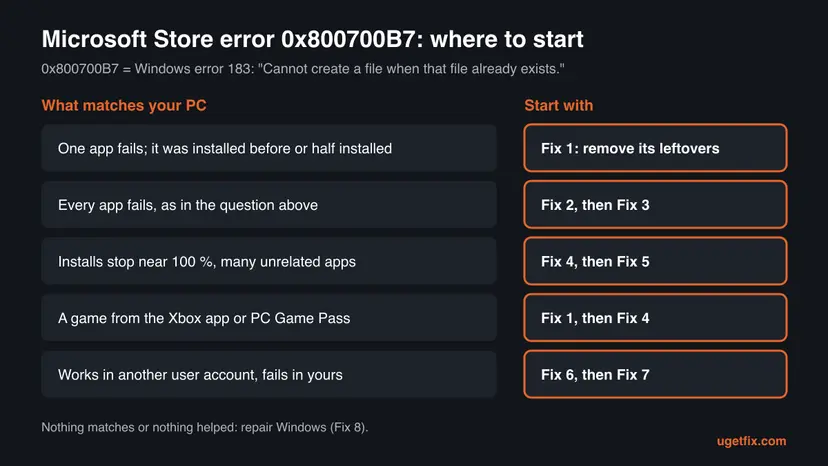
Fix 1 removes what the code complains about: an earlier copy of the app. Fix 2 and Fix 3 clean and repair the Store. Fix 4 and Fix 5 find and fix the exact folder in the install log. Fix 6 and Fix 7 deal with your user profile, and Fix 8 repairs Windows.
| What you see or have | Start with |
|---|---|
| One app fails, and it was installed before or an install was cancelled. | Fix 1 |
| Every app fails, as in the question above. | Fix 2, then Fix 3 |
| Installs stop near the end, or many unrelated apps fail. | Fix 4, then Fix 5 |
| A game from the Xbox app or PC Game Pass. | Fix 1, then Fix 4 |
| The app installs in another user account but not in yours. | Fix 6, then Fix 7 |
| Nothing above helped, or several parts of Windows fail. | Fix 8 |
Fix 1. Remove what is left of the app, restart and install it again
10 minutesLow riskOne app or game fails. It was on this PC before, an update stopped halfway, or you cancelled an install.
Error 183 says the install found its own app already there. A copy that is half removed still holds its registration and folders, so the new install cannot create them. Removing that copy and restarting clears them, and the next install starts from zero.
- Press Win + I and open Apps > Installed apps (on Windows 10: Apps > Apps & features).
- Search for the app. If it is listed, select ... next to it, then Uninstall, and confirm.
- If it is not listed, right-click Start, select Terminal (Admin) or Windows PowerShell (Admin), and run
Get-AppxPackage *name*, with a word from the app's name in place ofname. - If that command lists a package, copy its PackageFullName and run
Remove-AppxPackagefollowed by that full name. - Restart the PC. A restart lets Windows finish removing files that were in use.
- Open Microsoft Store, select Library, find the app and select Install.

Get-AppxPackage *whatsapp*
Remove-AppxPackage <PackageFullName from the line above>Use Remove-AppxPackage only for the app that fails. Do not run it for Microsoft Store or for Get-AppxPackage with no name: that removes every app. Removing an app deletes its local data, such as offline files and settings that are not synced to your account.
It worked if: The install runs to the end and the app opens from Start.
If not: If the same app fails again, or every app fails, clear the Store cache and update it with Fix 2.
Fix 2. Clear the Store cache and install pending Store and Windows updates
10 to 20 minutesNo riskEvery app fails, as in the question above, or the Store has not updated for a while.
The Store keeps a queue of failed installs in its cache and retries them in the same way. wsreset empties that cache. An up-to-date Store and Windows bring the current app deployment components, so an install that failed on an old build can pass.
- Press Win + R, type
wsreset.exeand press Enter. - Wait. A black window opens with no text, closes by itself, and Microsoft Store opens.
- In the Store, select Library and then Get updates. Let the Store update itself.
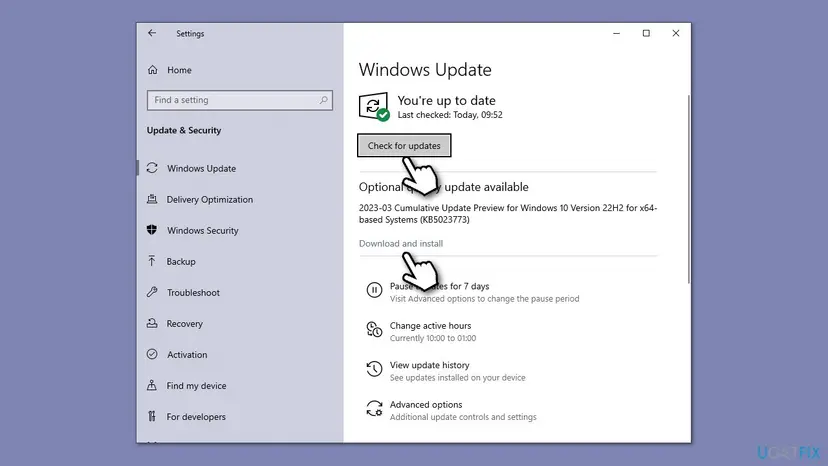
- Open Settings > Windows Update and select Check for updates. Install everything, including optional quality updates.
- Restart the PC and try the install again.
It worked if: The Store shows your apps as up to date, and the app installs without 0x800700B7.
If not: If the error stays for every app, repair or reset the Store app with Fix 3.
Fix 3. Repair or reset Microsoft Store
5 minutesLow riskThe cache is clear and Windows is up to date, but every install still fails.
Repair checks the Store app's own files and keeps its data. Reset deletes the Store's data on this PC, including any record of the failed install. Your purchases and installed apps stay, because they belong to your Microsoft account and to Windows, not to the Store's data.
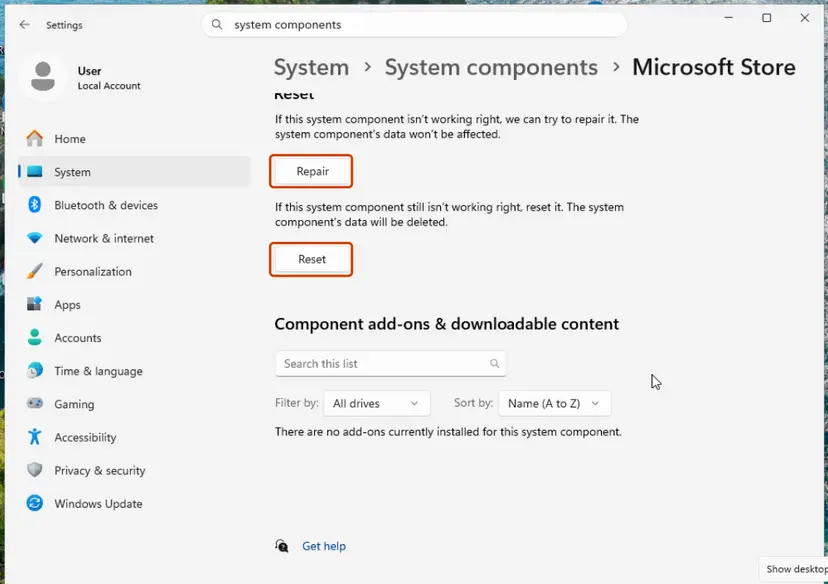
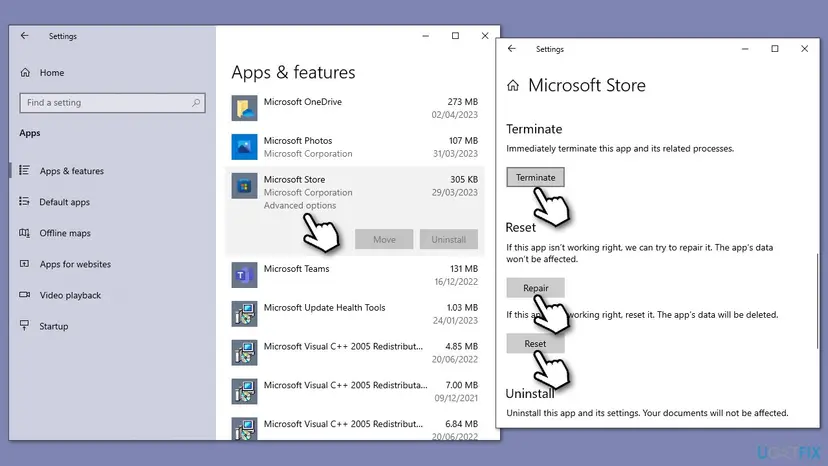
- Open System components. If the problem stays, select Start > Settings > System > System components. Next to Microsoft Store, select the three dots and Advanced options. If Microsoft Store is not listed there, look for it in Settings > Apps > Installed apps.
- Repair first. Scroll to Reset and select Repair. Repair keeps the app's data. Open the Store and check whether it works.
- Reset if Repair did not help. Select Reset and confirm. This deletes the Store app's data on this PC; your purchases stay in your Microsoft account. Open the Store and sign in again.
These steps were written for Windows 11 26H2 (build 26300). The full page with the other versions and what each result means: Reset the Microsoft Store
It worked if: The Store opens, asks you to sign in after a reset, and the app installs.
If not: If installs still stop, find the exact folder in the install log with Fix 4.
Fix 4. Read the install log and remove the leftover folder it names
15 minutesRead the warningInstalls stop near the end, a game from the Xbox app fails, or Fix 1 to Fix 3 did not help.
Microsoft points app install failures to the AppXDeployment-Server event log. For 0x800700B7, the lines just before the code name the folder or extension that already exists. Then you deal with that one item instead of guessing.
- Try the install once more, so the newest log entries belong to it.
- Press Win + R, type
eventvwr.mscand press Enter. - Open Applications and Services Logs > Microsoft > Windows > AppXDeployment-Server > Microsoft-Windows-AppXDeploymentServer/Operational.
- Select Find on the right, search for
0x800700B7and read the red Error entries at the time of the install. - Write down the path and the package name the entry gives, for example a folder under
C:\ProgramData\Packagesor%LOCALAPPDATA%\Packages. - If the folder belongs to the app that fails and the app is uninstalled, rename it by adding
.oldto its name, restart and install again.
You can also read the newest deployment log in PowerShell. Microsoft's troubleshooting page gives this command:
Get-AppxLogA folder under Packages holds the app's local data: settings, offline files and saved games that are not in the cloud. Rename it rather than delete it, and only for the app that fails. If the app works afterwards and nothing is missing, you can delete the .old folder later.
Users on Super User report a game install from the Xbox app that failed with "Creation of the secure system app data folder failed with error code : 0x800700B7", followed by a failed windows.stateExtension registration. That is the same kind of leftover data folder, so this fix applies to Game Pass games too.
It worked if: The log names the folder, and after renaming it and restarting the app installs.
If not: If the log shows ACCESS DENIED or many unrelated apps fail, check the folder permissions with Fix 5.
Fix 5. Check the permissions on C:\ProgramData\Packages
10 minutesRead the warningMany unrelated Store apps fail with 0x800700B7, even from a new administrator account, and DISM finds no damage.
The deployment service runs as SYSTEM and creates each app's data folder under C:\ProgramData\Packages. A user on Microsoft Q&A found that folder owned by their own user account. Inheritance was off, and SYSTEM and Administrators had no access. The service could not create the folders, and every install failed with 0x800700B7. Restoring inheritance fixed it.
This is a fix for one specific permission fault, not a general reset. Save the current permissions before you change anything, so you can put them back. If SYSTEM and Administrators already have Full Control, leave the folder alone.
- Right-click Start and select Terminal (Admin) or Windows PowerShell (Admin).
- Run the first command below and read the list. On a normal PC it includes
NT AUTHORITY\SYSTEMandBUILTIN\Administratorswith full access. - If both are missing, run the second command. It saves the current permissions to a text file on your desktop.
- Run the third command. It turns inheritance back on, so SYSTEM and Administrators get access from
C:\ProgramDataagain. - Restart the PC and install the app again.
icacls "C:\ProgramData\Packages"
icacls "C:\ProgramData\Packages" /save "$env:USERPROFILE\Desktop\Packages_ACL_backup.txt"
icacls "C:\ProgramData\Packages" /inheritance:e
It worked if: The first command now lists SYSTEM and Administrators, and Store installs finish.
If not: If the permissions were already normal, test another user account with Fix 6.
Fix 6. Test the install in a new local user account
10 minutesNo riskOnly your account seems affected, or you want to know whether the fault is in your profile or in Windows.
Each user has their own app registrations and data folders. If the app installs in a fresh account, the leftover is in your profile and Fix 7 is the next step. If it fails there too, the fault is shared, and Fix 5 or Fix 8 applies.
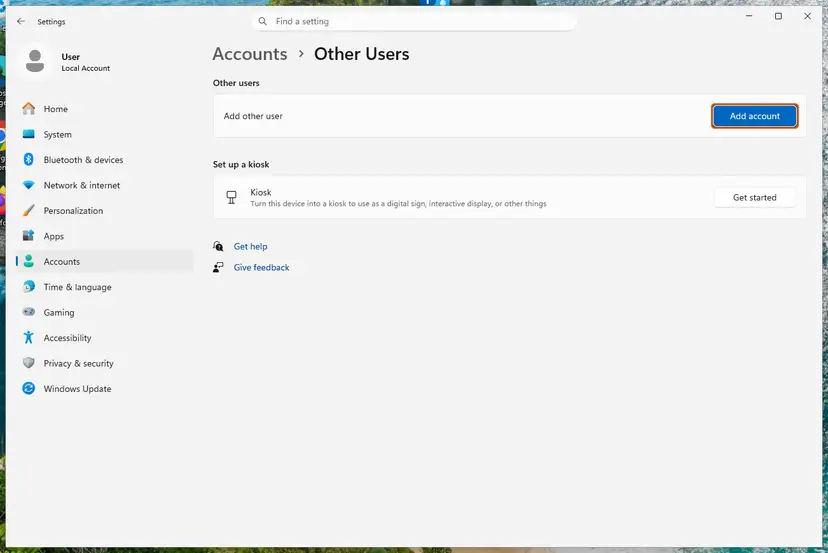
- Open Other users. Open Settings > Accounts > Other users. You can also press Windows key + R and run the command below.
ms-settings:otherusers - Add an account. Next to Add other user, select Add account.
- Skip the Microsoft account. Select I don't have this person's sign-in information.
- Choose a local account. Select Add a user without a Microsoft account.
- Name the account. Type a user name and, if you want one, a password. If you set a password, Windows also asks for answers to security questions. Select Next.
- Make it an administrator (optional). Back in Other users, select the new account, then Change account type next to Account options. Choose Administrator and select OK. For testing a problem, a standard account is usually enough.
- Sign in to the new account. Open Start, select your account picture and choose the new account. The first sign-in takes a few minutes while Windows sets up the profile.
These steps were written for Windows 11 24H2, 25H2 and 26H2. The full page with the other versions and what each result means: Create a new user account to test a problem
It worked if: You know whether the app installs in a clean profile.
If not: If it installs only in the new account, register the Store again in yours with Fix 7. If it fails everywhere, go to Fix 8.
Fix 7. Register Microsoft Store again for your account
5 minutesLow riskThe Store opens, but installs fail only in your user account.
Registering the Store package again rebuilds its registration in your profile without removing it. It repairs a Store whose registration was left in a half-updated state, which can make it try to create items that already exist.
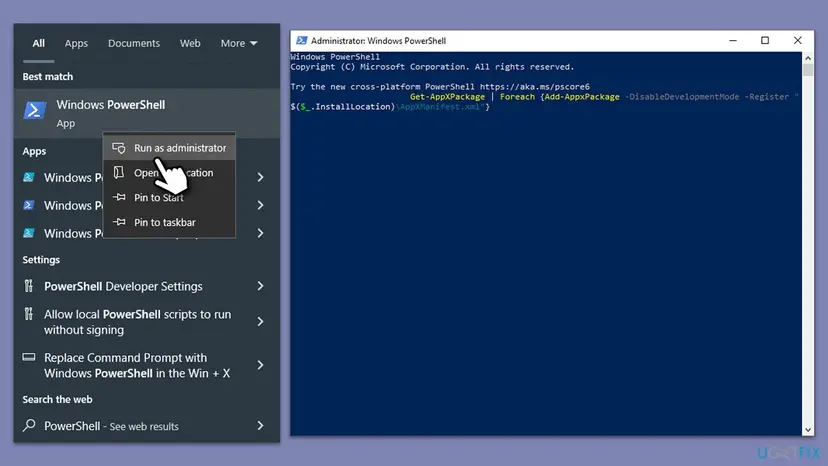
Close Microsoft Store. Run this command in PowerShell as administrator. It registers only the Store package, which is safer than the command for all apps.
Get-AppxPackage *Microsoft.WindowsStore* | Foreach {Add-AppxPackage -DisableDevelopmentMode -Register "$($_.InstallLocation)\AppXManifest.xml"}- Open PowerShell. Select Start, type PowerShell and select Windows PowerShell. Open it the normal way, not as administrator: in an administrator window the app is registered to the administrator account instead of yours.
- Find the app's package. Type the command below with a part of the app's name between the asterisks and press Enter. If the app is installed, PowerShell prints its details, including Name and InstallLocation. If nothing is printed, the app is not installed for your account: see the section below.
Get-AppxPackage -Name '*WindowsCalculator*' - Re-register the app. Paste the three commands below, with the same name between the asterisks, and press Enter. They read the folder the app is installed in and register its manifest again. If no red text appears, it worked.
$InstallLocation = Get-AppxPackage -Name '*WindowsCalculator*' | Select-Object -ExpandProperty InstallLocation $ManifestPath = $InstallLocation + '\Appxmanifest.xml' Add-AppxPackage -Path $ManifestPath -Register -DisableDevelopmentMode - Open the app. Close PowerShell and start the app from Start. If it still fails, restart the PC and try once more.
These steps were written for Windows 11 25H2 and 26H2, Windows 10 22H2. The full page with the other versions and what each result means: How to re-register Microsoft Store apps with PowerShell
It worked if: The command ends without red text, the Store opens and the app installs.
If not: If 0x800700B7 stays, repair Windows with Fix 8.
Fix 8. Repair system files, then repair-install Windows
20 to 90 minutesRead the warningNothing above worked, or several parts of Windows fail with different codes.
When the files of the app deployment service are damaged, the earlier steps do not hold. DISM and SFC repair the files in place. A repair install replaces Windows, keeps your files and apps, and rebuilds the Store and its folders.
- Open an elevated command window. Right-click Start and select Terminal (Admin), or type cmd in the search box, right-click Command Prompt and select Run as administrator. Select Yes when Windows asks for permission.

Search for cmd and choose Run as administrator. Screenshot: Windows 11 26H2. - Run DISM first. Type the command below and press Enter. DISM downloads clean copies of damaged components from Windows Update, so it can take several minutes. Wait until it says The operation completed successfully.
DISM.exe /Online /Cleanup-Image /RestoreHealth
DISM /RestoreHealth running. Screenshot: Windows 11 26H2. - Run System File Checker. In the same window, type the command below and press Enter. Do not close the window until the verification reaches 100%.
sfc /scannow
sfc /scannow at 100%. Screenshot: Windows 11 26H2. - Read the result and restart. Compare the last message with the table below this guide, then restart the PC so that repaired files are loaded.

The result line tells you what SFC did. Screenshot: Windows 11 26H2.
These steps were written for Windows 11 24H2 and 25H2. The full page with the other versions and what each result means: Run DISM and SFC to repair Windows system files
A repair install keeps files, apps and most settings, but a power cut or a failed upgrade can leave Windows unbootable. Copy your important files to a USB drive or cloud storage first: Back up your files (Windows Backup, File History, Time Machine)
- Open Recovery in Settings. Open Settings > System > Recovery. Next to Fix problems using Windows Update, select Reinstall now. This keeps your apps, files and settings.
- Start the reinstall. Choose whether the PC may restart on its own 15 minutes after the installation, then select OK.
- Wait and restart. Windows Update downloads and installs a repair copy of your current Windows version. Keep the PC plugged in and online, and restart it when asked.
- If that did not help: Reset PC. Back in Settings > System > Recovery, next to Reset this PC, select Reset PC. This keeps your personal files but removes installed apps and settings.
- Choose Keep my files. Select Keep my files. Do not select Remove everything.
- Choose where Windows comes from. Select Cloud download to download a fresh copy of Windows, or Local reinstall to use the files already on the PC (faster, but may not include the latest updates).
- Reset. Review the summary and select Reset. The PC restarts several times.
These steps were written for Windows 11 22H2 and later. The full page with the other versions and what each result means: Reinstall Windows without losing files
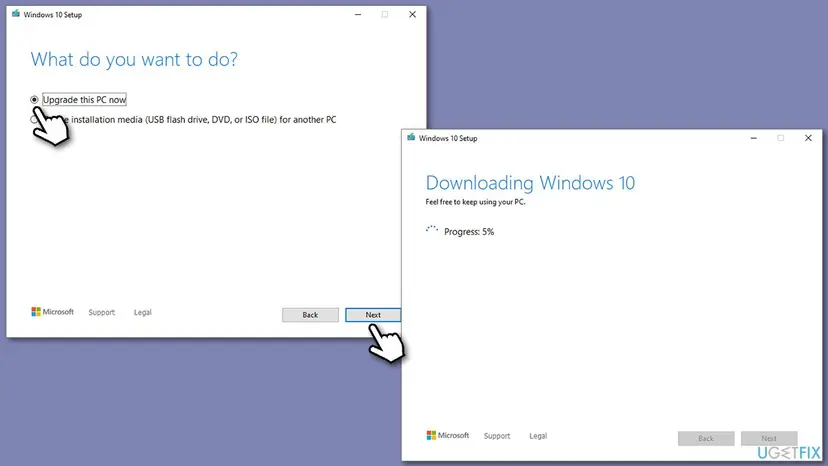
Windows 10 left support on 14 October 2025. A Windows 10 22H2 PC keeps working, but gets security updates only with Extended Security Updates. If the PC meets the Windows 11 requirements, an upgrade also replaces the whole app deployment stack.
It worked if: SFC reports no problems or repaired files, or Windows starts on the repaired build, and the Store installs apps.
If not: Read the still broken section below for what to send to support.
If error 0x800700B7 is still there
When every fix fails, the logs show which item already exists and why it cannot be replaced. These are the places to read, in order.
| Where to look | What to look for |
|---|---|
| Event Viewer > Applications and Services Logs > Microsoft > Windows > AppXDeployment-Server > Microsoft-Windows-AppXDeploymentServer/Operational | 0x800700B7 and the lines above it: the package name, the path and the extension that failed. |
Get-AppxLog in PowerShell | The same deployment entries for the last install, in one list. |
| Event Viewer > Applications and Services Logs > Microsoft > Windows > AppxPackagingOM > Microsoft-Windows-AppxPackaging/Operational | Errors while the package file was read, if the install never reached deployment. |
C:\Windows\Logs\CBS\CBS.log | Damage reported by SFC. If it stays after Fix 8, a repair install is the next step. |
If you ask Microsoft Support or your administrator for help, send your Windows version from winver, the code 0x800700B7, the app's name and the log lines around the code. Say whether the app was installed before and whether a new user account can install it.
The code does not point to a failing disk or memory. On a work or school PC, the Store and app installs can be limited by policy: ask the administrator before you change folder permissions.
How to keep error 0x800700B7 from coming back
- Uninstall Store apps from Settings > Apps > Installed apps and restart before you install them again.
- Let an install or update finish before you shut down the PC.
- Install Windows updates and select Get updates in the Store Library now and then.
- Back up app data you care about, such as game saves that are not synced.
- Do not delete folders under
C:\Program Files\WindowsAppsorPackagesby hand to remove an app. - Do not change the owner or permissions of
C:\ProgramDatafolders with tweak tools. - Do not remove the Microsoft Store package with PowerShell to reinstall it: repair or register it instead.
Other Store codes have other causes. If installs fail with a network message instead, see error 0x800704C6.
Frequently asked questions
What does error 0x800700B7 mean?
It means Windows could not create a file, folder or registration because one with the same name already exists. The code is the HRESULT form of Windows system error 183, ERROR_ALREADY_EXISTS. Microsoft lists it with the text "Cannot create a file when that file already exists." In Microsoft Store it usually points to an earlier copy of the app that was not fully removed. Start with Fix 1.
Why do all apps fail with 0x800700B7, not just one?
When every install fails, the leftover is not in one app but in something all installs share: the Store cache, the Store app itself, or the folder C:\ProgramData\Packages where each app's data folder is created. Clear the cache and update (Fix 2), repair or reset the Store (Fix 3), then read the install log (Fix 4). A user on Microsoft Q&A traced this exact case to wrong permissions on that folder (Fix 5).
How do I fix 0x800700B7 in the Xbox app or with Game Pass?
The Xbox app installs PC Game Pass games through the same Windows app deployment as the Store, so the same fixes apply. Uninstall any half-installed copy of the game and restart (Fix 1), then try again. If it fails near the end, users on Super User report a log line saying the secure app data folder could not be created; Fix 4 shows how to find and rename that leftover folder.
Will resetting Microsoft Store delete my apps or games?
No. Reset deletes the Store app's own data on this PC, such as its cache and sign-in, and you sign in again afterwards. Installed apps and games stay installed, and purchases and Game Pass stay in your Microsoft account. Try Repair first, because it keeps the Store's data. Clearing the cache with wsreset does not remove apps either.
Is it safe to delete folders in C:\ProgramData\Packages?
Not by hand as a first step. Each folder there holds an app's shared data, and some belong to apps that still work. Uninstall the app from Settings first (Fix 1). If the install log names one leftover folder of the failing app, rename it with .old instead of deleting it (Fix 4), and delete it only after the app works. Never delete the Packages folder itself.
I see 0x800700B7 in Windows Update or on Windows 7. Is it the same error?
It is the same Windows code with the same meaning, but a different place. Windows 7 has no Microsoft Store, so there the code comes from another tool, often a backup, restore or update step that finds a file already in place. Windows 7 left support in January 2020. On Windows 10 and 11, a Windows Update failure with 0x800700B7 is not a Store problem: reset the update components with Reset Windows Update components and read the update log.
What does 0x800700B7 mean in Task Scheduler?
In Task Scheduler the code usually means a task with the same name already exists in that folder. That fits Microsoft's text for error 183: something with that name already exists. Rename the new task, or delete or replace the old one, and import it again. It has nothing to do with Microsoft Store, so the fixes on this page do not apply.
What is provisioning failure 0x800700b7?
That is the same code when a provisioning package (.ppkg) fails during Windows setup or when it is added later. On Windows 11 22H2 it was a known Microsoft bug, fixed in November 2022. On later builds it usually means an older package or a work or school enrollment is already on the PC. We cover it in a separate guide: provisioning package error 0x800700b7.
Is error 0x800700B7 a virus or a hardware fault?
No. The code reports that something already exists, not that a part is broken or that malware is present. If you want to be sure the PC is clean, run a Microsoft Defender scan with How to scan for malware with Microsoft Defender, but no source links this code to malware. A failing disk produces other codes and other symptoms, such as slow file access and chkdsk errors.
I searched in another language or for ugetfix.com. Is this the right page?
Yes, if your screen shows 0x800700B7 in Microsoft Store or the Xbox app. A search such as "что делать" (what to do) asks the same question this page answers, and a site:ugetfix.com search finds this guide among our other Store error guides. The fix order is the same in every language: remove the app's leftovers, clear and repair the Store, then read the install log.
Sources
- Microsoft Learn: System Error Codes (0-499), ERROR_ALREADY_EXISTS 183 (0xB7) Cannot create a file when that file already exists (learn.microsoft.com)
- Microsoft Learn: Troubleshooting packaging, deployment, and query of Windows apps (AppXDeployment-Server log, Get-AppxLog) (learn.microsoft.com)
- Microsoft Q&A: Microsoft Store / MSIX error 0x800700B7 caused by incorrect permissions on C:\ProgramData\Packages (user report, moderator reply) (learn.microsoft.com)
Did this fix work?
One click, no account. It tells the next reader which guides are worth their time.
Questions and experiences: fix Microsoft Store error 0x800700B7
Still broken, or found a fix we did not cover? Ask here: members and our editors answer. Reading is open; writing needs a free account.
…