
How to fix Microsoft Store error 0x80073D21 in Windows?

Prefer to fix it yourself? The manual steps follow.
- 6methods
- 5 to 20 minutes
- Easy
Applies to Windows 11 and Windows 10; Microsoft Store apps, Xbox app and PC Game Pass games, Gaming Services
6 methods in this guide
Hey, I have been trying to install a few apps from the Microsoft Store, but I keep getting the error code 0x80073D21 with the message "Change where you install apps." Why is this happening? I have no clue what to do.
Error 0x80073D21 means the app or game you are installing may only go on the system drive, usually C:, but Windows is set to save new apps on another drive. Nothing is broken. Set New apps will save to back to C: and start the install again.
0x80073D21 means this app's own policy says it must install on the system drive, and your default location for new apps is another drive. Open Settings > System > Storage > Advanced storage settings > Where new content is saved, set New apps will save to to drive C: and retry (Fix 1). If C: is full, free space first (Fix 2). If you moved the app to another drive, move it back (Fix 3).
| Error | 0x80073D21, Windows name ERROR_DEPLOYMENT_BLOCKED_BY_VOLUME_POLICY_PACKAGE. The app's own policy blocks installs on a drive that is not the system drive. |
|---|---|
| Where it appears | In Microsoft Store or the Xbox app when you install an app, a PC Game Pass game or Gaming Services, under the title "Change where you install apps". |
| Main cause | New apps will save to points to D:, E: or another drive, and this one app may only be installed on the system drive. |
| Fastest fix | Set New apps will save to to drive C: and install again (Fix 1). It takes about two minutes. |
| Also written as | 0x80073d21, 80073D21, error 0x80073d21, error code 0x80073d21, Code: 0x80073D21, and the message text "This app must install to your system drive, but that's not the default." |
| Close relative | 0x80073D22 is the same block set for the whole PC by a policy, not by the app. The fixes below cover both. |
| Affects | Windows 11 and Windows 10, every edition. Windows 10 left Microsoft support on 14 October 2025; the steps still work on 22H2. |
| Microsoft's status | Not a bug. Microsoft Learn documents it as a deployment block and tells you to make the system drive the default save location. |
| What it is not | Not damaged system files, not a broken Store cache and not a network fault. SFC, DISM and the troubleshooter do not change the drive rule. |
Facts checked on 15 October 2026. Steps written for Windows 11 (25H2 and 26H2) and Windows 10 22H2.
What error 0x80073D21 means in Microsoft Store and the Xbox app
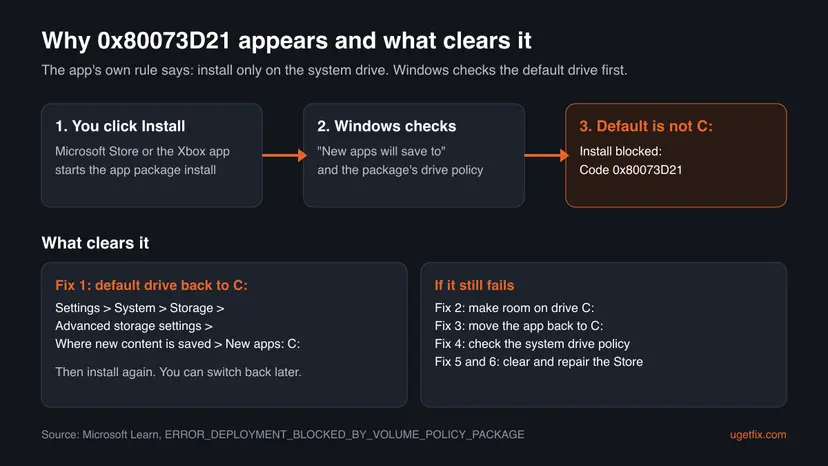
Store apps and Xbox PC games are app packages, and Windows installs them through its deployment service. Some packages carry a rule that they may only live on the system drive, the drive Windows itself is installed on. Microsoft Learn lists 0x80073D21 as ERROR_DEPLOYMENT_BLOCKED_BY_VOLUME_POLICY_PACKAGE: "The deployment operation was blocked due to a per-package-family policy restricting deployments on a non-system volume."
Change where you install apps. This app must install to your system drive, but that's not the default. Go to Storage > Change where new content is saved, select your system drive, and retry the install. Code: 0x80073D21
- Per-package policy
- The block comes from the app itself, so other apps can still install on your second drive. Only this one must go on C:.
- The check
- Windows looks at New apps will save to before it writes anything. If that drive is not the system drive, the install stops with this code.
- What Microsoft says to do
- "In Storage settings, make the system drive the default location to save new content, then retry the install."
- Xbox support
- Xbox support describes it on PC Game Pass installs: "This means that you're not installing this game on the system drive." The answer is to change the install location.
Many readers say they changed the setting and still got the code. That usually means drive C: was set, but the app had already been moved to another drive, C: has no room, or a Store download from before the change is still in the queue. Fixes 2, 3 and 5 cover those cases.
Why Windows shows 0x80073D21: the causes, ranked
Almost every case comes from a PC with two drives where someone pointed new apps to the larger second drive. The app in question then refuses to follow. Less often the app was moved after installation, or a company policy forces all apps onto C:.
| Cause | How often | How to tell | Fix |
|---|---|---|---|
| New apps will save to is set to D:, E: or another drive. | Most often | The setting shows a drive other than the one with Windows on it. | Fix 1 |
| You set it back to C:, but C: has too little free space for the app or game. | Often on small SSDs | Settings > System > Storage shows drive C: almost full. | Fix 2 |
| The app, often Gaming Services or the Xbox app, was moved to another drive earlier. | Sometimes | Installed apps lists the app on a drive other than C:, or the code appears when you press Move. | Fix 3 |
| A company or school policy forbids apps on non-system drives for the whole PC. | Rarely, on managed PCs | The code is 0x80073D22, or the registry shows RestrictAppToSystemVolume set to 1. | Fix 4 |
| A download from before the change keeps retrying with the old drive. | Rarely | Downloads in the Store shows the same failed item after Fix 1. | Fix 5, then Fix 6 |
How to fix error 0x80073D21 in Microsoft Store and the Xbox app
Start with Fix 1: it is what Microsoft and Xbox support both tell you to do, and it works for most people. Fix 2 and Fix 3 are for when Fix 1 alone is not enough. Fix 4 is for work and school PCs. Fix 5 and Fix 6 clear the Store when the setting is right but the old install keeps failing.
| What you see or have | Start with |
|---|---|
| "Change where you install apps" on a PC with two or more drives. | Fix 1 |
| New apps already save to C:, but drive C: is almost full. | Fix 2 |
| The code appears when you move Gaming Services or another app. | Fix 3 |
| A work or school PC, or the code is 0x80073D22. | Fix 4 |
| The setting is C:, but the Store retries the same failed download. | Fix 5, then Fix 6 |
Fix 1. Set New apps will save to back to the system drive and install again
2 minutesNo riskEveryone first, and above all on a PC with a second drive that you chose for new apps.
Microsoft's text for 0x80073D21 says to make the system drive the default location for new content and retry. The app's policy only accepts the system drive, so this is the setting Windows checks.
- Press Win + I to open Settings and select System > Storage.
- Windows 11: scroll to Storage management, expand Advanced storage settings and select Where new content is saved. Windows 10: select Change where new content is saved.
- Open the list under New apps will save to and pick the drive with Windows on it, usually Local Disk (C:).
- Select Apply if the button appears next to the list.
- Go back to Microsoft Store or the Xbox app and start the install again.
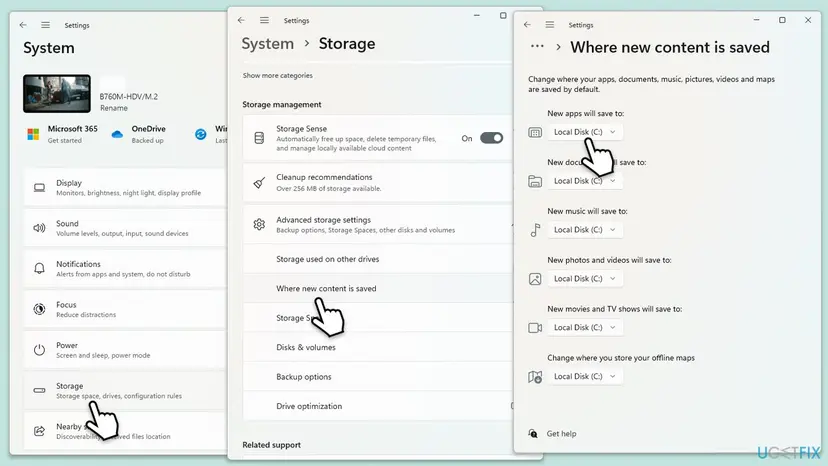
The rule belongs to this one app. Once it is installed on C:, you can set New apps will save to back to your second drive for other apps and games. If the Xbox app offers a drive or folder choice in its install window, pick drive C: there too; we could not confirm the current labels of the Xbox app's own install settings.
It worked if: The install starts, the progress bar moves, and the app appears in Start when it ends.
If not: If the same message comes back, check the free space on drive C: with Fix 2.
Fix 2. Free up space on drive C: so the app fits
10 to 15 minutesLow riskNew apps already save to C:, or you chose a second drive because C: is small or almost full.
Because this app may only live on the system drive, it needs its full size free on C:. Games from PC Game Pass are often large, so a small SSD runs out before the install ends.
- Open the app's page in Microsoft Store or the Xbox app and note its download size.
- Press Win + I, select System > Storage and read how much space drive C: has free.
- If the free space is smaller than the app plus a margin, clean up the drive. Step by step: Free up disk space and delete temporary files
- Move large personal files such as videos to your second drive, or uninstall games you no longer play from C:.
- Start the install again.
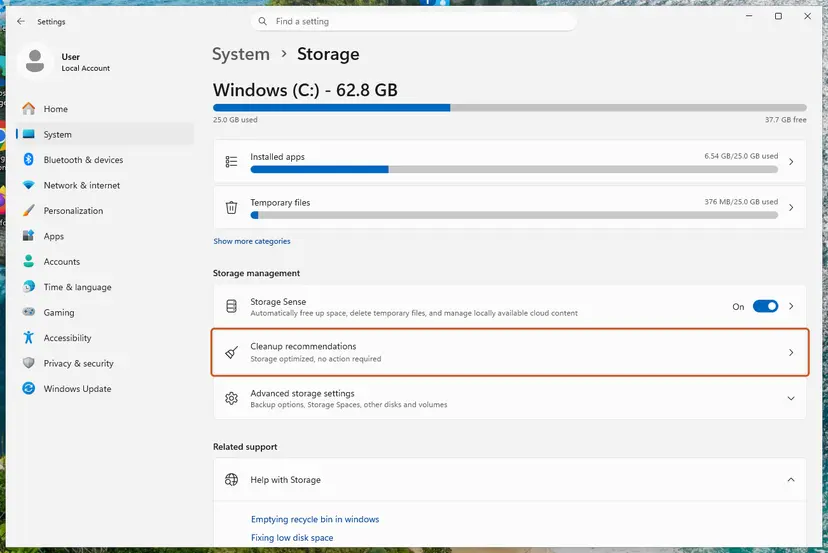
It worked if: Drive C: has room for the app and the install finishes.
If not: If space is fine and the code stays, check whether the app sits on another drive with Fix 3.
Fix 3. Move an installed app back to drive C:
5 minutesLow riskThe code appears when you update or move an app such as Gaming Services, or the app is already on a second drive.
The package policy forbids this app on any drive but the system drive, so Windows refuses a move to another drive with the same code. A Microsoft Q&A thread reports exactly that when users try to move Gaming Services.
- Press Win + I and open Apps > Installed apps (Windows 10: Apps > Apps & features).
- Find the app in the list. Under its name, Windows shows the drive it sits on.
- Windows 11: select the three dots next to it and choose Move. Windows 10: select the app, then Move.
- Pick the drive with Windows on it, usually C:, and select Move.
- Do not move this app to another drive again. Leave other apps and games where they are.
If an app has no Move option, it cannot be moved at all. In that case uninstall it, make sure Fix 1 is done, and install it again from the Store. Step by step: Uninstall a program or app in Windows
It worked if: The app is listed on drive C: and installs and updates without the code.
If not: If the PC belongs to a company or school, the block may come from a policy. Check it with Fix 4.
Fix 4. Check the system drive policy on a work or school PC
5 minutesLow riskA managed PC, or the message shows 0x80073D22 instead of 0x80073D21.
Microsoft's policy Disable installing Windows apps on non-system volumes forces every app onto the system drive for the whole PC. With it on, any default other than C: fails, which Microsoft lists as 0x80073D22.
Terminal as administrator: read the policy (nothing is changed)
reg query "HKLM\SOFTWARE\Policies\Microsoft\Windows\Appx" /v RestrictAppToSystemVolume- Right-click Start and select Terminal (Admin). Windows 10: Windows PowerShell (Admin).
- Paste the command above and press Enter.
- Read the result.
0x1means the policy is on and every app must go on C:. "Unable to find the specified registry key or value" means it is not set. - If it is on, keep New apps will save to on C: as in Fix 1, or ask your IT whether they can allow other drives.
- On your own PC with Pro, the setting is in the Local Group Policy Editor under Computer Configuration > Administrative Templates > Windows Components > App Package Deployment. Step by step: Open the Local Group Policy Editor
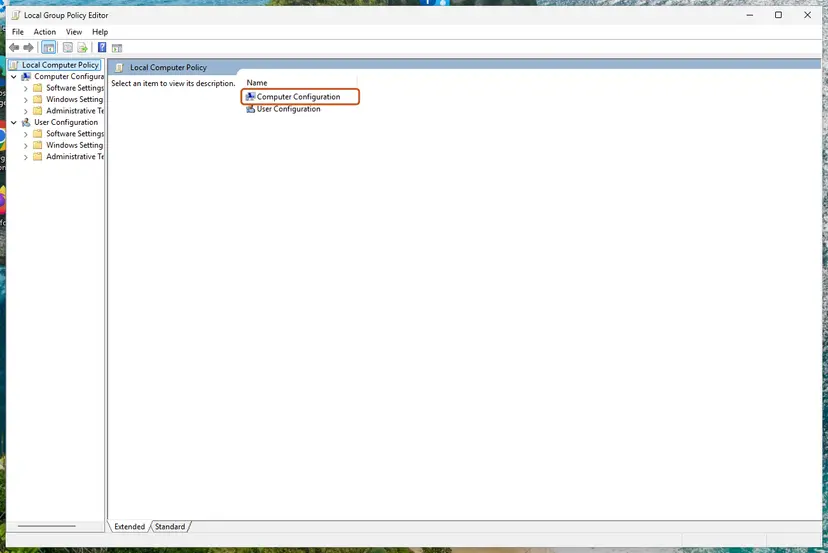
It worked if: You know whether a policy forces apps onto C:, and the install works once the default drive matches.
If not: If the policy is not set and the code stays, clear the Store queue with Fix 5.
Fix 5. Reset the Microsoft Store cache and start the download fresh
3 minutesLow riskNew apps save to C:, there is room, but the Store keeps retrying the same failed download.
A download that failed before you changed the setting can stay in the Store's queue with its old target. Clearing the cache with wsreset lets the Store start the install again with the new default drive.
- Clear the Store cache. Press Windows + R, type wsreset.exe and select OK. A blank Command Prompt window opens; after a short while it closes and Microsoft Store opens by itself.
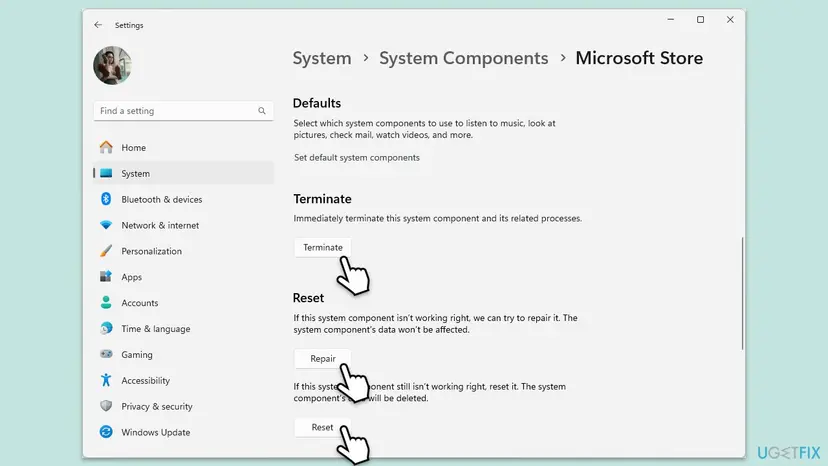
- Open System components. If the problem stays, select Start > Settings > System > System components. Next to Microsoft Store, select the three dots and Advanced options. If Microsoft Store is not listed there, look for it in Settings > Apps > Installed apps.
- Repair first. Scroll to Reset and select Repair. Repair keeps the app's data. Open the Store and check whether it works.
- Reset if Repair did not help. Select Reset and confirm. This deletes the Store app's data on this PC; your purchases stay in your Microsoft account. Open the Store and sign in again.
These steps were written for Windows 11 26H2 (build 26300). The full page with the other versions and what each result means: Reset the Microsoft Store
It worked if: The Store opens with an empty download list and the app installs on C:.
If not: If the code comes back, repair or reset the Store and the Xbox app with Fix 6.
Fix 6. Repair or reset Microsoft Store and the Xbox app
5 minutesLow riskAll the above is done and the Store or Xbox app still fails with the code.
If the Store or Xbox app keeps wrong settings from before, a repair keeps your data and fixes the app, while a reset clears it. Both make the app read the new default drive again.
- Press Win + I. Windows 11: open System > System components and select Microsoft Store (on older builds: Apps > Installed apps, the three dots, then Advanced options). Windows 10: Apps > Apps & features > Microsoft Store > Advanced options.
- Select Terminate, then Repair.
- Try the install. If it fails again, return and select Reset. You may have to sign in to the Store again.
- Do the same for the Xbox app if you install games through it. Step by step: How to repair or reset an app in Windows
- Restart the PC and install again.
It worked if: The Store and Xbox app open normally and the install finishes on drive C:.
If not: If the code still appears, read the deployment log below; it names the package and the drive.
If 0x80073D21 is still there: find the reason and what to send to support
Windows writes every failed app install into an event log. Microsoft's troubleshooting page for app deployment points to the AppXDeployment-Server log and to the Get-AppxLog command in PowerShell.
- Try the install once more and note the time.
- Press Win + R, type
eventvwr.mscand press Enter. - Open Applications and Services Logs > Microsoft > Windows > AppXDeployment-Server > Microsoft-Windows-AppXDeploymentServer/Operational.
- Find the error at that time. It names the package and the volume that was refused.
- For a quick view, open PowerShell right after the failure and run
Get-AppxLog.
- What to send to Xbox or Microsoft support: the app or game name, the full log text, a screenshot of Where new content is saved, and your Windows version from Settings > System > About.
- A different code in the log: follow that code. A profile block is 0x80073D23, explained in our guide on Microsoft Store error 0x80073D23.
- Hardware: the code is a rule about drives, not a disk fault. A disk only matters when C: is too small for the app.
Codes close to 0x80073D21
| Code | Meaning (Microsoft Learn) | First step |
|---|---|---|
| 0x80073D21 | Blocked by a per-package policy that restricts installs on a non-system volume. | This page, Fix 1 |
| 0x80073D22 | Blocked by a machine-wide policy that restricts installs on a non-system volume. | Fix 1 and Fix 4 |
| 0x80073D13 | This app package type is not supported on this file system. | Install to drive C: and retry. |
| 0x80073D31 | We could not confirm its meaning from the sources we read for this page. | Read the AppXDeployment-Server log as above. |
How to keep 0x80073D21 from coming back
- Keep system apps on C:. Do not move Gaming Services, the Xbox app or the Store to another drive.
- Change the default drive on purpose. If you switch New apps will save to to a second drive, remember that some apps will still need C:.
- Leave room on C:. Keep enough free space for the largest app that must live there: Free up disk space and delete temporary files
- On managed PCs, know the policy. If IT has turned on the non-system volume policy, keep the default on C:.
Frequently asked questions
What does error code 0x80073D21 mean?
It means the app you are installing may only go on the system drive, but Windows is set to save new apps somewhere else. Microsoft names it ERROR_DEPLOYMENT_BLOCKED_BY_VOLUME_POLICY_PACKAGE: the deployment was blocked by a per-package policy that restricts installs on a non-system volume. It is not a damaged Store or a broken download. Set New apps will save to back to drive C: and retry, as in Fix 1.
How do I fix error 0x80073D21 on Windows 11?
Open Settings > System > Storage, expand Advanced storage settings, select Where new content is saved and set New apps will save to to Local Disk (C:). Then install again (Fix 1). If C: is full, free space first (Fix 2). If you moved the app to another drive, move it back (Fix 3). The steps are the same on Windows 11 25H2 and 26H2.
I changed the setting to C: and it still won't work. Why?
Three things cause this most often. Drive C: may not have room for the app, so free space with Fix 2. The app may already sit on another drive from an earlier move, so move it back with Fix 3. Or the Store may keep retrying a download from before the change, so reset its cache with Fix 5. On a work PC, a policy can also force all apps onto C:, which Fix 4 checks.
Do I have to keep all my games on drive C: now?
No. The rule in 0x80073D21 belongs to one app package, not to your whole PC. Once that app is installed on C:, you can set New apps will save to back to your second drive, and other games and apps follow it. Only when the code is 0x80073D22, or a company policy is set, must every app stay on the system drive.
Does 0x80073D21 happen on Windows 10 too?
Yes. Xbox support describes it on PC Game Pass installs on Windows 10. The fix is the same: Settings > System > Storage > Change where new content is saved, then set New apps will save to to drive C:. Windows 10 left Microsoft support on 14 October 2025, but the setting and the Store still work on 22H2.
Is 0x80073D31 the same as 0x80073D21?
No. Both belong to the family of app deployment errors, but each one stops at a different check. This page is about 0x80073D21, the system drive block. We could not confirm the meaning of 0x80073D31 from the sources we read for this guide, so we do not guess. Read the AppXDeployment-Server log as shown under If 0x80073D21 is still there; it names the real reason.
Can 0x80073D21 appear when I update an app?
Microsoft's description speaks of a deployment operation, which is the word Windows uses for installs, updates and moves of app packages. The cases we could confirm are installs and moves. If an update fails with this code, the app is most likely on a second drive: move it back to C: with Fix 3 and run the update again from the Store's Downloads page.
Will SFC, DISM or the Store troubleshooter fix 0x80073D21?
Not on their own. Those tools repair system files and the Store, but this code is a rule about which drive an app may use. While New apps will save to points to another drive, they change nothing. The old version of this guide listed them, along with an in-place upgrade; we dropped those steps because they do not touch the drive setting.
I searched in another language. Is this page for me?
This page is in English and covers one error: 0x80073D21 in Microsoft Store and the Xbox app on Windows 11 and Windows 10. You may have searched "sigue apareciendo el error", "как решить", "alles hilft nichts", "deu o mesmo erro" or "continua com erro". The answer is the same in every language: set New apps will save to to drive C: (Fix 1). Then check free space and the app's location with Fix 2 and Fix 3.
Sources
- Microsoft Learn: Troubleshooting packaging, deployment, and query of Windows apps (ERROR_DEPLOYMENT_BLOCKED_BY_VOLUME_POLICY_PACKAGE 0x80073D21) (learn.microsoft.com)
- Xbox Support: Error 0x80073D21 occurs when installing an Xbox Game Pass game (support.xbox.com)
- Microsoft Learn: ApplicationManagement Policy CSP (RestrictAppToSystemVolume) (learn.microsoft.com)
Did this fix work?
One click, no account. It tells the next reader which guides are worth their time.
Questions and experiences: fix Microsoft Store error 0x80073D21 in Windows
Still broken, or found a fix we did not cover? Ask here: members and our editors answer. Reading is open; writing needs a free account.
…