
How to fix Microsoft Store error 0x80073D23 in Windows?

Prefer to fix it yourself? The manual steps follow.
- 6methods
- 5 to 30 minutes
- Beginner
Applies to Windows 11 and Windows 10; Microsoft Store apps and games, app updates from the Store, PowerShell Add-AppxPackage
6 methods in this guide
Hello. When I try to install apps from the Microsoft Store, I receive the 0x80073D23 error. How can I fix this?
Error 0x80073D23 means Windows refused to install or update an app because you are signed in with a special profile: a temporary, Guest, mandatory or roaming one. It is not a broken Store. Save your files, sign out, restart and sign in to your normal profile first.
0x80073D23 is Windows saying "special profile deployment is not allowed": your profile throws changes away at sign-out, so apps cannot be installed in it. Save any new files, sign out, restart and sign in to your own profile (Fix 1). If Windows keeps loading a temporary profile, sign in once in Safe Mode (Fix 2), then move to a new account (Fix 4). On a Guest account, use your own (Fix 3).
| Error | 0x80073D23, Windows name ERROR_DEPLOYMENT_BLOCKED_BY_PROFILE_POLICY. Microsoft's text: "The deployment operation was blocked because special profile deployment is not allowed." |
|---|---|
| Where it appears | In Microsoft Store when an app or game will not install or update, and in PowerShell after Add-AppxPackage. The Store shows it as Code: 0x80073D23. |
| Main cause | You are signed in with a temporary profile, because your real profile failed to load. Less often a Guest account, a mandatory profile or a roaming profile on a work PC. |
| Fastest fix | Save your work, sign out, restart and sign in to your own profile (Fix 1). |
| Also written as | 0x80073d23, 80073D23, error 0x80073d23, error code 0x80073d23, Deployment failed with HRESULT: 0x80073D23. |
| Affects | Windows 11 and Windows 10, every edition. Windows 10 left Microsoft support on 14 October 2025; the steps still work on 22H2. |
| Microsoft's status | Not a bug. It is a documented app deployment error, and Windows blocks these installs by default. No update removes it. |
| What it is not | Not a damaged Store cache, not a network fault and not a Windows Update error. |
| Time to fix | 5 minutes when a restart brings your profile back. 20 to 30 minutes when you have to move to a new account. |
Facts checked on 15 October 2026. Steps written for Windows 11 (25H2 and 26H2) and Windows 10 22H2.
What error 0x80073D23 means in Microsoft Store and Windows
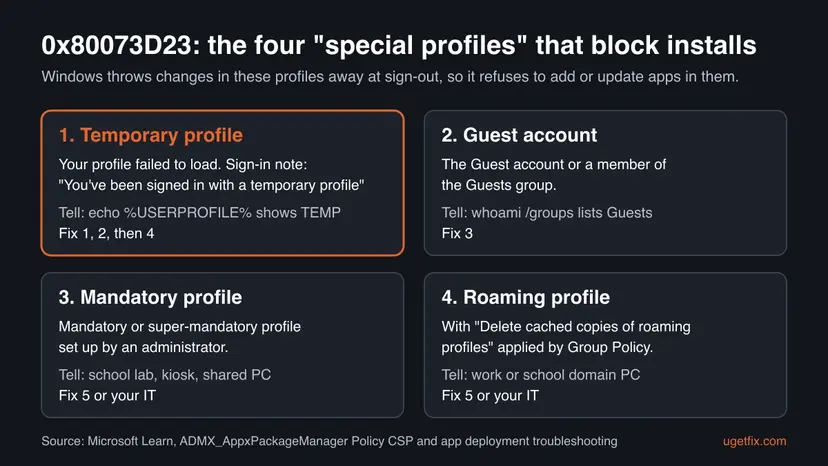
Store apps and games are app packages (APPX or MSIX), and Windows installs them through one deployment service. Before it adds, updates or removes a package, it checks which kind of profile you are signed in with. Microsoft Learn lists 0x80073D23 as ERROR_DEPLOYMENT_BLOCKED_BY_PROFILE_POLICY: "The deployment operation was blocked because special profile deployment is not allowed."
- What a special profile is
- Microsoft's definition: a user profile "where changes are discarded after the user signs out". An app installed there would vanish at sign-out, so Windows refuses.
- The four kinds
- Temporary profiles (created when an error stops your real profile from loading), the Guest account and members of the Guests group, mandatory and super-mandatory profiles set by an administrator, and roaming profiles with "Delete cached copies of roaming profiles" applied.
- The default
- The policy Allow deployment operations in special profiles is off unless someone turns it on, so every one of these profiles is blocked.
- What Microsoft tells you to do
- "Try logging into an account that is not a special profile." Sign out and back in, or use a different account.
The old version of this guide said the code means a conflict between the app and existing app data, and led with the Store troubleshooter, SFC, a network reset and Xbox services. Microsoft's own table says otherwise, and none of those steps changes your profile. We rewrote the page around the real cause.
Why Windows shows 0x80073D23: the causes, ranked
On a home PC the cause is almost always a temporary profile: Windows could not load your own profile at sign-in and gave you an empty one. Next comes a Guest account. Mandatory and roaming profiles are set up by schools and companies, so you meet them on managed PCs.
| Cause | How often | How to tell | Fix |
|---|---|---|---|
| Windows signed you in with a temporary profile. | Most often on home PCs | A note said "You've been signed in with a temporary profile", or your desktop, files and wallpaper are gone. | Fix 1, then Fix 2 |
| The temporary profile comes back after every restart. | Often after a crash or a forced shutdown | Fix 1 and Fix 2 do not bring your own desktop back. | Fix 4 |
| You use the Guest account or an account in the Guests group. | Sometimes | whoami /groups lists BUILTIN\Guests. | Fix 3 |
| A school, kiosk or shared PC gives everyone a mandatory profile. | Sometimes, on managed PCs | Settings reset at every sign-in, and Access work or school lists an organisation. | Fix 5 or your IT |
| A work PC uses roaming profiles whose local copy is deleted at sign-out. | Rarely, on company domains | You sign in to a company domain and your settings follow you between PCs. | Fix 5 or your IT |
| The Store queue keeps retrying an install that failed in the special profile. | Rarely | The code comes back from Downloads even in your normal profile. | Fix 6 |
How to fix error 0x80073D23 in Microsoft Store and Windows
Start with Fix 1: a plain sign-out and restart brings most people's profile back. Fix 2 and Fix 4 are for a temporary profile that will not go away. Fix 3 is for Guest accounts and Fix 5 for shared or managed PCs. Fix 6 clears the Store queue once you are back in a normal profile.
| What you see or have | Start with |
|---|---|
| "You've been signed in with a temporary profile", or your desktop looks empty. | Fix 1 |
| The temporary profile is back after every restart. | Fix 2, then Fix 4 |
| You are on the Guest account, or someone else's PC as a guest. | Fix 3 |
| A school lab, kiosk, library or company PC. | Fix 5, or ask the administrator |
| Your own desktop is back, but the Store still shows the code. | Fix 6 |
Fix 1. Save your files, sign out, restart and sign in to your own profile
5 minutesNo riskEveryone first, and above all when your desktop, files or wallpaper look different than usual.
Microsoft's advice for 0x80073D23 is to log out and log back in, or use another account. A temporary profile is created when your real profile fails to load once; a clean restart often loads it again.
Microsoft says anything you created or changed in a temporary profile is lost when you sign out. Copy new files to a USB stick or OneDrive before step 2.
- Copy anything you saved since the last normal sign-in to a USB drive or to OneDrive in the browser.
- Select Start, then Power > Restart. Do not use Sleep or Shut down with Fast Startup.
- Sign in with your usual account and password.
- Press Win + R, type
cmdand press Enter. Typeecho %USERPROFILE%and press Enter. - Read the path. Your own profile is
C:\Users\YourName. A path with TEMP in it means Windows loaded a temporary profile again. - If the path is yours, open Microsoft Store and install the app again.
Microsoft notes that you may need to restart more than once before the original profile loads. Try two or three restarts before you move on.
It worked if: Your own desktop and files are back, the path shows your user folder, and the app installs without the code.
If not: If the path still contains TEMP after a few restarts, go to Fix 2.
Fix 2. Sign in once in Safe Mode to load your original profile
10 minutesNo riskWindows keeps signing you in with a temporary profile after normal restarts.
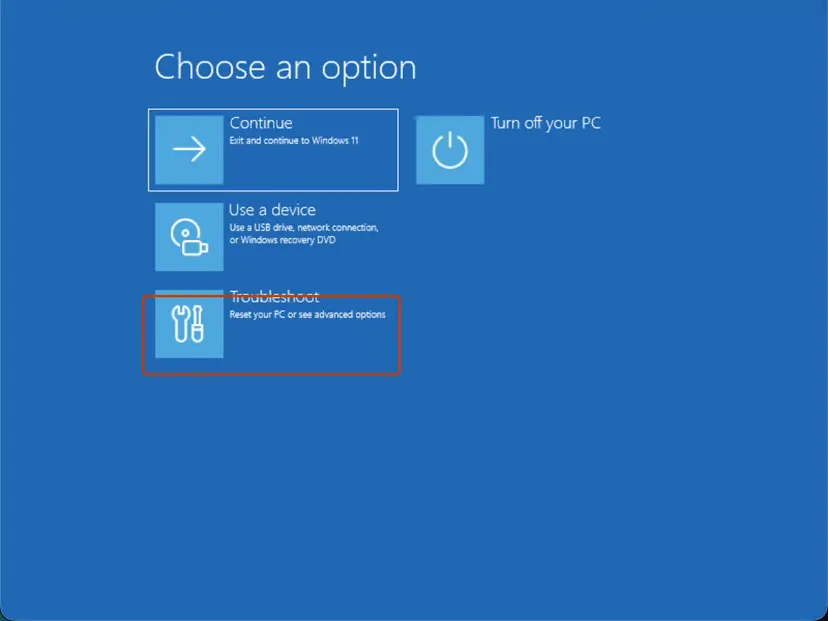
Microsoft's first step for a profile that will not load is to start in Safe Mode and sign in with the original profile. Safe Mode starts without third-party programs that can hold the profile files during sign-in.
- Start Windows in Safe Mode. Step by step: Start Windows or a Mac in Safe Mode
- Sign in with your usual account. Check whether your own desktop and files appear.
- Restart the PC normally and sign in again.
- Run
echo %USERPROFILE%again as in Fix 1. A path without TEMP means the profile is back. - Install the app from Microsoft Store.
Microsoft also suggests a test with your antivirus paused, because a scanner that locks files at sign-in can stop the profile from loading. Pause it for one restart only and turn it back on: Turn off Microsoft Defender protection for a moment
It worked if: After the normal restart, your own profile loads and the Store installs the app.
If not: If the temporary profile still comes back, your profile is damaged. Move to a new account with Fix 4.
Fix 3. Use your own account instead of the Guest account
5 minutesNo riskYou share the PC, signed in as Guest, or someone added your account to the Guests group.
Microsoft lists the Guest account and every member of the Guests group as special profiles. Windows blocks Store installs there by default, however many times you retry.
- Press Win + R, type
cmdand press Enter. - Type
whoami /groupsand press Enter. - Look for BUILTIN\Guests in the list. If it is there, this account is a guest.
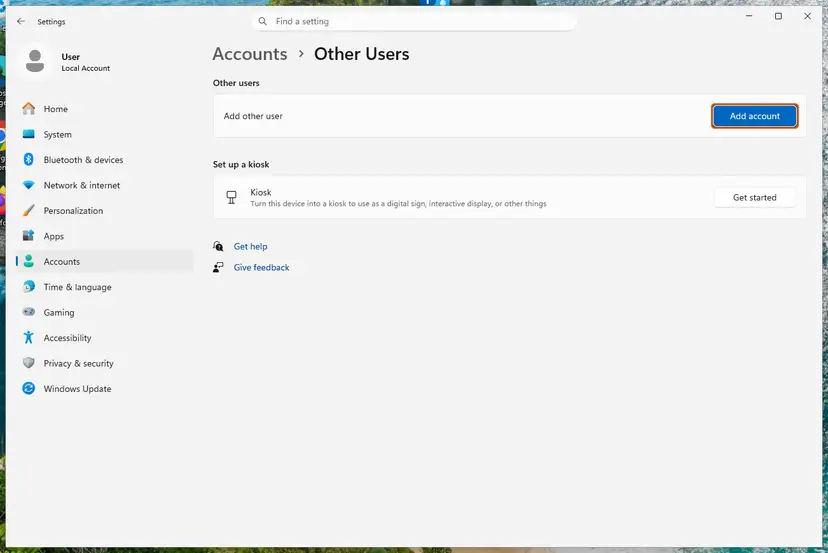
- Ask the owner of the PC to create a normal account for you, or sign out and sign in with your own. Step by step: Create a new user account to test a problem
- Sign in to the normal account and install the app from Microsoft Store.
It worked if: In a normal account the Store installs the app without the code.
If not: If you are not a guest and the code stays, check for a temporary profile with Fix 1, or look at Fix 5 if the PC belongs to a school or company.
Fix 4. Create a new account and move your files when the profile is damaged
20 to 30 minutesRead the warningEvery sign-in gives you a temporary profile, and Fix 1 and Fix 2 did not bring your profile back.
Microsoft's last step for a profile that keeps failing is a new local administrator account, then copying your personal files from the old profile. A fresh profile is a normal one, so app installs work there.
Your files are still in C:\Users\YourName, but copy them to an external drive before you change anything. Step by step: Back up your files (Windows Backup, File History, Time Machine). Do not delete the old profile folder until everything is in the new account.
- Create a new local account and make it an administrator. Step by step: Create a new user account to test a problem
- Sign out and sign in to the new account. The first sign-in takes a few minutes.
- Open File Explorer and go to
C:\Users\YourName, the old profile folder. - Copy your Desktop, Documents, Pictures, Downloads and other personal folders into the same folders of the new account.
- Open Microsoft Store, sign in with your Microsoft account and install the app.
- Once everything works, link the new account to your Microsoft account in Settings > Accounts > Your info if you used one before.
Apps you bought stay in your Microsoft account, so the Store's Library lists them for the new account. Program settings stored in the old profile do not move by themselves.
It worked if: The new account opens with a normal profile path and the Store installs apps without 0x80073D23.
If not: If even the new account gets a temporary profile, the disk or a security product may block profile loading. Read If 0x80073D23 is still there below.
Fix 5. Allow app installs in special profiles on a shared or managed PC
10 minutesRead the warningYou are the administrator of a lab, kiosk or company PC that uses mandatory or roaming profiles, and users must install Store apps.
Microsoft's policy Allow deployment operations in special profiles decides this block. Enabled, it lets special profiles add, register, stage, update and remove app packages. Off or not configured, they are blocked.
On a work or school PC, the setting comes from your IT and they decide. Apps installed in a mandatory or temporary profile can still be thrown away at sign-out. Set a restore point first: Undo recent changes with System Restore
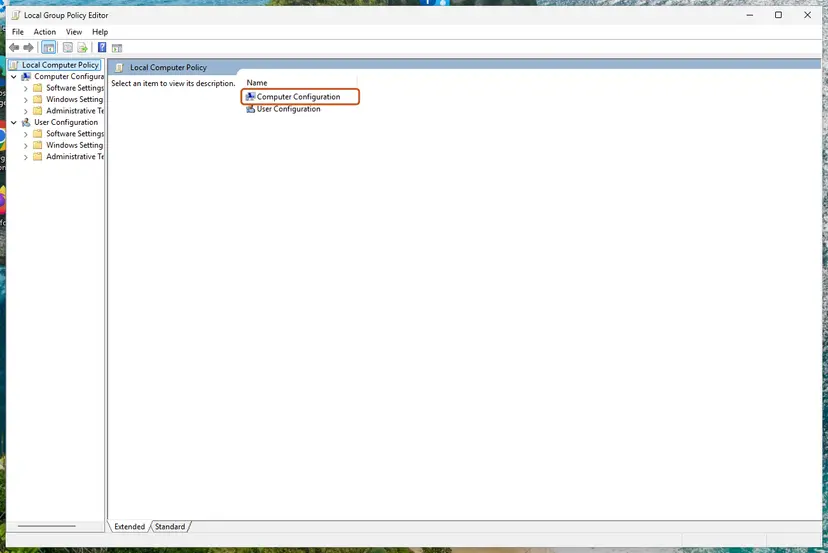
- Open the Local Group Policy Editor (Pro, Enterprise and Education). Step by step: Open the Local Group Policy Editor
- Go to Computer Configuration > Administrative Templates > Windows Components > App Package Deployment.
- Double-click Allow deployment operations in special profiles.
- Select Enabled and OK.
- Restart the PC, or run
gpupdate /forcein Terminal as administrator. - Sign in with the special profile and install the app again.
Terminal as administrator: read the policy (nothing is changed)
reg query "HKLM\SOFTWARE\Policies\Microsoft\Windows\Appx" /v AllowDeploymentInSpecialProfilesMicrosoft maps the policy to the value AllowDeploymentInSpecialProfiles under that key. "Unable to find the specified registry key or value" means the policy is not set, so special profiles are blocked.
It worked if: Users with mandatory or roaming profiles can install Store apps without the code.
If not: If the policy is enabled and the code stays, a domain policy may override the local one. Ask the domain administrator, or test with a normal account (Fix 3).
Fix 6. Reset Microsoft Store and clear the stuck download
5 minutesLow riskYour normal profile is back, but the Store still shows the old failed install or the same code.
A download that failed in the special profile can stay in the Store's queue and keep retrying. Clearing the Store cache and resetting the app starts the install fresh in your normal profile.
- Clear the Store cache. Press Windows + R, type wsreset.exe and select OK. A blank Command Prompt window opens; after a short while it closes and Microsoft Store opens by itself.
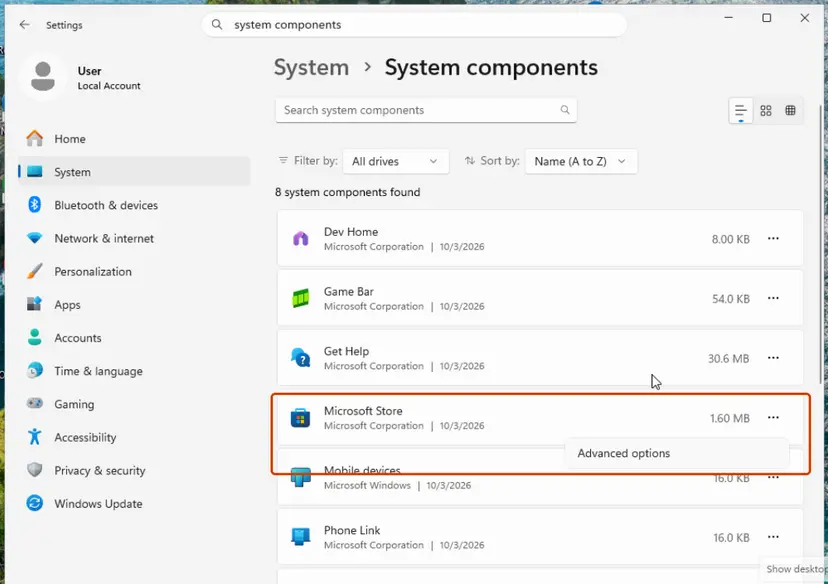
- Open System components. If the problem stays, select Start > Settings > System > System components. Next to Microsoft Store, select the three dots and Advanced options. If Microsoft Store is not listed there, look for it in Settings > Apps > Installed apps.
- Repair first. Scroll to Reset and select Repair. Repair keeps the app's data. Open the Store and check whether it works.
- Reset if Repair did not help. Select Reset and confirm. This deletes the Store app's data on this PC; your purchases stay in your Microsoft account. Open the Store and sign in again.
These steps were written for Windows 11 26H2 (build 26300). The full page with the other versions and what each result means: Reset the Microsoft Store
It worked if: The Store opens with an empty queue and the app installs.
If not: If the code returns in a normal profile, read the deployment log below; another code there names the real block.
If 0x80073D23 is still there: find the reason and what to send to support
Windows writes every failed app install into an event log. Microsoft's troubleshooting page for app deployment points to these logs and to the Get-AppxLog command.
- Try the install once more and note the time.
- Press Win + R, type
eventvwr.mscand press Enter. - Open Applications and Services Logs > Microsoft > Windows > AppXDeployment-Server > Microsoft-Windows-AppXDeploymentServer/Operational.
- Find the error at that time and read its text. It names the package and the profile check that failed.
- For a quick view, open PowerShell right after the failure and run
Get-AppxLog.
- What to send to support or IT: the app name, the full text from the log, the output of
echo %USERPROFILE%andwhoami /groups, and your Windows version from Settings > System > About. - A different code in the log: follow that code. For example, 0x80073D01 means a policy such as AppLocker blocked the install; see our guide on Microsoft Store error 0x80073D01.
- Temporary profile even in a new account: Windows cannot write a profile at all. Check the disk with Check a disk for errors (chkdsk) and free space on drive C:.
- Hardware: the code itself is a profile decision, not a hardware fault. A failing disk only matters because it can stop your profile from loading.
Codes close to 0x80073D23
| Code | Meaning (Microsoft Learn) | First step |
|---|---|---|
| 0x80073D23 | Blocked because special profile deployment is not allowed. | This page |
| 0x80073D01 | The package deployment operation is blocked by policy. | Microsoft Store error 0x80073D01 |
| 0x80073D19 | An error occurred because a user was logged off. | Stay signed in until the install ends, then retry. |
| 0x80073D31 | We could not confirm its meaning from the sources we read for this page. | Read the AppXDeployment-Server log as above. |
How to keep 0x80073D23 from coming back
- Do not install apps in a temporary profile. If Windows says you are in one, save your work and restart before you do anything else.
- Shut down cleanly. A forced power-off during sign-in or sign-out is a common way for a profile to fail to load the next time.
- Give every regular user a normal account. Keep the Guest account for short visits, not for installing apps.
- Keep a backup of your user folder, so a damaged profile costs minutes, not files: Back up your files (Windows Backup, File History, Time Machine)
- On shared PCs, decide on purpose. Enable Allow deployment operations in special profiles only if users really need Store installs.
Frequently asked questions
What does error code 0x80073D23 mean?
It means Windows blocked an app install or update because you are signed in with a special profile. Microsoft names it ERROR_DEPLOYMENT_BLOCKED_BY_PROFILE_POLICY: "The deployment operation was blocked because special profile deployment is not allowed." Special profiles are temporary, Guest, mandatory and some roaming profiles, where changes are thrown away when you sign out. It is not a damaged download or a broken Store. Sign out and sign in to your own profile first, as in Fix 1.
How do I fix 0x80073D23 on Windows 11?
Save any new files, restart and sign in to your own account, then check that echo %USERPROFILE% shows your user folder, not a TEMP folder (Fix 1). If the temporary profile comes back, sign in once in Safe Mode (Fix 2), and if that fails, create a new account and copy your files (Fix 4). On a Guest account, use a normal one (Fix 3). The steps are the same on Windows 11 25H2 and 26H2, and on Windows 10 22H2.
Is 0x80073D23 a Windows Update error?
No. Some people search for "0x80073d23 error windows update" because the code appears when the Store updates an app. Windows Update itself uses a different service and different codes. The block is the same for app installs and app updates: Microsoft's policy covers adding, registering, staging, updating and removing app packages in a special profile. Get back to a normal profile and the Store updates go through again.
Why did Windows sign me in with a temporary profile?
Microsoft says Windows creates a temporary profile when an error stops your own profile from loading. Common triggers are a crash or forced shutdown, a security program that scans the profile files at sign-in, or a disk problem. Your files are usually still in C:\Users\YourName. Restart a few times, try Safe Mode (Fix 2), and if it keeps happening, move to a new account (Fix 4).
Will I lose my files when I fix 0x80073D23?
Not your old files: they stay in your own profile folder. What you lose is anything you created or changed while in the temporary profile, because Windows deletes it at sign-out. Microsoft says to copy that work to external storage before you sign out. When you move to a new account (Fix 4), copy your personal folders over before you delete anything.
Can I install Store apps on the Guest account?
Not by default. Microsoft counts the Guest account and members of the Guests group as special profiles, and the policy that would allow installs there is off unless an administrator enables it. Use your own account, or ask the owner of the PC to create one for you (Fix 3). On a PC you manage, Fix 5 shows the policy, but the app may still disappear when the guest signs out.
Do the old fixes like wsreset, SFC or restarting Xbox services help?
Not on their own. Those steps repair the Store, system files or services, but 0x80073D23 is about the profile you are signed in with. They do nothing while you stay in a temporary or Guest profile. Once you are back in a normal profile, a Store reset (Fix 6) can still help to clear a download that keeps failing in the queue.
Is 0x80073D31 the same as 0x80073D23?
No. Both belong to the same family of app deployment errors, but each one stops at a different check. This page is about 0x80073D23, the special profile block. We could not confirm the meaning of 0x80073D31 from the sources we read for this guide, so we do not guess. Read the AppXDeployment-Server log as shown under If 0x80073D23 is still there; it names the real reason.
I searched in another language. Is this page for me?
This page is in English and covers one error: 0x80073D23 in Microsoft Store on Windows 11 and Windows 10. If you searched "iska kya matlab hai", "isko kaise thk kre" or "je parle de sa", the answer is the same: the code means you are in a temporary or guest profile. Restart and sign in to your own account (Fix 1). Searches such as "how can i fix this?" or "laptop kantor" on an office laptop also point to Fix 5 or your IT.
Sources
- Microsoft Learn: Troubleshooting packaging, deployment, and query of Windows apps (ERROR_DEPLOYMENT_BLOCKED_BY_PROFILE_POLICY 0x80073D23) (learn.microsoft.com)
- Microsoft Learn: ADMX_AppxPackageManager Policy CSP (Allow deployment operations in special profiles) (learn.microsoft.com)
- Microsoft Support: "We can't sign in to your account" error message (temporary profile) (support.microsoft.com)
Did this fix work?
One click, no account. It tells the next reader which guides are worth their time.
Questions and experiences: fix Microsoft Store error 0x80073D23 in Windows
Still broken, or found a fix we did not cover? Ask here: members and our editors answer. Reading is open; writing needs a free account.
…