
How to fix error 0x8024001D in Windows Update, the Standalone Installer and Microsoft Store

Prefer to fix it yourself? The manual steps follow.
- 7methods
- 5 to 90 minutes
- Easy
Applies to Windows Update Standalone Installer (.msu files), Settings > Windows Update, Microsoft Store downloads and updates
7 methods in this guide
Hello. How do I fix the Microsoft Store error 0x8024001D that appears when I try to download apps or update them?
Error 0x8024001D comes from the Windows Update client, which Microsoft lists as WU_E_INVALID_UPDATE: an update contains invalid metadata. It shows most often when an old .msu file, above all the RSAT download, is run on a Windows that no longer takes it. Install RSAT from Optional features instead, then reset the update cache if Windows Update or Microsoft Store still fails.
0x8024001D means Windows rejected an update because its metadata is invalid for this PC. If you ran an RSAT .msu file on Windows 10 version 1809 or later or on Windows 11, add RSAT from Settings > Optional features instead (Fix 1). For another .msu, get the file for your exact version (Fix 2). If Windows Update or Microsoft Store fails, reset the update cache (Fix 3) and repair the Store (Fix 4).
| Error | 0x8024001D, Microsoft's name WU_E_INVALID_UPDATE: "An update contains invalid metadata." |
|---|---|
| Where it appears | Most often in the Windows Update Standalone Installer as Installer encountered an error: 0x8024001d, when you run an .msu file. Also in Settings > Windows Update and next to a Microsoft Store download. |
| Main cause | A package that does not belong to this Windows. The best known case: the old RSAT .msu download on Windows 10 version 1809 or later, where RSAT is part of Windows. |
| Fastest fix | Add RSAT from Settings > System > Optional features (Fix 1). For other packages, download the file that matches your version (Fix 2). |
| Also written as | 0x8024001d, 8024001D, error 0x8024001d, OLE error 8024001D, HRESULT 0x8024001D, -2145124323 (the same code as a signed decimal number). |
| Affects | Windows 10 and Windows 11. Reported most after feature updates, such as Windows 10 version 2004, that removed RSAT installed from an old package. |
| Microsoft's status | Listed in the Windows Update error code list. Not a bug with a patch: the package is refused on purpose. |
| Close relatives | 0x8024001E (WU_E_SERVICE_STOP), 0x8024001F (WU_E_NO_CONNECTION), 0x80240013 (WU_E_DUPLICATE_ITEM). |
| Search | Found this with site:ugetfix.com? This page covers every place the code appears, and the related codes are in the FAQ. |
| Time to fix | 5 to 10 minutes for Fix 1 and Fix 2. 15 minutes for Fix 3 and Fix 4. Up to 90 minutes for a repair install. |
Facts checked on 15 October 2026. Steps written for Windows 11 (25H2 and 26H2) and Windows 10 22H2.
What error 0x8024001D means
Microsoft's Windows Update error code list gives 0x8024001D the name WU_E_INVALID_UPDATE and the description: "An update contains invalid metadata." Metadata is the description that travels with every update: which Windows versions, editions and processors it is for, and what it replaces. When that description does not fit your PC, or cannot be read, the update client stops and returns this code.
So the code does not mean your PC is broken. In most cases it means the package was never meant for this Windows. If you searched "что это значит" (what does it mean): it is an update that Windows refused because its description is invalid for your system.
| What you see | Where | What it tells you |
|---|---|---|
| Installer encountered an error: 0x8024001d | Windows Update Standalone Installer, after you open an .msu file | The package does not fit this Windows. With an RSAT file, go to Fix 1. With any other file, Fix 2. |
| 0x8024001D next to a failed update | Settings > Windows Update or Update history | The update client read bad metadata, often from its own damaged cache. Fix 3. |
| 0x8024001D next to an app | Microsoft Store, Library or the app's page | A Store download went through the update client and failed there. Fix 3, then Fix 4. |
| OLE error 8024001D, HRESULT 0x8024001D or -2145124323 | Scripts, deployment tools and logs | The same code, printed in another format. |
The 0x8024 part of the code marks the Windows Update client. Microsoft Store shows the code only because it uses that client for some downloads. That is why the first fixes deal with update packages, not with the Store app.
Why Windows says the update has invalid metadata
Microsoft gives the meaning of the code but no list of causes. The causes below come from that meaning, from Microsoft's RSAT documentation and from reports on Microsoft Q&A, ranked by how often they explain what readers see.
| Cause | How often | How to tell | Fix |
|---|---|---|---|
An old RSAT .msu on Windows 10 version 1809 or later or on Windows 11. RSAT is now part of Windows and is added from Optional features. | Most often | The file name starts with WindowsTH-RSAT, and the Standalone Installer shows the error. | Fix 1 |
An .msu for another Windows version, build or processor type. | Often | You downloaded a KB file by hand, and it fails at once. | Fix 2 |
| Damaged Windows Update cache, so the client reads broken metadata. | Sometimes | The same update fails in Settings every time, or the Store fails too. | Fix 3 |
| A damaged Store cache or Store app. | Sometimes | Only Store downloads fail, Windows Update works. | Fix 4 |
| A WSUS policy on a work PC stops Windows from fetching the feature from Microsoft. | On work PCs only | Settings says some settings are managed by your organization. | Fix 5 |
| Damaged system files or component store. | Rarely | Several updates fail, also with other codes. | Fix 6, Fix 7 |
How to fix error 0x8024001D
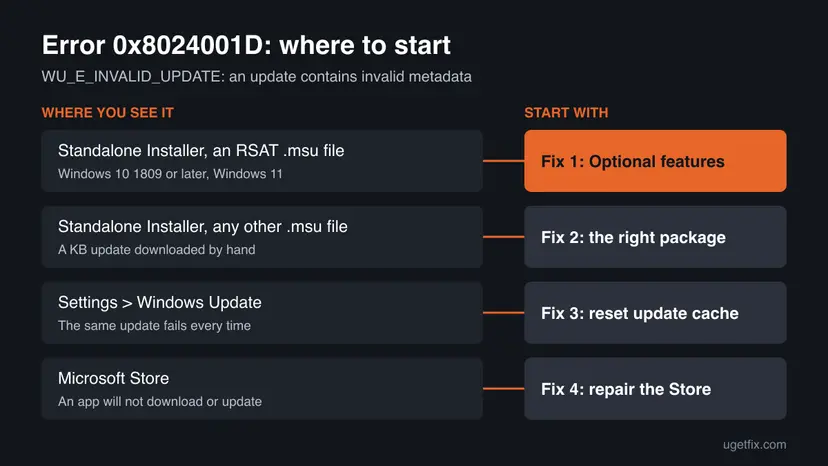
Fixes 1 and 2 are for the Windows Update Standalone Installer and solve most cases in a few minutes. Fixes 3 and 4 are for Settings > Windows Update and Microsoft Store. Fix 5 is for work PCs. Fixes 6 and 7 repair Windows itself.
| What you see or have | Start with |
|---|---|
You ran an RSAT .msu file and got Installer encountered an error: 0x8024001d. | Fix 1 |
You ran another .msu file, for example a KB update from the catalog. | Fix 2 |
| Settings > Windows Update fails with 0x8024001D on the same update. | Fix 3 |
| A Microsoft Store app will not download or update, as in the question above. | Fix 3, then Fix 4 |
| A work PC, and Optional features fails to add RSAT. | Fix 5 |
| Many updates fail, also with other codes. | Fix 6, then Fix 7 |
Fix 1. Add RSAT from Optional features instead of the .msu file
5 to 10 minutesNo riskYou ran a Remote Server Administration Tools package such as WindowsTH-RSAT_WS2016-x64.msu and got the error on Windows 10 version 1809 or later or on Windows 11.
Microsoft says that from Windows 10 version 1809, "RSAT is now part of the Operating System and can be added via Optional Features." The old package describes itself as an update for older Windows builds. So the installer reads its metadata as invalid for your system and refuses it.
- Close the Windows Update Standalone Installer window.
- Press Win + I to open Settings.
- On Windows 11 and Windows 10 22H2, select System, then Optional features. On older Windows 10 builds the page is under Apps.
- Select Add a feature (on Windows 11 the button next to Add an optional feature reads View features).
- Type
Remotein the search box. The RSAT tools are listed, for example RSAT: Active Directory Domain Services and Lightweight Directory Services Tools. - Tick the tools you need and select Next, then Add or Install.
- Wait until the tools show under Added features or Installed features, then open them from Start > Windows Tools.
You can add one tool from the command line as well. Open Command Prompt as administrator and run the line below, which adds the Active Directory tools. Other tools have their own capability names.
DISM.exe /Online /add-capability /CapabilityName:Rsat.ActiveDirectory.DS-LDS.Tools~~~~0.0.1.0Users report that RSAT installed from the old package disappeared after an upgrade to Windows 10 version 2004, and that the old package then gave 0x8024001d. Tools added from Optional features are part of Windows, so you add them again from the same page if an upgrade removes them.
It worked if: The tools appear under Optional features and open from Windows Tools. You no longer need the .msu file.
If not: If the tools fail to install on a work PC, go to Fix 5. If no RSAT tools are listed at all, check your Windows edition: users report that the tools are not offered on Home editions. We could not confirm this with Microsoft.
Fix 2. Download the .msu file that matches your Windows version and processor
10 to 20 minutesLow riskYou ran a KB update or another .msu file you downloaded yourself, and it is not an RSAT package.
Every catalog entry is built for one Windows version and one processor type. A file for Windows 10 on Windows 11, or an x64 file on an ARM PC, carries metadata that does not fit, and the Standalone Installer refuses it with this code.
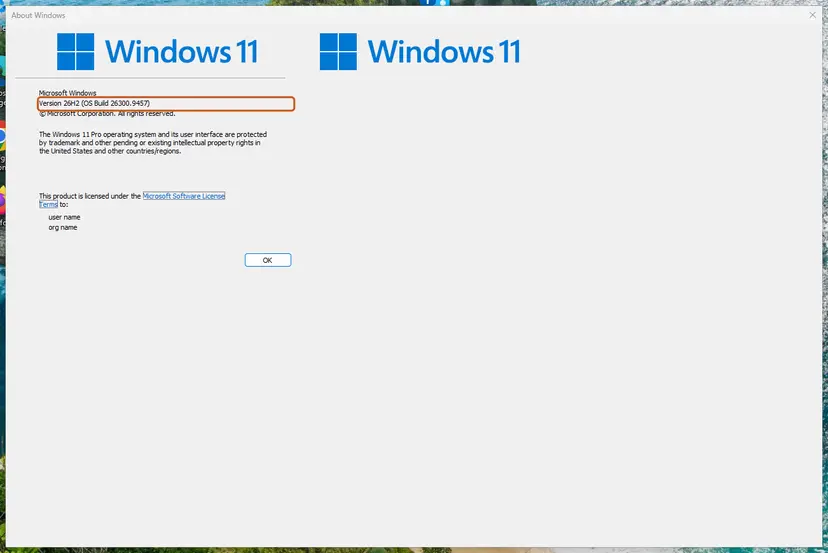
- Check your Windows version. Press Windows key + R, type winver and press Enter. Note the version (for example 25H2) and the OS build.
- Find the KB number. Open Settings > Windows Update. A failed or pending update is listed with its KB number; earlier ones are under Update history.
- Check the processor type. Open Settings > System > About and look at System type: an x64-based PC needs the x64 file, an ARM-based PC (for example Snapdragon) needs the arm64 file.
- Search the catalog. Open the Microsoft Update Catalog at catalog.update.microsoft.com in your browser, type the KB number (for example KB5124010) in the search box and press Enter.
- Pick the right row. Find the row whose title names your Windows version and your processor type (x64-based or arm64-based) and select Download on that row.
- Download every file listed. A window lists one or more .msu links. Download all of them into one empty folder, for example C:\packages. On Windows 11 24H2 and later the list can include earlier checkpoint updates that the new one needs.
- Install a single file. If there is only one file, double-click it and confirm the installation in the Windows Update Standalone Installer.
- Install several files with DISM. If there are several files, open an elevated Terminal or Command Prompt and run DISM with the newest file. DISM finds the other files in the same folder and installs them in the right order.
DISM /Online /Add-Package /PackagePath:C:\packages\<newest-file>.msu - Restart. Restart the PC when the installation finishes, then run winver again: the OS build should have changed.
These steps were written for Windows 11 24H2 and later; Windows 10 22H2. The full page with the other versions and what each result means: Install an update from the Microsoft Update Catalog
If Settings > Windows Update already lists the update, let Windows install it from there instead. Windows picks the right package for your build by itself.
It worked if: The Standalone Installer asks whether you want to install the update and finishes without 0x8024001d.
If not: If the right file still fails, or Windows says the update is not applicable, reset the update cache with Fix 3.
Fix 3. Reset the Windows Update components and cache
15 minutesLow riskSettings > Windows Update or Microsoft Store fails with 0x8024001D, or Fix 2 did not help.
The update client keeps the metadata it downloads in the SoftwareDistribution folder and the catalog signatures in catroot2. When these are damaged, it can read a good update as one with invalid metadata. Renaming both folders makes Windows fetch fresh copies.
- Open Command Prompt as administrator. Type cmd in the search box, right-click Command Prompt and select Run as administrator. Select Yes when Windows asks for permission.
- Stop the update services. Type the commands below and press Enter after each one. If Windows says that other services depend on Cryptographic Services, it stops them too. A message that a service is not started is fine.
net stop wuauserv net stop bits net stop cryptsvc - Delete the download queue files. This clears the list of downloads that the Background Intelligent Transfer Service keeps. If Windows says it cannot find the files, continue.
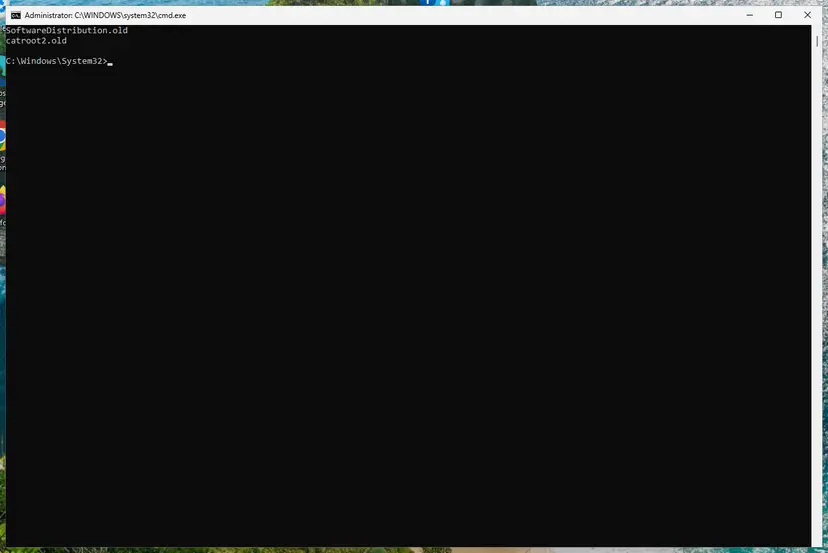
del "%ALLUSERSPROFILE%\Application Data\Microsoft\Network\Downloader\qmgr*.dat" - Rename the update cache folders. Renaming keeps a copy in case you need it; Windows creates new, empty folders when the services start again. If you get Access is denied, a service is still running: repeat the previous step.
ren %systemroot%\SoftwareDistribution SoftwareDistribution.old ren %systemroot%\System32\catroot2 catroot2.old - Start the services again. Type the commands below and press Enter after each one. The requested service has already been started is fine: Windows started it on its own.
net start cryptsvc net start bits net start wuauserv - Restart and check for updates. Restart the PC. Then select Start > Settings > Windows Update > Check for updates. The first check can take longer than usual because everything is downloaded again.
These steps were written for Windows 11 and Windows 10 (the steps are the same). The full page with the other versions and what each result means: Reset Windows Update components
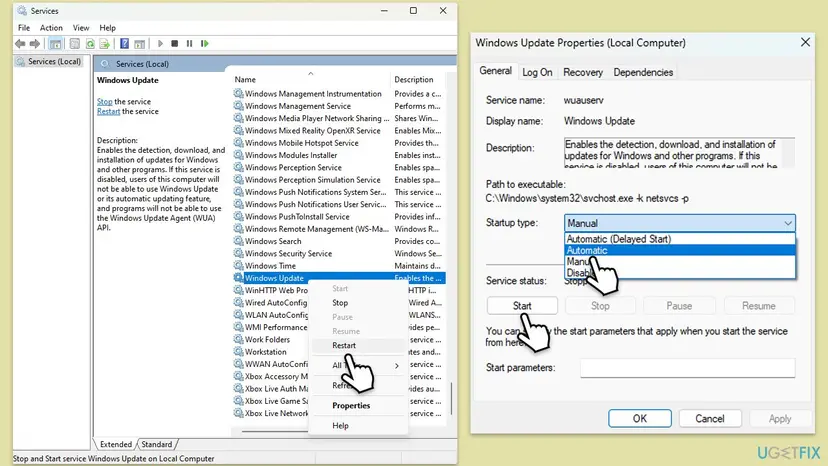
If a service will not start again after the reset, open Services, set Background Intelligent Transfer Service, Windows Update and Cryptographic Services to their normal startup type and start them. Step by step: Check and restart Windows services
It worked if: Check for updates finishes without an error, and the update or Store download that failed now installs.
If not: If only Microsoft Store still fails, repair it with Fix 4. If Windows Update fails too, go to Fix 6.
Fix 4. Clear the Store cache, then repair or reset Microsoft Store
5 minutesLow riskMicrosoft Store shows 0x8024001D when you download or update an app, and Fix 3 did not help.
A damaged Store cache can keep sending the same broken request to the update client. wsreset clears that cache. Repair fixes the Store app and keeps its data. Reset deletes its data on this PC, but your apps and purchases stay.

- Clear the Store cache. Press Windows + R, type wsreset.exe and select OK. A blank Command Prompt window opens; after a short while it closes and Microsoft Store opens by itself.
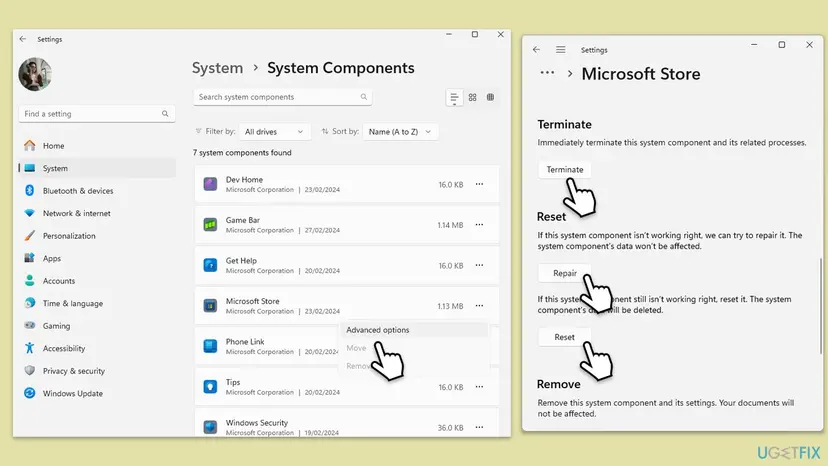
- Open System components. If the problem stays, select Start > Settings > System > System components. Next to Microsoft Store, select the three dots and Advanced options. If Microsoft Store is not listed there, look for it in Settings > Apps > Installed apps.
- Repair first. Scroll to Reset and select Repair. Repair keeps the app's data. Open the Store and check whether it works.
- Reset if Repair did not help. Select Reset and confirm. This deletes the Store app's data on this PC; your purchases stay in your Microsoft account. Open the Store and sign in again.
These steps were written for Windows 11 26H2 (build 26300). The full page with the other versions and what each result means: Reset the Microsoft Store
It worked if: The Store opens, and the app downloads or updates without 0x8024001D.
If not: If the Store still fails, sign out of the Store and in again, then repair the system files with Fix 6.
Fix 5. On a work PC, let Windows fetch the feature from Microsoft for one install
10 minutesRead the warningA PC that gets updates from WSUS, and Optional features fails to add RSAT or another feature.
A WSUS server often does not hold Features on Demand, so Windows cannot download the tools it asks for. In the answer on Microsoft Q&A, the fix is to point the PC at Microsoft's servers for one install and switch the policy back afterwards.
This changes an update policy in the registry. A wrong edit can stop updates, and your administrator may not allow it. Ask them first, and back up the registry: Back up the registry before editing it. Set the value back to 1 when you are done.
- Open Command Prompt as administrator and run
net stop wuauserv. - Press Win + R, type
regeditand press Enter. - Go to
HKEY_LOCAL_MACHINE\SOFTWARE\Policies\Microsoft\Windows\WindowsUpdate\AU. - Double-click UseWUServer and set its value to
0. - In Command Prompt run
net start wuauserv. - Add the tool with Fix 1, in Settings or with the
DISM.exe /Online /add-capabilitycommand. - Set UseWUServer back to
1, then restart the PC.
It worked if: The feature installs, and after the restart the PC takes updates from WSUS again.
If not: If the install still fails, give your administrator the error code and the lines from C:\Windows\Logs\DISM\dism.log. They can make the feature files available from a company source.
Fix 6. Repair system files with SFC and DISM
20 to 30 minutesLow riskSeveral updates fail, also with other codes, or Fixes 1 to 4 did not help.
DISM repairs the component store that the update client installs into, and SFC repairs protected system files. When the store is damaged, the client can misread the description of a good update.
- Open an elevated command window. Right-click Start and select Terminal (Admin), or type cmd in the search box, right-click Command Prompt and select Run as administrator. Select Yes when Windows asks for permission.

Search for cmd and choose Run as administrator. Screenshot: Windows 11 26H2. - Run DISM first. Type the command below and press Enter. DISM downloads clean copies of damaged components from Windows Update, so it can take several minutes. Wait until it says The operation completed successfully.
DISM.exe /Online /Cleanup-Image /RestoreHealth
DISM /RestoreHealth running. Screenshot: Windows 11 26H2. - Run System File Checker. In the same window, type the command below and press Enter. Do not close the window until the verification reaches 100%.
sfc /scannow
sfc /scannow at 100%. Screenshot: Windows 11 26H2. - Read the result and restart. Compare the last message with the table below this guide, then restart the PC so that repaired files are loaded.

The result line tells you what SFC did. Screenshot: Windows 11 26H2.
These steps were written for Windows 11 24H2 and 25H2. The full page with the other versions and what each result means: Run DISM and SFC to repair Windows system files
It worked if: SFC reports that it found no problems or repaired them, and the next update or Store download works.
If not: Do a repair install with Fix 7.
Fix 7. Repair-install Windows and keep your files and apps
45 to 90 minutesRead the warningNothing above worked, and Windows Update keeps failing with 0x8024001D.
A repair install puts a fresh copy of every update component in place at once, while it keeps your files, apps and most settings. It also brings Windows to a current build, so the right packages are offered again.
A repair install keeps files and apps, but a power cut or a failed install can leave Windows unable to start. Copy your important files to a USB drive or cloud storage first: Back up your files (Windows Backup, File History, Time Machine)
- Open Recovery in Settings. Open Settings > System > Recovery. Next to Fix problems using Windows Update, select Reinstall now. This keeps your apps, files and settings.
- Start the reinstall. Choose whether the PC may restart on its own 15 minutes after the installation, then select OK.
- Wait and restart. Windows Update downloads and installs a repair copy of your current Windows version. Keep the PC plugged in and online, and restart it when asked.
- If that did not help: Reset PC. Back in Settings > System > Recovery, next to Reset this PC, select Reset PC. This keeps your personal files but removes installed apps and settings.
- Choose Keep my files. Select Keep my files. Do not select Remove everything.
- Choose where Windows comes from. Select Cloud download to download a fresh copy of Windows, or Local reinstall to use the files already on the PC (faster, but may not include the latest updates).
- Reset. Review the summary and select Reset. The PC restarts several times.
These steps were written for Windows 11 22H2 and later. The full page with the other versions and what each result means: Reinstall Windows without losing files
It worked if: Windows starts on the repaired build, and Windows Update, the Store and Optional features work without 0x8024001D.
If not: Windows 10 left support on 14 October 2025. If you are still on Windows 10 without Extended Security Updates, plan the move to Windows 11.
If error 0x8024001D is still there
If it still does not work ("ça ne marche toujours pas"), the logs show which update was refused. Open PowerShell and run the command below. It builds a readable WindowsUpdate.log on your desktop from the trace files.
Get-WindowsUpdateLog| Where to look | What it means |
|---|---|
0x8024001D in WindowsUpdate.log | The lines just above it name the update whose metadata was refused. |
Errors in C:\Windows\Logs\DISM\dism.log | An Optional features or /add-capability install failed. On a work PC see Fix 5. |
Errors in C:\Windows\Logs\CBS\CBS.log | The component store reports damage. Run Fix 6 or Fix 7. |
| The Store fails but Windows Update works | The problem is in the Store app. Repeat Fix 4. |
If you ask Microsoft Support or your administrator for help, send your Windows version and build from winver, the name of the package or the KB number, and the log lines around the code. This is not a hardware fault: the code is about an update's description, not about a part of the PC.
How to keep error 0x8024001D from coming back
- Add RSAT and other Windows tools from Optional features, not from old download packages.
- Install updates from Settings > Windows Update, and download from the Microsoft Update Catalog only the file for your exact version.
- Check that the tools you need are still under Optional features after each feature update.
- Run a supported Windows: Windows 11, or Windows 10 only with Extended Security Updates.
- Do not keep running an old
.msufile that already failed with this code. - Do not delete files in
C:\Windows\SoftwareDistributionby hand while updates run. Use Fix 3. - Do not leave UseWUServer at 0 on a work PC after Fix 5.
If the Store shows 0x80240037 instead, the update client was asked for something it does not support. That one has its own guide: error 0x80240037.
Frequently asked questions
What does error 0x8024001D mean?
It means Windows Update refused an update because the update's metadata is invalid. Microsoft's Windows Update error code list names it WU_E_INVALID_UPDATE, with the description "An update contains invalid metadata." In practice the package is usually not meant for your Windows version, such as the old RSAT download on Windows 10 version 1809 or later. Less often the update cache is damaged, and Windows misreads a good update. Fix 1 and Fix 2 cover the first case, Fix 3 the second.
Why does the Windows Update Standalone Installer say "Installer encountered an error: 0x8024001d"?
The Standalone Installer opens .msu files. It shows this message when the package does not fit your Windows. The most common case is RSAT: from Windows 10 version 1809, Microsoft made RSAT part of Windows, added through Optional features, so the old WindowsTH-RSAT package is refused. Close the installer and add the tools from Settings > System > Optional features (Fix 1). For any other package, download the file for your exact version and processor (Fix 2).
What is OLE error 8024001D?
It is the same error printed by a script or a management tool. Programs that call the Windows Update client through its programming interface, such as VBScript files or some deployment tools, often show Windows error codes as "OLE error" followed by the code without 0x. So OLE error 8024001D is 0x8024001D, WU_E_INVALID_UPDATE: the update the script tried to install has invalid metadata for that PC. Check the package and the target's Windows version, then use Fix 2 or Fix 3 on the target PC.
Is 0x8024001D a Microsoft Store error?
Not at the root. The 0x8024 part shows the code comes from the Windows Update client. Microsoft Store uses that client for some downloads and its own components, so a failure there can show in the Store as 0x8024001D. That is why the Store fixes on this page start with resetting the Windows Update cache (Fix 3) and only then clear and repair the Store app (Fix 4). Your apps and purchases stay safe during both.
What do codes 8024001B and 8024001F mean?
They are neighbours of 0x8024001D in the same Windows Update list. Microsoft lists 0x8024001F as WU_E_NO_CONNECTION: the operation did not complete because the network connection was unavailable. Check the connection, then try again. 0x8024001E, WU_E_SERVICE_STOP, means the service or system was shutting down. We could not confirm the meaning of 0x8024001B on Microsoft's list today. For both, a restart and the update cache reset in Fix 3 are the usual first steps.
What are 0x80240013, 0x8024043D and 0x8024A22D?
They are other Windows Update client codes. Microsoft lists 0x80240013 as WU_E_DUPLICATE_ITEM, an operation that tried to add a duplicate item to a list, and 0x8024043D as WU_E_SERVICEPROP_NOTAVAIL, a requested service property that is not available. Both usually clear with the update components reset in Fix 3. We could not find 0x8024A22D in the part of Microsoft's list we read, so we cannot say what it means. The 0x8024A codes belong to Automatic Updates.
Will resetting Microsoft Store or the update cache delete my apps?
No. Clearing the Store cache with wsreset and repairing the Store keep everything. Reset deletes only the Store app's own data on this PC, so you may need to sign in again; installed apps stay, and purchases stay in your Microsoft account. Resetting the Windows Update cache renames two folders. Installed updates stay on the PC, but Update history may look empty afterwards, because only the list was cleared.
Do I still need the RSAT download from Microsoft's website?
Not on Windows 10 version 1809 or later or on Windows 11. Microsoft says RSAT is now part of the operating system and is added through Optional features. The downloadable packages are for older Windows 10 builds, which is why they fail with 0x8024001d on current systems. Use Settings > System > Optional features, search for Remote, and add the tools you need. A single tool can also be added with the DISM add-capability command shown in Fix 1.
Is error 0x8024001D a hardware fault?
No. The code is about the description of an update, not about a part of the PC. The same PC installs the right package or the RSAT tools from Optional features without the error. If the PC also freezes, restarts by itself or shows disk errors, check the drive with Check a disk for errors (chkdsk), because that is a separate problem. If several updates fail with different codes, repair Windows with Fix 6 and Fix 7.
Sources
- Microsoft Learn: Windows Update error code list by component (learn.microsoft.com)
- Microsoft Learn: Remote Server Administration Tools (RSAT for Windows 10 version 1809 or later) (learn.microsoft.com)
- Microsoft Q&A: Window Update Standalone Installer issue (0x8024001d with RSAT) (learn.microsoft.com)
Did this fix work?
One click, no account. It tells the next reader which guides are worth their time.
Questions and experiences: fix error 0x8024001D in Windows Update, the Standalone Installer and Microsoft Store
Still broken, or found a fix we did not cover? Ask here: members and our editors answer. Reading is open; writing needs a free account.
…