
How to fix error 0x80240037 in Microsoft Store and Windows Update

Prefer to fix it yourself? The manual steps follow.
- 8methods
- 2 to 90 minutes
- Easy
Applies to Microsoft Store downloads and updates, Settings > Windows Update, WSUS and patch management clients
8 methods in this guide
Hey, could you help me fix the 0x80240037 error in the Microsoft Store? I can't download any apps. I wanted to install Prime Video since I got a subscription, but I can't do that due to this.
Error 0x80240037 comes from the Windows Update client, which Microsoft lists as WU_E_NOT_SUPPORTED: the requested operation is not supported. On Windows 7 or 8.1 with a newer processor it is Microsoft's "Unsupported hardware" block, and only a supported Windows fixes it. On Windows 11 or 10, install pending updates, then clear and repair Microsoft Store.
0x80240037 means the Windows Update client was asked for something it does not support. First check your Windows version (Fix 1): on Windows 7 or 8.1 with a newer processor, Microsoft blocks updates and you need a supported Windows. On Windows 11 or 10, restart, install pending updates (Fix 2), then clear and repair Microsoft Store (Fix 3).
| Error | 0x80240037, also shown as Code 80240037 Windows Update encountered an unknown error. Microsoft's name for it is WU_E_NOT_SUPPORTED. |
|---|---|
| Where it appears | In Windows Update when it checks for or downloads updates, in Microsoft Store when an app will not download, and in WSUS or patch management reports. |
| Main cause | The operation is not supported on this PC. Microsoft documents one case: Windows 7 or 8.1 on a processor made for a newer Windows. |
| Fastest fix | Check the Windows version (Fix 1). On Windows 11 or 10, install pending updates and retry (Fix 2). |
| Also written as | 0x80240037, 80240037, error 80240037, HRESULT 0x80240037, -2145124297 (the same code as a signed decimal number). |
| Affects | Windows 7 and 8.1 most of all (the documented processor block). Also reported on Windows 10 and 11 Store downloads and on WSUS clients. |
| Microsoft's status | Listed in the Windows Update error code list: "The functionality for the operation isn't supported." The processor block is by design and has no patch. |
| Close relatives | 0x80240031 (WU_E_INVALID_FILE, file in the wrong format), 0x80240035 (update not processed), 0x80240036 (operation not allowed in the current state). |
| Time to fix | 2 minutes to check the version. 5 to 15 minutes for Fix 2 to Fix 5. Up to 90 minutes for an in-place repair or upgrade. |
Facts checked on 15 October 2026. Steps written for Windows 11 (25H2 and 26H2) and Windows 10 22H2.
What error 0x80240037 means
Microsoft's Windows Update error code list gives 0x80240037 the name WU_E_NOT_SUPPORTED and the description: "The functionality for the operation isn't supported". The WU_E part shows that the code is raised by the Windows Update client on your PC, not by a single app. So the issue is what was asked, not a broken download.
That is why the same code turns up in three places. Windows Update shows it when a scan fails. Microsoft Store can show it when an app download goes through the update client and fails there. WSUS and patch management consoles report it when a client refuses a scan or an install.
| What you see | Where | What it tells you |
|---|---|---|
| Unsupported hardware | Windows Update window on Windows 7 or 8.1 | Microsoft's processor block: this Windows is not supported on this processor, so updates stop. |
| Windows could not search for new updates, Code 80240037 Windows Update encountered an unknown error. | Windows Update on Windows 7 or 8.1 | The same processor block, shown as an update scan error. |
| 0x80240037 next to an app | Microsoft Store, Library or the app's page | The Store download failed inside the update components. Start with Fix 2 and Fix 3. |
| 0x80240037 for a client | WSUS console, patch management tool, WindowsUpdate.log | The client did not support the scan or install it was asked for. See Fix 6. |
| HRESULT 0x80240037 or -2145124297 | Logs, scripts and event entries | The same code. -2145124297 is 0x80240037 written as a signed decimal number. |
Some people search "install error - 0x80240031" for this problem. Microsoft lists 0x80240031 as WU_E_INVALID_FILE: "The file is in the wrong format." That one points to a damaged downloaded file, so it usually goes away with the update cache reset in Fix 4.
Why Windows says the operation is not supported
Microsoft documents only one cause by name: an update scan on Windows 7 or 8.1 on a processor that is designed for a newer Windows. Every other cause below comes from the code's meaning and from user reports, ranked by how often it explains what readers see.
| Cause | How often | How to tell | Fix |
|---|---|---|---|
| Windows 7 or 8.1 on a newer processor. Microsoft blocks updates on purpose. | Most often in Windows Update | The window says Unsupported hardware or Windows could not search for new updates. | Fix 1, Fix 8 |
| Windows or Microsoft Store itself is out of date, so the Store asks for something the update client cannot do yet. | Most often in the Store | Windows 11 or 10, pending updates in Settings, the Store has not been updated for a while. | Fix 2 |
| A damaged Store cache or Store app. | Often | Other Store errors too, apps hang at Pending or Starting download. | Fix 3, Fix 5 |
| Damaged Windows Update cache or stuck update services. | Sometimes | Windows Update fails too, the same code every time. | Fix 4 |
| A WSUS or patch management policy offers something the client cannot install. | On work PCs only | Settings says some settings are managed by your organization. | Fix 6 |
| Damaged system files or component store. | Rarely | Several updates fail with different codes. | Fix 7, Fix 8 |
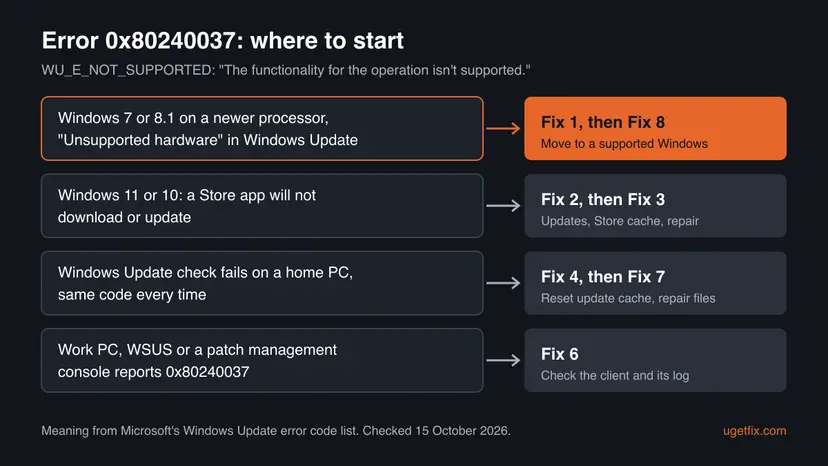
How to fix error 0x80240037
Fix 1 takes two minutes and tells you whether the code is Microsoft's processor block, which no repair can lift. Fixes 2 to 5 are for Microsoft Store and Windows Update on Windows 11 and 10. Fix 6 is for administrators. Fixes 7 and 8 repair Windows itself.
| What you see or have | Start with |
|---|---|
| Windows 7 or 8.1, and the window says Unsupported hardware. | Fix 1, then Fix 8 |
| Windows 11 or 10, a Store app will not download, as in the question above. | Fix 2, then Fix 3 |
| The Store shows other errors too, or will not open. | Fix 3, then Fix 5 |
| Windows Update itself fails with 0x80240037 on Windows 11 or 10. | Fix 4 |
| A work PC, a WSUS console or a patch management tool reports the code. | Fix 6 |
| Many updates fail, also with other codes. | Fix 7, then Fix 8 |
Fix 1. Check whether your Windows version is supported on this processor
2 minutesNo riskAlways first. Above all on Windows 7 or 8.1, or when the window says Unsupported hardware.
Microsoft documents 80240037 as the error you get when Windows detects a processor that is not supported with the Windows version you run. Its own resolution is to make sure Windows is compatible with the processor. No cache reset or repair changes that.
- Press Win + R, type
winverand press Enter. Note the Windows version and build. - Press Win + R, type
msinfo32and press Enter. Read the Processor line in System Summary. - If you run Windows 11 or Windows 10, this block is not your cause. Go on to Fix 2.
- If you run Windows 7 or 8.1 and see Unsupported hardware or Code 80240037, Windows Update will not give you updates on this processor.
- Back up your files and move to a supported Windows with Fix 8.
Windows 7 lost support on 14 January 2020 and Windows 8.1 on 10 January 2023. Even without the processor block, they no longer get security updates. Windows 10 left support on 14 October 2025, so a Windows 10 PC without Extended Security Updates gets no monthly updates either.
It worked if: You know whether the PC runs a supported Windows. On Windows 11 or 10 you go on to Fix 2.
If not: If you are unsure what the version means, compare the build with the table in Settings > System > About, then continue with Fix 2.
Fix 2. Restart and install pending Windows and Microsoft Store updates
10 to 20 minutesNo riskWindows 11 or 10, and a Store app will not download or update with 0x80240037.
The code says the update client was asked for an operation it does not support. A Store app or the Store itself that is newer than the update components can trigger that, so bringing both up to date is the cheapest fix.
- Save your work, open Start, select the power button and choose Restart.
- Open Settings > Windows Update and select Check for updates. Install everything offered and restart if asked.
- Open Microsoft Store and select Library in the lower left.
- Select Get updates and wait until the Store and its own components are updated.
- Find the app you wanted, for example Prime Video, and select Get or Install again.
Check that the date, time and region of the PC are right in Settings > Time & language. A wrong clock stops the Store from connecting. Step by step: How to fix the date and time in Windows
It worked if: The Store updates itself, and the app download starts and passes the point where 0x80240037 appeared.
If not: If the same error comes back, clear and repair the Store with Fix 3.
Fix 3. Clear the Store cache, then repair or reset Microsoft Store
5 minutesLow riskWindows 11 or 10, the Store still fails after Fix 2, or shows other errors too.
A damaged Store cache can keep sending the same failed request to the update client. wsreset clears the cache. Repair fixes the Store app and keeps its data. Reset deletes its data on this PC, but your purchases stay in your Microsoft account.

- Clear the Store cache. Press Windows + R, type wsreset.exe and select OK. A blank Command Prompt window opens; after a short while it closes and Microsoft Store opens by itself.
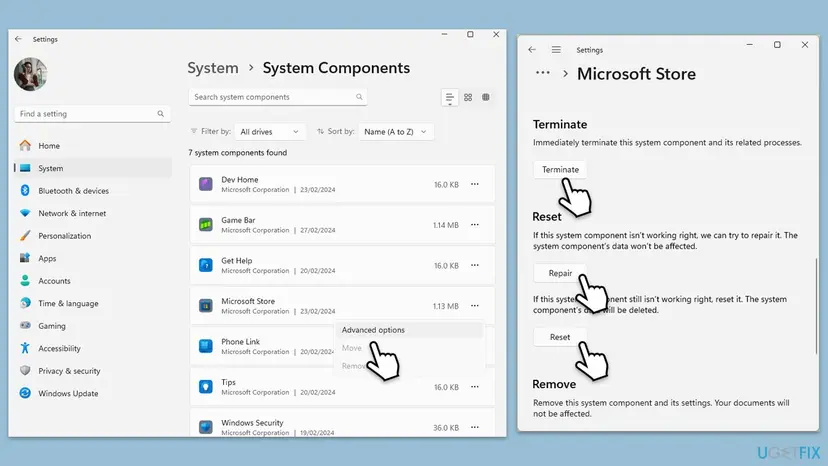
- Open System components. If the problem stays, select Start > Settings > System > System components. Next to Microsoft Store, select the three dots and Advanced options. If Microsoft Store is not listed there, look for it in Settings > Apps > Installed apps.
- Repair first. Scroll to Reset and select Repair. Repair keeps the app's data. Open the Store and check whether it works.
- Reset if Repair did not help. Select Reset and confirm. This deletes the Store app's data on this PC; your purchases stay in your Microsoft account. Open the Store and sign in again.
These steps were written for Windows 11 26H2 (build 26300). The full page with the other versions and what each result means: Reset the Microsoft Store
It worked if: The Store opens, and the app downloads without 0x80240037.
If not: If Windows Update fails with the same code too, reset the update components with Fix 4.
Fix 4. Reset the Windows Update components and cache
15 minutesLow riskWindows Update fails with 0x80240037 or 0x80240031, or Fix 3 did not help.
The update client keeps its data store and downloads in the SoftwareDistribution and catroot2 folders. When they are damaged, the client can refuse operations it would normally run. Renaming both folders makes Windows build them again from zero.
- Open Command Prompt as administrator. Type cmd in the search box, right-click Command Prompt and select Run as administrator. Select Yes when Windows asks for permission.
- Stop the update services. Type the commands below and press Enter after each one. If Windows says that other services depend on Cryptographic Services, it stops them too. A message that a service is not started is fine.
net stop wuauserv net stop bits net stop cryptsvc - Delete the download queue files. This clears the list of downloads that the Background Intelligent Transfer Service keeps. If Windows says it cannot find the files, continue.
del "%ALLUSERSPROFILE%\Application Data\Microsoft\Network\Downloader\qmgr*.dat" - Rename the update cache folders. Renaming keeps a copy in case you need it; Windows creates new, empty folders when the services start again. If you get Access is denied, a service is still running: repeat the previous step.
ren %systemroot%\SoftwareDistribution SoftwareDistribution.old ren %systemroot%\System32\catroot2 catroot2.old - Start the services again. Type the commands below and press Enter after each one. The requested service has already been started is fine: Windows started it on its own.
net start cryptsvc net start bits net start wuauserv - Restart and check for updates. Restart the PC. Then select Start > Settings > Windows Update > Check for updates. The first check can take longer than usual because everything is downloaded again.
These steps were written for Windows 11 and Windows 10 (the steps are the same). The full page with the other versions and what each result means: Reset Windows Update components

After the reset, Update history may look empty. Only the list is cleared: installed updates stay on the PC.
It worked if: Check for updates finishes without an error, and the Store download works.
If not: If only the Store still fails, register it again with Fix 5.
Fix 5. Register Microsoft Store again for your account
5 minutesLow riskThe Store opens but every download fails, or Reset in Fix 3 was not available.
Registering the Store package again rebuilds its link to your user account and to the system components it calls. It fixes a Store whose registration was damaged by a failed update or profile problem, without touching your other apps.
Close Microsoft Store first. Then run the re-register command for the Store package in PowerShell as administrator.
Get-AppxPackage *Microsoft.WindowsStore* | Foreach {Add-AppxPackage -DisableDevelopmentMode -Register "$($_.InstallLocation)\AppXManifest.xml"}- Open PowerShell. Select Start, type PowerShell and select Windows PowerShell. Open it the normal way, not as administrator: in an administrator window the app is registered to the administrator account instead of yours.
- Find the app's package. Type the command below with a part of the app's name between the asterisks and press Enter. If the app is installed, PowerShell prints its details, including Name and InstallLocation. If nothing is printed, the app is not installed for your account: see the section below.
Get-AppxPackage -Name '*WindowsCalculator*' - Re-register the app. Paste the three commands below, with the same name between the asterisks, and press Enter. They read the folder the app is installed in and register its manifest again. If no red text appears, it worked.
$InstallLocation = Get-AppxPackage -Name '*WindowsCalculator*' | Select-Object -ExpandProperty InstallLocation $ManifestPath = $InstallLocation + '\Appxmanifest.xml' Add-AppxPackage -Path $ManifestPath -Register -DisableDevelopmentMode - Open the app. Close PowerShell and start the app from Start. If it still fails, restart the PC and try once more.
These steps were written for Windows 11 25H2 and 26H2, Windows 10 22H2. The full page with the other versions and what each result means: How to re-register Microsoft Store apps with PowerShell
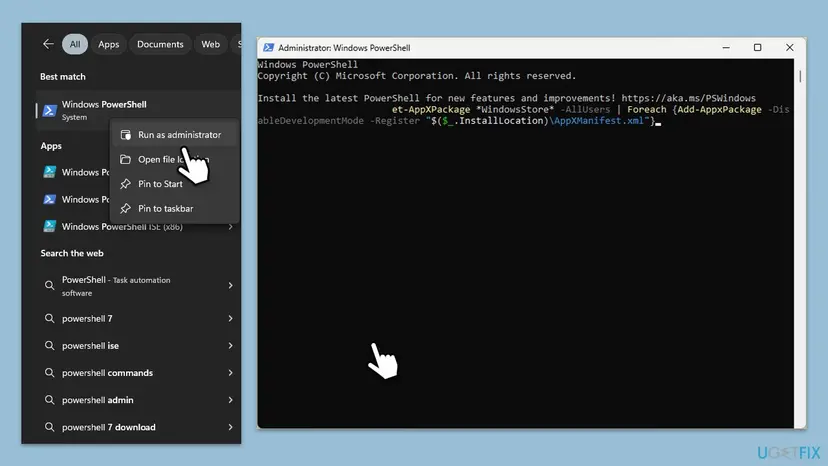
It worked if: The command ends without red text, the Store opens, and the app installs.
If not: If 0x80240037 stays, repair the system files with Fix 7.
Fix 6. On WSUS and managed PCs, check the client and its update log
15 to 30 minutesLow riskYou are an administrator, and WSUS, Configuration Manager or a patch management tool reports 0x80240037 for a client.
On a managed PC the scan request comes from your server or tool, not from the user. The code says the client does not support what it was asked to do, so the answer is usually on the client side: its Windows version, its update agent or its log.
- On the client, run
winverand check that its Windows version is still supported and is the one the update was approved for. - Check the processor of Windows 7, 8.1 and Server clients that report the code. Microsoft's processor block applies to Windows 7 and 8.1.
- On the client, open PowerShell and run
Get-WindowsUpdateLog. It writesWindowsUpdate.logto the desktop. - Search the log for
0x80240037and read the lines just above it: they name the call that failed. - If the client is on Windows 11 or 10, run Fix 4 on it, then start a new scan from the console.
- Users report a line
Failed to get Network Cost info from NLMnext to 0x80240037 in client logs. It is a symptom, not a cause on its own. - Users of Windows 8.1 reported that the update scan worked again after they installed the servicing stack update KB3173424 by hand. We could not confirm this with Microsoft, and Windows 8.1 is out of support.
- Patch management tools that use the Windows Update client, such as Kaspersky Security Center, pass the same code through.
It worked if: The client scans without 0x80240037, and the console shows its needed updates.
If not: If the client is damaged, repair it with Fix 7. If it runs an unsupported Windows, plan the upgrade with Fix 8.
Fix 7. Repair system files with SFC and DISM
20 to 30 minutesLow riskSeveral updates fail, also with other codes, or Fixes 2 to 5 did not help.
DISM repairs the component store that the update client and the Store use, and SFC repairs protected system files. When these are damaged, the update client can report operations as not supported.
- Open an elevated command window. Right-click Start and select Terminal (Admin), or type cmd in the search box, right-click Command Prompt and select Run as administrator. Select Yes when Windows asks for permission.

Search for cmd and choose Run as administrator. Screenshot: Windows 11 26H2. - Run DISM first. Type the command below and press Enter. DISM downloads clean copies of damaged components from Windows Update, so it can take several minutes. Wait until it says The operation completed successfully.
DISM.exe /Online /Cleanup-Image /RestoreHealth
DISM /RestoreHealth running. Screenshot: Windows 11 26H2. - Run System File Checker. In the same window, type the command below and press Enter. Do not close the window until the verification reaches 100%.
sfc /scannow
sfc /scannow at 100%. Screenshot: Windows 11 26H2. - Read the result and restart. Compare the last message with the table below this guide, then restart the PC so that repaired files are loaded.

The result line tells you what SFC did. Screenshot: Windows 11 26H2.
These steps were written for Windows 11 24H2 and 25H2. The full page with the other versions and what each result means: Run DISM and SFC to repair Windows system files
It worked if: SFC reports that it found no problems or repaired them, and the next update check or Store download works.
If not: Do an in-place repair or upgrade with Fix 8.
Fix 8. Repair-install or upgrade Windows and keep your files and apps
45 to 90 minutesRead the warningWindows 7 or 8.1 with the processor block, or nothing above worked on Windows 11 or 10.
On Windows 7 or 8.1 with a newer processor, a supported Windows is the only way back to updates. On Windows 11 or 10, a repair install replaces every update component at once while it keeps your files and apps.
A repair install keeps files, apps and most settings, but a power cut or a failed upgrade can leave Windows unbootable. An upgrade from Windows 7 or 8.1 may not keep apps. Copy your important files to a USB drive or cloud storage first: Back up your files (Windows Backup, File History, Time Machine)
- Open Recovery in Settings. Open Settings > System > Recovery. Next to Fix problems using Windows Update, select Reinstall now. This keeps your apps, files and settings.
- Start the reinstall. Choose whether the PC may restart on its own 15 minutes after the installation, then select OK.
- Wait and restart. Windows Update downloads and installs a repair copy of your current Windows version. Keep the PC plugged in and online, and restart it when asked.
- If that did not help: Reset PC. Back in Settings > System > Recovery, next to Reset this PC, select Reset PC. This keeps your personal files but removes installed apps and settings.
- Choose Keep my files. Select Keep my files. Do not select Remove everything.
- Choose where Windows comes from. Select Cloud download to download a fresh copy of Windows, or Local reinstall to use the files already on the PC (faster, but may not include the latest updates).
- Reset. Review the summary and select Reset. The PC restarts several times.
These steps were written for Windows 11 22H2 and later. The full page with the other versions and what each result means: Reinstall Windows without losing files
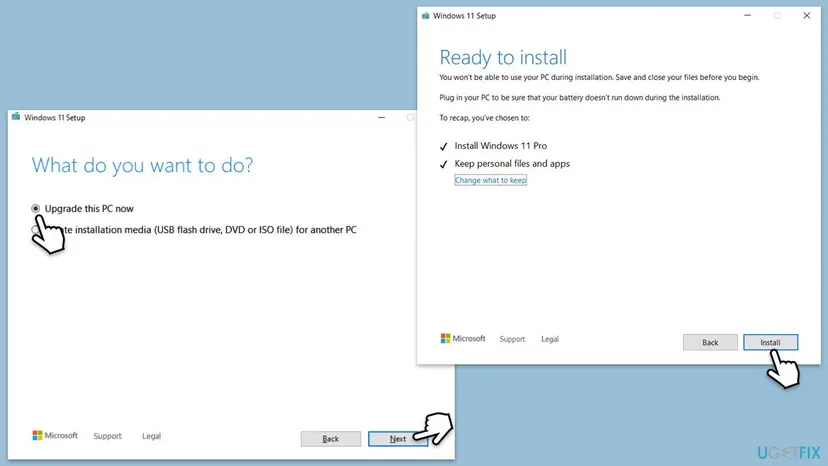
It worked if: Windows starts on the new or repaired build, and Windows Update and the Store work without 0x80240037.
If not: If Setup refuses the PC, check the Windows 11 hardware requirements, or keep Windows 10 with Extended Security Updates while you plan new hardware.
If error 0x80240037 is still there
When every fix fails, the update log shows which call the client refused. Open PowerShell and run the command below. It builds a readable WindowsUpdate.log on your desktop from the trace files.
Get-WindowsUpdateLog| What to look for | What it means |
|---|---|
0x80240037 in WindowsUpdate.log | The lines just above it name the call that was not supported and the update it was for. |
Errors in C:\Windows\Logs\CBS\CBS.log | The component store reports damage. Run Fix 7 or Fix 8. |
| The Store fails but Windows Update works | The problem is in the Store app. Repeat Fix 3 and Fix 5, then sign out of the Store and in again. |
| Windows 7 or 8.1 on a newer processor | Microsoft's block. No log entry will change it: move to a supported Windows. |
If you ask Microsoft Support or your administrator for help, send your Windows version from winver, the processor from msinfo32, the code 0x80240037 and the log lines around it. The code is not a hardware fault: it says the operation is not supported, not that a part is broken.
How to keep error 0x80240037 from coming back
- Run a supported Windows: Windows 11, or Windows 10 only with Extended Security Updates.
- Install Windows updates and select Get updates in the Store Library now and then.
- Keep the date, time and region of the PC right.
- On managed PCs, approve updates only for the Windows versions your clients really run.
- Do not use unofficial patches that remove Microsoft's processor check on Windows 7 or 8.1.
- Do not delete files in
C:\Windows\SoftwareDistributionby hand while updates run. Use Fix 4. - Do not install Store apps from unofficial package sites to get around the error.
If the related code 0x80240035 appears instead, the update was found but not processed. That is a different problem, with its own guide: error 0x80240035.
Frequently asked questions
What does error 0x80240037 mean?
It means the Windows Update client was asked to do something it does not support. Microsoft's Windows Update error code list names it WU_E_NOT_SUPPORTED, with the description "The functionality for the operation isn't supported." The best known case is Windows 7 or 8.1 on a processor made for a newer Windows, where Microsoft blocks updates on purpose. On Windows 11 or 10 it usually shows in Microsoft Store and goes away after updates, a Store cache reset and a repair.
What is HRESULT 0x80240037?
HRESULT is the format Windows uses for error codes, so HRESULT 0x80240037 is the same error. The 0x8024 part marks the Windows Update client, and the 0037 part is the WU_E_NOT_SUPPORTED code. Some logs print it as the signed decimal number -2145124297 or without the 0x, as 80240037. All of these spellings mean the same thing, and the fixes on this page apply to each of them.
Why does Microsoft Store show a Windows Update error code?
Microsoft Store uses parts of the Windows update system to download and install some apps and its own components. When that step fails, the Store shows the code that the update client returned, here 0x80240037. That is why the fixes combine both sides: install pending Windows and Store updates, clear and repair the Store, and reset the Windows Update cache if Windows Update fails too.
How do I fix error 80240037 on Windows 7 or 8.1?
If the Windows Update window says Unsupported hardware, Microsoft blocks updates because the processor is designed for a newer Windows. No repair lifts that block. Back up your files and move to Windows 11 if the PC meets its requirements. Windows 7 lost support on 14 January 2020 and Windows 8.1 on 10 January 2023, so they get no security updates anyway. On older processors, Fix 4 and Fix 7 may still help.
How do I fix 0x80240037 on WSUS clients?
Start on the client, not the server. Check its Windows version with winver and its processor with msinfo32, because Microsoft's processor block applies to Windows 7 and 8.1. Then run Get-WindowsUpdateLog and read the lines above 0x80240037 to see which call failed. On Windows 11 or 10 clients, reset the update components (Fix 4) and run a new scan. Approve updates only for versions your clients run.
What is "Install error - 0x80240031"?
It is a related but different code. Microsoft lists 0x80240031 as WU_E_INVALID_FILE: "The file is in the wrong format." It usually means a downloaded update file is damaged. Reset the Windows Update components and cache with Fix 4, then select Retry in Settings > Windows Update. If one update keeps failing, repair the system files with SFC and DISM (Fix 7) before you try again.
Will resetting Microsoft Store delete my apps or purchases?
No. Reset deletes the Store app's own data on this PC, such as its cache and sign-in, and you sign in again afterwards. Your installed apps stay installed, and your purchases and subscriptions stay in your Microsoft account. Try Repair first, because it keeps the Store's data. Clearing the cache with wsreset does not remove apps either.
Is error 0x80240037 a hardware fault?
No. The code says that an operation is not supported, not that a part of the PC is broken. The processor case is about the Windows version, not a faulty processor: the same PC runs a supported Windows without the error. If the PC also freezes, restarts by itself or shows disk errors, check the drive with Check a disk for errors (chkdsk), because that is a separate problem.
What is the issue behind 0x80240037 in one sentence?
Windows Update or Microsoft Store tried to run an operation that this Windows setup does not support. Most often that is an old Windows on a new processor, an out of date Store or update client, or a damaged Store or update cache. Fix 1 tells you in two minutes which group you are in, and the chooser table above tells you where to start.
Sources
- Microsoft Learn: Windows Update error code list by component (learn.microsoft.com)
- Microsoft Learn: The processor is not supported together with the Windows version error (Code 80240037) (learn.microsoft.com)
- Microsoft Q&A: Windows update error code 80240037 (Windows 8.1, user reports) (learn.microsoft.com)
Did this fix work?
One click, no account. It tells the next reader which guides are worth their time.
Questions and experiences: fix error 0x80240037 in Microsoft Store and Windows Update
Still broken, or found a fix we did not cover? Ask here: members and our editors answer. Reading is open; writing needs a free account.
…