
How to fix Microsoft Teams error 0xcaa80000 in Windows?

Prefer to fix it yourself? The manual steps follow.
- 8methods
- 5 to 40 minutes
- Intermediate
Applies to Microsoft Teams (new Teams), classic and new Outlook, OneDrive and the Microsoft 365 apps for Windows on Windows 11 and Windows 10, with work, school or personal Microsoft accounts
8 methods in this guide
- What the error means
- The 0xCAA code family
- Teams, Outlook, OneDrive
- Causes, ranked
- The fixes
- 1. Two quick tests
- 2. Check the proxy
- 3. Unblock the broker
- 4. Reset the network stack
- 5. Check network services
- 6. TLS 1.2 and the clock
- 7. Clear accounts, reset Teams
- 8. Update everything
- Still there: read the log
- For administrators
- Prevent it
- FAQ
I've been trying to log into Microsoft Teams on my Windows PC for the past hour, but I keep getting error 0xcaa80000. It says it can't connect to services and just tells me to try later. How can I fix this?
0xCAA80000 is a network error of the Windows sign-in broker: Teams, Outlook or OneDrive asked it for your account, and it could not reach login.microsoftonline.com. The window says We can't connect you even though the internet works. Test the sign-in address in Edge and on a phone hotspot first, then remove the proxy, filter or setting that stands in the way.
0xCAA80000 means the part of Windows that signs Teams in could not reach Microsoft's sign-in server, although your browser may still work. Open https://login.microsoftonline.com in Edge, then try Teams on a phone hotspot with any VPN off (Fix 1). If the hotspot works, your usual network or a proxy blocks the sign-in. If nothing works, look for a stray proxy (Fix 2) and security software that blocks the broker (Fix 3).
| Error | We can't connect you. Looks like we can't connect to one of our services right now. Please try again later, or contact your helpdesk if the issue persists. 0xCAA80000, often with login.microsoftonline.com under it. Older builds say You'll need the internet for this. |
|---|---|
| Where it appears | In the Microsoft sign-in window that Teams, Outlook, OneDrive, Word or Excel open when they ask Windows for your account: at start, when you add an account, or when Office activates. |
| Main cause | The network path of the Windows sign-in broker is blocked or broken: a proxy that only Windows apps use, a firewall or web filter, security software, a VPN, or a damaged network stack. |
| Fastest fix | Run the two tests in Fix 1: login.microsoftonline.com in Edge, then Teams on a phone hotspot with the VPN off. The result tells you which of the next fixes applies. |
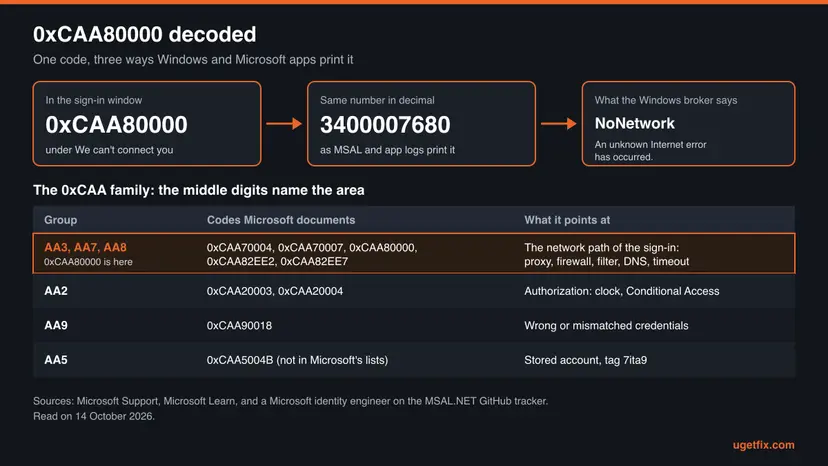
| What the code means | A Microsoft identity engineer wrote that 3400007680, the decimal form of 0xCAA80000, is the broker error NoNetwork, "An unknown Internet error has occurred.", and that AA3, AA7 and AA8 codes are network configuration issues. |
| Also written as | 0xcaa80000, caa80000, 0XCAA80000, and the typos 0xca80000, 0xcaa8000 and oxcaa80000. In other languages: erro 0xcaa80000, Message erreur 0xCAA80000, Невозможно подключиться 0xCAA80000. |
| Affects | New Teams, classic and new Outlook, OneDrive and the Office apps on Windows 11 and Windows 10. Work and school accounts in most reports, personal accounts in new Outlook too. |
| Microsoft's status | Documented as an activation error together with 0xCAA70007 in an article that Microsoft has moved to its archive. Teams' own code table does not list it. No fix in a Teams or Office update is announced. |
| Time to fix | 5 minutes for the tests in Fix 1. Up to 40 minutes if you need Fix 2 to Fix 8. Nothing to download. |
Facts checked on 14 October 2026. Steps written for the new Microsoft Teams, Outlook, OneDrive and the Microsoft 365 apps on Windows 11 (25H2 and 26H2) and Windows 10 22H2, read against Microsoft's documentation.
What 0xCAA80000 means in Teams, Outlook and OneDrive
You type your work address into Teams and, instead of the password field, a small Microsoft window opens with the heading We can't connect you. The text says Microsoft cannot connect to one of its services and asks you to try again later or to contact your helpdesk. Under it stand the code 0xCAA80000 and, in many reports, the server name login.microsoftonline.com.
That window does not belong to Teams. It is drawn by the Web Account Manager, the part of Windows that keeps your work and personal accounts for apps. Teams, Outlook, OneDrive and the Office apps all ask it for a sign-in token. When the broker cannot open a connection to Microsoft's sign-in service, it gives up with this code, and every app that asked shows the same window.
| What you may see | Where | What it tells you |
|---|---|---|
We can't connect you with 0xCAA80000 and login.microsoftonline.com | Teams, new Outlook, Office activation | The broker could not reach the main sign-in address. |
| You'll need the internet for this. with 0xCAA80000 | Older Office and Outlook builds | The same error with an older text. Microsoft staff called it a generic message that Windows shows for network or other authentication problems. |
| We are unable to connect right now with 0XCAA80000 | Microsoft 365 activation | Microsoft's activation article uses this wording for both 0xCAA70007 and 0xCAA80000. |
| 3400007680, NoNetwork, "An unknown Internet error has occurred." | Logs of apps that use the broker | The decimal form of the same code. |
Almost every report says the same thing: the browser, the phone and other apps work. The broker uses the Windows network components and its own processes, not your browser. A proxy, a filter or a security program can stop it while web pages still open, so the browser alone does not prove that the sign-in path is open.
Where 0xCAA80000 sits in the 0xCAA family of sign-in codes
Codes that start with 0xCAA come from the Teams and Microsoft 365 sign-in. Microsoft Support lists several of them for Teams, and Microsoft Learn lists more. The table shows where 0xCAA80000 belongs and which neighbours it is often confused with.
| Code | Microsoft's description | How it relates to 0xCAA80000 |
|---|---|---|
0xCAA70004 | The server or proxy wasn't found, often a misconfigured proxy or a traffic inspection tool that does not decrypt HTTPS. | Same network group. Same fixes, with the proxy first. |
0xCAA70007 | The download failed because the connection was interrupted. | Microsoft documents it in the same activation article as 0xCAA80000. |
0xCAA82EE2, 0xCAA82EE7 | The request timed out, or the server name could not be resolved. | Same AA8 group. A timeout or a DNS failure on the way to Microsoft. |
0xCAA80000 | Not in the Teams table. In the activation article: "We are unable to connect right now". | The broker's general "no network" result. |
0xCAA20003 | An authorization problem. Check date and time. | Not a network code, but a wrong clock also breaks secure connections. See Fix 6. |
0xCAA90018 | Wrong credentials: the Windows credentials differ from the Microsoft 365 ones. | An account code, not a network one. |
- The engineer's reading. On the MSAL.NET issue tracker, a Microsoft identity engineer wrote that any broker error of the AA3, AA7 and AA8 groups, naming 0xCAA70004, 0xCAA70007, 0xCAA3012C and 0xCAA80000, corresponds to a network environment configuration issue.
- The decimal number. The same answer says that error 3400007680 corresponds to 0xCAA80000. Apps that log through MSAL print it as NoNetwork with "Possible cause: no Internet connection", even when the connection is fine.
- Microsoft's archived article. Microsoft 365 Apps activation error codes 0xCAA70007 and 0xCAA80000 is now under Previous versions on Microsoft Learn. Its steps are still the most complete official list for this code.
0xCAA80000 in Teams, Outlook, OneDrive and Office activation
Because the broker serves every Microsoft 365 app, the code turns up wherever an app needs your account. Where it shows up tells you a little about the cause, and what still works tells you where to look.
| App | What users report with 0xCAA80000 | What usually still works |
|---|---|---|
| New Teams | The window appears right after the address is entered, before any password field. One user found that classic Teams signed in on the same PC while new Teams did not, and that turning on TLS options did not help. | Teams at teams.microsoft.com, the phone app. |
| Classic Outlook | One mailbox of several stops connecting. In another case the account dropped after a mailbox migration to Microsoft 365 and could not be added again. | Outlook on the web, the other mailboxes. |
| New Outlook | Adding a second account fails with We can't connect you. | The first account, Outlook on the web. |
| OneDrive, Word, Excel | The sign-in to activate Office or to start OneDrive stops with the code. One report followed a switch from Office 2013 to Microsoft 365 on the same PC. | Office on the web, OneDrive in the browser. |
In several threads the same account signed in on another computer on the same network. That points at something on this PC: a WinHTTP proxy, security software, the network stack or a service. If every PC in the office fails, the company proxy or firewall is the place to look, and that is a job for IT.
What causes error 0xCAA80000, ranked by how often it is reported
Microsoft's articles and the engineer's answer agree that the cause is in the network path, not in Teams. The order below is our reading of the reports and of Microsoft's troubleshooting steps. It is not a statistic.
| How often | Cause | Typical sign | Fix |
|---|---|---|---|
| Most often | A proxy, web filter or firewall on the network lets browsers through but not the broker | Work network or school network. The sign-in works on a phone hotspot. | Fix 1, Fix 2, then IT |
| Often | A VPN or security program filters the broker processes | Started after a VPN, antivirus or web protection tool was installed or updated. | Fix 1, Fix 3 |
| Often | A leftover proxy setting that only Windows apps read | No proxy in the browser, but netsh winhttp show proxy lists one. | Fix 2 |
| Less often | A damaged network stack or DNS cache | Other Windows apps such as the Store also fail to sign in. | Fix 4 |
| Less often | Windows thinks it is offline: network services stopped or the connectivity probe switched off | The network icon shows no internet while pages open. | Fix 5 |
| Rarely | TLS 1.2 switched off, or a clock far off | Old or hardened Windows builds, a PC that was off for months. | Fix 6 |
| Rarely | Stale accounts and credentials, an outdated app | Only one account fails, or Office was upgraded from an older version. | Fix 7, Fix 8 |
Clearing the folder %appdata%\Microsoft\Teams and reinstalling Teams are the most common tips. That folder belonged to classic Teams. In the reports we read, a reinstall did not change 0xCAA80000, because the broker and its network path stay the same.
How to fix error 0xCAA80000 in Teams on Windows
Start with the two tests of Fix 1: they cost nothing and tell you whether the network, this PC or the account data is at fault. Then follow the fixes in order and try to sign in to Teams after each one. Success looks the same every time: the window asks for your password instead of showing We can't connect you.
| Your case | Start with | Then |
|---|---|---|
login.microsoftonline.com does not open in Edge either | Fix 2 | Fix 4, then IT or the internet provider |
| Teams signs in on a phone hotspot but not on the usual network | Fix 2 | IT, with the proxy rules from the admin section |
| It started after a VPN or security program was installed | Fix 3 | Fix 2 |
| The Store and other Windows apps fail to sign in too | Fix 4 | Fix 5 |
| The network icon says No internet while pages open | Fix 5 | Fix 4 |
| Only one account fails, the others in Outlook work | Fix 7 | Fix 8 |
| Laptop managed by an employer or school | Fix 1 | Send the results to IT, then Fix 7 |
Fix 1. Test the sign-in address in Edge and on another network
5 minutesNo riskEveryone, first. It changes nothing and tells you which fix comes next.
Microsoft's own triage for broker network errors starts here: open the main sign-in address in Edge, normally and InPrivate. A second network then shows whether the block sits in your usual network or on this PC.
- Quit Teams: right-click the Teams icon in the corner of the taskbar and select Quit.
- Open Microsoft Edge and go to
https://login.microsoftonline.com. You should land on the Microsoft 365 start page or your organisation's sign-in page. - Press Ctrl + Shift + N for an InPrivate window, open the same address and sign in with your work or school account.
- If either page fails, note the message. The block is on the network or in a proxy for the whole PC: go to Fix 2.
- If both pages work, disconnect any VPN and connect the PC to a phone hotspot.
- Start Teams and sign in again on the hotspot.
- Switch back to your usual network and reconnect the VPN, whatever the result.
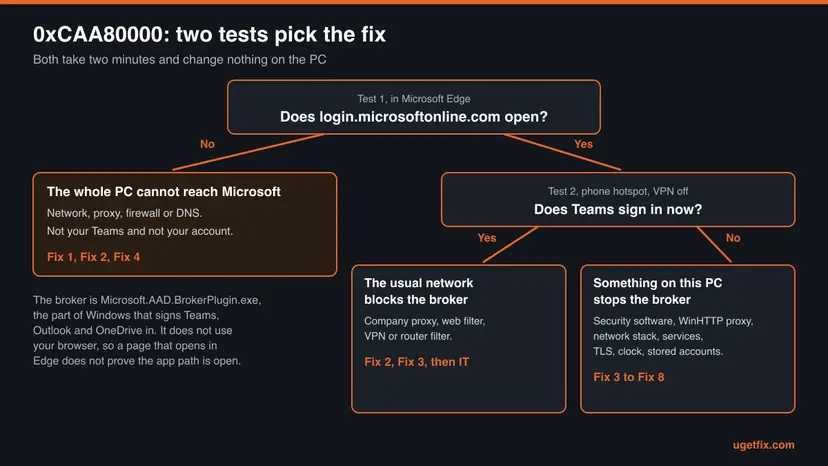
Use Edge for the test. Microsoft points out that Internet Explorer had a different network stack, so it did not show what Windows apps see. A sign-in that works on the hotspot is not a fix, but it is the strongest evidence you can give IT.
It worked if: Teams signs in on the hotspot or with the VPN off, which shows that the usual network path blocks the broker.
If not: If the sign-in fails on every network, the cause is on this PC: check for a stray proxy with Fix 2.
Fix 2. Remove a proxy that only Windows apps use
10 minutesLow riskEdge fails to open the address, or Teams works on the hotspot and fails on your usual network.
Windows has more than one proxy setting, and the sign-in components can use one that your browser ignores. Microsoft's article on 0xCAA80000 sends users to the WinHTTP proxy first, and Microsoft Support names a misconfigured proxy as the usual reason for the neighbouring code 0xCAA70004.
If your organisation set a proxy, removing it can cut the PC off from company resources. Write down every value before you change it, so that you can put it back. On a managed laptop, send IT what you find and let them decide.
- Open Settings > Network & internet > Proxy. Under Manual proxy setup, check Use a proxy server. In Windows 10 the switch is on the same Proxy page.
- If a manual proxy is on and nobody set it on purpose, note the address and switch it off.
- Press Win + R, type
inetcpl.cpland press Enter. On the Connections tab select LAN settings and check Use a proxy server for your LAN. - Right-click Start and open Terminal (Admin), or Command Prompt as administrator. Select Yes in the prompt.
- Show the WinHTTP proxy, the setting that Windows services use:
netsh winhttp show proxy - If it lists a proxy server that you do not know, and you are not on a company network, reset it to direct access:
netsh winhttp reset proxy - Restart the PC and sign in to Teams.
netsh winhttp reset proxy returns the WinHTTP setting to Direct access (no proxy server). Microsoft now marks show proxy as deprecated in favour of netsh winhttp show advproxy. Both print the current setting where they are available. On a company network that needs a proxy, Microsoft's article gives netsh winhttp set proxy with the proxy address, plus an allow list of Microsoft 365 addresses.
It worked if: The WinHTTP setting reads Direct access, and the next Teams sign-in shows the password field.
If not: If no proxy was set, or removing it changed nothing, look at security software and VPN filters with Fix 3.
Fix 3. Let the sign-in broker through security software and VPN filters
10 minutesLow riskThe error began after a VPN, antivirus or web filter was installed or updated, or Fix 1 pointed at this PC.
Microsoft names the two processes that fetch sign-in tokens and says that a local firewall, antivirus or Windows Defender must not block them. When they are blocked, Windows reports a network error even though the browser works.
- Sign-in broker
C:\Windows\SystemApps\Microsoft.AAD.BrokerPlugin_cw5n1h2txyewy\Microsoft.AAD.BrokerPlugin.exe- Background task host
C:\Windows\System32\backgroundTaskHost.exe- Main destination
https://login.microsoftonline.com
- Disconnect the VPN and quit its app completely from the taskbar corner.
- Pause Microsoft Defender real-time protection for one attempt. Step by step: Turn off Microsoft Defender protection for a moment.
- If you use another antivirus or a web protection tool, pause its web shield or HTTPS scanning in the same way.
- Start Teams and try the sign-in once.
- Turn the protection, the web shield and the VPN back on, whatever the result.
- If the sign-in worked, add the two processes above and
login.microsoftonline.comto that program's exceptions, or ask its maker or your IT department to do it.
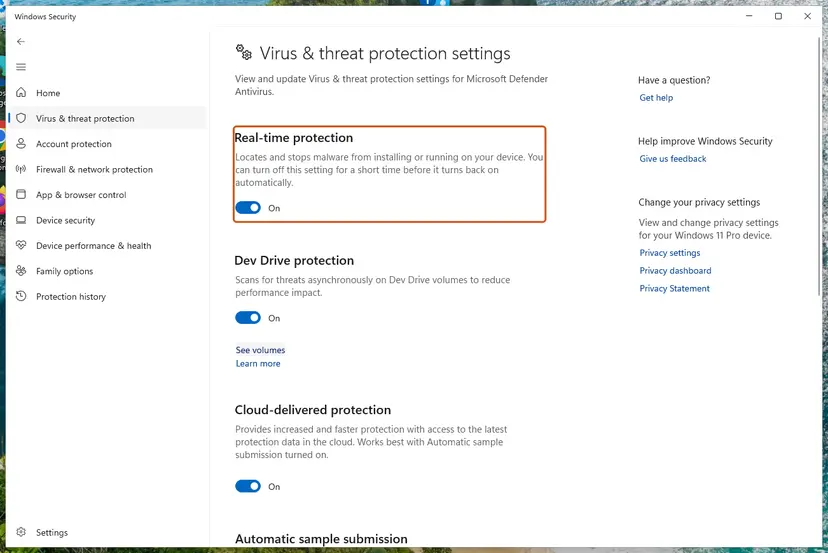
A paused antivirus is a test, not a fix. Microsoft also notes that login.microsoftonline.com covers many IP addresses and services. A filter that blocks only some of them causes problems that come and go and hit some devices while others work.
It worked if: Teams signs in while the program is paused, which names the blocker, and keeps signing in once the exceptions are in place.
If not: If nothing changed with everything paused, turn it all back on and reset the network stack with Fix 4.
Fix 4. Reset Winsock, TCP/IP and the DNS cache
10 minutes plus a restartLow riskOther Windows apps also fail to sign in, or the network settings were changed by a VPN or tuning tool.
Microsoft's 0xCAA80000 article lists netsh int ip reset and netsh winsock reset among its fixes. Both return the network components that the broker uses to their defaults, which removes entries that a VPN or filter left behind.
- Open an elevated command window. Right-click Start and select Terminal (Admin), or type cmd in the search box, right-click Command Prompt and select Run as administrator. Select Yes when Windows asks for permission.
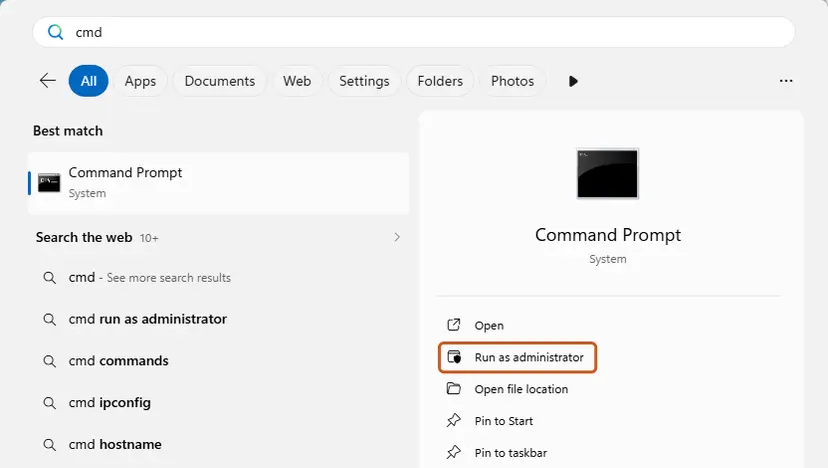
Search for cmd and choose Run as administrator. Screenshot: Windows 11 26H2. - Flush the DNS cache. Type the command below and press Enter. Windows forgets the website addresses it looked up earlier and asks for them again.
ipconfig /flushdns - Reset Winsock. Type the command below and press Enter. It returns the Windows sockets catalog to its default state.
netsh winsock reset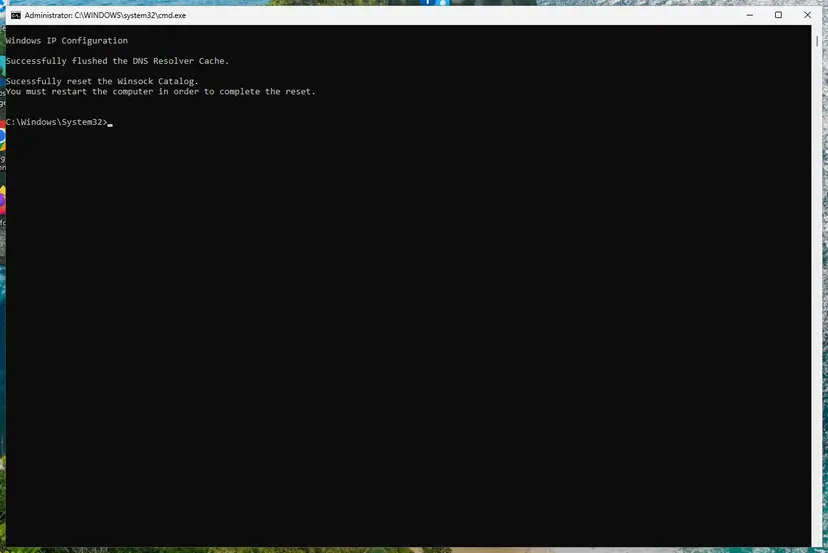
Both commands report success; the Winsock reset asks for a restart. Screenshot: Windows 11 26H2. - Reset TCP/IP. Type the command below and press Enter. If you entered an IP address or DNS server by hand, note it first: you may need to enter it again.
netsh int ip reset - Get a new IP address. Run these two commands one after the other. The connection drops for a moment between them.
ipconfig /release ipconfig /renew - Restart the PC. Restart Windows so the Winsock and TCP/IP resets take effect, then test the connection. If it still does not work, continue with the network reset below.
These steps were written for Windows 11 24H2 and later. The full page with the other versions and what each result means: Reset the network and flush DNS
Every command, with the full network reset as the last step: Reset the network and flush DNS. Note any fixed IP address or DNS server before netsh int ip reset, because you may need to enter it again.
- If the reset did not help, test IPv6. Microsoft's article turns it off for one try: press Win + R, type
ncpa.cpland press Enter. - Right-click your network connection and select Properties.
- Clear Internet Protocol Version 6 (TCP/IPv6), select OK and try the Teams sign-in.
- Tick Internet Protocol Version 6 (TCP/IPv6) again afterwards, whatever the result.
It worked if: After the restart the commands report success, and Teams shows the password field instead of the error.
If not: If only the IPv6 test helped, tell your internet provider or IT about the IPv6 route. Otherwise check the network services with Fix 5.
Fix 5. Start the network services that tell Windows it is online
5 minutesLow riskThe network icon shows No internet while pages open, or a service tool or tuning program changed services.
The broker trusts Windows' own idea of whether the PC is online. Microsoft's 0xCAA80000 article lists four services that must run and adds a connectivity probe that an administrator may have switched off.
- Press Win + R, type
services.mscand press Enter. - Find Network Connected Devices Auto-Setup and check that its status is Running.
- Do the same for Network List Service, Network Location Awareness and Windows Event Log.
- If one is stopped, right-click it and select Start.
- Restart the PC and sign in to Teams.
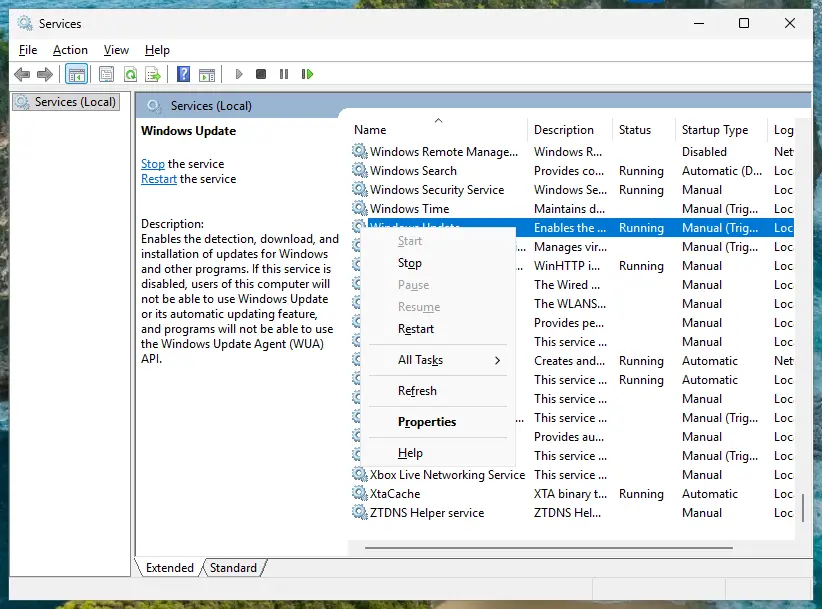
More on the Services window and startup types: Check and restart Windows services. If a service will not start, Microsoft's article runs sfc /scannow from an elevated Command Prompt. If the services run but the icon still says No internet, the connectivity probe may be off by policy. That setting is described for administrators after the fixes.
It worked if: All four services show Running, the network icon shows internet access, and Teams signs in.
If not: If the services were already running, check TLS 1.2 and the clock with Fix 6.
Fix 6. Check that TLS 1.2 is on and the clock is right
5 minutesLow riskA PC that was hardened by hand or by a tool, an old Windows build, or a PC that was off for a long time.
Microsoft 365 no longer accepts TLS 1.0 and 1.1, and Microsoft's 0xCAA80000 article tells you to tick TLS 1.2 in Internet Options. A clock that is far off breaks secure connections in the same way.
- Press Win + R, type
inetcpl.cpland press Enter. - Open the Advanced tab and scroll to the end of the Security group.
- Make sure Use TLS 1.2 is ticked. Leave Use TLS 1.3 ticked if it is there.
- Select Apply and OK, then restart the PC.
- Check the date, time and time zone in the corner of the taskbar. If they are wrong, turn on automatic time: How to fix the date and time in Windows.
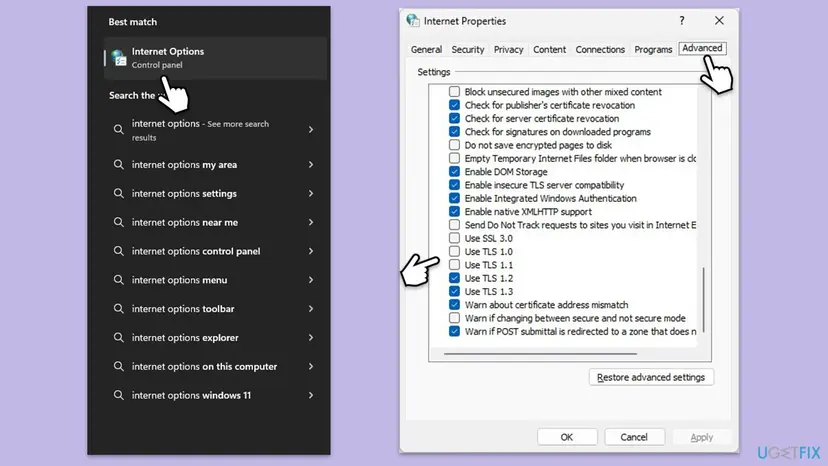
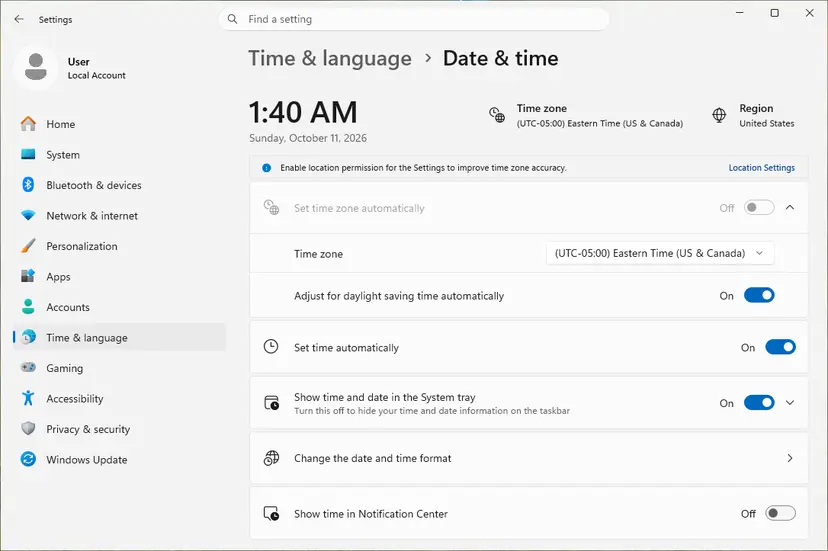
Do not tick SSL 3.0, TLS 1.0 or TLS 1.1 to make the error go away. Microsoft 365 refuses those protocols anyway. On Windows 7 and 8.1 Microsoft needed an update to make TLS 1.2 the default, but Microsoft 365 Apps are not supported there any more.
It worked if: Use TLS 1.2 stays ticked after a restart, the clock is right, and Teams reaches the password field.
If not: If both were already correct, clear the stored accounts and reset Teams with Fix 7.
Fix 7. Remove stored Office credentials and reset Teams
15 minutesLow riskOnly one account fails, or the error stayed after an account move, a mailbox migration or an Office upgrade.
Microsoft's 0xCAA80000 article ends with this step: remove the Office entries from Credential Manager and disconnect an extra work account. A reset of new Teams also clears its own copy of the sign-in state.
Disconnecting an account under Access work or school can remove the organisation's setup from the PC. On a managed laptop, do the Credential Manager part and the Teams reset only, and leave Disconnect to IT.
- Quit Teams from the taskbar corner and close Outlook, Word, Excel and OneDrive.
- Select Start, type
credential managerand open Credential Manager. Select Windows Credentials. - For every entry that starts with MicrosoftOffice16, select the arrow next to it and select Remove.
- Open Settings > Accounts > Access work or school. If the account you use for Teams is listed but is not the account you sign in to Windows with, select it and select Disconnect.
- Open Settings > Apps > Installed apps, select the three dots next to Microsoft Teams and select Advanced options.
- Under Reset, select Reset. Teams loses its local settings, while chats and files stay in the cloud.
- Restart the PC, start Teams and sign in.
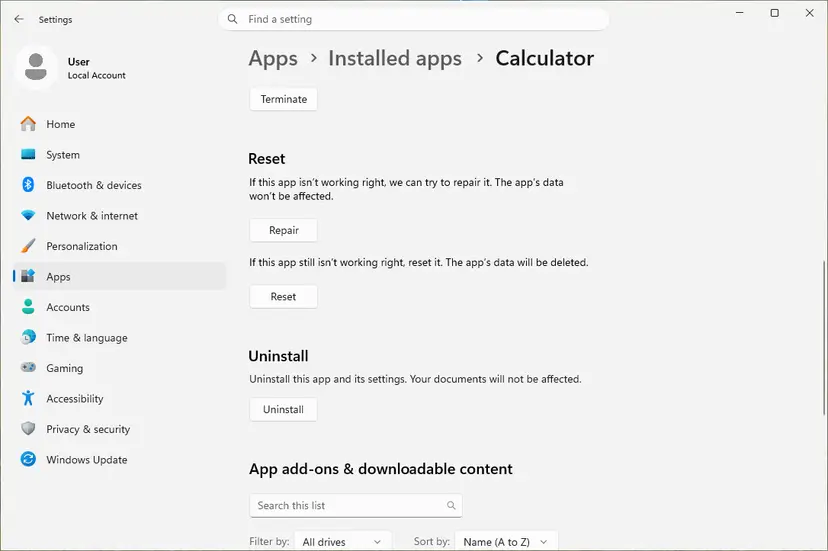
Every screen of the reset, with the Windows 10 path: How to repair or reset an app in Windows. If the window that comes back is no longer We can't connect you but Something went wrong with a tag such as 7ita9, the network is fixed and the stored account is the problem. Our guide to Teams error tag 7ita9 clears the deeper account caches.
It worked if: Teams asks for the account as on a new PC, accepts the password and the phone approval, and opens your chats.
If not: If the same We can't connect you window returns, update Windows, Teams and Microsoft 365 with Fix 8.
Fix 8. Update Windows, Teams and Microsoft 365
15 to 30 minutesLow riskThe PC has not installed updates for weeks, or Office came from an old installer.
The broker is part of Windows, and Microsoft has shipped fixes for it through Windows and Office updates. Microsoft's 0xCAA80000 article includes both updates, and its Teams sign-in article asks for the latest Teams client.
- Select Start, type
check for updatesand open Check for updates. - Select Check for updates, install everything offered and restart.
- Open Word, select File > Account > Update Options > Update Now.
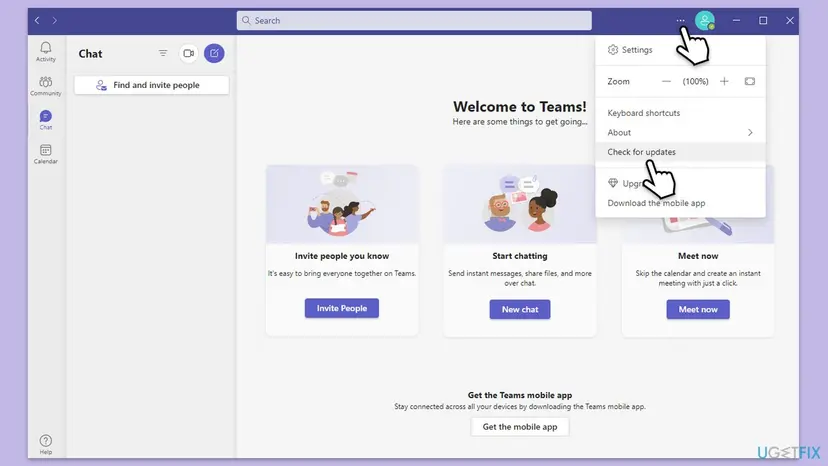
- Start Teams. If it opens, select Settings and more, the three dots next to your picture, and select Check for updates.
- Sign in to Teams once more after the updates.
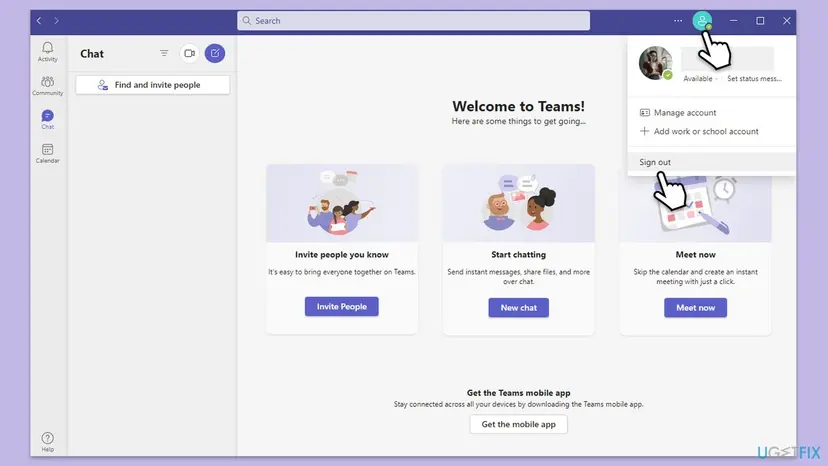
Windows 10 left support on 14 October 2025. A Windows 10 PC without Extended Security Updates no longer gets fixes for its sign-in components, so a move to Windows 11 is the lasting answer there.
It worked if: Windows, Office and Teams report that they are up to date, and the Teams sign-in reaches the password field.
If not: If 0xCAA80000 stays, stop changing the PC and collect the evidence described in the next section.
If 0xCAA80000 is still there: where the real cause is written
Windows records every failed broker request in its own log. Microsoft describes how to read it, and the entries show whether the request ever reached Microsoft.
- Right-click Start and open Event Viewer.
- Go to Applications and Services Logs > Microsoft > Windows > AAD > Operational.
- Look for errors at the time of your sign-in that mention
XMLHTTPWebRequest. - Note the code. Microsoft's pattern for network failures is
0x?AA7????,0x?AA8????,0x?AA3????,0x102or0x80070102. - Compare the time with the moment you were online. An error right after waking from sleep is a dropped Wi-Fi, not this problem.
| What the log or the tests show | Likely reason | Who can fix it |
|---|---|---|
AA7 or AA8 errors, and Edge cannot open login.microsoftonline.com | The network, a proxy or a firewall blocks Microsoft's sign-in service. | IT, or the internet provider at home. |
| AA8 errors only on the work network | The company proxy or web filter does not let the broker through. | IT, with the rules in the next section. |
Errors with 0x?028????, 0x?029???? or 0x?009???? | Not a network problem: Microsoft ties these to the TPM chip. | IT, or a TPM firmware update. |
| AADSTS135011 or AADSTS50155 | The device was disabled or deleted in the organisation's directory. | IT only. |
| No AAD errors at all | The request never started. The app or the Windows profile is damaged. | Try another Windows account on the PC, then IT. |
- For IT or Microsoft support: the full text of the window with the server name, the time, the result of the two tests in Fix 1, and the AAD entries above.
- Teams logs: press Ctrl + Alt + Shift + 1 in Teams if it opens, or right-click the Teams icon in the taskbar corner and select Collect support files. The files go to Downloads.
- Microsoft's checks: the Teams Sign-in test of the Microsoft Remote Connectivity Analyzer, the Teams Sign-in diagnostic in the Microsoft 365 admin center, and the Microsoft 365 sign-in troubleshooter in the Get Help app.
For administrators: proxy rules, the connectivity probe and unsupported workarounds
When several users see 0xCAA80000 on the same network, the fix is on the network side. Microsoft's archived article and the identity engineer's answer give these checks.
- Allow the sign-in endpoints. Microsoft lists
login.microsoftonline.com,login.microsoft.com,login.windows.net,aadcdn.msauth.net,aadcdn.msauthimages.net,enterpriseregistration.windows.netand the certificate revocation addresses undercrl.microsoft.com. The full set is in Microsoft 365 URLs and IP address ranges. - Allow the agent. Microsoft suggests an explicit allow rule that contains
MSOIDCRLin the firewall or proxy for agents, placed before broader deny rules. - Set WinHTTP where a proxy is required.
netsh winhttp set proxywith your proxy address, or a PAC file that lets Microsoft 365 bypass the proxy. - Check HTTPS inspection. Microsoft Support names traffic inspection tools that do not decrypt HTTPS correctly as a cause of 0xCAA70004, the same group as 0xCAA80000.
- Loopback for broker apps. The identity engineer noted that with Zscaler, loopback connections are not allowed for UWP apps by default and need exemptions.
- Token binding keys. The same answer says to open the files in
%LOCALAPPDATA%\Packages\microsoft.aad.brokerplugin_cw5n1h2txyewy\AC\Microsoft\Crypto\TokenBindingKeys\Keyswith a binary editor and delete any that contain only zeroes.
If the NCSI active probe is disabled, Microsoft says to enable it: EnableActiveProbing = 1 under HKEY_LOCAL_MACHINE\SYSTEM\CurrentControlSet\Services\NlaSvc\Parameters\Internet, or NoActiveProbe = 0 under the policy key. Prefer the Group Policy Turn off Windows Network Connectivity Status Indicator active tests set to Disabled. Back up the key first: Back up the registry before editing it.
Old threads fix 0xCAA80000 by setting EnableADAL = 0 and DisableADALatopWAMOverride = 1 or DisableAADWAM = 1 under the Office Identity key. Microsoft's article says it does not support disabling ADAL or WAM to solve sign-in problems: it puts Office into a legacy state, and some security features work only through WAM.
How to keep 0xCAA80000 from coming back
Once the broker has a clear path to Microsoft, the error does not return on its own. It comes back when something new sits in that path. These habits keep it open.
- Give security tools an exception, not a pause. Allow
Microsoft.AAD.BrokerPlugin.exe,backgroundTaskHost.exeandlogin.microsoftonline.comin antivirus, web shields and VPN filters. - Do not leave test proxies behind. Debugging proxies and old VPN clients can leave a WinHTTP proxy that only Windows apps use. Check
netsh winhttp show proxyafter you remove one. - Leave TLS 1.2 on. Tools that harden Windows by switching protocols off can break every Microsoft 365 sign-in.
- Keep automatic time on. Secure connections fail when the clock is far off.
- Keep Windows, Office and Teams updated. Fixes for the broker arrive through Windows and Office updates.
- After a network change at work, test early. A new proxy or firewall rule shows up as 0xCAA80000 on the first sign-in, so tell IT the same day.
Frequently asked questions
What does error 0xCAA80000 mean?
It means that the Windows sign-in broker could not reach Microsoft's sign-in service when an app such as Teams, Outlook or OneDrive asked for your account. A Microsoft identity engineer described the decimal form, 3400007680, as the broker error NoNetwork, "An unknown Internet error has occurred", and placed the code among network configuration issues. In practice a proxy, firewall, filter, VPN or damaged network setting stands between the broker and Microsoft, while the browser may still work. Fix 1 on this page finds out which.
Why does Teams say We can't connect you when my internet works?
Because Teams does not sign in through your browser. It asks a Windows component, the Web Account Manager, which runs its own processes and uses the Windows network settings. A proxy that only Windows apps read, a security program that filters those processes, or a company filter can stop the broker while web pages open normally. That is why Microsoft's triage tests login.microsoftonline.com in Edge and then looks at the broker processes and the proxy, not at your connection speed.
What does login.microsoftonline.com mean under the 0xCAA80000 code?
It is the address the broker tried to reach and could not. login.microsoftonline.com is Microsoft's main sign-in address for work and school accounts. Microsoft notes that this one name covers many IP addresses and services, so a filter that blocks only some of them can cause errors that come and go and affect only some devices. Open the address in Edge as in Fix 1. If it fails there too, the whole PC is blocked. If it opens, the block applies only to the broker's path.
How do I fix 0xCAA80000 in OneDrive?
The same way as in Teams, because OneDrive asks the same Windows broker for your account. Test the sign-in address in Edge and try OneDrive on a phone hotspot (Fix 1), then check the WinHTTP proxy (Fix 2) and any security software that filters the broker processes (Fix 3). If OneDrive and Teams both fail, fix the network path once and both recover. Clearing the OneDrive app alone rarely helps, because its sign-in goes through the broker and not through OneDrive itself.
Why do I get 0xCAA80000 in Outlook?
Outlook uses the same broker for Microsoft 365 mailboxes, so a blocked network path shows up there as well. Older Outlook builds show the text You'll need the internet for this with the code. Reports include one mailbox of several failing, an account lost after a migration to Microsoft 365, and new Outlook refusing a second account. Run Fix 1 to Fix 3 first. If only one mailbox fails while others work on the same PC, also clear the stored credentials in Fix 7.
Is Microsoft down when I see 0xCAA80000?
Rarely. The code comes from your side of the connection: the broker on your PC could not complete the request. If Microsoft's service had an outage, Outlook on the web and Teams on the web would usually fail as well. Sign in at teams.microsoft.com in a browser and ask a colleague on another network. If both work, the problem is on your PC or your network. Your administrator can see Microsoft's own service status in the Microsoft 365 admin center.
Will reinstalling Teams fix 0xCAA80000?
Usually not. The sign-in window, its network path and the stored accounts belong to Windows, not to Teams. In the reports we read, users who reinstalled Teams or cleared its old folder still got the same code, and one user who switched between classic and new Teams saw it only in the new one. A Teams reset is part of Fix 7 because it clears Teams' own sign-in state. It helps after the network path is clear, not before.
Should I turn on TLS 1.0 and TLS 1.1 to fix 0xCAA80000?
No. Microsoft has deprecated TLS 1.0 and 1.1 in Microsoft 365, so turning them on does not help the sign-in and only weakens security. What matters is that TLS 1.2 is on. Microsoft's article asks for an update only on Windows 8.1 and older, where TLS 1.2 was not the default, and otherwise just to check the Use TLS 1.2 box in Internet Options. One user reported that ticking TLS options made no difference, which fits: on a current PC TLS is rarely the cause.
What is erro 0xcaa80000?
It is the same error searched in Portuguese or Spanish, where erro and error mean error. The window then appears in your Windows language, but the code 0xCAA80000 and the server name stay the same, so you can match it by the code alone. The French Message erreur 0xCAA80000 and the Russian Невозможно подключиться with the same code are the same error too. The fixes on this page apply unchanged, and the menu names in Windows appear in your language.
Why do I see 0xCAA80000 when activating Office?
Activation needs the same sign-in, so the broker's network error stops it as well. Microsoft documents 0xCAA80000 with 0xCAA70007 as an activation error with the message We are unable to connect right now. Its steps match this page: TLS 1.2, updates, the proxy, the firewall, a Winsock reset, network services and stored credentials. In one report the error followed a move from Office 2013 to Microsoft 365, and a Microsoft moderator suggested the activation troubleshooter and removing old Office 2013 product keys.
Sources
- Microsoft Learn: Microsoft 365 Apps activation error codes 0xCAA70007 and 0xCAA80000 (learn.microsoft.com)
- Microsoft Learn: Connection issues when signing in after updating to Office 2016 build 16.0.7967 (learn.microsoft.com)
- Microsoft Support: Why am I having trouble signing in to Microsoft Teams? (support.microsoft.com)
Did this fix work?
One click, no account. It tells the next reader which guides are worth their time.
Questions and experiences: fix Microsoft Teams error 0xcaa80000 in Windows
Still broken, or found a fix we did not cover? Ask here: members and our editors answer. Reading is open; writing needs a free account.
…