
How to fix Microsoft Teams error code 3399614475 (Tag 4usqa) in Windows?

Prefer to fix it yourself? The manual steps follow.
- 7methods
- 5 minutes for users, 15 to 45 minutes for administrators
- Easy for users, Medium for administrators
Applies to Microsoft Teams, classic Outlook and the other Microsoft 365 desktop apps on Windows 11 and Windows 10, signed in with a work or school account in a Microsoft Entra ID tenant
7 methods in this guide
Hey there, could you help me with error code 3399614475 in Teams? I keep getting this error no matter how long I wait. I am using Windows 11, by the way.
Code 3399614475 is the decimal form of the Microsoft 365 sign-in error CAA2000B. It usually comes with Tag: 4usqa and Access denied for the resource, which means your organisation's Microsoft Entra ID refused access to a Microsoft service, not that your PC or password is broken. Restart Teams and test the browser first, then hand the details to IT.
3399614475 (CAA2000B, Tag 4usqa) means Microsoft's sign-in service refused a token for a Microsoft service in your organisation, most often because a service principal such as the Microsoft Information Protection API was disabled. Close Teams fully, open it again and test teams.microsoft.com (Fix 1). If colleagues see it too, send the Correlation Id to IT (Fix 2): only an administrator can enable the blocked app in Microsoft Entra (Fix 3 and Fix 4).
| Error | Something went wrong. [4usqa] in a Microsoft sign-in window, with the details Message: Access denied for the resource., Tag: 4usqa and Code: 3399614475. |
|---|---|
| Where it appears | When Teams, classic Outlook or another Microsoft 365 app on Windows starts and signs in with a work or school account, or later when the app asks for a new token. |
| Main cause | A service principal (an enterprise app) that the sign-in needs is disabled or missing in the organisation's Microsoft Entra ID. In May 2025 it was the Microsoft Information Protection API. |
| Fastest fix | For users: restart Teams and test the browser (Fix 1), then send the details to IT (Fix 2). For admins: read the sign-in log and enable the app it names (Fix 3 and Fix 4). |
| Also written as | CAA2000B, 0xCAA2000B, -895352821, Tag: 4usqa Code: 3399614475, code: 3399614475, error 4usqa, AADSTS500014 in the admin log. |
| Affects | Work and school accounts in Microsoft 365. Microsoft's article names classic Outlook for Windows and Outlook for Mac; Teams shares the same sign-in and the same code. Personal Microsoft accounts are not in any report we read. |
| Microsoft's status | Known issue from about 7 May 2025, marked FIXED by a service change on 14 May 2025 (incident EX1072812). Later cases come from a tenant's own settings. |
| Time to fix | 5 minutes for Fix 1 and Fix 2. 15 to 45 minutes for an administrator, depending on which app the log names. |
Facts checked on 15 October 2026. Steps written for Microsoft Teams and classic Outlook on Windows 11 and Windows 10 22H2 with work or school accounts, read against Microsoft Support's known issue for CAA2000B and 4usqa, the 4usqa reports on Microsoft Q&A and an Exchange MVP's analysis. We did not reproduce the error, and Microsoft's article names Outlook, not Teams.
What Teams error code 3399614475 and Tag 4usqa mean
You start Teams or Outlook, a Microsoft sign-in window opens, and instead of your account it shows Error and the red line Something went wrong. [4usqa]. Waiting does not help, as the reader above found: the window comes back every time the app tries to sign in.
Under the red line, the details show what happened. One business posted them on Microsoft Q&A in May 2025, when 14 of its 16 users got the error:
The details of a 4usqa window, as posted on Microsoft Q&A on 10 May 2025 (DPTI line left out)
Correlation Id: 285dede2-d1ae-442b-b0af-8362044d3da2
Timestamp: 2025-05-10T10:07:34.000Z
Message: Access denied for the resource.
Tag: 4usqa
Code: 3399614475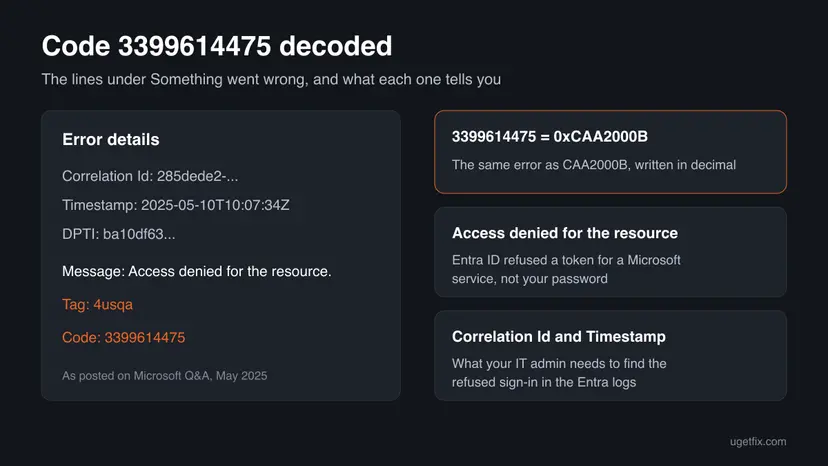
| Line | What it means |
|---|---|
| Code: 3399614475 | The decimal form of 0xCAA2000B. Microsoft's own article shows the same failure as error code CAA2000B in a second window. |
| Message: Access denied for the resource. | Microsoft Entra ID, the sign-in service of your organisation, would not issue a token for one of the Microsoft services the app needs. |
| Tag: 4usqa | Marks the place where the shared Microsoft 365 sign-in component stopped. On a Mac the same failure shows tag 49dvs. |
| Correlation Id and Timestamp | Let an administrator find the exact refused attempt in the Entra sign-in logs. |
| AADSTS500014 | Not on your screen, but in the admin log or the CAA2000B window: The service principal for the resource is disabled. |
Your password worked and Windows is fine. The refusal happens in your organisation's Microsoft 365 setup, which is why reinstalling Teams or clearing its cache does not remove the code.
What causes error code 3399614475, ranked
The order comes from Microsoft's known issue, the reports on Microsoft Q&A and an Exchange MVP's analysis. It is our reading of those reports, not a Microsoft statistic.
| How often | Cause | Typical sign | Fix |
|---|---|---|---|
| Most often | The Microsoft Information Protection API enterprise app (40775b29-2688-46b6-a3b5-b256bd04df9f) is disabled for sign-in in the tenant | Most users of one organisation at once, from early May 2025. The admin log shows AADSTS500014. | Fix 1, Fix 2, Fix 4 |
| Often | Another Microsoft service principal is disabled by an administrator or a clean-up script | Same window, but the Microsoft Information Protection API is already enabled. | Fix 3, Fix 5 |
| Less often | Exchange hybrid with modern authentication: a new or renamed on-premises Exchange URL is not registered in Entra ID | Only Outlook users whose mailbox or content is still on-premises. The admin log shows AADSTS500011. | Fix 6 |
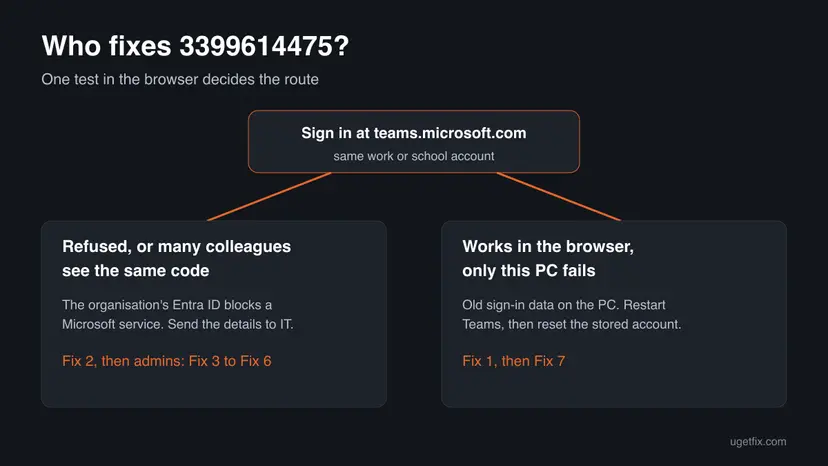
| Rarely | Old sign-in data on one PC after the tenant was fixed | teams.microsoft.com works, colleagues are fine, only this PC still shows the window. | Fix 1, Fix 7 |
The old advice for this code, such as updating the TPM driver, clearing the Teams cache, running the network troubleshooter or a clean boot, does not touch the tenant setting that refuses the token. We left it out.
How to fix Microsoft Teams error code 3399614475
Fix 1 and Fix 2 are for everyone. Fix 3 to Fix 6 need a Microsoft Entra administrator: if that is not you, Fix 2 tells you what to send. Fix 7 is for the case where only one PC still fails after everything else is fine. Success looks the same each time: Teams opens your chats without the sign-in window.
| Your case | Start with | Then |
|---|---|---|
| You are a user and the code appeared today | Fix 1 | Fix 2 |
| Many colleagues see 4usqa or 3399614475 at once | Fix 2 | Fix 3 and Fix 4 (IT) |
| You are the administrator and the log shows AADSTS500014 | Fix 4 | Fix 5 |
| The log shows AADSTS500011 and you run Exchange hybrid | Fix 6 | Fix 3 |
| teams.microsoft.com works and only this PC fails | Fix 1 | Fix 7 |
Fix 1. Close Teams fully, open it again and test teams.microsoft.com
5 minutesNo riskEveryone first. Above all after IT or Microsoft has changed something on the tenant side.
Microsoft fixed the May 2025 wave on its side and told users to restart the app to pick up the change. The browser test tells you whether the refusal is in the account or only on this PC.
- Select Cancel in the 4usqa window.
- Right-click the Teams icon in the notification area near the clock and select Quit. Quit Outlook as well if it is open.
- Open Task Manager with Ctrl + Shift + Esc and check that no Microsoft Teams or ms-teams process is left. End any that remain.
- Open your browser, go to
https://teams.microsoft.comand sign in with the same work or school address. - Note the result: your chats load, or the browser shows an error too.
- Open the Teams app again and let it sign in.
Ending a stuck Teams process step by step: Close a frozen app (Task Manager, Force Quit). If the browser signs you in with another account or shows an old error page, clear its cookies for the test: Clear the browser cache and cookies.
It worked if: Teams opens your chats without the sign-in window. If the browser worked but the app did not, the cause is on this PC.
If not: If the browser also fails, or colleagues have the same code, go to Fix 2. If only this PC fails, go to Fix 7.
Fix 2. Copy the error details and send them to your IT department
5 minutesNo riskYou are not a Microsoft 365 administrator, and Fix 1 did not help.
Access denied for the resource is decided in your organisation's Entra ID. Only an administrator can see why, and the Correlation Id and Timestamp let them find your exact attempt instead of guessing.
- In the 4usqa window, open the details under the red line if they are folded.
- Copy the Correlation Id, Timestamp, Message, Tag and Code lines into an email or a ticket. Leave out the DPTI line.
- Add which app shows it (Teams, Outlook or both), whether
teams.microsoft.comworked in Fix 1, and whether colleagues have the same window. - Send it to your IT department or Microsoft 365 administrator, and mention that Microsoft's known issue for CAA2000B and 4usqa describes this case.
- Until it is fixed, use Teams in the browser if Fix 1 showed that it works.
In a small company, the person who bought Microsoft 365 is usually the Global administrator. Give them Fix 3 and Fix 4 of this page; they take about 15 minutes in the Microsoft Entra admin center.
It worked if: IT confirms the cause in the sign-in log and fixes the tenant; Teams then opens after a restart.
If not: If IT finds nothing in the logs and only your PC fails, go to Fix 7.
Fix 3. For administrators: find the refused sign-in in the Entra logs
10 minutesNo riskAdministrators, before changing anything. The log names the reason, and the reason decides between Fix 4, Fix 5 and Fix 6.
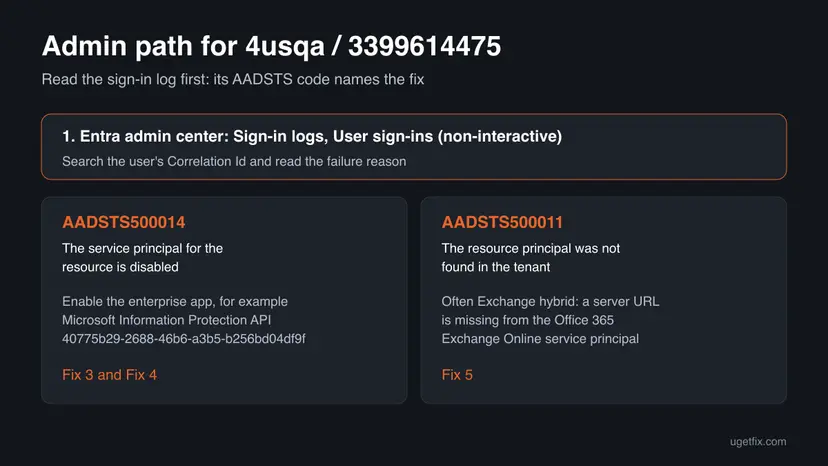
The client window never says which app was refused. An Exchange MVP found the 4usqa failures under the non-interactive sign-ins, where the app requests tokens in the background, with the AADSTS code that names the problem.
- Sign in to the Microsoft Entra admin center at
https://entra.microsoft.comwith an administrator account. - Open Sign-in logs and switch to the User sign-ins (non-interactive) tab.
- Filter by the user and by the Correlation Id or the Timestamp from Fix 2.
- Open the failed entry and read the failure reason and its AADSTS number.
- For AADSTS500014 (The service principal for the resource is disabled), continue with Fix 4. For AADSTS500011 (The resource principal was not found in the tenant), go to Fix 6.
It worked if: A failed entry with an AADSTS code and the name or ID of the resource that was refused.
If not: If no failed entry exists for the Correlation Id, check the interactive sign-ins tab too, then return to Fix 7 for the PC.
Fix 4. For administrators: enable sign-in for the Microsoft Information Protection API
10 minutesLow riskThe log shows AADSTS500014, or most users got 4usqa at the same time.
Microsoft's known issue names a disabled service principal with resource ID 40775b29-2688-46b6-a3b5-b256bd04df9f as the cause and gives this as the mitigation. Classic Outlook, and with it the shared Microsoft 365 sign-in, needs that app for protected content.
- In the Microsoft Entra admin center, search for Information Protection or
40775b29-2688-46b6-a3b5-b256bd04df9f. - Select Microsoft Information Protection API in the results.
- On its page, set Enabled for users to sign-in to Yes.
- Select Save.
- Ask an affected user to quit Teams and Outlook fully and open them again, as in Fix 1.
Microsoft says it fixed the May 2025 wave on 14 May 2025. If the app is disabled in your tenant today, someone or something changed it later, for example a script that disables unused enterprise apps. Check the audit log so it does not happen again.
It worked if: The next sign-in attempt in the log succeeds, and Teams and Outlook open after a restart.
If not: If the app was already enabled, look for another disabled service principal with Fix 5.
Fix 5. For administrators: enable the other service principal the log names
15 minutesLow riskAADSTS500014 with a resource other than the Microsoft Information Protection API.
AADSTS500014 says that a resource's service principal is disabled, not which one. Users on Microsoft Q&A also pointed at a disabled Office 365 Exchange Online service principal. The same switch applies to any Microsoft app the log names.
- Copy the resource ID or name from the failed entry in Fix 3.
- In the Microsoft Entra admin center, search for that ID or name and open the enterprise app.
- Check Enabled for users to sign-in. If it is No, set it to Yes and select Save.
- If the search finds no app at all, the error is AADSTS500011 in practice: go to Fix 6.
- Have the user restart Teams and check the log again.
Enabling a Microsoft first-party app restores a normal default. Do not enable third-party apps that your security team turned off on purpose; if the log names one, ask the owner of that decision first.
It worked if: The sign-in log shows a success for the same user and resource.
If not: If the code stays with no disabled app in sight, open a case with Microsoft support with the Correlation Id.
Fix 6. For Exchange hybrid: register missing server names in Entra ID
30 minutesRead the warningExchange Server on-premises with hybrid modern authentication, the log shows AADSTS500011, and the errors began after a new Exchange server or URL.
An Exchange MVP traced 4usqa to a new Exchange SE server whose URL was not yet listed in the Office 365 Exchange Online service principal. Outlook asked Entra ID for a token for that name, and Entra ID found no matching app.
A wrong change to the service principal names can break modern authentication for every on-premises mailbox. Save the output of the first command before you add anything, and add names only; never replace the list.
- Open PowerShell as administrator and run
Install-Module Microsoft.Graph -Scope AllUsersif the module is missing. - Run
Connect-MgGraph -Scopes Application.Read.All, Application.ReadWrite.Alland sign in as an administrator. - List the registered names with the first command below and save the output.
- Compare it with the internal and external URLs of every Exchange server, including the new one.
- Add only the missing URLs with the second command, then let the user restart Outlook and Teams.
Check and extend the Exchange Online service principal names (replace mail.example.com with your own URL)
Get-MgServicePrincipal -Filter "AppId eq '00000002-0000-0ff1-ce00-000000000000'" | select -ExpandProperty ServicePrincipalNames

$HMAApp = Get-MgServicePrincipal -Filter "AppId eq '00000002-0000-0ff1-ce00-000000000000'"
$HMAApp.ServicePrincipalNames += "https://mail.example.com/"
Update-MgServicePrincipal -ServicePrincipalId $HMAApp.Id -ServicePrincipalNames $HMAApp.ServicePrincipalNames
It worked if: The new URL appears in the list, and users who reach on-premises content sign in without 4usqa.
If not: If you use a load-balanced common name instead, set the new server's virtual directories to that name so no new URL is needed.
Fix 7. If only this PC fails: reset the stored work account in Windows
15 minutesRead the warningteams.microsoft.com works, colleagues are fine and IT confirmed the tenant is in order, but this PC still shows 4usqa.
Teams on Windows signs in through the Windows account broker, which keeps a copy of the work account. After a tenant fix, an old copy can keep asking in a way that fails. We could not confirm from a Microsoft document that this step clears 4usqa; it is the last step for a single PC.
Disconnecting the account signs Teams, Outlook and OneDrive out on this PC. Make sure you know your password and have your phone for the second factor. Do not disconnect an account that joined the PC to the organisation (Entra joined) without IT.
- Quit Teams and Outlook as in Fix 1.
- Press Win + I and open Accounts > Access work or school. The path is the same on Windows 11 and Windows 10.
- Select the work or school account, then Disconnect, and confirm.
- Restart the PC.
- Open Teams and sign in with your work address. Windows adds the account back.
If the account cannot be disconnected or the error stays, the stored account cache can also be emptied by hand. Our guide to sign-in error CAA2000C has those steps for the TokenBroker folder and the sign-in plug-in.
It worked if: Teams asks for your address as on a new PC, and after the sign-in it opens without the window.
If not: If 4usqa returns, send the new Correlation Id to IT: the refusal is still in the tenant.
If error 3399614475 is still there: what to check and send
This code is decided by the sign-in service, so the answer is almost always in the Entra sign-in log, not on the PC. Changing more things on Windows rarely helps once Fix 1 and Fix 7 are done.
| What you see | Likely reason | Who can fix it |
|---|---|---|
| Browser and app both refused, many users | A disabled service principal in the tenant | An administrator, with Fix 3 to Fix 5 |
| Only Outlook users with on-premises mailboxes | Exchange hybrid names missing in Entra ID | The Exchange administrator, with Fix 6 |
| Browser works, one PC fails | Old account data on that PC | You, with Fix 7 |
| Log shows a success, but the app still fails | The app has not picked up the change | You, with a full quit and restart |
- For Microsoft support: the Correlation Id, Timestamp, Tag and Code, the AADSTS number from the log, the app and its version, and whether the browser works.
- Check Service health in the Microsoft 365 admin center first. Microsoft tracked the May 2025 wave as EX1072812; a new wave would get its own incident.
- Do not post the DPTI line or the Correlation Id publicly. Moderators on Microsoft Q&A remove account details from public posts.
How to keep error 3399614475 from coming back
Once the right enterprise apps are enabled, the code does not return on its own. It comes back when a tenant setting is changed again, so prevention is mostly an administrator's job.
- Never disable Microsoft first-party enterprise apps in bulk. Review a clean-up script's list before it runs, and keep the Microsoft Information Protection API enabled.
- Watch Service health and the audit log: a changed Enabled for users to sign-in value shows who or what turned an app off.
- Before adding an Exchange server, add its URLs to the Exchange Online service principal or use a shared name, as in Fix 6.
- Keep Teams and Windows updated, so the account broker and the Teams sign-in follow Microsoft's current changes. Windows 10 left support on 14 October 2025.
Frequently asked questions
What does code 3399614475 mean?
Code 3399614475 is the decimal way of writing the Microsoft 365 sign-in error 0xCAA2000B. It appears with Tag 4usqa and the message Access denied for the resource. It means Microsoft Entra ID, your organisation's sign-in service, refused a token for one of the Microsoft services the app needs. Your password and your PC are usually fine. The fix is a tenant setting that an administrator changes, most often by enabling a disabled enterprise app.
What is Tag 4usqa with Code 3399614475?
Tag 4usqa marks the place where the shared Microsoft 365 sign-in component stopped, and Code 3399614475 is the error number. Microsoft's known issue shows the same failure as error CAA2000B with AADSTS500014, The service principal for the resource is disabled. In May 2025 the disabled app was the Microsoft Information Protection API in many tenants. Microsoft fixed that wave on 14 May 2025; later cases need an administrator to check the sign-in log.
Why does Teams show 3399614475 when Outlook is the app in Microsoft's article?
Teams, classic Outlook and the other Microsoft 365 apps on Windows use the same sign-in through Windows and Entra ID. When the tenant refuses a token, the same window with the same tag and code can appear in any of them. Microsoft's article names classic Outlook and Outlook for Mac, and most reports we read came from Outlook. The fixes on this page are the same for Teams.
Can I fix 3399614475 myself without IT?
Only in part. Restarting Teams fully and testing teams.microsoft.com takes five minutes and helps after the tenant has been fixed. If the browser fails too, or colleagues see the same code, the refusal sits in your organisation's Entra ID, and only an administrator can change it. In a small business without IT, the Global administrator who bought Microsoft 365 can follow Fix 3 and Fix 4 in about 15 minutes.
Will reinstalling Teams or clearing its cache fix the error?
Not when the tenant refuses the token, which is the usual cause. Teams would install and start cleanly and then show the same window, because the sign-in service still says Access denied for the resource. Clearing the cache only deletes local files. Use Fix 1 to see whether the problem is in the account, and reset the stored account with Fix 7 only when the browser works and only one PC fails.
What is the Microsoft Information Protection API, and is it safe to enable?
It is a Microsoft first-party enterprise app with the ID 40775b29-2688-46b6-a3b5-b256bd04df9f that Office apps use for protected and labelled content. Microsoft's own mitigation for 4usqa is to set Enabled for users to sign-in to Yes for it. That restores the normal default. It does not open data to anyone new, because users still need their own sign-in and permissions.
Is 3399614475 a TPM or driver problem?
No source we read ties this code to the TPM or to any driver. The older version of this page suggested updating the TPM driver, but the error message says Access denied for the resource, and the admin log shows a disabled or missing service principal. TPM problems show other codes. Updating drivers does no harm, but it will not remove 4usqa.
Microsoft 365 error 3399614475 in Japanese or another language: is it the same?
Yes. The code is the same in every language of Microsoft 365, and only the message is translated. A Japanese window shows the same Code 3399614475 and Tag 4usqa, and the same fixes apply. This page is in English, but the menu names in the Microsoft Entra admin center follow your language setting, so look for the same items in your language.
Is this a general Teams issue or an outage?
It was a wide issue once: from about 7 May 2025 many organisations got 4usqa, and Microsoft tracked it as incident EX1072812 and fixed it on 14 May 2025. Today a single organisation's settings cause it. An administrator can check Service health in the Microsoft 365 admin center to rule out a new incident before changing anything.
Sources
- Microsoft Support: Errors CAA2000B, 4usqa and 49dvs when trying to sign in to classic Outlook and Outlook for Mac (known issue, status fixed, Microsoft Information Protection API mitigation) (support.microsoft.com)
- Microsoft Q&A: My business is suddenly receiving error 4usqa and code 3399614475 in Outlook (error details, user answers) (learn.microsoft.com)
- MSXFAQ: Fehler 4usqa Code 3399614475 (Entra non-interactive sign-in logs, AADSTS500011, Exchange hybrid modern authentication) (msxfaq.de)
Did this fix work?
One click, no account. It tells the next reader which guides are worth their time.
Questions and experiences: fix Microsoft Teams error code 3399614475 (Tag 4usqa) in Windows
Still broken, or found a fix we did not cover? Ask here: members and our editors answer. Reading is open; writing needs a free account.
…