
How to fix Microsoft Visual C++ Redistributable error 0x80070641?

Prefer to fix it yourself? The manual steps follow.
- 7methods
- 5 to 30 minutes
- Intermediate
Applies to Windows 11 and Windows 10: the Microsoft Visual C++ Redistributable setup, and any other setup that uses Windows Installer (.msi), such as NVIDIA drivers or Python
7 methods in this guide
Hi, I had trouble launching a game and problems with File Explorer, so I chose to reset Windows. After that, I could not bring Windows up to date: I got error 0x80070641 while trying to install the Visual C++ Redistributables. They are essential for my games. Please help.
Error 0x80070641 is Windows Installer error 1601: the setup could not reach the Windows Installer service, so Visual C++ cannot install. The download is fine. Start the Windows Installer service first, then re-register it if the code stays.
0x80070641 means the Visual C++ setup could not reach the Windows Installer service, the part of Windows that installs .msi packages. Nothing is wrong with the download. Open services.msc, start Windows Installer and make sure it is not Disabled (Fix 1). If the code stays, re-register the service with msiexec /unregister and msiexec /regserver (Fix 2), restart, and run the Visual C++ setup again as administrator.
| Error | 0x80070641: Windows Installer error 1601, ERROR_INSTALL_SERVICE_FAILURE. Microsoft: "The Windows Installer service couldn't be accessed." |
|---|---|
| Where it appears | The Setup Failed window of the Microsoft Visual C++ Redistributable, other setups that run .msi packages (NVIDIA, Python, games), and sometimes Settings > Windows Update. |
| Main cause | The Windows Installer service (msiserver) is disabled, stuck, or its registration is broken, often after a reset or a tweak tool. |
| Fastest fix | Start Windows Installer in services.msc and set it to Manual if it says Disabled (Fix 1). |
| Also written as | 0x80070641, (0x80070641), 80070641, error 1601, -2147023295, "The Windows Installer Service could not be accessed". |
| Affects | Windows 11 and Windows 10, every edition. Windows 10 left support on 14 October 2025, the service works the same. |
| Normal state | Service name msiserver, display name Windows Installer, startup type Manual. It starts when a setup needs it and may show as not running. |
| Microsoft's status | Not a known bug in Visual C++. Microsoft's error list asks you to verify that the Windows Installer service is properly registered (read 15 October 2026). |
| Not the cause | .NET Framework and the Windows Update troubleshooter. Older guides started with these; neither touches Windows Installer. |
| Time to fix | 2 minutes for Fix 1, 5 minutes for Fix 2, up to an hour for a repair install. |
Facts checked on 15 October 2026. Steps written for Windows 11 (25H2 and 26H2) and Windows 10 22H2.
What Visual C++ Redistributable error 0x80070641 means
0x80070641 is a Windows Installer error in the eight digit form that setup programs print. 0x8007 marks a Win32 error wrapped for programs, and 0641 is 1601 in hexadecimal. Microsoft's list of Windows Installer errors names 1601 ERROR_INSTALL_SERVICE_FAILURE: "The Windows Installer service couldn't be accessed. Contact your support personnel to verify that the Windows Installer service is properly registered."
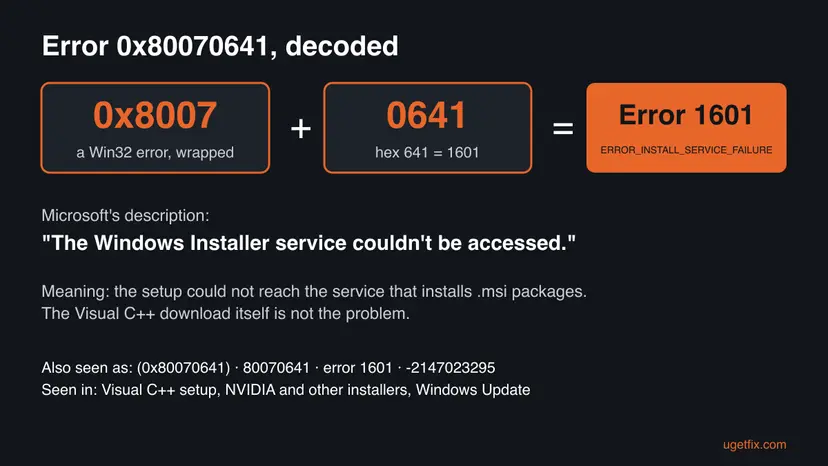
The Visual C++ Redistributable setup is a bundle that installs its parts as .msi packages through Windows Installer. When the bundle cannot reach that service, it stops before it copies a single file. So the fix is in Windows, not in the Visual C++ download, and the same code can stop an NVIDIA driver, Python or a game setup on the same PC.
| What you see | Where |
|---|---|
| Setup Failed with "0x80070641 - The Windows Installer Service could not be accessed." | The Microsoft Visual C++ Redistributable setup window, with a link to its log file |
| "There were some problems installing updates, but we'll try again later. If you keep seeing this and want to search the web or contact support for information, this may help: (0x80070641)" | Settings > Windows Update, when an update installs through Windows Installer |
| Return code 1601 | Logs of msiexec and of deployment tools |
| 0x80070641 in a driver or game setup | NVIDIA, Python and other setups that run .msi packages |
Some people search for 0xc8000641. It ends in the same 0641, but we could not confirm a Microsoft description for that exact code. If your screen shows it during an install or an update, the Windows Installer checks below are the place to start.
Why error 0x80070641 happens, from most to least likely
Every cause sits between the setup and the Windows Installer service, because that is what 1601 means. The ranking follows Microsoft's description of the code and the answers Microsoft's support staff give on its Q&A forum for this exact Visual C++ error. Each cause points to its fix.
| Cause | How often | How to tell | Fix |
|---|---|---|---|
| The Windows Installer service is Disabled or stuck. | Most often | services.msc shows Disabled, or Start fails. | Fix 1 |
| The service's registration is broken. | Often | The service runs, yet every .msi setup stops with 0x80070641. | Fix 2 |
| The startup type cannot be changed in Services. | Sometimes | The Startup type list is greyed out. | Fix 3 |
| Windows is still busy after a reset or an update. | Sometimes | Settings > Windows Update shows pending updates or Restart now. | Fix 4 |
| Damaged system files. | Less often | sfc /scannow reports files it could not repair. | Fix 5, Fix 7 |
| A third party tool blocks the service. | Rarely | The setup works after a clean boot. | Fix 6 |
Turning on .NET Framework 3.5 or installing a newer .NET does not change Windows Installer, and the Visual C++ setup does not need .NET. The Windows Update troubleshooter does not repair the Windows Installer service either. Setting the service to Automatic is not needed: Manual is its normal state.
How to fix Microsoft Visual C++ Redistributable error 0x80070641
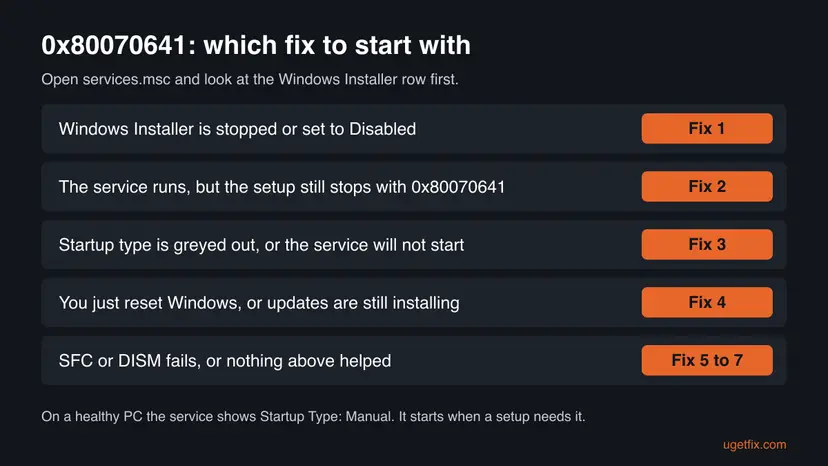
Fix 1 takes two minutes and fixes the most common cause, so everybody starts there. Fix 2 and Fix 3 repair the service when it runs but still fails, or when Services will not let you change it. Fix 4 installs Visual C++ the right way once the service works. Fixes 5 to 7 repair Windows itself.
| What you see or have | Start with |
|---|---|
| Windows Installer shows Disabled, or it is stopped and will not start. | Fix 1 |
| The service starts, but the setup still fails with 0x80070641. | Fix 2 |
| The Startup type list is greyed out in Services. | Fix 3 |
| You just reset Windows, or Windows Update is still installing. | Fix 4 |
| SFC or DISM reports errors. | Fix 5 |
| Every fix above failed. | Fix 6, then Fix 7 |
Fix 1. Start the Windows Installer service and set it back to Manual
2 minutesNo riskAlways first, above all when Services shows Windows Installer as Disabled.
0x80070641 means the setup could not access this service. A disabled service cannot start when the Visual C++ bundle asks for it, and a stuck one does not answer. A restart of the service or a return to Manual clears both.
- Close the Setup Failed window.
- Press Win + R, type
services.mscand press Enter. - Click any row and type W to jump to the services that start with W. Find Windows Installer.
- If Startup Type says Disabled, double-click the service, set Startup type to Manual, then select Apply.
- Select Start in the same window, or right-click the row and select Restart if it is already running.
- Select OK and run the Visual C++ setup again.
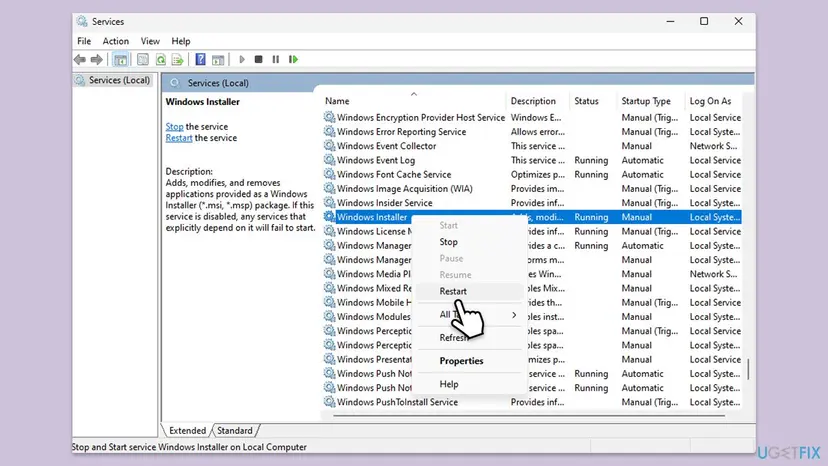
Microsoft's support staff also suggest checking Windows Modules Installer in the same list, because Windows uses it to install updates and components. It should not be Disabled either. Step by step for Services: Check and restart Windows services.
It worked if: Windows Installer shows Manual and starts without an error, and the Visual C++ setup ends with Setup Successful.
If not: If the service starts but the setup still fails, re-register it with Fix 2. If the Startup type list is greyed out or Start shows an error, go to Fix 3.
Fix 2. Re-register the Windows Installer service
5 minutesLow riskThe service starts, but every .msi setup still stops with 0x80070641.
Microsoft's description of 1601 asks you to verify that the Windows Installer service is properly registered. msiexec /unregister removes the service's registration and msiexec /regserver writes it again from the files Windows already has.
- Right-click Start and select Terminal (Admin). On Windows 10, search for
cmdand select Run as administrator. - Select Yes when User Account Control asks.
- Remove the current registration. Nothing appears on screen when it works.
msiexec /unregister - Register the service again.
msiexec /regserver - Restart the PC with Start > Power > Restart.
- Run the Visual C++ setup again.
Without admin rights the commands fail without a clear message. If the terminal title does not say Administrator, close it and open it again with Terminal (Admin).
It worked if: Both commands return to the prompt without an error, and after the restart the setup finishes.
If not: If the code stays, check whether the service can start at all with Fix 3.
Fix 3. Fix a greyed out startup type from the command line
5 minutesLow riskThe Startup type list for Windows Installer cannot be changed, or Start shows an error.
Users on Microsoft's forum report that the startup type for this service cannot be clicked after a reset. The built-in sc tool reads and changes a service without the Services window, so it shows the real state and can set it back to Manual.
- Right-click Start and select Terminal (Admin).
- Read the service settings. Look at the line START_TYPE.
sc qc msiserver - If it says DISABLED, set it back to Manual. Type the space after
start=exactly as shown.sc config msiserver start= demand - Start the service.
sc start msiserver - Check the result. STATE should say RUNNING or START_PENDING.
sc query msiserver - Run the Visual C++ setup again.
| What you see | What it means | Next |
|---|---|---|
START_TYPE : 3 DEMAND_START | Manual, the normal state | Start it and retry the setup |
START_TYPE : 4 DISABLED | Disabled, setups cannot reach it | Run the sc config line above |
[SC] OpenService FAILED 1060 | The service is missing | Fix 5, then Fix 7 |
Access is denied | The terminal has no admin rights | Open Terminal (Admin) |
It worked if: sc query msiserver shows RUNNING, and the Services window shows Manual for Windows Installer.
If not: If the service is missing or will not start, Windows files are damaged. Go to Fix 5.
Fix 4. Let Windows finish updating, then install the latest Visual C++ package
15 minutesNo riskYou just reset or reinstalled Windows, Windows Update is still working, or the service now runs.
Right after a reset, Windows installs many updates and components in the background. Once that is done and the PC has restarted, a fresh copy of the current Visual C++ v14 package from Microsoft installs through a clean Windows Installer session.
- Open Settings > Windows Update and select Check for updates. Install everything it offers.
- If it shows Restart now, restart, and repeat until no updates are pending.
- Download the setup again from Microsoft's own page, linked below. Do not reuse an old copy from a game folder.
- Find the installed versions. Look for the entries that start with Microsoft Visual C++. Each one shows a year and an architecture, x64 or x86. Several entries side by side are normal: older versions stay installed next to newer ones.
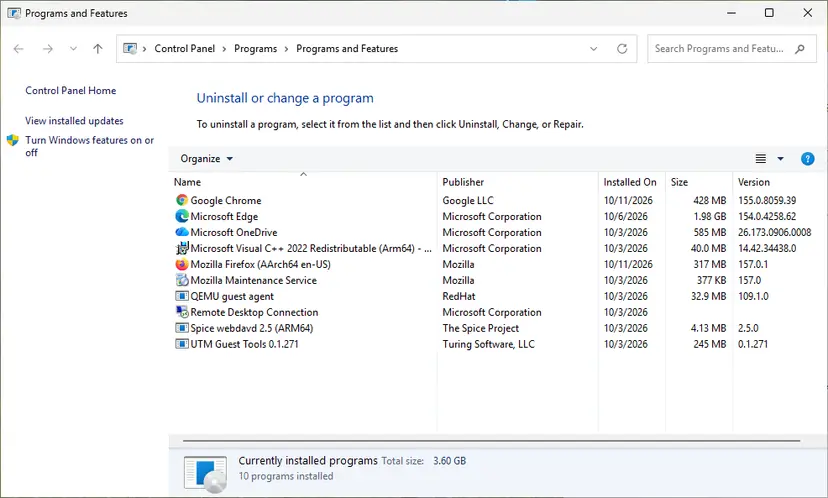
Each Visual C++ version is its own entry in Programs and Features. Screenshot: Windows 11 26H2. - Repair each Visual C++ entry. Right-click an entry and select Change, then select Repair in the window that opens. Do the same for every Microsoft Visual C++ entry.
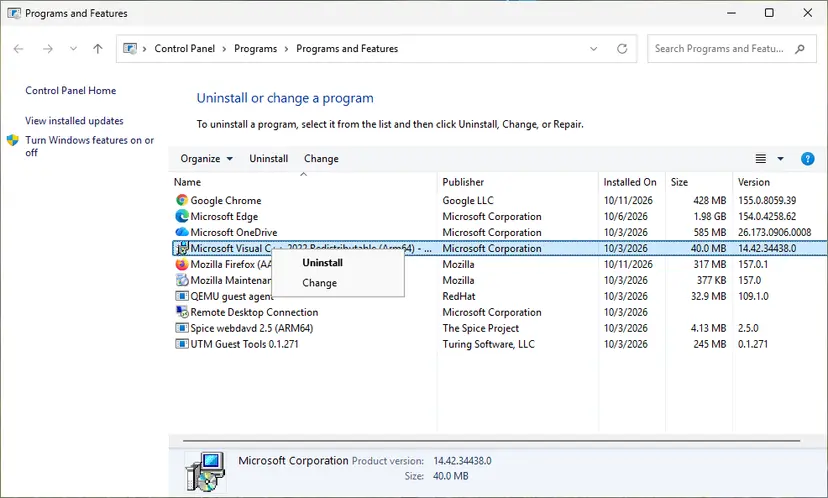
Right-click the entry and select Change to reach the repair option. Screenshot: Windows 11 26H2. - Install the latest supported version. Download the latest Visual C++ v14 Redistributable from Microsoft: Visual C++ Redistributable latest supported downloads and run it. On a 64-bit PC install both X64 and X86, because 32-bit programs need the x86 package. On an ARM64 PC install ARM64. This one version serves programs built with Visual Studio 2017 to 2026.
These steps were written for Windows 11 25H2 and 26H2, Windows 10 22H2. The full page with the other versions and what each result means: How to repair Microsoft Visual C++ Redistributable and .NET Framework
Microsoft's current package is the Visual C++ v14 Redistributable, which covers programs built with Visual Studio 2017 to 2026. Support for the Visual C++ 2015 package (version 14.0.24212) ended on 15 October 2025, so install the latest v14 one instead. Right-click the downloaded file and select Run as administrator.
It worked if: The setup shows Setup Successful, and Programs and Features lists the new Microsoft Visual C++ v14 entries for x64 and x86.
If not: If the setup still stops with 0x80070641, open its log file link and look for the line with 0x80070641, then go on to Fix 5.
Fix 5. Repair system files with SFC and DISM
20 to 30 minutesLow riskThe service is missing, will not start, or Fixes 1 to 4 did not help.
The Windows Installer service runs from Windows files such as msiexec.exe and msi.dll. If one of them is damaged, starting or registering the service fails. DISM repairs the Windows image and SFC then replaces damaged files from it.
- Open an elevated command window. Right-click Start and select Terminal (Admin), or type cmd in the search box, right-click Command Prompt and select Run as administrator. Select Yes when Windows asks for permission.

Search for cmd and choose Run as administrator. Screenshot: Windows 11 26H2. - Run DISM first. Type the command below and press Enter. DISM downloads clean copies of damaged components from Windows Update, so it can take several minutes. Wait until it says The operation completed successfully.
DISM.exe /Online /Cleanup-Image /RestoreHealth
DISM /RestoreHealth running. Screenshot: Windows 11 26H2. - Run System File Checker. In the same window, type the command below and press Enter. Do not close the window until the verification reaches 100%.
sfc /scannow
sfc /scannow at 100%. Screenshot: Windows 11 26H2. - Read the result and restart. Compare the last message with the table below this guide, then restart the PC so that repaired files are loaded.

The result line tells you what SFC did. Screenshot: Windows 11 26H2.
These steps were written for Windows 11 24H2 and 25H2. The full page with the other versions and what each result means: Run DISM and SFC to repair Windows system files
Run DISM first when SFC stops partway or reports files it could not repair. After both finish, restart, then repeat Fix 1 and Fix 2 before you run the Visual C++ setup again.
It worked if: SFC reports that it found no integrity violations or that it repaired them, and the Windows Installer service starts.
If not: If DISM fails with an error, or SFC still finds files it cannot repair, go to Fix 7.
Fix 6. Try the setup after a clean boot
15 minutesLow riskThe service runs and Windows files are fine, yet the setup still fails.
A clean boot starts Windows with only Microsoft services. If a security suite, tweak tool or old management agent blocks Windows Installer, the setup works in this state and you know a third party program is the cause.
- Open System Configuration. Select Search on the taskbar, type msconfig and select System Configuration from the results.
- Hide Microsoft services. On the Services tab, select the Hide all Microsoft services check box. Only services from other companies stay in the list.

With Hide all Microsoft services ticked, only third-party services stay in the list. Screenshot: Windows 11 26H2. - Disable the remaining services. Select Disable all, then select Apply.
- Open Task Manager. On the Startup tab of System Configuration, select Open Task Manager.

The Startup tab only links to Task Manager. Screenshot: Windows 11 26H2. - Disable the startup apps. On the Startup apps tab in Task Manager, select each item whose status is Enabled and select Disable. Write down or take a screenshot of the items you disable: you need the list to turn them back on.

Select an app, then Disable. Screenshot: Windows 11 26H2. - Confirm the changes. Close Task Manager. On the Startup tab of System Configuration, select OK.
- Restart and test. Restart the PC. Windows now starts in a clean boot environment: try again the thing that failed (run the app, install the update, uninstall the program).
These steps were written for Windows 11 25H2 and 26H2. The full page with the other versions and what each result means: How to perform a clean boot in Windows
Run the Visual C++ setup while the clean boot is active. If it works, turn the other services back on in small groups until the error returns, then update or remove that program. Undo the clean boot when you are done.
It worked if: The Visual C++ setup finishes in the clean boot, and you can name the program that blocked it.
If not: If the setup fails in a clean boot too, the cause is inside Windows. Go to Fix 7.
Fix 7. Repair Windows with an in-place upgrade that keeps your files
45 to 90 minutesRead the warningSFC and DISM fail, the service is missing, or nothing above worked.
An in-place upgrade reinstalls Windows over itself and writes a fresh copy of every system service, Windows Installer included. Microsoft's support staff suggest it for this exact Visual C++ error when SFC and DISM fail.
The repair keeps your files and apps when you choose to keep them, but a failure during setup can still cost data. Copy your personal files to an external drive or cloud storage before you start. Microsoft's staff note that the system drive may need 15 to 20 GB of free space.
- Open Recovery in Settings. Open Settings > System > Recovery. Next to Fix problems using Windows Update, select Reinstall now. This keeps your apps, files and settings.

Fix problems using Windows Update reinstalls the current version and keeps apps, files and settings. Screenshot: Windows 11 26H2. - Start the reinstall. Choose whether the PC may restart on its own 15 minutes after the installation, then select OK.
- Wait and restart. Windows Update downloads and installs a repair copy of your current Windows version. Keep the PC plugged in and online, and restart it when asked.
- If that did not help: Reset PC. Back in Settings > System > Recovery, next to Reset this PC, select Reset PC. This keeps your personal files but removes installed apps and settings.
- Choose Keep my files. Select Keep my files. Do not select Remove everything.
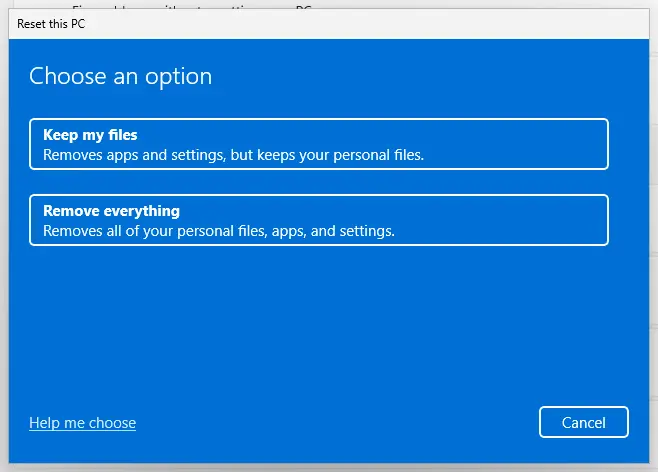
Keep my files removes apps and settings but keeps personal files. Screenshot: Windows 11 26H2. - Choose where Windows comes from. Select Cloud download to download a fresh copy of Windows, or Local reinstall to use the files already on the PC (faster, but may not include the latest updates).
- Reset. Review the summary and select Reset. The PC restarts several times.
These steps were written for Windows 11 22H2 and later. The full page with the other versions and what each result means: Reinstall Windows without losing files
It worked if: Windows starts on the same version with your files and apps, and the Visual C++ setup finishes.
If not: If even a repair install does not help, read the section below and contact Microsoft support with the logs.
If error 0x80070641 is still there: what to check and send
Error 1601 always means the setup could not reach Windows Installer, so the question is why the service is not available. These places show it.
| Check | Where | What it tells you |
|---|---|---|
| Setup log | The log file link in the Setup Failed window, saved in your %TEMP% folder | The package that failed and the line with 0x80070641. |
| Service state | sc query msiserver and sc qc msiserver from Fix 3 | Whether the service exists, runs and is Disabled. |
| Event Viewer, System | Event Viewer > Windows Logs > System, source Service Control Manager | Why the Windows Installer service failed to start. |
| Event Viewer, Application | Event Viewer > Windows Logs > Application, source MsiInstaller | The product name and the result of each install attempt. |
- What to send to support: the setup log, the output of
sc query msiserver, your Windows version from Settings > System > About, and the SFC result. - On a work PC: a company may manage services and installs. Send the same details to IT instead of changing services yourself.
- It is not hardware: 1601 is a service problem. A failing disk can damage the files behind it, which SFC then reports.
- A related install error: a policy block shows a different code. See our guide to error 0x80070659.
How to keep 0x80070641 from coming back
- Leave Windows Installer on Manual. Do not disable it to save memory: it runs only while something installs.
- Avoid tweak and debloat tools that disable services in bulk. Note what each one changes before you apply it.
- After a reset, let Windows Update finish and restart before you install games and runtimes.
- Get Visual C++ only from Microsoft's page, and keep the latest v14 package installed in both x64 and x86.
The Visual C++ v14 Redistributable serves programs built with Visual Studio 2017 to 2026. Older entries such as 2010 or 2013 stay installed next to it because some programs still need them. Do not remove them to clean up.
Frequently asked questions
What is error 0x80070641?
It is Windows Installer error 1601 in the eight digit form that setup programs print. Microsoft names it ERROR_INSTALL_SERVICE_FAILURE and describes it as "The Windows Installer service couldn't be accessed." The setup asked Windows Installer to install an .msi package and got no working service back. Start the service in services.msc first (Fix 1), then re-register it with msiexec /regserver if the code stays (Fix 2).
Why does the Visual C++ Redistributable fail with 0x80070641 after a Windows reset?
After a reset, Windows is still installing updates and components, and some reset or tweak routines leave the Windows Installer service disabled. The Visual C++ setup then cannot reach the service and stops with 0x80070641. Check Windows Installer in services.msc (Fix 1), let Windows Update finish and restart, then run the latest Visual C++ v14 setup as administrator (Fix 4).
What does "There were some problems installing updates" with (0x80070641) mean?
It is the Windows Update version of the same error. Some updates install through Windows Installer, and when Windows Update cannot reach the service, it shows this message with (0x80070641). Start the Windows Installer service (Fix 1), re-register it if needed (Fix 2), restart, and select Retry in Settings > Windows Update.
Should Windows Installer be set to Automatic?
No. The normal startup type of Windows Installer is Manual, which means Windows starts it when a setup asks for it. Many guides say to set it to Automatic, but that is not needed. What matters is that it is not Disabled. If the service shows as not running while nothing installs, that is normal too.
The startup type of Windows Installer is greyed out. What can I do?
Use the command line instead of the Services window. In Terminal (Admin), run sc qc msiserver to read the startup type, then sc config msiserver start= demand to set it to Manual and sc start msiserver to start it. Fix 3 has the steps and what each answer means. If sc says the service does not exist, repair Windows files with Fix 5 and Fix 7.
Do I need .NET Framework to fix 0x80070641?
No. The Visual C++ Redistributable does not need .NET Framework, and turning .NET on or off does not change the Windows Installer service. Older guides started with .NET, but it does not touch the cause of 1601. If a game also asks for .NET Framework 3.5, turn it on in Windows Features separately: How to repair Microsoft Visual C++ Redistributable and .NET Framework.
Does 0x80070641 also stop NVIDIA drivers and Python?
Yes. Any setup that installs .msi packages needs the Windows Installer service, so NVIDIA driver setups, the Python installer and many game launchers can show the same code on the same PC. Fix the service once with Fix 1 to Fix 3, and all of them can install again. If an NVIDIA setup shows a different code, see our guide to NVIDIA installer error 0xE6000000.
What is 0xc8000641?
We could not confirm a Microsoft description for 0xc8000641. It ends in the same 0641 as 0x80070641, which is Windows Installer error 1601, but the first part differs. If it appears during an install or an update, check the Windows Installer service with Fix 1 to Fix 3, because that is what the 0641 part points to.
None of this works, what else can I try?
Work down the fixes in order and do not skip Fix 2 and Fix 3, which repair the service itself. Then run SFC and DISM (Fix 5), test a clean boot (Fix 6) and, as a last step, repair Windows in place (Fix 7). Questions in other languages, such as Spanish "nada de eso me funciona" or "nada no sirve", Arabic "ماذا افعل" or Russian "какие еще способы есть?", get the same answer: the code and the steps are the same in every Windows language.
Are there pictures of the steps?
Yes. The fixes show real Windows screens of Services, the command window, SFC and DISM, the clean boot and the repair install, plus two charts that decode the code and help you pick a fix. This page is about error 0x80070641, so it does not show the Visual C++ or Microsoft logo, only the screens you need for the fix.
Sources
- Microsoft Learn: MsiExec.exe and InstMsi.exe error messages, error 1601 ERROR_INSTALL_SERVICE_FAILURE (learn.microsoft.com)
- Microsoft Learn: Latest supported Visual C++ Redistributable downloads (learn.microsoft.com)
- Microsoft Q&A: Error 0x80070641, I can't install Microsoft Visual C++ Redistributables (learn.microsoft.com)
Did this fix work?
One click, no account. It tells the next reader which guides are worth their time.
Questions and experiences: fix Microsoft Visual C++ Redistributable error 0x80070641
Still broken, or found a fix we did not cover? Ask here: members and our editors answer. Reading is open; writing needs a free account.
…