
How to fix "MMC could not create the snap-in" error in Windows?

Prefer to fix it yourself? The manual steps follow.
- 8methods
- 5 to 30 minutes
- Easy
Applies to Windows 11 and Windows 10: Event Viewer, Task Scheduler, Device Manager, Computer Management and consoles of other programs
8 methods in this guide
- What the error means
- Why it appears
- The fixes
- 1. Clear Event Viewer views
- 2. Reset saved MMC settings
- 3. Turn on .NET Framework
- 4. Check snap-in policies
- 5. Repair the snap-in's program
- 6. Repair .NET and Visual C++
- 7. Install Windows updates
- 8. Repair system files
- If it is still there
- Keep it from coming back
- FAQ
I was trying to open Event Viewer to check information about crashes I had, and I got the error "MMC could not create the snap-in." Then I noticed the same issue when opening Device Manager and Task Scheduler. What is happening, and how can I fix this? I am using the latest version of Windows.
"MMC could not create the snap-in" means the Microsoft Management Console started, but the tool inside it (Event Viewer, Task Scheduler, Device Manager) failed to load. Most often a saved view or a saved console settings file is damaged, not Windows itself. Clear Event Viewer's custom views first (Fix 1), then reset the console's settings file (Fix 2).
The console (mmc.exe) opened, but the snap-in, the tool it should show, failed to load. In Event Viewer the usual trigger is a damaged custom view in C:\ProgramData\Microsoft\Event Viewer\Views: move the View_*.xml files out (Fix 1). For other consoles, rename the saved settings file in %AppData%\Microsoft\MMC (Fix 2). If the message ends with "because of current user policies", a policy blocks the snap-in (Fix 4).
| Error | MMC could not create the snap-in. The snap-in might not have been installed correctly. It is followed by the snap-in's Name and CLSID. |
|---|---|
| Where it appears | In a Microsoft Management Console window, right after you open Event Viewer, Task Scheduler, Device Manager, Computer Management or a console of another program. |
| Main cause | A damaged saved view or saved console settings file. Less often a broken .NET Framework, which the snap-ins marked FX: in the CLSID need. |
| Fastest fix | Event Viewer: move the View_*.xml files out of C:\ProgramData\Microsoft\Event Viewer\Views (Fix 1). Other consoles: rename the file in %AppData%\Microsoft\MMC (Fix 2). |
| Also written as | MMC cannot initialize the snap-in, MMC could not create the snapin, MMC snap-in error, MMC has detected an error in a snap-in and will unload it. |
| Related message | MMC cannot create the snap-in because of current user policies is a block set by Group Policy, not damage (Fix 4). |
| Affects | Windows 11 and Windows 10. Windows 10 left support on 14 October 2025. |
| Microsoft's status | Microsoft confirmed one form in 2019 (KB4508640): Custom Views in Event Viewer crashed after the June 2019 updates. It was fixed in later updates. |
| Time to fix | 2 minutes for Fix 1 or 2, up to 30 minutes for the repairs at the end. |
Facts checked on 15 October 2026. Steps written for Windows 11 (25H2 and 26H2) and Windows 10 22H2.
What "MMC could not create the snap-in" means
Event Viewer, Task Scheduler, Device Manager, Services and Computer Management are not separate programs. Each one is a snap-in, a module that runs inside the Microsoft Management Console (mmc.exe). When you open eventvwr.msc, Windows starts MMC, and MMC then loads the Event Viewer snap-in. The error means the first part worked and the second did not.
The window names the snap-in, for example Name: Event Viewer, and gives its CLSID, the ID Windows uses to find it. A CLSID that starts with FX: belongs to a snap-in written in .NET. Microsoft's own screenshot of the Event Viewer failure shows an unhandled exception in such a managed-code snap-in, which is why .NET appears among the fixes.
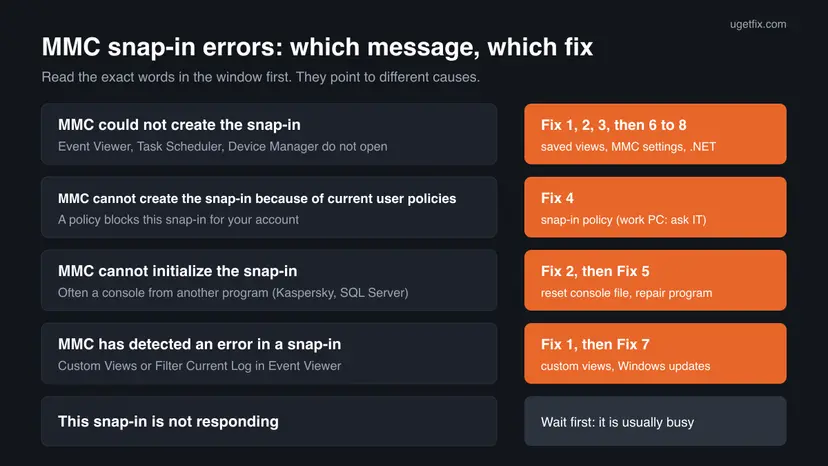
| Message you see | What it tells you | Start with |
|---|---|---|
| MMC could not create the snap-in. The snap-in might not have been installed correctly. | The snap-in failed to load. Usually saved data it reads at start is damaged. | Fix 1 (Event Viewer) or Fix 2 |
| MMC cannot initialize the snap-in | The snap-in loaded but could not start. Often a console of another program, such as Kaspersky Security Center or SQL Server Configuration Manager. | Fix 2, then Fix 5 |
| MMC has detected an error in a snap-in and will unload it. | The snap-in crashed while you used it. Microsoft documented this for Custom Views and Filter Current Log in Event Viewer. | Fix 1, then Fix 7 |
| MMC cannot create the snap-in because of current user policies | Nothing is broken. A policy blocks this snap-in for your account. | Fix 4 |
| This snap-in is not responding | The snap-in is busy, often reading a large log. It is a wait message, not damage. | Wait, then see the FAQ |
If you searched in Spanish ("MMC no puede crear el complemento"), Russian or Korean, the message is the same one translated: this page applies to it. If Windows says mmc.exe has been blocked by your administrator, that is a different block for the whole console, set by your organisation or by User Account Control rules.
Why MMC cannot create or initialize the snap-in
The same words cover several causes, and the snap-in's name tells you which ones to check. Event Viewer has a cause of its own: the custom views it loads at start. Every console also keeps a per-user settings file that can break. Damage to Windows itself is the least common reason.
| Cause | How often | How to tell | Fix |
|---|---|---|---|
| A damaged custom view file in Event Viewer. | Most often (Event Viewer) | Only Event Viewer fails, or it fails when you open Custom Views or Filter Current Log. | Fix 1 |
A damaged saved settings file of the console in %AppData%\Microsoft\MMC. | Often | One console fails for your account but opens for another user. | Fix 2 |
| .NET Framework 4.8 or 3.5 is off or damaged. | Sometimes | Several consoles fail and their CLSIDs start with FX:. | Fix 3, then Fix 6 |
| A Group Policy restricts snap-ins. | Sometimes (work PCs) | The message says "because of current user policies". | Fix 4 |
| The program that owns the snap-in is damaged or half removed. | Sometimes | The name is Kaspersky, SQL Server, WSUS, 1C or another program, not a Windows tool. | Fix 5 |
| An update bug, or damaged Windows system files. | Rarely | Every console fails, or the error came right after an update. | Fix 7 and 8 |
Older guides tell you to delete the snap-in's key under HKEY_LOCAL_MACHINE\SOFTWARE\Microsoft\MMC\SnapIns. That key is the snap-in's registration: deleting it does not repair the snap-in, it removes it, and the error then cannot go away without a repair of Windows or of the program. This guide does not use that step.
How to fix "MMC could not create the snap-in"
Fix 1 and Fix 2 remove saved data the snap-in reads at start, take two minutes and lose only view settings. Fix 3 and Fix 4 cover .NET and policies. Fixes 5 to 8 repair the program or Windows itself.
| What you see or have | Start with |
|---|---|
| Event Viewer does not open, or it crashes in Custom Views or Filter Current Log. | Fix 1 |
| Another console, such as Task Scheduler, Device Manager or a program's own console, fails only for your account. | Fix 2 |
| Several consoles fail and the CLSID starts with FX:. | Fix 3 |
| The message ends with "because of current user policies". | Fix 4 |
| The snap-in's name is a program such as Kaspersky Security Center or SQL Server Configuration Manager. | Fix 2, then Fix 5 |
| Every console fails, or the error started after an update. | Fix 7, then Fix 8 |
Fix 1. Move Event Viewer's custom view files out of the Views folder
2 minutesLow riskEvent Viewer shows "MMC could not create the snap-in", or "MMC has detected an error in a snap-in and will unload it" when you open Custom Views or Filter Current Log.
Event Viewer reads every saved custom view when it starts. Microsoft documented in KB4508640 that Custom Views could crash the snap-in, and the fix users report on Microsoft Q&A is to remove the View_*.xml files from this folder. One damaged file is enough to stop the whole console.
- Close Event Viewer if it is open.
- Open File Explorer, paste
C:\ProgramData\Microsoft\Event Viewer\Viewsinto the address bar and press Enter. Select Continue if Windows asks for permission. - Create a folder on your desktop, for example
Event Viewer views backup. - Select all files named
View_0.xml,View_1.xmland so on, and move them to that folder. Moving keeps a copy, so you can bring back views you need. - Press Win + R, type
eventvwr.mscand select OK.
C:\ProgramData\Microsoft\Event Viewer\ViewsNeed your old custom views back? Move the files back one at a time and open Event Viewer after each. The one that brings the error back is the damaged view: delete it and create that view again.
It worked if: Event Viewer opens with Windows Logs and Applications and Services Logs, and only your own custom views are missing.
If not: Reset the console's saved settings with Fix 2.
Fix 2. Reset the console's saved settings in %AppData%\Microsoft\MMC
3 minutesLow riskA console fails for your account but works for another user, or the message is "MMC cannot initialize the snap-in".
MMC saves each console's state per user, such as column widths and the last open node, in a file without an extension in %AppData%\Microsoft\MMC. Kaspersky's fix for "MMC cannot initialize the snap-in" is to delete its console's file there. A damaged file breaks the snap-in at every start.
- Close every console window: Event Viewer, Task Scheduler, Device Manager and Computer Management.
- Press Win + R, type
%AppData%\Microsoft\MMCand select OK. - Find the file named after the failing console, for example
eventvwr,taskschd,devmgmt,compmgmtor the program's name. These files have no extension. - Rename it, for example to
eventvwr.old. If you cannot tell which file it is, rename the wholeMMCfolder toMMC.oldone level up. - Open the console again. MMC creates a new settings file.
%AppData%\Microsoft\MMCKaspersky notes that its console loses only display settings this way: column layout, sorting and the list of connected Administration Servers. Data, policies and tasks stay. Windows consoles also lose only their layout.
It worked if: The console opens with its default layout and no error.
If not: If several consoles still fail, check .NET Framework with Fix 3.
Fix 3. Check that .NET Framework 4.8 and 3.5 are turned on
5 to 10 minutesLow riskSeveral consoles fail and the CLSID in the message starts with FX:, or someone turned off Windows features to save space.
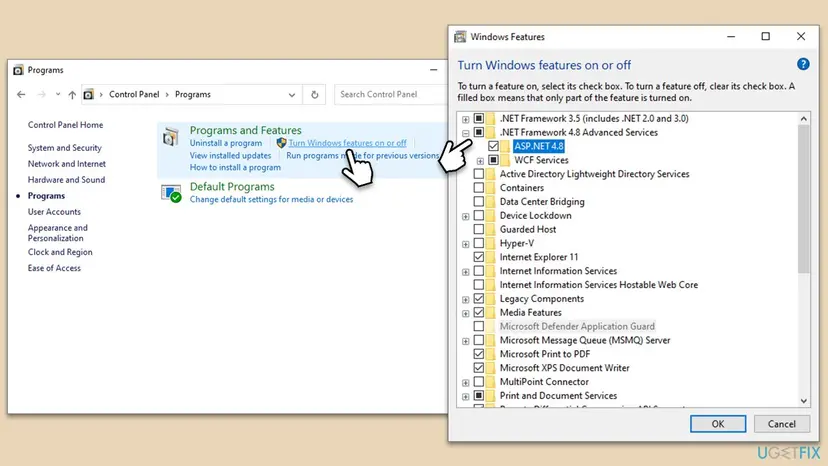
Snap-ins with an FX: CLSID are written in .NET and cannot load without it. On Windows 10 and 11 .NET Framework 4.8 is part of Windows and is switched in Windows Features, so a feature turned off or half removed stops these snap-ins.
- Select Start, type
Windows Featuresand open Turn Windows features on or off. - Check that .NET Framework 4.8 Advanced Services has a filled or ticked box. If it is empty, select it.
- Select .NET Framework 3.5 (includes .NET 2.0 and 3.0) too if a third-party console asks for .NET 2.0 or 3.5.
- Select OK. Choose Let Windows Update download the files for you if Windows asks.
- Restart the PC and open the console again.
If turning on .NET 3.5 fails with its own code, our guide on .NET Framework error 0x80072EE6 covers installing it from Windows media.
It worked if: Both boxes are filled, Windows reports Windows completed the requested changes, and the console opens.
If not: If the message mentions policies, use Fix 4. Otherwise repair .NET with Fix 6.
Fix 4. Remove the snap-in restriction if the message mentions current user policies
5 minutesRead the warningThe message is "MMC cannot create the snap-in because of current user policies".
Windows has policies that restrict which snap-ins a user may open, under User Configuration > Administrative Templates > Windows Components > Microsoft Management Console. When one blocks a snap-in, MMC refuses it on purpose. Nothing is damaged, so no repair helps until the policy is changed.
There the policy usually comes from your organisation's domain and comes back after every policy refresh. Changing local settings is pointless and may break your organisation's rules. On your own PC, a policy can be left by a tweaking tool or an old admin: you can change it, and you lose nothing but the restriction.
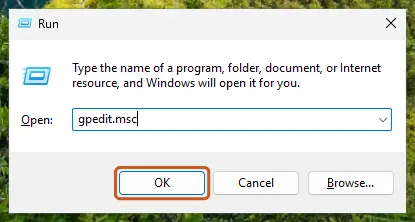
- Open the Local Group Policy Editor. Step by step: Open the Local Group Policy Editor. It exists in Pro, Enterprise and Education, not in Home.
- Go to User Configuration > Administrative Templates > Windows Components > Microsoft Management Console.
- Open Restrict users to the explicitly permitted list of snap-ins and set it to Not Configured.
- Open the Restricted/Permitted snap-ins folder below it. Find the snap-in named in the message, set it to Not Configured and select OK.
- Run
gpupdate /forcein Terminal, or restart the PC, and open the console again.
On Windows Home the same settings live under HKEY_CURRENT_USER\Software\Policies\Microsoft\MMC. Back up first with Back up the registry before editing it, then look there for a key named after the snap-in's CLSID with a value Restrict_Run set to 1. We could not confirm every value name for every Windows build, so change only that value, to 0, and do not delete keys.
It worked if: The console opens without the policy message.
If not: If the policy is not set and the error stays, the program behind the snap-in may be damaged: Fix 5.
Fix 5. Repair or reinstall the program that owns the snap-in
10 to 20 minutesLow riskThe snap-in's name is not a Windows tool: Kaspersky Security Center, SQL Server Configuration Manager, Windows Server Update Services, 1C or another program.
A third-party snap-in is registered by its program's setup. If that program was updated halfway, moved or removed while its console stayed, MMC finds the registration but not working files. Kaspersky says that if resetting its console file (Fix 2) does not help, the cause lies outside its program.
- Open Control Panel > Programs > Programs and Features.
- Select the program the snap-in belongs to and select Change or Repair at the top, if offered.
- Follow the setup window and restart if it asks.
- If there is no repair option, uninstall the program and install its current version from the maker. Step by step: Uninstall a program or app in Windows.
- For SQL Server Configuration Manager, open the version that matches your installed SQL Server; an older or newer console may fail with this message.
It worked if: The program's console opens after the repair or reinstall.
If not: Repair .NET and Visual C++ with Fix 6.
Fix 6. Repair Visual C++ runtimes and .NET Framework
15 minutesLow riskFix 3 showed .NET is on, but FX: snap-ins still fail, or other .NET programs also crash.
A damaged .NET installation stops every managed snap-in at once, even when Windows Features shows it as on. Microsoft's .NET Framework Repair Tool and a repair of the Visual C++ runtimes that consoles from other programs depend on fix that damage.
- Open Programs and Features. Type control panel in the search box on the taskbar and select Control Panel. Select Programs > Programs and Features.
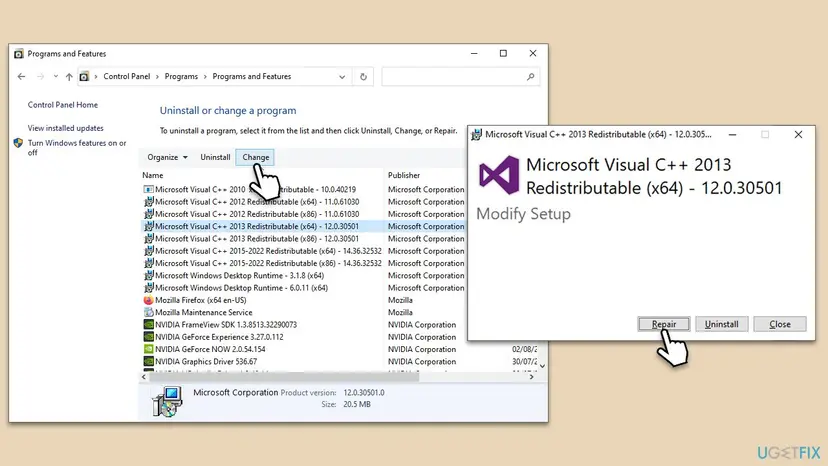
- Find the installed versions. Look for the entries that start with Microsoft Visual C++. Each one shows a year and an architecture, x64 or x86. Several entries side by side are normal: older versions stay installed next to newer ones.
- Repair each Visual C++ entry. Right-click an entry and select Change, then select Repair in the window that opens. Do the same for every Microsoft Visual C++ entry.
- Install the latest supported version. Download the latest Visual C++ v14 Redistributable from Microsoft: Visual C++ Redistributable latest supported downloads and run it. On a 64-bit PC install both X64 and X86, because 32-bit programs need the x86 package. On an ARM64 PC install ARM64. This one version serves programs built with Visual Studio 2017 to 2026.
- Run the .NET Framework Repair Tool. Download the Microsoft .NET Framework Repair Tool and run NetFxRepairTool.exe. The wizard looks for setup problems, asks for your consent before it applies fixes, then repairs the installed .NET Framework versions. The tool is in English only.
- Turn on .NET Framework 3.5 if a program asks for it. Select Start, search for Windows Features and open it. In Turn Windows features on or off, select the .NET Framework 3.5 (includes .NET 2.0 and 3.0) check box and select OK. Windows downloads the files, so stay online.
- Restart and test. Restart the PC and start the program that showed the error.
These steps were written for Windows 11 25H2 and 26H2, Windows 10 22H2. The full page with the other versions and what each result means: How to repair Microsoft Visual C++ Redistributable and .NET Framework
It worked if: The repair tools finish without errors and the console opens after a restart.
If not: Install the latest Windows updates with Fix 7.
Fix 7. Install the latest Windows updates
10 to 30 minutesLow riskThe error started right after an update, or Event Viewer shows "MMC has detected an error in a snap-in and will unload it".
Microsoft confirmed in KB4508640 that the June 2019 updates broke Custom Views in Event Viewer, and that later updates fixed it on every platform. Snap-ins are part of Windows, so a broken snap-in from one update is usually fixed by the next one.
- Open Settings > Windows Update and select Check for updates. On Windows 10 it is Settings > Update & Security > Windows Update.
- Install everything offered, including the optional cumulative preview update if the error is new.
- Restart when asked, then open the console again.
If the error began the day an update was installed and no newer update exists yet, removing that update is a temporary way back. Step by step: How to uninstall a Windows update.
It worked if: Windows Update shows You're up to date and the console opens.
If not: Repair Windows system files with Fix 8.
Fix 8. Repair Windows system files with SFC and DISM
20 to 30 minutesLow riskEvery console fails, including Services and Disk Management, or nothing above helped.
The built-in snap-ins and mmc.exe are Windows system files. When all of them fail, the files or the component store they are restored from are damaged: DISM repairs the store, SFC then replaces the damaged files.
- Open an elevated command window. Right-click Start and select Terminal (Admin), or type cmd in the search box, right-click Command Prompt and select Run as administrator. Select Yes when Windows asks for permission.

Search for cmd and choose Run as administrator. Screenshot: Windows 11 26H2. - Run DISM first. Type the command below and press Enter. DISM downloads clean copies of damaged components from Windows Update, so it can take several minutes. Wait until it says The operation completed successfully.
DISM.exe /Online /Cleanup-Image /RestoreHealth
DISM /RestoreHealth running. Screenshot: Windows 11 26H2. - Run System File Checker. In the same window, type the command below and press Enter. Do not close the window until the verification reaches 100%.
sfc /scannow
sfc /scannow at 100%. Screenshot: Windows 11 26H2. - Read the result and restart. Compare the last message with the table below this guide, then restart the PC so that repaired files are loaded.

The result line tells you what SFC did. Screenshot: Windows 11 26H2.
These steps were written for Windows 11 24H2 and 25H2. The full page with the other versions and what each result means: Run DISM and SFC to repair Windows system files
It worked if: SFC reports that it repaired the damage or found none, and the consoles open after a restart.
If not: Read the Event Viewer log or the Application log as shown in the next section.
If "MMC could not create the snap-in" is still there
Write down the full text of the window: the snap-in's Name and its CLSID. They tell support exactly which module fails. Then look for the crash in the logs. If Event Viewer itself is the snap-in that fails, use the PowerShell route below.
- Open Event Viewer if it works, go to Windows Logs > Application and look for an Error from MMC or .NET Runtime at the time of the failure.
- If Event Viewer does not open, right-click Start, select Terminal (Admin) and run the command below. It lists the latest errors without the snap-in.
- Note the exception name, for example a file not found or a type load error, and the file or assembly it names.
Get-WinEvent -LogName Application -MaxEvents 50 | Where-Object LevelDisplayName -eq 'Error' | Format-List TimeCreated, ProviderName, Message| What you find | What it means | What to do |
|---|---|---|
| A .NET Runtime error naming a file or assembly | A .NET part the snap-in needs is damaged. | Fix 6, then Fix 8. |
| The error only for one user account | That user's saved settings are damaged. | Fix 2, or test with a new local account. |
| Every console fails for every user after SFC and DISM | Windows is damaged beyond a file repair. | Repair Windows with an in-place reinstall: Reinstall Windows without losing files. |
This error is never a hardware fault or a licence limit. For a program's console, send its maker the full message, the program's version and your Windows version from winver.
Windows 10 reached the end of support on 14 October 2025. The fixes work the same on Windows 10 22H2, but without Extended Security Updates the PC gets no new fixes, including fixes for snap-in bugs.
How to keep the MMC snap-in error from coming back
- Keep Windows updated: snap-in bugs are fixed in cumulative updates.
- Export custom views you rely on (right-click the view, Export Custom View) so you can import them again.
- Close consoles normally before you shut down, so their settings files are written completely.
- Do not delete keys under
HKEY_LOCAL_MACHINE\SOFTWARE\Microsoft\MMC\SnapIns: that removes the snap-in. - Do not turn off .NET Framework in Windows Features to save space.
- Do not run tweaking tools that add policies you cannot see afterwards.
Frequently asked questions
What does "MMC could not create the snap-in" mean?
It means the Microsoft Management Console opened but the tool inside it did not load. Event Viewer, Task Scheduler and Device Manager are snap-ins: modules that run inside mmc.exe. The window names the snap-in and its CLSID. Most often saved data the snap-in reads at start is damaged, such as Event Viewer's custom views or the console's settings file in %AppData%\Microsoft\MMC. Start with Fix 1 for Event Viewer and Fix 2 for other consoles.
How do I fix MMC could not create the snap-in on Windows 10?
The fixes are the same on Windows 10 22H2 and Windows 11, because both use the same MMC and the same folders. Move the View_*.xml files out of C:\ProgramData\Microsoft\Event Viewer\Views for Event Viewer, or rename the console's file in %AppData%\Microsoft\MMC for other tools. Only the Windows Update path differs: Settings > Update & Security on Windows 10. Windows 10 reached the end of support on 14 October 2025.
Is "MMC cannot initialize the snap-in" the same error?
It is a close relative. "Could not create" means MMC failed to load the snap-in; "cannot initialize" means it loaded but failed to start. The second one is common with consoles of other programs, such as Kaspersky Security Center, where Kaspersky's fix is to delete its console's file in %AppData%\Microsoft\MMC. That is Fix 2 on this page. If it comes back, repair the program (Fix 5).
What does "This snap-in is not responding" mean, and should I select End Snap-in?
It means the snap-in is busy and has not answered MMC for a while. In Event Viewer this usually happens while it reads a very large log, and in Device Manager while it scans devices. Select Cancel and wait a minute first. End Snap-in closes it at once, and MMC warns that unsaved data is lost. For a viewer that only shows information, ending it loses nothing. If it happens every time, use Fix 1 or Fix 2.
What does "MMC has detected an error in a snap-in and will unload it" mean?
The snap-in crashed while you were using it, and MMC offers to unload it. Microsoft documented this in KB4508640 for Event Viewer: Custom Views and Filter Current Log crashed after the June 2019 updates. Later updates fixed that bug. Today the same message usually means a damaged custom view, so move the View_*.xml files out (Fix 1) and install the latest updates (Fix 7).
Why does it say "because of current user policies"?
Because a Group Policy blocks that snap-in for your account. Windows lets administrators restrict which snap-ins users can open, under User Configuration > Administrative Templates > Windows Components > Microsoft Management Console. Nothing is broken. On a work PC ask your IT team. On your own PC set the restriction to Not Configured in the Local Group Policy Editor, as shown in Fix 4.
Should I delete the snap-in's key in the registry?
No. Some old guides suggest deleting the key with the CLSID under HKEY_LOCAL_MACHINE\SOFTWARE\Microsoft\MMC\SnapIns. That key is the snap-in's registration, so deleting it removes the tool instead of repairing it. The registry is only worth checking for the policy case, under HKEY_CURRENT_USER\Software\Policies\Microsoft\MMC, after a backup. For a damaged snap-in, repair its program (Fix 5) or Windows (Fix 8) instead.
Why does SQL Server Configuration Manager show MMC could not create the snap-in?
Its snap-in belongs to SQL Server, not to Windows. The usual reasons are a console from a different SQL Server version than the one installed, or a damaged SQL Server setup. Open the Configuration Manager that matches your SQL Server version, reset its settings file (Fix 2), then repair SQL Server from its setup (Fix 5). The same applies to 1C, WSUS and other programs that add consoles.
How do I restart MMC?
Close the console window, then open it again with Win + R and its file name: eventvwr.msc for Event Viewer, taskschd.msc for Task Scheduler, devmgmt.msc for Device Manager or compmgmt.msc for Computer Management. If a console hangs, close mmc.exe in Task Manager first. A restart alone rarely fixes this error, because the damaged data is read again at every start.
Sources
- Microsoft Support KB4508640: Event Viewer may close or you may receive an error when using Custom Views (support.microsoft.com)
- Microsoft Q&A: mmc could not create the snap-in in event viewer (Windows 10) (learn.microsoft.com)
- Kaspersky Support: The "MMC cannot initialize the snap-in" error in Kaspersky Security Center (ID 10665) (support.kaspersky.com)
Did this fix work?
One click, no account. It tells the next reader which guides are worth their time.
Questions and experiences: fix "MMC could not create the snap-in" error in Windows
Still broken, or found a fix we did not cover? Ask here: members and our editors answer. Reading is open; writing needs a free account.
…