
How to fix mouse double-clicking on a single click?

Prefer to fix it yourself? The manual steps follow.
- 9methods
- 2 to 30 minutes
- Easy
Applies to Desktops and laptops on Windows 11 and Windows 10 with a wired, wireless or Bluetooth mouse or a touchpad
9 methods in this guide
Every time I click the right mouse button, it double clicks instead. The same happens when I use my touchpad mouse clicks, so I don't think it's related to hardware. Any tips on how to fix it?
A mouse that double-clicks on a single click is one of two things: a worn button that sends two signals, or a Windows setting, driver or program that turns one click into two. If the touchpad does it too, the button is not the cause. Start with the two-minute test in Fix 1.
First find out whether the fault follows the mouse or the PC (Fix 1): plug the mouse into another computer and try the touchpad. If the fault follows the mouse, clean it or replace it (Fix 7). If it follows the PC, set the double-click speed to Fast (Fix 2), then check the driver, extra mouse entries and background programs (Fixes 3 to 5).
| Error | No message. One press of a mouse button or touchpad button opens a file twice, opens two browser tabs, or selects and then opens an item. |
|---|---|
| Where it appears | Anywhere in Windows: the desktop, File Explorer and browsers. It may hit only the left button, only the right button, or every pointing device. |
| Main cause | Two different families: a worn button switch that sends two signals within milliseconds, or Windows, a driver or a running program that registers one click as two. |
| Fastest fix | Plug the mouse into another PC (Fix 1). If it behaves there, the cause is on your PC; if it still double-clicks, the mouse is worn. |
| Also written as | Mouse double clicks, mouse keeps double clicking, mouse is double clicking, double click problem, left click registers twice, touchpad double clicks. |
| Affects | Windows 11 and Windows 10, any mouse or touchpad. Users report it after a Windows update, after installing security software, and on mice with a few years of use. |
| Vendor status | Not a listed Windows bug. Microsoft documents the double-click speed setting, but we found no Microsoft statement or fix version for mice that double-click on a single click. |
| Time to fix | 2 minutes for the tests, 5 to 10 minutes for each software fix, 30 minutes for a clean boot. |
Facts checked on 16 October 2026. Steps written for Windows 11 (25H2 and 26H2) and Windows 10 22H2.
What it means when a mouse double-clicks on a single click
Windows turns two clicks into one double click when they come close together in time and the pointer has not moved. The time window is the Double-click speed setting. A mouse that double-clicks on a single press sends two clicks to Windows, or Windows reads one press as two. Where the second click comes from decides the fix.
A worn button switch is the usual hardware cause. Its contacts bounce and send two signals a few milliseconds apart, far faster than any finger. Changing the double-click speed cannot help with that. A software cause is different: the mouse sends one click, and a driver, a second pointing device entry or a running program doubles it.
| What you see | What it points to |
|---|---|
| Only one button double-clicks, on any PC | A worn switch in that button. This is hardware. |
| Several buttons, or the touchpad, double-click too | A system-wide cause: Windows setting, driver, a duplicate pointing device or a program. This is the reader's case above. |
| The fault stopped after a restart or a Windows update, and came back | A driver or a program loaded at startup, not a worn button. |
| Only a wireless mouse does it, mostly with low battery | Weak signal or power. Replace or charge the batteries. |
| Two clicks only when you click slowly | The double-click speed is set too far toward Slow. |
A worn switch lives inside one mouse. If the touchpad or a second mouse shows the same fault, one mouse switch cannot explain it. Skip the cleaning advice at first and test the Windows settings, drivers and background programs in Fixes 2 to 5.
Why a mouse double-clicks on a single click, most common cause first
The order below follows how readers describe the fault in Microsoft's Q&A threads on this problem and the settings Microsoft documents. Each cause points to the fix that matches it. Forum threads are user reports, not confirmed vendor findings.
| How often | Cause | How to spot it | Fix |
|---|---|---|---|
| Most often | A worn or dirty button switch | The fault stays with that mouse on another PC | Fix 7 |
| Often | The double-click speed is set too slow | Two separate, slow clicks open a file | Fix 2 |
| Often | A driver or a second pointing device entry | Device Manager lists two HID-compliant mouse entries for one mouse | Fix 3, Fix 4 |
| Sometimes | A program that hooks the mouse, such as security software or a mouse utility | The fault goes away in Safe Mode or after a clean boot | Fix 5 |
| Sometimes | A click setting such as ClickLock that you did not choose | Highlighting or dragging behaves oddly | Fix 6 |
| Sometimes | Low battery or interference on a wireless mouse | Fault only on wireless, gone on a cable | Fix 7 |
| Rarely | Malware, or a recent change that System Restore can undo | Nothing above helps | Fix 8, Fix 9 |
How to fix a mouse that double-clicks on a single click
Fix 1 takes two minutes and tells you which half of this page you need. Fixes 2 to 6 are Windows and software fixes. Fix 7 covers the mouse itself, and Fixes 8 and 9 are the last steps.
| What you see or what your PC has | Start with |
|---|---|
| You do not know yet if it is the mouse or Windows | Fix 1 |
| Two slow clicks open a file, or the setting was changed | Fix 2 |
| The touchpad and a mouse both double-click | Fix 3, then Fix 4 |
| The fault began after a Windows update or new software | Fix 5 |
| It stays only on one mouse and follows it to another PC | Fix 7 |
| The wireless mouse double-clicks, wired one does not | Fix 7 |
Fix 1. Find out if the fault follows the mouse or the PC
2 minutesNo riskEveryone, before changing any setting.
Microsoft's community support suggests testing the mouse on another computer and swapping the primary and secondary buttons. The result splits the problem into hardware or Windows, so you do not try fixes that cannot work.
- Unplug the mouse and plug it into another computer, or pair it with another PC or phone if it is Bluetooth.
- Click a folder or a link ten times and watch for double clicks.
- Back on your PC, press Win + I, open Bluetooth & devices > Mouse and set Primary mouse button to the other side. On Windows 10 use Devices > Mouse > Select your primary button.
- Click again. If the fault moves to the other physical button, that button is worn. If it stays on the same side of the screen, it is not the switch.
- Switch Primary mouse button back to your normal side.
| Result | Meaning | Next |
|---|---|---|
| It double-clicks on the other PC too | The mouse itself is faulty | Fix 7 |
| It works on the other PC but not on yours | The cause is in Windows, a driver or a program | Fix 2 to Fix 6 |
| Touchpad and mouse both fail on your PC | A system-wide cause | Fix 3 to Fix 5 |
It worked if: You know whether to look at the mouse or at your PC.
If not: If the results are mixed, work through Fixes 2 to 5 first; they cost nothing.
Fix 2. Set the mouse double-click speed
3 minutesNo riskTwo slow clicks open a file, or the speed was changed by you or a program.
The slider decides how short the pause between two clicks must be to count as a double click. Microsoft documents it in the Buttons tab of Mouse Properties. A setting too far toward Slow lets two separate clicks join; in one Microsoft Q&A thread a user set it to Slow to make the fault repeat (user report).
- Press Win + I and open Bluetooth & devices > Mouse. On Windows 10 open Devices > Mouse.
- Under Related settings, select Additional mouse settings. On Windows 10 it is called Additional mouse options.
- On the Buttons tab, under Double-click speed, move the Speed slider toward Fast.
- Double-click the small folder icon beside the slider to test. It opens or closes only on a real double click.
- Select OK.
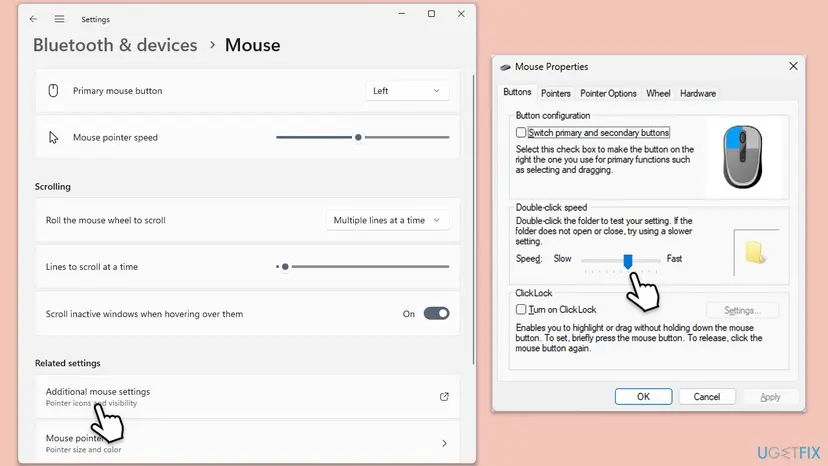
This fix cannot help with a worn switch, which sends two clicks within milliseconds. We could not find Microsoft text giving the exact time at each slider position.
It worked if: Two separate clicks no longer open the item, and the folder icon test needs a quick double click.
If not: If a single quick press still opens twice, go to Fix 3.
Fix 3. Update or reinstall the mouse and USB drivers
10 minutesLow riskThe touchpad and the mouse both double-click, or the fault started after an update.
A wrong or damaged mouse driver can pass clicks to Windows twice. Windows Update and the maker's driver page are the safe sources of a replacement.
In Device Manager expand Mice and other pointing devices and Universal Serial Bus controllers, then update or reinstall the driver of your mouse and of the USB controllers. Step by step, with screenshots, and how to roll back a bad driver:
- Open Device Manager. Right-click Start and select Device Manager.
- Open the device's Driver tab. Expand the category (for example Display adapters), right-click the device, select Properties and open the Driver tab. Driver Date and Driver Version show what is installed now.
- Update the driver. Select Update Driver and let Windows search automatically. To use a driver you downloaded from the device maker, select Browse my computer for drivers instead and point to the unpacked folder.
- Or roll back the driver. If the problem started after a driver update, select Roll Back Driver, choose a reason and select Yes. The button is greyed out when Windows has no earlier driver to return to.
- Or reinstall the driver. Select Uninstall Device. Tick Attempt to remove the driver for this device only if you want Windows to delete the driver package too, then select Uninstall.
- Restart. Restart the PC. Windows detects the device again and installs a driver for it.
- Check optional driver updates. Open Settings > Windows Update > Advanced options > Optional updates. If driver updates are listed, tick the ones you need and select Download & install.
These steps were written for Windows 11 24H2 and later. The full page with the other versions and what each result means: Update, roll back or reinstall a driver
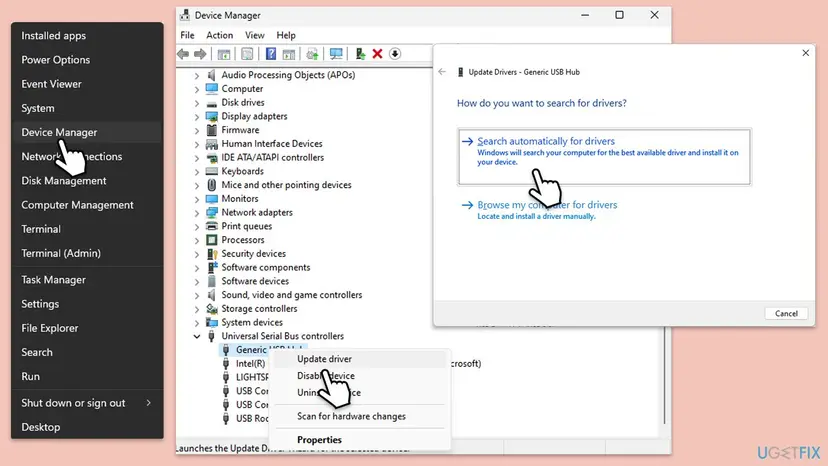
For a mouse with its own software, the maker's page may offer a newer driver than Windows Update. Install only what the mouse maker offers for your exact model.
It worked if: The mouse works after a restart and a single click opens once.
If not: If the fault returned after the update, use the rollback in the procedure, then go to Fix 4.
Fix 4. Look for two entries for one mouse in Device Manager
5 minutesLow riskDevice Manager shows more than one HID-compliant mouse and you use one mouse.
In a Microsoft Q&A thread on this fault, an answer marked helpful by 5 people said that two HID-compliant mouse entries were the problem and told the asker to disable the first one. The asker's second entry stayed and the fault stayed, so this is a user report that does not always work.
- Right-click Start and select Device Manager.
- Expand Mice and other pointing devices and note how many entries it lists.
- Unplug the mouse. The entry that disappears belongs to the mouse; one that stays belongs to the touchpad or another device.
- If one mouse produces two entries, right-click the one you want to remove and select Disable device. Do not disable the entry of your only working pointing device.
- Restart Windows and test. To undo, right-click the entry again and select Enable device.
It worked if: The mouse shows one entry and clicks register once.
If not: Enable the device again, then go to Fix 5.
Fix 5. Test in Safe Mode and do a clean boot to find the program
20 to 30 minutesLow riskThe fault began after installing software or a Windows update, or only appears after Windows has loaded fully.
Microsoft's community support asked the asker to test in Safe Mode and after a clean start, because both load only the basic drivers and programs. In that thread the double-click stopped after the asker uninstalled the security software and came back when it was installed again (user report).
Safe Mode loads a minimal set of drivers, so a mouse that works there points to a driver or a program loaded at startup. A clean boot then finds which program. Step by step:
- Open System Configuration. Select Search on the taskbar, type msconfig and select System Configuration from the results.
- Hide Microsoft services. On the Services tab, select the Hide all Microsoft services check box. Only services from other companies stay in the list.

With Hide all Microsoft services ticked, only third-party services stay in the list. Screenshot: Windows 11 26H2. - Disable the remaining services. Select Disable all, then select Apply.
- Open Task Manager. On the Startup tab of System Configuration, select Open Task Manager.
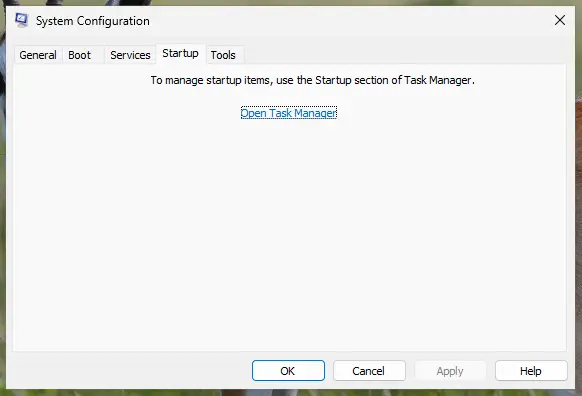
The Startup tab only links to Task Manager. Screenshot: Windows 11 26H2. - Disable the startup apps. On the Startup apps tab in Task Manager, select each item whose status is Enabled and select Disable. Write down or take a screenshot of the items you disable: you need the list to turn them back on.
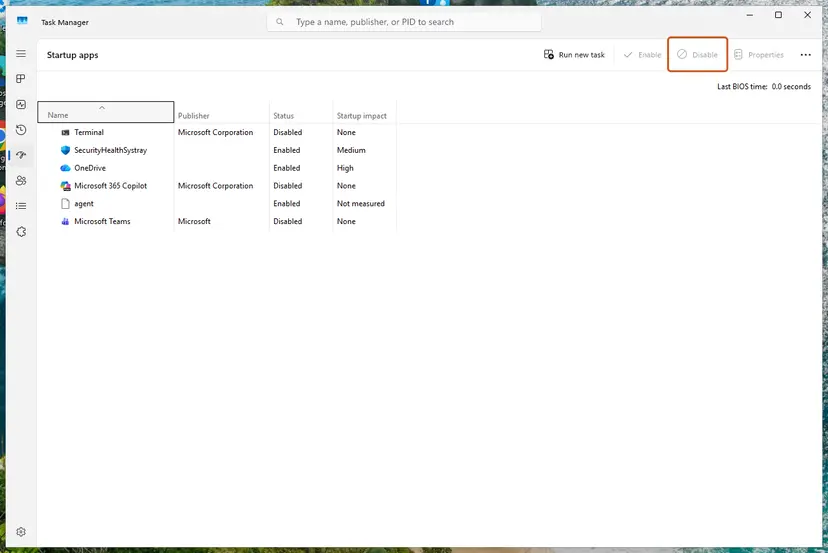
Select an app, then Disable. Screenshot: Windows 11 26H2. - Confirm the changes. Close Task Manager. On the Startup tab of System Configuration, select OK.
- Restart and test. Restart the PC. Windows now starts in a clean boot environment: try again the thing that failed (run the app, install the update, uninstall the program).
These steps were written for Windows 11 25H2 and 26H2. The full page with the other versions and what each result means: How to perform a clean boot in Windows
If the fault goes away in the clean boot, turn the startup items back on in small groups until it returns. The last group holds the program. Security software is a common suspect, so a one-test pause is allowed: Turn off Microsoft Defender protection for a moment. Turn it back on right after the test.
Pause protection only for the test and turn it back on. If the fault is linked to one security product, update that product or ask its support; do not run the PC unprotected.
It worked if: Single clicks register once in the clean boot, and you know which program to update or remove.
If not: If the fault stays even in the clean boot and in Safe Mode, it is not a startup program. Go to Fix 6.
Fix 6. Check ClickLock and Enhance pointer precision
3 minutesNo riskThe earlier fixes did not help and you want to rule out other click settings.
Microsoft documents ClickLock as a setting that lets you drag or highlight without holding the button, and Enhance pointer precision as a setting that makes the pointer more accurate when moving slowly. We found no Microsoft text that says either causes double clicks, so this is a rule-out test and not a known cause.
- Open Settings > Bluetooth & devices > Mouse > Additional mouse settings. On Windows 10 use Devices > Mouse > Additional mouse options.
- On the Buttons tab, clear Turn on ClickLock if you did not choose it.
- Open the Pointer Options tab and clear Enhance pointer precision under Motion.
- Select Apply, then OK, and test clicking.
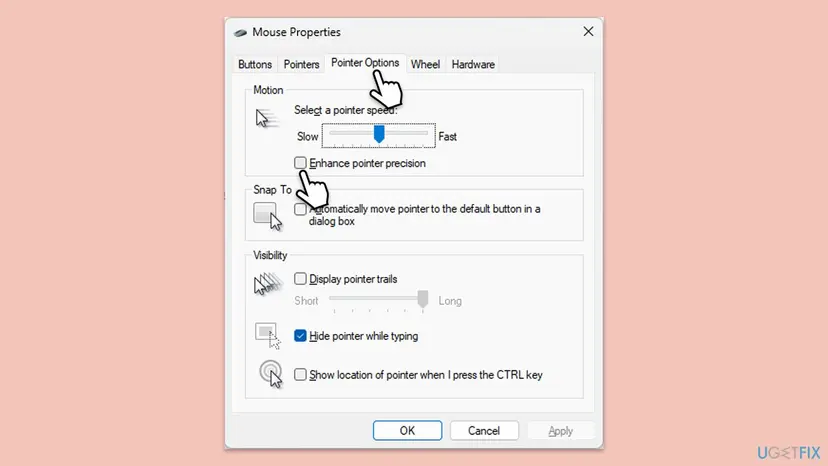
If it makes no difference, turn Enhance pointer precision back on. Microsoft lists it as the normal setting for accurate pointer movement.
It worked if: Clicks register once, or no change: then these settings are not involved.
If not: Turn Enhance pointer precision back on and go to Fix 7.
Fix 7. Clean the mouse, change the batteries or replace the mouse
10 minutesLow riskThe fault followed the mouse to another PC in Fix 1, or a wireless mouse double-clicks.
A worn or dirty switch sends two signals for one press, and software cannot filter that. A weak battery in a wireless mouse can make signals inconsistent. These are common hardware explanations; Microsoft does not publish a cleaning procedure for mouse buttons.
- Unplug the mouse, or switch off a wireless one and take out its batteries.
- Clean around the buttons with compressed air or a soft brush.
- Users report that pressing the button about ten times quickly, or squeezing it for 10 seconds while the mouse is off, can free dust. We could not confirm this from a vendor source.
- For a wireless mouse, fit new batteries, or fully charge a rechargeable one, and test again.
- Test the mouse with a cable or in another USB port. If the fault stays only on this mouse, replace it.
A mouse under warranty should be exchanged rather than opened. Opening it voids the warranty on most models.
It worked if: The button clicks once, or you have proof that the mouse needs replacing.
If not: Replace the mouse. If the new mouse double-clicks too, the cause is software; repeat Fixes 3 to 5.
Fix 8. Scan for malware with Microsoft Defender
20 to 40 minutesNo riskEverything above found nothing and the fault is system-wide.
Malware that hooks input can add clicks, although it is a rare cause. A scan rules it out. The offline scan runs before Windows loads, which makes it harder for malware to hide.
Run a full scan with Microsoft Defender, including the offline scan, or a security product you already trust. Step by step:
- Open Windows Security. Select Start, type Windows Security and open the app.
- Open Virus & threat protection. Select Virus & threat protection. Under Current threats you see when the last scan ran, how long it took and how many files it checked.
- Run a quick scan. Select Quick scan. If Windows Security thinks a deeper scan is needed, it tells you when the quick scan is done.
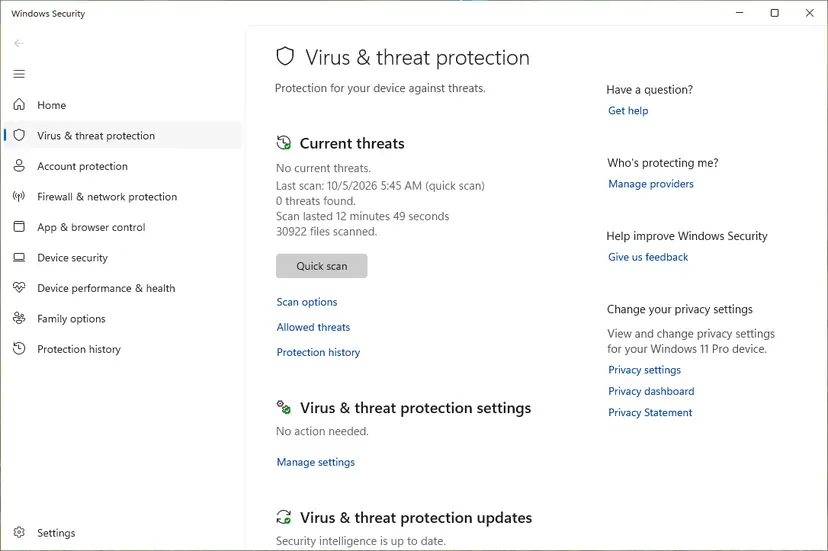
Quick scan and Scan options sit under Current threats. Screenshot: Windows 11 26H2. - Open Scan options. If the quick scan finds nothing and you still suspect an infection, select Scan options under Current threats.
- Run a full scan. Select Full scan and start it. It checks every file and program on the device, so it takes much longer than a quick scan. Leave the PC on until it ends.
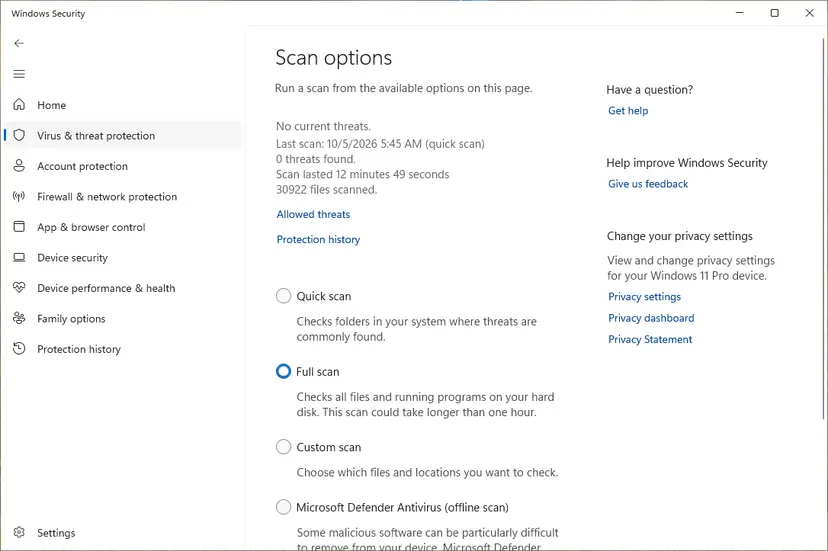
Scan options: Quick scan, Full scan, Custom scan and the offline scan. Screenshot: Windows 11 26H2. - Or scan one folder. To check only a download or a USB drive, select Custom scan in Scan options and choose the folder. You can also right-click a file or folder in File Explorer and select Scan with Microsoft Defender. On Windows 11 you may have to select Show more options first.
- Read Protection history. Go back to the first page of Windows Security and select Protection history. Select a card to expand it and see the details.
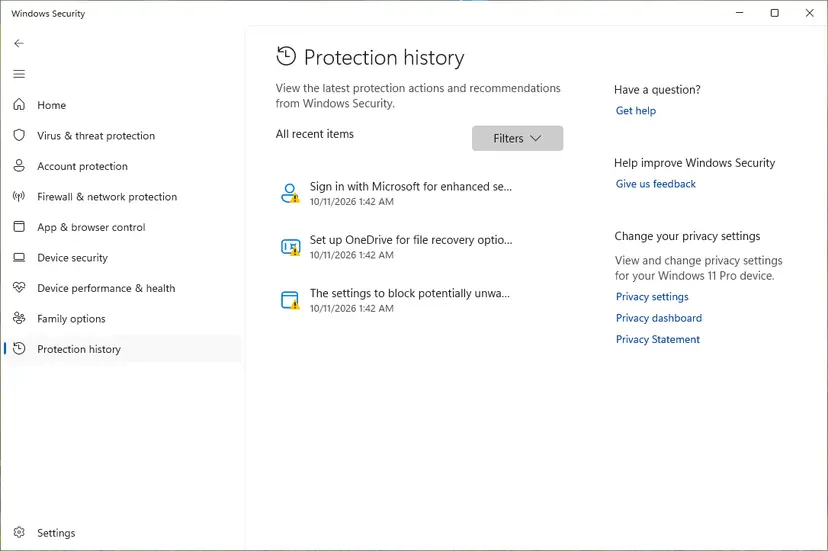
Protection history lists what Defender found and did. Screenshot: Windows 11 26H2.
These steps were written for Windows 11 25H2 and 26H2, Windows 10 22H2. The full page with the other versions and what each result means: How to scan for malware with Microsoft Defender
It worked if: The scan reports no threats, or removes what it finds, and clicks register once.
If not: If the scan is clean, go to Fix 9.
Fix 9. Use System Restore to go back before the fault began
20 to 40 minutesRead the warningThe fault began on a known day, after an update, driver or program, and a restore point exists from before.
System Restore returns drivers, programs and system settings to an earlier date, which undoes a change that caused the fault. Your documents stay, but programs and drivers installed after that date are removed.
System Restore removes programs, drivers and updates installed after the restore point. Save your open work first and check the list with Scan for affected programs before you confirm.
- Open System Restore. Press Windows+R, type the command below and press Enter. You can also open Control Panel > Recovery > Open System Restore. If a first page opens, select Next.
rstrui.exe - Choose a restore point. Select a restore point from a time before the problem started. The Description often names the event, such as a driver or app install. If the one you need is missing, select Show more restore points (shown only when there are more).
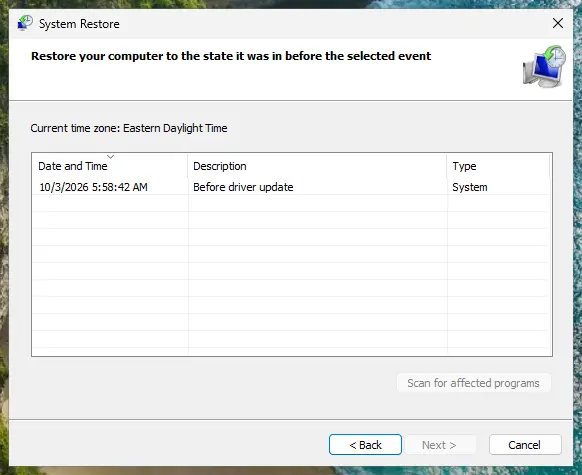
Pick a restore point from before the problem started. Screenshot: Windows 11 26H2. - See what will change. Select Scan for affected programs. The upper list shows programs and drivers that will be removed; the lower list shows those that might come back and may need to be reinstalled. Select Close.
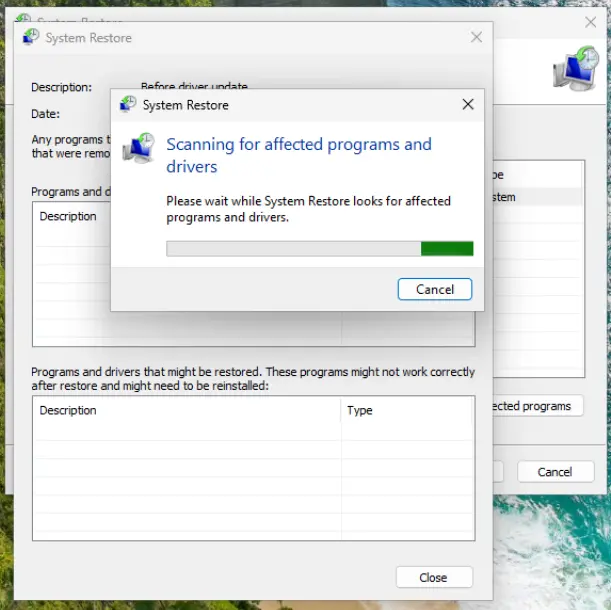
The scan lists programs and drivers the restore removes or brings back. Screenshot: Windows 11 26H2. - Start the restore. Select Next, check the summary and select Finish. Windows restarts and applies the restore point. Do not turn the PC off.
- Check the result. After sign-in Windows reports whether the restore succeeded. Check whether the problem is gone.
These steps were written for Windows 11 and Windows 10 (the steps are the same). The full page with the other versions and what each result means: Undo recent changes with System Restore
It worked if: Windows restarts with the older setup and single clicks open once.
If not: Read the still broken section below.
Still broken: when the mouse needs replacing or more testing
If every fix failed, go through these signs in order.
- It double-clicks on another PC too. The switch is worn. Replace the mouse, or ask the maker for a repair if it is under warranty.
- A new mouse also double-clicks, and so does the touchpad. The cause is in Windows. Repeat Fix 5 in Safe Mode and Fix 3 with the maker's driver, then look at Fix 9.
- Only one program double-clicks. The setting is in that program, not in Windows. Check its own mouse or gesture options.
- Windows 10. Windows 10 left support on 14 October 2025, so new mouse drivers for it may stop coming.
For support, note the mouse model, how it connects, your Windows version from winver, and which of Fix 1's tests failed. This saves the first round of questions.
How to stop a mouse from double-clicking in the future
A worn switch cannot be prevented, but the software causes can.
- Keep the double-click speed at a medium or Fast setting.
- Install mouse drivers only from Windows Update or the mouse maker.
- Test the mouse after each new security or utility program.
- Keep a spare mouse to run the Fix 1 test.
- Do not click and squeeze the buttons hard to loosen them.
- Do not install driver updater programs that replace the mouse driver on their own.
- Do not disable the only pointing device in Device Manager.
Frequently asked questions
Why does my mouse double-click when I click once?
Either the button sends two signals or Windows reads one click as two. A worn switch bounces and sends two signals within milliseconds. Software causes are a wrong driver, a duplicate pointing device entry or a program that hooks the mouse. Test the mouse on another PC first (Fix 1): if it still double-clicks there, the switch is worn; if not, your PC is the cause.
How do I fix a mouse that keeps double clicking?
First find out whether the fault follows the mouse or the PC by plugging the mouse into another computer. If it follows the PC, move the Double-click speed slider toward Fast, update the mouse driver and check Device Manager for a second mouse entry. If it follows the mouse, clean the buttons and then replace the mouse. Fix 1 and Fix 2 on this page cover both.
Can I fix a double-clicking mouse in Windows 11 settings?
Only partly. Open Settings > Bluetooth & devices > Mouse > Additional mouse settings, then set Double-click speed on the Buttons tab. That helps when two separate clicks join into a double click. It cannot stop a worn switch that sends two signals at once, because the signals are too close in time for any slider setting.
Is a double-clicking mouse a hardware or software problem?
It can be either, and one test decides. If the same mouse double-clicks on another PC, it is hardware. If the touchpad or a second mouse double-clicks on your PC too, as in the question at the top of this page, it is software or a driver. Fix 1 gives the test in two minutes, so you do not clean a mouse that is fine.
Why does the touchpad double-click too?
A touchpad button double-clicking points away from a worn mouse switch, because the touchpad has its own buttons. Check the double-click speed, the touchpad and mouse drivers, Device Manager for duplicate entries, and background programs with a clean boot. We found no Microsoft statement naming one single cause. Work through Fixes 2 to 5 in order.
Does the double-click speed setting fix a mouse that double-clicks on a single click?
Sometimes. The slider sets how short the pause between two clicks must be to count as a double click, so a setting toward Fast stops two slow clicks from joining. It does not help when one press sends two clicks within milliseconds. Test it with the folder icon beside the slider: it should open only on a quick double click.
Can security software or a virus make a mouse double-click?
Users report that security software can, and a rare malware case is possible. In one Microsoft Q&A thread the fault went away when the asker uninstalled a security product and returned when it was installed again. We could not confirm the cause with the vendor. Test with a clean boot (Fix 5), and scan with Microsoft Defender (Fix 8) to rule out malware.
Is squeezing the mouse button for 10 seconds a real fix?
It is a user tip, not a confirmed fix. Users report that pressing the button repeatedly or squeezing it can shift dust or oxidation and stop the fault for a while. We found no vendor source for it. If it works, the fault is likely to return, and a mouse with a worn switch should be replaced (Fix 7).
Should I turn off Enhance pointer precision to stop double clicks?
There is no confirmed link. Microsoft describes Enhance pointer precision as a setting that makes the pointer more accurate when you move it slowly, and does not connect it to double clicks. Clear it as a quick rule-out test in Fix 6 and watch whether single clicks still open twice. If nothing changes, turn it back on, because Microsoft lists it as the normal setting.
Sources
- Microsoft Support: Change mouse settings (support.microsoft.com)
- Microsoft Q&A: Mouse Double-Clicking when Single-Clicked (user reports) (learn.microsoft.com)
- Microsoft Q&A: Mouse sometimes double clicking with one click issue (user reports) (learn.microsoft.com)
Did this fix work?
One click, no account. It tells the next reader which guides are worth their time.
Questions and experiences: fix mouse double-clicking on a single click
Still broken, or found a fix we did not cover? Ask here: members and our editors answer. Reading is open; writing needs a free account.
…