
How to fix ms-settings:personalization-background error?

Prefer to fix it yourself? The manual steps follow.
- 6methods
- 2 to 30 minutes
- Intermediate
Applies to Windows 11 and Windows 10; Personalize, Display settings and other ms-settings: links that open the Settings app
6 methods in this guide
Hello, I get an error when trying to open Windows Display Settings and I think this issue is related to the fact that I updated from Windows 8.1 to Windows 10. Everything runs okay, but right-clicking on the Desktop leads to ms-settings:personalization-background error. What can I do to fix it? Is there something that I did so this error now occurs?
The ms-settings:personalization-background box appears when you choose Personalize or Display settings from the desktop menu and Windows finds no Settings app to open that page for your account. Your wallpaper and files are fine. Register the Settings app again for your account first: it takes two minutes and needs no administrator rights.
The error means the Settings app is not registered to your user account, so the link behind Personalize has nowhere to go. Restart Windows Explorer and test the link from Win + R (Fix 1). Then register the Settings package windows.immersivecontrolpanel again in a normal PowerShell window (Fix 2). If that fails, repair system files (Fix 4) or test a new account (Fix 5).
| Error | A box titled ms-settings:personalization-background with the text This file does not have a program associated with it for performing this action. Newer builds say app instead of program. |
|---|---|
| Where it appears | Right after you right-click the desktop and choose Personalize or Display settings, or when you run an ms-settings: address from Win + R. |
| Main cause | The Settings app (windows.immersivecontrolpanel) is not registered, or is damaged, for your user account. Often only one account on the PC is hit. |
| Fastest fix | Register the Settings app again for your account in PowerShell (Fix 2). No administrator rights needed. |
| Also written as | ms settings personalization background error, ms-settings:personalization error, ms-settings:display error, ms-settings:notifications error, "Das Betriebssystem kann ms-settings:display nicht ausführen". |
| Affects | Windows 10 and Windows 11. Many reports follow an upgrade from an older Windows or a large feature update. |
| Vendor status | Microsoft has no article on this box. Microsoft community support answers on Microsoft Q&A advise system file repair, an Explorer restart and, as the last step, an in-place upgrade. |
| Is it malware | No. It is the standard Windows box for a link that no registered app can open. |
| Time to fix | 2 minutes for Fix 1 and Fix 2, 15 to 30 minutes for the system file scans, about an hour for a repair install. |
Facts checked on 15 October 2026. Steps written for Windows 11 (25H2 and 26H2) and Windows 10 22H2.
What the ms-settings:personalization-background error means
ms-settings:personalization-background is not a file and not a program. It is an address. Microsoft Learn lists the ms-settings: addresses that open single pages of Windows Settings: ms-settings:personalization-background opens the Background page, ms-settings:personalization the whole Personalization category, and ms-settings:display the Display page.
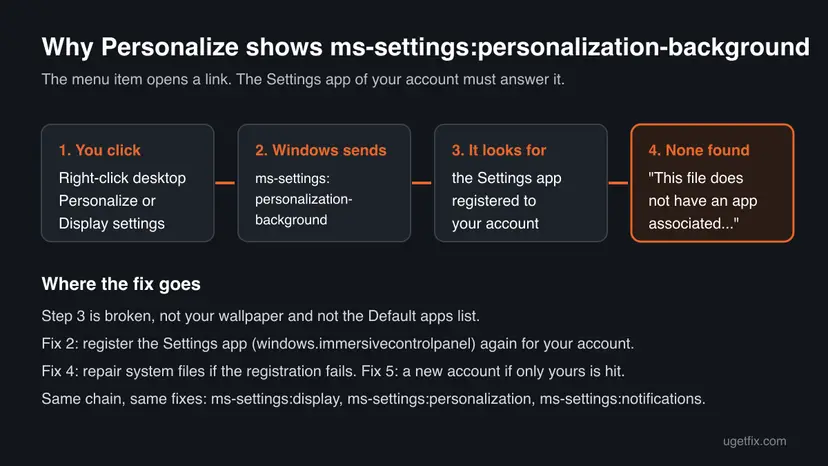
When you choose Personalize on the desktop menu, Windows does not start a program directly. It sends that address, and the Settings app registered to your account answers it. If no Settings app is registered for you, Windows shows the address in the title bar and the generic text for a file type without a program.
| What you may see or search for | What it is |
|---|---|
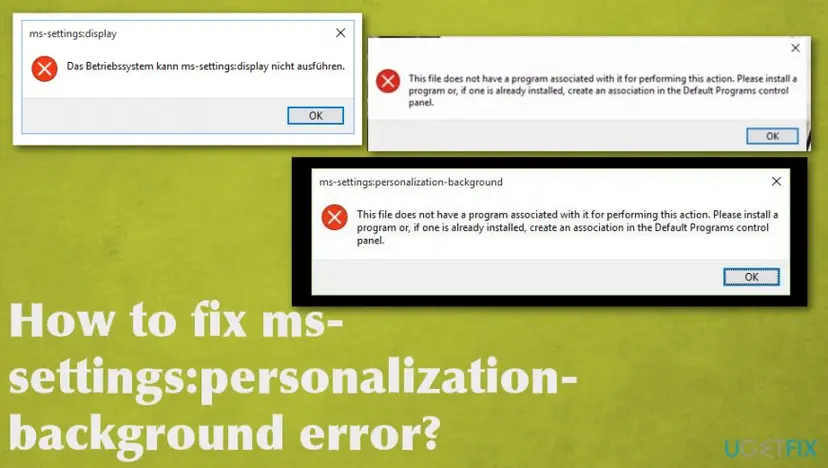
| This file does not have a program associated with it for performing this action. Please install a program or, if one is already installed, create an association in the Default Programs control panel. | The full text on Windows 10, as in the old screenshots. |
| This file does not have an app associated with it | The newer wording, quoted by a Windows 10 user on Microsoft Q&A in 2023. |
| ms-settings:display in the title bar | The same fault, reached from Display settings instead of Personalize. |
| Das Betriebssystem kann ms-settings:display nicht ausführen. | The German form: "The operating system cannot run ms-settings:display". |
| ms settings personalization background, ms-settings personalization error | The same box, searched without the colon or hyphen. |
The box tells you to install a program or create an association in Default Programs. Nothing needs to be installed and no association needs to be made by hand. The Settings app is already on the disk. Its registration for your account is what is missing.
Causes of the ms-settings personalization error, ranked
Most often the Settings app registration of one user account is broken, and the other accounts on the PC are fine. Two Microsoft Q&A threads show this pattern: in one, the error "only happens on my user"; in the other, a new local account opened Personalize without any error. Less often Windows system files are damaged, usually after an upgrade. Rarely the whole app store of Windows is damaged and only a repair install helps.
| Cause | How often | How to recognise it | Fix |
|---|---|---|---|
| Settings app not registered for your account | Most reports | Win + I also fails or flashes. Another account on the PC opens Personalize normally. | Fix 2, then Fix 3 |
| Explorer holds a stale state after an update | Sometimes | Settings opens from Start but not from the desktop menu. | Fix 1 |
| Damaged Windows system files or component store | Less often | Several built-in apps fail, often after an upgrade. Fix 2 prints red errors. | Fix 4 |
| Damaged user profile | Less often | Fixes 2 to 4 change nothing, but a new account works. | Fix 5 |
| Damaged Windows installation | Rare | The error also appears in a new account. | Fix 6 |
The box mentions Default Programs, so many people reset all default apps. That changes which programs open your photos, links and documents, and it does not register the Settings app. Skip it.
How to fix the ms-settings:personalization-background error
Fix 1 is a one-minute test and a restart of Explorer. Fix 2 works for most readers and needs no administrator rights. Fix 3 does the same for all users from an administrator account. Fixes 4 to 6 repair Windows itself, from the lightest step to the heaviest.
| What you see or have | Start with |
|---|---|
| Settings opens from Start, only the desktop menu fails. | Fix 1 |
| Win + I and the desktop menu both fail, on your account only. | Fix 2 |
| You are not an administrator on this PC. | Fix 2, then ask the administrator for Fix 3 or Fix 4 |
| PowerShell prints red errors in Fix 2 or Fix 3. | Fix 4 |
| Nothing helped, but another account works. | Fix 5 |
| The error appears in every account, even a new one. | Fix 6 |
Fix 1. Test the link and restart Windows Explorer
2 minutesNo riskEveryone, before anything else, to see how much of Settings is broken.
The desktop menu belongs to Windows Explorer. A Microsoft community support specialist answering this error on Microsoft Q&A lists an Explorer restart as a repair step, and the test tells you whether only the menu or the whole Settings app fails.
- Press Win + I. Note whether Settings opens normally, flashes and closes, or shows the same box.
- Press Win + R, type the address below and select OK.
ms-settings:personalization-background - Repeat with
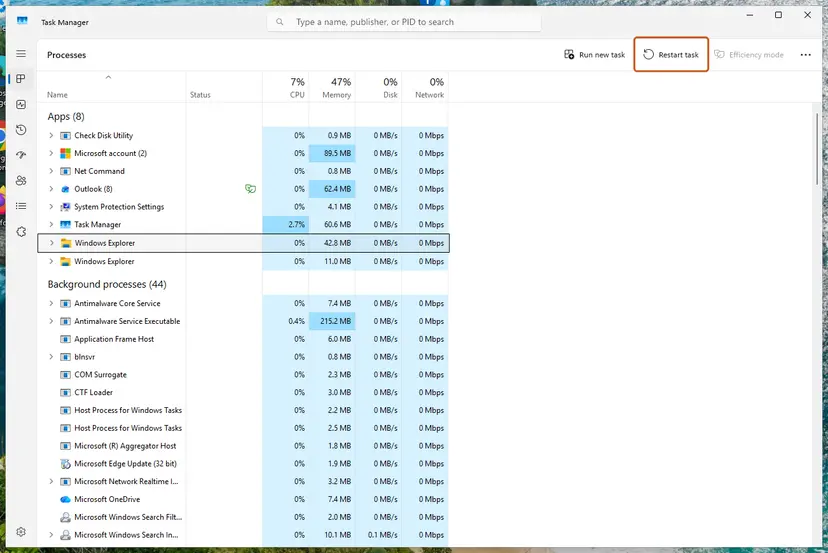
ms-settings:display. If both show the box, the Settings app itself is the problem. - Save your work. Press Ctrl + Shift + Esc, select Windows Explorer and select Restart task. Step by step: Restart File Explorer
- Right-click the desktop and choose Personalize again.
| Result of the test | Go to |
|---|---|
| Everything opens after the Explorer restart | Done. Restart the PC once to be sure. |
| Win + I works, the addresses do not | Fix 2 |
| Win + I and the addresses fail | Fix 2 |
| Settings opens on another account of this PC | Fix 2, and keep Fix 5 in mind |
It worked if: The Background page of Settings opens when you choose Personalize, and the Display page opens from Display settings.
If not: If the box still appears, go to Fix 2, which repairs the Settings app registration of your account.
Fix 2. Register the Settings app again for your account
3 minutesLow riskWin + I or the ms-settings: addresses fail on your account. Works on a standard account too.
The Settings app is the package windows.immersivecontrolpanel, and every app package is registered per user. Registering it again reads its manifest from the disk and gives your account a working handler for the ms-settings: addresses, without a download and without administrator rights.
- Close Settings if it is open. Select Start, type PowerShell and select Windows PowerShell. Open it normally, not as administrator, so that the app is registered to your account.
- Check that the package is there. Paste the line and press Enter. PowerShell should print a block with Name and InstallLocation.
Get-AppxPackage -Name windows.immersivecontrolpanel - Register it again. Paste the line and press Enter.
Get-AppxPackage -Name windows.immersivecontrolpanel | ForEach-Object { Add-AppxPackage -Path "$($_.InstallLocation)\AppxManifest.xml" -Register -DisableDevelopmentMode } - Wait until the prompt returns. No red text means it worked.
- Restart the PC, right-click the desktop and choose Personalize.
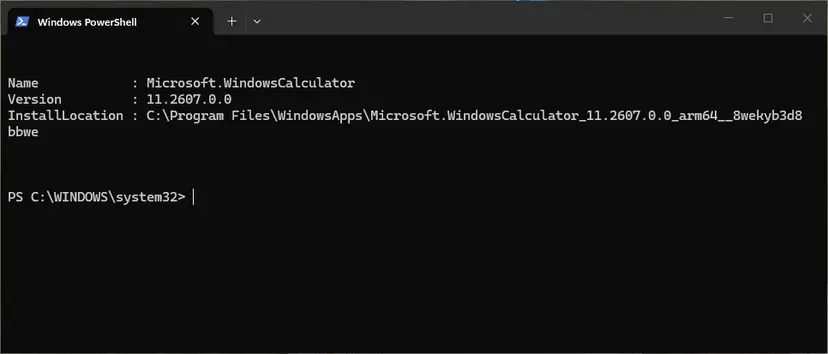
- If step 2 prints nothing, the Settings app is not registered for your account at all. Go to Fix 3, which needs an administrator account.
- If step 3 prints red text that mentions 0x80073D02, a part of Settings is still running. Restart the PC and run the line again.
- Other red errors point to damaged system files: go to Fix 4.
- The general method, with the errors that are normal: How to re-register Microsoft Store apps with PowerShell
It worked if: Win + I opens Settings, and Personalize on the desktop opens the Background page with no box.
If not: If the package is missing or the command prints red errors, go to Fix 3, then Fix 4.
Fix 3. Register Settings, the shell and Store again for all users
5 minutesLow riskFix 2 found no package, or you are the administrator repairing a standard user's account.
From an administrator window the same registration can read the package for every account on the PC. The shell package that draws Start and the Store package are registered in the same pass, because a broken shell registration often travels with a broken Settings app.
- Sign in with an administrator account. Right-click Start and select Terminal (Admin) or Windows PowerShell (Admin), then select Yes.
- Check that Windows still has the package. Look for PackageUserInformation in the output, which lists the accounts it is registered to.
Get-AppxPackage -AllUsers -Name windows.immersivecontrolpanel - Paste the lines of the block below one at a time and press Enter after each.
- Restart the PC and sign in to the account that showed the error.
- Right-click the desktop and choose Personalize.
Register Settings, the Windows shell and Microsoft Store (PowerShell as administrator)
Get-AppxPackage -AllUsers -Name windows.immersivecontrolpanel | ForEach-Object { Add-AppxPackage -DisableDevelopmentMode -Register "$($_.InstallLocation)\AppxManifest.xml" }
Get-AppxPackage -AllUsers -Name Microsoft.Windows.ShellExperienceHost | ForEach-Object { Add-AppxPackage -DisableDevelopmentMode -Register "$($_.InstallLocation)\AppxManifest.xml" }
Get-AppxPackage -AllUsers -Name *WindowsStore* | ForEach-Object { Add-AppxPackage -DisableDevelopmentMode -Register "$($_.InstallLocation)\AppxManifest.xml" }The Microsoft specialist's list of commands for this error includes wsreset.exe, which clears the Microsoft Store cache. It is harmless, and the old version of this guide started with it. We found no report that it alone brings Settings back, so run it only if Store apps also misbehave: Reset the Microsoft Store
It worked if: The commands finish without red lines, and Personalize opens Settings in the affected account.
If not: If the first command prints nothing or red errors, the package itself is damaged: go to Fix 4.
Fix 4. Repair Windows system files with DISM and SFC
15 to 30 minutesLow riskFix 2 or Fix 3 printed red errors, or several built-in apps fail at once.
The Settings app lives in a Windows system folder. If its files or the component store are damaged, no registration can work. The Microsoft community support answer to this error puts sfc /scannow and DISM /Online /Cleanup-Image /RestoreHealth first.
- Open an elevated command window. Right-click Start and select Terminal (Admin), or type cmd in the search box, right-click Command Prompt and select Run as administrator. Select Yes when Windows asks for permission.

Search for cmd and choose Run as administrator. Screenshot: Windows 11 26H2. - Run DISM first. Type the command below and press Enter. DISM downloads clean copies of damaged components from Windows Update, so it can take several minutes. Wait until it says The operation completed successfully.
DISM.exe /Online /Cleanup-Image /RestoreHealth
DISM /RestoreHealth running. Screenshot: Windows 11 26H2. - Run System File Checker. In the same window, type the command below and press Enter. Do not close the window until the verification reaches 100%.
sfc /scannow
sfc /scannow at 100%. Screenshot: Windows 11 26H2. - Read the result and restart. Compare the last message with the table below this guide, then restart the PC so that repaired files are loaded.

The result line tells you what SFC did. Screenshot: Windows 11 26H2.
These steps were written for Windows 11 24H2 and 25H2. The full page with the other versions and what each result means: Run DISM and SFC to repair Windows system files
When both scans are done, restart the PC and run Fix 2 again. The repaired files are only used after the package is registered once more.
It worked if: DISM reports that the restore operation completed, SFC finishes, and Fix 2 then runs without red text.
If not: If SFC reports files it could not repair, or the error stays, test a new account in Fix 5.
Fix 5. Test with a new local administrator account
10 minutesLow riskFixes 1 to 4 did not help, and you want to know whether only your profile is damaged.
In a Microsoft Q&A thread on the ms-settings:display version of this error, a new local account opened Personalize normally. A new account gets a fresh registration of every built-in app, so it shows at once whether the fault is in your profile or in Windows.
Settings may not open on your account, so use the classic window that does not depend on it.
- Press Win + R, type the command below and select OK.
control userpasswords2 - In User Accounts, select Add. Select Sign in without a Microsoft account (not recommended) and then Local account, and give it a name and password.
- Back in User Accounts, select the new name, then Properties and the Group Membership tab.
- Select Administrator and OK.
- Sign out, sign in to the new account and right-click the desktop to open Personalize.
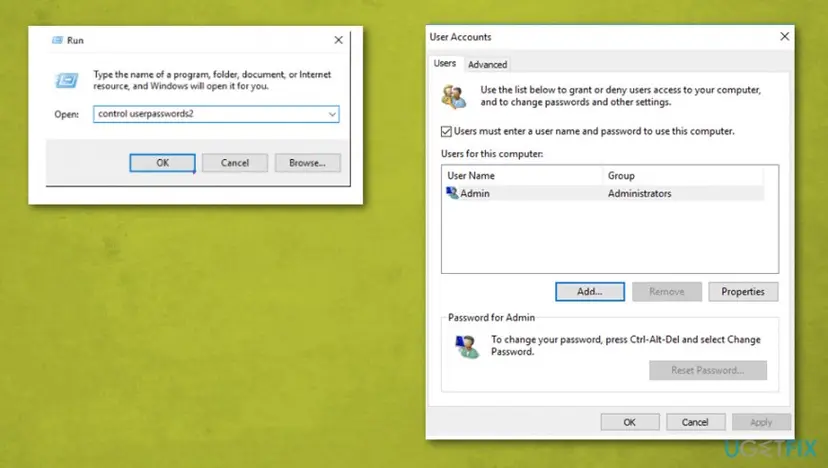
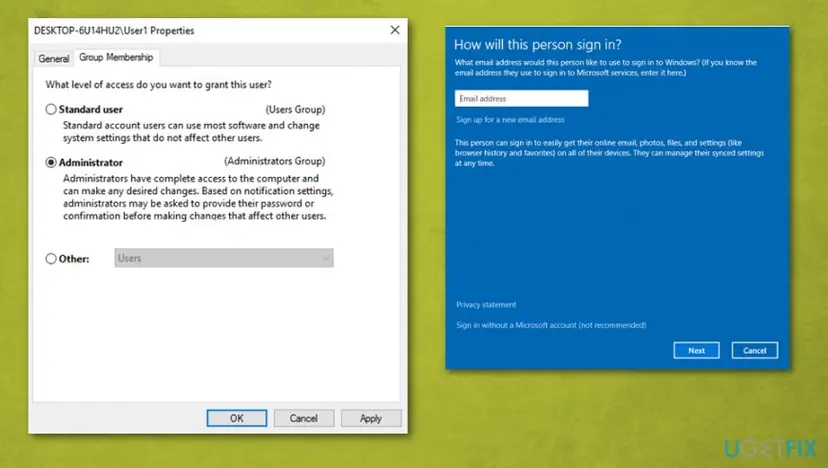
When Settings on your own account works, Windows 11 offers the same through Settings > Accounts > Other users: Create a new user account to test a problem
It worked if: Personalize opens normally in the new account. Your own profile is the problem, and Windows itself is healthy.
If not: If the new account shows the same box, Windows itself is damaged: go to Fix 6.
Fix 6. Repair Windows with an in-place upgrade and keep your files and apps
1 hourRead the warningThe error appears in every account, or nothing else helped and you need your own profile back.
An in-place upgrade reinstalls every Windows file, the Settings app included, over the running system. Both Microsoft Q&A threads on this error end with it: the Microsoft specialist offers it after the repair commands, and an independent advisor says it fixes the problematic profile while keeping files, apps and settings.
The repair is designed to keep your files and apps, but a large change can fail. Copy your documents, photos and anything you cannot replace to an external drive or cloud storage first: Back up your files (Windows Backup, File History, Time Machine). Keep at least 40 GB free on the system drive, as the Microsoft specialist advises.
- Open Recovery in Settings. Open Settings > System > Recovery. Next to Fix problems using Windows Update, select Reinstall now. This keeps your apps, files and settings.

Fix problems using Windows Update reinstalls the current version and keeps apps, files and settings. Screenshot: Windows 11 26H2. - Start the reinstall. Choose whether the PC may restart on its own 15 minutes after the installation, then select OK.
- Wait and restart. Windows Update downloads and installs a repair copy of your current Windows version. Keep the PC plugged in and online, and restart it when asked.
- If that did not help: Reset PC. Back in Settings > System > Recovery, next to Reset this PC, select Reset PC. This keeps your personal files but removes installed apps and settings.
- Choose Keep my files. Select Keep my files. Do not select Remove everything.
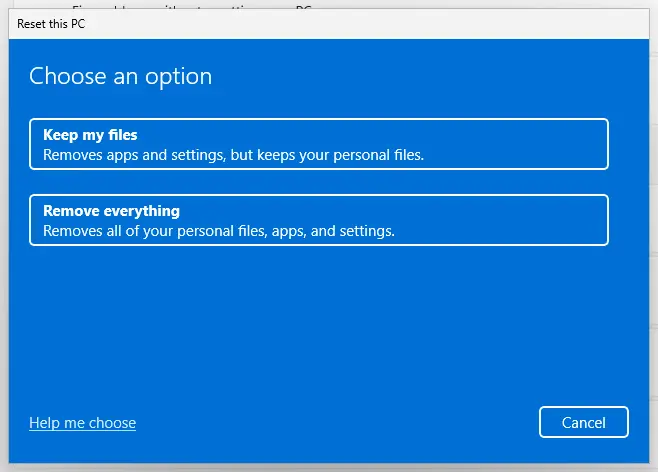
Keep my files removes apps and settings but keeps personal files. Screenshot: Windows 11 26H2. - Choose where Windows comes from. Select Cloud download to download a fresh copy of Windows, or Local reinstall to use the files already on the PC (faster, but may not include the latest updates).
- Reset. Review the summary and select Reset. The PC restarts several times.
These steps were written for Windows 11 22H2 and later. The full page with the other versions and what each result means: Reinstall Windows without losing files
It worked if: Windows restarts a few times, you sign in to your own account, and Personalize opens the Background page.
If not: If setup ends with an error, note the code it shows and see the next section for what to send to support.
Still getting ms-settings:personalization-background: what to check
The box itself writes nothing to a log. The useful evidence is the output of the commands in Fix 2 and Fix 3. A red error there carries an 0x8007 code and a package name, and that is what Microsoft support or a technician needs to see.
| Collect | Where to find it |
|---|---|
| Windows version and build | Press Win + R, type winver, select OK. |
| Whether Settings is registered for you | Fix 2, step 2. No output means it is not registered. |
| The red error text of the register command | Copy it from the PowerShell window. |
| App package errors in Event Viewer | Applications and Services Logs > Microsoft > Windows > AppXDeployment-Server > Microsoft-Windows-AppXDeploymentServer/Operational, at the time you ran the command. |
| Whether a new account works | Fix 5. |
- Work or school PC: you are probably not an administrator. Send your IT team the result of Fix 2 and ask for Fix 3 or Fix 4. They may also have hidden Settings pages on purpose.
- Home PC: if Fix 5 works and you do not want a repair install, move your files to the new account and use it from now on.
- Need the wallpaper now: right-click a picture in File Explorer and select Set as desktop background. That route does not open Settings.
Some answers suggest registering every DLL in System32 with regsvr32, or editing the HKEY_CLASSES_ROOT\ms-settings key by hand. Neither addresses an app package registration, and both can damage working parts of Windows. This error is not caused by hardware, so no driver or disk test is needed either.
Keep the Settings app from breaking again
- Install Windows updates and restart when asked, so that the Settings package and its registration are updated together.
- Let a feature update finish all its restarts before you sign in and start working.
- Keep a second administrator account on the PC. It is the quickest test and a way in when one profile breaks.
- Keep a current backup of your files, so that Fix 6 is never a risk.
- Do not run debloat or privacy scripts that remove built-in apps. Removing or disabling system packages is a common way to break Settings.
- Do not use registry cleaners on
ms-settingsor app package keys. - Do not install a "Settings" app from a download site to fill the gap the box describes.
Windows 10 left support on 14 October 2025. The fixes above work there too, but if the error returns after every repair on Windows 10, an upgrade to Windows 11 replaces the Settings app and its registration in one step.
Frequently asked questions
What is ms-settings:personalization?
It is an address that opens a page of Windows Settings, not a program or a file. Microsoft Learn lists ms-settings:personalization as the address of the Personalization category, ms-settings:personalization-background as the Background page, ms-settings:themes for Themes and ms-settings:lockscreen for the lock screen. You can type any of them into Win + R to jump to that page. When one of them shows an error instead, the Settings app that should answer it is not registered for your account. Fix 2 registers it again.
Why does right-clicking the desktop and choosing Personalize give an error?
Because the menu item does not open a program. It sends the address ms-settings:personalization-background, and Windows passes it to the Settings app of your account. When that app is not registered, or its files are damaged, Windows has no handler and falls back to the generic box for a file without a program. Display settings sends ms-settings:display and fails the same way. Restart Explorer first (Fix 1), then register the Settings app again (Fix 2).
How do I fix the ms-settings personalization error on Windows 11?
The same way as on Windows 10. Test the address from Win + R and restart Windows Explorer (Fix 1). Then open a normal PowerShell window and register the package windows.immersivecontrolpanel again (Fix 2). If PowerShell prints red errors, repair system files with DISM and SFC (Fix 4) and run Fix 2 again. The desktop menu of Windows 11 looks different, but Personalize and Display settings send the same addresses as on Windows 10.
What does the ms-settings:display error mean?
It is the same fault reached from a different menu item. Display settings sends ms-settings:display, the address Microsoft Learn lists for the Display page. If the Settings app is not registered for your account, that address fails exactly like the Background one, with the address in the title bar. In German Windows the text reads "Das Betriebssystem kann ms-settings:display nicht ausführen". The fixes on this page cover both, and when Fix 2 works, both menu items open again.
Did upgrading from Windows 8.1 or Windows 10 cause this?
Often, yes. Most reports of this box follow an upgrade or a large feature update, the moment when every built-in app is registered again for every account. If that step is interrupted, or fails for one profile, the Settings app is left without a registration on that account. You did nothing wrong by upgrading. Registering the app again (Fix 2) usually closes the gap, and a repair install (Fix 6) redoes the upgrade step for the whole system.
Can I fix it without administrator rights?
Partly. Fix 1 and Fix 2 work on a standard account, because each user's app registration belongs to that user, and Fix 2 should be run in a normal PowerShell window anyway. The other repairs need an administrator: registering for all users, the DISM and SFC scans, creating a new account and the repair install. A Windows 10 user on Microsoft Q&A without admin rights was told exactly that. Send your administrator the output of Fix 2 so that they can continue.
Should I reset default apps or create an association as the box says?
No. The box offers the same advice for every file type without a program, and here it points the wrong way. The Settings app is already on your PC, and an ms-settings: address cannot be pointed at another program in Default apps. Resetting all default apps changes which programs open your photos, music and links, and it leaves the Settings registration as it was. Register the Settings app again in Fix 2 instead.
How do I change my wallpaper while Settings is broken?
Open File Explorer, right-click a picture and select Set as desktop background. Windows applies it without opening Settings, so the error does not get in the way. This is only a workaround. Themes, colors, the lock screen and the Display page still need the Settings app, so repair it with Fix 2 when you have a few minutes. If the right-click option is also missing, a policy on a work PC may block wallpaper changes, and your IT team decides that.
What are ms-settings:notifications and ms-settings:troubleshoot errors?
They are the same error with another Settings page in the title bar. ms-settings:notifications is the address of Notifications and actions, and ms-settings:troubleshoot the address of the Troubleshoot page, both listed by Microsoft Learn. Any ms-settings: address fails in the same way when the Settings app of your account is not registered. If several of them show the box, the cause is the app, not the page, and Fix 2 repairs all of them at once.
Why is personalized settings not responding on Windows 10?
"Personalized settings (not responding)" is a different message. It appears on a black screen while Windows prepares your profile at sign-in, often after an update, and it is not the ms-settings:personalization-background box this page covers. This page is about the error after you right-click the desktop. If you also see the sign-in message, wait a few minutes first, then restart the PC. If the desktop then shows the ms-settings box, start with Fix 1 here.
Sources
- Microsoft Learn: Launch Windows Settings (the ms-settings: URI scheme reference) (learn.microsoft.com)
- Microsoft Q&A: Error when trying to open Personalization or Display Settings from desktop (Microsoft community support answer: SFC, DISM, Explorer restart, in-place upgrade) (learn.microsoft.com)
- Microsoft Q&A: ms-settings:display error message coming after right click (a new local account works; repair upgrade advised) (learn.microsoft.com)
Did this fix work?
One click, no account. It tells the next reader which guides are worth their time.
Questions and experiences: fix ms-settings:personalization-background error
Still broken, or found a fix we did not cover? Ask here: members and our editors answer. Reading is open; writing needs a free account.
…