
How to fix Office apps sign-in error code 53003 in Windows?

Prefer to fix it yourself? The manual steps follow.
- 5methods
- 5 minutes to 1 day
- Easy
Applies to Microsoft 365 apps (Excel, Word, Outlook, Teams, OneDrive) on Windows 11 and Windows 10, signed in with a work or school (Microsoft Entra ID) account
5 methods in this guide
Hi, I was trying to open an Excel file when I received the following message: "You cannot access this right now. Your sign-in was successful but does not meet the criteria to access this resource. For example, you might be signing in from a browser, app, or location that is restricted by your admin. Error Code: 53003." What is this and how can I fix it? I am using Windows at home and there are no admins here apart from me.
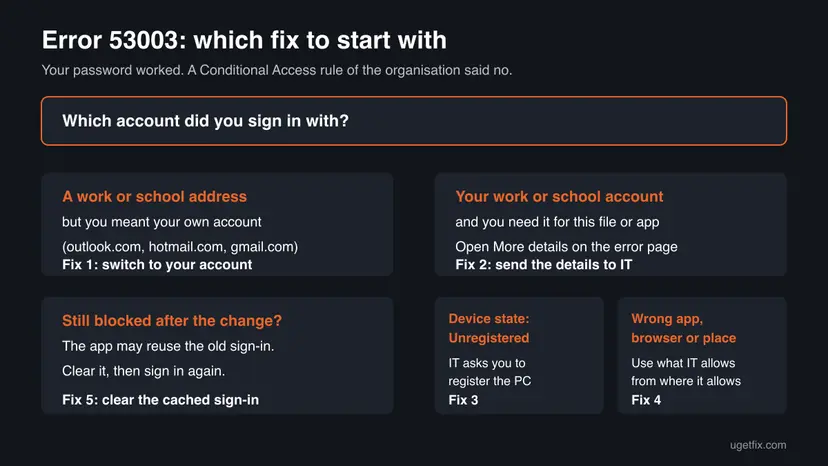
Error code 53003 means your password was accepted, but a Conditional Access rule of the organisation behind the account blocked the sign-in. It is not a damaged Office. First check which account the app uses: on a home PC it is usually a work or school account you did not mean to use.
Error 53003 (BlockedByConditionalAccess) comes from the organisation that owns the work or school account, not from your PC. If you meant to use your own Microsoft account, sign out and switch to it (Fix 1). If you need the work account, select More details on the error page and send the Request ID, Correlation ID and timestamp to that organisation's IT (Fix 2). Only they can change the rule.
| Error | You cannot access this right now. Your sign-in was successful but does not meet the criteria to access this resource. Error Code: 53003. |
|---|---|
| Where it appears | The Microsoft sign-in window of Excel, Word, Outlook, Teams or OneDrive, or the sign-in page in a browser, right after the password and any verification step. |
| Main cause | A Conditional Access policy in the account's Microsoft Entra ID organisation blocks this sign-in, for example because of the device, the app, the browser or the location. |
| Fastest fix | Home users: sign in with your own Microsoft account instead of the work or school one (Fix 1). Work users: send the error details to IT (Fix 2). |
| Also written as | AADSTS53003, BlockedByConditionalAccess, error code: 53003, errorcode 53003, and by mistake 530003. |
| Affects | Any app that signs in with a work or school account, on Windows 11, Windows 10, Android, iPhone and Mac. Windows 10 left support on 14 October 2025. |
| Vendor status | Not a bug. Microsoft lists 53003 as a Conditional Access result that the organisation's admin sets and reads in the Entra sign-in logs. |
| Who can lift it | Only an admin of the organisation that owns the account. No repair, reinstall or setting on your PC changes the policy itself. |
| Time to fix | 5 minutes when the wrong account was used. Hours to a day when IT has to check the policy. |
Facts checked on 15 October 2026. Steps written for Windows 11 (25H2 and 26H2) and Windows 10 22H2.
What error code 53003 "Your sign-in was successful but does not meet the criteria" means
The full message reads: You cannot access this right now. Your sign-in was successful but does not meet the criteria to access this resource. For example, you might be signing in from a browser, app, or location that is restricted by your admin. Under it you see Error Code: 53003.
Microsoft's troubleshooting page for Conditional Access lists sign-in error 53003 as BlockedByConditionalAccess. Conditional Access is the rule set an organisation builds in Microsoft Entra ID (formerly Azure AD) for its work and school accounts. Your user name and password were right; the rule decided that this sign-in may not get in.
| Code | Microsoft's name | What it usually asks for |
|---|---|---|
| 53000 | DeviceNotCompliant | A device that meets the organisation's management rules |
| 53001 | DeviceNotDomainJoined | A device joined to the organisation |
| 53002 | ApplicationUsedIsNotAnApprovedApp | An app the organisation approved |
| 53003 | BlockedByConditionalAccess | Blocked by a policy: device, app, browser, location or a full block |
| 53004 | ProofUpBlockedDueToRisk | Finish the multifactor authentication registration |
The code is the same in every app, which is why people search it as Windows error 53003, Office error 53003, Outlook error code 53003 or OneDrive error code 53003. In browsers and logs it carries the prefix AADSTS, so AADSTS53003 is the same error.
Why you get error 53003: causes ranked
The ranking follows Microsoft's Conditional Access documentation and the questions on Microsoft Q&A, where most reports show the details Device state: Unregistered and an Office or Exchange Online app name.
| How often | Cause | Typical sign | Fix |
|---|---|---|---|
| Most often on home PCs | Office, Windows or OneDrive is signed in with a work or school account you no longer use or did not mean to use | Your name at the top of Excel shows a company or school address | Fix 1 |
| Most often at work | The policy requires a registered or compliant device | Device state: Unregistered in More details | Fix 2, then Fix 3 |
| Often | The policy allows only certain apps or browsers | Works in the desktop app but not in the browser, or the other way round | Fix 4 |
| Less often | The policy allows only certain countries or networks | Fails abroad or on a VPN, works in the office | Fix 4 |
| Rarely | The app keeps an old sign-in after IT changed something | IT says you are allowed, but the error stays | Fix 5 |
The decision is made on Microsoft's servers for the organisation. Repairing or reinstalling Office, clearing caches or changing Windows settings does not change it. This page does not show ways around an organisation's access rules; the fixes below either use the right account or meet the rule the organisation set.
How to fix sign-in error code 53003 in Office apps
Fix 1 solves most home cases, where the wrong account is signed in. Fix 2 is the route Microsoft gives for work and school accounts. Fixes 3 and 4 meet what the organisation asks for, and Fix 5 clears an old sign-in after a change.
| What you see or have | Start with |
|---|---|
| Home PC, the app shows a work or school address you did not mean to use | Fix 1 |
| You need the work or school account for this file or app | Fix 2 |
| Device state: Unregistered and IT asks you to register or enroll the PC | Fix 3 |
| It works in one app, browser or place but not in another | Fix 4 |
| IT confirmed you are allowed, but the error still shows | Fix 5 |
Fix 1. Sign out of the work or school account and use your own Microsoft account
5 minutesLow riskA home PC or your own PC, and the app shows a work or school address you no longer use or did not mean to use.
Conditional Access applies only to accounts of an organisation's Microsoft Entra ID. A personal Microsoft account such as an outlook.com or hotmail.com address is not under that organisation's policy, so signing in with it ends the block.
- Open Excel or Word and select File > Account. Under User Information, read which address is signed in.
- If it is a work or school address you did not mean to use, select Sign out and confirm.
- Select Sign in and enter your own Microsoft account, the one your Microsoft 365 subscription or Office purchase is linked to.
- Press Win + I and open Accounts > Email & accounts (Windows 10: Email & app accounts).
- Under Accounts used by other apps, select the work or school account and choose Remove, if you no longer need it.
- Restart the PC and open the file again.
If Settings > Accounts > Access work or school lists the old organisation, the PC itself is connected to it. Removing that link has its own rules: Can't remove work or school account from Windows.
If the file sits in a work or school OneDrive or SharePoint, your own account cannot open it. Ask the owner to share it with your personal address, or ask the organisation's IT for access (Fix 2).
It worked if: The app shows your own address under File > Account, and files open without the sign-in window.
If not: If the app keeps asking for the work account, clear the old sign-in with Fix 5. If you need the work account, go to Fix 2.
Fix 2. Send the error details from More details to the organisation's IT
10 minutes, plus waiting for ITNo riskYou need the work or school account, or you do not know which policy blocks you.
Microsoft's troubleshooting page says the details on the error page let an admin find the exact failed sign-in in the Entra sign-in logs and see which policy blocked it and why. Without them, IT has to guess.
- On the error page or window, select More details.
- Copy or photograph the lines Request Id, Correlation Id, Timestamp, App name, Device platform and Device state.
- If you see Flag sign-in errors for review, select Enable flagging, then sign in again within 20 minutes so the error repeats.
- Send the details to your IT or help desk, with the app you used, the place you signed in from and what you tried to open.
- Ask them what the policy needs from you: a registered device, another app, another browser or another network.
- Device state: Unregistered
- The organisation does not know this PC. A device rule is likely (Fix 3).
- App name: Office 365 Exchange Online
- The block is on email, so Outlook and the Outlook web app fail.
- App name: Microsoft Office
- The block hits the Office apps sign-in, for example Excel or Word.
- IP address
- Where you signed in from; location rules use it (Fix 4).
On the error page, Microsoft explains that flagged events make diagnostics available and are raised to admin attention. If you are the admin of a small business tenant, open the Microsoft Entra admin center, go to Entra ID > Monitoring & health > Sign-in logs, filter by the Correlation ID and open the Conditional Access tab.
It worked if: IT names the rule and tells you what it needs, or changes the policy if it blocked you by mistake.
If not: If IT asks you to register or enroll the PC, go to Fix 3. If they name an app, browser or network, go to Fix 4.
Fix 3. Register or enroll the PC the way your organisation asks
15 to 30 minutesRead the warningMore details shows Device state: Unregistered, and IT confirms the policy needs a registered or managed device.
Many organisations allow work data only on devices they know. A device rule blocks every unregistered PC with 53003 until the PC is registered or enrolled, which is what the policy asks for.
Enrollment can let the organisation apply settings, require a PIN and remove its work data from the PC. On a personal PC, decide first whether you want that. If not, ask IT whether the web apps or a work device are an option.
- Ask IT which method they use: a connection in Windows settings, or their Company Portal app.
- For the Windows route, open Access work or school. The shortcut works on Windows 11 and Windows 10:
ms-settings:workplace - Select Connect and sign in with the work or school account, following IT's instructions on the choices that appear.
- For the Company Portal route, install it from the Microsoft Store, sign in and follow its device setup.
- Wait until Company Portal or IT shows the device as compliant, then restart the PC.
- Open the app and sign in again.
We could not confirm one set of steps for every organisation: each one chooses registration, join or enrollment in its own policy. Follow the steps your IT gives where they differ from these.
It worked if: The sign-in completes, and More details on a new error, if any, no longer says Unregistered.
If not: If the PC is registered but still blocked, the rule needs something else: ask IT again with new details (Fix 2), or clear the old sign-in (Fix 5).
Fix 4. Sign in with an app, browser and network your organisation allows
5 minutesNo riskThe sign-in works in one app, browser or place but fails in another, or you are abroad or on a VPN.
The error message itself names a browser, app, or location restricted by your admin. Organisations often allow only their approved apps, supported browsers or certain countries, so meeting that rule ends the block.
- Try the same account in the installed desktop app if the browser failed, or in the browser if the app failed. Note which one works.
- Update the app: in any Office app, select File > Account > Update Options > Update Now.
- In a browser, use the one IT names and sign in through a normal window, not a private one.
- If you are abroad or on a personal VPN, sign in from your usual connection, or ask IT whether your location is allowed.
- If your organisation gives you its own VPN, connect to it first, as IT instructs.
If a country or network is blocked on purpose, only IT can allow it. Do not try to hide where you are: a sign-in that looks like it comes from somewhere else can be flagged as a risk and lock the account.
It worked if: The sign-in passes in the app, browser or place the organisation allows.
If not: If nothing works anywhere, the policy may block the account entirely. Send IT the details from Fix 2.
Fix 5. Clear the old sign-in after IT changed the policy or your device
10 minutesLow riskIT confirmed you are allowed now, or you switched accounts in Fix 1, but the same error keeps coming back.
Apps and browsers keep sign-in data, and an old session can carry the blocked state into the next attempt. Clearing it makes the app ask Microsoft again, so the new policy or the new account applies.
- In every Office app, select File > Account > Sign out, and sign out of Teams and OneDrive too.
- Close all Office apps and restart the PC.
- For browser sign-ins, clear the cookies and cache of the browser you use.
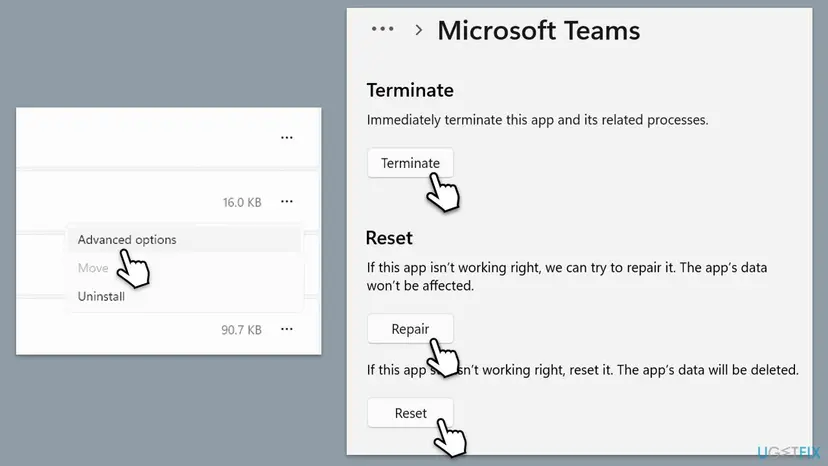
- For the new Teams, open Settings > Apps > Installed apps, select the three dots next to Microsoft Teams, choose Advanced options and select Repair, then Reset if needed.
- Open the app and sign in again with the right account.
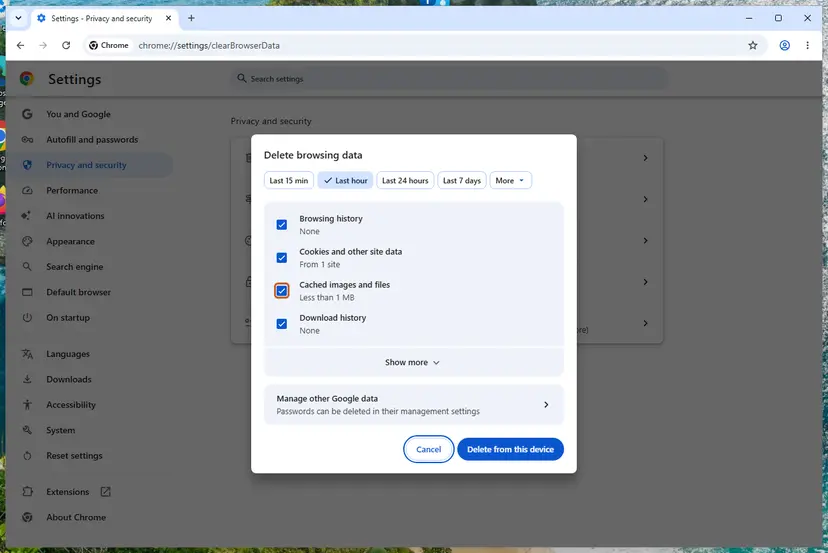
Full browser steps for Chrome, Edge and Firefox: Clear the browser cache and cookies. Clearing cookies signs you out of most websites, so know your passwords first. If OneDrive keeps the old account, reset it: How to reset OneDrive in Windows.
It worked if: The app asks for an account from scratch, and the sign-in with the allowed account passes.
If not: If the error comes back with new details, the policy still blocks you: send the new Correlation ID to IT (Fix 2).
Still getting error 53003: what to collect and who to ask
Error 53003 is written to the organisation's Entra sign-in log, not to a log on your PC. The admin needs the details from the error page to find it. Collect these before you contact IT.
- The Request Id, Correlation Id and Timestamp from More details, from the most recent attempt.
- The App name, Device platform and Device state lines.
- The account you signed in with, and the app or browser you used.
- Where you were: office, home, abroad, on a VPN.
- Whether the same account works on another device, such as a phone or a work laptop.
If the organisation has closed or you left it, its admin may have blocked the account on purpose. Then the work files are no longer yours to open, and you need the person who shared them. Microsoft support for admins can only help when no admin of the organisation can still sign in.
How to avoid error 53003 next time
- Keep work and personal accounts apart: sign in to Office on a home PC with your personal Microsoft account only.
- When an Office app asks to stay signed in to all your apps with a work account, choose to sign in to that app only, unless IT asks for more.
- Remove a work or school account from Email & accounts when you leave the job or school.
- Register a new work device the way IT asks before you open work files on it.
- Before you travel, ask IT whether sign-ins from your destination are allowed.
These steps do not change any policy; they keep you on the side of it that works. Home users who never use a work account do not meet 53003 at all, because personal Microsoft accounts are outside any organisation's Conditional Access.
Frequently asked questions
What does "Your sign-in was successful but does not meet the criteria to access this resource" mean?
It means your password and verification were accepted, but the organisation that owns the account has a Conditional Access policy that refuses this particular sign-in. Microsoft lists the result as error 53003, BlockedByConditionalAccess. The policy can look at the device, the app, the browser and the location, as the message says. Your PC is not damaged and Office is not broken. Select More details to see what was checked, then use the right account or ask the organisation's IT.
How do I fix error code 53003?
Start with the account. If Excel, Outlook or Teams is signed in with a work or school address you did not mean to use, sign out and sign in with your own Microsoft account (Fix 1). If you need the work account, open More details on the error page and send the Request ID, Correlation ID and timestamp to IT (Fix 2). They see which policy blocked you and what it needs, such as a registered device or an approved app.
I am the only admin on my home PC. Why does it say restricted by your admin?
The admin in the message is not the administrator of your Windows PC. It is the admin of the organisation that owns the work or school account, such as an employer, a university or a school. Being an administrator on Windows gives you no rights over their policy. Check which address the Office app uses under File, Account. On a home PC it is usually an old work or school account that you can sign out of (Fix 1).
What is OneDrive error code 53003?
It is the same Conditional Access block in the OneDrive app or in the browser. OneDrive signs in with the same work or school account as Office, so the same policy applies. If you use OneDrive for your own files, sign in with your personal Microsoft account instead. If it is your work OneDrive, send the details from More details to IT. Clearing the OneDrive cache does not change the policy, but helps after IT made a change (Fix 5).
Why does Outlook show error code 53003?
Outlook signs in to Exchange Online, and the details often show App name: Office 365 Exchange Online. The organisation's policy blocks that sign-in, most often because the PC is not registered with them, or because only certain mail apps are allowed. Outlook on a phone shows the same code for the same reasons. Try the account in the browser and in the desktop app, then send the details to IT (Fix 2 and Fix 4).
What does Device state: Unregistered mean in the 53003 details?
It means the organisation does not know this device: it is not registered, joined or enrolled in their Microsoft Entra ID. Many policies allow work data only on registered or compliant devices, so an unregistered PC is blocked. It is the most common line in the reports on Microsoft Q&A. If you need the work account on this PC, ask IT how they register devices (Fix 3). On a home PC you may prefer the web apps or a work device instead.
Will repairing or reinstalling Office fix error 53003?
No. The block is decided on Microsoft's servers by the organisation's policy, after Office has already sent the sign-in. A repair replaces program files, and a reinstall puts the same program back, so the same sign-in meets the same policy. The old version of this guide suggested both; we dropped them. Spend the time on the account check in Fix 1 or the details for IT in Fix 2 instead.
Is error code 53003 the same as AADSTS53003 or 530003?
AADSTS53003 is the same error with the prefix Microsoft uses in browser messages and logs. The number 530003 is usually a typing slip of 53003. Codes that really start with 5300 and have six digits are different errors: Microsoft lists 530032, for example, as BlockedByConditionalAccessOnSecurityPolicy, a block by a security policy at tenant level. The fixes on this page still apply, because both come from the organisation's rules.
Can I bypass Conditional Access to get rid of error 53003?
No, and you should not try. Conditional Access is the organisation's protection for its data, and only its admin may change it. Tricks that hide your device, app or location can break the organisation's rules and get the account flagged or locked. The working routes are to use your own account for your own files (Fix 1), or to meet the rule IT tells you about (Fixes 2 to 4).
Sources
- Microsoft Learn: Troubleshoot sign-in problems with Conditional Access (53003 BlockedByConditionalAccess, More details, sign-in logs) (learn.microsoft.com)
- Microsoft Learn: Microsoft Entra authentication and authorization error codes (AADSTS prefix, 53004, 530032) (learn.microsoft.com)
- Microsoft Q&A: Error Code: 53003 (full message, More details fields, Device state Unregistered) (learn.microsoft.com)
Did this fix work?
One click, no account. It tells the next reader which guides are worth their time.
Questions and experiences: fix Office apps sign-in error code 53003 in Windows
Still broken, or found a fix we did not cover? Ask here: members and our editors answer. Reading is open; writing needs a free account.
…