
How to fix "Oops! Something went wrong" error on YouTube?

Prefer to fix it yourself? The manual steps follow.
- 7methods
- 5 to 30 minutes
- Easy
Applies to YouTube in a desktop web browser (Google Chrome, Microsoft Edge and other browsers) on Windows 11 and Windows 10; the YouTube app has its own steps
7 methods in this guide
Hi, I keep getting "Oops! Something went wrong" error on YouTube. It doesn't matter which video I try to view - it goes fine at first, and then it stops, showing an error instead. I am not sure what happened, as it was never the case before. I am using Windows and Google Chrome browser to watch YouTube.
This YouTube message is a general one: the page, your sign-in or a request behind the page failed, and YouTube does not say which. Google's own help page lists a short set of causes, and you can test each on your PC in minutes. Start by refreshing the page and signing in, then work down the fixes below.
Refresh the page and make sure you are signed in to YouTube (Fix 1). If the message stays, update the browser (Fix 2), turn off ad blockers and test in an Incognito window (Fix 3), then clear cache and cookies (Fix 4). Check whether YouTube itself is down (Fix 5), your connection and DNS (Fix 6) and the devices signed in to your Google Account (Fix 7).
| Error | Oops! Something went wrong. On Google's help page the same problem is worded Something went wrong. Refresh or try again later. It has no error code. |
|---|---|
| Where it appears | On a YouTube page in a desktop browser, such as the home page, a video page or the sign-in step. Some readers see the address change to youtube.com/oops; Google does not document that address. |
| Main cause | Google names these: not signed in, an old browser, an ad blocker, cached data or cookies, changed DNS servers, or a short YouTube problem. It does not say which one produced your message. |
| Fastest fix | Refresh the page, sign in and try again (Fix 1). Then update the browser (Fix 2) and open YouTube in an Incognito window with all extensions off (Fix 3). |
| Affected software | YouTube in Chrome, Edge, Firefox, Safari and other browsers. Google's page names Chrome, Firefox and Safari as compatible browsers. |
| Will it delete data | No. Clearing cookies signs you out of sites, so keep your passwords at hand. Your videos, playlists and subscriptions stay in your Google Account. |
| Time to fix | 1 minute for a refresh and 5 minutes for the browser fixes. Checking DNS or the Google Account device list takes about 10 minutes. |
| Works on | Windows 11 (25H2 and 26H2) and Windows 10 22H2. Windows 10 22H2 is out of support since 14 October 2025, so a browser on it may stop receiving updates. |
Facts checked on 16 October 2026. Steps written for Steps read against Google's YouTube Help pages of 2026-10-16, for Google Chrome and Microsoft Edge on Windows 11 (25H2 and 26H2) and Windows 10 22H2.
What "Oops! Something went wrong" means on YouTube
The message is a catch-all. YouTube shows it when a page or a request behind the page does not complete, and it gives no code, so the text alone cannot tell you the reason. Google's help page "Troubleshoot YouTube video errors" lists a close relative, Something went wrong. Refresh or try again later., and gives one list of things to try. That list is the base of this guide.
Some readers also see a web server number such as 500 Internal Server Error or 502 Bad Gateway, or an address that ends in /oops. Google's pages do not tie either of them to this message, so treat them as other ways the same kind of failure can show up, not as separate problems with their own fixes.
| What you see | What Google says about it | What to do |
|---|---|---|
| Something went wrong. Refresh or try again later. | Refresh the page. If it continues, sign in, update the browser, allow ads, clear cache and cookies, check DNS, restart the device. | Fix 1 to Fix 7 below. |
| Error loading the page, please try again. | YouTube may load a minimal watch page during a rare service interruption. You can still watch the video, but Like, Share, Download, the description and comments may be missing. | Select Reload, or try again later (Fix 1 and Fix 5). |
| An error has occurred, Playback error or Connection to server lost | Playback messages from the same help page, with steps for the connection, sign-in, browser and extensions. | Fix 1 to Fix 4 and Fix 6. |
In the reader's case the error appears after a video has started and then stops. Google's page does not describe that pattern, so the fixes below cover everything on its list and you test them in order of effort.
Why YouTube shows "Oops! Something went wrong"
Nobody publishes how often each cause happens, so the table follows the order of Google's own list and adds a way to tell the causes apart. Test the cheap ones first.
| Cause | How to tell | Fix |
|---|---|---|
| A short YouTube or network problem that a new request clears. | Reloading the page, or waiting a few minutes, makes the page work. | Fix 1, Fix 5 |
| You are not signed in, or the sign-in session is damaged. | The page works while signed out, or it fails right at the sign-in step. | Fix 1, Fix 4, Fix 7 |
| An out-of-date browser that does not support what the page needs. | Another, updated browser opens YouTube without the message. | Fix 2 |
| An ad blocker or other extension that interferes with the page. | YouTube opens in an Incognito window, where extensions are off. | Fix 3 |
| Damaged cache or cookies for YouTube or google.com. | A different browser or profile works on the same PC. | Fix 4 |
| Changed DNS servers, a VPN or a flaky connection. | Other sites also load slowly or fail, or the error appears on one network only. | Fix 6 |
A fault on YouTube's side does not depend on your PC at all. If every device on your network shows the message, check Fix 5 before you change anything on the computer.
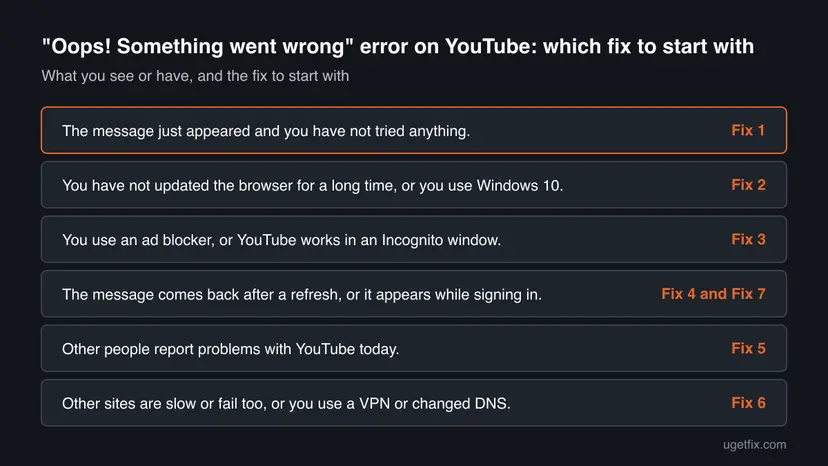
How to fix "Oops! Something went wrong" on YouTube
Fix 1 takes a minute and is the first line of Google's own advice. Fixes 2 to 4 deal with the browser, which is where Google's list points most often. Fixes 5 to 7 check YouTube, your connection and your Google Account. Test YouTube after each fix and stop when the message is gone.
| What you see or have | Start with |
|---|---|
| The message just appeared and you have not tried anything. | Fix 1 |
| You have not updated the browser for a long time, or you use Windows 10. | Fix 2 |
| You use an ad blocker, or YouTube works in an Incognito window. | Fix 3 |
| The message comes back after a refresh, or it appears while signing in. | Fix 4 and Fix 7 |
| Other people report problems with YouTube today. | Fix 5 |
| Other sites are slow or fail too, or you use a VPN or changed DNS. | Fix 6 |
Fix 1. Refresh the page, sign in and try again
1 minuteNo riskYou see the message for the first time and have changed nothing yet.
Google's help page says to refresh first, because many of these messages come from a short interruption that a new request clears. It also notes that some features do not work correctly when you are not signed in.
- Press F5, or select the reload button next to the address bar. If the page offers Reload, select that.
- If the page opens but looks signed out, select Sign in at the top right and sign in with your Google Account.
- Open a different video, or the YouTube home page, to see whether the message is tied to one page or to the whole site.
- If nothing changed, close the tab, open a new one and type
youtube.com.
It worked if: The page loads and your account picture appears at the top right, with no message on the page.
If not: If the message returns on every page, go on to Fix 2, because an old browser is the next item on Google's list.
Fix 2. Update the browser
5 minutesNo riskThe browser has not restarted for days, or you use Windows 10 22H2, which no longer gets Microsoft updates.
Google asks for the latest version of a compatible browser. An old browser may lack features the current YouTube page relies on, and updating also replaces damaged browser files.
- In Chrome, select More (the three dots at the top right) > Help > About Google Chrome. Chrome checks for updates on its own.
- When the download ends, select Relaunch.
- In Edge, select Settings and more (the three dots) > Help and feedback > About Microsoft Edge. Edge updates, then asks you to restart.
- Select Restart, then open YouTube again.
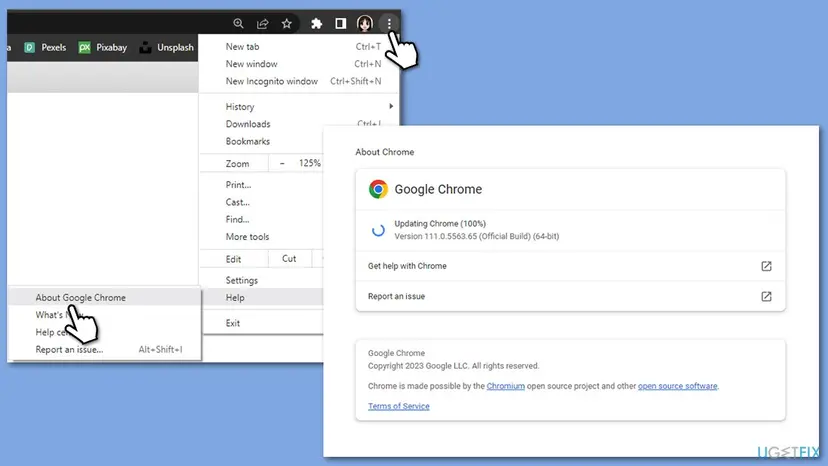
It worked if: The About page says the browser is up to date, and YouTube opens without the message after the restart.
If not: If the browser is current and the message stays, the cause is more likely an extension or stored data: go on to Fix 3 and Fix 4.
Fix 3. Turn off ad blockers and test in an Incognito window
5 minutesNo riskYou use an ad blocker or other extensions in the browser, or YouTube opened fine on a PC without them.
Google says to allow ads on YouTube and turn off ad blockers for this message, and to try an Incognito window with all extensions disabled. If the page works there, an extension is the cause and you can find which one.
- Open a private window: press Ctrl + Shift + N in Chrome or Edge (Edge calls it an InPrivate window).
- Go to
youtube.comand open the video that failed. If extensions are allowed in private windows, turn that off for the test. - If it works, go back to a normal window, open the extensions page from the browser menu and turn off your ad blocker.
- Reload YouTube. If it works, turn the other extensions on one at a time, reloading after each, until the message returns.
Most ad blockers can be set to allow one site. Allowing youtube.com keeps the blocker for other sites and shows whether it was the cause.
It worked if: YouTube opens in the private window, and in the normal window once the ad blocker is off or set to allow the site.
If not: If the private window shows the same message, extensions are not the cause. Go on to Fix 4, which clears stored data.
Fix 4. Clear the browser cache and cookies
5 minutesLow riskThe message appears in the normal window but a private window works, or the sign-in step fails.
Cookies and cached files for YouTube and google.com can be outdated or damaged. Google lists clearing cache and cookies for this message, and says it resolves loading problems on websites.
- In Chrome, press Ctrl + Shift + Delete, or select More > Delete browsing data.
- Set the time range to All time and select Cookies and other site data and Cached images and files.
- Select Delete data.
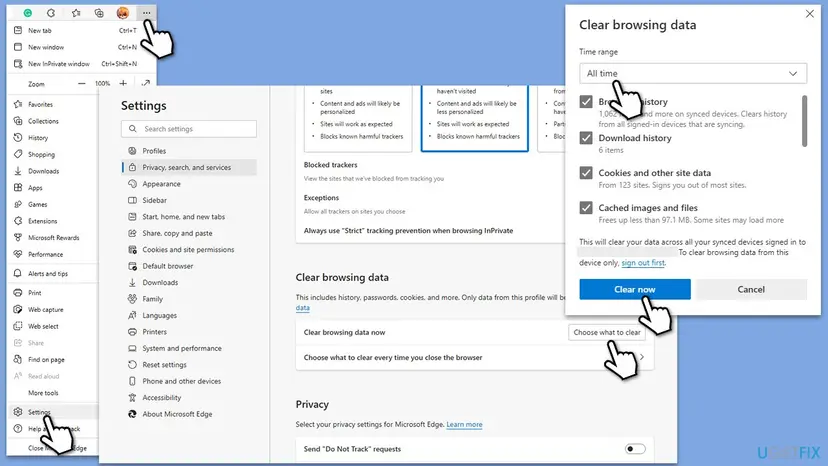
- In Edge, select Settings and more > Settings > Privacy, search, and services > Choose what to clear, set All time, select the same items and select Clear now.
- Close the browser, open it again and sign in to YouTube.
- Open Delete browsing data. Press Ctrl + Shift + Delete. Or select More (the three dots at the top right) > Delete browsing data.
- Choose how far back to delete. Select a time range at the top, such as Last hour. To clear everything, open More next to the ranges and choose All time.
- Choose what to delete. Check Cached images and files. Check Cookies and other site data too if a site will not sign you in. Uncheck anything you want to keep.
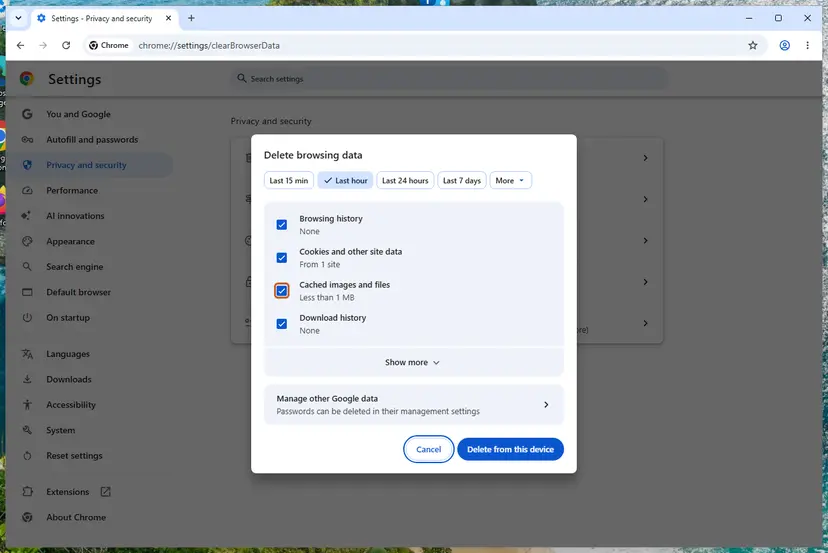
Chrome: Delete browsing data, with the time ranges at the top. Screenshot: Windows 11 26H2. - Delete the data. Select Delete from this device.
These steps were written for Chrome for Windows (screenshot: Windows 11 26H2). The full page with the other versions and what each result means: Clear the browser cache and cookies
Google notes that you will be signed out of sites and that some sites load more slowly until their images load again. Your YouTube videos, playlists and subscriptions are saved in your account, not in the cache.
It worked if: YouTube asks you to sign in, and after that the page loads without the message.
If not: If the message still comes back, the stored data was not the cause. Check YouTube itself in Fix 5 and your connection in Fix 6.
Fix 5. Check whether YouTube is down
2 minutesNo riskSeveral people or devices show the message at the same time, or it started suddenly with no change on your side.
Google mentions rare service interruptions and says most of these issues are temporary. A fault on YouTube's side cannot be fixed on your PC, so a quick check saves you from changing settings that were fine.
- Open YouTube on your phone with Wi-Fi off, or on a second PC. If it fails there too, the fault is not your browser.
- Open an outage tracker such as DownDetector and look at the YouTube page for a recent rise in reports.
- If many reports are shown, wait and try again later. Reloading every few seconds does not help.
- If nothing is reported, go on to Fix 6.
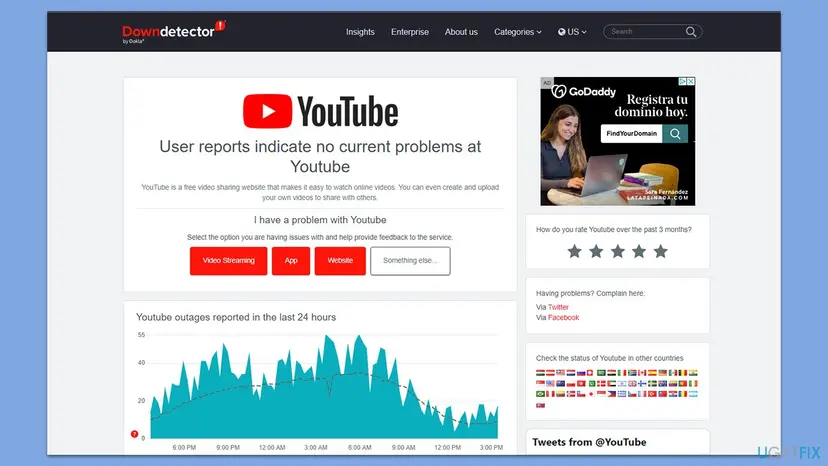
It worked if: Either you see a spike of reports and the page starts working again later, or you learn the problem is on your side.
If not: If YouTube works on other devices but not on this PC, the cause is local: go on to Fix 6 and Fix 7.
Fix 6. Check your connection and DNS
10 minutesLow riskOther sites are slow or fail too, you use a VPN, or you changed DNS servers earlier.
Google asks you to confirm that you use your preferred DNS servers and that no third-party application has changed them. A wrong DNS server or a weak connection makes requests to YouTube fail midway.
- Run an internet speed test and restart your router and modem. Google gives about 5 Mbps as the sustained speed for 1080p video.
- Disconnect any VPN and try YouTube again.
- Open Settings > Network & internet, select your Wi-Fi or Ethernet connection, then Properties and look at DNS server assignment.
- If it shows a DNS address you do not recognize, set it back to Automatic (DHCP), or to the DNS servers you chose yourself.
- Restart the PC, then open YouTube.
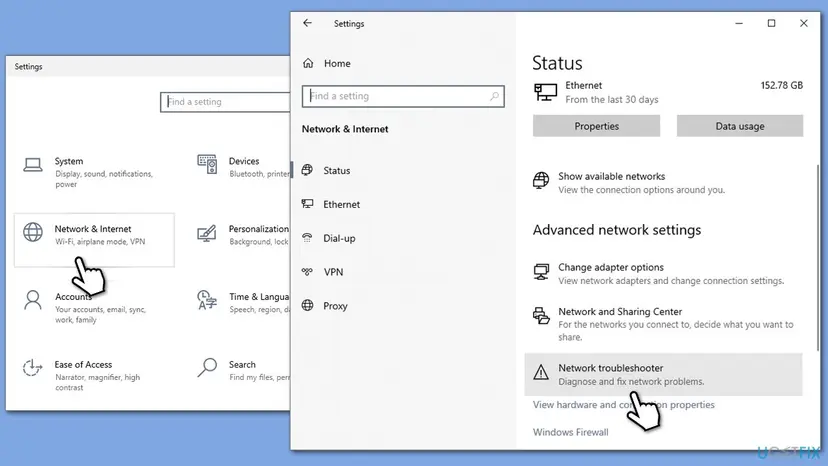
- Check the connection status. Select Start > Settings > Network & internet. The status of your connection is at the top of the page. Select Properties next to the network name to see its details.

The top of Network & internet shows whether you are connected. Screenshot: Windows 11 26H2. - Check that Wi-Fi is on and connected. Select the Network, Sound or Battery icon on the right side of the taskbar. Make sure Wi-Fi is turned on and that your network shows Connected below its name.
- Run the Network troubleshooter. Open the Get Help app and type connect to network and internet in the search bar. Select Run network diagnostics and complete the steps it offers.
- Restart the modem and the router. Unplug the power cable of the router, then of the modem, and wait at least 30 seconds. Plug the modem back in and wait until its lights stop blinking, then plug in the router. Wait a few minutes and try to connect again.
- Open Command Prompt as administrator. Type command prompt in the search box on the taskbar. Next to Command Prompt, select Run as administrator, then Yes.
- Find the address of your router. Type the command below and press Enter. Under the name of your network connection, note the address next to Default gateway, for example 192.168.1.1.
ipconfig - Ping the router. Type ping followed by that address and press Enter. Four lines that start with Reply from mean the PC reaches the router.
ping 192.168.1.1 - Find and ping the DNS server. Run the first command and note the address it shows. Then type ping followed by that address. The DNS server is the service that turns website names into addresses.
ipconfig /all | findstr /c:"DNS Servers"
These steps were written for Windows 11 25H2 and 26H2. The full page with the other versions and what each result means: How to check your internet connection in Windows
- Open an elevated command window. Right-click Start and select Terminal (Admin), or type cmd in the search box, right-click Command Prompt and select Run as administrator. Select Yes when Windows asks for permission.
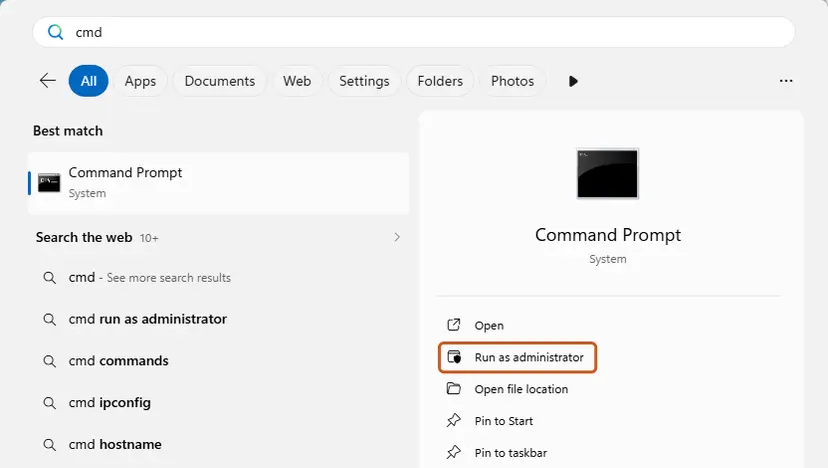
Search for cmd and choose Run as administrator. Screenshot: Windows 11 26H2. - Flush the DNS cache. Type the command below and press Enter. Windows forgets the website addresses it looked up earlier and asks for them again.
ipconfig /flushdns - Reset Winsock. Type the command below and press Enter. It returns the Windows sockets catalog to its default state.
netsh winsock reset
Both commands report success; the Winsock reset asks for a restart. Screenshot: Windows 11 26H2. - Reset TCP/IP. Type the command below and press Enter. If you entered an IP address or DNS server by hand, note it first: you may need to enter it again.
netsh int ip reset - Get a new IP address. Run these two commands one after the other. The connection drops for a moment between them.
ipconfig /release ipconfig /renew - Restart the PC. Restart Windows so the Winsock and TCP/IP resets take effect, then test the connection. If it still does not work, continue with the network reset below.
- Open Network reset. Open Settings > Network & internet > Advanced network settings and select Network reset.
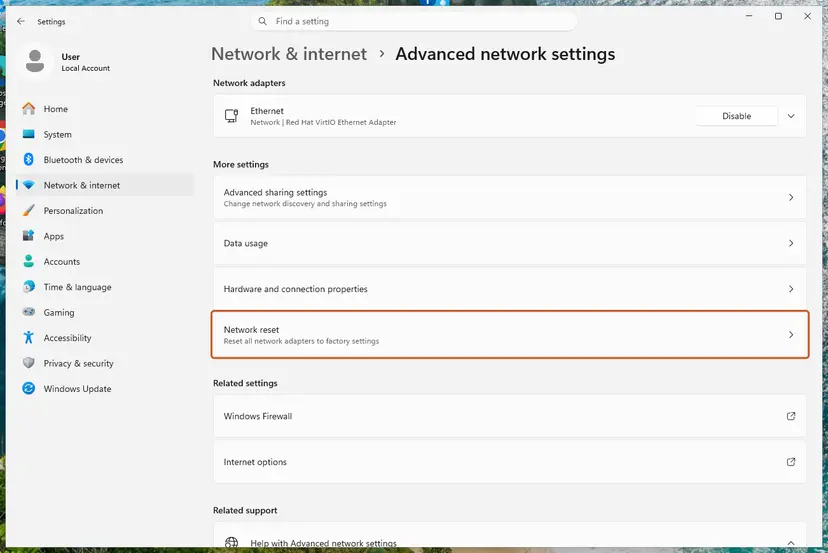
Network reset is under More settings in Advanced network settings. Screenshot: Windows 11 26H2. - Reset now. Select Reset now, then Yes to confirm. Windows removes and reinstalls all network adapters and restarts the PC.
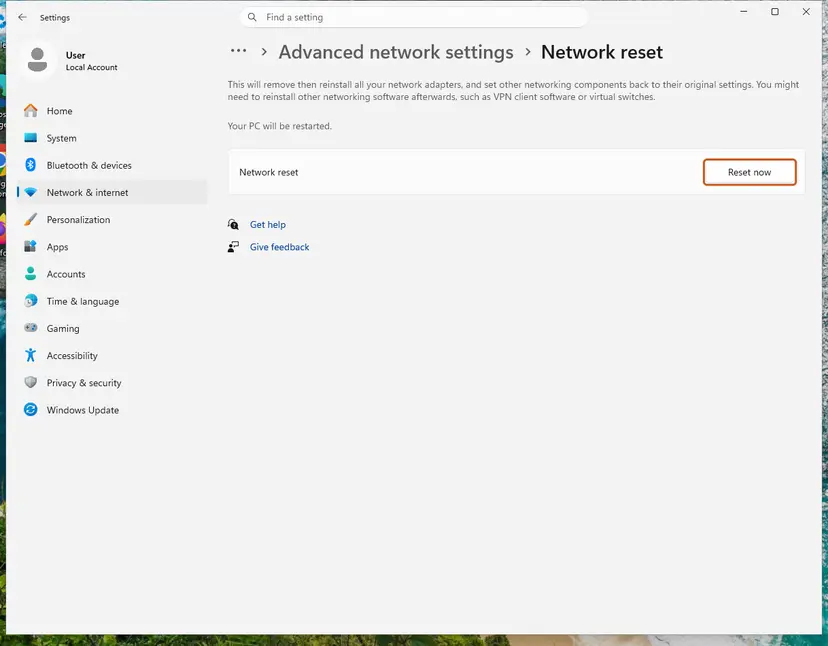
Network reset warns that VPN software or virtual switches may need to be reinstalled. Screenshot: Windows 11 26H2. - Reconnect. After the restart, connect to your Wi-Fi network again (you will need its password) and reinstall or reconfigure VPN software if it stopped working.
These steps were written for Windows 11 24H2 and later. The full page with the other versions and what each result means: Reset the network and flush DNS
It worked if: Pages load at normal speed and YouTube opens without the message, with the DNS setting back on the one you intend.
If not: If the connection and DNS are fine, the last item is the Google Account: go on to Fix 7.
Fix 7. Sign out of devices in your Google Account
5 minutesLow riskThe message appears while signing in, or only your account fails while a different account works on the same PC.
Google does not list this on its help page, so treat it as a step users report. Signing out of a device removes its saved session, and signing in again creates a fresh one.
- Open your Google Account page in the browser and select Security on the left.
- Under Your devices, select Manage all devices.
- Look at the list. For a device you do not recognize, select it and choose Sign out, then change your password.
- If you recognize every device, sign out of this PC and sign in to YouTube again.
- Close the browser, open it again and test YouTube.
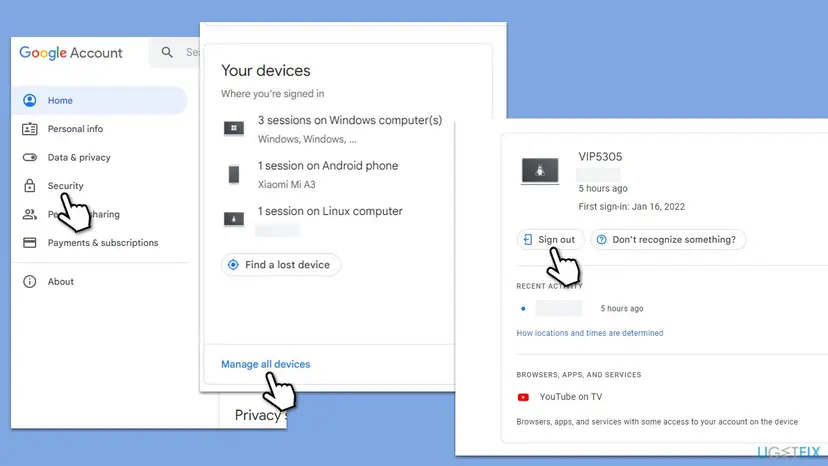
Sign it out, change your Google Account password and turn on 2-Step Verification. A stranger's device in this list means someone else has used your account.
It worked if: After signing in again, YouTube loads your account without the message, and the device list shows only your devices.
If not: If the message stays after all seven fixes, use the checks in the next section to see whether the problem is the account, the browser or the network.
If the message is still there after all the fixes
Three quick tests show where the fault sits. Do them in this order and note the result of each, because the answers narrow the cause better than another round of the same fixes.
| Test | Result | What it means |
|---|---|---|
| Open YouTube in another browser on the same PC, such as Edge if you use Chrome. | It works. | The first browser has a bad profile or extension. Make a new browser profile and sign in there. |
| Open YouTube on your phone using mobile data. | It works there, but not on the PC on Wi-Fi. | The problem is your network or router. Repeat Fix 6, or try the PC on another network. |
| Sign in with a different Google Account. | It works. | The first account has a sign-in problem. Use Fix 7, and the account recovery pages of Google. |
If all three tests fail, the fault is probably on YouTube's side, as in Fix 5. Wait and try again later, or post the exact text and the time in the YouTube Help Community, which is the place Google's page points to for more help.
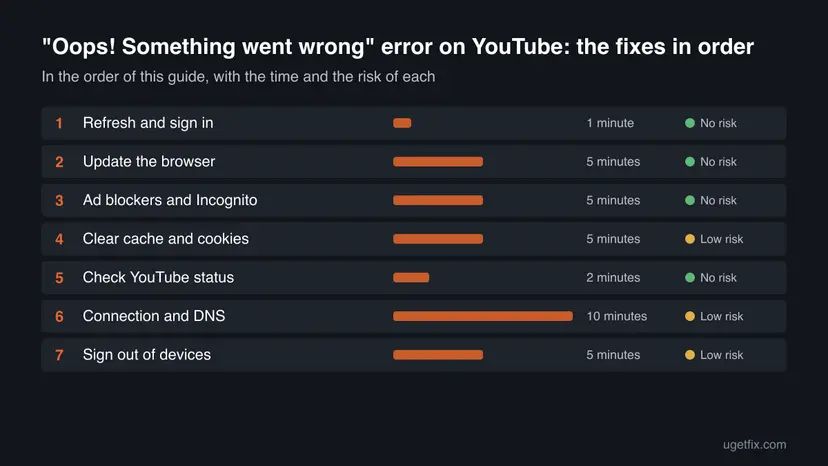
How to keep the YouTube error from coming back
- Restart the browser when it offers an update, so that YouTube works with a current browser.
- Allow YouTube in your ad blocker, instead of leaving the blocker active for every page.
- Check the device list in your Google Account from time to time and sign out of devices you no longer use.
- Keep your DNS settings on automatic unless you chose a DNS service on purpose.
- Do not turn off your antivirus or firewall to try to make YouTube work. The causes on Google's list do not involve them.
- Do not install apps that promise to repair YouTube or your browser. The fixes above are all built into the browser or Windows.
- Do not delete cookies every day. It signs you out of every site and does not prevent the message.
If you still use Windows 10 22H2, keep in mind that Microsoft ended its support on 14 October 2025. The browser you run on it may still update itself, but moving to Windows 11 removes one source of old-system problems.
Frequently asked questions
What does "Oops! Something went wrong" mean on YouTube?
It is a general YouTube error message. It means that the page you opened, your sign-in or a request behind the page did not complete, and YouTube does not give a code or a reason. Google's help page lists the same message in the form "Something went wrong. Refresh or try again later." and gives a set of steps: refresh, sign in, update the browser, allow ads, clear cache and cookies, check DNS and restart the device. Because the text is the same for many causes, you find yours by testing the steps in order.
Why does YouTube show this error only when I sign in?
Google says some features do not work correctly when you are not signed in, and a damaged sign-in session can cause the opposite problem. Old cookies for google.com, an old browser or a device entry in your Google Account may block the sign-in. Clear cache and cookies (Fix 4), update the browser (Fix 2), then sign out of devices in your Google Account (Fix 7) and sign in again. Try another browser as a check on whether the problem is in your account or in the first browser.
What is youtube.com/oops and why did I land there?
Some readers see the address bar change to youtube.com/oops when YouTube fails to load. Google's help pages do not document that address, so we cannot say exactly why YouTube sends the browser there. Treat it as the same message page and use the same fixes. A refresh usually returns you to the page you wanted. If it sends you to /oops again, try an Incognito window with extensions off, because an extension or old cookies are the next thing to test.
Is the "Oops! Something went wrong" error my fault or YouTube's?
It can be either, and the message does not tell you which. Check three things in order. Open YouTube on a phone with mobile data. Check an outage tracker such as DownDetector. Open YouTube in another browser on the same PC. If it fails on every device and trackers show many reports, YouTube has a problem and you should wait. If it works elsewhere, the fault is in your browser, extensions, cached data, DNS or Google Account, and Fixes 2 to 7 apply.
Do 500 Internal Server Error and 502 Bad Gateway mean the same thing?
They are standard web server errors and are sometimes shown instead of the YouTube message. A 500 means that the server had a problem it could not handle, and a 502 means that a server in the chain got a bad answer from another one. Google's pages do not link either number to this message, so we cannot give them a special fix. Refresh the page, wait a few minutes, then use the same steps as for the Oops message.
Will clearing cookies delete my YouTube videos or playlists?
No. Your playlists, subscriptions and uploaded videos are stored in your Google Account, not in the browser. Google notes that clearing cookies signs you out of sites, so you need to sign in again, and that some sites load a little slower afterward because images load again. Keep your Google password at hand before you start. If you use Chrome sync, Google says you stay signed in to the synced account, and the data is deleted across your synced devices.
Can an ad blocker cause this YouTube error?
Yes. Google's page says to allow ads on YouTube and turn off ad blockers when you see "Something went wrong", and to check whether extensions that block ads affect playback. The simplest test is an Incognito window, where extensions are off by default. If YouTube works there, return to the normal window, switch the blocker off or allow youtube.com, and reload. Then turn other extensions on one by one to find the one that causes the message.
Does the error happen on the YouTube app as well?
The same messages appear in the app, but this guide covers the desktop web browser on Windows. Google's page says to update the YouTube app to the newest version, restart the app or the device, and uninstall and reinstall the app if needed. On a TV it recommends a power cycle: unplug the device, wait at least 30 seconds, then plug it back in. For phone or TV problems, open Google's page "Troubleshoot YouTube video errors" directly.
Should I use a VPN or change my DNS to fix YouTube?
No. Google asks you to confirm that you use your preferred DNS servers and that no third-party program has changed them, which is the opposite of changing them yourself. A VPN adds another network hop and can cause the very failure you want to remove. Disconnect the VPN for a test, set DNS back to automatic unless you chose a DNS service on purpose, and restart the PC. Use a VPN again after you know the message is gone.
Sources
- Google YouTube Help: Troubleshoot YouTube video errors (support.google.com)
- Google YouTube Help: Clear cache & cookies (support.google.com)
Did this fix work?
One click, no account. It tells the next reader which guides are worth their time.
Questions and experiences: fix "Oops! Something went wrong" error on YouTube
Still broken, or found a fix we did not cover? Ask here: members and our editors answer. Reading is open; writing needs a free account.
…