
How to fix printing error 0x00000771 (Operation could not be completed) in Windows?

Prefer to fix it yourself? The manual steps follow.
- 7methods
- 5 to 30 minutes
- Intermediate
Applies to Windows 11 and Windows 10 PCs that print to a shared printer, a print server or a local USB or network printer
7 methods in this guide
Hello, my printer is showing an error "Operation could not be completed (error 0x00000771)." Is there anything that can be done about it, since I can't use my printer properly because of this? I am using Windows 10.
Error 0x00000771 is Windows error 1905, "The specified printer has been deleted": the print system still holds a printer that no longer exists for it. It shows up most often with a printer that another PC shares. Start by restarting the Print Spooler service on the PC the printer is attached to.
0x00000771 means "The specified printer has been deleted." The print spooler holds a printer object that is gone or half removed. Restart Print Spooler on the PC that shares the printer, then on your PC (Fix 1). If it returns, check that the share still exists and add the printer again by \\HostName\ShareName (Fix 2), then clear a connection stuck in deletion (Fix 3).
| Error | Operation could not be completed (error 0x00000771). The specified printer has been deleted. The number is Windows system error 1905, ERROR_PRINTER_DELETED. |
|---|---|
| Where it appears | In a small box titled Printers, most often when you open, add or print to a printer that another computer shares. Less often with a printer attached to your own PC. |
| Main cause | The Print Spooler on the PC that shares the printer, or on your PC, keeps a printer that was removed, renamed or is waiting to be deleted. |
| Fastest fix | Restart Print Spooler on the host PC, then on your PC (Fix 1). A restart of the host PC does the same. |
| Also written as | 0x0000771, 0x000000771, 0x771, error 771, printer error 771, error 771 printer sharing, error 1905. |
| Affects | Windows 11 and Windows 10, every printer brand and connection type: USB printers shared from a PC, Wi-Fi printers added through a PC, print servers. |
| Microsoft's status | No Microsoft support article covers 0x00000771 by number. Microsoft documents the error text, the 2021 print RPC security change and the Windows 11 22H2 RPC change that touch shared printers. |
| Time to fix | 2 minutes for Fix 1, 10 to 30 minutes when the connection has to be removed and added again on several PCs. |
Facts checked on 15 October 2026. Steps written for Windows 11 (25H2 and 26H2) and Windows 10 22H2.
What "Operation could not be completed (error 0x00000771)" means
0x00000771 is a hexadecimal number. In decimal it is 1905. Microsoft's list of system error codes gives it the name ERROR_PRINTER_DELETED and the text "The specified printer has been deleted". That second line is exactly what Windows prints under the code.
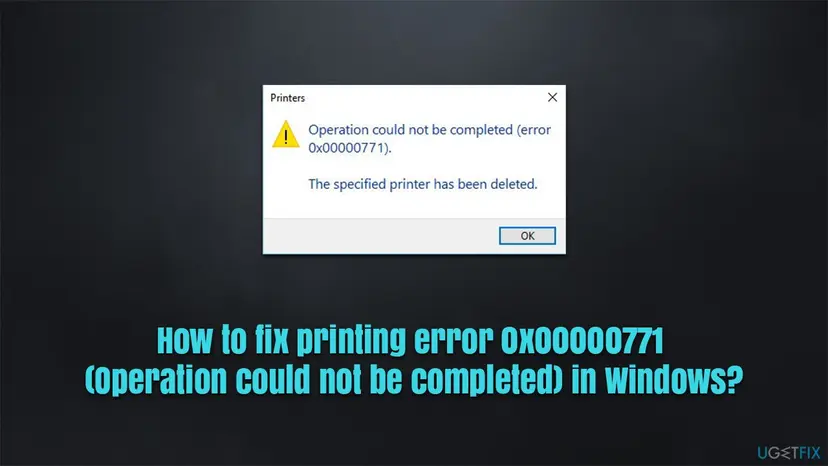
The message does not mean that someone removed your printer on purpose. It means the print spooler, the Windows service that keeps the list of printers and their queues, was asked to use a printer it now treats as deleted. With a shared printer that answer can come from the host PC's spooler, not from yours.
| What you were doing | Which spooler answers "deleted" | Start with |
|---|---|---|
| Double-clicking a shared printer under Network, or adding it | The spooler on the PC that shares it | Fix 1, then Fix 2 |
| Printing to a shared printer that worked yesterday | Usually the host's spooler, sometimes the copy of the connection on your PC | Fix 1, then Fix 3 |
| Printing to a printer attached to your own PC | The spooler on your PC | Fix 1, then Fix 6 |
| Any of the above, right after a Windows update | The print connection rules changed on one PC | Fix 4 or Fix 5 |
Windows writes eight digits after 0x: 0x00000771. People also type 0x0000771, 0x000000771, 0x771, "error 771" or "printer error 771". Zeros in front do not change the number, so all of them are error 1905. It is not 0x00000709 (1801, "The printer name is invalid") and not 0x00000077 (119, a driver level error), which have their own causes.
Why Windows says the printer has been deleted: causes of error 771, ranked
Microsoft has no support article for 0x00000771 by number, so the ranking below comes from what the code means, Microsoft's print documentation and what administrators report on Microsoft Q&A and Spiceworks. It runs from the common to the rare.
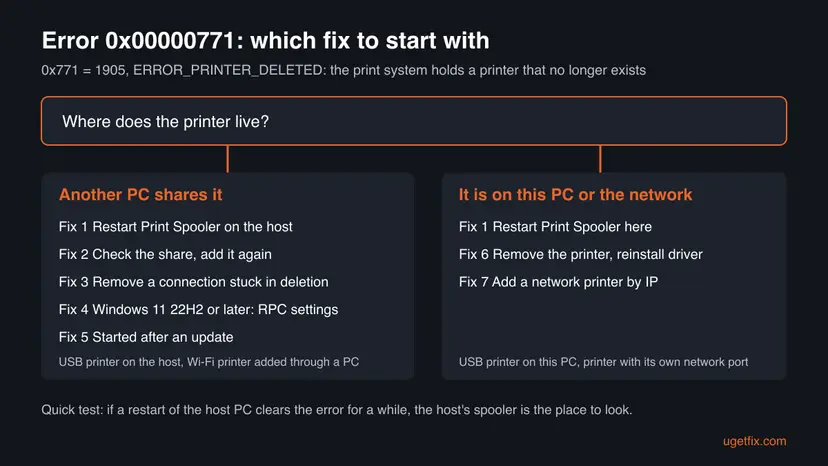
| # | Cause | How to recognise it | Fix |
|---|---|---|---|
| 1 | The host's spooler holds a stale printer object | A restart of the host PC or of its Print Spooler clears the error, then it comes back days later | Fix 1 |
| 2 | The printer was removed, renamed or unshared on the host | The share name you use is not in the host's list of shared printers | Fix 2 |
| 3 | A printer connection on your PC is stuck waiting to be deleted | The printer shows in your list but cannot be used or removed | Fix 3 |
| 4 | Client and host use different print RPC settings since Windows 11 22H2 | Either PC runs Windows 11 22H2 or later and the error began after a feature update | Fix 4 |
| 5 | A Windows update changed print security on one PC only | The error began the day an update installed | Fix 5 |
| 6 | A damaged printer entry or driver on the PC the printer is attached to | The printer is local and fails even after a spooler restart | Fix 6, Fix 7 |
- Why the host comes first. On Spiceworks, an administrator with a USB printer shared to five or six users reports that 771 goes away on every client after a restart of the spooler on the host. Another user reports the same after restarting the source desktop.
- Why a stuck connection matters. On Microsoft Q&A, a long-time print expert explains that a printer connection can stay in the registry "pending deletion". The spooler cleans such entries up when it restarts.
- Why updates appear. In January 2022 a user on Microsoft Q&A reported 771 between Windows 10 and Windows 7 PCs after the December 2021 update KB5008212, and that removing it helped until it reinstalled.
Error 0x00000771 on Windows 11 and Windows 10: what differs
The meaning of the code is the same on both systems, and Fix 1 to Fix 3 work the same way. What differs is how two PCs talk when they share a printer. Since Windows 11 version 22H2, Microsoft says print connections use RPC over TCP by default, and a sharing PC listens only on RPC over TCP.
| Situation | Windows 11 (22H2 and later) | Windows 10 22H2 |
|---|---|---|
| Adding a shared printer | Settings > Bluetooth & devices > Printers & scanners > Add device > Add manually | Settings > Devices > Printers & scanners > Add a printer or scanner > The printer that I want isn't listed |
| Sharing settings on the host | Settings > Network & internet > Advanced network settings > Advanced sharing settings | Settings > Network & internet > Status > Network and sharing center > Change advanced sharing settings |
| Print connection between PCs | RPC over TCP by default, named pipes off | The 22H2 change does not apply |
| Updates from Microsoft | Still serviced | Support ended on 14 October 2025 |
Many 771 reports come from offices where Windows 10 or Windows 7 PCs print to a printer shared by another PC. Old PCs no longer get print security fixes, so the cleanest setup is a host that is fully updated and a printer that the other PCs reach by its real name.
How to fix error 0x00000771: seven fixes in order
Fix 1 to Fix 3 solve most cases and take a few minutes each. Fix 4 and Fix 5 are for errors that began after a Windows update. Fix 6 and Fix 7 are for a printer on your own PC or with its own network port.
| What you see or have | Start with |
|---|---|
| 771 with a printer that another PC shares | Fix 1 on the host PC |
| The error came back after a spooler restart, or the printer was renamed or moved | Fix 2 |
| The printer stays in your list and cannot be removed | Fix 3 |
| Either PC runs Windows 11 22H2 or later and the error began after a feature update | Fix 4 |
| The error began the day a Windows update installed | Fix 5 |
| The printer is attached to your own PC by USB | Fix 1, then Fix 6 |
| The printer has its own Wi-Fi or Ethernet connection | Fix 7 |
Fix 1. Restart Print Spooler on the PC that shares the printer, then on your PC
2 to 5 minutesNo riskFor everyone. Do it first on the PC the printer is attached to, then on the PC that shows the error.
Error 1905 is the spooler saying it holds a printer marked as deleted. A restart makes it reload its printers from scratch and clean up entries waiting for deletion. Users on Spiceworks report that a spooler restart on the host cleared 771 on all clients.
- On the host PC, press Win + R, type
services.mscand press Enter. - Find Print Spooler in the list. Check that Status says Running.
- Right-click Print Spooler and select Restart. If it is not running, select Start.
- Double-click Print Spooler and check that Startup type is Automatic. If not, choose Automatic, then Apply and OK.
- Do the same on your own PC, then try to print again.
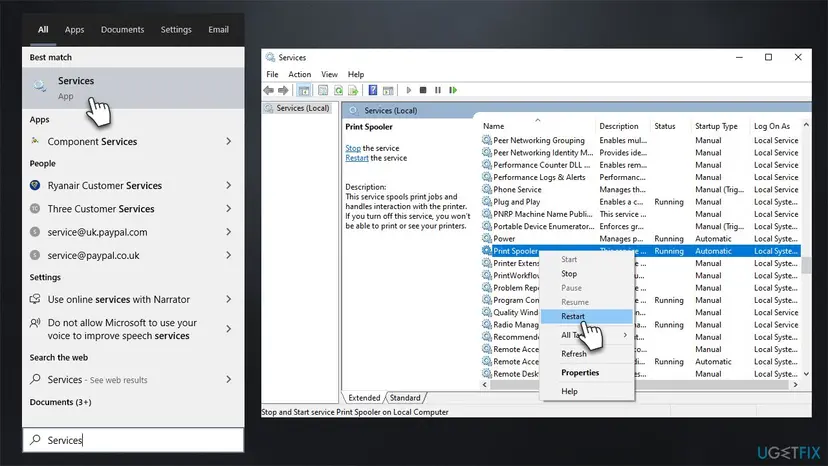
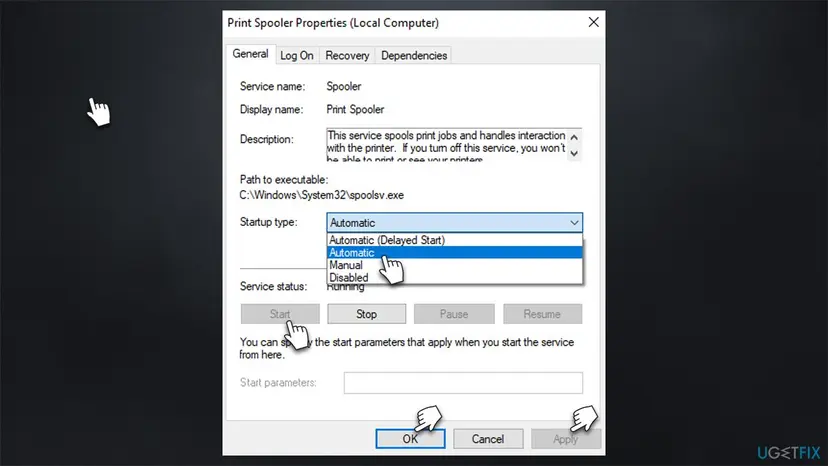
The same in one command in Terminal (Admin): Restart-Service -Name Spooler. More on the Services window: Check and restart Windows services.
It worked if: The shared printer opens and prints a test page, and the Printers box with 771 does not appear.
If not: If the error comes back after hours or days, or does not go away at all, go to Fix 2.
Fix 2. Check that the share still exists, then remove the printer and add it again by name
10 minutesLow riskThe printer is shared by another PC and Fix 1 did not help, or the error keeps coming back.
"The specified printer has been deleted" is literally true when the host no longer shares a printer under the name your PC saved. That happens after the host's printer is reinstalled, renamed or unshared. A fresh connection by the current share name replaces the dead one.
- On the host, print a test page to be sure the printer works there.
- On the host, open Printers & scanners, select the printer, then Printer properties. On the Sharing tab, check Share this printer and note the Share name exactly.
- On the host, turn on Network discovery and File and printer sharing in Advanced sharing settings.
- On your PC, open Terminal and run
Get-Printer -ComputerName HostName, with the host's computer name. The printer and its share name should be listed. - On your PC, open Printers & scanners, select the failing printer and select Remove. Restart the PC.
- Select Add device, then Add manually, choose Select a shared printer by name and type
\\HostName\ShareName. On Windows 10 use Add a printer or scanner, then The printer that I want isn't listed. - When asked, enter the user name and password of the host PC, or use the same account on both PCs, as Microsoft suggests.
| Check | Why it matters for 771 |
|---|---|
| The share name, not the printer model | A printer reinstalled on the host often gets a new name. Your saved connection then points at a printer that is gone. |
| The host's computer name | A host that was renamed or replaced leaves every old connection pointing nowhere |
| The host is awake | A sleeping host gives other errors first, so keep it on while you test |
It worked if: Get-Printer -ComputerName HostName lists the printer, it adds without an error and prints a test page.
If not: If the old printer cannot be removed, or comes back after a restart, go to Fix 3. If adding it fails with 0x00000709 instead, see our guide to error 0x00000709.
Fix 3. Remove a printer connection that is stuck waiting to be deleted
10 to 15 minutesRead the warningThe failing printer stays in your list, cannot be removed in Settings, or returns after every restart.
When Windows cannot finish removing a printer connection, it leaves an entry marked for deletion. The spooler then answers "deleted" for it but still shows it. Removing it by command, and checking the registry key where such entries live, ends that state.
Step 4 deletes a registry key. Export HKEY_LOCAL_MACHINE\SOFTWARE\Microsoft\Windows NT\CurrentVersion\Print\Providers\Client Side Rendering Print Provider before you change it: Back up the registry before editing it. Delete only the key of the printer that fails. Other keys there belong to printers that still work.
- Open Terminal (Admin) and run
Get-Printer. Note the exact Name of the failing printer, for example\\HostName\ShareName. - Run
Remove-Printer -Name "\\HostName\ShareName"with that name, thenRestart-Service -Name Spooler. - If the printer is still listed, press Win + R, type
regeditand press Enter. Go toHKEY_LOCAL_MACHINE\SOFTWARE\Microsoft\Windows NT\CurrentVersion\Print\Providers\Client Side Rendering Print Provider\Servers\HostName\Printers. - Look for a key that ends with a comma and a number, such as
{D6B632BD-0B84-49D6-8814-626BD5D8E969},4. That is a printer pending deletion. Right-click it and select Delete. - Restart Print Spooler again, restart the PC and add the printer as in Fix 2.

The comma and number pattern comes from an answer on Microsoft Q&A by a long-time print expert, who calls such entries "zombie" printers. A restart of the spooler usually removes them by itself; step 4 is for the case where it does not.
It worked if: Get-Printer no longer lists the old connection, and the printer you add again prints without 771.
If not: Import the exported .reg file to undo. If the host and your PC run different Windows versions, go to Fix 4.
Fix 4. Windows 11 22H2 and later: match the print RPC settings of both PCs
15 minutesRead the warningEither PC runs Windows 11 22H2 or later, and the shared printer broke after a feature update. Needs an administrator.
Microsoft says a Windows 11 22H2 or later PC connects with RPC over TCP and, when it shares a printer, listens only on RPC over TCP. A host and a client that disagree, or a firewall that blocks the ports, break the connection to the shared printer.
These commands add printer policy values. Back up HKEY_LOCAL_MACHINE\SOFTWARE\Policies\Microsoft\Windows NT\Printers first: Back up the registry before editing it. Microsoft recommends RPC over TCP and says named pipes should be used only when TCP is not an option. Allow RPC ports only from your local network, never from the internet.
- On the host, make sure no third-party firewall blocks incoming TCP port 135 and ports 49152 to 65535 from your local network. This is the route Microsoft prefers.
- If older PCs print to this host, let it listen on named pipes and TCP with the first command below in Terminal (Admin), then restart the host.
- If the host is older and you cannot change it, set your Windows 11 PC to use named pipes with the second command, then restart your PC.
- Add the printer again as in Fix 2.
Host: listen for print connections on named pipes and on TCP (Microsoft's command)
reg add "HKEY_LOCAL_MACHINE\SOFTWARE\Policies\Microsoft\Windows NT\Printers\RPC" /v RpcProtocols /t REG_DWORD /d 0x7 /fClient: connect with RPC over named pipes (1 = named pipes, 0 or not set = RPC over TCP)
reg add "HKEY_LOCAL_MACHINE\SOFTWARE\Policies\Microsoft\Windows NT\Printers\RPC" /v RpcUseNamedPipeProtocol /t REG_DWORD /d 1 /fOn Windows 11 Pro the same settings are the policies Configure RPC listener settings and Configure RPC connection settings under Computer Configuration > Administrative Templates > Printers: Open the Local Group Policy Editor. Our guide to error 0x00000709 explains each combination in detail.
It worked if: After the restart the shared printer adds and prints from every PC.
If not: Undo with reg delete "HKEY_LOCAL_MACHINE\SOFTWARE\Policies\Microsoft\Windows NT\Printers\RPC" /v RpcProtocols /f (or RpcUseNamedPipeProtocol), restart, and go to Fix 5.
Fix 5. If the error began after a Windows update, update both PCs or remove that one update
15 to 40 minutesLow risk771 started the day an update installed, on the host or on your PC.
Since 2021 Microsoft has tightened how PCs authenticate to a shared printer. A host and a client on very different update levels can stop agreeing. Bringing both to the same level fixes most of these cases; removing one update is a short test only.
- On both PCs, open Settings > Windows Update, install every update and restart. On Windows 10 the path is Settings > Update & Security > Windows Update.
- Restart Print Spooler on both PCs as in Fix 1 and try again.
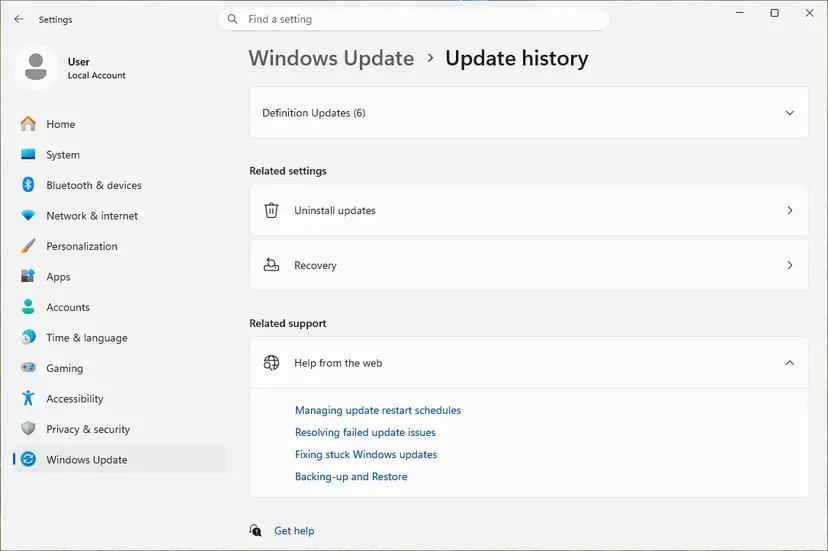
- If the error began with an update that is already the latest, note its KB number in Update history and check Microsoft's release health page for a known printing issue.
- If there is none and printing is urgent, uninstall that one update and pause updates for a short time: How to uninstall a Windows update. Install it again once Microsoft ships the next one.
Old posts tell you to set RpcAuthnLevelPrivacyEnabled to 0. Microsoft says that value turns off the higher print authentication added for CVE-2021-1678 and that "your devices are not protected" with it. The user who tried it for 771 reported that it did not help.
It worked if: Both PCs show no pending updates, the spooler runs on both and the printer prints.
If not: If removing the update did not change anything, install it again and go to Fix 6 or Fix 7.
Fix 6. Printer on your own PC: remove it and reinstall the driver
15 minutesLow riskThe printer is attached to the PC that shows 771 by USB, and Fix 1 did not help.
With a local printer there is no other PC involved, so the deleted printer is in your own spooler. Removing the printer and its device entry, then letting Windows add it again, builds a new printer object in place of the broken one.
- Open Settings > Bluetooth & devices > Printers & scanners, select the printer and select Remove. On Windows 10 open Settings > Devices > Printers & scanners.
- Unplug the USB cable and restart the PC.
- Open Device Manager and reinstall the printer's driver, or install the driver for your Windows version from the printer maker's site. The steps: Update, roll back or reinstall a driver.
- Plug the printer in again and wait until it appears in Printers & scanners, then print a test page.
It worked if: The printer appears again in Printers & scanners and prints a test page.
If not: If the printer has its own network connection, go to Fix 7. Otherwise collect the facts in the next section.
Fix 7. Add a network printer by its IP address instead of through another PC
10 minutesLow riskThe printer has its own Wi-Fi or Ethernet connection, and the route through a sharing PC keeps failing.
A printer with its own network port does not need a host PC. Adding it by IP address gives each PC its own printer and port, so no other spooler can answer that the printer has been deleted.
- Find the printer's IP address on its control panel or on a network settings page it prints.
- Open Printers & scanners and select Add device. On Windows 10 select Add a printer or scanner.
- Select Add manually. On Windows 10 select The printer that I want isn't listed.
- Choose the option to add a printer by its IP address or host name, select Next and type the address.
- Let Windows find the driver, or install the maker's driver, then print a test page.
- Remove the old shared printer entry so that apps stop using it.
Reserve the printer's IP address in your router. If the address changes later, a printer added by IP stops working with a different error, not with 771.
It worked if: The printer appears with its own port in Printers & scanners and prints a test page.
If not: Collect the facts in the next section and ask the printer maker or Microsoft support.
Still getting error 771? Where the real cause is written
The 771 box never says which PC's spooler gave up. Before you change anything else, find out what each side lists and what the print system logged at that moment. Send these facts along if you ask for help.
| Check | Where | What it tells you |
|---|---|---|
| What the host shares | Get-Printer -ComputerName HostName on your PC | Whether the printer and share name you use still exist on the host |
| What your PC holds | Get-Printer on your PC | Old or duplicate connections to the same printer |
| Print Service log | Event Viewer, Applications and Services Logs > Microsoft > Windows > PrintService > Admin | Errors about the printer or driver at the time of the failure |
| Pending deletions | HKEY_LOCAL_MACHINE\SOFTWARE\Microsoft\Windows NT\CurrentVersion\Print\Providers\Client Side Rendering Print Provider\Servers | Printer keys with a comma and a number at the end |
| Windows versions | Run winver on both PCs | Whether the Windows 11 22H2 RPC change applies |
- What to send to support: both Windows versions, the printer model, how it is connected, the exact printer path, and the output of both
Get-Printercommands. - Is it hardware? No. The code comes from the Windows print system before a page is sent. If the printer prints a test page on the PC it is attached to, the printer is fine.
- When it keeps coming back. If only a host restart helps and the error returns every few days, the host's spooler or driver is unstable. Updating that PC and its printer driver usually matters more than any change on the clients.
How to keep error 0x00000771 from coming back
Most 771 errors come back when the host's printer is reinstalled or renamed while other PCs still hold the old connection, or when PCs on one network drift apart in updates. A few habits keep it away.
- Keep the printer's share name the same when you reinstall it on the host.
- Remove a shared printer on the clients before you remove or rename it on the host.
- Keep the host and the clients on the same update level.
- Add a printer that has its own network port by IP address on every PC.
- Keep the host awake while others print.
- Do not set RpcAuthnLevelPrivacyEnabled to 0.
- Do not open RPC ports to the internet.
- Do not delete printer registry keys without an export first.
- Do not leave an update uninstalled for good.
Frequently asked questions
What does error 0x00000771 mean?
It is Windows system error 1905, ERROR_PRINTER_DELETED: "The specified printer has been deleted." The print spooler was asked to use a printer that it treats as deleted. With a shared printer, the answer usually comes from the PC that shares it: its spooler holds a stale entry, or the printer was renamed or removed there. Restart Print Spooler on that PC first (Fix 1), then add the printer again by its current share name (Fix 2).
Why do I get error 771 when printer sharing on Windows 10?
Usually because the Windows 10 PC that shares the printer has a spooler that lost track of it, or because the printer was reinstalled there under a new name. Users report that restarting the host's spooler clears it on every client. If it keeps coming back, remove the connection on each client and add it again by \\HostName\ShareName. Windows 10 left support on 14 October 2025, so a Windows 11 host is the longer term answer.
Is "erro 0x00000771" or 0x0000771 the same error?
Yes. "Erro" is the Portuguese word for error, and the Portuguese Windows box shows the same code. 0x0000771, 0x000000771 and 0x771 differ only in the number of zeros in front, which changes nothing. All of them are error 1905, "The specified printer has been deleted". Menu names differ in other Windows languages, but the fixes on this page are the same.
Why does restarting the other computer fix error 0x00000771 for a while?
A restart also restarts the Print Spooler service on that computer. The spooler then reloads its printers and cleans up entries that were waiting to be deleted, so the clients find a valid printer again. If the error returns after some days, something on the host keeps breaking the printer entry: a driver that crashes, a printer that is reinstalled by a tool, or a pending update. Fix 2 and Fix 5 address those.
Is printer error 771 a fault of the printer?
No. The code comes from the Windows print system before a page reaches the printer, so ink, paper, cables and the printer's own settings are not the cause. A quick test settles it: print a test page on the PC the printer is attached to. If that works, the printer is fine and the fault is in the spooler or the connection on one of the PCs.
Should I set RpcAuthnLevelPrivacyEnabled to 0 to fix 0x00000771?
No. Old forum answers suggest it, but Microsoft says that value turns off the higher print authentication added for CVE-2021-1678 and leaves your devices unprotected. The Microsoft Q&A user who tried it for 771 reported that it did not help. Update both PCs to the same level instead (Fix 5), and on Windows 11 use the RPC settings Microsoft documents (Fix 4).
Can I fix error 0x00000771 without administrator rights?
Partly. Removing a printer connection with Remove-Printer and adding a shared printer again usually works under a normal account, and Microsoft says Remove-Printer needs no administrator credentials. Restarting Print Spooler, changing the registry and installing drivers need an administrator. On a work PC, ask your administrator, because printers there are often deployed by Group Policy and come back at the next sign-in.
What is the difference between error 0x00000771 and 0x00000709?
0x00000709 is error 1801, "The printer name is invalid": Windows could not reach a printer under that name. Its usual causes are the Windows 11 RPC change or an old default printer. 0x00000771 is error 1905, "The specified printer has been deleted": the name was found, but the spooler treats that printer as removed. Both show the same "Operation could not be completed" box, so read the second line.
Does error 771 appear with a USB printer that is not shared?
It can, but it is less common. Then the deleted printer is in your own spooler, and no other PC is involved. Restart Print Spooler (Fix 1). If that does not help, remove the printer in Settings, unplug it, reinstall the driver and plug it in again (Fix 6). If the printer also has Wi-Fi or Ethernet, adding it by IP address (Fix 7) avoids the old entry altogether.
Sources
- Microsoft Learn: System Error Codes (1700-3999) (learn.microsoft.com)
- Microsoft Learn: Windows 11 RPC connection updates for print (learn.microsoft.com)
- Microsoft Support: Fix shared printer connection problems in Windows (support.microsoft.com)
Did this fix work?
One click, no account. It tells the next reader which guides are worth their time.
Questions and experiences: fix printing error 0x00000771 (Operation could not be completed) in Windows
Still broken, or found a fix we did not cover? Ask here: members and our editors answer. Reading is open; writing needs a free account.
…