
How to fix RAVCpl64.exe System Error in Windows?

Prefer to fix it yourself? The manual steps follow.
- 7methods
- 2 to 30 minutes
- Easy
Applies to Windows 11, Windows 10 (including N and KN editions); PCs with Realtek High Definition Audio
7 methods in this guide
Hello. Every time I log into my computer, I receive a RAVCpl64.exe system error. What does it mean, and how can I fix this?
RAVCpl64.exe is the Realtek HD Audio Manager, and its System Error at sign-in almost always says that ResampleDmo.DLL was not found. That DLL is a Windows media file, not a Realtek one, so the fix is usually on the Windows side. Check whether your Windows is an N edition first.
The window means RAVCpl64.exe could not load ResampleDmo.DLL, a Microsoft media file in C:\Windows\System32. On Windows 11 N or Windows 10 N, install the Media Feature Pack from Settings > Apps > Optional features and reinstall the audio driver (Fix 1). On other editions, install the audio driver from your PC or motherboard maker (Fix 2). If sound works and you never open the panel, you can simply stop it at startup (Fix 3).
| Error | RAVCpl64.exe - System Error: "The code execution cannot proceed because ResampleDmo.DLL was not found. Reinstalling the program may fix this problem." |
|---|---|
| Where it appears | A small Windows error window right after you sign in, when the Realtek audio panel starts in the background. |
| Main cause | The Windows media components are missing, most often on an N edition of Windows without the Media Feature Pack. |
| Fastest fix | Windows N: install the Media Feature Pack, then reinstall the audio driver (Fix 1). Other editions: the PC maker's audio driver (Fix 2). |
| The file | C:\Program Files\Realtek\Audio\HDA\RAVCpl64.exe, the Realtek HD Audio Manager (HD Audio Control Panel), signed by Realtek. |
| Also written as | ravcpl64, ravcpl, ravcpi64, AVCpl64.exe, RAVCpl64.exe Systemfehler, RAVCpl64.exe application error. |
| Affects | Windows 11 and Windows 10 PCs with a Realtek audio chip and the older Realtek HD Audio Manager package. |
| Vendor status | Realtek lists its generic HD Audio driver R2.83 (15 August 2024) for Windows Vista to Windows 10 and tells users to get drivers from the PC or motherboard maker. |
| Time to fix | 10 to 20 minutes for Fix 1 or Fix 2; 2 minutes to stop it at startup. |
Facts checked on 15 October 2026. Steps written for Windows 11 (25H2 and 26H2) and Windows 10 22H2.
What the RAVCpl64.exe System Error means
The window title is RAVCpl64.exe - System Error. The text reads "The code execution cannot proceed because ResampleDmo.DLL was not found. Reinstalling the program may fix this problem." Windows shows it before the Realtek program runs at all: the loader looked for a DLL the program needs, did not find it, and stopped the start.
The important detail is the name of the missing file. ResampleDmo.DLL is a Microsoft file in C:\Windows\System32, part of the Windows media components that convert audio between sample rates. Realtek did not write it and its installer does not put it there. That is why reinstalling the Realtek program alone often does not help.
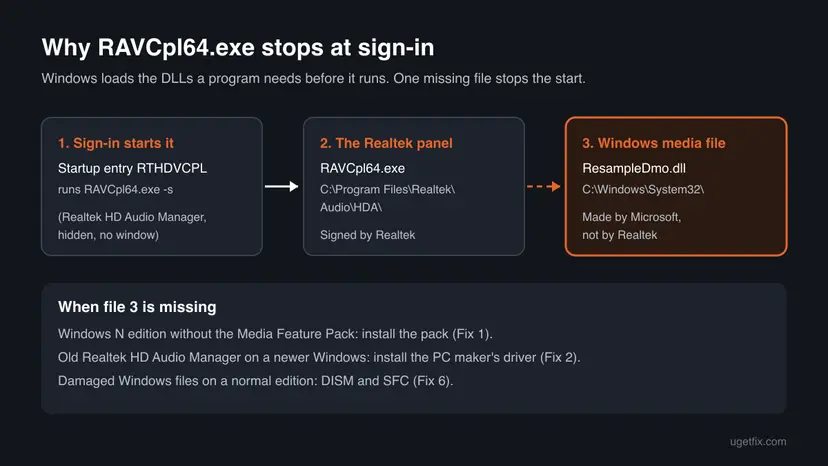
People search for this window in many spellings. They all mean the same thing:
- ravcpl64, ravcpl, ravcpi64 and AVCpl64.exe are typing variants of RAVCpl64.exe. The name stands for Realtek Audio Volume Control Panel, 64-bit.
- RAVCpl64.exe Systemfehler is the German title of the same window.
- ravcpl64 startup and RTHDVCPL refer to the startup entry that launches it at sign-in, with the
-sswitch that keeps it hidden. - RAVCpl64.exe - Application Error is a different window: the program started and then crashed. Fix 2 and Fix 4 apply to it.
- GDI+ Window (RAVCpl64.exe) is not an error. Users report that Windows lists it among the apps that keep the PC from shutting down. It is the panel's hidden window; Fix 3 removes it.
The window always suggests reinstalling the program. Here the missing piece belongs to Windows, so on an N edition the right "program" to add is the Media Feature Pack, not Realtek.
What is RAVCpl64.exe, and do you need it?
RAVCpl64.exe is the Realtek HD Audio Manager, also shown as HD Audio Control Panel. It is the settings window of the Realtek High Definition Audio driver: speaker setup, jack detection, equalizer and microphone effects. It starts hidden with Windows so that it can react when you plug in headphones.
- Usual location
C:\Program Files\Realtek\Audio\HDA\RAVCpl64.exe- Startup entry
- RTHDVCPL, which runs the file with the
-sswitch; Task Manager shows it as Realtek HD Audio Manager. - Publisher
- Realtek Semiconductor. The genuine file carries a digital signature.
- Needed for Windows?
- No. It is not a Windows system file. The audio driver plays sound without it.
- Related files
- RAVBg64.exe is another Realtek process from the same HDA folder; RTKVHD64.sys is the Realtek audio driver itself.
Newer PCs often have no RAVCpl64.exe at all, because their audio settings come in a different Realtek app installed with the PC maker's driver. If you see RAVCpl64.exe, your PC uses the older Realtek HD Audio Manager package, which Realtek lists for Windows Vista to Windows 10 only.
What causes the RAVCpl64.exe System Error, most common first
Realtek has not published a cause for this window. The order below follows from what the message names, what Microsoft says N editions leave out, and what users report.
| Cause | How often | Start with |
|---|---|---|
An N edition of Windows (for example Windows 11 Pro N) without the Media Feature Pack, so the Windows media files, ResampleDmo.DLL among them, are not installed. | Most often | Fix 1 |
| An old Realtek HD Audio Manager package left over from Windows 10 or from a generic Realtek download, running on a newer Windows build. | Often | Fix 2, then Fix 4 |
| The PC was upgraded or reset and the Media Feature Pack was not added back. | Sometimes | Fix 1 |
| A fake RAVCpl64.exe in another folder. | Rarely | Fix 5 |
| Damaged Windows files on a normal (not N) edition. | Rarely | Fix 6, then Fix 7 |
Users report the same missing ResampleDmo.DLL from games on Windows 11 N, not only from Realtek. When several programs complain about it, the cause is almost certainly a missing Media Feature Pack.
How to fix the RAVCpl64.exe System Error
Fix 1 is for N editions and solves most cases. Fix 2 and Fix 4 repair the Realtek driver, and Fix 3 silences the panel when you do not need it. Fixes 5 to 7 are for the rare cases that remain.
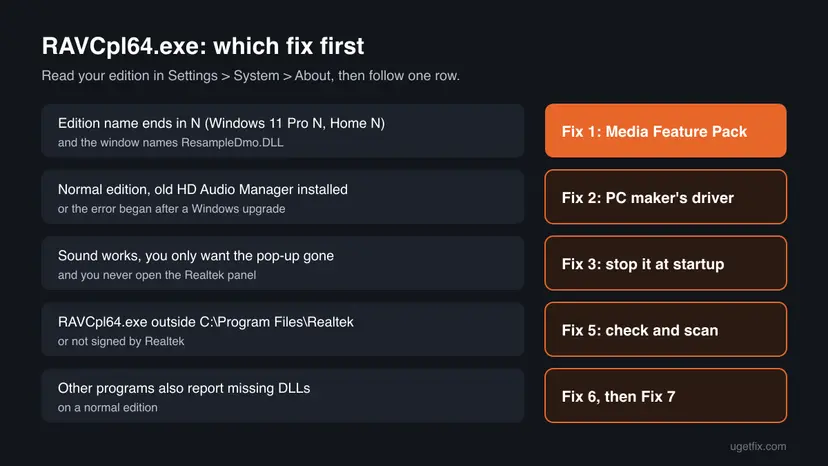
| What you see or have | Start with |
|---|---|
| Settings > System > About shows an edition ending in N. | Fix 1 |
| A normal edition, and the error began after a Windows upgrade or a driver from Realtek's own site. | Fix 2, then Fix 4 |
| Sound works and you never open the Realtek panel. | Fix 3 |
RAVCpl64.exe runs from a folder other than C:\Program Files\Realtek\Audio\HDA. | Fix 5 |
| Other programs also report missing DLLs on a normal edition. | Fix 6, then Fix 7 |
Fix 1. Install the Media Feature Pack on a Windows N edition
15 minutesLow riskYour edition name ends in N (Windows 11 Pro N, Windows 10 Home N and so on).
Microsoft says N editions leave out media technologies and Windows Media Player. The Media Feature Pack puts them back, and with them the media file the Realtek panel needs. Microsoft also notes that some features need the hardware driver reinstalled after the pack.
- Press Win + I, open System > About and read Edition under Windows specifications. If it does not end in N, go to Fix 2.
- Windows 11 N: open Settings > Apps > Optional features and select View features next to Add an optional feature.
- Windows 10 N: open Settings > Apps > Apps & features > Optional features > Add a feature.
- Find Media Feature Pack in the list, tick it, select Next and then Add (Windows 10: Install).
- Wait until the pack shows as installed under Recent actions, then restart the PC.
- Reinstall the audio driver as in Fix 2, as Microsoft advises for features that use hardware drivers.
The same in an elevated Terminal or Command Prompt, if the Settings list does not show the pack:
DISM /Online /Add-Capability /CapabilityName:Media.MediaFeaturePack~~~~0.0.1.0Since Windows 10 version 1909 the pack is only offered as an Optional Feature, not as a separate download. A Windows 10 22H2 PC still gets it this way, although Windows 10 left support on 14 October 2025.
It worked if: After the restart no System Error window appears, and C:\Windows\System32\ResampleDmo.dll exists.
If not: If the pack will not install, run Fix 6 first and try again. If it installed and the window stays, go to Fix 2.
Fix 2. Install the audio driver from your PC or motherboard maker
20 minutesLow riskA normal edition, an old Realtek HD Audio Manager, or the error began after a Windows upgrade or a driver from Realtek's own site.
Realtek says the drivers on its own site are general drivers that may lack the changes your PC or motherboard maker made, and tells users to get the latest driver from that maker. The maker's package fits your audio chip and your Windows version.
- Find your model: press Win + R, type
msinfo32and press Enter. Read System Manufacturer and System Model (or BaseBoard Product on a self-built PC). - Open the support page of that maker, enter the model or serial number and select your Windows version.
- Download the Audio or Realtek Audio driver listed for your model.
- Run the downloaded package and follow its steps. Most packages remove the old Realtek driver first and ask for a restart.
- Restart the PC when the installer asks.
Realtek's own generic package is version R2.83 (15 August 2024) and its download page lists Windows Vista to Windows 10, not Windows 11. On Windows 11, use it only when the PC maker offers no audio driver at all.
It worked if: The PC starts without the System Error, sound works, and the Realtek settings app opens from the Start menu or the system tray.
If not: If the maker's installer fails or the old panel stays, remove the device as in Fix 4 and run the package again.
Fix 3. Stop the Realtek HD Audio Manager from starting at sign-in
2 minutesLow riskSound works, you never open the Realtek panel, and you only want the window gone.
The error appears because the startup entry RTHDVCPL launches RAVCpl64.exe at every sign-in. With the entry off, Windows never tries to load the program, so the window does not appear. The audio driver still plays sound.
- Open the Startup settings. Select Start > Settings > Apps > Startup.
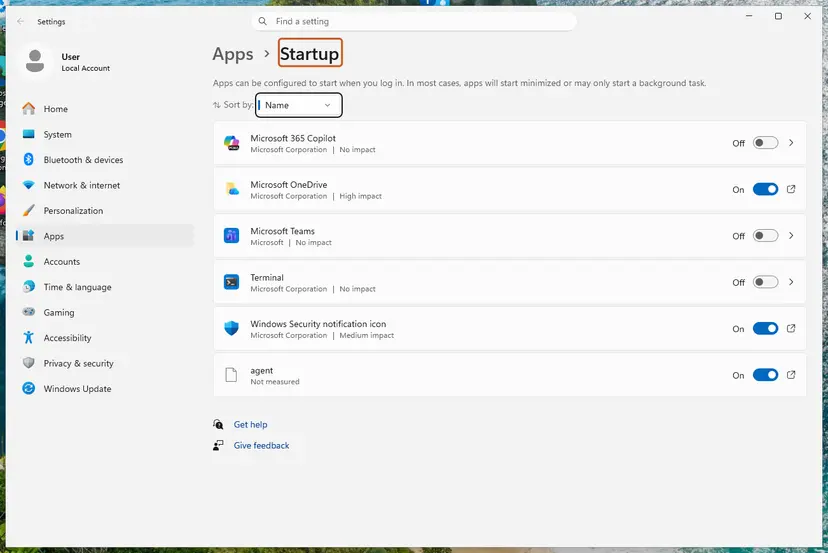
Each app has its own switch and its startup impact. Screenshot: Windows 11 26H2. - Turn apps off. Set the switch of each app you do not need at sign-in to Off. Use Sort by to put the apps with the highest impact first.
- Or use Task Manager. Right-click Start, select Task Manager, then Startup apps. Select an app and select Disable. Task Manager shows the same list with more detail, such as the publisher.

Select an app, then Disable. Screenshot: Windows 11 26H2. - Restart to check. Restart the PC. The apps you turned off no longer open by themselves.
These steps were written for Windows 11 24H2, 25H2 and 26H2. The full page with the other versions and what each result means: Stop apps from opening at startup
In the list, turn off Realtek HD Audio Manager (it can also be listed as HD Audio Control Panel or RAVCpl64.exe). Step by step: Stop apps from opening at startup
This hides the symptom; it does not bring back the missing file. Users report that on some PCs, with the panel stopped, plugging in headphones no longer switches the sound automatically. If that happens, turn the entry back On and use Fix 1 or Fix 2.
It worked if: After the next sign-in there is no RAVCpl64.exe window, and sound still plays from your speakers.
If not: If you need the panel's settings, turn the entry back on and repair the cause with Fix 1 or Fix 2.
Fix 4. Remove and reinstall the Realtek audio device in Device Manager
10 minutesLow riskFix 2 did not replace the old panel, or RAVCpl64.exe crashes with an Application Error.
Removing the device together with its driver package clears the old Realtek HD Audio Manager install. On the restart Windows installs a driver again, and the maker's package from Fix 2 then installs onto a clean device.
- Right-click Start and select Device Manager.
- Expand Sound, video and game controllers and right-click Realtek High Definition Audio (or Realtek(R) Audio).
- Select Uninstall device, tick Attempt to remove the driver for this device and select Uninstall.
- Restart the PC. Windows detects the audio chip and installs a basic driver.
- Run the maker's audio package from Fix 2.
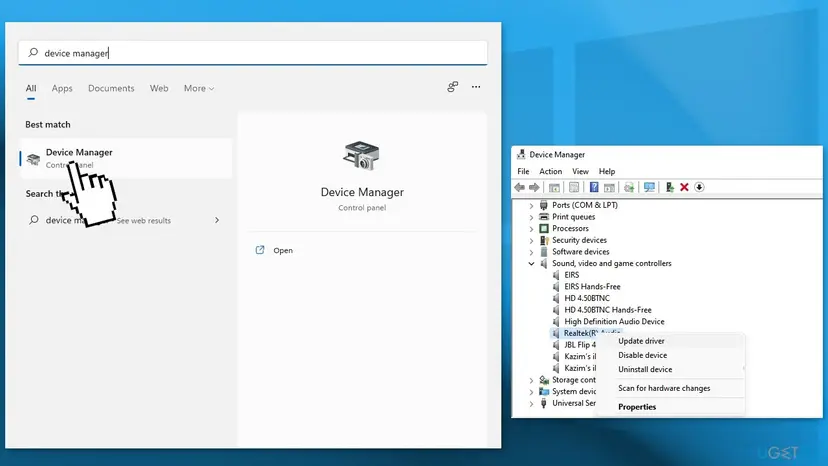
More on the Driver tab, rolling back and optional driver updates: Update, roll back or reinstall a driver
It worked if: After the restart and the new install, sound works and the System Error window no longer appears.
If not: If the device shows a yellow mark or disappears, see "Still broken" below. If the window stays on a normal edition, go to Fix 6.
Fix 5. Check that RAVCpl64.exe is the real Realtek file and scan it
10 minutesNo riskRAVCpl64.exe runs from an unusual folder, or you are not sure it belongs to Realtek.
Malware can borrow the name of a known process, especially from C:\Windows or C:\Windows\System32. The real Realtek panel has a fixed folder and Realtek's signature.
- Press Ctrl + Shift + Esc to open Task Manager and open the Details tab.
- Right-click RAVCpl64.exe and select Open file location. The folder should be
C:\Program Files\Realtek\Audio\HDA. - Right-click the file, select Properties and open Digital Signatures. The signer should be Realtek Semiconductor.
- If the folder or the signer is different, run a full scan with Microsoft Defender.
Microsoft Defender's full scan and Protection history: How to scan for malware with Microsoft Defender
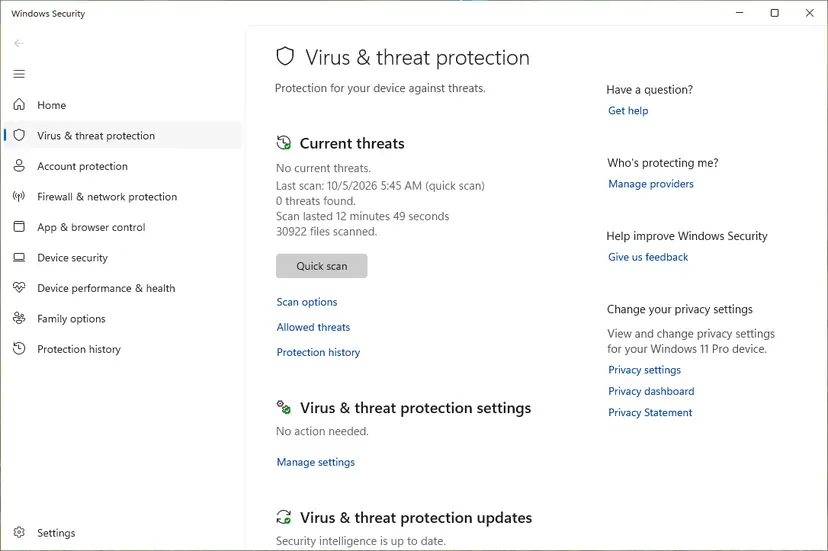
It worked if: The file sits in the Realtek HDA folder with a valid signature, or Defender found and removed the fake copy.
If not: If the file is genuine and the window stays, go back to Fix 1 or Fix 2.
Fix 6. Repair Windows system files with DISM and SFC
20 minutesNo riskA normal (not N) edition where ResampleDmo.dll is missing, or other programs also report missing DLLs.
On a normal edition ResampleDmo.dll is a Windows file, so a damaged Windows image can lose it. DISM repairs the image and SFC puts protected Windows files back from it.
- Open Terminal or Command Prompt as administrator.
- Run
DISM /Online /Cleanup-Image /RestoreHealth, thensfc /scannow, as the procedure below shows. - Restart the PC.
Step by step: Run DISM and SFC to repair Windows system files

It worked if: SFC reports that it found no problems or repaired them, and the PC signs in without the window.
If not: If SFC cannot repair files, or the window stays, go to Fix 7.
Fix 7. Return Windows to a restore point from before the error
20 minutesLow riskThe error began on a known day and you have a restore point from before it.
A restore point brings back drivers, startup entries and Windows files as they were on that day. Your documents and pictures are not touched.
- Press Win + R, type
rstruiand press Enter. - Select Choose a different restore point and pick one dated before the first RAVCpl64.exe window.
- Select Scan for affected programs, then Next and Finish.
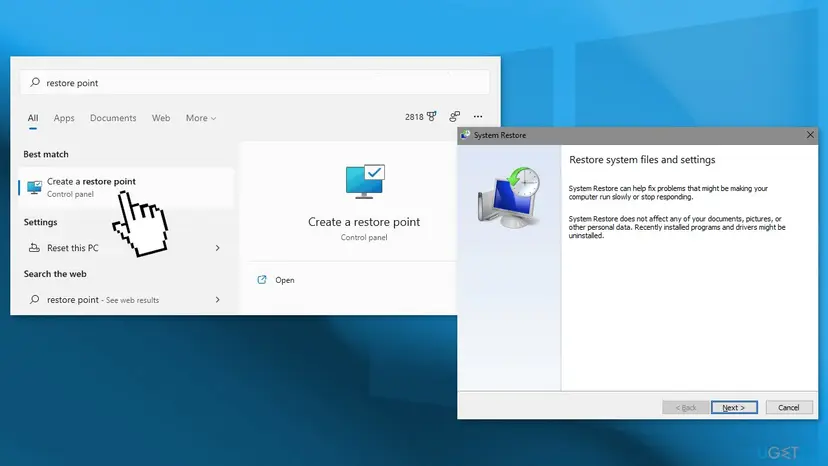
Full steps: Undo recent changes with System Restore
It worked if: Windows restarts with the older state and the System Error window is gone.
If not: If no restore point exists, reinstall Windows with your files kept, then add the Media Feature Pack again if your edition is N.
If the RAVCpl64.exe error is still there: where to look and what to send
The System Error window is all Windows tells you on screen. These places hold the rest:
| What to check | Where | What it tells you |
|---|---|---|
| Is the DLL there? | C:\Windows\System32\ResampleDmo.dll | Missing on an N edition: Fix 1. Missing on a normal edition: Fix 6. |
| Which edition? | Settings > System > About > Edition | An N at the end means the media components need the Media Feature Pack. |
| Is the pack installed? | Settings > Apps > Optional features, list of installed features | Media Feature Pack should be listed. |
| Which audio driver runs? | Device Manager > Sound, video and game controllers > Realtek device > Properties > Driver | Driver Date and Version tell you whether the maker's package from Fix 2 is installed. |
| Did the program crash? | Event Viewer: Windows Logs > Application, source Application Error | A faulting application name RAVCpl64.exe means a crash, not a missing DLL. |
When you ask the PC maker's support for help, send the exact window text, your Windows edition and version, the PC or motherboard model, the audio driver version from Device Manager and what you already tried.
If Device Manager shows no Realtek device at all after a restart, or only an unknown device with a yellow mark, check that onboard audio is enabled in the PC's firmware settings. A missing DLL never means a broken sound chip; no sound at all with a correct driver can.
How to keep the RAVCpl64.exe error from coming back
- On an N edition, add the Media Feature Pack again after every reset or reinstall of Windows.
- Get audio drivers from the PC or motherboard maker's support page.
- Let driver installers finish, including the restart.
- Keep a restore point before big driver changes.
- Do not download
ResampleDmo.dllorRAVCpl64.exefrom DLL or EXE download sites. They are unsigned and may not match your Windows build. - Do not copy the DLL from another PC.
- Do not delete RAVCpl64.exe by hand; turn off its startup entry or uninstall the driver package instead.
Frequently asked questions
What is RAVCpl64.exe?
RAVCpl64.exe is the Realtek HD Audio Manager, the settings panel of the Realtek High Definition Audio driver. It lives in C:\Program Files\Realtek\Audio\HDA and starts hidden at sign-in through the RTHDVCPL startup entry. It handles speaker setup, jack detection and sound effects. It is not a Windows system file, and the driver plays sound without it.
Is RAVCpl64.exe a virus?
No, not when it sits in C:\Program Files\Realtek\Audio\HDA and carries Realtek's digital signature. Check both in the file's Properties, as Fix 5 shows. A file with the same name in C:\Windows, C:\Windows\System32, your user folder or Temp is not the Realtek panel. Scan it with Microsoft Defender and do not allow it in any security setting.
How do I fix the RAVCpl64.exe system error on Windows 11?
Check your edition in Settings > System > About first. If it ends in N, install the Media Feature Pack from Settings > Apps > Optional features and reinstall the audio driver (Fix 1). If not, install the audio driver from your PC or motherboard maker (Fix 2). The message is the same on Windows 10, and so are the fixes.
Can I download RAVCpl64.exe or ResampleDmo.dll and put it back?
We do not recommend it. ResampleDmo.dll is a Microsoft file that belongs to the Windows media components, and a copy from a download site is unsigned and may not match your Windows build. RAVCpl64.exe comes inside the Realtek driver package. Get the media files with the Media Feature Pack (Fix 1) and the panel with the PC maker's audio driver (Fix 2).
Does running regsvr32 ravcpl64.exe fix it?
No. regsvr32 registers DLL and OCX components; it does not register an EXE file and does not create a missing DLL. When the window says ResampleDmo.DLL was not found, nothing on the PC can be registered to replace it. Add the missing Windows media files with Fix 1 or repair Windows files with Fix 6.
Can I disable RAVCpl64.exe at startup?
Yes. Turn off Realtek HD Audio Manager in Settings > Apps > Startup or in Task Manager's Startup apps (Fix 3). Sound keeps working because the driver itself does not need the panel. Users report that on some PCs automatic switching to headphones stops without it. If you notice that, turn the entry back on and repair the cause instead.
What is the GDI+ Window RAVCpl64.exe at shutdown?
It is a hidden window that the Realtek panel keeps open. Users report that Windows sometimes lists GDI+ Window (RAVCpl64.exe) among the apps that keep the PC from shutting down. It is not an error and not malware. Select Shut down anyway, or turn off the panel at startup (Fix 3) if it happens often.
What is RAVBg64.exe?
RAVBg64.exe is another Realtek process from the same C:\Program Files\Realtek\Audio\HDA folder, installed with the Realtek HD Audio Manager package. We could not confirm its exact role from Realtek. If it shows the same ResampleDmo.DLL window, the same fixes apply, because it belongs to the same driver package and needs the same Windows media files.
Why does the error appear only after I sign in?
Because that is when the RTHDVCPL startup entry runs RAVCpl64.exe with the -s switch. Windows loads the program's DLLs at that moment, finds that ResampleDmo.DLL is missing and shows the window. Nothing else on the PC calls the Realtek panel, so the window rarely appears at other times, for example when you open the Realtek panel by hand.
I searched in another language. Is this the right page?
Yes, if the window you see names RAVCpl64.exe. The German title RAVCpl64.exe Systemfehler and other translations are the same System Error. This guide is written in English; the menu names in Windows are translated on your PC, but the file names RAVCpl64.exe and ResampleDmo.DLL stay the same in every language.
Sources
Did this fix work?
One click, no account. It tells the next reader which guides are worth their time.
Questions and experiences: fix RAVCpl64.exe System Error in Windows
Still broken, or found a fix we did not cover? Ask here: members and our editors answer. Reading is open; writing needs a free account.
…