
How to fix Realtek audio issues after the Windows 11 24H2 update

Prefer to fix it yourself? The manual steps follow.
- 9methods
- 2 to 30 minutes
- Easy
Applies to PCs with Realtek audio that lost or changed sound after the Windows 11 24H2 update
9 methods in this guide
- What the problem looks like
- Why it happens
- The fixes
- 1. Select the right output
- 2. Reinstall the maker's driver
- 3. Roll back the driver
- 4. Use the generic driver
- 5. Turn off enhancements
- 6. Install the latest updates
- 7. Restart audio services
- 8. Run the troubleshooter
- 9. Restore or go back
- Still broken
- Prevent it
- FAQ
After installing the latest version of Windows (24H2), my sound completely disappeared. I am using Realtek Audio, if that is relevant. Is there anything I can do instead of reinstalling Windows?
When Realtek sound stops after the Windows 11 24H2 update, the speakers are almost never broken. Dell documents a one-time install error of the audio driver on 24H2, and the update can also change the selected output. Check the output first, then remove the Realtek driver and install your PC maker's version.
First open the sound output list on the taskbar and pick your Realtek speakers or headphones (Fix 1). If that changes nothing, uninstall Realtek Audio Driver in Installed apps, restart, and install the audio driver for your exact PC or motherboard from its maker's support page (Fix 2). Dell names this as the fix for no sound after a driver update on 24H2. Roll back the driver (Fix 3) if a new one came with the update.
| Error | No error message: no sound at all, crackling or cutting sound, or the Realtek device missing after Windows 11 version 24H2 was installed |
|---|---|
| Where it appears | Speakers and headphones on PCs with a Realtek audio chip; Device Manager > Sound, video and game controllers often shows Realtek(R) Audio with no warning sign |
| Main cause | A one-time installation error of the audio driver on 24H2 when the driver is updated for the first time since November 2023 (Dell), or a changed default output |
| Fastest fix | Select the Realtek output (Fix 1), then uninstall Realtek Audio Driver and install the PC maker's driver (Fix 2) |
| Also written as | Windows 11 24H2 audio issue, no sound after 24H2, Realtek audio not working Windows 11, Realtek HD audio driver Windows 11 24H2 |
| Affects | Windows 11 version 24H2 on desktops and laptops with Realtek audio; the same driver packages are listed by PC makers for 25H2 |
| Driver versions Dell names | Realtek 6.0.9597.1 or later for most Inspiron, Latitude, OptiPlex, Precision, Vostro and XPS models; 6.0.9835 or later for Dell 15 DC15250 and Pro 15 Essential |
| Vendor status | Dell lists the fix in article 000251246 (last changed 22 May 2026). Microsoft's Dirac audio block on 24H2 was lifted on 11 September 2025 with a new driver through Windows Update |
| Time to fix | 2 minutes for the output, 15 to 30 minutes for a driver reinstall |
Facts checked on 15 October 2026. Steps written for Windows 11 (24H2, 25H2 and 26H2) and Windows 10 22H2.
What the Realtek audio issue after the 24H2 update looks like
There is no error code. Users report one of three things after 24H2: no sound from any app, sound that crackles or drops out, or a Realtek device that is missing or has a warning sign in Device Manager. Dell describes the most confusing case: the audio driver installs successfully, Device Manager shows no marks at all, and still nothing plays.
Start by confirming that you really are on 24H2. Press Win + R, type winver and press Enter. The About Windows box shows the version (for example Version 24H2) and the OS build. Dell says its no-sound problem is only seen on version 24H2.
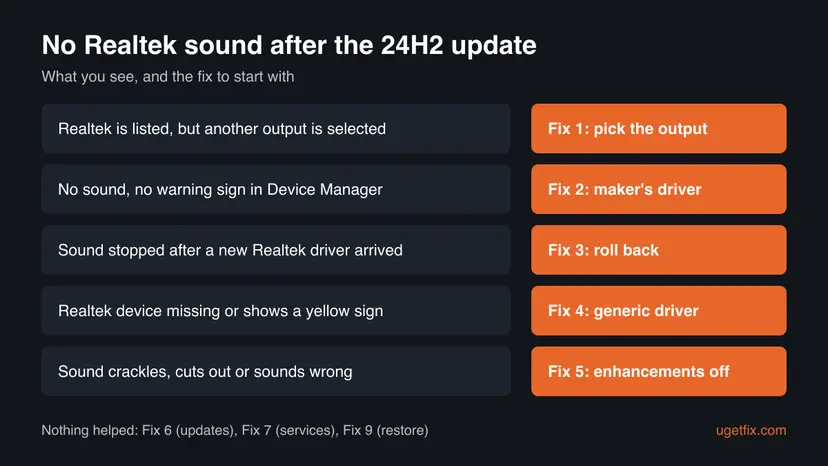
- Silent, device looks fine
- The driver install failed once on 24H2; Fix 2
- Sound plays somewhere else
- Windows picked another output after the update, such as a monitor; Fix 1
- Device missing or yellow sign
- The driver did not load; Fix 3 and Fix 4
- Crackling or cutting sound
- Driver effects or a mismatched driver; Fix 5, then Fix 2
Why Realtek audio stops working after Windows 11 24H2, from most to least common
Most often the audio driver hits a one-time install error. Dell explains that on 24H2 this happens when the audio driver is updated for the first time since November 2023, and the cure is to remove it and install it again. Less often the update changed the default output or brought a new Realtek driver that does not suit your PC. Rarely, audio software from the PC maker was not compatible with 24H2.
| Cause | How common | What you see | Fix |
|---|---|---|---|
| One-time driver install error on 24H2 | Most cases on branded laptops and desktops | No sound, no warning sign in Device Manager | Fix 2 |
| Windows selected another output | Common | Realtek is listed but a monitor, HDMI or a headset is the default | Fix 1 |
| A new Realtek driver came with the update | Common | The driver date changed on the day of the update | Fix 3 and Fix 4 |
| Driver effects or enhancements | Less common | Crackling, echo or sound that cuts in and out | Fix 5 |
| Audio software not compatible with 24H2 | Rare, fixed by Windows Update | Built-in speakers and Bluetooth audio stop; apps do not see them | Fix 6 |
| Audio services stuck | Rare | The speaker icon shows a red cross and no device can play | Fix 7 and Fix 8 |
Microsoft confirmed one 24H2 audio bug of its own. PCs with Dirac audio software (the file cridspapo.dll) lost integrated speakers, Bluetooth speakers and Bluetooth headsets, and apps no longer recognized them. Microsoft blocked 24H2 on those PCs, shipped a new driver through Windows Update and removed the block on 11 September 2025.
Microsoft also held 24H2 back on some Intel PCs with Smart Sound Technology audio drivers, but those caused blue screens, not silent speakers. If your PC shows a blue screen after the update, this guide is not the right one.
How to fix Realtek audio issues after the Windows 11 24H2 update
Fix 1 takes two minutes and rules out the simplest cause. Fix 2 is the one Dell gives for no sound on 24H2 and works on any brand. Fixes 3 to 5 are for a driver that changed or misbehaves. Fixes 6 to 9 are for the rare cases that are left.
| What you see | Start with |
|---|---|
| Realtek is in the output list, but sound plays from a monitor or other device | Fix 1 |
| No sound, and Realtek(R) Audio in Device Manager has no warning sign | Fix 2 |
| The Realtek driver date changed on the day of the update | Fix 3 |
| The Realtek device is missing or has a yellow warning sign | Fix 4, then Fix 2 |
| Sound crackles, echoes or cuts out | Fix 5 |
| Built-in speakers and Bluetooth audio both stopped | Fix 6 |
| The speaker icon has a red cross for every device | Fix 7 |
Fix 1. Select the Realtek output and check that it is not disabled
2 minutesNo riskEveryone, and especially readers with a monitor, TV or headset connected, whose sound might simply go somewhere else after the update.
A feature update reinstalls drivers and can make Windows rank a new output, such as an HDMI monitor, above the Realtek speakers. Picking the output by hand takes a minute and shows whether the driver is at fault at all.
- Windows 11: select the speaker icon on the taskbar, then the arrow to the right of the volume slider.
- Pick Speakers (Realtek(R) Audio) or your Realtek headphones in the list.
- Play a video and check that the volume slider and the app are not muted.
- If Realtek is not in the list, press Win + R, type
mmsys.cpland press Enter. - On the Playback tab, right-click an empty area and tick Show Disabled Devices and Show Disconnected Devices.
- If the Realtek device is greyed out, right-click it and select Enable, then Set as Default Device.
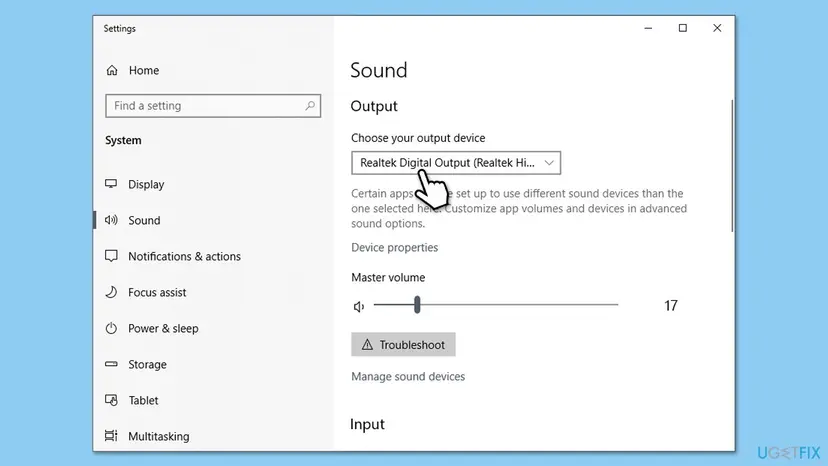
If a headset or headphones are listed under an odd name, see headphones detected as speakers, which explains how Windows names each output.
It worked if: Sound plays from the Realtek speakers or headphones and the volume bar moves when audio plays.
If not: If the Realtek output is selected and still silent, go to Fix 2.
Fix 2. Uninstall the Realtek Audio Driver and install your PC maker's driver
20 minutesLow riskReaders with no sound on 24H2 while Device Manager shows the Realtek device with no warning sign; this is the most common case.
Dell traced no sound on 24H2 to a one-time error when the audio driver is updated for the first time since November 2023. Removing the driver package and installing it again clears that state. The PC maker's driver also carries the settings for your model's speakers and jacks.
- Note your exact PC model (on the label, or in Settings > System > About) and download its newest audio driver from the PC or motherboard maker's support page first, while you are online.
- Windows 11: open Settings > Apps > Installed apps. Windows 10, or as Dell describes it: open Control Panel > Uninstall a program.
- Find Realtek Audio Driver (some Dell PCs use Cirrus High Definition Audio Driver instead), select it and choose Uninstall.
- Approve the administrator prompt and follow the uninstaller to the end.
- Restart the PC.
- Run the driver you downloaded and follow its steps, then restart again if it asks.
| Dell models (examples) | Driver Dell names |
|---|---|
| Most Inspiron, Latitude, OptiPlex, Precision, Vostro and XPS models | Realtek 6.0.9597.1 or later |
| Dell 15 DC15250 and DC15255, Pro 15 Essential PV15250 and PV15255 | Realtek 6.0.9835 or later |
| Inspiron 3020, Vostro 3020 and some Inspiron 15 models | Cirrus Logic 10.0.7.56 or later |
Realtek's PC audio codec page is meant for PC and motherboard makers. A laptop's speakers, microphones and jacks are set up in the maker's package, so a generic Realtek driver can install fine and still play nothing. Avoid driver download sites and video links.
It worked if: After the second restart, Realtek(R) Audio is back in Device Manager and the speakers play sound.
If not: If sound is still missing, or the maker's driver is older than the one Windows had, try Fix 3.
Fix 3. Roll back the Realtek driver in Device Manager
5 minutesLow riskReaders whose Realtek driver was replaced together with the 24H2 update, so the driver date matches the day sound stopped.
The update can bring a newer Realtek driver that does not suit your hardware. Roll Back Driver returns the driver that worked before, without a download.
- Right-click Start and select Device Manager.
- Expand Sound, video and game controllers.
- Right-click Realtek(R) Audio (on older PCs Realtek High Definition Audio) and select Properties.
- Open the Driver tab and check Driver Date and Driver Version.
- Select Roll Back Driver, choose a reason and select Yes.
- Restart the PC and test the sound.
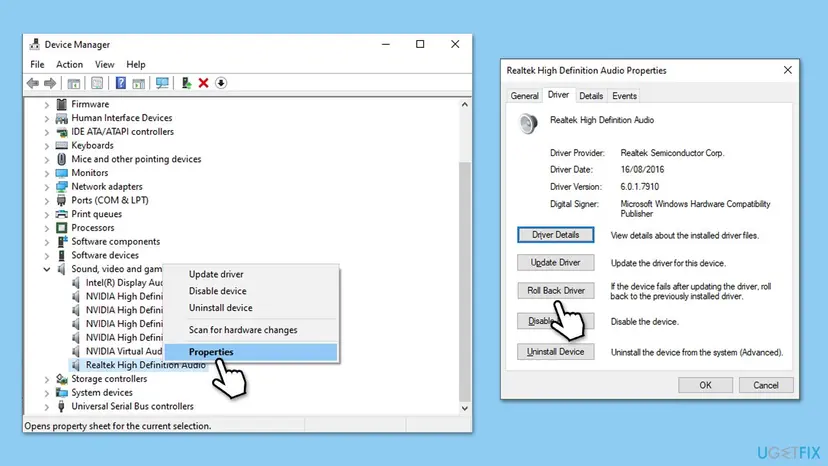
If Roll Back Driver is greyed out, Windows kept no older driver, which is normal after a full upgrade to 24H2. Use Fix 2 or Fix 4 instead. All driver steps with Windows 11 screenshots: Update, roll back or reinstall a driver.
It worked if: The Driver tab shows the older version and date, and sound plays after the restart.
If not: If the button is greyed out or the rollback changes nothing, go to Fix 4.
Fix 4. Reinstall the device or switch to the Windows High Definition Audio driver
10 minutesLow riskReaders whose Realtek device is missing, shows a yellow warning sign, or stays silent with the maker's driver.
Uninstalling the device makes Windows detect the audio chip again after a restart. The Microsoft driver that ships with Windows has no Realtek extras, but it often plays when the Realtek package will not, which also tells you the hardware works.
- In Device Manager, expand Sound, video and game controllers.
- Right-click the Realtek device and select Uninstall device. Leave Attempt to remove the driver for this device unticked for now, select Uninstall and restart.
- If there is still no sound, open the device's Properties again and select Update Driver.
- Choose Browse my computer for drivers > Let me pick from a list of available drivers on my computer.
- Select High Definition Audio Device, then Next, and confirm the warning.
- Restart and test the sound.
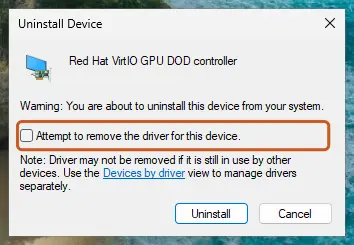
Realtek Audio Console, jack detection pop-ups and the maker's speaker tuning stop working with the Microsoft driver. You can install the maker's driver again later, as in Fix 2.
It worked if: Device Manager lists High Definition Audio Device with no warning sign and the speakers play.
If not: If no driver plays sound, run Windows Update (Fix 6), then read Still broken below.
Fix 5. Turn off audio enhancements for the Realtek output
3 minutesNo riskReaders whose Realtek sound plays but crackles, echoes, sounds hollow or cuts in and out after the update.
Enhancements run extra sound processing from Windows or the driver package. After a driver change they can clash with the new driver, and turning them off is a quick test that changes no driver.
- Windows 11: open Settings > System > Sound and select your Realtek output under Output.
- Under Output settings, set Audio enhancements to Off.
- Windows 10: press Win + R, type
mmsys.cpl, select the Realtek device on the Playback tab and select Properties. - On the Enhancements tab, tick Disable all enhancements (on some drivers Disable all sound effects), then Apply and OK.
- Play the same video or song again and listen.
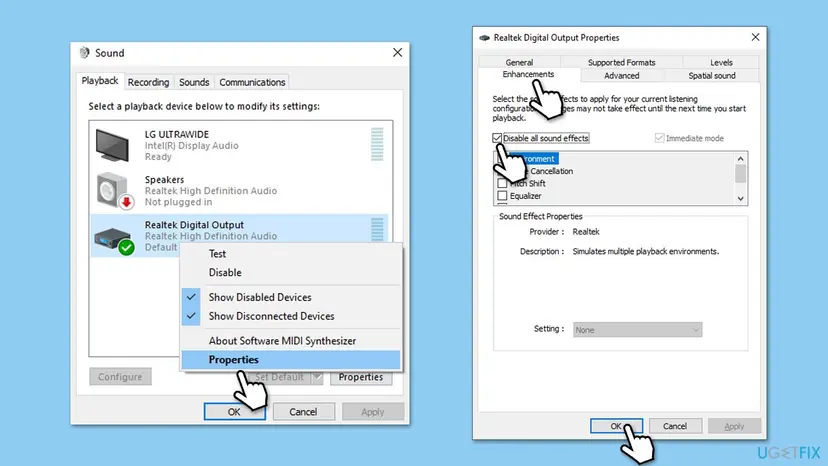
It worked if: The crackling or drop-outs stop. If the sound is clean, you can leave enhancements off.
If not: If the sound is still distorted, install the maker's driver in Fix 2.
Fix 6. Install the latest Windows 11 updates and optional driver updates
20 minutesLow riskReaders whose built-in speakers and Bluetooth audio both stopped, or who have not updated since installing 24H2.
Microsoft fixed its own 24H2 audio bug, the Dirac audio problem, with a new driver through Windows Update. Its latest audio fix on 24H2 came on 13 October 2026: KB5127648 stops apps that decode AC-3 (Dolby Digital) audio from closing after KB5124010.
- Open Settings > Windows Update and select Check for updates.
- Install everything offered and restart.
- Open Settings > Windows Update > Advanced options > Optional updates.
- Under Driver updates, tick any Realtek, Dirac or audio item for your PC and select Download & install.
- Restart and test the sound.
Optional updates can also list an older or newer driver than the maker's site. If sound stops again after one of them, roll it back (Fix 3).
It worked if: Windows Update shows You're up to date and the audio device plays after the restart.
If not: If updates install and the problem stays, restart the audio services in Fix 7.
Fix 7. Restart the Windows Audio services
3 minutesNo riskReaders whose speaker icon shows a red cross, or for whom no output plays, not even HDMI or Bluetooth.
Every output depends on two services, Windows Audio and Windows Audio Endpoint Builder. If one of them did not start after the upgrade, the driver can be fine and still nothing plays.
- Open Services. Press Windows+R, type the command below and press Enter. You can also type Services in the search box on the taskbar and open the app.
services.msc - Find the service. The list is sorted by Name. Click any row and type the first letter of the service to jump to it. Check the Status column (Running or empty) and the Startup Type column.
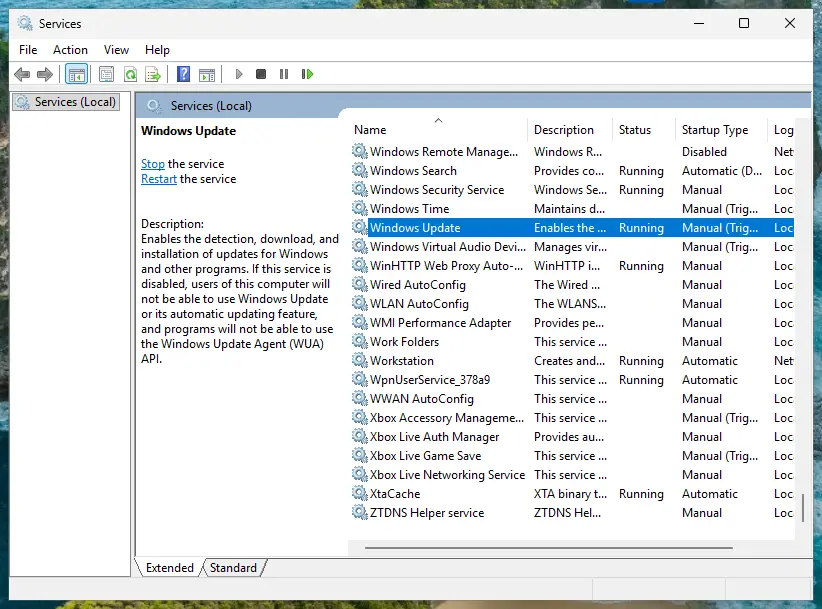
Status and Startup Type of each service are shown in the list. Screenshot: Windows 11 26H2. - Restart the service. Right-click the service and select Restart. If the service is not running, select Start instead. Wait until the progress window closes.
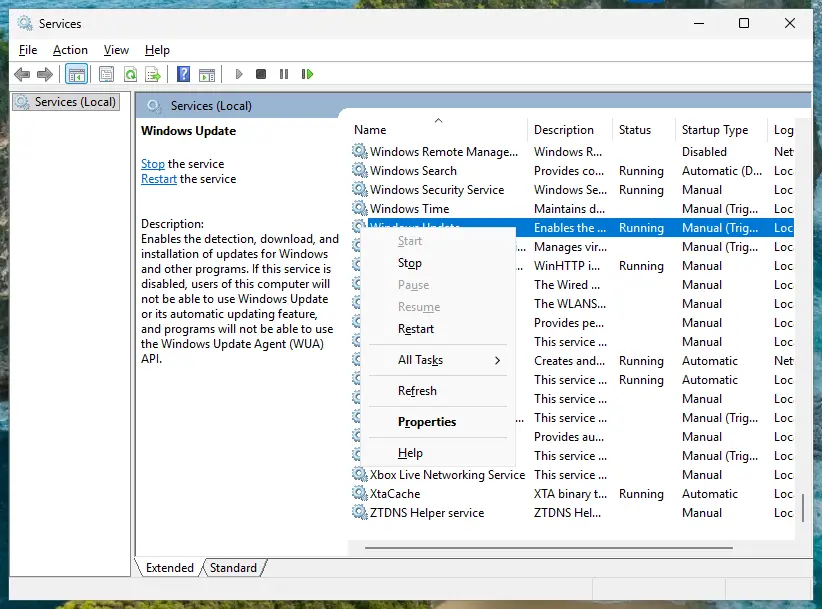
Right-click a service to start, stop or restart it. Screenshot: Windows 11 26H2. - Open its properties to change the startup type. Only if your guide says so: double-click the service. The General tab shows the Service name (used in commands), the Startup type and the Service status.
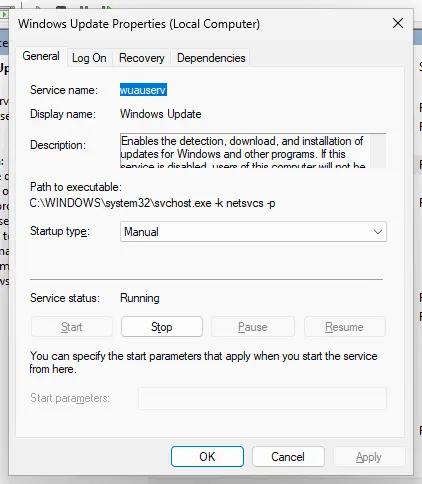
Properties show the service name, startup type and status. Screenshot: Windows 11 26H2. - Set the startup type and apply. Choose the type from the Startup type list (Automatic, Automatic (Delayed Start), Manual or Disabled), select Apply, then Start if the service should run now, and OK.
These steps were written for Windows 11 and Windows 10 (the steps are the same). The full page with the other versions and what each result means: Check and restart Windows services
Restart Windows Audio Endpoint Builder first and then Windows Audio. Both should show Running and the startup type Automatic.
It worked if: The red cross on the speaker icon goes away and sound plays.
If not: If a service will not start, run the audio troubleshooter in Fix 8.
Fix 8. Run the Windows audio troubleshooter
5 minutesNo riskReaders who tried the fixes above and want Windows to check services, muted devices and the default output in one pass.
The troubleshooter cannot fix a driver install error, but it finds a muted device, a disabled output or a stopped service that is easy to miss.
- Windows 11: open Settings > System > Troubleshoot > Other troubleshooters.
- Find Audio and select Run; it opens in the Get Help app.
- Windows 10: open Settings > Update & Security > Troubleshoot > Additional troubleshooters, select Playing Audio and Run the troubleshooter.
- Choose the Realtek device when it asks which one to check.
- Apply what it suggests and test the sound.
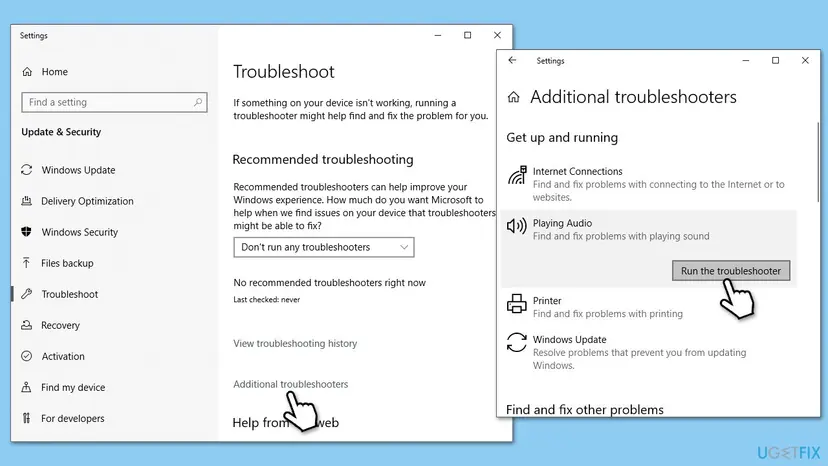
It worked if: The troubleshooter reports a fixed problem, or confirms that the Realtek device is enabled and selected.
If not: If it finds nothing, go back to a point before the update in Fix 9.
Fix 9. Go back to a restore point or the previous Windows version
30 minutesRead the warningReaders whose sound worked right up to the 24H2 update and for whom no driver fix helped.
A restore point from before the update brings back the old driver and its settings in one step. It is the honest last resort before reinstalling Windows, which the reader asked to avoid.
System Restore removes apps and drivers installed after the restore point; your documents stay. Going back to the previous Windows version removes 24H2 and its security fixes. Back up important files first: Back up your files (Windows Backup, File History, Time Machine).
- Open System Restore. Press Windows+R, type the command below and press Enter. You can also open Control Panel > Recovery > Open System Restore. If a first page opens, select Next.
rstrui.exe - Choose a restore point. Select a restore point from a time before the problem started. The Description often names the event, such as a driver or app install. If the one you need is missing, select Show more restore points (shown only when there are more).
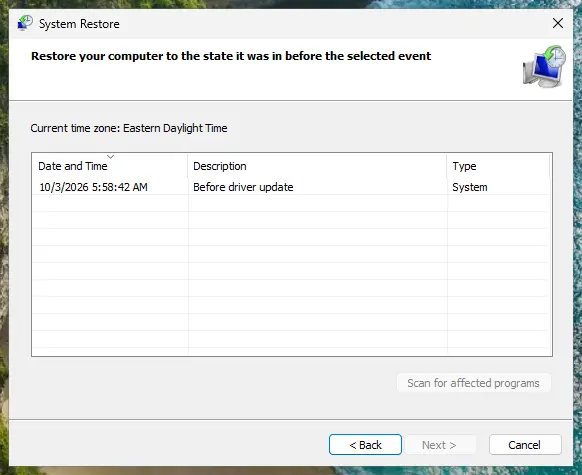
Pick a restore point from before the problem started. Screenshot: Windows 11 26H2. - See what will change. Select Scan for affected programs. The upper list shows programs and drivers that will be removed; the lower list shows those that might come back and may need to be reinstalled. Select Close.
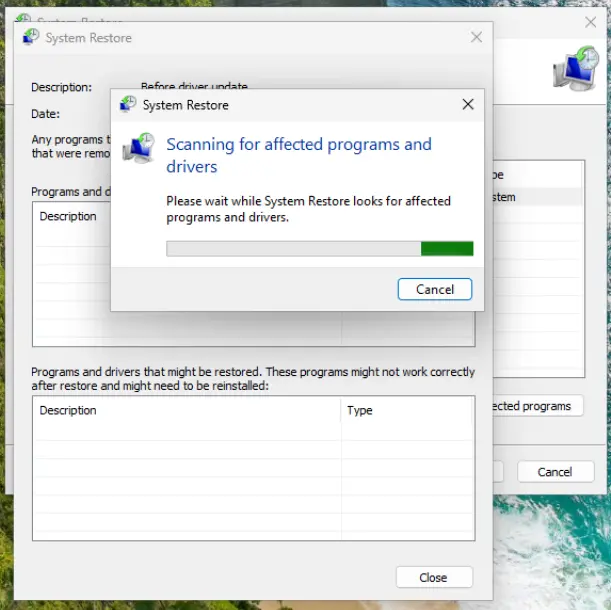
The scan lists programs and drivers the restore removes or brings back. Screenshot: Windows 11 26H2. - Start the restore. Select Next, check the summary and select Finish. Windows restarts and applies the restore point. Do not turn the PC off.
- Check the result. After sign-in Windows reports whether the restore succeeded. Check whether the problem is gone.
These steps were written for Windows 11 and Windows 10 (the steps are the same). The full page with the other versions and what each result means: Undo recent changes with System Restore
If there is no restore point and the upgrade is recent, Windows 11 may still offer Settings > System > Recovery > Go back. Treat this as a pause: install 24H2 again after the PC maker releases a newer audio driver.
It worked if: After the restart, Windows reports that the restore succeeded and the Realtek sound works as before.
If not: If sound is still missing after going back, the cause is not the update: read Still broken below.
Realtek audio still not working: what to check and when it is hardware
Windows writes no plain log of why a sound device is silent, so the useful checks are in Device Manager and in a second device. Open the Realtek device's Properties and read the Device status box on the General tab, and the Events tab for failed installs.
- USB or Bluetooth headphones play, the Realtek speakers do not: the problem is the Realtek driver or the speakers, not Windows audio as a whole. Repeat Fix 2 with the maker's driver.
- No device plays, not even HDMI: the audio services or Windows itself. Fix 7, then Run DISM and SFC to repair Windows system files.
- Sound returns with the generic driver only: the hardware works; wait for or ask the PC maker for a 24H2 driver.
- Nothing plays in any driver and the device is missing from Device Manager: check that onboard audio is enabled in the PC's BIOS or UEFI, then contact the maker. A chip or speaker fault is possible, though rare.
Give the PC model, the Windows version and build from winver, the audio device name, Driver Version and Driver Date from Device Manager, the Device status text, and which fixes you tried.
How to keep Realtek audio working through Windows updates
- Keep the PC maker's audio driver saved on the PC before a feature update.
- Create a restore point before installing a feature update.
- Check the maker's support page for a driver listed for 24H2 or 25H2.
- Install the monthly Windows updates; Microsoft ships audio fixes in them.
- Install Realtek drivers from download sites or video descriptions.
- Install the Realtek codec driver from Realtek's site over a laptop maker's driver.
- Reinstall Windows before trying the maker's driver: Dell's fix is a driver reinstall.
Windows 10 left support on 14 October 2025. If you stayed on Windows 10 22H2 to avoid this problem, it gets no new audio fixes, so plan the move to Windows 11 with the maker's driver ready.
Frequently asked questions
Is there a known Windows 11 24H2 audio issue?
Yes, more than one. Dell documents that the audio driver can hit a one-time install error on 24H2, which leaves Realtek or Cirrus audio silent while Device Manager looks normal; the fix is to uninstall the driver and install it again (Fix 2). Microsoft confirmed a separate bug with Dirac audio software that silenced built-in and Bluetooth speakers, fixed through Windows Update in 2025. Most other reports are an output that changed or a mismatched driver.
Which Realtek audio driver should I use on Windows 11 24H2?
Use the audio driver listed for your exact PC or motherboard model on its maker's support page. Dell, for example, names Realtek 6.0.9597.1 or later for most of its models and 6.0.9835 or later for a few new ones. Lenovo and HP publish their own packages marked for 24H2 and 25H2. The newest version number elsewhere is not always the right one for your speakers and jacks.
How do I fix Realtek audio on Windows 11?
Work from cheap to thorough. Pick the Realtek output in the taskbar sound list (Fix 1). Uninstall Realtek Audio Driver in Installed apps, restart and install the PC maker's driver (Fix 2). If the driver changed with the update, roll it back (Fix 3), or switch to the Windows High Definition Audio driver to test (Fix 4). Turn off enhancements for crackling sound (Fix 5).
How do I repair the Realtek audio driver?
There is no repair button for the driver itself. Repairing it means removing it and installing it again: uninstall Realtek Audio Driver in Settings > Apps > Installed apps, restart, then run the maker's driver package (Fix 2). If you cannot get the maker's package, uninstall the device in Device Manager and restart so Windows installs a driver again (Fix 4).
Why is my Realtek audio not working in Windows 11?
After the 24H2 update, the usual reasons are a driver that failed to install properly, a new default output such as a monitor, or a new driver that does not suit your hardware. Before the update, the same symptoms come from a disabled device, stopped audio services or a loose cable. The chooser table above matches what you see to the fix to start with.
Do I need the Realtek audio driver in Windows 11?
You need a driver for the audio chip, but it does not have to be Realtek's. Windows includes a generic High Definition Audio Device driver that plays sound on most Realtek chips (Fix 4). The Realtek or PC maker's driver adds the audio console, jack detection and the speaker tuning for your model, so it is the better choice when it works.
Should I download the driver from Realtek's website?
Usually not for a laptop or branded desktop. Realtek's PC audio codec downloads are meant for PC makers, and the maker's package adds the settings for your speakers and microphones. On a self-built desktop, the motherboard maker's support page is the right source. Never use driver download sites or links under videos.
My self-built PC (조립PC) lost sound after 24H2. What should I do?
On a self-built desktop, the Realtek chip is on the motherboard, so the driver comes from the motherboard maker, not from a PC brand. Look up your board model, download its audio driver for Windows 11, then follow Fix 2. Also check that the front panel audio cable is plugged into the board and that onboard audio is enabled in the BIOS or UEFI.
Will a system restore fix Realtek sound after the update?
It can, if a restore point exists from before 24H2 was installed, because it brings back the old driver. It also removes apps and drivers installed since then, so it comes last (Fix 9). Try the driver fixes first: Dell's fix for no sound on 24H2 is a driver reinstall, which keeps everything else in place.
Do I have to reinstall Windows to get Realtek sound back?
Almost never. The reported causes are the driver and the output settings, and Fixes 1 to 4 handle them without touching your files. If no driver plays sound, not even the generic one, check the BIOS setting and the hardware as described in Still broken before you reinstall anything at all.
Sources
Did this fix work?
One click, no account. It tells the next reader which guides are worth their time.
Questions and experiences: fix Realtek audio issues after the Windows 11 24H2 update
Still broken, or found a fix we did not cover? Ask here: members and our editors answer. Reading is open; writing needs a free account.
…