
How to fix the rtux64w10.sys blue screen (BSOD) in Windows

Prefer to fix it yourself? The manual steps follow.
- 7methods
- 10 to 40 minutes
- Intermediate
Applies to Windows 11 and Windows 10 PCs that use a USB Ethernet adapter, USB-C hub or docking station with a Realtek USB network chip
7 methods in this guide
My PC crashes with a BSOD at least 4 or 5 times a day, and it is really annoying because it sometimes pulls me out of online meetings, not to mention the general interruptions during my work. The blue screen always references one file, which is rtux64w10.sys. What is that, and is there a way to stop these crashes?
rtux64w10.sys is Realtek's driver for USB Ethernet adapters, USB-C hubs and docking stations, shown in Device Manager as Realtek USB GbE Family Controller. When a stop screen names it, that USB network device's driver crashed, not Windows. Install Realtek's current USB driver first, or roll back the one Windows Update installed.
rtux64w10.sys belongs to the Realtek USB GbE Family Controller, the network chip inside most USB Ethernet adapters and USB-C docks. The crash comes from that driver. Download Realtek's own USB driver for your Windows version and install it (Fix 1). If the crashes began after an update, roll the driver back (Fix 2). With a Dell, HP or Lenovo dock, use the dock maker's driver package (Fix 3).
| Error | A stop screen with What failed: rtux64w10.sys. The stop code above it is most often DRIVER_IRQL_NOT_LESS_OR_EQUAL, sometimes KMODE_EXCEPTION_NOT_HANDLED. |
|---|---|
| Where it appears | Only while a USB Ethernet adapter, USB-C hub or dock with a LAN port is plugged in, often under network load such as a video call, a download or a stream. |
| Main cause | An old, buggy or Windows Update supplied version of the Realtek USB network driver. |
| Fastest fix | Install Realtek's current USB Ethernet driver for your Windows version (Fix 1). |
| Also written as | rtux64w10, rtux64w10.sys driver, rtux64w10 sys, rtux64, the setup file rtux64w10.inf. |
| Who makes it | Realtek. The device is listed as Realtek USB GbE Family Controller (or FE, 2.5GbE) under Network adapters, with chips such as RTL8153, RTL8152B and RTL8156. |
| Affects | Windows 11 and Windows 10. Windows 10 left support on 14 October 2025. |
| Vendor status | No known issue entry from Microsoft or Realtek was found on 15 October 2026. Realtek published new USB drivers on 31 August 2026: 10.68.20 for Windows 10 and 115X.23.20 for Windows 11. |
| Where the cause is logged | C:\Windows\Minidump, one .dmp file per crash, and BugCheck event 1001 in Event Viewer. |
| Time to fix | 10 minutes for a driver install or rollback. Longer when you have to test a dock or another adapter for a few days. |
Facts checked on 15 October 2026. Steps written for Windows 11 (25H2 and 26H2) and Windows 10 22H2.
What rtux64w10.sys is and why it crashes Windows
The name reads as Realtek USB, 64-bit (x64), Windows 10. It is the driver of Realtek's USB network chips: the RTL8153 family for 1 Gbit/s over USB 3.0, the RTL8152B for 100 Mbit/s and the RTL8156 for 2.5 Gbit/s. Almost every cheap USB-C to Ethernet dongle and many USB-C hubs and docks use one of them.
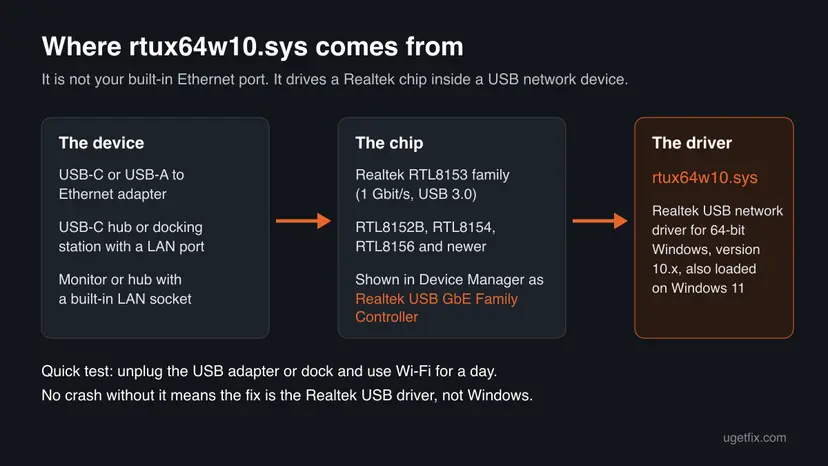
That is why the old advice to update the motherboard's Realtek PCIe Ethernet driver misses the point. The PCIe controller uses other driver files. The stop screen names rtux64w10.sys only when the USB adapter's driver was running at the moment of the crash.
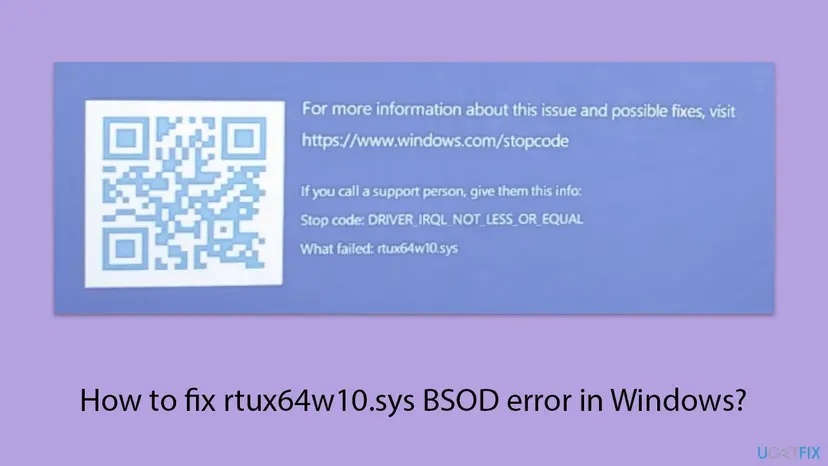
| What you see | What it means |
|---|---|
| Stop code: DRIVER_IRQL_NOT_LESS_OR_EQUAL | A driver touched memory it was not allowed to touch at that moment. The most common code with this file. |
| KMODE_EXCEPTION_NOT_HANDLED | The driver hit an error in kernel mode that nothing caught. Same cause, same fixes. |
| What failed: rtux64w10.sys | The Realtek USB network driver was running when Windows stopped. |
rtux64w10.inf | The setup file of the same driver package. Windows keeps a copy named oemNN.inf in C:\Windows\INF. |
rtux64w10.sys is a signed Realtek driver in C:\Windows\System32\drivers. Deleting it by hand only leaves the adapter without a driver. Replace it with a better version through the fixes below.
Why rtux64w10.sys crashes: the causes, most common first
In the reports on Microsoft's and HP's forums, the crashes happen only while the computer is online through the USB adapter or dock, and stop on Wi-Fi. That points at the driver version first, then at the USB connection.
| How often | Cause | Sign | Fix |
|---|---|---|---|
| Most often | An old or buggy Realtek USB driver, often the generic one Windows installed | Crashes under network load; the driver date on the Driver tab is years old | Fix 1 |
| Often | A Windows or driver update brought a bad version | Crashes started on a known date, right after an update | Fix 2 |
| Often | The PC maker offers an outdated driver for the laptop, while the dock package has a newer one | You use a branded dock; the laptop's support page lists a driver from years ago | Fix 3 |
| Less often | A damaged install or several leftover copies of the driver | Device Manager shows Realtek USB GbE Family Controller #2 or #3 | Fix 4 |
| Less often | USB power saving cuts the adapter off and the driver fails when it comes back | Crashes after sleep, or when the cable or dock is plugged in | Fix 5 |
| Rarely | A failing adapter, cable, USB port or other hardware | Crashes continue with another driver version, or name other drivers too | Fix 6, Fix 7 |
In one HP forum thread, the crashes began after a Realtek Wi-Fi driver update on the same laptop and stopped only when a newer USB Ethernet driver was installed. If you updated the Wi-Fi driver just before, keep that in mind.
Confirm that the USB adapter is the one crashing
A laptop can have several Realtek network devices. This shows which one uses rtux64w10.sys and which driver version it runs now, so you can compare it after each fix.
- Plug in the USB adapter or dock that you use for the cable connection.
- Right-click Start, select Terminal (Admin) and run:
Get-NetAdapter | Format-List Name, InterfaceDescription, DriverFileName, DriverVersionString, DriverDate - Find the entry whose DriverFileName is
rtux64w10.sys. Its InterfaceDescription is the name you will look for in Device Manager. - Write down DriverVersionString and DriverDate. A version from 2016 to 2020 is the most common one in crash reports.
- Unplug the adapter or dock, use Wi-Fi for a day and see whether the stop screens stop.
If the PC runs a full day on Wi-Fi without a stop screen, the cause is the USB network driver or the device, and Fixes 1 to 5 apply. If it still crashes, the crash dump in C:\Windows\Minidump will name another driver.
How to fix the rtux64w10.sys blue screen
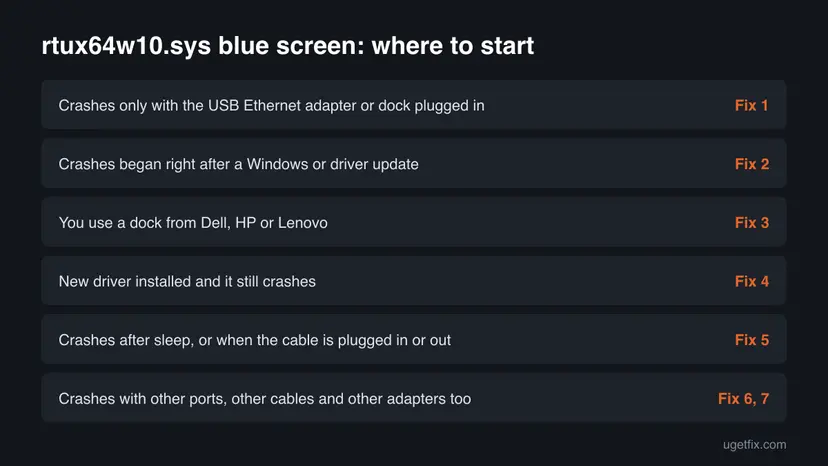
Fix 1 helps most readers. Fix 2 is for crashes that began after an update, Fix 3 for branded docks. Download the driver before you start: the cable connection goes away while you change it, and Wi-Fi keeps you online.
| What you see | Start with | Then |
|---|---|---|
| Crashes only with the USB Ethernet adapter or dock plugged in | Fix 1 | Fix 4 |
| Crashes began right after a Windows or driver update | Fix 2 | Fix 1 |
| You use a Dell, HP or Lenovo dock | Fix 3 | Fix 1 |
| New driver installed and it still crashes | Fix 4 | Fix 5 |
| Crashes after sleep, or when the cable or dock is plugged in | Fix 5 | Fix 1 |
| Crashes with other ports, cables and adapters too | Fix 6 | Fix 7 |
Fix 1. Install Realtek's current USB Ethernet driver
10 minutesLow riskThe crashes happen while the USB adapter or dock is in use, whatever the driver date.
The version Windows installs for a USB adapter is often years old. Realtek keeps fixing its USB network driver and publishes the current one for every Windows version on its own download page.
- Open Realtek's page Realtek USB FE / GbE / 2.5GbE / 5G / 10G Family Controller Software at realtek.com.
- Under Windows, download the package for your system: Win11 and Windows server 2025 Auto Installation Program (NetAdapterCx) on Windows 11, or Win10 and Windows server 2022 Auto Installation Program (NDIS) on Windows 10.
- Unpack the file and run the installer inside as administrator. Keep the adapter or dock plugged in.
- Restart the PC.
- Run the
Get-NetAdaptercommand from the section above again and check that the version and date changed.
Realtek's Windows 11 package is built on Microsoft's newer NetAdapterCx model. We could not confirm which driver file name it installs, so the stop screen may name a different file if a crash ever returns. Check Driver Details on the adapter's Driver tab to see it.
It worked if: The adapter shows a 2026 driver date, the connection works, and a full day of work with video calls passes without a stop screen.
If not: If the new driver crashes too, return to the previous one with Fix 2, or try the dock maker's package in Fix 3.
Fix 2. Roll back the USB Ethernet driver or remove the update that brought it
10 minutesLow riskThe stop screens started right after Windows Update or a driver update.
Windows Update sometimes delivers a new Realtek USB driver, and users report that the crashes started right after it. The previous version worked on this PC, so returning to it is a quick test.
- Right-click Start, select Device Manager and expand Network adapters.
- Right-click Realtek USB GbE Family Controller and select Properties.
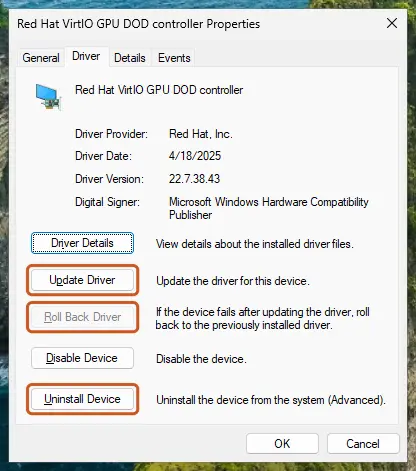
- Open the Driver tab, select Roll Back Driver, choose a reason and select Yes.
- Restart the PC.
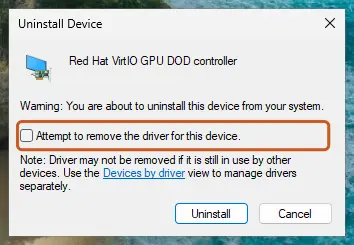
- If Roll Back Driver is greyed out, select Uninstall Device, tick Attempt to remove the driver for this device and restart. Windows then loads the next version it still has.
- If a Windows update brought the driver, remove that update instead: How to uninstall a Windows update
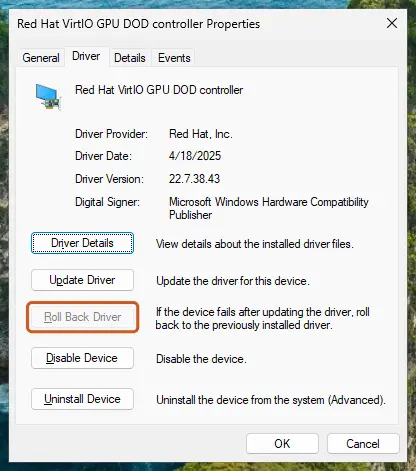
After a rollback, check Settings > Windows Update > Advanced options > Optional updates and leave any Realtek network driver there unticked until Realtek or your PC maker publishes a newer one.
It worked if: The Driver tab shows the older version and date, and the crashes stop.
If not: If the older driver crashes as well, the version is not the cause alone. Go to Fix 4 for a clean reinstall.
Fix 3. Use the docking station maker's driver package
15 minutesLow riskYou use a branded dock or USB-C monitor with a LAN port, such as an HP, Dell or Lenovo dock.
Dock makers ship the Realtek USB driver they tested with their dock, often newer than the one on the laptop's own support page. In one HP case, the dock package replaced a 2016 rtux64w10.sys with a 2020 version and the crashes stopped.
- Find the dock's exact model on its label, for example HP USB-C Dock G5.
- Open the dock maker's support site and search for that model, not for your laptop.
- Download the Network or Ethernet driver for the dock, and the dock firmware if one is listed.
- Install the driver first, then the firmware, with the dock connected and the laptop on mains power.
- Restart and check the new driver version with the
Get-NetAdaptercommand.
HP support noted in that thread that a commercial dock on a consumer laptop is a combination HP does not test. The newer driver still worked without the dock, with a plain USB-C adapter, because both use the same Realtek chip family.
It worked if: The dock's LAN port works with the new driver version and the stop screens stop.
If not: If the dock maker's driver is older than Realtek's, use Fix 1 instead and keep the dock firmware update.
Fix 4. Remove every copy of the Realtek USB driver and install it again
15 minutesLow riskA new driver did not help, or Device Manager lists several Realtek USB GbE Family Controller entries with #2 or #3.
Each USB port and each dock can create its own copy of the adapter, and old driver packages stay in the Windows driver store. Windows may keep loading a buggy one until all of them are gone.
You lose the cable connection during this fix. Save Realtek's package from Fix 1 on the PC and make sure Wi-Fi works before you start.
- In Device Manager, select View > Show hidden devices and expand Network adapters.
- Right-click each Realtek USB GbE Family Controller entry, including greyed-out ones, and select Uninstall Device. Tick Attempt to remove the driver for this device.
- In Terminal (Admin), list the Realtek network packages left in the driver store:
pnputil /enum-drivers - Look for entries with Original Name
rtux64w10.infand note their Published Name, such asoem12.inf. - Remove each one, using its own published name:
pnputil /delete-driver oem12.inf /uninstall - Unplug the adapter or dock, restart, then install Realtek's package from Fix 1 and plug the adapter in again.
It worked if: Only one Realtek USB GbE Family Controller entry appears, with the new driver, and the crashes stop.
If not: If the crash returns after sleep or when you plug the cable in, go to Fix 5.
Fix 5. Stop USB power saving from cutting off the adapter
10 minutesLow riskThe PC crashes after waking from sleep, or when you connect the dock or the network cable.
To save power, Windows can switch off a USB device and the network adapter inside it. The driver then has to bring the chip back, and a driver that gets this wrong crashes at exactly that moment.
- In Device Manager, open the properties of Realtek USB GbE Family Controller.
- On the Power Management tab, clear Allow the computer to turn off this device to save power.
- On the Advanced tab, look for Energy-Efficient Ethernet, Green Ethernet or Selective suspend and set them to Disabled, one at a time.
- Under Universal Serial Bus controllers, open each USB Root Hub and clear the same power option.
- Select OK, restart, and test several sleep and wake cycles.
The entries on the Advanced tab differ between driver versions. Change one, test for a day, then change the next, so you know which one helped. Leave the rest as they were.
It worked if: Sleep, wake and plugging in the cable no longer end in a stop screen.
If not: If the PC still crashes, test the hardware in Fix 6.
Fix 6. Test another USB port, cable and adapter
15 minutes, then a day of useNo riskDriver changes did not help, or the crashes started after a knock or a new hub.
A loose USB-C plug or a failing adapter can drop off the bus during traffic, and the driver crashes while it handles the loss. Swapping one part at a time shows whether the device is at fault.
- Plug the adapter straight into the laptop, not through a hub or extension.
- Try another USB port, preferably one on the other side of the laptop.
- Swap the network cable for another one.
- If you have another USB Ethernet adapter, ideally one with a different chip, use it for a day.
- Test the memory too, since bad RAM can make any driver crash: How to test your RAM with Windows Memory Diagnostic
It worked if: The crash follows one part, such as one port, one adapter or one hub, and replacing it ends the stop screens.
If not: If no part makes a difference and the crashes go on, repair Windows in Fix 7.
Fix 7. Repair Windows system files
20 minutesNo riskEvery driver fix above failed, or the stop screens also name other drivers.
rtux64w10.sys runs on top of the Windows network and USB stacks. They are rarely damaged, but DISM and SFC check them together with the rest of Windows and replace a broken copy.
DISM fetches clean Windows components, then SFC replaces damaged system files. Step by step with screenshots: Run DISM and SFC to repair Windows system files
In Terminal (Admin), one after the other:
DISM.exe /Online /Cleanup-Image /RestoreHealth
sfc /scannow
If the crashes started on a known date and nothing else helped, System Restore can take Windows and its drivers back to that date without touching your files: Undo recent changes with System Restore
It worked if: SFC reports no integrity violations or says it repaired them, and the stop screens stop.
If not: Collect the dumps and contact your PC, dock or adapter maker, as described in the next section.
Still crashing: what to check and whom to ask
Only Realtek or the maker of your dock can fix a bug inside rtux64w10.sys. Give them what they need to reproduce it.
- The three newest
.dmpfiles fromC:\Windows\Minidump, zipped. - The output of the
Get-NetAdaptercommand from the section above. - The exact adapter or dock model, and whether it crashes in every USB port.
- Your Windows edition and version from Settings > System > About.
- When it crashes: under load, after sleep, or when you plug in the cable.
| Where to report | When |
|---|---|
| The dock or adapter maker's support | Always first: they know which driver and firmware their device needs |
| Your laptop maker's support | If the laptop has a built-in Realtek USB network device |
| Realtek's download page | Check it again every few months for a newer USB driver |
If the crashes stop with another adapter, the old adapter is worn or faulty, and a new one is cheaper than more hours of testing. Crashes with many different stop codes point to RAM or storage instead.
How to keep the rtux64w10.sys blue screen from coming back
- Get the USB network driver from Realtek or the dock maker, not from driver download sites.
- Note the driver version that works, so you can return to it.
- Keep a copy of the working driver package on the PC.
- Update the dock firmware when its maker publishes a new one.
- Delete rtux64w10.sys by hand or replace it with a copy from a DLL site.
- Use third-party driver updater programs for network adapters.
- Chain several hubs between the laptop and the adapter.
- Turn off Windows security features to make the crash stop.
Windows 10 left support on 14 October 2025. Realtek still lists a Windows 10 USB driver dated 31 August 2026, but a PC that can run Windows 11 has better odds of getting future fixes.
Frequently asked questions
What is rtux64w10.sys?
rtux64w10.sys is Realtek's driver for USB network chips such as the RTL8153, RTL8152B and RTL8156. It runs whenever you use a USB Ethernet adapter, a USB-C hub with a LAN port or a docking station built on one of these chips. In Device Manager the device shows as Realtek USB GbE Family Controller under Network adapters. The file lives in C:\Windows\System32\drivers. It is not part of Windows itself and not malware: it comes with the adapter's driver package or from Windows Update.
What does DRIVER_IRQL_NOT_LESS_OR_EQUAL with rtux64w10.sys mean?
It means the Realtek USB network driver tried to read or write memory at a moment when the kernel did not allow it, so Windows stopped to protect your data. The stop code describes the kind of fault, and What failed names the driver at fault. With rtux64w10.sys, the fix is nearly always a different driver version: Realtek's current one in Fix 1, or the previous one in Fix 2. The same applies when the stop code is KMODE_EXCEPTION_NOT_HANDLED.
Does rtux64w10.sys work on Windows 11?
Yes. The name says Windows 10, but the same driver loads on Windows 11, and most recent crash reports come from Windows 11 laptops. Realtek also offers a separate Windows 11 package built on Microsoft's NetAdapterCx model, version 115X.23.20 from 31 August 2026. On Windows 11, install that package first. The Windows 10 package, version 10.68.20, is the one that uses rtux64w10.sys; Realtek labels it for Windows 10, and we could not confirm that it supports Windows 11.
Why does it crash on Ethernet but not on Wi-Fi?
Because rtux64w10.sys only runs while the USB Ethernet adapter or dock is connected and in use. On Wi-Fi, a different driver handles the traffic, so the faulty code never runs. This is a useful test: if a full day on Wi-Fi passes without a stop screen, you know the problem is the USB network driver or the adapter itself. Install a different driver version for the adapter, then go back to the cable.
Can I delete rtux64w10.sys?
You can remove it, but not by deleting the file. Deleting it by hand leaves the adapter broken and Windows may restore the same version. To remove it properly, uninstall the Realtek USB GbE Family Controller in Device Manager with the option to remove the driver, then delete leftover packages with pnputil as in Fix 4. If you never use a USB Ethernet adapter or dock, you can leave it removed. Otherwise install a working version.
What is rtux64w10.inf?
rtux64w10.inf is the setup information file of the same Realtek USB driver package. It tells Windows which devices the driver supports and where to copy rtux64w10.sys. When the package is installed, Windows stores a copy in C:\Windows\INF under a name such as oem12.inf. The command pnputil /enum-drivers shows both names, Original Name rtux64w10.inf and the Published Name, so you can remove old copies as shown in Fix 4.
Is rtux64w10.sys a virus?
The genuine file is a signed Realtek driver in C:\Windows\System32\drivers, and its crashes come from bugs, not from malware. A copy in another folder, or one without a valid Realtek signature, is suspicious. To check, right-click the file in File Explorer, select Properties and open Digital Signatures. If in doubt, run a Microsoft Defender scan: How to scan for malware with Microsoft Defender. A malware scan alone will not stop the blue screens, though.
Should I use a driver updater program to fix it?
No. Driver updater programs often pick a driver for the wrong chip or from an unofficial source, and a network driver that fails leaves you offline. The current Realtek USB driver is free on Realtek's own download page, and dock makers publish theirs on their support sites. Those two places are enough for this error, and you know exactly which version you installed.
This page is about rtux64w10.sys. What about rtf64x64.sys, bsmem64_w10.sys or rfeco10x64?
Those are different drivers, so the fixes here do not apply to them. The method still helps: find the device that uses the file, then update or roll back that device's driver from its maker. Use the Driver Details button on each device's Driver tab in Device Manager to see which files it loads. If you only searched for what this error is, the answer is in the first section of this page.
Sources
- Realtek: USB FE / GbE / 2.5GbE / 5G / 10G Family Controller Software (driver downloads and chip list) (realtek.com)
- Microsoft Q&A: Blue screen error, issue with rtux64w10 (Independent Advisor answer) (learn.microsoft.com)
- HP Support Community: BSOD with rtux64w10.sys (solved, HP USB-C Dock G5 driver) (h30434.www3.hp.com)
Did this fix work?
One click, no account. It tells the next reader which guides are worth their time.
Questions and experiences: fix the rtux64w10.sys blue screen (BSOD) in Windows
Still broken, or found a fix we did not cover? Ask here: members and our editors answer. Reading is open; writing needs a free account.
…