
How to fix Runtime error 7: Out of memory in Windows?

Prefer to fix it yourself? The manual steps follow.
- 8methods
- 5 to 30 minutes
- Intermediate
Applies to Windows 11, Windows 10; Excel, Word, Access and Outlook macros (VBA), programs written in Visual Basic 6
8 methods in this guide
I was using Excel as usual when suddenly I received "Runtime error 7: Out of memory." How do I fix this? I am using the latest version of Windows.
Run-time error '7' with the text Out of memory comes from Visual Basic: a macro in Excel or another Office app, or an older program, asked for more memory than its process can get. It rarely means the PC lacks RAM. Close other workbooks and restart Excel first, then look at the macro and at whether your Office is 32-bit.
Error 7 means the Visual Basic code, or the app that runs it, used up the memory its own process may have. Save your work, close other workbooks and apps, and restart Excel (Fix 1). If a macro still stops, select Debug and release large arrays and objects (Fix 2). With big data in 32-bit Office, which is limited to 2 to 4 GB, move to 64-bit Office (Fixes 4 and 5).
| Error | Run-time error '7': Out of memory, in a window titled Microsoft Visual Basic with the buttons Continue, End, Debug and Help. |
|---|---|
| Where it appears | While a macro runs in Excel, Word, Access or Outlook, or while an older program written in Visual Basic loads or processes a large file. |
| Main cause | The process ran out of its own address space: too many workbooks open, a macro that keeps huge arrays or objects, or 32-bit Office with large data. |
| Fastest fix | Save, close every other workbook and app, end any leftover Excel in Task Manager and open the file again (Fix 1). |
| Also written as | runtime error 7, run time error 7, run-time error 7, runtime error 7 out of memory, error 7 out of memory, Laufzeitfehler 7 (German Office). |
| What Microsoft says | More memory was required than is available, or a 64K segment boundary was encountered. |
| Affects | Any Windows version and any Office version that runs VBA. Most often 32-bit Office, which gets at most 4 GB per app even on a PC with 32 GB of RAM. |
| Vendor status | Not a bug with a patch. Current 32-bit Excel builds already use up to 4 GB on 64-bit Windows; beyond that Microsoft points to 64-bit Office. |
| Time to fix | About 5 minutes for a restart. 15 to 30 minutes to change a macro or switch Office to 64-bit. |
Facts checked on 15 October 2026. Steps written for Windows 11 (25H2 and 26H2) and Windows 10 22H2.
What run-time error 7 "Out of memory" means
The message box is titled Microsoft Visual Basic and says Run-time error '7': with Out of memory on the next line. Microsoft's VBA reference defines it in one sentence: more memory was required than is available, or a 64K segment boundary was encountered.
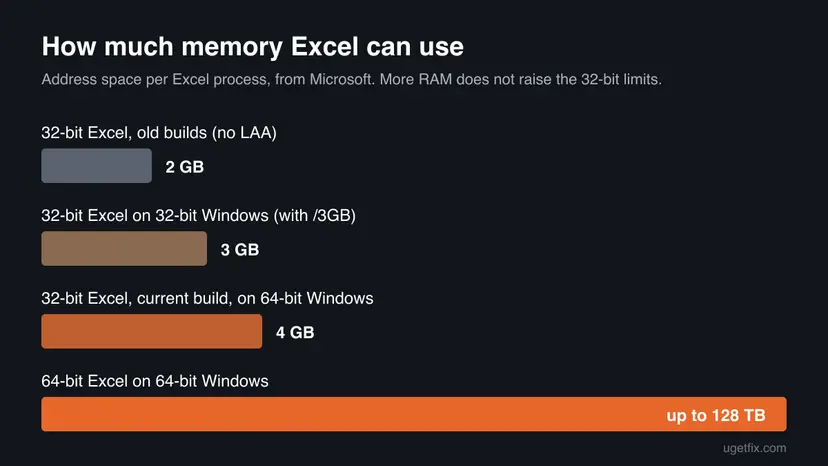
"Available" means available to this one program, not to the whole PC. Every app gets its own block of address space. 32-bit Excel gets 2 GB on old builds and 4 GB on current builds running on 64-bit Windows. When a workbook, its add-ins and a macro fill that block, VBA stops with error 7 even if Task Manager shows plenty of free RAM.
- Runtime error 7, run time error 7 and runtime error 7 out of memory are the same error. German Office calls it Laufzeitfehler 7.
- The code is the same in Excel, Word, Access, Outlook and programs built with Visual Basic 6, because they share the same language.
- Error 7 is not a Windows error code and not the old Windows 7 "out of memory" warning. A message that says only Out of memory, with no number, can come from any program.
Why runtime error 7 out of memory appears
Most often the Office app has been open for a long time with many files, or a macro builds very large arrays, collections or objects and never lets them go. Less often the data simply does not fit in 32-bit Office. Rarely the code module itself is too large, the disk is too full for virtual memory, or the code writes to a read-only property.
| Cause | How often | How to tell | Fix |
|---|---|---|---|
| Too many workbooks, apps or add-ins open in the same session. | Most often | The macro runs fine right after you restart Excel. | Fix 1 |
| The macro holds huge arrays, ranges or objects, or keeps adding to them in a loop. | Often | Debug marks a line with ReDim, Set, .Value, Copy or a loop. | Fix 2 |
| A module or procedure is too large, or there are too many Public variables. | Sometimes | The error comes before any line turns yellow, while the project compiles. | Fix 3 |
| 32-bit Office with large data, Power Pivot or many add-ins. | Sometimes | File > Account > About Excel says 32-bit. | Fixes 4 and 5 |
| Drive C: is almost full, so Windows cannot grow virtual memory. | Rarely | File Explorer shows drive C: in red or with under a few GB free. | Fix 6 |
| Many programs start with Windows and stay in memory. | Rarely | Error 7 appears soon after sign-in and Task Manager shows many background apps. | Fix 7 |
| A ready-made program built in Visual Basic has a bug or an old version. | Rarely | There is no Debug button, or you cannot see the code. | Fix 8 |
Microsoft says plainly that adding RAM does not raise the memory limit of 32-bit Excel. If the error comes from that limit, only less data, leaner code or 64-bit Office helps.
How to fix run-time error 7 out of memory
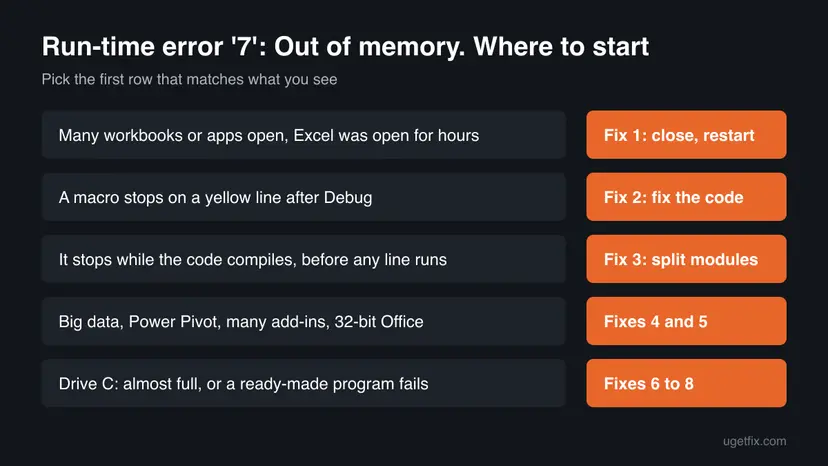
Fix 1 clears memory used by the current session and helps most readers. Fixes 2 and 3 change the macro. Fixes 4 and 5 lift the 32-bit limit. Fixes 6 to 8 cover the disk, background apps and ready-made programs.
| What you see or have | Start with |
|---|---|
| Excel has been open for hours with several workbooks. | Fix 1 |
| Debug marks a line in a macro you can edit. | Fix 2 |
| The error appears as soon as the macro starts, before any line runs. | Fix 3 |
| You work with large data, Power Pivot or many add-ins. | Fix 4 |
| About Excel says 32-bit and Fix 1 to 3 did not help. | Fix 5 |
| Drive C: has very little free space. | Fix 6 |
| A finished program, not a macro, shows the error. | Fix 8 |
Fix 1. Close other workbooks and apps, then restart Excel
5 minutesLow riskEveryone, first. Especially when Excel has been open for a long time or many workbooks are open.
Microsoft lists too many open applications, documents or source files as the first cause of error 7. All workbooks in one Excel window share one process and one memory limit, so closing them and starting fresh gives the macro the full space back.
- In the error box, select End, not Debug, so the macro stops.
- Save every open workbook with Ctrl + S.
- Close every workbook you do not need, then close Excel and the other big apps, such as browsers with many tabs.
- Press Ctrl + Shift + Esc to open Task Manager and look on the Processes page for a leftover Microsoft Excel entry.
- If one is still there, select it and choose End task.
- Open only the workbook with the macro and run it again.
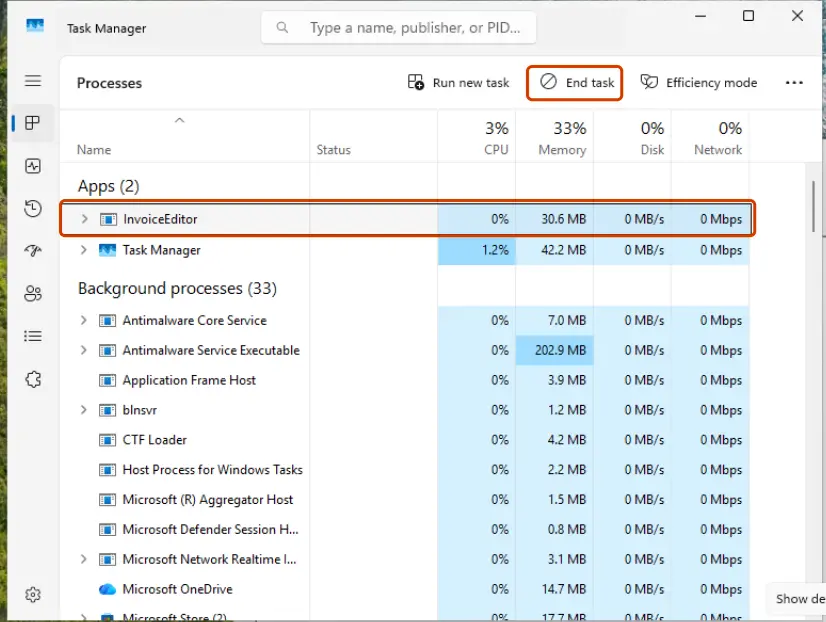
End task closes Excel without asking to save. Save first, and only end an Excel entry that remains after you closed every window.
It worked if: The macro runs to the end, and Task Manager shows Excel using less memory than before.
If not: If the same line fails again in a fresh Excel, the macro itself needs more memory than it can get. Go to Fix 2.
Fix 2. Find the line with Debug and make the macro use less memory
15 minutesLow riskYou can open the macro's code, and Debug marks a line in yellow.
A macro that reads a whole sheet into an array, copies huge ranges or creates objects in a loop can fill the process on its own. Microsoft also names two code mistakes that raise error 7: too many Public variables and an assignment to a read-only property.
- Run the macro again and select Debug in the error box. The Visual Basic editor opens with the failing line in yellow.
- If the line uses ReDim, check the size: an array sized from a full column such as
Rows.Countasks for over a million rows. Size it from the last used row instead. - If the line is inside a loop, look for arrays, collections or strings that grow on every pass and are never cleared.
- After you are done with a large array, free it with
Eraseand release objects withSet ... = Nothing, as in the code below. - If the line writes to a property, check that the property can be changed. Microsoft lists a write to a read-only property as a cause of error 7.
- Search the project for Public variables (Ctrl + F, search the current project) and turn the ones used in only one module into Private or local variables.
- Select Run > Reset, save, and run the macro again.
Free large arrays and objects when done (VBA)
Dim data As Variant
Dim ws As Worksheet
Set ws = ThisWorkbook.Worksheets("Data")
data = ws.Range("A1:F" & ws.Cells(ws.Rows.Count, "A").End(xlUp).Row).Value
' ... work with data ...
Erase data
Set ws = NothingProcess very large sheets in blocks, for example 50,000 rows at a time, instead of one huge array. Each block uses the same memory again instead of adding to it.
It worked if: The macro runs past the yellow line and finishes without the error box.
If not: If the error appears before any line is marked, the project is too large to compile. Go to Fix 3. If the line is already lean, the data itself is too big for 32-bit Office: go to Fix 4.
Fix 3. Split a large module or procedure into smaller ones
15 minutesLow riskThe error appears when the macro starts or when you select Debug > Compile, before any line turns yellow.
Microsoft says a module or procedure that is too large can hit a 64K segment boundary. Breaking it into smaller ones does not save memory, but it avoids that boundary.
- Save a copy of the workbook first, with File > Save As and a new name.
- In the Visual Basic editor, select Debug > Compile VBAProject. If error 7 appears here, the project is too large to compile.
- In the Project pane, find the longest module and the longest procedure in it.
- Move groups of procedures into a new module with Insert > Module, cutting and pasting them.
- Split a very long procedure into several smaller ones that call each other.
- Compile again with Debug > Compile VBAProject and run the macro.
Long generated code, such as recorded macros with thousands of lines, is the usual reason for this case. Replace repeated recorded lines with a loop where you can.
It worked if: Debug > Compile VBAProject finishes without a message and the macro starts.
If not: If compiling works but the run still fails on a line, go back to Fix 2.
Fix 4. Check whether Office is 32-bit and update it
5 minutesNo riskYou work with large workbooks, Power Pivot or data connections, or use many add-ins.
Microsoft explains that 32-bit Excel can use 4 GB instead of 2 GB on 64-bit Windows only after the latest updates. Microsoft also says 32-bit apps may get as little as 2 GB of address space, which add-ins share with the app.
- In Excel, select File > Account.
- Select About Excel. The first line of the window ends with 32-bit or 64-bit.
- Close that window. Under Office Updates, select Update Options > Update Now.
- Let the update finish, restart Excel and run the macro again.
- Select File > Options > Add-ins, choose COM Add-ins in Manage, select Go and clear the add-ins you do not need.
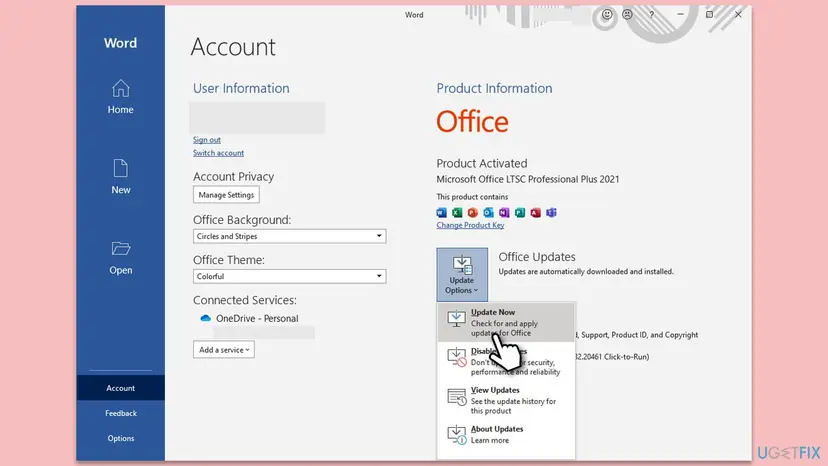
It worked if: About Excel shows the bitness, Office reports that it is up to date, and with fewer add-ins the macro has more room.
If not: If Office is 32-bit and the data is large, go to Fix 5. If it is already 64-bit, go to Fix 6.
Fix 5. Switch to 64-bit Office for large data
30 minutesRead the warningAbout Excel says 32-bit, Windows is 64-bit, and the error returns with the same large data after Fixes 1 to 4.
Microsoft recommends 64-bit Office for large data sets, Power Pivot and many add-ins, because 64-bit apps get up to 128 TB of address space. That removes the limit behind most error 7 cases in Excel.
Microsoft warns that 32-bit add-ins and compiled .mde or .accde files do not run in 64-bit Office, and VBA Declare statements need PtrSafe and LongPtr. Back up your files and list your add-ins before you switch, and ask IT on a work PC.
- Check that Windows is 64-bit: press Win + I, open System > About and read System type.
- Save and close every Office app.
- Uninstall Office first. Microsoft says the 32-bit and 64-bit versions cannot be swapped over each other. Step by step: Uninstall a program or app in Windows.
- Install Office again with Microsoft's Install Office steps and pick the 64-bit version. Microsoft 365 installs 64-bit unless you choose 32-bit.
- Open Excel, check File > Account > About Excel again, and run the macro.
It worked if: About Excel says 64-bit and the macro handles the same data without error 7.
If not: If a macro now fails on a Declare line, add PtrSafe to it and change pointer types to LongPtr. If you cannot change the code, return to 32-bit and reduce the data instead.
Fix 6. Free disk space and let Windows manage virtual memory
15 minutesLow riskDrive C: has very little free space, or someone set a fixed paging file size in the past.
Microsoft's VBA reference says error 7 can mean Windows has run out of virtual memory, and the fix is to free disk space. Virtual memory lives in the paging file on the disk, so a full drive or a small fixed size stops it from growing.
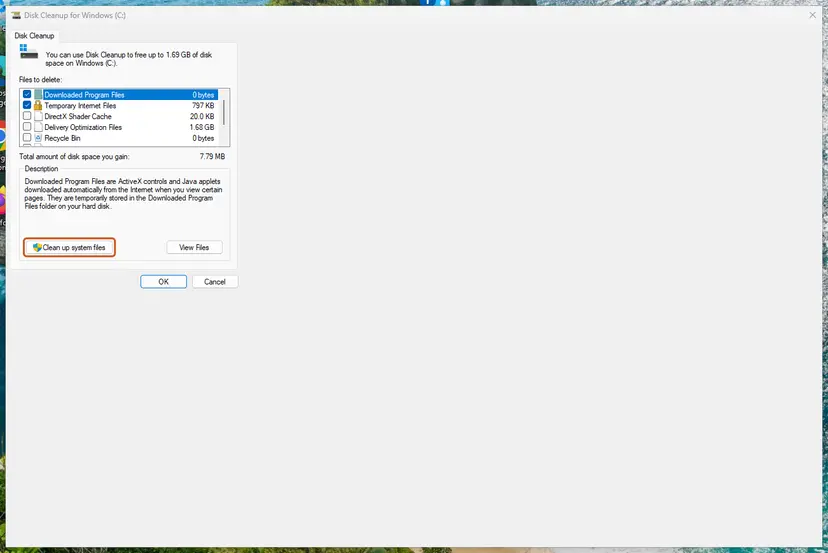
First free space on drive C:. The library steps clean temporary files and old update files with Storage settings and Disk Cleanup. Step by step: Free up disk space and delete temporary files.
- Press Win + R, type
sysdm.cpland press Enter. - Open the Advanced tab and under Performance select Settings.
- Open the Advanced tab again and under Virtual memory select Change.
- Select Automatically manage paging file size for all drives and select OK.
- Restart the PC.
A bigger paging file helps only when Windows itself runs short of virtual memory. It does not raise the 2 to 4 GB limit of 32-bit Office, so do not expect it to fix error 7 caused by that limit.
It worked if: Drive C: has several GB free, the paging file is system managed, and the error is gone after the restart.
If not: If disk space was never the problem, go to Fix 7.
Fix 7. Stop programs that start with Windows
10 minutesLow riskError 7 appears soon after you sign in, or the PC has little RAM and many tray icons.
Microsoft's list of causes includes programs that stay resident in memory and many drivers loaded. On Windows 11 and 10 that means apps that start with Windows and keep running, which leaves less memory for Office when RAM is small.
Turn off apps you do not need at startup, restart and try the macro again. Step by step: Stop apps from opening at startup.
- Open the Startup settings. Select Start > Settings > Apps > Startup.
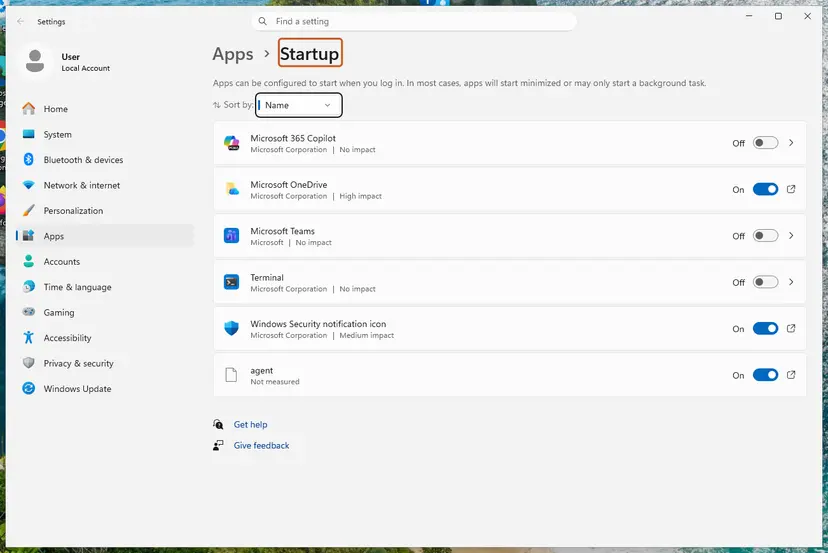
Each app has its own switch and its startup impact. Screenshot: Windows 11 26H2. - Turn apps off. Set the switch of each app you do not need at sign-in to Off. Use Sort by to put the apps with the highest impact first.
- Or use Task Manager. Right-click Start, select Task Manager, then Startup apps. Select an app and select Disable. Task Manager shows the same list with more detail, such as the publisher.

Select an app, then Disable. Screenshot: Windows 11 26H2. - Restart to check. Restart the PC. The apps you turned off no longer open by themselves.
These steps were written for Windows 11 24H2, 25H2 and 26H2. The full page with the other versions and what each result means: Stop apps from opening at startup
It worked if: After the restart Task Manager shows fewer background apps, more memory is free, and the macro finishes.
If not: If nothing changes, startup apps were not the cause. Turn back on the ones you miss and go to Fix 8 if a ready-made program shows the error.
Fix 8. Update or reinstall a ready-made program that shows error 7
15 minutesLow riskA finished program built with Visual Basic, not your own macro, shows the error, and there is no Debug button.
You cannot change the code of a finished program. Its maker may have fixed a memory bug in a newer version, and a clean install removes damaged settings that make it load too much data.
- Note exactly what you did when the error appeared, such as opening a large file or a report.
- Check the program's Help > About or its maker's site for a newer version, and install it.
- Try the same action with a smaller file. If that works, the program has a size limit: split the file.
- If the error stays, uninstall the program. Step by step: Uninstall a program or app in Windows.
- Restart the PC and install the newest version from its maker.
It worked if: The program opens the same file or report without the error box.
If not: Send the maker the exact action, the file size and your Windows version. Older Visual Basic 6 programs are 32-bit and cannot use more than their own address space, however much RAM the PC has.
If run-time error 7 is still there
Error 7 writes no log of its own. The debugger line, the size of the data and the Office bitness are the whole record, so collect them before you ask for help.
- The yellow line in the editor and what it does: read a range, resize an array, create an object.
- How many rows and columns the macro handles, and the workbook's file size.
- The first line of File > Account > About Excel, with the version and 32-bit or 64-bit.
- How much memory Excel uses in Task Manager just before the error.
- The installed add-ins from File > Options > Add-ins.
With these facts the macro's author, or anyone on the Microsoft Q&A forum, can usually see which limit is hit. Windows 10 left support on 14 October 2025, but error 7 behaves the same on Windows 10 and Windows 11.
Error 7 is not a sign of failing RAM on its own. If other apps also crash or the PC shows blue screens, test the memory with How to test your RAM with Windows Memory Diagnostic. A macro that stops with a path error instead is covered in our run-time error 76 path not found guide.
How to stop error 7 from coming back
- Size arrays from the last used row, not from the whole column.
- Release large arrays and objects with Erase and Set ... = Nothing.
- Process big sheets in blocks.
- Use 64-bit Office for large data on 64-bit Windows.
- Keep Office updated and drive C: with free space.
- Keep dozens of workbooks open in one Excel session for days.
- Copy whole columns or sheets inside a loop.
- Keep data in Public variables that only one module uses.
- Buy more RAM to fix error 7 in 32-bit Office.
- Set a small fixed paging file size.
Frequently asked questions
What does runtime error 7 out of memory mean?
It means Visual Basic code, usually an Excel macro, asked for more memory than its program can use. Microsoft's VBA reference says more memory was required than is available, or a 64K segment boundary was encountered. The limit is per program, not for the whole PC. That is why the error can appear on a PC with lots of free RAM, especially in 32-bit Office.
How do I fix run time error 7 out of memory in Excel?
Save, close every other workbook and app, end any leftover Excel in Task Manager and run the macro again, as in Fix 1. If it still stops, select Debug and make the marked line use less memory, as in Fix 2. If About Excel says 32-bit and the data is large, update Office or move to 64-bit Office with Fixes 4 and 5.
Does adding more RAM fix runtime error 7?
Usually not. Microsoft states that adding RAM does not raise the memory limit of 32-bit Excel, which is 2 GB on old builds and 4 GB on current builds running on 64-bit Windows. More RAM helps only when Windows as a whole runs short of memory. If the error comes from the 32-bit limit, use less data, leaner code or 64-bit Office.
Is runtime error out of memory the same as Windows running out of memory?
Not quite. Run-time error 7 comes from Visual Basic inside one program. Windows has its own warnings when the whole system runs low on memory or virtual memory, and those name no error number. Both can share a cause, such as too many open apps or a full drive C:, so Fixes 1 and 6 help in both cases. This page covers the Visual Basic error.
What does "ran out of virtual memory" have to do with error 7?
Microsoft lists running out of virtual memory as one cause of error 7, with the advice to free disk space. Virtual memory uses the paging file on drive C:, so a nearly full drive or a small fixed paging file can stop it from growing. Fix 6 frees space and lets Windows manage the paging file size again.
What is Laufzeitfehler 7?
Laufzeitfehler 7 is the German name of the same Visual Basic run-time error 7 in German Office. The cause and the fixes are the same as on this page: close other workbooks, make the macro leaner, check whether Office is 32-bit and free disk space. The menu names differ in German Office, but the steps are in the same place.
Is error 7 a Windows 7 problem?
No. The 7 is the Visual Basic error number, not the Windows version. Searches for out of memory on Windows 7 often mix the two. The error appears the same way on Windows 11 and Windows 10. Windows 7 and Windows 10 no longer get security updates, so on those systems the first advice is to move to a supported Windows.
Should I switch to 64-bit Office to stop error 7?
Only if you work with large data, Power Pivot or many add-ins and the earlier fixes did not help. Microsoft recommends 64-bit Office for those cases. Before you switch, check that your add-ins exist in 64-bit and that VBA Declare statements use PtrSafe. You must uninstall 32-bit Office before you install the 64-bit version.
Can a read-only property really cause out of memory?
Yes, according to Microsoft's VBA reference, which lists an attempt to update a read-only property as one cause of error 7. The message is misleading in that case, because memory is not the problem. If Debug marks a line that assigns a value to a property, check in the object's documentation whether that property can be set at all.
Sources
- Microsoft Learn: Out of memory (Error 7), VBA language reference (learn.microsoft.com)
- Microsoft Learn: Large Address Aware capability change for Excel (learn.microsoft.com)
- Microsoft Support: Choose between the 64-bit or 32-bit version of Office (support.microsoft.com)
Did this fix work?
One click, no account. It tells the next reader which guides are worth their time.
Questions and experiences: fix Runtime error 7: Out of memory in Windows
Still broken, or found a fix we did not cover? Ask here: members and our editors answer. Reading is open; writing needs a free account.
…