
Scanner error WA003-0100: how to fix it on a Brother printer in Windows 11 and 10

Prefer to fix it yourself? The manual steps follow.
- 7methods
- 20 to 40 minutes
- Easy
Applies to Windows 11 and Windows 10 PCs that scan with a Brother printer, all-in-one or scanner and get error WA003-0100
7 methods in this guide
Hello, I am unable to scan anything using my Brother DCP-L2541DW. Printing works fine. I think this happened after a Windows update, since one was installed automatically recently, but I am not sure.
WA003-0100 is a Brother scanning error: the Brother software on your PC cannot connect to the machine, even though printing often still works. Since late 2024 it mostly follows the Windows 11 24H2 update, which can stop the Brother scanner driver from installing. Install every Windows update first, then reinstall the Brother software.
Install all pending Windows updates (Fix 1); Brother names KB5052093 and the April 2025 cumulative update KB5055523 as the fix for Windows 11 24H2. Then uninstall the Brother software, restart, and install the current Full Driver & Software Package for your model from support.brother.com (Fix 2). If scanning still fails, check that the scanner shows in Scanners and Cameras (Fix 3).
| Error | "Failed to connect to the device." with the code WA003-0100 in a Brother scanning window |
|---|---|
| Where it appears | Brother iPrint&Scan, ControlCenter or Brother Utilities when you press Scan on the PC; printing to the same machine often still works |
| Main cause | Windows 11 version 24H2 left the Brother scanner driver uninstalled, so Scanners and Cameras is empty |
| Fastest fix | Install every Windows update, then uninstall and reinstall the Brother software (Fix 1 and Fix 2) |
| Also written as | WA003 0100, wa003-0100, wa003; a related code WA006-0100 is searched for the same symptom |
| Affects | Brother MFC, DCP, HL and ADS machines over USB or network, for example DCP-L2540DW, DCP-L2541DW and MFC-J4710DW |
| Vendor status | Brother lists it as a Windows 11 24H2 issue; the fix is a Windows update followed by a Brother software reinstall |
| Time to fix | 20 to 40 minutes, most of it the Windows update and the Brother download |
Facts checked on 15 October 2026. Steps written for Windows 11 (25H2 and 26H2) and Windows 10 22H2.
What scanner error WA003-0100 means
WA003-0100 comes from Brother's own scanning software, not from Windows. It appears when you start a scan on the PC and the Brother program cannot open a connection to the machine through the scanner driver. The full message reads:
Failed to connect to the device. Make sure that the interface cable is securely connected between your PC and the device. Then turn the device OFF and turn the device back ON again, then retry the scan. (WA003-0100)
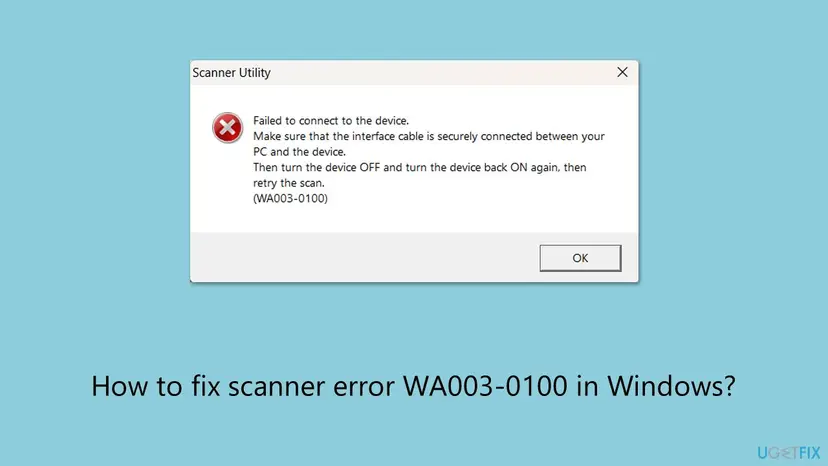
The message blames the cable, but on a PC that still prints to the same machine the cable is rarely the cause. Printing uses the printer driver; scanning needs a separate scanner driver. When that driver is missing, the Brother software has nothing to talk to and shows WA003-0100.
- Spellings people search
- WA003-0100, WA003 0100, wa003; WA006-0100 is searched for the same Brother scanning symptom, and we could not confirm its exact message
- Programs that show it
- Brother iPrint&Scan, ControlCenter4 and the scan buttons in Brother Utilities
- Typical report
- Printing works, scanning fails, and it started after Windows 11 installed an update by itself
- Quick test
- Control Panel > View scanners and cameras: an empty list points to the 24H2 driver problem
Why WA003-0100 appears, from most to least common
Most often the PC moved to Windows 11 version 24H2 and the Brother scanner driver did not install or stopped working; Brother's support says this can leave Scanners and Cameras empty, over USB and over the network. Less often the Brother software points to an old IP address or the scanner events lost their link to iPrint&Scan. Rarely, a firewall blocks the scan ports or the machine's firmware is old.
| Cause | How common | What you see | Fix |
|---|---|---|---|
| Windows 11 24H2 update without the later fix | Most cases since late 2024 | Printing works, Scanners and Cameras is empty | Fix 1, then Fix 2 |
| Brother scanner driver damaged or half installed | Common | The machine shows in Scanners and Cameras but every scan fails | Fix 2 |
| Scan events not linked to Brother iPrint&Scan | Less common | Scanning from the PC works, the Scan button on the machine does not | Fix 3 |
| Connection changed: new router, new IP, loose USB cable | Less common | Printing also fails or is slow, the machine is not found | Fix 4 |
| Firewall blocks Brother's scan ports | Rare | Network scans fail, USB scans work | Fix 5 |
| Old machine firmware | Rare | Everything above is fine and the error stays | Fix 6 |
Users on Microsoft's forum report that scanning stopped after the 24H2 update while Windows' own scanning still worked, and that reinstalling the Brother software alone did not help until Windows was updated further. Brother's answer matches that order: Windows update first, Brother reinstall second.
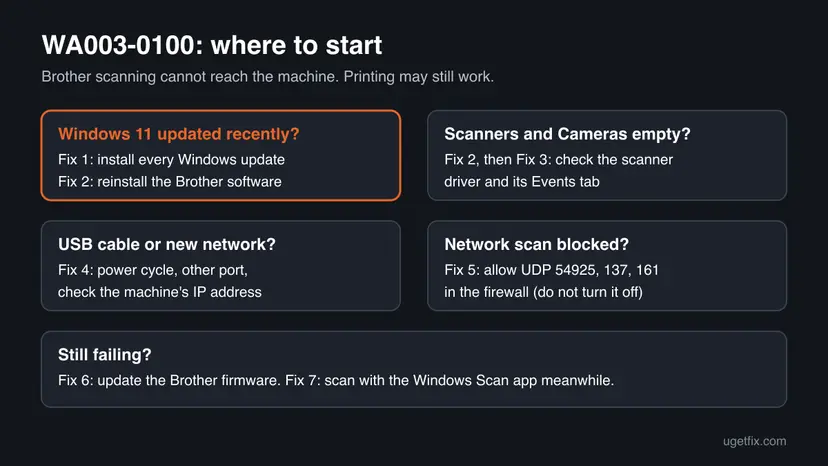
How to fix scanner error WA003-0100 on Windows 11 and Windows 10
Fix 1 and Fix 2 are Brother's own answer and clear the error for most readers; do them in that order. Fix 3 to Fix 6 cover the rarer causes. Fix 7 lets you scan while you wait. You need an administrator account.
| What you see or have | Start with |
|---|---|
| Windows 11 installed an update recently and scanning stopped | Fix 1, then Fix 2 |
| View scanners and cameras shows no Brother scanner | Fix 1, then Fix 2 |
| The scanner is listed but the Scan button on the machine does nothing | Fix 3 |
| New router, new Wi-Fi or a USB cable that was moved | Fix 4 |
| Scanning over USB works, over the network it fails | Fix 5 |
| Windows 10 22H2, no recent change | Fix 2, then Fix 4 |
Fix 1. Install every pending Windows update
10 to 20 minutes plus a restartLow riskEveryone on Windows 11, and above all PCs on version 24H2 where scanning stopped after an update.
Brother traces the problem to Windows 11 24H2 and names two Microsoft updates that resolve it: KB5052093 and the April 2025 cumulative update KB5055523. Windows cumulative updates carry earlier fixes, so a fully updated PC already includes them.
- Right-click Start, select System and read Version under Windows specifications, so you know whether you are on 24H2 or later.
- Open Settings > Windows Update and select Check for updates.
- Install everything offered, including the latest cumulative update, and select Restart now when asked.
- After the restart, check for updates once more until Windows says you are up to date.
- Try a scan. If WA003-0100 stays, go straight to Fix 2: Brother says the software must be reinstalled after the update.
If Windows Update fails or hangs, see Reset Windows Update components. A single update can also be downloaded from the Microsoft Update Catalog: Install an update from the Microsoft Update Catalog.
It worked if: Windows Update says you are up to date and Version shows 24H2 or later with the newest build.
If not: The update alone does not reinstall the scanner driver: continue with Fix 2.
Fix 2. Uninstall the Brother software and install the current Full Driver & Software Package
15 minutesLow riskEveryone after Fix 1, and Windows 10 readers whose Brother scanning broke for no clear reason.
This is the step Brother requires after the Windows update. The fresh package installs the scanner driver again, which fills the empty Scanners and Cameras list that causes WA003-0100.
- Windows 11: open Settings > Apps > Installed apps. Windows 10: open Settings > Apps > Apps & features.
- Type
Brotherinto the search box and uninstall every Brother entry (driver package, iPrint&Scan, ControlCenter, Brother Utilities). - Right-click Start, open Device Manager, expand Imaging devices, right-click the Brother scanner if one is listed and select Uninstall device.
- Restart the PC.
- Open
https://support.brother.com, search for your exact model and open Downloads. - Select Windows and your version, then download the Full Driver & Software Package.
- Run it, choose the same connection you use (USB or network) and finish the setup. Restart the PC again.

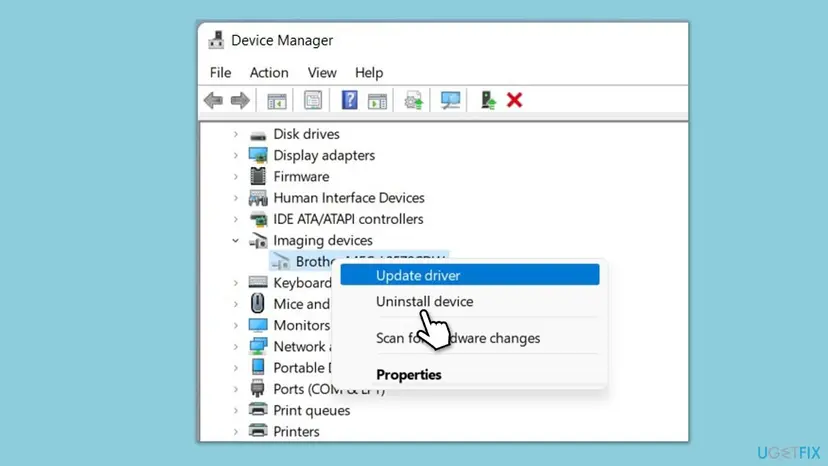
Device Manager steps in detail: Update, roll back or reinstall a driver. Do not use third-party driver updater programs for this; take the package from Brother only.
It worked if: Your Brother scanner appears in View scanners and cameras and a scan from iPrint&Scan finishes.
If not: If the scanner is listed but the machine's Scan button still fails, use Fix 3. If the setup cannot find the machine, use Fix 4.
Fix 3. Check the scanner driver and its events in Scanners and Cameras
5 minutesNo riskReaders whose scan from the PC works but the Scan button on the machine fails, or who want to confirm Fix 2 worked.
Brother says the scanner driver must be installed and Brother iPrint&Scan must be selected for every scan event; otherwise the Scan button on a networked machine has no program to hand the scan to.
- Type
Control Panelinto the search box on the taskbar and open it. - Type
Scannersinto the Control Panel search box and select View scanners and cameras. - Check that your Brother machine's scanner icon is there. If the list is empty, go back to Fix 1 and Fix 2.
- Select the icon and select Properties; accept the User Account Control prompt.
- Open the Events tab and pick Scan/Image Button under Select an event.
- Under Start this program, select Brother iPrint&Scan and select OK.
- Repeat for Scan/File Button, Scan/E-mail Button and Scan/OCR Button.
It worked if: All four events point to Brother iPrint&Scan and pressing Scan on the machine sends the scan to the PC.
If not: If the icon is missing even after Fix 2, the setup did not reach the machine: use Fix 4.
Fix 4. Turn the machine off and on, and check the USB or network connection
5 to 10 minutesNo riskReaders who moved the machine, changed the router or Wi-Fi, or connect with a USB cable.
This is what the error message itself asks for. A network machine that got a new IP address, or a USB cable in a loose or hub port, gives the same WA003-0100.
- Turn the Brother machine off with its power button, wait 30 seconds and turn it on.
- Shut down the PC fully and start it again.
- USB: plug the cable straight into the PC, not into a hub, and try another USB port or another cable.
- Network: print the machine's network configuration report from its control panel and note its IP Address.
- Press Win + R, type
cmd, press Enter and runpingwith that address, for exampleping 192.168.1.25. - If the address changed since setup, run the Brother setup from Fix 2 again so the software finds the machine at the new address.
It worked if: The ping gets replies, or the USB machine is recognised, and the scan runs.
If not: If ping gets replies but network scanning still fails, use Fix 5. If ping fails, the machine is not on your network: reconnect it to Wi-Fi from its control panel.
Fix 5. Allow Brother's scan ports in the firewall
5 minutesLow riskNetwork users whose USB scans work, or who run a third-party firewall.
Brother says an active firewall may stop iPrint&Scan from reaching the machine and recommends opening UDP 54925, UDP 137 and UDP 161. Opening three ports keeps the firewall on, unlike turning it off.
- Press Win + R, type
wf.mscand press Enter to open Windows Defender Firewall with Advanced Security. - Select Inbound Rules, then New Rule on the right.
- Choose Port, then UDP, and type
54925, 137, 161under Specific local ports. - Choose Allow the connection, keep Private ticked and name the rule
Brother scan. - With a third-party security suite, add the same three UDP ports in its firewall settings instead.
Leave the firewall on and allow only these ports on a private network. If you want to rule out your antivirus for one test, pause it briefly and turn it back on: Turn off Microsoft Defender protection for a moment.
It worked if: A network scan from iPrint&Scan or the machine's Scan button reaches the PC.
If not: If network scanning still fails, update the machine's firmware (Fix 6).
Fix 6. Update the Brother machine's firmware
10 minutesLow riskReaders who did Fix 1 to Fix 5 and still see the error.
Brother lists the latest firmware as one of its checks for failed scans, and its support pages ask you to keep it current for best performance.
- Open your model's Downloads page on support.brother.com.
- Select your Windows version and download the Firmware Update Tool, if your model has one.
- Run it with the machine on and connected, and do not turn the machine off until it finishes.
- Restart the machine and try a scan.
Some models update their firmware from the control panel over the internet instead; Brother's firmware page for your model says which way applies.
It worked if: The tool reports the firmware is current and scanning works.
If not: Read Still not working below and contact Brother support with the details listed there.
Fix 7. Scan with Windows itself while you wait for the fix
3 minutesNo riskAnyone who needs a scan now.
Users with WA003-0100 report that Windows' own scanning still reached the machine while Brother's software failed. It needs the scanner to be listed in Scanners and Cameras.
- Type
Windows Fax and Scaninto the search box on the taskbar and open it. - Select New Scan, pick your Brother scanner and select Scan.
- Save the result with Save as, or use the Windows Scan app from the Microsoft Store if you prefer it.
It worked if: The page is scanned to the PC without the Brother software.
If not: If Windows cannot see the scanner either, the driver is missing: repeat Fix 1 and Fix 2.
Still getting WA003-0100: what to check and what to send Brother
The most useful check is View scanners and cameras. An empty list after a full Windows update and a fresh Brother install means the driver still does not install on your build, which Brother says to take to Microsoft. A listed scanner with failing scans points to the connection or firewall.
- Copying works on the machine: the scanner glass and sensor are fine, so the cause is on the PC side, not hardware.
- Copying also fails or the machine shows a scanner error on its display: that is a hardware fault; contact Brother service.
- Only one PC fails: the problem is that PC's Windows build or driver, not the machine.
- Error after every Windows update: reinstall the Brother package again (Fix 2) once the update is in.
Your model number, your Windows version and build from winver, how the machine connects (USB, Wi-Fi or cable), a screenshot of the WA003-0100 message and of View scanners and cameras.
Keep Brother scanning working after Windows updates
- Let Windows finish all updates, then reinstall the Brother package if scanning stops.
- Give a network Brother machine a fixed IP address or a DHCP reservation in the router.
- Download drivers and firmware only from support.brother.com for your exact model.
- Turn off the firewall to make scanning work.
- Use driver updater tools for the Brother scanner driver.
- Leave half-removed Brother entries on the PC before a new install.
Windows 10 left support on 14 October 2025. The 24H2 cause does not apply there, and the Brother steps work on Windows 10 22H2, but the PC no longer gets security fixes.
Frequently asked questions
What is the WA003-0100 error?
It is an error code from Brother's scanning software. It means the program could not connect to your Brother machine to start a scan. The message tells you to check the cable and restart the machine, but when printing still works the cause is usually a missing scanner driver. Brother links this to the Windows 11 24H2 update, which can leave the Scanners and Cameras list empty. Updating Windows and then reinstalling the Brother software fixes it for most people.
Why can I print but not scan with my Brother printer?
Printing and scanning use two different drivers. Windows 11 24H2 could stop the Brother scanner driver from installing while the printer driver kept working, so you can print but the scan software finds nothing to connect to and shows WA003-0100. Check Control Panel, View scanners and cameras: if your Brother machine is missing there, install all Windows updates and then reinstall the Full Driver & Software Package from Brother (Fix 1 and Fix 2).
What is WA006-0100?
WA006-0100 is another code people search for together with Brother scanning failures. We could not confirm its exact message or meaning in Brother's documentation. Because it shows up in the same situation, start with the same steps: install every Windows update, reinstall the Brother software, then check Scanners and Cameras and the connection. If the code stays after that, send Brother support the full text of the message and your model number.
How do I fix this problem quickly?
Open Settings, Windows Update and install everything offered, then restart. Next uninstall all Brother entries in Installed apps, restart, and install the current Full Driver & Software Package for your model from support.brother.com. That is Brother's own fix and takes 20 to 40 minutes. If you need a scan before then, use Windows Fax and Scan, which users report still works while the Brother software shows the error.
Which Windows updates fix the Brother scanner issue?
Brother names KB5052093 and the April 2025 cumulative update KB5055523 for Windows 11 version 24H2. Windows cumulative updates include earlier fixes, so any newer update for 24H2, 25H2 or 26H2 already contains them. Just install everything Windows Update offers. After that, Brother says you must uninstall and reinstall the Brother software, because the update does not install the missing scanner driver by itself.
Does WA003-0100 mean my scanner is broken?
Usually not. If the machine still copies documents, its scanner hardware works, because copying uses the same glass and sensor. The error then lies in the PC software or the connection. Only if copying also fails, or the machine shows a scanner error on its own display, is a hardware fault likely. In that case contact Brother service with your model number.
Which Brother models get this error?
Brother's notice on the Windows 11 24H2 scanning problem lists a long range of MFC, DCP, HL and ADS models, including DCP-L2540DW, MFC-L2710DW, MFC-J4710DW and ADS-2200. Reports also name the DCP-L2541DW. If you searched a model number such as L5652, find your exact model on support.brother.com and download its own package: the steps on this page are the same for every Brother model.
Should I turn off my firewall or antivirus?
No. Brother asks only that UDP ports 54925, 137 and 161 be allowed, so add those ports instead (Fix 5). If you want to test whether your antivirus is involved, pause it for a few minutes, try one scan and turn it back on. A firewall that is switched off for good leaves the whole PC exposed on the network and is not needed for scanning.
I do not read English well. Is there help in my language?
This page is in English only. Brother's support site, support.brother.com, offers the same driver downloads and FAQs for many countries and languages, so choose your country there first. The fix is the same in every language: update Windows, reinstall the Brother software, then check that the scanner appears in View scanners and cameras. Translation tools in your browser can also translate this page.
Can I just roll back the Windows update?
You can, but it is not the better choice. Users report that an earlier 24H2 build scanned fine and later ones did not, yet Brother and Microsoft fixed it with newer updates, not older ones. Removing a security update leaves the PC unprotected and Windows will install it again. Install the latest updates and reinstall the Brother software instead; uninstalling updates is shown in How to uninstall a Windows update if you still need it.
Sources
- Brother USA support: Unable to scan or install the scanner driver after updating Windows 11 - USB or Network (help.brother-usa.com)
- Brother support: I cannot scan a document using Brother iPrint&Scan (Windows/macOS) (support.brother.com)
- Microsoft Q&A: what is WA003-0100 error (learn.microsoft.com)
Did this fix work?
One click, no account. It tells the next reader which guides are worth their time.
Questions and experiences: Scanner error WA003-0100: how to fix it on a Brother printer in Windows 11 and 10
Still broken, or found a fix we did not cover? Ask here: members and our editors answer. Reading is open; writing needs a free account.
…