
How to fix SCEP Certificate enrollment initialization failed error in Windows?

Prefer to fix it yourself? The manual steps follow.
- 6methods
- 5 minutes to check, 15 to 30 minutes to fix
- Intermediate
Applies to Windows 11, Windows 10
6 methods in this guide
Hi, I'd like to get help with the SCEP Certificate enrollment initialization failed error I randomly get throughout the day when using my computer. I'm running Windows 10.
"SCEP Certificate enrollment initialization failed" is Event 86 in Event Viewer: Windows asked Microsoft's TPM attestation service for a certificate, and the address built from your TPM's key ID does not exist. On a home PC it is a failed web request in a log, not a crash. Read the event first, then update the BIOS and chipset driver or stop the task that sends the request.
The event says Windows could not enroll a TPM attestation (AIK) certificate at an address such as AMD-KeyId-<id>.microsoftaik.azure.net. It does not damage Windows. Confirm the source and the address (Fix 1), update the BIOS and chipset driver (Fix 2), and if the rows bother you, disable the AikCertEnrollTask task (Fix 3). If the PC crashes, the cause is elsewhere: read Kernel-Power 41.
| Error | Source CertificateServicesClient-CertEnroll, Event ID 86: SCEP Certificate enrollment initialization for Local system via https://AMD-KeyId-<id>.microsoftaik.azure.net/templates/Aik/scep failed: |
|---|---|
| Where it appears | Event Viewer, Windows Logs, often at startup, at sign-in or a few times a day. Nothing shows on screen; you only see it when you open the log. |
| Main cause | Windows tries to enroll an AIK (Attestation Identity Key) certificate for the TPM through SCEP, and Microsoft's endpoint for that TPM's key ID does not exist, so the request returns Not Found. |
| Fastest fix | Read the event (Fix 1). If nothing else is wrong, you can leave it. To make it stop, update the BIOS and chipset driver (Fix 2), then disable AikCertEnrollTask (Fix 3). |
| Also written as | "SCEP Certificate enrollment initialization for WORKGROUP\<PC name>$ via", "SCEP Certificate enrollment for Local system via <address> failed", Event 86 CertEnroll, "Error initializing SCEP certificate enrollment". |
| Affects | Windows 11 and Windows 10 PCs with a TPM: AMD firmware TPM (AMD-KeyId), Intel PTT (INTC-KeyId) and VMware virtual TPM (VMW-KeyId). |
| Vendor status | No Microsoft article documents the fix. Broadcom confirms the cause for Windows 11 VMs with vTPM and sends users to Microsoft. Microsoft Q&A moderators point to AMD BIOS and chipset updates. |
| Time to fix | 5 minutes to read the event and disable the task. 20 to 30 minutes for a BIOS and chipset update. |
Facts checked on 16 October 2026. Steps written for Windows 11 (25H2 and 26H2) and Windows 10 22H2.
What SCEP Certificate enrollment initialization failed means
SCEP (Simple Certificate Enrollment Protocol) is a standard way to ask a server for a certificate. Windows uses it here for one narrow job: to get an attestation certificate for the TPM chip, so the TPM can prove to Microsoft services that it is real. The request goes to an address under microsoftaik.azure.net that is built from the TPM maker and the TPM's key ID.
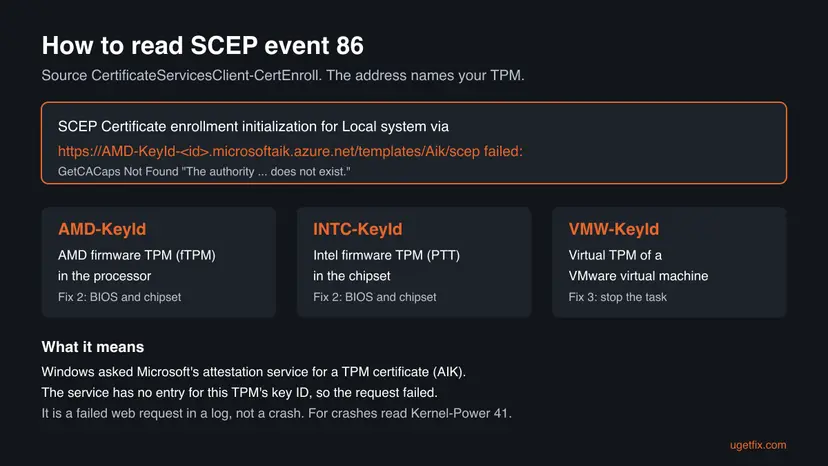
When that address has no entry for your TPM, the service answers Not Found and Windows writes Event 86. This is how the event looks, with the parts that change between PCs shown in angle brackets:
Event 86, source CertificateServicesClient-CertEnroll (text as reported by users and Broadcom)
SCEP Certificate enrollment initialization for Local system via
https://AMD-KeyId-<id>.microsoftaik.azure.net/templates/Aik/scep failed:

GetCACaps
Not Found {"Message":"The authority \"amd-keyid-<id>.microsoftaik.azure.net/templates\" does not exist."}- AMD-KeyId in the address means the AMD firmware TPM, INTC-KeyId an Intel firmware TPM (PTT), VMW-KeyId the virtual TPM of a VMware virtual machine. Some addresses end in
-v2; the meaning is the same. - for Local system or for WORKGROUP\<PC name>$ only names the account the request ran for. A PC that is in no domain shows WORKGROUP; it does not mean a work network is involved.
- GetCACaps Not Found is the first step of SCEP: Windows asked the server what it supports, and the server said it has no such authority.
- The key ID in the address is unique to your TPM. That is why the searches for this error show dozens of different addresses for the same problem.
Why the SCEP certificate enrollment fails, most common cause first
The direct cause is always the same: the endpoint for your TPM's key ID does not exist. What differs is why Windows keeps trying, and that decides the fix.
| Cause | How it looks | Fix |
|---|---|---|
| The scheduled task AikCertEnrollTask runs and Microsoft has no endpoint for this TPM. Most common. | AMD-KeyId or INTC-KeyId in the address, rows at startup or several times a day, the PC otherwise works. | Fix 1, then Fix 3 |
| Firmware TPM or chipset driver is out of date. Microsoft Q&A moderators tie the invalid address to AMD BIOS and chipset updates. | AMD-KeyId addresses, often on Ryzen boards after a BIOS or Windows 11 upgrade. | Fix 2 |
| A virtual TPM in a VMware virtual machine. Confirmed by Broadcom. | VMW-KeyId in the address, inside a Windows 11 guest. | Fix 3 |
| A leftover work or school account or device management enrollment. | An entry under Access work or school on a home PC, or a PC that was once managed by an employer. | Fix 4 |
| Damaged Windows files. Rare. | Several other system errors at the same time, or the task fails with other codes. | Fix 5, Fix 6 |
Nothing we read shows that it does. The event is a failed web request. On Microsoft Q&A, a user who tried every suggested fix, including a BIOS update, still had crashes several times a day. If your PC restarts or freezes, the events to read are Kernel-Power 41 and EventLog 6008, see Event ID 6008.
When you can ignore Event 86 and when it points to something else
- The PC works and you found the rows while reading the log for something else.
- The address contains microsoftaik.azure.net and the text says Not Found.
- It is a home PC with no work or school account.
- The PC restarts or freezes: read the events just before the restart, not Event 86.
- It is a company PC and certificates for Wi-Fi or VPN do not arrive: that is your IT team's SCEP setup.
- Windows Hello, BitLocker or the TPM itself reports errors in Windows Security.
The old version of this page linked the event to AMD graphics drivers and games. We found no source for that. The rows appear on PCs with Intel and NVIDIA hardware too, and on virtual machines with no graphics card at all.
How to fix SCEP Certificate enrollment initialization failed
Fix 1 takes five minutes and tells you which TPM sends the request and whether anything else is wrong. Fix 2 updates the firmware that the address depends on. Fix 3 stops the request, which ends the rows. Fix 4 is for PCs with a leftover work account. Fix 5 and Fix 6 are for the rare case of damaged Windows files.
| What you see | Start with |
|---|---|
| Rows in the log, the PC works. | Fix 1, then stop or Fix 3 |
| AMD-KeyId or INTC-KeyId on a desktop or laptop. | Fix 2, then Fix 3 |
| VMW-KeyId inside a virtual machine. | Fix 3 |
| Something is listed under Access work or school. | Fix 4 |
| The PC crashes or restarts. | The still-broken section: read Kernel-Power 41 first |
| Other system errors and failing Windows tools. | Fix 5, then Fix 6 |
Fix 1. Read Event 86 and find out which TPM sends the request
5 minutesNo riskEveryone who found these rows, before changing anything.
The address in the event names the TPM type, and the count of rows shows whether the request runs once at startup or many times a day. Both decide which fix to try, and the command changes nothing.
- Right-click Start and select Terminal (Admin). On Windows 10, search for
PowerShell, right-click Windows PowerShell and select Run as administrator. - Run the command below. It lists the Event 86 rows of the last 14 days from the CertEnroll source, in both the Application and System logs.
- Read the address in the message: AMD-KeyId, INTC-KeyId or VMW-KeyId.
- Note the times. Rows that come at each startup point to the scheduled task in Fix 3.
- If your PC restarts or freezes, compare these times with the time of the restart. A row minutes earlier is not the cause.
PowerShell: Event 86 rows of the last 14 days (read only)
Get-WinEvent -FilterHashtable @{ LogName='Application','System'; ProviderName='Microsoft-Windows-CertificateServicesClient-CertEnroll'; Id=86; StartTime=(Get-Date).AddDays(-14) } -ErrorAction SilentlyContinue |
  Select-Object TimeCreated, LogName, @{n='Message';e={($_.Message -split "`n")[0]}} |
  Format-Table -AutoSize -Wrap
If the command returns nothing, open Event Viewer (press Win + R, type eventvwr.msc), select Windows Logs > Application, choose Filter Current Log and type 86 in the event ID box. We had no PC with this error to test the command, so check one row against Event Viewer once.
It worked if: You see the rows, the TPM type in the address and the times, and you know whether anything else on the PC is wrong.
If not: For AMD-KeyId or INTC-KeyId go to Fix 2. For VMW-KeyId go to Fix 3. For crashes read the still-broken section.
Fix 2. Update the BIOS or UEFI firmware and the chipset driver
20 to 30 minutesLow riskThe address starts with AMD-KeyId or INTC-KeyId, and the PC has a firmware TPM.
The address is built from the firmware TPM's key. Microsoft Q&A moderators tie the invalid address to an AMD BIOS or chipset update, so the board maker's newest firmware and the chipset driver are the first real repair to try.
Plug a laptop into power and do not switch off the PC during a BIOS update. A BIOS update can also reset settings such as boot order or memory profile, so note them first. If you use BitLocker, have the recovery key at hand before the update.
- Press Win + R, type
msinfo32and press Enter. Note BaseBoard Manufacturer, BaseBoard Product and BIOS Version/Date. - On the board or laptop maker's support page for that model, download the newest BIOS and the chipset driver.
- Install the chipset driver and restart.
- Update the BIOS with the maker's own tool or instructions, then restart.
- Open Settings > Windows Update > Advanced options > Optional updates (Windows 10: Settings > Update & Security > Windows Update > View optional updates) and install the driver updates offered.
- Run the Fix 1 command again after one or two days of normal use.
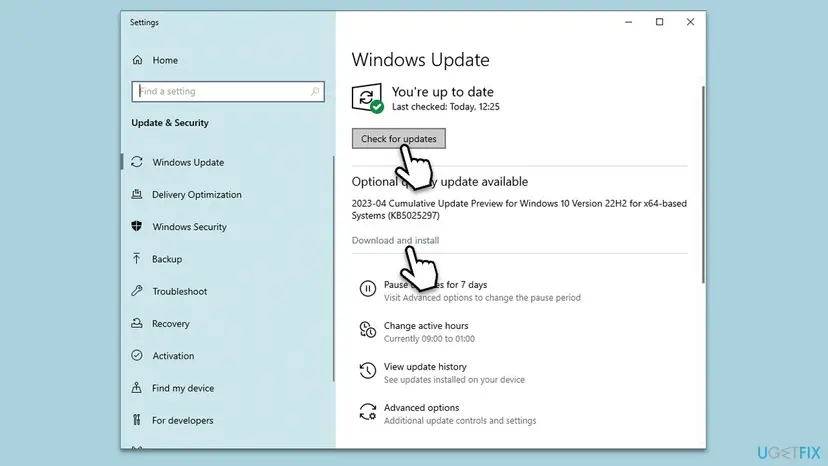
For the driver part, the step by step guide is here: Update, roll back or reinstall a driver
It worked if: After the update and a few restarts, the Fix 1 command shows no new rows, or fewer of them.
If not: On Microsoft Q&A users report that the rows sometimes stay after a BIOS update. Then stop the request with Fix 3.
Fix 3. Disable the AikCertEnrollTask task that sends the request
5 minutesLow riskThe rows keep coming on a home PC or a virtual machine, and nothing else is wrong.
The enrollment is started by the scheduled task AikCertEnrollTask. A Microsoft Q&A moderator suggested disabling it, and it can be turned back on with one command, so it ends the failed requests without changing anything else.
- Open Terminal (Admin) as in Fix 1.
- Run the first command below. It shows where the task is and whether it is Ready or Disabled.
- If the task is listed, run the second command to disable it.
- Restart the PC and run the Fix 1 command after a day.
- To undo it later, run the third command.
PowerShell: find, disable and re-enable AikCertEnrollTask
Get-ScheduledTask -TaskName 'AikCertEnrollTask' | Format-List TaskPath, State

Get-ScheduledTask -TaskName 'AikCertEnrollTask' | Disable-ScheduledTask

Get-ScheduledTask -TaskName 'AikCertEnrollTask' | Enable-ScheduledTaskMicrosoft moderators have pointed to two folders in Task Scheduler, Microsoft > Windows > CertificateServicesClient and EnterpriseMgmt, and one user could not find the second. The command finds the task wherever it is. Do not disable the other tasks in CertificateServicesClient, and do not do this on a company PC: ask your IT team.
It worked if: The task shows State Disabled, and the Fix 1 command shows no new rows after the restart.
If not: If the command finds no task, the request comes from device management enrollment. Go to Fix 4.
Fix 4. Remove a leftover work or school account
5 minutesRead the warningA home PC shows an entry under Access work or school, or the PC was once managed by an employer or school.
A device management enrollment can keep asking for certificates long after the PC left the organisation. A Microsoft Q&A moderator suggested disconnecting such an entry for this error, which removes the policy that starts the enrollment.
Mail, files and apps that came with the work or school account leave the PC. Copy anything you need first: Back up your files (Windows Backup, File History, Time Machine) Never do this on a PC your employer still manages.
- Open Settings > Accounts > Access work or school.
- Check the list. An account you use for Microsoft 365 at home only is fine and can stay.
- Select an entry from a former employer or school and choose Disconnect.
- Confirm and restart the PC.
- Run the Fix 1 command after a day.
It worked if: The old entry is gone, and no new Event 86 rows appear after the restart.
If not: If the list was empty or the rows continue, go back to Fix 3, or repair Windows files with Fix 5.
Fix 5. Repair Windows system files with DISM and SFC
15 to 30 minutesNo riskOther system errors appear next to Event 86, or the task commands in Fix 3 fail.
Microsoft Q&A moderators list this scan for the error. It will not create the missing endpoint, but it repairs damaged certificate and task files when they are part of the problem.
- Open an elevated command window. Right-click Start and select Terminal (Admin), or type cmd in the search box, right-click Command Prompt and select Run as administrator. Select Yes when Windows asks for permission.
- Run DISM first. Type the command below and press Enter. DISM downloads clean copies of damaged components from Windows Update, so it can take several minutes. Wait until it says The operation completed successfully.
DISM.exe /Online /Cleanup-Image /RestoreHealth - Run System File Checker. In the same window, type the command below and press Enter. Do not close the window until the verification reaches 100%.
sfc /scannow - Read the result and restart. Compare the last message with the table below this guide, then restart the PC so that repaired files are loaded.
These steps were written for Windows 11 24H2 and 25H2. The full page with the other versions and what each result means: Run DISM and SFC to repair Windows system files

It worked if: SFC reports no integrity violations or that it repaired them, and the other errors are gone after a restart.
If not: If Windows tools still fail, reinstall Windows over itself with Fix 6.
Fix 6. Reinstall Windows while keeping files and apps
1 hourLow riskFix 1 to Fix 5 did not help and other parts of Windows misbehave too.
A repair install replaces every Windows file and rebuilds the scheduled tasks while keeping your files and apps. Microsoft moderators suggest it as the last step for this error.
- Back up important files first: Back up your files (Windows Backup, File History, Time Machine)
- Open Settings > System > Recovery and select Reinstall now next to Fix problems using Windows Update on Windows 11.
- On Windows 10, or if that option is missing, run an in-place upgrade from the installation media as shown below.
- Open Recovery in Settings. Open Settings > System > Recovery. Next to Fix problems using Windows Update, select Reinstall now. This keeps your apps, files and settings.
- Start the reinstall. Choose whether the PC may restart on its own 15 minutes after the installation, then select OK.
- Wait and restart. Windows Update downloads and installs a repair copy of your current Windows version. Keep the PC plugged in and online, and restart it when asked.
- If that did not help: Reset PC. Back in Settings > System > Recovery, next to Reset this PC, select Reset PC. This keeps your personal files but removes installed apps and settings.
- Choose Keep my files. Select Keep my files. Do not select Remove everything.
- Choose where Windows comes from. Select Cloud download to download a fresh copy of Windows, or Local reinstall to use the files already on the PC (faster, but may not include the latest updates).
- Reset. Review the summary and select Reset. The PC restarts several times.
These steps were written for Windows 11 22H2 and later. The full page with the other versions and what each result means: Reinstall Windows without losing files

It worked if: Windows starts with your files and apps in place, and the other errors are gone.
If not: If Event 86 still appears but the PC works, it is the same endpoint problem: disable the task with Fix 3 and leave it.
If the PC still crashes or restarts: what to check instead of Event 86
Many readers find Event 86 while looking for the cause of a crash, as in the question above. The event is often the last row before a restart only because Windows writes it at startup. Look at what happened in the minute before the crash.
- Restarts with no warning. In Windows Logs > System, find Kernel-Power 41 and EventLog 6008 and read the errors just before them.
- Blue screens. Look for BugCheck 1001 and note the stop code.
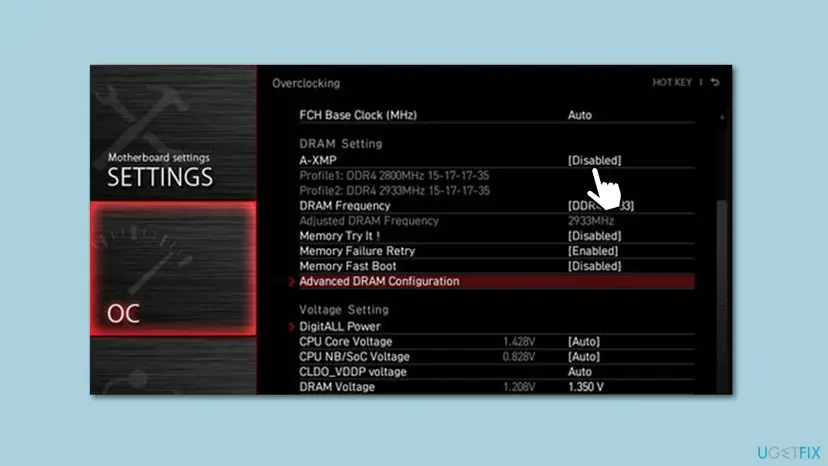
- Memory overclock. If XMP, EXPO or DOCP is on in the BIOS, set it back to default for a test. Unstable memory settings cause random restarts.
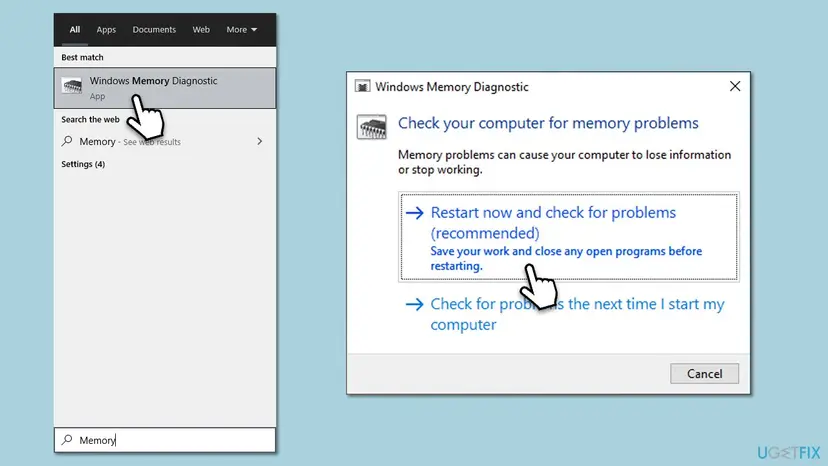
- Memory errors. Run Windows Memory Diagnostic: How to test your RAM with Windows Memory Diagnostic
- Power supply. Some users report a power supply too weak for the graphics card. Check both against the makers' specifications.
- What to send to support. The Windows version from
winver, the BIOS version frommsinfo32and the XML of the Kernel-Power 41 event.
How to keep SCEP certificate enrollment errors from coming back
- Keep the BIOS and chipset driver up to date from the board or laptop maker.
- Install Windows updates, including optional driver updates, and restart soon after.
- Note that you disabled AikCertEnrollTask, so you can turn it on again if a Microsoft service asks for TPM attestation.
- Keep the BitLocker recovery key saved in your Microsoft account or on paper before firmware updates.
- Read Kernel-Power 41 first when hunting a crash, so routine rows do not distract you.
- Do not turn off the TPM in the BIOS to stop the rows. Windows 11 needs it, and BitLocker and Windows Hello depend on it.
- Do not clear the TPM for this event alone. It removes keys that BitLocker and Windows Hello use.
- Do not disable every task in CertificateServicesClient or delete enrollment registry keys on a company PC.
- Do not reset Windows because of this event alone.
Frequently asked questions
What does SCEP Certificate enrollment initialization failed mean?
It means Windows tried to get an attestation certificate for the TPM from Microsoft and the request failed at its first step. The event is number 86 from the CertificateServicesClient-CertEnroll source. The address in the text, under microsoftaik.azure.net, is built from your TPM's key ID, and the service answers that no such authority exists. On a home PC nothing depends on this certificate, so the event is a failed request in the log rather than a fault.
What is Simple Certificate Enrollment Protocol (SCEP)?
SCEP is a standard protocol that lets a device ask a certificate server for a certificate over HTTP. Companies use it, for example through Microsoft Intune, to give laptops certificates for Wi-Fi and VPN. Windows also uses it to request a TPM attestation certificate from Microsoft, and that is the request behind this event. The word SCEP in the event does not mean that your PC is managed by a company.
Can Event 86 cause crashes, freezes or random restarts?
Nothing we read shows that it can. It is a failed web request written to the log. Users on Microsoft Q&A who tried every suggested fix, including BIOS updates, still had crashes, which points to another cause. The row often sits just before a restart because Windows writes it at startup. Read Kernel-Power 41 and EventLog 6008 and the errors just before them, and test memory settings and the power supply as the still-broken section shows.
Why does the address say AMD-KeyId or INTC-KeyId?
The prefix names the maker of the TPM, and the long number after it is the TPM's key ID. AMD-KeyId belongs to an AMD firmware TPM, INTC-KeyId to an Intel firmware TPM, and VMW-KeyId to the virtual TPM of a VMware virtual machine. The key ID is unique, so every PC shows its own address. Searching for your exact address finds the same problem as everyone else's. Microsoft Q&A moderators tie the AMD case to BIOS and chipset updates (Fix 2).
What does SCEP Certificate enrollment initialization for WORKGROUP mean?
WORKGROUP followed by your PC name and a dollar sign is the computer account the request ran for. Every PC that is not joined to a company domain is in a workgroup, and the default name is WORKGROUP. It does not mean a work network or an employer is involved. The cause and the fixes are the same as for the Local system version of the message. If you do have an old work account on the PC, see Fix 4.
Is SCEP certificate enrollment failed event 87 the same problem?
Searches for this page include a second spelling, SCEP Certificate enrollment for Local system via the same microsoftaik.azure.net address, and event 87 next to 86. Users report it in the same rows, with the same address. We could not confirm the exact text of event 87 from a Microsoft page. If it carries the same microsoftaik.azure.net address, the cause and the fixes here apply to it.
Should I clear or turn off the TPM to stop the error?
No, not for this event alone. A Microsoft Q&A moderator listed clearing the TPM, but users in the same thread still had the rows afterwards, and clearing removes keys that BitLocker, Windows Hello and some sign-ins use. Turning the TPM off breaks the Windows 11 requirement and can cause BitLocker recovery at startup. Stopping the task in Fix 3 ends the requests without touching the TPM, and it can be undone with one command.
I see SCEP enrollment failed on a company PC with Intune. Is it this?
Probably not. On a company PC, SCEP usually delivers Wi-Fi, VPN or email certificates from your organisation's server, and those failures have other addresses and error codes, such as 0x80094800. Microsoft has troubleshooting articles for administrators on that setup. This page covers the TPM attestation request to microsoftaik.azure.net on home PCs. On a managed PC, do not disable tasks or remove accounts; send the event text to your IT team.
Is it different on Windows 10 and Windows 11?
The event, its source and the cause are the same on both, and the fixes apply to both; the steps give the Windows 10 paths where they differ. Most recent reports come from Windows 11, often after an upgrade from Windows 10. Windows 10 left support on 14 October 2025 and gets no more fixes, so a change on Microsoft's side would reach Windows 11 only.
I see this error in another language. Is it the same?
Yes. The text is translated with Windows, but the event ID 86, the source CertificateServicesClient-CertEnroll and the microsoftaik.azure.net address stay the same. In German it is "Fehler bei der Initialisierung der SCEP-Zertifikatregistrierung", and in Russian searches read "сбой регистрации сертификата SCEP локальная система через". This page is in English, but the cause and every fix apply, and the PowerShell commands work in any language.
Sources
- Microsoft Q&A: How to fix SCEP certificate enrollment initialization for workgroup (moderator answers: AMD BIOS and chipset, TPM, tasks, work or school account, repair install) (learn.microsoft.com)
- Microsoft Q&A: SCEP Certificate enrollment initialization event 86 (AikCertEnrollTask, user reports) (learn.microsoft.com)
- Broadcom KB 414601: Windows 11 VMs with vTPM enabled get SCEP Certificate Enrollment Initialization Failed, Event id 86 (knowledge.broadcom.com)
Did this fix work?
One click, no account. It tells the next reader which guides are worth their time.
Questions and experiences: fix SCEP Certificate enrollment initialization failed error in Windows
Still broken, or found a fix we did not cover? Ask here: members and our editors answer. Reading is open; writing needs a free account.
…