
How to fix screen resolution settings greyed out in Windows?

Prefer to fix it yourself? The manual steps follow.
- 8methods
- 5 to 30 minutes
- Easy
Applies to Laptops and desktops on Windows 11 and Windows 10 with Intel, NVIDIA or AMD graphics, built-in screens, external monitors, USB display adapters and Remote Desktop sessions
8 methods in this guide
- What greyed out means
- Causes, ranked
- The fixes
- 1. Reset the graphics driver
- 2. Check Display adapters
- 3. Reinstall the display driver
- 4. Roll back driver or update
- 5. Pick screen, use Extend
- 6. Check cable, adapter, dock
- 7. Use the graphics control panel
- 8. Remote Desktop and VMs
- Still broken: hardware
- Prevent it next time
- FAQ
Hello. I recently bought a new monitor for my Windows PC, but when I connected it and tried to change the resolution, the settings were unavailable. Is there anything I can do?
When the Display resolution list in Windows Settings is greyed out, Windows almost always has no working graphics driver, so it cannot read what the screen supports. Less often the screen sits behind a USB adapter, a dock or a Remote Desktop session. Open Device Manager first: what it shows under Display adapters tells you which fix you need.
A greyed out Display resolution list usually means Windows runs without the real graphics driver. Press Win + Ctrl + Shift + B and restart (Fix 1). Then open Device Manager and expand Display adapters (Fix 2). If you see Microsoft Basic Display Adapter or a yellow sign, reinstall the driver from your PC or graphics card maker (Fix 3). If only one screen is locked, check its cable, adapter or display mode.
| Error | No message. The Display resolution list in Settings > System > Display is grey and cannot be opened, or it shows one low option such as 800 x 600 or 1024 x 768. |
|---|---|
| Where it appears | In Display settings on Windows 11 and Windows 10, for the built-in screen, an external monitor or a screen behind a USB adapter or dock. |
| Main cause | No real graphics driver: Windows uses Microsoft Basic Display Adapter, or the card was stopped with an error code. |
| Fastest fix | Win + Ctrl + Shift + B and a restart (Fix 1), then a clean reinstall of the display driver from the PC or card maker (Fix 3). |
| Also written as | Display resolution grayed out, display resolution is disabled, resolution locked, screen resolution greyed out, monitor resolution greyed out. |
| Affects | Windows 11 and Windows 10, and Windows Server 2022 and 2025 when you work through Remote Desktop or a virtual machine. |
| Vendor status | Not a Windows bug with a fix version. Microsoft's own advice for unexpected resolution changes is to update the graphics driver. |
| Where to look | Device Manager, Display adapters, the card's Properties, General tab, Device status box. |
| Time to fix | 2 minutes for the key sequence, 10 to 20 minutes for a driver reinstall. |
Facts checked on 15 October 2026. Steps written for Windows 11 (25H2 and 26H2) and Windows 10 22H2.
What a greyed out display resolution means
Windows builds the Display resolution list from two things: what the graphics driver can output and what the screen reports it supports. When either side is missing, Windows has nothing to offer. The list then turns grey, or it opens with a single low choice that you cannot change.
On Windows 11 the list sits in Settings > System > Display, under Scale & layout, in the Display resolution row. On Windows 10 it sits in the same place under Scale and layout. Microsoft notes that with several screens connected you must first select the screen you want to change at the top of the page.
| What you see | What it usually means |
|---|---|
| The list is grey on every screen, the picture looks blurry or stretched | No real graphics driver. Windows runs on Microsoft Basic Display Adapter. |
| The list shows only 800 x 600 or 1024 x 768 | The same generic driver, or Windows cannot read the monitor's details through a cable or adapter. |
| Only the external or USB-connected screen is locked | A dock, a USB display adapter or its driver limits that one screen. |
| The list is grey only while you are connected remotely | A Remote Desktop or virtual machine session. The resolution comes from the remote connection, not from Display settings. |
| It started right after an update | A new graphics driver or Windows update replaced or broke the old one. |
Resetting Settings or creating a new user account does not help. The display driver is shared by every account on the PC, so the fix is always on the driver, the screen connection or the session.
Why your display resolution is greyed out, most common cause first
The table ranks the causes by how often they show up in the reports we read and in Microsoft's display troubleshooting order. Each row points to the fix that matches it.
| How often | Cause | How to spot it | Fix |
|---|---|---|---|
| Most often | No real display driver after a Windows reinstall, a big update or a failed driver install | Device Manager lists Microsoft Basic Display Adapter under Display adapters | Fix 3 |
| Often | The graphics card was stopped by Windows or disabled | A yellow sign or a down arrow on the card; Device status shows an error such as Code 31 or Code 43 | Fix 2, then Fix 3 |
| Often | The graphics driver hung after sleep, a game or plugging in a monitor | It worked before and stopped without any change | Fix 1 |
| Sometimes | A new driver or Windows update broke the old one | It started right after an update | Fix 4 |
| Sometimes | Two screens in Duplicate mode, or the wrong screen selected | Win + P is set to Duplicate, or the page shows the other screen | Fix 5 |
| Sometimes | Cable, adapter, dock or USB display adapter | Only the external screen is locked, or it works on another cable or PC | Fix 6 |
| Rarely | Remote Desktop or a virtual machine | You are signed in to the PC or server from another computer | Fix 8 |
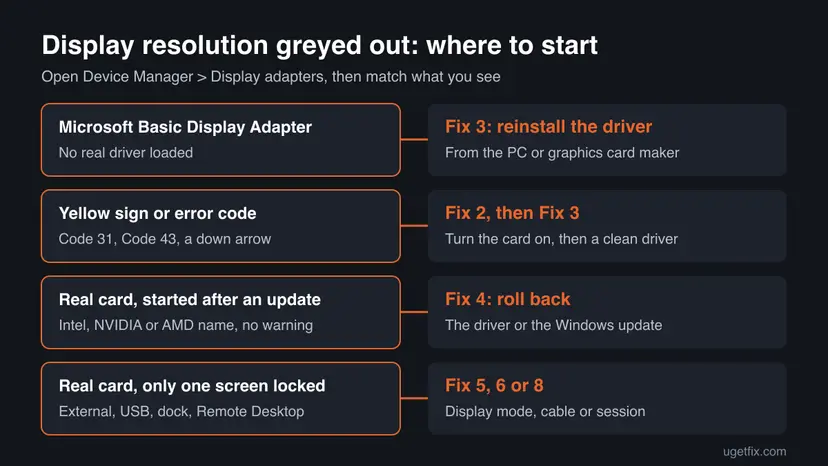
How to fix display resolution greyed out in Windows 11 and 10
Fix 1 takes two minutes and helps when the screen worked before. If you already know Device Manager shows Microsoft Basic Display Adapter, go straight to Fix 3. Fixes 5 to 8 are for the case where only one screen or one session is locked.
| What you see or what your PC has | Start with |
|---|---|
| It worked yesterday and stopped without any change | Fix 1 |
| A yellow sign, a down arrow or an error code on the card in Device Manager | Fix 2 |
| Display adapters shows only Microsoft Basic Display Adapter | Fix 3 |
| It started right after a driver or Windows update | Fix 4 |
| Two screens show the same picture | Fix 5 |
| Only the screen on a USB adapter, dock or long cable is locked | Fix 6 |
| Driver fine, but you need a resolution Windows does not list | Fix 7 |
| You are connected by Remote Desktop or to a virtual machine | Fix 8 |
Fix 1. Reset the graphics driver with Win + Ctrl + Shift + B and restart
2 minutesNo riskScreens that showed the right resolution before and got locked after sleep, a game or plugging in a monitor.
Microsoft lists this key sequence first for a display setup that suddenly stopped working. It restarts the graphics driver without closing your apps, so a hung driver can report the screen's resolutions again.
- Keep every screen connected and switched on.
- Press Win + Ctrl + Shift + B at the same time. The screen goes black for a moment and you hear a short beep.
- Open Settings > System > Display and check the Display resolution row.
- If it is still grey, select Start > Power > Restart.
- If a restart does not help, select Start > Power > Shut down, wait 10 seconds and turn the PC on again.
Microsoft suggests a full shut down when a restart does not help. With Fast Startup on, a shut down keeps part of the old session, so turn it off for one test if both fail. Step by step: Turn off Fast Startup.
It worked if: The Display resolution list opens and shows several sizes, one of them marked (Recommended).
If not: Check the graphics card's state in Device Manager in Fix 2.
Fix 2. Check Display adapters in Device Manager and turn the card back on
3 minutesNo riskEveryone whose list is still grey after Fix 1, and anyone who wants to see the cause first.
Device Manager shows which driver Windows really uses. A generic driver, a stopped card and a disabled card each need a different next step, and this check takes a minute.
- Right-click Start and select Device Manager.
- Select the arrow next to Display adapters. Microsoft notes you see the maker's name and the name of each adapter here.
- If the card has a small down arrow on its icon, right-click it and select Enable device.
- Right-click the card, select Properties and read the Device status box on the General tab.
- If it says "This device is working properly" and shows your Intel, NVIDIA or AMD card, the driver loads. Go to Fix 4 or Fix 5.
- If it shows an error code, or the list shows only Microsoft Basic Display Adapter, go to Fix 3.

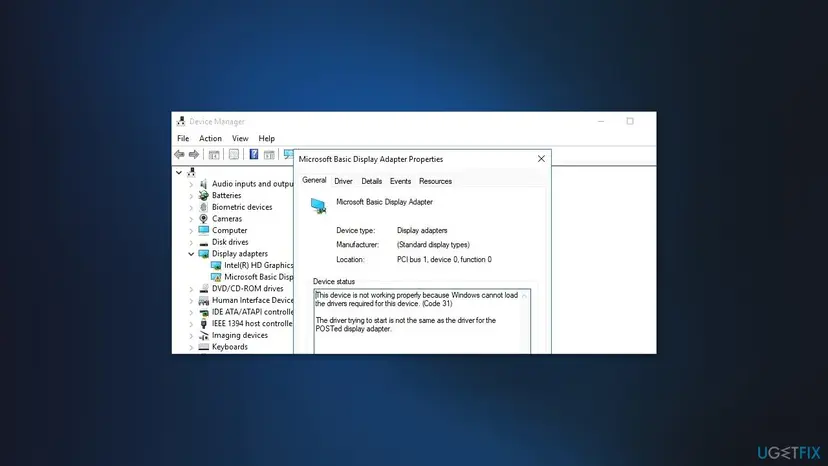
It worked if: Display adapters shows your real graphics card with no warning sign, and the resolution list opens.
If not: Reinstall the display driver in Fix 3.
Fix 3. Reinstall the display driver from your PC or graphics card maker
10 to 20 minutesLow riskMicrosoft Basic Display Adapter, an error code on the card, or a list that stays grey after Fix 1 and Fix 2.
Microsoft's note for unexpected resolution changes is that the graphics driver may need to be updated. A clean reinstall removes the damaged copy, so Windows loads a driver that can read every resolution your screen supports.
- Download the current graphics driver first. For a laptop, use the laptop maker's support page for your model. For a desktop card, use NVIDIA, AMD or Intel.
- Right-click Start, select Device Manager and expand Display adapters.
- Right-click your display adapter and select Uninstall device.
- Tick Attempt to remove the driver for this device and select Uninstall. The screen may flicker and drop to a lower resolution.
- Restart the PC when Windows asks.
- Run the driver installer you downloaded. If you have none, right-click the adapter in Device Manager, select Update driver and then Search automatically for drivers.
- Restart again and open Settings > System > Display.
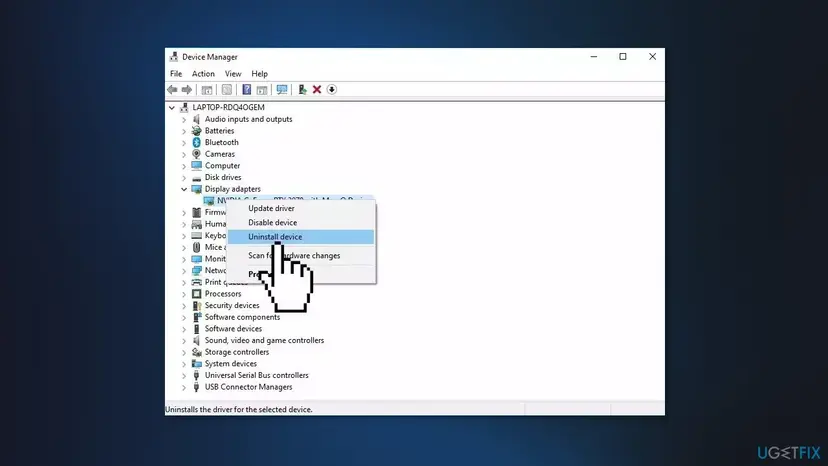
Windows Update also offers some display drivers. Open Settings > Windows Update > Advanced options > Optional updates and look under Driver updates. On Windows 10 the path starts at Settings > Update & Security > Windows Update.
Some older guides tell you to pick Microsoft Basic Display Adapter from the driver list. That is the generic driver Windows uses when the real one is missing, and it is the usual reason the list is grey. Use it only as a temporary picture until the maker's driver is installed.
More on update, roll back and reinstall in Device Manager: Update, roll back or reinstall a driver.
It worked if: Device Manager shows your real graphics card, and the Display resolution list offers several sizes with one marked (Recommended).
If not: If the problem started after an update, roll back in Fix 4. If the maker's installer finds no compatible hardware, read the still broken section.
Fix 4. Roll back the display driver or remove the Windows update
5 to 15 minutesLow riskThe list turned grey right after Windows Update or the maker's app installed something new.
Microsoft recommends going back to the previous display driver when a problem starts after an update. If no older driver is kept, the update that replaced it can be removed instead.
- Right-click Start and select Device Manager.
- Expand Display adapters, right-click your display adapter and select Properties.
- Open the Driver tab and select Roll Back Driver.
- Pick a reason, select Yes and restart the PC.
- If Roll Back Driver is greyed out, Windows kept no older driver. Remove the recent Windows update instead, as below.
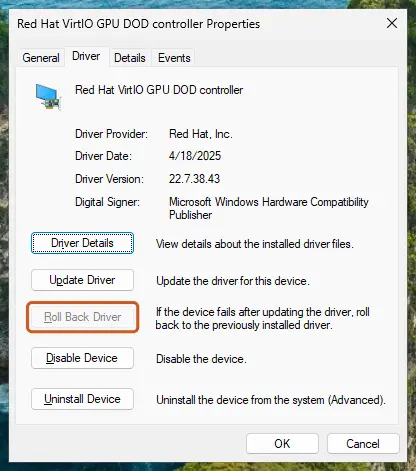
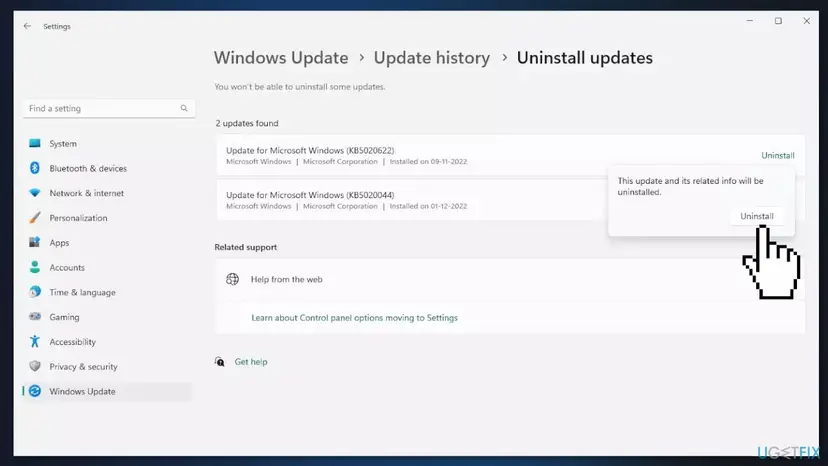
To remove an update, open Settings > Windows Update > Update history > Uninstall updates and uninstall the one installed on the day the problem began. Removing it also removes its security fixes, so install it again once a fixed driver is out. Step by step: How to uninstall a Windows update.
It worked if: The older driver loads after the restart and the Display resolution list opens again.
If not: Check which screen is selected and the display mode in Fix 5.
Fix 5. Select the right screen and switch Duplicate to Extend
2 minutesNo riskPCs with two or more screens where the list is locked or offers fewer sizes than the monitor supports.
Microsoft says to select the screen you want to change at the top of Display settings first. In Duplicate mode both screens show one picture, so they share one resolution. Users report that the list unlocks after switching to Extend.
- Open Settings > System > Display.
- At the top, select the box of the screen you want to change. Use Identify if you are not sure which number is which.
- Press Win + P and select Extend.
- Select the screen again and open the Display resolution list.
- Pick the size marked (Recommended) and select Keep changes.
Microsoft notes that a display splitter sends the same signal to every screen. Screens on a splitter behave like Duplicate mode, so they cannot get independent resolutions.
It worked if: Each screen has its own Display resolution list with its native size marked (Recommended).
If not: Check the cable, adapter or dock of the locked screen in Fix 6.
Fix 6. Check the cable, the adapter, the dock and the USB display adapter
10 minutesNo riskOnly one screen is locked, often one on a USB adapter, a dock, an HDMI to VGA adapter or a long cable.
Windows reads the list of resolutions from the monitor through the cable. Microsoft's hardware checks start with docks, dongles and adapters, which can conflict or hide the monitor's details, leaving one low size.
- Unplug docks, dongles and adapters, and connect the monitor straight to a video port on the PC if you can.
- Make sure both ends of the cable sit firmly in the ports.
- Try another cable. If the new one works, the old cable was faulty.
- Try another video port on the PC, such as HDMI instead of USB-C or DisplayPort instead of HDMI.
- For a USB display adapter or dock, install its driver from the adapter or dock maker's site, then restart.
- Connect the monitor to another computer. If the list is locked there too, the monitor is the problem.
A user in a Microsoft Q&A thread reports a third monitor on a USB adapter that dropped to 800 x 600 with the list greyed out, while the two other monitors worked. In that case the USB adapter's own driver, not the main graphics driver, controls the resolution.
It worked if: The monitor shows its native resolution on the direct cable or with the adapter's driver, and the list opens.
If not: If you need a size Windows still does not list, set it in the graphics control panel in Fix 7.
Fix 7. Set the resolution in the Intel, NVIDIA or AMD control panel
5 minutesLow riskThe real driver is installed but Windows does not list the size you need, or Windows keeps the list short.
The graphics maker's own app talks to the driver directly. It can list the monitor's modes and, on many cards, add a custom resolution that Windows Settings does not show.
- Open the graphics app that came with your driver, such as Intel Graphics Command Center, NVIDIA Control Panel or AMD Software. You find it in the Start menu.
- Open its display page and select the screen.
- Pick a resolution from its list and apply it.
- If the size is missing, look for the custom resolution option next to the resolution setting, enter the width, height and refresh rate, and apply it.
- Keep the change only if the picture is sharp and stable. If the screen goes black, wait 15 seconds without pressing anything and the old mode returns.
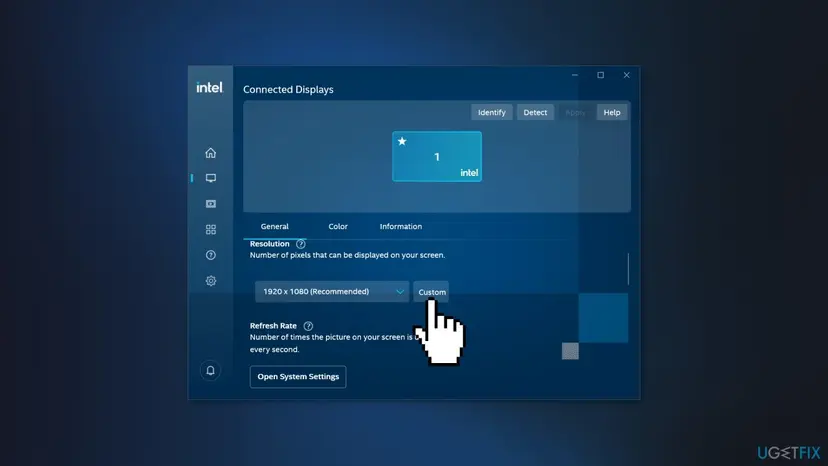
A custom size or refresh rate above the monitor's limits can give a black screen. Note the current values before you change them, and check the monitor's manual for its native resolution.
It worked if: The screen runs at the size you picked, and Windows Settings shows it in the Display resolution row.
If not: If you work through Remote Desktop or in a virtual machine, read Fix 8.
Fix 8. Change the resolution from the Remote Desktop or virtual machine side
3 minutesNo riskYou are signed in to a PC, Windows Server 2022 or Windows Server 2025 through Remote Desktop, or you work in a virtual machine.
In a remote session, the size of the remote desktop is set by the connection, so Display settings inside the session cannot change it. Users report the list as greyed out in these sessions on both Windows and Windows Server.
- Sign out of the remote session or close the window.
- On your own computer, open Remote Desktop Connection and select Show Options.
- Open the Display tab and set the size under Display configuration, or choose full screen.
- Connect again and check the remote desktop's size.
- For a virtual machine, close the console window and pick the size in the dialog that opens when you connect again, or change it in the virtual machine app's display settings.
It worked if: The remote desktop or virtual machine opens at the size you chose.
If not: If the list is grey on a local screen and every fix above failed, read the still broken section.
Still greyed out: when it is the hardware or driver support
If a clean driver from the maker does not load, or the card keeps falling back to Microsoft Basic Display Adapter, the cause is usually outside Windows Settings. Look at these signs.
- The card stops with an error code after every reinstall. That points at the graphics hardware or the laptop's mainboard. Contact the PC maker's support.
- The maker's installer says it finds no compatible hardware. Older graphics chips may have no driver for current Windows 11 builds. The PC maker's support page lists the last supported driver.
- The list worked a few days ago and you cannot find what changed. A restore point from before the change can return the old driver. Step by step: Undo recent changes with System Restore.
- Windows 10. Windows 10 left support on 14 October 2025, so graphics makers may stop releasing new drivers for it.
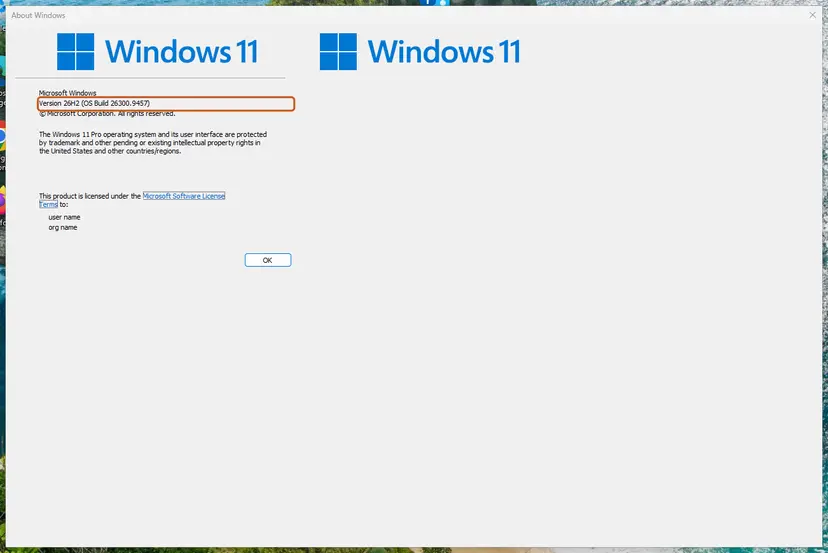
Before you contact support, collect the card name from Display adapters, the text of the Device status box, the monitor model and your Windows version from winver. Microsoft also asks users to report remaining display problems through the Feedback Hub.
How to keep the display resolution from greying out again
Most cases come back after a Windows reinstall, a big update or a new dock. A few habits keep the list working.
- Install the graphics driver from the PC or card maker right after a Windows reinstall.
- Keep the driver installer you know works, so you can reinstall it quickly.
- Install the dock or USB display adapter's own driver before you plug in the monitor.
- Use the size marked (Recommended) for each screen.
- Do not switch to Microsoft Basic Display Adapter as a fix.
- Do not install graphics drivers from driver download sites or updater programs.
- Do not set a custom resolution above what the monitor's manual lists.
Frequently asked questions
Why is my display resolution greyed out?
In most cases Windows runs without the real graphics driver, so it cannot read which resolutions the card and screen support. Device Manager then shows Microsoft Basic Display Adapter under Display adapters, or the card has a yellow sign. Less often the screen sits behind a USB adapter or dock, two screens are in Duplicate mode, or you are connected through Remote Desktop. The causes table above ranks them and points to the matching fix.
How do I fix display resolution greyed out in Windows 11?
Press Win + Ctrl + Shift + B, then restart. If the list is still grey, right-click Start, open Device Manager and expand Display adapters. If you see Microsoft Basic Display Adapter or a warning sign, uninstall the adapter with Attempt to remove the driver for this device ticked, restart and install the driver from your PC or card maker. The list sits in Settings > System > Display under Scale & layout.
Is the fix different on Windows 10?
No. Device Manager, the key sequence and the driver steps are the same on Windows 10 22H2. The list sits in Settings > System > Display under Scale and layout, and optional driver updates are under Settings > Update & Security > Windows Update. Windows 10 left support on 14 October 2025, so graphics makers may stop releasing drivers for it, which makes old cards harder to fix.
Why is my display locked at 1024 x 768 or 800 x 600?
A screen locked at one low size usually runs on the generic Microsoft Basic Display Adapter driver, or Windows cannot read the monitor's details through the cable or adapter. Check Display adapters in Device Manager first. If the real card is listed with no warning, try a direct cable without adapters. A screen on a USB display adapter needs that adapter's own driver, as one Microsoft Q&A report about an 800 x 600 lock shows.
Why is 1920 x 1080 not showing in the resolution list?
Windows lists only the sizes the driver and the monitor report together. If 1920 x 1080 is missing, the real driver is often not loaded, or a cable, adapter or KVM switch hides the monitor's details. Reinstall the driver from the maker (Fix 3) and connect the monitor directly (Fix 6). If the monitor supports the size and Windows still hides it, the graphics control panel can add it as a custom resolution (Fix 7).
Why is the resolution greyed out only on my second monitor?
Usually because the two screens are in Duplicate mode, or the second one is connected through a dock, splitter or USB adapter. Press Win + P, select Extend, then select the second screen at the top of Display settings and open its list. If it is still locked, connect it with a direct cable or install the dock or adapter's driver. Microsoft notes that a splitter only copies one signal and cannot give screens their own settings.
Why is the display resolution greyed out on Windows Server or in Remote Desktop?
In a Remote Desktop session the size of the remote desktop is set by the connection, so Display settings inside the session cannot change it. This applies to Windows Server 2022, Windows Server 2025 and Windows 11 or 10 PCs you reach remotely. Close the session, open Remote Desktop Connection > Show Options > Display on your own computer, pick the size and connect again. Virtual machines work the same way.
Can I change the resolution if Display settings will not let me?
Yes, if the real graphics driver is installed. Intel Graphics Command Center, NVIDIA Control Panel and AMD Software each have their own resolution list, and many cards can add a custom resolution there. If the driver is missing, these apps are missing too, and no tool can set a size the generic driver does not support. Install the maker's driver first, then use Windows Settings or the maker's app.
Does a new monitor need its own driver to change resolution?
Usually not. Windows reads what a monitor supports through the cable, and a generic monitor driver is enough for normal sizes. A new monitor with a locked list most often points at the graphics driver or the connection, not the monitor. Some monitor makers offer an information file for colour profiles and exact names, but the graphics driver is what controls the resolution list.
Sources
- Microsoft Support: Change your screen resolution and layout in Windows (support.microsoft.com)
- Microsoft Support: Troubleshoot external monitor connections in Windows (support.microsoft.com)
- Microsoft Q&A: Unable to change screen resolution, grayed out (user report) (learn.microsoft.com)
Did this fix work?
One click, no account. It tells the next reader which guides are worth their time.
Questions and experiences: fix screen resolution settings greyed out in Windows
Still broken, or found a fix we did not cover? Ask here: members and our editors answer. Reading is open; writing needs a free account.
…