
How to fix "Search for app in the Store?" error on Windows?

Prefer to fix it yourself? The manual steps follow.
- 8methods
- 5 to 30 minutes
- Intermediate
Applies to Windows 11 and Windows 10; most reports come from the sign-in screen and from opening downloaded .exe files
8 methods in this guide
- What the window means
- Causes, ranked
- Why sign-in breaks
- The fixes
- 1. Back to Normal startup
- 2. Get past the sign-in screen
- 3. Show password sign-in
- 4. Test SmartScreen for .exe
- 5. Repair SmartScreen parts
- 6. Find a background program
- 7. Repair the app
- 8. Reset and keep files
- Still there: what to report
- Keep it from coming back
- FAQ
Hi. Whenever I start the PC, I receive an error "Search for app in the Store? You need to install an app for this task. Would you like to search for one in the Store?" There are two buttons available, Yes and No. Regardless of which one I pick, nothing happens. Any ideas on how to deal with this?
The window Search for app in the Store? means Windows could not find the program it needs for a task. At sign-in, it most often follows a switch to Diagnostic startup in System Configuration, which turns off over 200 services. Return Windows to Normal startup first.
No app is missing that the Store could give you. Windows wanted a built-in part that is not running. If the window appears at sign-in, Windows is most likely in Diagnostic startup: set Normal startup in msconfig and restart (Fix 1). If you cannot sign in at all, use the password instead of the PIN or System Restore (Fix 2). If it appears when you open an .exe file, go to Fix 4.
| Error | Search for app in the Store? with the lines You need to install an app for this task. and Would you like to search for one in the Store? and the buttons Yes and No. |
|---|---|
| Where it appears | On the sign-in screen after you select Sign in or Set up my PIN, when you open a downloaded .exe file, or on its own after Windows starts. |
| Main cause | Windows was started in Diagnostic startup (System Configuration, msconfig), so the services that handle PIN sign-in are off. For .exe files: the SmartScreen check under Check apps and files cannot run. |
| Fastest fix | msconfig > General > Normal startup > OK > restart (Fix 1). |
| Also written as | search for app in store, you need to install an app for this task, search for the app, look for an app in the Microsoft Store, search in Microsoft Store keeps popping up. |
| Affects | Windows 10 and Windows 11. Reports name Windows 10 Pro 1909 and later builds, and PCs that sign in with a Microsoft account and a PIN. |
| Vendor status | We found no Microsoft support article for this window. A Microsoft Q&A advisor ties it to Diagnostic startup, citing an article by a former Microsoft MVP. |
| Yes or No | Neither button helps. At sign-in nothing happens. With an .exe file, both buttons let the program start. |
| Time to fix | 5 minutes from the desktop. 20 to 40 minutes when you first have to get past the sign-in screen. |
Facts checked on 15 October 2026. Steps written for Windows 11 (25H2 and 26H2) and Windows 10 22H2.
What "Search for app in the Store? You need to install an app for this task" means
The window is the standard Windows prompt for a task that has no program assigned to it. Windows asks the system for the app that should handle the task, gets no answer, and offers the Microsoft Store as the place to look for one.
In the cases that bring people here, the missing piece is not a Store app. It is a part of Windows itself that is switched off or broken: the sign-in parts that process a PIN, or the SmartScreen check that runs when you open a downloaded program. So the Store has nothing to offer, and Yes either opens a Store that never loads or does nothing.
| What you may see or search for | What it is |
|---|---|
| Search for app in the Store? | The title of the window. |
| You need to install an app for this task. | The first line under the title. |
| Would you like to search for one in the Store? | The second line, followed by Yes and No. |
| search for app in store, search for the app, look for an app in the Microsoft Store | Shorter ways people type the same window into Google. |
| search in Microsoft Store keeps popping up | The same window coming back at every start or every .exe file. |
| Something happened and your PIN isn't available. | A sign-in message that often comes first. Selecting Set up my PIN then shows the Store window. |
No Store app fixes this. Searching the Store or installing a random "fixer" app only adds software. The fix is to turn back on the part of Windows that is off.
Causes of the "Search for app in the Store?" window, ranked
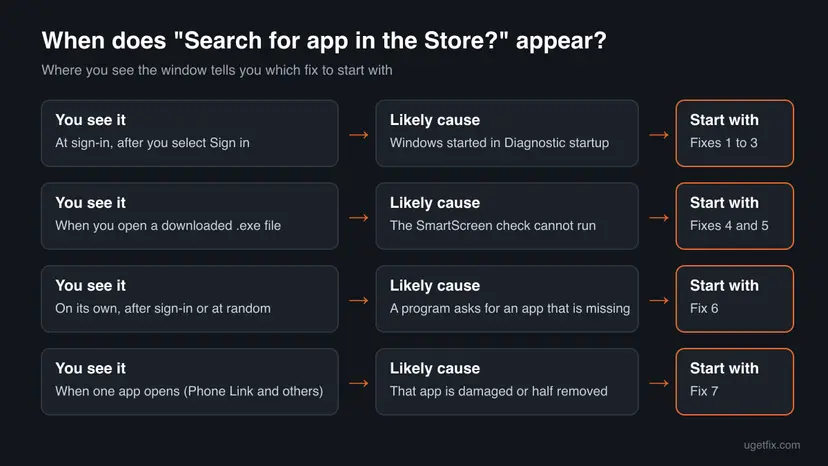
Where the window appears points to the cause. Most often it is the sign-in screen after a switch to Diagnostic startup. Less often it is a downloaded .exe file. Rarely it is a program in the background or one damaged app.
| Cause | How often | How to recognise it | Fix |
|---|---|---|---|
Diagnostic startup chosen in System Configuration (msconfig) | Most reports | The window comes at sign-in, often after Something happened and your PIN isn't available. Someone ran msconfig recently, maybe on a support call. | Fix 1, Fix 2, Fix 3 |
| The SmartScreen check (Check apps and files) cannot run | Less often | The window comes only when you open a downloaded .exe file. Both buttons let the program start. | Fix 4, Fix 5 |
| A program asks Windows for an app that is not installed | Rare | The window appears after sign-in or at random, with no action of yours. | Fix 6 |
| One app is damaged or half removed | Rare | The window comes every time you open that one app, for example Phone Link. | Fix 7 |
| An old user profile or account setting that nothing above clears | Rare | The window survives every fix, and one Microsoft Q&A report ties it to a profile taken over from another person. | Fix 8 |
Why Diagnostic startup locks you out at sign-in
System Configuration (msconfig) has three choices on its General tab: Normal startup, Diagnostic startup and Selective startup. Diagnostic startup loads Windows with a bare minimum of drivers and services. A former Microsoft MVP who tested it counts over 200 services that it turns off.
- PIN sign-in needs services that Diagnostic startup turns off. Windows shows Something happened and your PIN isn't available.
- Selecting Set up my PIN then opens Search for app in the Store?, because the PIN setup screen cannot start either.
- The Sign-in options link with the password may be missing. That happens when the setting For improved security, only allow Windows Hello sign-in for Microsoft accounts on this device is on. Windows 11 setup turns it on for a Microsoft account.
- A local account with a password is not affected in the same way. One Microsoft Q&A report says the window did not appear with a local account.
The choice is not a one-time test. Windows keeps starting in Diagnostic startup until someone selects Normal startup again. That is why the window returns at every start.
How to fix "Search for app in the Store?" on Windows
Fixes 1 to 3 are for the window at sign-in. Fix 1 works from the desktop, Fixes 2 and 3 get you there first. Fixes 4 and 5 are for .exe files. Fixes 6 and 7 cover a background program and one damaged app. Fix 8 is the last resort.
| What you see or have | Start with |
|---|---|
| The window comes at start, but you still reach the desktop. | Fix 1 |
| The window blocks the sign-in screen, or Something happened and your PIN isn't available. comes first. | Fix 2, then Fix 1 |
| No Sign-in options link, and System Restore has no restore point. | Fix 3, then Fix 1 |
| The window comes when you open a downloaded .exe file. | Fix 4, then Fix 5 |
| The window appears on its own, with no action of yours. | Fix 6 |
| Only one app brings it up. | Fix 7 |
Fix 1. Switch System Configuration back to Normal startup
5 minutesLow riskThe window comes at start or at sign-in and you can still reach the desktop, for example with a password or a local account. Also the last step after Fix 2 or Fix 3.
Diagnostic startup keeps over 200 services off at every start, including those that PIN sign-in needs. Normal startup turns them all back on in one step.
- Press Win + R, type the command and select OK. Confirm the administrator prompt.
msconfig - On the General tab, look at the selected option. If it is Diagnostic startup or Selective startup, you have found the cause.
- Select Normal startup.
- Open the Services tab and check that the services are ticked again. If many stay unticked, select Enable all.
- Select Apply, then OK.
- Select Restart when Windows asks. Sign in with your PIN as usual.

Support staff use it to test a problem. If you need it again, first open Settings > Accounts > Sign-in options and turn off For improved security, only allow Windows Hello sign-in for Microsoft accounts on this device. Then the password still works in Diagnostic startup.
It worked if: Windows starts without the window, and the PIN works again at sign-in.
If not: If Normal startup was already selected, the cause is elsewhere: use the chooser above. If you cannot reach the desktop, go to Fix 2.
Fix 2. Get past the sign-in screen: password sign-in or System Restore
10 to 40 minutesLow riskThe window blocks the sign-in screen and Windows never lets you reach the desktop.
The PIN fails because its services are off. The password does not need the PIN setup screen, and System Restore puts back the service settings from a restore point made before the switch to Diagnostic startup.
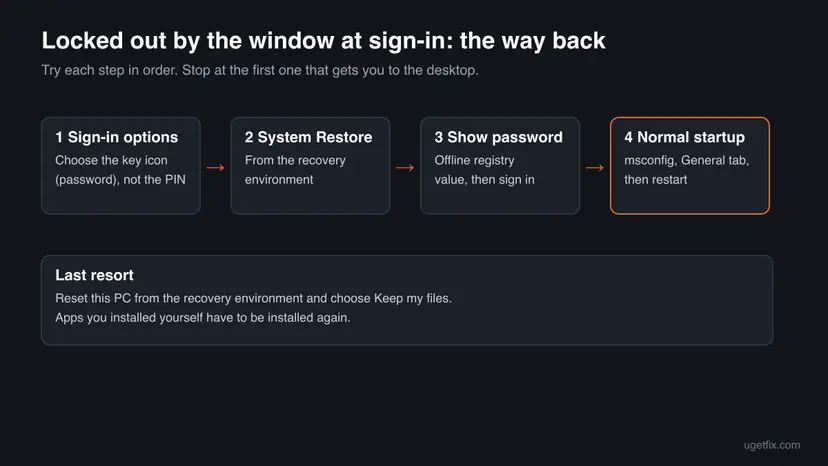
- On the sign-in screen, close the window with No. Look under the PIN box for Sign-in options.
- If it is there, select the key icon and sign in with your password. Then do Fix 1 at once.
- If you sign in with a Microsoft account, the PC may need the internet for a password it has not seen before. Use the last password you used on this PC.
- If there is no Sign-in options link, select the power icon on the sign-in screen, hold Shift and select Restart.
- In the recovery environment, select Troubleshoot > Advanced options > System Restore.
- Choose a restore point from before the problem began and finish the wizard. Step by step: Undo recent changes with System Restore
- After the restart, sign in and do Fix 1 to make sure Normal startup is selected.
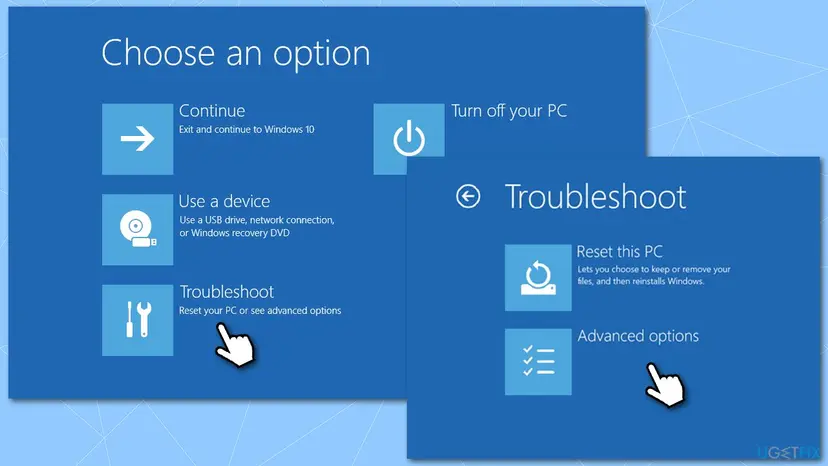
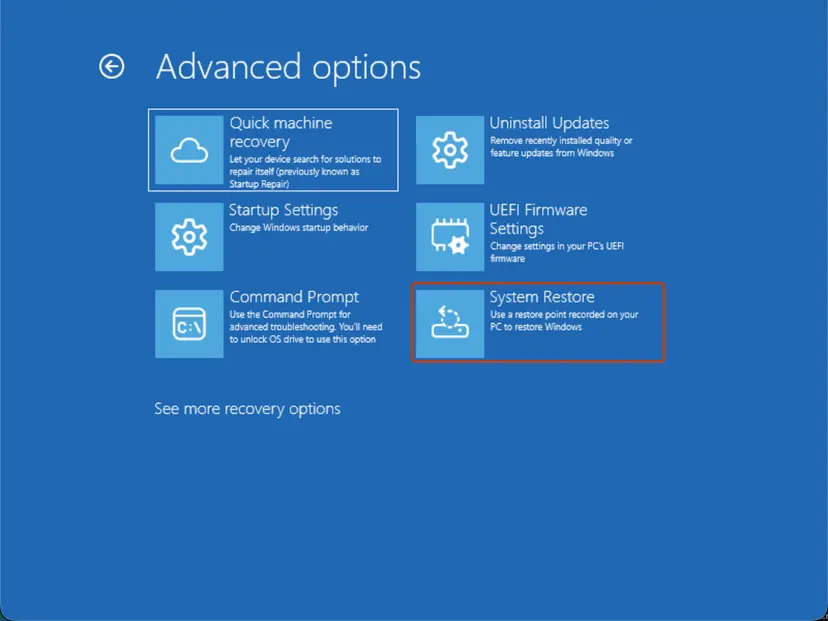
On an encrypted PC, the recovery environment may ask for the BitLocker recovery key. For a Microsoft account, the key is usually stored with the account online. Look it up from another device before you start.
It worked if: You reach the desktop, either with the password or after the restore.
If not: If there is no restore point, or the restore fails, go to Fix 3.
Fix 3. Bring back the password option from the recovery environment
15 minutesRead the warningNo Sign-in options link on the sign-in screen and no usable restore point.
The password option is hidden by one value in the registry. The former Microsoft MVP's article shows how to set it to 0 from the recovery environment, so that the password appears and you can sign in and do Fix 1.
A wrong command in the system registry can stop Windows from starting. Before the change, copy the file as step 4 shows, so you can put it back. Type the commands exactly. You also need your Microsoft account password. More on registry backups: Back up the registry before editing it
- On the sign-in screen, select the power icon, hold Shift and select Restart.
- Select Troubleshoot > Advanced options > Command Prompt. Enter the BitLocker recovery key if asked.
- Find the drive letter of Windows. In the recovery environment it is often not C. Look for the line
osdevicein the output.bcdedit - Copy the registry file before you change it. Replace G with your drive letter.
copy G:\Windows\System32\config\SOFTWARE G:\Windows\System32\config\SOFTWARE.bak - Load the file, set the value and unload it. Run the three lines one by one.
reg load HKLM\OffReg G:\Windows\System32\config\SOFTWARE reg add "HKLM\OffReg\Microsoft\Windows NT\CurrentVersion\PasswordLess\Device" /v DevicePasswordLessBuildVersion /d 0 /t REG_DWORD /f reg unload HKLM\OffReg - Type
exit, select Continue and let Windows start. - On the sign-in screen, select Sign-in options, choose the key icon and sign in with your Microsoft account password.
- Do Fix 1 at once. Afterwards you may turn the Windows Hello only option back on in Settings > Accounts > Sign-in options.
- Key (offline)
HKLM\SOFTWARE\Microsoft\Windows NT\CurrentVersion\PasswordLess\Device- Value
DevicePasswordLessBuildVersion, DWORD, set to0- Same as
- Turning off For improved security, only allow Windows Hello sign-in for Microsoft accounts on this device
- Undo
- Turn that option back on in Settings, or copy
SOFTWARE.bakback overSOFTWAREfrom the recovery Command Prompt
Some guides replace utilman.exe with cmd.exe, so that the accessibility button opens an administrator console on the sign-in screen. Anyone at the PC could use it. We do not offer it, because the password route above reaches the same goal.
It worked if: The password option appears, you reach the desktop, and Fix 1 ends the window for good.
If not: If the password is refused because the PC is offline, connect a network cable and try again with the last password used on this PC. If nothing works, go to Fix 8.
Fix 4. For .exe files: confirm SmartScreen is the source, and unblock a file you trust
5 minutesLow riskThe window comes only when you open a downloaded .exe file, and the program starts after Yes or No.
On a healthy PC, an unsigned download opens the SmartScreen warning with Run anyway. A Windows 10 user reported that the Store window took its place, and that it stopped when Check apps and files was off. A short test shows whether your PC behaves the same.
- Open Windows Security from Start, then App & browser control > Reputation-based protection settings.
- Turn Check apps and files off for one test only.
- Open the same .exe file. If the window does not appear, SmartScreen is the source.
- Turn Check apps and files back on at once. Leave it on.
- For one file you trust and got from its maker: right-click it, select Properties, tick Unblock on the General tab and select OK.
- For the cause itself, go to Fix 5.
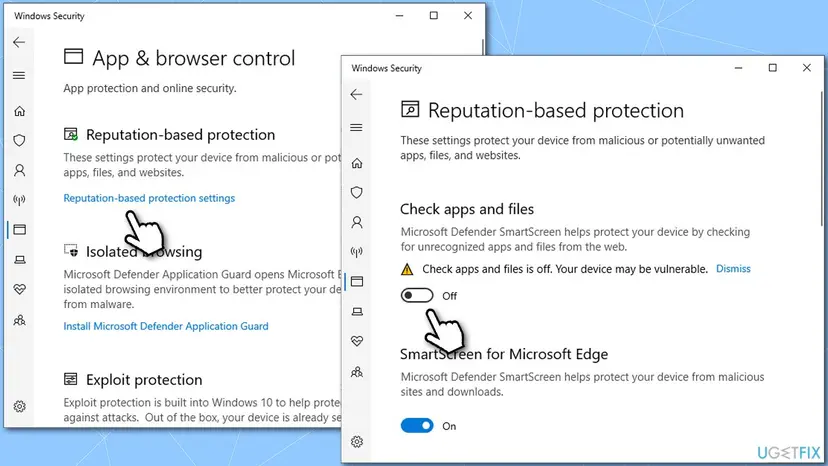
Older guides give "turn off Check apps and files" as the fix. That removes the warning for every unknown program you download. Use the switch only as a test, and unblock only files you trust.
It worked if: The test shows whether SmartScreen causes the window, and a trusted file opens without it after Unblock.
If not: If the window also appears with the check off, SmartScreen is not the source. Go to Fix 6.
Fix 5. Repair the Windows parts behind SmartScreen
20 to 40 minutesLow riskFix 4 showed that the window comes from the SmartScreen check.
The window replaces the SmartScreen warning when the part that draws it cannot start. Normal startup, intact system files and current updates are the three things that bring it back.
- Run
msconfigand check that Normal startup is selected, as in Fix 1. Diagnostic startup can also stop the warning from appearing. - Repair the system files with DISM and the System File Checker. Step by step: Run DISM and SFC to repair Windows system files
- Open Settings > Windows Update, select Check for updates and install everything offered, then restart.
- Open a downloaded .exe file again. The blue SmartScreen warning should now appear instead of the Store window.
- Open an elevated command window. Right-click Start and select Terminal (Admin), or type cmd in the search box, right-click Command Prompt and select Run as administrator. Select Yes when Windows asks for permission.

Search for cmd and choose Run as administrator. Screenshot: Windows 11 26H2. - Run DISM first. Type the command below and press Enter. DISM downloads clean copies of damaged components from Windows Update, so it can take several minutes. Wait until it says The operation completed successfully.
DISM.exe /Online /Cleanup-Image /RestoreHealth
DISM /RestoreHealth running. Screenshot: Windows 11 26H2. - Run System File Checker. In the same window, type the command below and press Enter. Do not close the window until the verification reaches 100%.
sfc /scannow
sfc /scannow at 100%. Screenshot: Windows 11 26H2. - Read the result and restart. Compare the last message with the table below this guide, then restart the PC so that repaired files are loaded.

The result line tells you what SFC did. Screenshot: Windows 11 26H2.
These steps were written for Windows 11 24H2 and 25H2. The full page with the other versions and what each result means: Run DISM and SFC to repair Windows system files
It worked if: Unknown downloads show the SmartScreen warning with Run anyway, and the Store window does not appear.
If not: If the window persists, the system copy may be badly damaged. Fix 8 repairs Windows while keeping your files.
Fix 6. Find the program that asks for a missing app
15 to 30 minutesLow riskThe window appears after sign-in or at random, with no action of yours, and Normal startup is selected.
A startup program or service can ask Windows to open a file type or link that has no app. Windows does not name the program in the window, so you narrow it down by turning startup items off and on.
- Open Task Manager with Ctrl + Shift + Esc and select Startup apps (on Windows 10, the Startup tab).
- Disable the entries you do not need, then restart. Step by step: Stop apps from opening at startup
- If the window is gone, turn the entries back on one at a time until it returns. The last one is the cause.
- If the window stays, do a clean boot, which also turns off other companies' services. Keep Hide all Microsoft services ticked.
- Update, change or uninstall the program you found.
- Open System Configuration. Select Search on the taskbar, type msconfig and select System Configuration from the results.
- Hide Microsoft services. On the Services tab, select the Hide all Microsoft services check box. Only services from other companies stay in the list.
With Hide all Microsoft services ticked, only third-party services stay in the list. Screenshot: Windows 11 26H2. - Disable the remaining services. Select Disable all, then select Apply.
- Open Task Manager. On the Startup tab of System Configuration, select Open Task Manager.
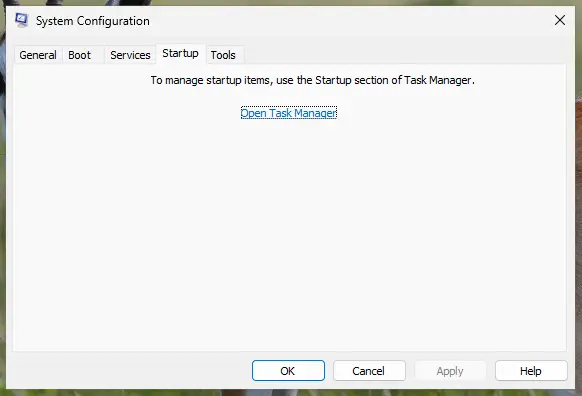
The Startup tab only links to Task Manager. Screenshot: Windows 11 26H2. - Disable the startup apps. On the Startup apps tab in Task Manager, select each item whose status is Enabled and select Disable. Write down or take a screenshot of the items you disable: you need the list to turn them back on.
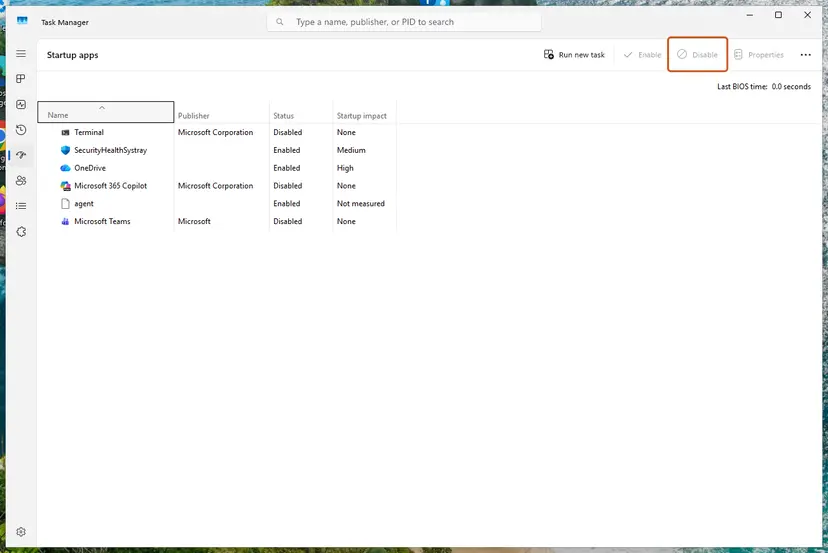
Select an app, then Disable. Screenshot: Windows 11 26H2. - Confirm the changes. Close Task Manager. On the Startup tab of System Configuration, select OK.
- Restart and test. Restart the PC. Windows now starts in a clean boot environment: try again the thing that failed (run the app, install the update, uninstall the program).
These steps were written for Windows 11 25H2 and 26H2. The full page with the other versions and what each result means: How to perform a clean boot in Windows
A clean boot keeps every Microsoft service running and only turns off other companies' services. Never select Disable all without first ticking Hide all Microsoft services, or you recreate the sign-in problem of Fix 1.
It worked if: You find the startup item or service that brings the window up, and it stays away once that item is fixed or removed.
If not: If the window appears even in a clean boot, return to normal startup as How to perform a clean boot in Windows describes and try Fix 7 or Fix 8.
Fix 7. Repair, reset or reinstall the app that brings the window up
10 minutesLow riskThe window comes every time you open one particular app, for example Phone Link (formerly Your Phone).
A damaged or half-removed app can leave Windows without a working program for its own links. Repair keeps the app's data; Reset clears it; a reinstall replaces the app entirely.
- Press Win + I and open Apps > Installed apps (on Windows 10, Apps > Apps & features).
- Find the app, select the three dots beside it (on Windows 10, the app itself) and choose Advanced options.
- Select Terminate, then Repair. Open the app again to test.
- If the window still comes, select Reset. The app's data on this PC is deleted.
- For an app that is not from Microsoft, uninstall it and install the current version from its maker. Step by step: Uninstall a program or app in Windows
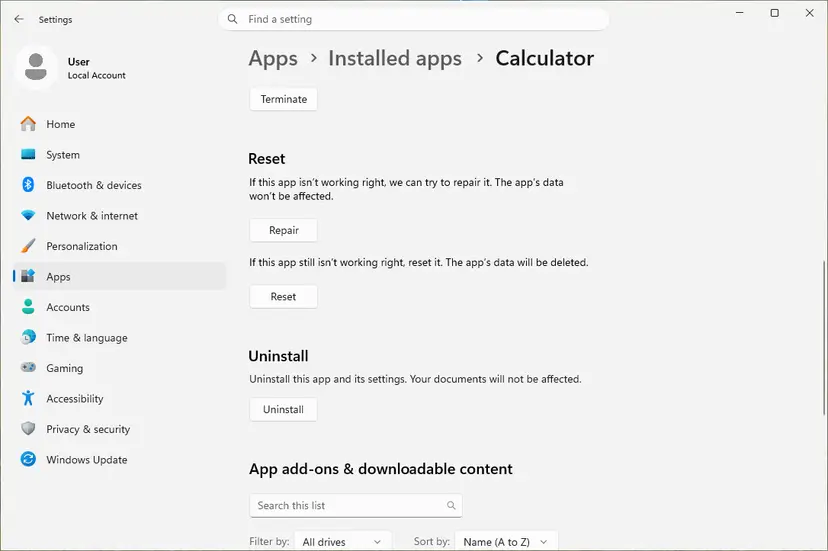
It worked if: The app opens without the Store window.
If not: If Repair and Reset change nothing, the app was not the cause. Go to Fix 6 or Fix 8. Full guide: How to repair or reset an app in Windows
Fix 8. Reset this PC and keep your files
1 to 2 hoursRead the warningNothing above works, or you cannot sign in at all after Fixes 2 and 3.
A Microsoft Q&A advisor suggested a full recovery for a PC where the window survived every repair. Reset this PC reinstalls Windows and clears the startup and service settings. With Keep my files, your personal files stay.
Keep my files keeps your personal files but removes the apps you installed and your settings. Remove everything also deletes your files: do not choose it unless your data is backed up. If you can reach the desktop, back up first: Back up your files (Windows Backup, File History, Time Machine)
- If you can sign in, open Settings > System > Recovery (on Windows 10, Update & Security > Recovery) and select Reset PC.
- If you cannot sign in, hold Shift, select Restart on the sign-in screen, then Troubleshoot > Reset this PC.
- Choose Keep my files.
- Follow the screens and wait until Windows has been reinstalled.
- Sign in, set up your PIN again and install your apps.
It worked if: Windows starts normally, PIN sign-in works and the window does not come back.
If not: If even a reset does not help, see the section below for what to send to Microsoft support.
"Search for app in the Store?" still appears: what to check and what to report
The window itself writes nothing useful to a log, and we found no Event Viewer entry that names the task Windows could not open. What tells the story is the startup mode and the moment the window appears.
| Collect | Where to find it |
|---|---|
| Startup mode | msconfig, General tab: Normal, Diagnostic or Selective startup. |
| Windows version and build | Press Win + R, type winver, select OK. |
| When the window appears | At sign-in, with an .exe file, with one app, or on its own. |
| Account type | Microsoft account or local account, PIN or password. One report says a local account was not affected. |
| Recent changes | A support session, a tuning or "debloat" tool, a new user profile or a large update. |
- Home PC: give these facts to Microsoft support or post them on Microsoft Q&A.
- Work PC: tell your administrator. Sign-in policies and SmartScreen can be set centrally, and a local fix may be undone.
- Report it: the Feedback Hub app (Win + F) sends the details to Microsoft.
We found no report that ties this window to failing hardware. It comes from how Windows is set to start and which of its parts are running.
Keep the "Search for app in the Store?" window from coming back
- After any test with
msconfig, set Normal startup before you shut down. - Know your account password, not only the PIN, and keep the BitLocker recovery key somewhere you can reach.
- Before you try Diagnostic startup, turn off the Windows Hello only option, so the password stays available.
- Keep Check apps and files on, and unblock only files you trust.
- Do not use tools that turn off long lists of Windows services to "speed up" the PC.
- Do not install a Store app that promises to fix the window. No app is missing.
- Do not reset the PC with Remove everything before you have tried Fixes 1 to 3.
Windows 10 left support on 14 October 2025. The same fixes work there, but Windows 10 no longer receives the updates of Fix 5.
Frequently asked questions
What does "Search for app in the Store? You need to install an app for this task" mean?
It means Windows asked for the program that should handle a task and found none. Windows then offers the Microsoft Store as the place to look. In the common cases, nothing is missing that the Store could give you. A part of Windows is switched off, most often by Diagnostic startup in System Configuration, or the SmartScreen check that runs when you open a downloaded program is not working. That is why both Yes and No lead nowhere at sign-in.
Why does the window appear every time I start the PC or sign in?
Most likely because Windows is set to Diagnostic startup. That choice in System Configuration stays on until someone changes it, and it turns off over 200 services, including those that PIN sign-in needs. Windows shows Something happened and your PIN isn't available., and the PIN setup opens the Store window. Run msconfig, select Normal startup and restart (Fix 1). If you cannot reach the desktop, Fix 2 shows how to get there first.
Why do Yes and No do nothing?
Because there is no app in the Store for this task. Yes tries to open the Store, which may not start at all when its services are off, or opens a search with no useful result. No closes the window, but the task Windows wanted still cannot run, so at sign-in you stay stuck. With a downloaded .exe file the case is different: there, both buttons let the program start, and only the SmartScreen warning is missing. Fix 4 covers that case.
Why does "search in Microsoft Store" keep popping up when I open an .exe file?
A Windows 10 user reported this on a fresh install: every downloaded .exe file brought up the Store window instead of the SmartScreen warning. When the user turned off Check apps and files, the window stopped, and it came back when the check was set to warn again. That points to the SmartScreen part of Windows. Use the switch only as a short test (Fix 4), turn it back on, then repair the system files and update Windows (Fix 5).
Should I turn off "Check apps and files" to stop the window?
Not for good. Older guides give that as the fix, and it does stop the window when SmartScreen is the source. It also stops Windows from warning you about every unknown program you download, which is how malware usually arrives. Turn it off once to confirm the cause, then turn it back on. For a single program you trust, tick Unblock in the file's Properties instead, and repair Windows with Fix 5.
I cannot sign in at all. What is the quickest way back?
First look for Sign-in options under the PIN box and sign in with your password. If it is not there, hold Shift and select Restart on the sign-in screen, then use Troubleshoot > Advanced options > System Restore with a restore point from before the problem (Fix 2). Without a restore point, the registry value in Fix 3 brings the password option back. Once you are on the desktop, switch msconfig to Normal startup right away.
Is this the same as a Microsoft Store error, such as a game or Flight Simulator that will not install?
No. This page is about one Windows window, Search for app in the Store?, that asks you to find an app for a task. Store download and install errors, such as those with Microsoft Flight Simulator, come with an error code or an error page inside the Store app. Searches like "store error", "app error market" or "market windows error" usually mean those. Look up the exact code shown in the Store, because each one has its own cause.
Is the "Search for app in the Store?" window a virus?
No. It is a normal Windows prompt, and the usual causes are a startup setting or a SmartScreen problem, not malware. The risk comes only if you answer it by installing a "fix" app or a program from an unknown site. If you also see other signs, such as unknown programs or a browser that opens strange pages, run a full scan with Microsoft Defender: How to scan for malware with Microsoft Defender. The window alone is not such a sign.
The window appears in another language on my PC. Is this the same problem?
Yes, when the window has the same layout: a title that asks whether to search the Store, a line saying you need an app for this task, and Yes and No. Windows shows it in the language of the system, so readers in France, Spain or Indonesia see their own wording, for example at the start of Windows. The causes and fixes on this page are the same in every language. Menu names in msconfig and Settings are translated too.
Will Reset this PC delete my files?
Not if you choose Keep my files. That option reinstalls Windows and keeps the files in your user folders, but it removes the apps you installed and resets your settings. Remove everything, which a Microsoft Q&A advisor suggested in one case, deletes your files too. Try Fixes 1 to 3 first: in most reports, switching back to Normal startup is enough, and a reset is not needed at all.
Sources
- Microsoft Q&A: Log in wants me to "Search for app in store?" (independent advisor's answer) (learn.microsoft.com)
- Winhelponline (former Microsoft MVP): Error "Something happened and your PIN isn't available" in Diagnostic Startup (winhelponline.com)
- Super User: "Search for app in the Store?" prompt when opening .exe files (user report) (superuser.com)
Did this fix work?
One click, no account. It tells the next reader which guides are worth their time.
Questions and experiences: fix "Search for app in the Store?" error on Windows
Still broken, or found a fix we did not cover? Ask here: members and our editors answer. Reading is open; writing needs a free account.
…