
How to fix “Sorry, but you're not permitted to view these materials at this time” on Steam

Prefer to fix it yourself? The manual steps follow.
- 5methods
- 2 minutes for the cookie fixes, 10 minutes for the UK credit card check
- Easy
Applies to Steam store pages of age-rated games in a web browser and in the Steam client on Windows 11 and Windows 10; Steam accounts in the United Kingdom
5 methods in this guide
Hello. I tried to view GTA 5 on the Steam Store, but I keep getting the "Sorry, but you're not permitted to view these materials at this time" error message. What should I do?
"Sorry, but you're not permitted to view these materials at this time" is Steam's age check refusing a store page, usually because a too young or mistyped birth date is remembered. Clear the remembered answer first: Steam's cookies in your browser, or the web browser data in the Steam client. In the United Kingdom a stored credit card is also required.
Steam showed you an age check and decided you may not see the page. Almost always it remembers a wrong or too young birth date. Start with Fix 1: open the page in a private window, or delete Steam's cookies in your browser, and enter your real birth date. In the Steam client use Fix 2, Delete Web Browser Data. In the UK you also need a credit card stored on the account (Fix 5).
| Error | "Sorry, but you're not permitted to view these materials at this time." In the Steam client it shows in a small window titled Error with an OK button. |
|---|---|
| Where it appears | On the store page of an age-rated game (users name GTA V and Halo) right after the birth date check "Please enter your birth date to continue:", in a web browser or in the Steam client. |
| Main cause | Steam remembers a birth date that is too young, often a mistyped one, in cookies on this browser or inside the client. |
| Fastest fix | Open the page in a private window or delete the cookies of store.steampowered.com (Fix 1); in the client, Steam > Settings > In Game > Delete Web Browser Data (Fix 2). |
| Also written as | "Steam you are not permitted to view", "Steam sorry you are not permitted", "Steam not permitted to view these materials". |
| Affects | Every Steam account and region. UK accounts have an extra rule under the Online Safety Act. Windows 10 left Microsoft support on 14 October 2025; Steam still runs on it. |
| Vendor status | Valve has no support article for this message. Its UK page says mature store pages need a signed-in account, an opt-in in the account settings and, in the UK, a stored credit card. |
| Time to fix | 2 minutes for Fix 1 or Fix 2; about 10 minutes for the UK credit card check. |
Facts checked on 15 October 2026. Steps written for the Steam store in Chrome, Edge and Firefox and the Steam client on Windows 11 (25H2 and 26H2) and Windows 10 22H2, read against Steam Support, the Steam client's own text file and Steam's own forum.
What "Sorry, but you're not permitted to view these materials at this time" means on Steam
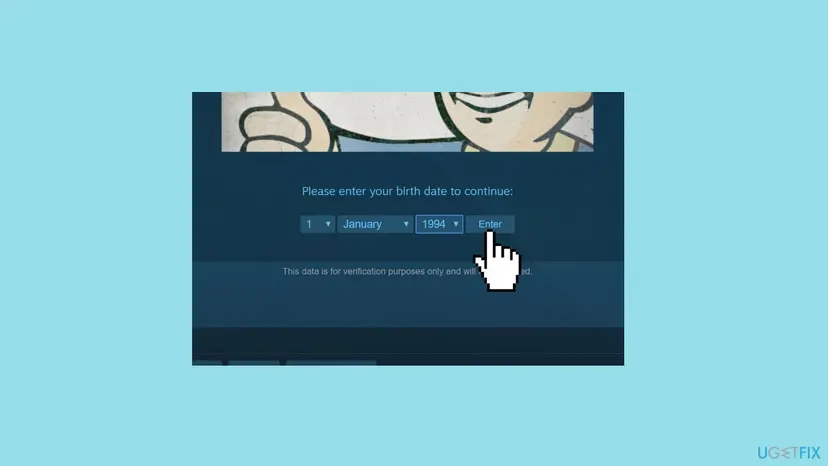
Store pages of games with mature ratings first ask for your birth date. The check reads "Please enter your birth date to continue:" with a day, month and year box and an Enter button. If the date you enter is too young for the game's rating, Steam shows this line instead of the page:
Error
Sorry, but you're not permitted to view these materials at this time.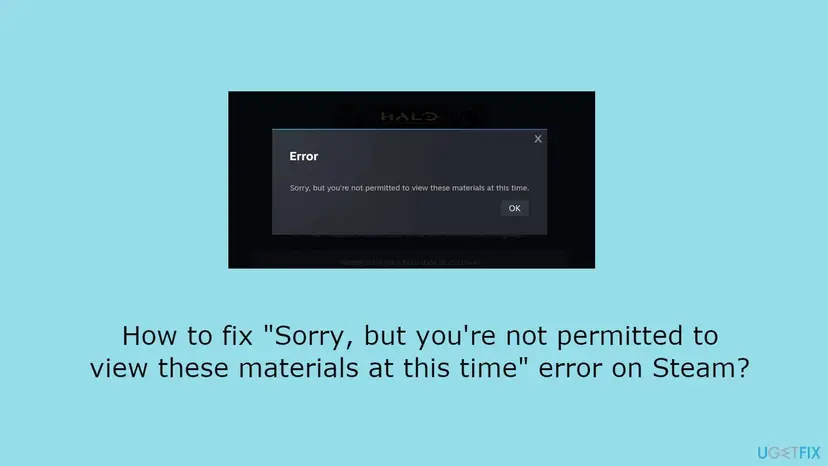
- It is not a ban
- Nothing is wrong with your account or your games. The store refuses one page, or every page with a mature rating, until the remembered answer is cleared.
- Why it sticks
- The answer is kept per browser. In a Steam forum thread from 2016, a 37-year-old user who mistyped his birth date twice was still locked out after three weeks, a reinstall and a restart. Other users fixed it by deleting cookies.
- Where it is kept
- Users report two cookies on
store.steampowered.com,birthtimeandlastagecheckage. Valve does not document them, so treat the names as a report. Deleting Steam's cookies removes them either way. - Same words elsewhere
- The same sentence appears on other sites' age checks, for example GamersGate's UK age verification and the Kojima Productions site. If you see it outside Steam, that site's own age check refused you.
The reader saw it on GTA V, a game with an adult rating. One wrong click in the year box is enough. The fix is to make Steam forget the answer, then answer again with the real date.
What causes the Steam "not permitted to view" error, from most to least common
Valve does not publish a list of causes for this message. The ranking below combines Steam Support's age assurance page with what users report in Steam's own forum. Each cause points to the fix that tests it.
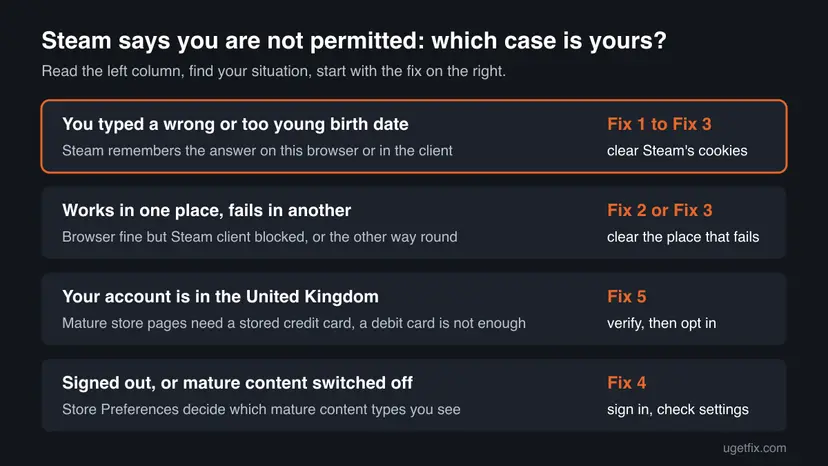
| How often | Cause | Sign | Fix |
|---|---|---|---|
| Most often | A too young or mistyped birth date is remembered in this browser. | Every mature game page refuses you in this browser; a private window shows the age check again. | Fix 1 |
| Often | The same answer is remembered inside the Steam client. | The client refuses, a normal browser opens the page. | Fix 2, Fix 3 |
| Less often | You are signed out, or the mature content type is not turned on in your Store Preferences. | The page works when signed in on another device. | Fix 4 |
| Less often (UK) | A UK account without a stored credit card. | Mature game pages and their community hubs stay closed even with the right birth date. | Fix 5 |
| Rarely | A child account or a restriction we could not confirm. | Nothing above changes anything. | Still broken section |
Reinstalling Steam does not help here. The forum user above reinstalled and tried another PC under the same account, and the block stayed until the cookies were cleared.
How to fix "Sorry, but you're not permitted to view these materials at this time" on Steam
Fix 1 is for the store in a web browser, Fix 2 and Fix 3 for the Steam client. Fix 4 and Fix 5 are account settings. Test the game's page after each one and enter your real birth date when the age check comes back.
| What you see or have | Start with |
|---|---|
| The message in Chrome, Edge or Firefox after typing a wrong birth date. | Fix 1 |
| The message in the Steam client, in an Error box with OK. | Fix 2 |
| The client still refuses after Fix 2, or its Settings window does not open. | Fix 3 |
| No age check at all, the page just refuses you, or you are signed out. | Fix 4 |
| Your Steam account is in the United Kingdom. | Fix 5 |
| The same words on GamersGate or another site, not on Steam. | That site's own age check; see the FAQ |
Fix 1. Clear Steam's cookies in your browser and answer the age check again
2 minutesLow riskThe message shows in a web browser, often after a wrong date was entered once.
The age check answer stays in this browser's cookies for the Steam store. A private window starts with no cookies, so it shows at once whether the remembered answer is the cause. Deleting the cookies makes the store ask again.
- Copy the game's store address, then open a private window: Ctrl + Shift + N in Chrome and Edge, Ctrl + Shift + P in Firefox.
- Paste the address and press Enter. If the age check appears, the remembered answer was the cause.
- Close the private window. In your normal window, click the padlock or site icon left of the address.
- Open the site settings or cookies entry for
store.steampowered.comand delete its cookies. - Reload the game's page with Ctrl + F5.
- Enter your real birth date carefully and select Enter.
If you prefer to clear all cookies and cache in Chrome, Edge or Firefox, the full steps are here: Clear the browser cache and cookies. Clearing all cookies signs you out of most sites.
The old version of this guide suggested entering a fictitious age. Enter your real birth date: the check exists because of age ratings, and the real date of an adult always passes it.
It worked if: The age check shows once, you enter your date, and the game's store page opens.
If not: If the browser works now but the Steam client still refuses, go to Fix 2. If a private window also refuses you without an age check, go to Fix 4.
Fix 2. Delete the Steam client's web browser data
3 minutesLow riskThe message shows in the Steam client, in an Error box with an OK button.
The Steam client keeps its own cookies, separate from Chrome or Edge. Its button asks to "Delete all Steam browser cached files, cookies, and history?", which removes the remembered age answer. Users in Steam's forum report this cleared the message.
- In the client, open the Steam menu in the top left corner and select Settings.
- Open the In Game page.
- Next to Delete Web Browser Data, select Delete and confirm.
- Open the Steam menu and select Exit. Closing the window is not enough.
- If Steam or Steam Client WebHelper still shows in Task Manager, end it: Close a frozen app (Task Manager, Force Quit)
- Start Steam, open the game's store page and enter your real birth date.
It worked if: The game's page shows the age check again instead of the Error box, then opens after your date.
If not: If the Error box comes back without an age check, delete the cache folder by hand in Fix 3.
Fix 3. Delete Steam's htmlcache folder
5 minutesLow riskFix 2 did not help, or the client's Settings window will not open.
The client's web pages keep their cookies and cache in the htmlcache folder. A user in the 2016 forum thread pointed to removing it to reset the age check. Valve does not document the folder, so we describe this as a report. Steam builds it again on the next start.
- Exit Steam through the Steam menu and Exit.
- Press Win + R to open the Run box.
- Type
%localappdata%\Steam\htmlcacheand select OK. - Press Ctrl + A to select everything in the folder, then press Delete.
- Start Steam and open the game's store page.
- Enter your real birth date in the age check.
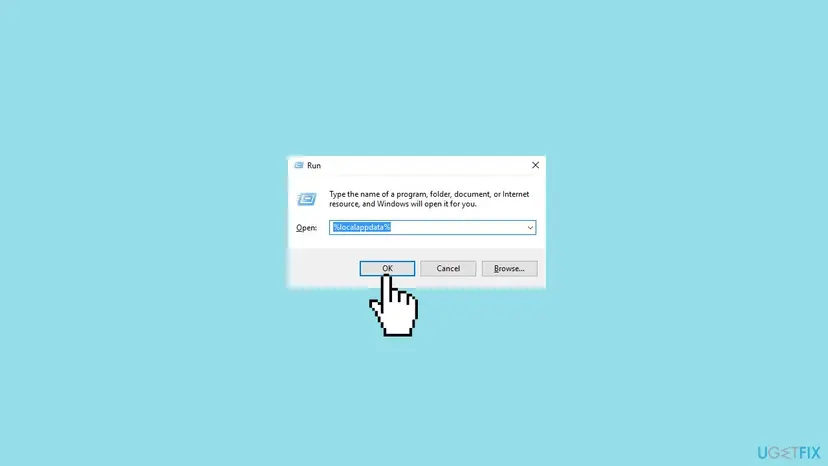
You will have to sign in again on Steam's web pages afterwards. Your games and saves are not in this folder.
It worked if: Steam starts a little slower once, then the store page shows the age check and opens after your date.
If not: If the page refuses you without any age check, check your account settings in Fix 4.
Fix 4. Sign in and turn on the mature content types in Store Preferences
3 minutesNo riskThere is no age check, the page simply refuses you, or you browse the store signed out.
Valve's age assurance page says that to open store pages of mature content games and their community hubs you must be signed in and opt in through the account settings. A page whose content type you have not opted into stays closed.
- Sign in to Steam in the browser or client where the page fails.
- Open
https://store.steampowered.com/account/preferences/. In the client you can also open Steam > Settings > Store and select Manage next to Mature Content. - Look at the mature content types listed there and turn on the ones the game needs.
- Save, then reload the game's store page.
- The client describes the setting as "Manage the mature content you might view on the Store and Community".
- If some types cannot be turned on, and your account is in the UK, the age check in Fix 5 comes first.
- We could not confirm from Valve which exact message a disabled content type shows. If this fix changes nothing, the cause is elsewhere.
It worked if: After saving, the game's page opens, or shows the age check, while you are signed in.
If not: In the UK, go to Fix 5. Elsewhere, see the still-broken section below.
Fix 5. UK accounts: verify your age with a credit card, then opt in
10 minutesLow riskYour Steam account is in the United Kingdom and mature game pages stay closed.
Under the UK Online Safety Act, Valve treats a UK account as age verified "for as long as a valid credit card is stored on the account". Steam Support says debit cards do not qualify, because they can be issued to minors.
- Sign in and open the Account Details page:
https://store.steampowered.com/account/. - Select Add a Payment method to this account.
- Enter the credit card type, number, CVV, expiry date, name and billing address, then select Continue.
- Complete your bank's check, for example a one-time password or a prompt in its app.
- Open the Store Preferences page and add the mature content types you want, as in Fix 4.
- Reload the game's store page.
Steam Support: some cards show a £1 test charge that Steam does not collect and your bank returns. You stay verified only while the card is stored, so removing it later closes the pages again. Use a credit card, not a debit card.
If the card is refused, Steam Support asks you to contact your bank first, because Valve usually cannot see why a card failed. If the bank cannot solve it, open a Steam Support ticket.
It worked if: The card is saved, the mature content types can be turned on, and the page opens.
If not: If the bank approves the card but the pages stay closed, open a ticket at https://help.steampowered.com as the section below explains.
If Steam still says you are not permitted to view these materials
This message has no log file. What helps support is a clear record of where it fails and what you tried.
- Note where it fails: which browser, the Steam client, or both, and whether a private window shows the age check.
- Note the game's store address and whether other mature games fail too.
- Note your account's country and, in the UK, whether a credit card is stored.
- Take a screenshot of the message.
- Open a ticket at
https://help.steampowered.comwith these details.
- Child accounts: if your account is a child member of a Steam family, the adults in it manage what you can see. We could not confirm whether this exact message appears there.
- Region locks show a different message about the item not being available in your region. That is not this error.
- Hardware is never the cause. The message comes from Steam's store, not from your PC.
If the store pages load but show other errors, our guide to Steam's "There was a problem loading this web content" covers Steam's web pages.
How to avoid being locked out by Steam's age check again
- Check the year box before you select Enter on the age check.
- Stay signed in to Steam in the browser you use for the store.
- In the UK, keep a valid credit card stored if you want mature store pages to stay open.
- Clear only Steam's cookies when the answer is wrong, not the whole browser.
- Do not reinstall Steam for this message; it does not touch the remembered answer.
- Do not edit Steam's cookies by hand with developer tools.
- Do not enter a made-up birth date.
- Do not remove the stored card in the UK unless you no longer need mature pages.
Frequently asked questions
Why does Steam say "Sorry, but you're not permitted to view these materials at this time"?
Because the store's age check decided you may not see this page. Most often a birth date that is too young, or a mistyped year, is remembered in your browser or in the Steam client. Steam then refuses the page and every other page with a similar rating. It is not a ban and it does not touch your library. Clear the remembered answer with Fix 1 in a browser or Fix 2 in the client, then enter your real birth date. In the UK a stored credit card is also needed for mature pages.
I entered the wrong birth date on Steam. How do I change it?
You cannot edit the answer, but you can make Steam forget it. In a browser, delete the cookies of store.steampowered.com or use a private window (Fix 1). In the Steam client, open Steam > Settings > In Game and select Delete next to Delete Web Browser Data, then exit Steam fully (Fix 2). The next time you open the game's page the age check returns and you can enter the correct date. Users in Steam's forum report that waiting does not help: one was still blocked after three weeks.
Why does the store work in my browser but not in the Steam client?
The browser and the client keep separate cookies. A wrong answer given in the client stays in the client, and a wrong answer given in Chrome stays in Chrome. Clear the place that fails. For the client that is Delete Web Browser Data under Steam > Settings > In Game (Fix 2), or the htmlcache folder in %localappdata%\Steam if the button does not help (Fix 3). One user in the 2019 forum thread saw the opposite: the app worked and the website refused, so the same rule applies the other way round.
Does reinstalling Steam fix the age check error?
No. A reinstall does not clear the cookies your browser keeps, and in the forum case it did not help in the client either. The user who started the best-known Steam thread on this message reinstalled Steam, restarted many times and tried another PC under the same account, and the message stayed. Deleting cookies fixed it for other users in that thread. Use Fix 1 or Fix 2 instead; they take two minutes and keep your games installed.
Why do I need a credit card to see mature games on Steam in the UK?
Because of the UK Online Safety Act. Steam Support writes that a UK account is age verified for as long as a valid credit card is stored on it, since in the UK only adults can get a credit card. Debit cards do not qualify, as they can be issued to minors. Add the card on the Account Details page, pass your bank's check, then turn on the mature content types in Store Preferences (Fix 5). Some cards show a £1 test charge that Steam does not collect.
What does "Steam you are not permitted to view" mean?
It is the same message, searched in a shorter form. The full text reads "Sorry, but you're not permitted to view these materials at this time". Steam shows it on a game's store page when the age check refuses you, either right after you entered a birth date or because an earlier answer is remembered. Start with Fix 1 in a browser or Fix 2 in the client. If no age check appears at all, check that you are signed in and that the content type is on in Store Preferences (Fix 4).
I see this message on GamersGate or another site, not on Steam. What now?
The same sentence is used by other sites' age checks, for example GamersGate's UK age verification and the Kojima Productions website. This page is about Steam. On another site, the refusal comes from that site's own check: clear that site's cookies, open the page in a private window and answer the check again with your real date. If the site asks for UK age verification, follow its own instructions or contact its support. Steam's settings do not change other sites.
Is "permit any minor to see this material" the same thing?
No. That phrase belongs to age warnings and legal notices on adult websites, where you confirm you will not let a minor see the content. It has nothing to do with Steam's error. Steam's message is "Sorry, but you're not permitted to view these materials at this time", and it means the store's own age check refused you. Similar phrases from forum software, such as "Sorry, you are not permitted to use this board", are also unrelated and come from that forum's permissions.
How long does the Steam age check block last?
Valve does not say. A user in Steam's forum thought birthday information is temporary, but the person who asked was still blocked after three weeks. Do not wait for it to clear. The answer lives in cookies, so deleting them ends the block at once: Fix 1 in a browser, Fix 2 or Fix 3 in the Steam client. After that the age check appears again and accepts your real date.
Sources
- Steam Support: Age Assurance under the UK Online Safety Act (sign-in, opt-in, credit card, debit cards, £1 test charge) (help.steampowered.com)
- Steam client text file steamui_english.json, mirrored by SteamTracking (Delete Web Browser Data, Mature Content settings) (github.com)
- Steam Discussions, Help and Tips: "Sorry, but you're not permitted to view these materials at this time." (user reports, 2016 to 2019) (steamcommunity.com)
Did this fix work?
One click, no account. It tells the next reader which guides are worth their time.
Questions and experiences: fix “Sorry, but you're not permitted to view these materials at this time” on Steam
Still broken, or found a fix we did not cover? Ask here: members and our editors answer. Reading is open; writing needs a free account.
…