
How to fix “There was a problem loading this web content” error on Steam?

Prefer to fix it yourself? The manual steps follow.
- 9methods
- 2 minutes for the network test, 10 to 20 minutes for the cache and reinstall fixes
- Easy
Applies to Steam Mobile app for Android and iPhone; Steam client on Windows 11 and Windows 10; the Steam Community Market
9 methods in this guide
- What the error means
- Causes, ranked
- The fixes
- 1. Test another network
- 2. Update app and web engine
- 3. Clear the app cache
- 4. Reinstall the phone app
- 5. VPN and DNS blockers
- 6. Delete web browser data
- 7. htmlcache and download cache
- 8. Compatibility mode and GPU
- 9. Firewall and security apps
- Market item pages
- Still broken: get help
- Prevent it
- FAQ
Steam just fails to load content both in the app and in Chrome. I see the message "There was a problem loading this web content" instead. This does not happen every time, but it is enough to be mildly annoying. I have to restart the app or refresh the page several times before it works again.
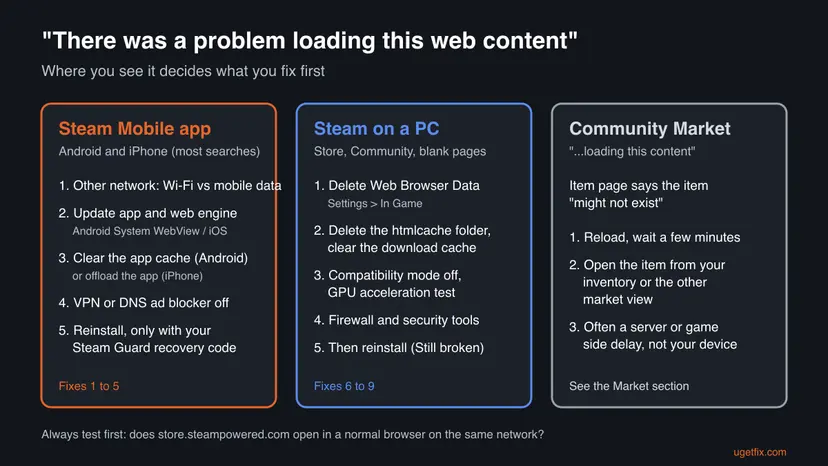
"There was a problem loading this web content" means a Steam page shown inside an app could not be fetched or drawn. Most people see it in the Steam Mobile app on Android or iPhone, some on a PC. Start by opening the same page on another network, then update the app and the phone's web engine.
The Steam app asked Steam's servers for a web page and got nothing usable back. On a phone, start with Fix 1: switch between Wi-Fi and mobile data and open the page again, because Steam Support warns that some providers cache or compress data. If it stays, update the Steam app and Android System WebView or iOS (Fix 2), then clear the app's cache (Fix 3). On a PC, start with Fix 6.
| Error | "There was a problem loading this web content" on a blank screen, in place of the Store, Community, a profile or a news page. |
|---|---|
| Where it appears | Mostly the Steam Mobile app on Android and iPhone, often right after the app opens. Less often the Steam client on Windows. A close variant, "There was a problem loading this content", appears on Community Market item pages. |
| Main cause | The page could not be fetched over the current network (provider, Wi-Fi, VPN or DNS filter), or the app's web view is outdated or holds a broken cache. |
| Fastest fix | Close the app, switch between Wi-Fi and mobile data and open the page again (Fix 1). On a PC: Steam > Settings > In Game > Delete Web Browser Data (Fix 6). |
| Also written as | "There was a problem loading this content", "Steam app there was a problem loading this web content", "Steam failed to load web page". |
| Affects | The current Steam Mobile app (rebuilt by Valve in 2022) on Android and iOS; the Steam client on Windows 11 and Windows 10. Windows 10 left Microsoft support on 14 October 2025. |
| Vendor status | Valve has no support article for this message. Steam Support's general advice covers it: restart, test another network, check programs that interfere, reinstall. |
| Time to fix | 2 minutes for the network test; up to 20 minutes for a reinstall. |
Facts checked on 15 October 2026. Steps written for the Steam Mobile app on Android and iOS and the Steam client on Windows 11 (25H2 and 26H2) and Windows 10 22H2, read against Steam Support, the Steam client's own text files, Google's and Apple's documentation.
What "There was a problem loading this web content" means on Steam
Large parts of Steam are web pages inside an app. The Steam Mobile app shows the store, news, profiles and many Community pages this way, and so does the Steam client on a PC. When such a page cannot be loaded, the app shows a blank screen with one line: "There was a problem loading this web content". It does not say why.
- The exact line
- "There was a problem loading this web content". Users report it on a blank screen in the mobile app, for example in a Steam Mobile forum thread from November 2024 about iOS.
- On a phone
- Valve rebuilt the Steam Mobile app "on a new framework" in 2022. Its store pages are web content. On Android they are drawn by Android System WebView, on iPhone by Apple's WebKit, which Apple requires for every app that browses the web.
- On a PC
- We searched the text files of the current Windows client on 15 October 2026 and did not find this sentence. Today's client usually shows an Error page with a code such as
-105or-118, or a page with text but no pictures. - Close variant
- "There was a problem loading this content" with "The requested item might not exist, or there might be a temporary issue preventing this item from loading. Please try again later." and "Failed to load item description" is a Community Market item page. See the section below the fixes.
The reader sees the failure in the app and in Chrome, and a refresh sometimes helps. A failure in two programs that comes and goes points at the network path to Steam, not at one app. That is why Fix 1 is a network test and not a reinstall.
What causes the Steam web content error, from most to least common
Valve does not publish a list of causes for this message. The ranking below combines Steam Support's general troubleshooting with what users report in Steam's own forums. Each cause points to the fix that tests it.
| How often | Cause | Sign | Fix |
|---|---|---|---|
| Most often | The network or provider: a provider that caches or compresses data, a weak Wi-Fi, a short outage at Steam. | Comes and goes; works on another network. | Fix 1 |
| Often | An outdated Steam app or web engine (Android System WebView, iOS). | Started after weeks without updates, or after a phone update. | Fix 2 |
| Often | A broken cache inside the app. | Only one device fails; other devices on the same Wi-Fi work. | Fix 3, Fix 4 |
| Less often | A VPN, a DNS ad blocker or an IP filter. | Fails only while the VPN or blocker is on. | Fix 5 |
| Less often (PC) | Steam's own browser data, the htmlcache folder or compatibility mode. | Only the client fails; a normal browser opens the store. | Fix 6 to Fix 8 |
| Rarely (PC) | A firewall or security program blocking steamwebhelper.exe. | Started after installing or updating a security product. | Fix 9 |
One user in a Steam Community thread from 2023 reported that the fault was at the internet provider and cleared within a week. Nothing on the device fixes that case, which is why the network test comes first.
How to fix "There was a problem loading this web content" on Steam
Fixes 1 to 5 are for the Steam Mobile app on Android and iPhone, where most people see the message. Fixes 6 to 9 are for the Steam client on a PC. Do them in order and test the page after each one.
| What you see or have | Start with |
|---|---|
| The message comes and goes in the phone app, a refresh sometimes helps. | Fix 1 |
| The phone app shows it on every page, right after opening. | Fix 2, then Fix 3 |
| A VPN, a DNS ad blocker or parental controls are on the phone or router. | Fix 5 |
| You want to reinstall the phone app. | Fix 4, with the recovery code first |
| Steam on a PC shows blank or text-only pages, a browser opens the store. | Fix 6 |
| The PC client still fails after Fix 6. | Fix 7, then Fix 8 |
| A Market item page says the item might not exist. | The Market section below the fixes |
Fix 1. Test another network and check whether Steam is down
2 minutesNo riskEveryone with the message on a phone, especially when it comes and goes.
Steam Support writes that some internet providers "cache or compress online data to save bandwidth (especially cellphone networks)" and that this can cause issues with Steam. Switching networks shows in one minute whether the path or the app is at fault.
- Close the Steam app fully: swipe it away from the recent apps screen, not just back to the home screen.
- If you are on Wi-Fi, turn Wi-Fi off so the phone uses mobile data. If you are on mobile data, connect to a Wi-Fi network.
- Open the Steam app and the same page again.
- On the same network, open
https://store.steampowered.com/in the phone's browser. - Open
https://store.steampowered.com/stats/as well. Steam Support links this page for server status. - If the page works on one network and not the other, restart the router of the failing network and test again.
| Result | What it means | Next |
|---|---|---|
| Works on the other network. | The failing network or provider is the cause. | Restart the router; if it stays, Fix 5, then the provider. |
| Fails in the app, the browser works. | The app or its web engine. | Fix 2 |
| Fails everywhere, on every network. | Steam is likely down or under maintenance. | Wait and try again later. |
On a PC, the same test applies: a phone hotspot is a quick second network. The Windows side of checking the connection is here: How to check your internet connection in Windows
It worked if: The page loads with pictures and text, and the message does not return after closing and reopening the app.
If not: If it fails on every network while the browser works, go to Fix 2.
Fix 2. Update the Steam app and the phone's web engine
5 minutesNo riskThe message shows on every page of the phone app, or started after a phone update.
The app's pages are drawn by the phone's web engine, not by Steam. Google releases a new Android WebView "every 6 weeks", and Google advised updating WebView and Chrome when a faulty WebView update broke apps in 2021. On iPhone, WebKit updates come with iOS.
- Android: open the Play Store, search for Steam and tap Update if it is offered.
- In the Play Store, search for Android System WebView and tap Update if it is offered.
- Search for Google Chrome and update it too. On Android 7 to 9, Chrome provides WebView.
- iPhone: open the App Store, tap your profile picture and update Steam in the list of updates.
- On iPhone, open Settings > General > Software Update and install a waiting iOS update.
- Restart the phone and open the Steam app.
Google's advice from the 2021 WebView incident: "We do not recommend manually uninstalling updates to WebView. It may result in loss of data from some apps." Update it, do not roll it back.
It worked if: After the restart the Store tab shows its banners and prices again.
If not: If the message stays with everything up to date, clear the app's cache in Fix 3.
Fix 3. Clear the Steam app's cache (Android) or offload the app (iPhone)
3 minutesLow riskOnly one phone fails, while other devices on the same Wi-Fi load Steam.
A broken cached page or script can be served again on every start. Google describes Clear cache as deleting temporary data only, so your sign-in and Steam Guard stay. On iPhone, Apple's Offload App removes the app but keeps its documents and data.
- Android: open Settings > Apps, then Steam (on some phones tap See all apps first).
- Tap Storage & cache, then Clear cache. Do not tap Clear storage here.
- Open the Steam app and the page again.
- iPhone: open Settings > General > iPhone Storage and tap Steam.
- Tap Offload App and confirm. The icon stays on the home screen.
- Tap the Steam icon to download the app again, then open it.
- Users report a language switch helped. In a Steam Community thread from July 2023, a user cleared the message in the phone app by changing the app's language and back. It reloads the pages, much like a cache clear. This is a report, not Valve's advice.
- We could not confirm from Valve that offloading keeps the Steam Guard authenticator. Write down your recovery code before you offload, as Fix 4 shows.
It worked if: The app opens slower once, then the page loads normally.
If not: If the message returns, check VPNs and DNS blockers in Fix 5 before you reinstall in Fix 4.
Fix 4. Sign out and reinstall the Steam app, with the Steam Guard recovery code saved
10 minutesRead the warningFixes 1 to 3 and Fix 5 did not help on this phone.
A reinstall gives the app a clean web view and fresh settings. It is last on the phone because the Steam app is also your Steam Guard authenticator, and losing it locks you out of trades and the Market.
Deleting the app or tapping Clear storage can remove the Steam Guard Mobile Authenticator from this phone. Steam Support: without your phone and recovery code you need Steam Support to get back in. Before you start, open the app's Steam Guard page, tap the gear icon, then Recovery Code, and write the code down.
- Save the recovery code as the warning above says.
- In the app, tap your avatar at the top right and select Sign out.
- Delete the app: on Android long-press it and tap Uninstall; on iPhone long-press it and tap Remove App, then Delete App.
- Restart the phone.
- Install Steam again from the Play Store or the App Store and sign in.
- If the app asks about the authenticator, follow its steps. Steam Support: moving it puts a 2-day trade and Market hold on the account.
It worked if: After signing in, the Store and Community tabs load and the Steam Guard page shows codes again.
If not: If a fresh app on a working network still fails, the cause is outside the phone: see what to send to support after the fixes.
Fix 5. Turn off the VPN, DNS ad blocker or filter for one test
5 minutesLow riskA VPN app, a DNS ad blocker, Private DNS or router parental controls are in use.
Steam Support names VPN software and "IP Filtering/Blocking Programs" as known causes of Steam connection problems. Steam's pages load from several domains, and a blocker that stops one of them leaves the page blank.
- Disconnect the VPN app on the phone or PC and close it.
- Turn off any ad blocker that works as a local VPN or through DNS for one test.
- On Android, check Settings > Network & internet > Private DNS (the name varies by maker) and set it to Automatic or Off for the test.
- Close and reopen the Steam app and open the page.
- If it now loads, turn the blocker back on and allow
steampowered.com,steamcommunity.comandsteamstatic.comin it.
Keep the blocker or VPN on afterwards, with Steam allowed. Turning protection off for good is not the fix.
It worked if: The page loads with the blocker off, and still loads once Steam's domains are allowed.
If not: If nothing changes with the blocker off, turn it back on and, on a phone, go to Fix 4.
Fix 6. Delete the Steam client's web browser data and restart Steam
3 minutesLow riskSteam on a PC shows blank or text-only pages while a normal browser opens the store.
The PC client keeps its own browser cache, separate from Chrome or Edge. Its text file describes the button as deleting "all Steam browser cached files, cookies, and history", which removes a broken page or cookie. You sign in to Steam's web pages again afterwards.
- In the client, open the Steam menu in the top left corner and select Settings.
- Open the In Game page.
- Next to Delete Web Browser Data, select Delete and confirm.
- Open the Steam menu and select Exit. Closing the window is not enough.
- If Steam or
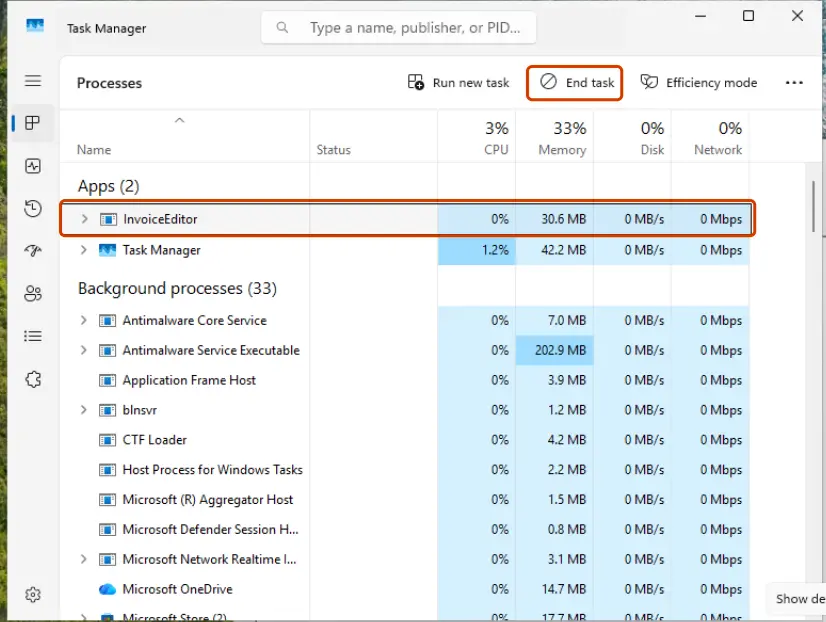
steamwebhelper.exestill shows in Task Manager, end it: Close a frozen app (Task Manager, Force Quit) - Start Steam and open the Store page.
If the message is in Chrome or Edge rather than the client, clear that browser's cookies and cache for Steam's sites: Clear the browser cache and cookies
It worked if: The Store opens with pictures, and you may be asked to sign in on web pages once.
If not: If the pages are still blank, remove the whole cache folder in Fix 7.
Fix 7. Delete the htmlcache folder and clear Steam's download cache
5 minutesLow riskFix 6 did not help, or the Settings window itself is blank.
Users in a Steam Community thread report that deleting the htmlcache folder by hand fixed pages the Settings button did not. Valve does not document this folder, so we describe it as a report. Clearing the download cache restarts Steam and asks you to sign in again.
- Exit Steam through the Steam menu and Exit.
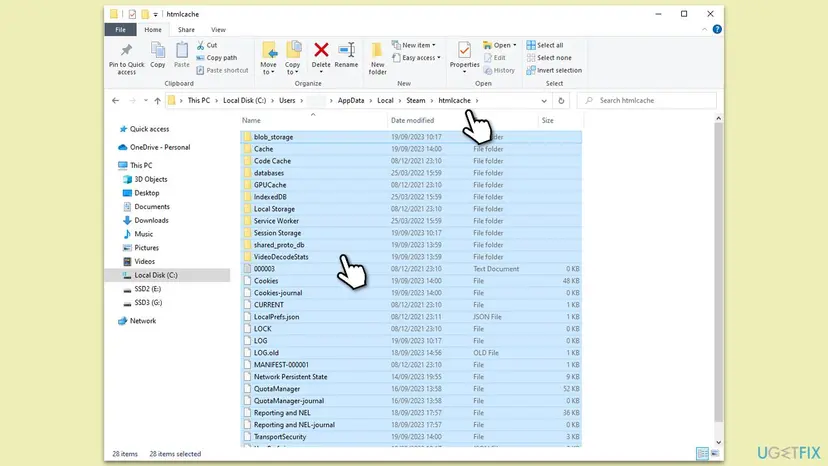
- Press Win + R, type
%LOCALAPPDATA%\Steam\htmlcacheand press Enter. - Press Ctrl + A to select everything in the folder, then Delete. Steam creates it again.
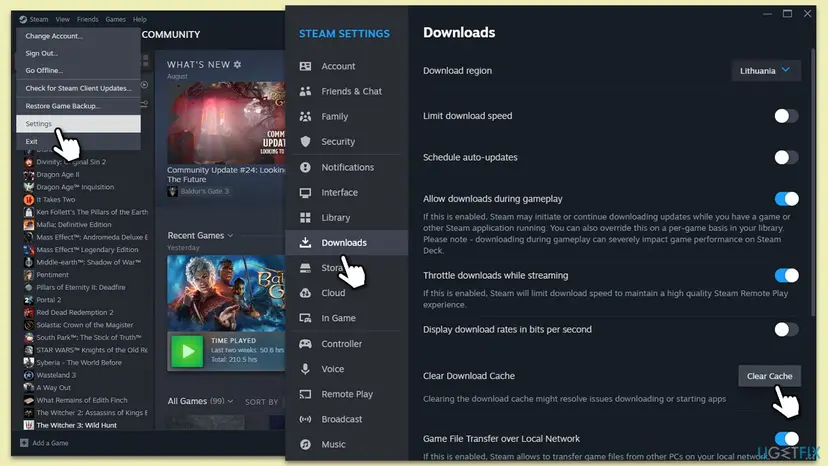
- Start Steam, open Steam > Settings > Downloads.
- Next to Clear Download Cache, select Clear Cache and confirm. Steam restarts.
- Sign in and open the Store page.
The old version of this guide ran steam://flushconfig in the Run box or Command Prompt. Users report it opens the same cache reset. Valve does not document it today, so we use the Clear Cache button above.
It worked if: After signing in again the Store, Community and profile pages load with pictures.
If not: If the pages are still blank, check compatibility mode and GPU acceleration in Fix 8.
Fix 8. Turn off compatibility mode for Steam and test without GPU acceleration
5 minutesLow riskSteam's pages flicker, stay black or blank on a PC, or Steam warned about compatibility mode.
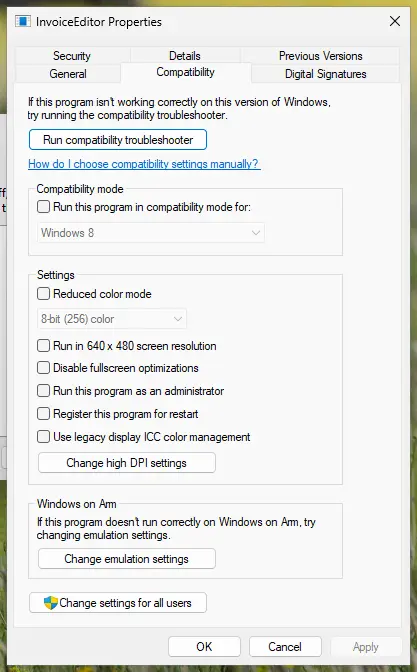
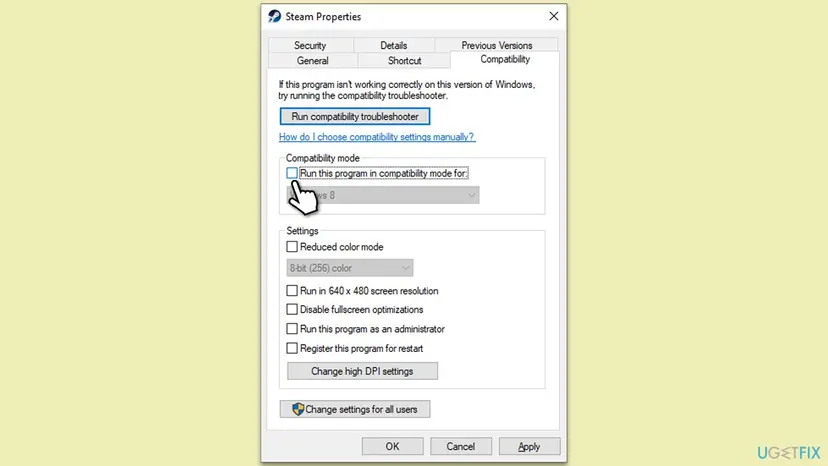
The client's own text warns that compatibility mode for the Steam Web Browser "may prevent Steam from correctly displaying Web content". Steam Support adds that some video drivers have trouble drawing Steam's pages with GPU acceleration on.
- Exit Steam. Right-click the Steam shortcut and select Properties.
- Open the Compatibility tab.
- Clear Run this program in compatibility mode for and Run this program as an administrator, then select OK.
- Start Steam and open Steam > Settings > Interface.
- Turn off Enable GPU accelerated rendering in web views (requires restart) and let Steam restart.
- If that fixes the pages, update your graphics driver and turn the option back on: Update, roll back or reinstall a driver
It worked if: Steam starts without a compatibility warning and its pages draw fully.
If not: If pages still fail only in the client, check the firewall and security programs in Fix 9.
Fix 9. Allow Steam and its web helper through the firewall and security software
10 minutesLow riskThe problem began after installing or updating a firewall, antivirus or other security program on the PC.
The pages are loaded by steamwebhelper.exe, a separate program from steam.exe. Steam Support says security software can interfere with the web helper's sandbox, and a firewall rule for Steam alone may not cover it.
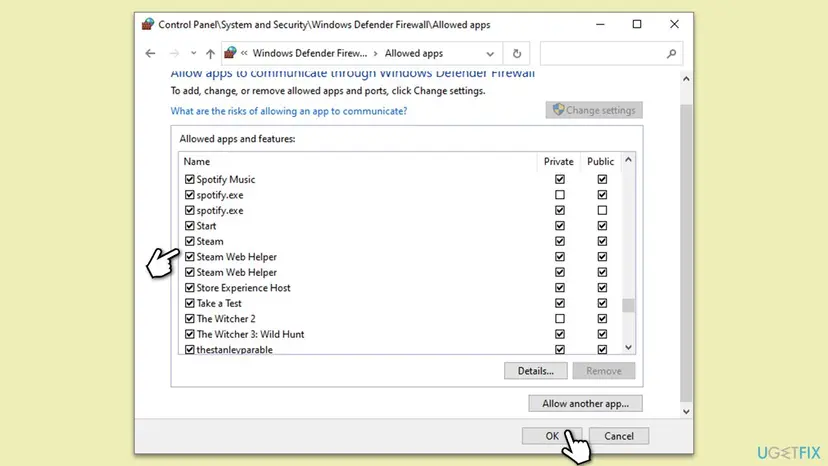
- Open Control Panel > System and Security > Windows Defender Firewall.
- Select Allow an app or feature through Windows Defender Firewall, then Change settings.
- Make sure Steam and Steam Web Helper are checked for the network type you use, then select OK.
- In a third-party firewall or antivirus, add the Steam folder to its exceptions. The default is
C:\Program Files (x86)\Steam. - To test, pause protection for one try and turn it back on right after: Turn off Microsoft Defender protection for a moment
It worked if: With the exceptions in place and protection on, Steam's pages load.
If not: If nothing changed, collect the details in the next section and reinstall Steam over the old copy.
"There was a problem loading this content" on the Steam Market
On a Community Market item page the message reads differently. Users posted the full text in a Steam Community thread in June 2026:
There was a problem loading this content
The requested item might not exist, or there might be a temporary issue preventing this item from loading. Please try again later.
Failed to load item description- It is usually not your device. In that thread the item was listed for sale while its page failed, and users connected it with the game's servers or a delay between the game and the Market.
- Users report it in the new Market view. One user saw it in the Market beta and not in the old Market, and switched between the two.
- What to do: reload the page after a few minutes, open the item from your inventory instead of a search result, or use a browser on a PC.
- If it stays for days for one game's items, report it in that game's Steam discussions, since the item data comes from the game.
If the Steam web content error is still there: what to check and what to send
Valve keeps no user-readable log for pages that fail inside the mobile app. Your test results are the record, so write them down before you contact anyone.
- Take a screenshot of the blank page with the message.
- Note the device, Android or iOS version, the Steam app version and the network (Wi-Fi or mobile data, provider name).
- Note the results of Fix 1: which networks fail, and whether
store.steampowered.comopens in a browser. - On a PC, reinstall Steam into the same folder with the installer from
https://store.steampowered.com/about/. Steam Support: this "will preserve all installed games". - Open a ticket at
https://help.steampowered.comwith these details, or call your provider if only their network fails.
Steam Support warns that uninstalling Steam "through any other method will delete all game and userdata content". Reinstall over the existing folder instead.
This message is not a sign of failing hardware or a banned account. If the account were limited, Steam would say so on sign-in. If you also see numbered errors on the PC, our guide to Steam error code 105 explains the DNS side.
How to keep Steam's web pages loading
- Let the Play Store or App Store update Steam, Android System WebView and Chrome automatically.
- Keep your Steam Guard recovery code written down, so a reinstall is never risky.
- Allow Steam's domains in VPNs, DNS blockers and parental controls instead of turning them off.
- Exit Steam on a PC from its menu before updates and restarts.
- Do not tap Clear storage or delete the app before you have the recovery code.
- Do not roll back WebView updates on Android.
- Do not run Steam in compatibility mode on Windows 11 or 10.
- Do not uninstall Steam through Windows to fix a page: it deletes your games.
If you still use Windows 10, note that Microsoft stopped its updates on 14 October 2025. Steam's web helper is built on a current browser engine, so an up-to-date Windows 11 is the safest base for it.
Frequently asked questions
Why does the Steam mobile app say there was a problem loading this web content?
The app asked Steam's servers for a page and could not show it. The Steam Mobile app shows the store, news, profiles and many Community pages as web content, so any break in fetching or drawing them ends on this blank screen. The usual reasons are the network or provider, an outdated Steam app or Android System WebView, a broken app cache, or a VPN or DNS blocker. Start with Fix 1: switch between Wi-Fi and mobile data and open the page again. If the page works on one network, the other network is the cause.
Is Steam down when I see this message?
Sometimes, but usually not. If Steam were down, the store would also fail in a browser and on other networks. Open https://store.steampowered.com/stats/, the page Steam Support links for server status, and the store itself in your phone's browser. If both fail on Wi-Fi and on mobile data, wait and try again later. If they work, the cause is on your device or network, and Fixes 1 to 5 apply. Planned maintenance happens regularly and the app then fails for everyone at the same time.
How do I fix it on Android?
Switch networks first (Fix 1). Then update Steam, Android System WebView and Google Chrome in the Play Store (Fix 2), because the app's pages are drawn by WebView. Next open Settings > Apps > Steam > Storage & cache and tap Clear cache (Fix 3). Check VPNs and Private DNS (Fix 5). Only after that reinstall the app (Fix 4), and save your Steam Guard recovery code before you do, because clearing storage or deleting the app can remove the authenticator.
How do I fix it on iPhone?
Test another network first (Fix 1). Then update the Steam app in the App Store and install any waiting iOS update (Fix 2). Apple requires apps that browse the web to use WebKit, which comes with iOS. On iPhone there is no cache button for apps, so use Settings > General > iPhone Storage > Steam > Offload App, then tap the icon to download it again (Fix 3). Apple says offloading keeps documents and data. Write down your Steam Guard recovery code before you offload or delete the app.
Will reinstalling the Steam app remove my Steam Guard authenticator?
It can. The Steam Mobile app holds the Steam Guard Mobile Authenticator, and deleting the app or clearing its storage removes what it keeps on the phone. Before a reinstall, open the app's Steam Guard page, tap the gear icon and then Recovery Code, and write the code down. After reinstalling, the app guides you to move the authenticator back. Steam Support says a move puts a 2-day trade and Market hold on the account. Without the phone and the code, you need Steam Support to get back in.
What does steam://flushconfig do and is it safe?
It is a Steam command that users run from the Run box or Command Prompt to reset Steam's download cache and configuration. Steam then restarts and asks you to sign in again. Your games are not removed. Valve does not document the command in its current support articles, so we cannot confirm exactly what it resets. The Steam client has a documented button that does the cache part: Steam > Settings > Downloads > Clear Download Cache, used in Fix 7.
Why do I get the error in Chrome but not in other browsers?
When only one browser fails on Steam's sites, the cause is inside that browser: its cache and cookies for steampowered.com and steamcommunity.com, an extension such as an ad blocker, or a security tool that inspects that browser's traffic. Clear the browser's cache and cookies for Steam, then test in a private window with extensions off. In a Steam Community thread from 2022, a user with failures in both the Steam client and Chrome fixed it by deleting Steam's htmlcache folder and resetting the download cache, as in Fix 7.
What does "There was a problem loading this content" mean on the Steam Market?
It is the Market item page's version of the message, followed by "The requested item might not exist, or there might be a temporary issue preventing this item from loading. Please try again later." Users report it for items that are listed and for sale, so the item usually exists. In a June 2026 thread users connected it with the game's servers and with the new Market view. Reload after a few minutes, open the item from your inventory, or try the other Market view. It is rarely a problem on your device.
Does clearing the Steam download cache delete my games?
No. Clear Download Cache removes Steam's temporary download data, not installed games. The client's own warning says it "will clear your local download cache and restart Steam" and that you "will need to login to Steam again". So have your password and Steam Guard ready before you press it. The step that does delete games is uninstalling Steam through Windows: Steam Support warns that it removes "all game and userdata content". To repair the client, reinstall it over the existing folder instead.
I searched for this error in another language. Does this page apply?
Yes. People search for this message in Vietnamese, Russian, Korean, Thai and other languages, often with words like "why" or "on the phone". The Steam app shows the message in your app language, but the cause and the fixes are the same everywhere. On a phone, start with Fix 1, the network test, then update the app and the web engine in Fix 2. On a PC, start with Fix 6. If the app language itself seems stuck, users report that switching it and back reloaded the pages.
Sources
- Steam client text file steamui_english.json, mirrored by SteamTracking (Delete Web Browser Data, Clear Download Cache) (github.com)
- Steam client text file steamui_english.txt, mirrored by SteamTracking (compatibility mode warning for the Steam Web Browser) (github.com)
- Google Gmail Help: An update regarding app crashes and System WebView (update WebView and Chrome, do not uninstall updates) (support.google.com)
Did this fix work?
One click, no account. It tells the next reader which guides are worth their time.
Questions and experiences: fix “There was a problem loading this web content” error on Steam
Still broken, or found a fix we did not cover? Ask here: members and our editors answer. Reading is open; writing needs a free account.
…