
How to fix Steam error code: 105 (Unable to connect to Server)?

Prefer to fix it yourself? The manual steps follow.
- 8methods
- 5 minutes for the first fix, 15 to 30 minutes to find a DNS filter or VPN
- Easy
Applies to Steam client on Windows 11 and Windows 10; the Steam store and Community in a desktop browser
8 methods in this guide
- What the error means
- Where the lookup breaks
- Causes, ranked
- The fixes
- 1. Exit Steam, flush DNS
- 2. Test the DNS server
- 3. Change the DNS server
- 4. VPN and its DNS
- 5. Ad blockers and DNS filters
- 6. Hosts file entries
- 7. Router and provider
- 8. Reset the network stack
- Still broken: get help
- Keep it from coming back
- FAQ
Hello. Every time I try to access the Steam store via my browser, I receive an error "Steam error code: -105. Unable to connect to server." My internet seems to be working fine on any other website. I would appreciate some tips, as I can't purchase any games or access the community when on a computer that does not have the Steam client installed.
Steam error code -105 is a failed DNS lookup: the store or Community page inside Steam could not turn store.steampowered.com into an address, so it never reached Valve's servers. Steam is rarely down when you see it. Exit Steam completely, flush the Windows DNS cache and open the store again.
The minus sign matters: -105 is the web engine's code for "The host name could not be resolved." Your PC asked for the address of a Steam site and got none back. Start with Fix 1: exit Steam from its menu, run ipconfig /flushdns and open the store again. If the error stays, Fix 2 shows in one minute whether your DNS server, a filter or a VPN is refusing Steam's names.
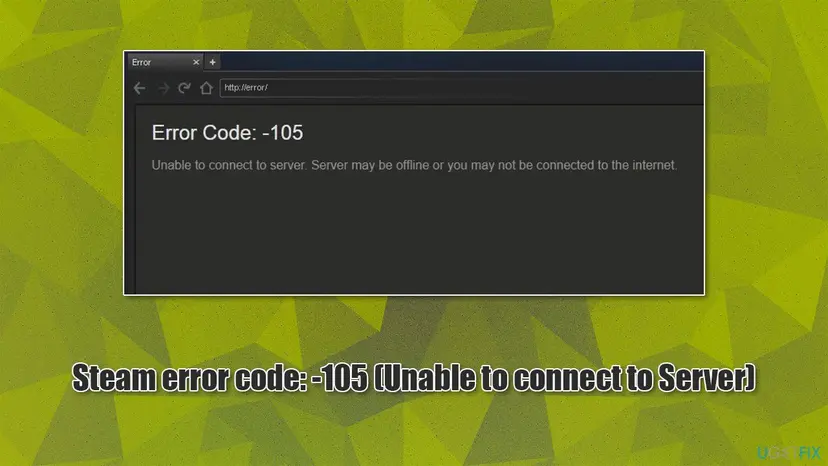
| Error | Page titled Error in place of the Store or Community: "Error Code: -105" and under it "Unable to connect to server. Server may be offline or you may not be connected to the internet." |
|---|---|
| Where it appears | The Store, Community, profile, news and support pages that the Steam client draws with its built-in Chromium browser. In a normal browser the same failure has a name instead of a number. |
| Main cause | The DNS lookup for a Steam domain failed: a stale cache entry, a DNS server that does not answer or says the name does not exist, a block list, a hosts file entry or a VPN's DNS. |
| Fastest fix | Exit Steam fully, run ipconfig /flushdns, start Steam again (Fix 1). Then compare your DNS server with a public one using nslookup (Fix 2). |
| Also written as | Steam error 105, error code 105 Steam, Steam 105 error, steam code 105, Steam lỗi 105, erro 105 Steam, código do erro: -105, 스팀 오류코드 105. |
| What the number is | Chromium's network error NAME_NOT_RESOLVED, number -105, with the comment "The host name could not be resolved." Chrome shows it as ERR_NAME_NOT_RESOLVED. |
| Valve's status | Not a known Steam bug and no patch. Valve has no support page for -105. Its network troubleshooting page covers the router, firewalls, VPNs and providers. |
| Affects | The Steam client on Windows 11 and Windows 10 (Windows 10 support ended on 14 October 2025, which does not change this error). Users also report it on Linux. |
| Time to fix | 2 to 5 minutes for a stale cache. 10 to 30 minutes when a DNS filter, VPN or router has to be found and changed. |
Facts checked on 14 October 2026. Steps written for the Steam client on Windows 11 (25H2 and 26H2) and Windows 10 22H2, read against Steam Support, the Steam client's own text files, Chromium's source and Microsoft's documentation.
What Steam error code -105 "Unable to connect to server" means
The pages inside the Steam client are web pages, shown by a built-in copy of Chromium, the engine of Chrome. When a page fails, the client draws its own Error page with the line Error Code: and the number that Chromium returned. We read both strings in the client's current text file on 14 October 2026.
- The number
-105in Chromium's listnet_error_list.hisNAME_NOT_RESOLVED: "The host name could not be resolved."- In plain words
- Steam asked "what is the address of
store.steampowered.com?" and nothing in the chain gave an answer. No connection to Valve was even tried. - The sentence
- Steam's text file calls it
vgui_Webkit_connectionproblem. It is a general sentence for connection failures, so it says "server may be offline" even when the server is fine. - In Chrome or Edge
- The same failure shows as "This site can't be reached" with
ERR_NAME_NOT_RESOLVEDorDNS_PROBE_FINISHED_NXDOMAIN. You will not see "-105" there. - Close relative
-137isNAME_RESOLUTION_FAILED: "An error occurred when trying to do a name resolution (DNS)." The fixes on this page cover it too.
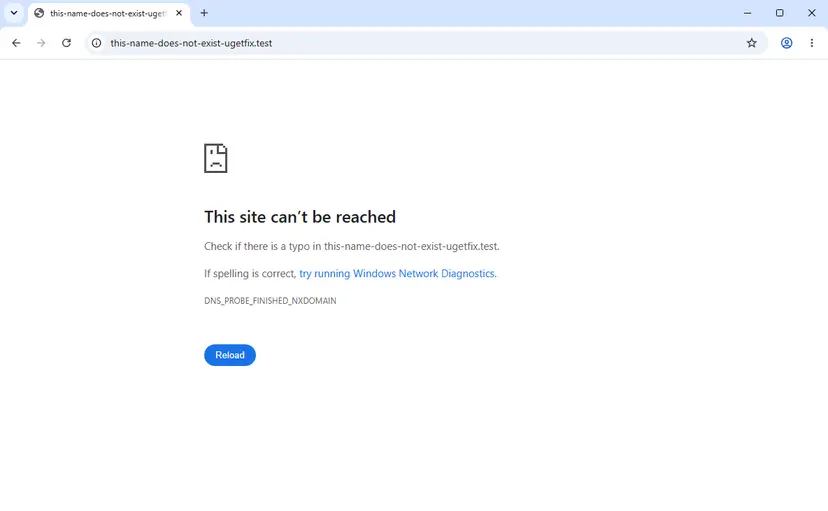
"Error code: -105" with "Unable to connect to server" is the Steam client's page, also inside the overlay browser of a game. On a PC without the client, a browser names the same failure in words. Either way the fix is the same: the PC cannot look up Steam's names, while the sites you tested still resolve.
Other minus numbers on the same Error page belong to other stages of loading a page, such as -102 or -118. Our guide to Steam error code 2 and the minus codes decodes the whole family. This page stays with -105 and the DNS lookup behind it.
How Steam looks up its own servers, and where the lookup for -105 breaks
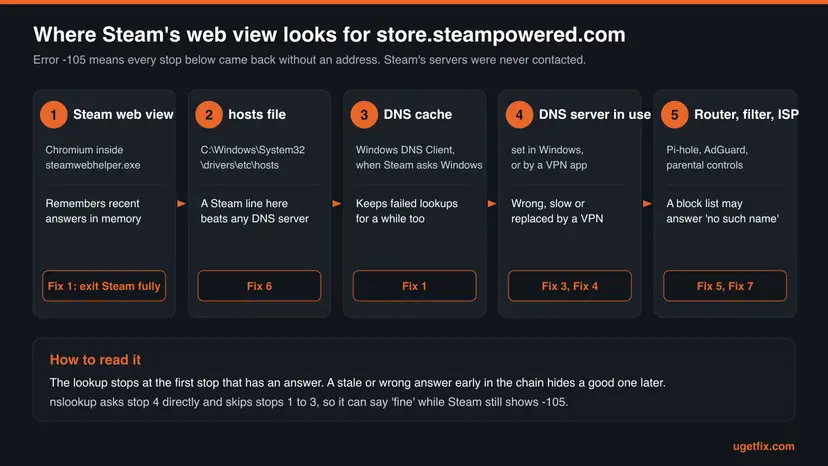
A name like store.steampowered.com passes several stops before it becomes an address. The first stop that has an answer wins, even a stale or wrong one. That is why -105 can hit Steam alone while YouTube and Google open fine: their names were looked up and cached earlier, or they are not on the list that blocks Steam.
| Stop | What it does | How it causes -105 |
|---|---|---|
Steam's web engine (steamwebhelper.exe) | Chromium keeps a host cache in memory while it runs. | A failed answer from a moment ago can be reused until the process ends. |
hosts file C:\Windows\System32\drivers\etc\hosts | Microsoft: it maps names to addresses and can "override normal network name resolution". Chromium's Windows code reads and watches this file. | A line for a Steam domain sends the name to a dead address or blocks it. |
| Windows DNS cache (DNS Client) | Holds recent answers and the entries of the hosts file. Microsoft's ipconfig /flushdns text speaks of "negative cache entries": failed lookups are kept too. | A failure during a short outage stays remembered after the outage ends. |
| DNS server set in Windows | Usually the router, which passes questions to the provider. A VPN or a manual setting can replace it. | It does not answer, or it answers that the name does not exist. |
| Router, filter or provider | Parental controls, Pi-hole, AdGuard Home and provider filters answer from block lists. | Pi-hole's documentation: in NXDOMAIN mode a blocked name gets the status that means "no such name". |
Chromium can resolve names through Windows or through its own DNS client, and Valve does not say which one Steam's build uses. The fixes below cover both: exiting Steam clears the engine's cache, and flushing Windows' cache costs nothing if Steam did not use it.
What causes Steam error code 105, from most to least likely
Valve publishes no statistics on this code, so the order is ours. It follows what each stop of the lookup can do, the threads in Google's results for this error, and how cheap each check is.
| Cause | How to tell | Fix |
|---|---|---|
| A stale failed lookup. A short network drop, a sleeping PC or a router restart left "no answer" in a cache. | It started after waking the PC or a brief outage. Other sites work. | Fix 1 |
| The DNS server in use. The router or provider DNS is slow, broken or refuses Steam's names. | nslookup fails with your server and works with 1.1.1.1. Other devices on the same Wi-Fi fail too. | Fix 2, Fix 3 |
| A VPN or its leftovers. The VPN replaced the DNS server and did not put it back, or its DNS cannot see Steam. | A VPN is installed, or was used recently. Users on the Arch Linux forum traced -105 to a VPN that rewrote the resolver settings. | Fix 4 |
| A block list. Pi-hole, AdGuard, NextDNS, router parental controls or an ad blocker app that filters DNS for the whole PC. | Only some Steam pages or images fail. nslookup returns 0.0.0.0 or no address only for Steam names. | Fix 5 |
A hosts file entry. A line for steampowered.com or steamcommunity.com left by a tool, a crack, a guide or malware. | nslookup works, every Steam page in the client fails, and a browser on the same PC fails too. | Fix 6 |
| The router or the provider. The router's DNS relay hangs, or the provider has a fault. | Every device on the home network fails, a phone on mobile data works. | Fix 7 |
| A broken Windows network stack. Rare. Names fail for many programs after an update or a removed VPN driver. | Several sites fail, not only Steam. | Fix 8 |
- Not the cause in the client: a browser ad-block extension. Chromium reports a request blocked by an extension as
BLOCKED_BY_CLIENT, number -20, not -105. An extension in Chrome cannot affect the Steam client. - Rarely the cause: Steam being down. During an outage Steam's names still resolve and the codes are timeouts or refused connections. A lookup failure points at your side of the chain.
- A different code, a different page. -109 means an address was found but no route led to it. That one has its own guide: Steam error code -109.
How to fix Steam error code 105 (Unable to connect to server)
Fix 1 clears the caches and solves the common case in minutes. Fix 2 is a one-minute test that tells you which of Fixes 3 to 6 to use, so do not skip it if Fix 1 failed. Fixes 7 and 8 are for when every device or every program has trouble with names.
| What you see | Start with |
|---|---|
| -105 started after the PC woke up, after a short outage or a router restart. | Fix 1 |
| -105 stays after a restart of Steam and you do not know why. | Fix 2 |
nslookup fails with your DNS server but works with 1.1.1.1. | Fix 3 |
| A VPN is installed or was used in the last days. | Fix 4 |
| You use Pi-hole, AdGuard, NextDNS, router parental controls or a system-wide ad blocker. | Fix 5 |
nslookup works, but Steam and a browser on this PC both fail. | Fix 6 |
| Every device on your Wi-Fi fails, a phone on mobile data works. | Fix 7 |
| Many sites fail in every program, not only Steam. | Fix 8 |
Fix 1. Exit Steam completely and flush the Windows DNS cache
3 minutesNo riskEveryone with -105 starts here, especially after sleep, a router restart or a short outage.
Two caches can hold a failed answer: the one inside Steam's web engine and the one in Windows. Closing the Steam window only hides it, and Microsoft documents /flushdns as the way to "discard negative cache entries", which are remembered failures.
- In the Steam window, open the Steam menu in the top left corner and select Exit.
- Press Ctrl + Shift + Esc to open Task Manager. If Steam or
steamwebhelper.exeis still listed, select it and choose End task. - Open Command Prompt as administrator and flush the cache with the commands below.
- Open an elevated command window. Right-click Start and select Terminal (Admin), or type cmd in the search box, right-click Command Prompt and select Run as administrator. Select Yes when Windows asks for permission.
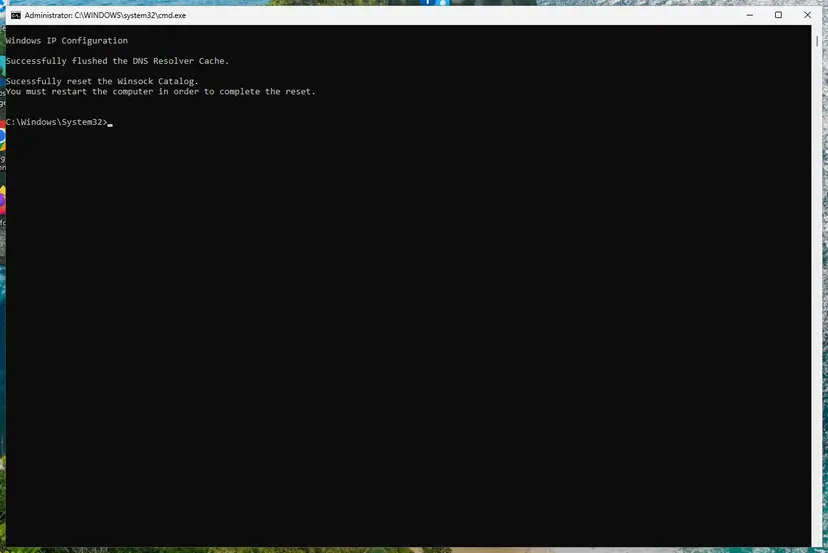
- Flush the DNS cache. Type the command below and press Enter. Windows forgets the website addresses it looked up earlier and asks for them again.
ipconfig /flushdns
These steps were written for Windows 11 24H2 and later. The full page with the other versions and what each result means: Reset the network and flush DNS
- Start Steam again and open the Store tab.
- If you use the store in a browser, close every window of that browser too, then open
https://store.steampowered.com/again. - In Chrome or Edge you can also empty the browser's own cache of names: open
chrome://net-internals/#dns(in Edgeedge://net-internals/#dns) and select Clear host cache.
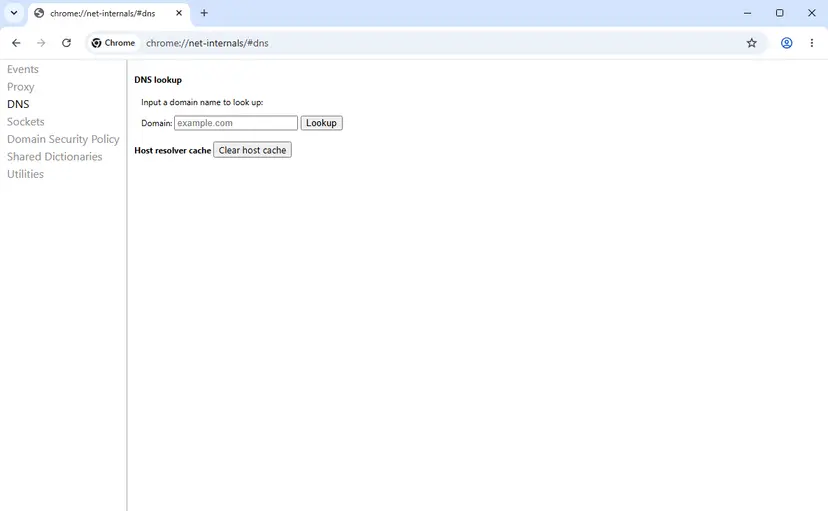
On the same page, type store.steampowered.com in the Domain box and select Lookup. A list of addresses means Chrome can resolve Steam now. An error here confirms that the browser fails at the same step as the client.
It worked if: The Store tab loads with its banners and prices, and the Error page with -105 does not come back after another restart of Steam.
If not: If -105 returns at once, run the test in Fix 2 to see which part of the chain refuses Steam's name.
Fix 2. Test Steam's names with nslookup: your DNS server against a public one
2 minutesNo risk-105 survived Fix 1 and you want to know where it comes from before you change anything.
Microsoft's nslookup asks a DNS server directly and prints its answer. Asking your own server and then Cloudflare's 1.1.1.1 for the same Steam name splits the causes in two: your DNS path, or something on the PC itself.
- Press Win + R, type
cmdand press Enter. Administrator rights are not needed. - Ask the DNS server that Windows uses now:
nslookup store.steampowered.com - Ask a public DNS server for the same name. Microsoft's own example uses this address:
nslookup store.steampowered.com 1.1.1.1 - Repeat both for the Community, which some filters treat apart from the store:
nslookup steamcommunity.com nslookup steamcommunity.com 1.1.1.1 - Compare the four answers with the chart and the table below.
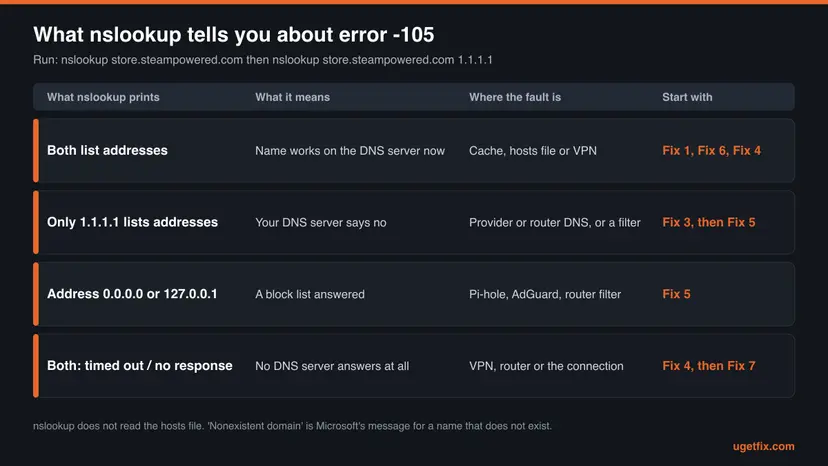
| nslookup prints | Microsoft's description | For -105 |
|---|---|---|
| A Name line and one or more Addresses | The lookup worked. | The DNS server is fine. Look at the PC: Fix 1, Fix 6, Fix 4. |
Nonexistent domain | "The computer or DNS domain name doesn't exist." | For a Steam name this is wrong: a filter or a broken resolver. Fix 5, then Fix 3. |
timed out or No response from server | The server did not answer in time, or no DNS server runs there. | The DNS server cannot be reached. Fix 4, then Fix 7. |
Server failure or Refused | The server could not or would not answer. | A broken or restricted DNS server. Fix 3. |
- The Server line names the culprit. If it shows your router's address, the router asks the provider. A
10.xor other unfamiliar address often belongs to a VPN. Your own Pi-hole shows its address there. - nslookup does not read the hosts file. A clean nslookup result with -105 still in Steam is the typical sign of a hosts entry: Fix 6.
- If even
1.1.1.1times out, the network may block outside DNS servers. Office, school and hotel networks often do. Only the network's administrator can change that.
It worked if: You know which of the four cases you are in and which fix to open next, before you change any setting.
If not: If all four lookups list addresses and Steam still shows -105, go to Fix 6 for the hosts file, then Fix 4 for a VPN.
Fix 3. Use a different DNS server in Windows
5 minutesLow risknslookup fails with your own DNS server and works with 1.1.1.1, or your provider's DNS is known to be unreliable.
When the server that Windows asks cannot resolve Steam's names, no setting in Steam can help. Pointing Windows at a public resolver bypasses the router's and the provider's DNS for this PC only.
| Operator | Preferred | Alternate |
|---|---|---|
| Cloudflare (1.1.1.1) | 1.1.1.1 | 1.0.0.1 |
| Google Public DNS | 8.8.8.8 | 8.8.4.4 |
Windows 11 (25H2 and 26H2), in Settings:
- Press Win + I and open Network & internet.
- Select Ethernet, or Wi-Fi and then the properties of the network you are connected to.
- Next to DNS server assignment, select Edit.
- Change Automatic (DHCP) to Manual and turn on IPv4.
- Type the two addresses of one operator in Preferred DNS and Alternate DNS.
- Leave DNS over HTTPS on Off for this test, then select Save.
- Run
ipconfig /flushdnsonce more, exit and restart Steam.
Windows 10 22H2 has no DNS over HTTPS setting, and the classic dialog works on both versions. Open it with Win + R, type ncpa.cpl and press Enter. Then follow the steps below.
- Right-click your connection and select Properties.
- Select Internet Protocol Version 4 (TCP/IPv4) and then Properties.
- Choose Use the following DNS server addresses and fill in Preferred DNS server and Alternate DNS server.
- Select OK, then Close, and restart Steam.
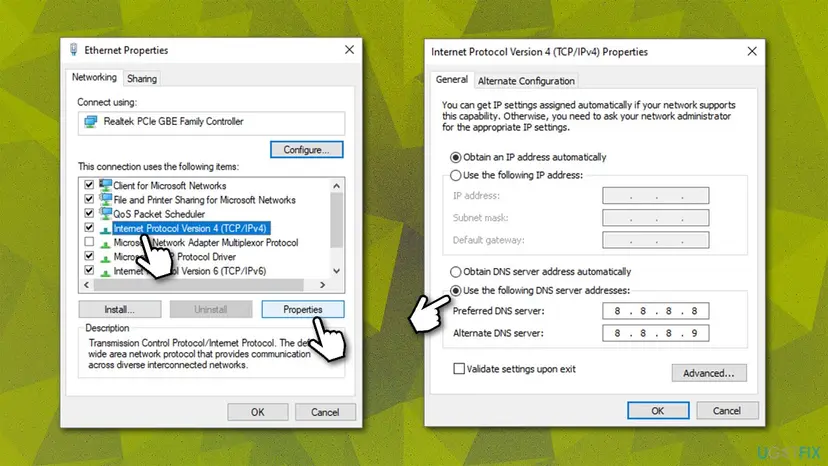
- Undo: set DNS server assignment back to Automatic (DHCP), or choose Obtain DNS server address automatically in the classic dialog.
- A laptop on many networks: a fixed DNS server can break the sign-in page of hotel or airport Wi-Fi. Switch back to automatic there.
- Encrypted DNS later: once Steam works, Windows 11 can encrypt the lookups with DNS over HTTPS. Microsoft notes that with Fallback to plaintext off, a query that cannot go over HTTPS is not sent at all.
It worked if: nslookup store.steampowered.com now shows the public server on its Server line with addresses below, and the Store loads in Steam.
If not: If the public server answers in nslookup but Steam still fails, something on the PC overrides DNS: check the VPN in Fix 4 and the hosts file in Fix 6.
Fix 4. Disconnect the VPN and remove the DNS it left behind
5 to 10 minutesLow riskA VPN app is installed, was used recently, or nslookup shows an unfamiliar Server address.
Most VPN apps send DNS questions through the tunnel to their own server. When the tunnel drops or the app closes badly, Windows can keep asking a server it can no longer reach. Steam Support says VPN software "has the potential of preventing the Steam client application from accessing the Steam network".
- Exit Steam through Steam and Exit.
- Disconnect the VPN, then quit the VPN app from its tray icon so it cannot reconnect.
- Run
ipconfig /flushdnsin Command Prompt. - Run
nslookup store.steampowered.comand look at the Server line. It should now show your router or the server you chose in Fix 3. - Start Steam and open the Store.
- If Steam works now, reconnect the VPN and test again to see whether the VPN itself is the cause.
| Result | What to do |
|---|---|
| Works without the VPN, fails with it. | Choose another VPN server, or exclude Steam with the app's split tunneling setting if it has one. The setting's name differs by app. |
| Fails even with the VPN off, Server line still unfamiliar. | The VPN left its DNS behind. Set DNS back to automatic as in Fix 3, or repair the VPN app, then restart Windows. |
| Works with and without the VPN after the restart. | It was a stale tunnel. Exit Steam before you switch the VPN on or off in future. |
- Users report the same on Linux. In a solved Arch Linux forum thread from June 2025, -105 came from VPN setup having replaced the system's resolver configuration. Restoring it fixed Steam. This is a user report, not Valve's advice.
- Uninstalled VPN, still broken. A removed VPN may leave a virtual adapter behind. The network reset in Fix 8 removes leftover adapters.
- A VPN you did not install. If Windows shows a VPN or proxy you do not know, scan the PC: How to scan for malware with Microsoft Defender
It worked if: The Server line in nslookup shows the expected DNS server, and the Store loads in Steam with the VPN off.
If not: If no VPN is involved, look for a block list next with Fix 5.
Fix 5. Allow Steam's domains in Pi-hole, AdGuard, NextDNS or router filters
10 minutesLow riskYou or your network use a DNS-level ad blocker, parental controls, a family filter or a security product with web filtering.
These tools work by answering DNS questions from block lists. A list that contains a Steam domain makes that name look nonexistent, which Chromium reports as -105. Pi-hole's documentation states that in NXDOMAIN mode blocked names get exactly that answer.
- Open the filter's query log: in Pi-hole and AdGuard Home it is the list of recent queries, in NextDNS the Logs page, in a router the parental control or security section.
- Open the Steam Store in the client so that fresh queries appear.
- Search the log for
steamand forakamaihd. Look for entries marked as blocked. - Add each blocked Steam name to the allow list, or allow the whole domains from the table below.
- Exit Steam, run
ipconfig /flushdnsand start Steam again. - If you cannot reach the filter's settings, pause the filter for one test and switch it back on right after.
| Domain | What it serves, in our reading |
|---|---|
steampowered.com | The Store, the cart and Steam Support |
steamcommunity.com | Community, profiles, Workshop and Market |
steamstatic.com | Images, styles and scripts of the pages |
steamusercontent.com, steamcontent.com | Files uploaded by users, and game content |
steamgames.com, akamaihd.net | Further Steam addresses and the content network |
- Whole page fails or only pictures fail. A blocked
store.steampowered.comgives the -105 page. A blocked image domain leaves the store open with grey boxes, which is the same fault in a milder form. - Address 0.0.0.0 in nslookup. Pi-hole's default NULL mode answers blocked names with that address. The browser then fails with a different number than -105, but the allow list is the same cure.
- System-wide ad blocker apps on Windows. Some filter all traffic of the PC, including Steam. Exclude
steam.exeandsteamwebhelper.exein the app's settings if it offers per-app rules. - Security suites with web protection. Steam Support notes that "certain Steam web features might also not function" under aggressive web monitoring. For a single test, pause it and turn it back on: Turn off Microsoft Defender protection for a moment
An ad-block extension in Chrome, Edge or Firefox blocks requests inside that browser only, and Chromium reports such a block as -20, BLOCKED_BY_CLIENT. It cannot touch the Steam client's own browser. Only DNS-level blockers can produce -105.
It worked if: The query log shows Steam's names as allowed, and the Store and Community load in the client with their images.
If not: If nothing in the logs is blocked and nslookup works, check the hosts file with Fix 6.
Fix 6. Remove Steam entries from the Windows hosts file
10 minutesRead the warningnslookup resolves Steam's names, yet the client and a browser on this PC both fail.
The hosts file is read before any DNS server. Microsoft states that a changed hosts file "can override normal network name resolution", and Chromium's Windows code reads it. A Steam line there wins over the correct answer that nslookup shows you.
Some programs write their own lines into the hosts file, such as development tools or blockers you set up on purpose. Rename the old file to hosts.old instead of deleting it, as Microsoft's steps do, so that you can copy back any line you still need.
- Open Command Prompt and look for Steam lines without opening the file:
findstr /i "steam akamaihd" %WinDir%\System32\drivers\etc\hosts - No output means no Steam entry: stop here and go to Fix 7.
- If lines appear, press Win, type Notepad, right-click Notepad and select Run as administrator.
- In Notepad select File and Open, go to
C:\Windows\System32\drivers\etc, set the file type to All files and openhosts. - Put a
#at the start of every line that names a Steam domain. A line with#is ignored. - Select File and Save, then run
ipconfig /flushdnsand restart Steam.
If the file is full of lines you do not recognise, reset it to Microsoft's default instead. Microsoft's steps: save a new file named "hosts" with only the default comment text, rename the old one to Hosts.old in %WinDir%\System32\Drivers\Etc, and copy the new one in.
- Where these lines come from. Tools that bypass licence checks, old "block Steam updates" tricks and some ad-blocking lists write such lines. So does malware that redirects store logins.
- An entry you did not make. Scan the PC after cleaning the file, and change your Steam password from another device if a Steam login was redirected: How to scan for malware with Microsoft Defender
- The file changes back. A program rewrites it. Microsoft Defender and other products can flag unwanted hosts changes; the scan above names the program.
It worked if: findstr prints nothing for Steam, and the Store opens in the client and in the browser on this PC.
If not: If the hosts file is clean and only this network fails, go to the router and provider checks in Fix 7.
Fix 7. Restart the router and test another network
10 minutesLow riskEvery device on your home network fails on Steam pages, while a phone on mobile data opens them.
In most homes the router is the DNS server that Windows asks, and it relays the question to the provider. A hung DNS relay in the router fails every device at once. Steam Support says to restart the router "before trying anything else" on router problems.
- Switch off the modem and the router, wait at least 30 seconds, then switch on the modem first and the router after it.
- When the internet light is steady, run
ipconfig /flushdnson the PC and restart Steam. - If it still fails, turn on your phone's hotspot and connect the PC to it.
- Run
nslookup store.steampowered.comagain and open the Store in Steam. - Works on the hotspot and fails at home: the home router or provider is the cause. Set a public DNS server in the router, or on the PC as in Fix 3.
- Users report exactly this pattern. In a Steam Client Beta forum thread, the poster saw -105 on home Wi-Fi on both the PC and a phone, and Steam worked only on mobile data. That points at the router or the provider, not Steam.
- Router DNS settings. Many routers let you set the DNS server for the whole network in their internet or DHCP settings. The menu names differ by model.
- Only at certain hours. Steam Support: if Steam fails only at certain times of day, your provider may be "blocking or shaping" the connection. Test at another hour and contact the provider.
- Basic checks of the line. Step by step: How to check your internet connection in Windows
Managed networks often filter DNS on purpose and block outside DNS servers. Steam Support says many university and business networks block what Steam needs, and that only the network's administrator can open it.
It worked if: After the restart nslookup lists addresses with the router as Server, and every device opens the Steam store again.
If not: If only this PC fails while other devices on the same network work, reset the network stack of Windows with Fix 8.
Fix 8. Reset the Windows network stack
10 minutes plus a restartRead the warningNames fail in several programs on this PC only, often after removing a VPN or a security suite.
A removed VPN or filter can leave a network driver, a socket layer entry or a manual setting behind that breaks name lookups for the whole PC. The Winsock and TCP/IP resets return those parts to their defaults, and a full network reset reinstalls the adapters.
The last part of this procedure, Network reset, removes saved Wi-Fi networks, VPN adapters and manual IP or DNS settings. Write down your Wi-Fi password and any DNS server you set in Fix 3 before you start. Your files are not touched.
Start with the commands, which reset Winsock and TCP/IP and fetch a new address. Use the full Network reset at the end only if the commands did not help. Step by step: Reset the network and flush DNS
- Reset Winsock. Type the command below and press Enter. It returns the Windows sockets catalog to its default state.
netsh winsock reset - Reset TCP/IP. Type the command below and press Enter. If you entered an IP address or DNS server by hand, note it first: you may need to enter it again.
netsh int ip reset - Get a new IP address. Run these two commands one after the other. The connection drops for a moment between them.
ipconfig /release ipconfig /renew - Restart the PC. Restart Windows so the Winsock and TCP/IP resets take effect, then test the connection. If it still does not work, continue with the network reset below.
These steps were written for Windows 11 24H2 and later. The full page with the other versions and what each result means: Reset the network and flush DNS
It worked if: After the restart other sites and Steam's pages load, and nslookup lists addresses for store.steampowered.com.
If not: If -105 still appears on a clean network stack, a public DNS server and another network, collect the details in the next section.
If Steam error code -105 is still there: what to check and what to send
By now you have three pieces of evidence that support staff can use: the four nslookup answers from Fix 2, the result on a second network from Fix 7, and the output of findstr from Fix 6. Valve does not document a log file for pages that fail inside the client, so these results are your record.
- Take a screenshot of the Error page with -105 and the sentence under it.
- Copy the output of
nslookup store.steampowered.comandipconfig /allinto a text file. The second command lists the DNS servers of every adapter. - Note what changed before the error began: a VPN, a new router, a filter, a Windows update.
- In a browser, sign in at
https://help.steampowered.comand open a ticket, or contact your internet provider if the hotspot test pointed at them.
- When it is the provider: nslookup fails with the provider's DNS, works with
1.1.1.1, and the hotspot works. Steam Support lists providers found to block Steam traffic and tells you to contact yours. - When it is another program: Steam Support names VPN clients, IP filtering programs, download managers and aggressive anti-spyware. Start Windows once without third-party services to find it: How to perform a clean boot in Windows
- When it is Linux or a Steam Deck: users report -105 fixed by flushing the system resolver, for example
sudo resolvectl flush-cacheson Fedora, or by repairing a resolver file a VPN had replaced. The Windows steps here do not apply. - When it is hardware: a lookup failure is not a hardware fault. A network adapter that drops out shows other codes and fails everything, not only names.
If the problem is a filter or the client's own cache, a browser on another device can still reach the store. You can buy, gift and manage your account at store.steampowered.com while you sort out the PC. Purchases appear in the client's library once it connects.
How to keep Steam error code 105 from coming back
- Exit Steam from its Steam menu before you switch a VPN on or off, then start it again.
- Keep Steam's domains on the allow list of any DNS filter, and recheck it after the filter updates its lists.
- Use a DNS server you trust and that answers quickly: your provider's if it works, otherwise a public one.
- Run
nslookup store.steampowered.comfirst when -105 returns. It tells you in seconds whether the DNS server is at fault. - Keep the hosts file at Microsoft's default unless you know why each line is there.
- Do not add Steam lines to the hosts file to "speed up" or "unlock" anything.
- Do not leave security software or a filter paused after a test.
- Do not uninstall Steam for -105. The client is not the faulty part, and an uninstall removes your installed games.
- Do not let a VPN app's DNS settings stay behind after you remove it: set DNS back to automatic.
- Do not rely on wide public block lists without checking that they leave Steam's names alone.
Most repeat cases come from one of two habits: a VPN that is switched while Steam runs, or a block list that updates itself and starts catching a Steam domain. Both are visible in nslookup within a minute, long before you change any setting.
Frequently asked questions
What is Steam error code 105?
It is Chromium's network error -105, NAME_NOT_RESOLVED, shown by the browser built into the Steam client. Chromium's description is "The host name could not be resolved." Steam asked for the address of one of its own sites, such as store.steampowered.com, and no DNS answer came back. Steam puts its general sentence under it: "Unable to connect to server. Server may be offline or you may not be connected to the internet." Despite that sentence, Steam's servers are usually fine. The lookup failed on your PC, router, filter, VPN or provider.
Why does Steam show -105 when my internet works on other sites?
Because the failure is in the lookup of Steam's names, not in the connection. Other sites can still work for three reasons. Their addresses may already be cached from earlier. A block list may contain a Steam domain but not theirs. Or a hosts file line may exist only for Steam. Run nslookup store.steampowered.com and then nslookup store.steampowered.com 1.1.1.1 in Command Prompt. The two answers show whether your DNS server, a filter or something on the PC is singling out Steam.
Is Steam down when I get error code -105?
Almost never. An outage makes Steam's servers slow or unreachable, but their names still resolve, so outages show timeouts or refused connections, not -105. A failed name lookup happens before your PC contacts Valve at all. You can check Steam's state anyway: Steam Support links store.steampowered.com/stats as its server status page. If a phone on mobile data opens the Steam store normally while your PC shows -105, the cause is on your network or PC. Start with Fix 1 on this page.
Does deleting Steam's web browser data fix error -105?
It rarely helps, and we found no Valve source that ties it to -105. The Delete Web Browser Data button, under Settings and In Game in the current client, removes "cached files, cookies, and history" of Steam's browser. A failed name lookup is not stored there. What can help is the restart that follows, because it ends the web engine and its memory of names. So exit Steam fully and flush the Windows DNS cache instead, as in Fix 1. Older guides showed this button on a page called Web Browser, which the current client no longer has.
Is Steam lỗi 105, erro 105 or 스팀 오류코드 105 the same error?
Yes. Lỗi is Vietnamese for error, erro and código do erro are Portuguese, and 스팀 오류코드 is Korean for Steam error code. The Steam client prints the number the same way in every language: "Error Code: -105" or its translation, followed by a translated version of the sentence about being unable to connect. The meaning is the same name lookup failure, and every fix on this page applies. The labels in Windows Settings differ by language, but the commands ipconfig /flushdns and nslookup are typed the same everywhere.
What do Steam error codes -7, -101 and -102 mean?
They come from the same Chromium list as -105 but describe later stages. Code -7 is TIMED_OUT, "An operation timed out." Code -101 is CONNECTION_RESET, a connection that was opened and then cut. Code -102 is CONNECTION_REFUSED, "A connection attempt was refused." With these codes the name was found and the failure happened afterwards, so DNS fixes rarely help. Firewalls, proxies, security software and outages are the usual causes. Our guide to Steam error code 2, linked in the first section of this page, decodes the full family of minus codes.
Which DNS server should I use for Steam?
Any server that answers Steam's names quickly and correctly. Your provider's DNS is fine if nslookup returns addresses for store.steampowered.com. If it does not, the public resolvers are simple to set: Cloudflare uses 1.1.1.1 and 1.0.0.1, Google Public DNS uses 8.8.8.8 and 8.8.4.4. Older guides, including an earlier version of this page, gave 8.8.8.9 as Google's second address, which is wrong. Avoid DNS services that filter ads or adult content for a gaming PC unless you are ready to allow Steam's domains in them.
Can an ad blocker cause Steam error code -105?
A browser extension cannot, but a DNS-level ad blocker can. Extensions in Chrome, Edge or Firefox only affect that browser, and Chromium reports their blocks as error -20, not -105. Pi-hole, AdGuard Home, NextDNS, router parental controls and some system-wide blocker apps answer DNS questions for the whole network or PC. If their lists include a Steam domain, the name looks nonexistent and Steam shows -105. Look for blocked Steam names in the filter's query log and add Steam's domains to the allow list, as in Fix 5.
Does error code 105 mean the same thing on a TV or in other apps?
Not necessarily. This page is about the Steam client and the Steam store in a browser, where -105 is a Chromium network error with a minus sign. Smart TVs, streaming apps and other programs have their own numbering, and a "105" there can mean something unrelated. If the app is built on Chromium and shows -105 with a minus, the meaning is the same name lookup failure. For anything else, look up the code in that vendor's own help pages instead of applying these steps.
Sources
- Chromium source: net/base/net_error_list.h (NAME_NOT_RESOLVED -105, NAME_RESOLUTION_FAILED -137, BLOCKED_BY_CLIENT -20, TIMED_OUT -7) (github.com)
- Chromium source: net/dns/dns_config_service_win.cc (reading and watching drivers\etc\hosts on Windows) (github.com)
- Steam client text file vgui_english.txt, as mirrored by SteamTracking (Error Code: and the Unable to connect to server sentence) (github.com)
Did this fix work?
One click, no account. It tells the next reader which guides are worth their time.
Questions and experiences: fix Steam error code: 105 (Unable to connect to Server)
Still broken, or found a fix we did not cover? Ask here: members and our editors answer. Reading is open; writing needs a free account.
…