
How to fix Steam error code 2 in Windows?

Prefer to fix it yourself? The manual steps follow.
- 9methods
- 2 minutes to check, 5 to 20 minutes for the network fixes
- Easy
Applies to Steam client on Windows 11 and Windows 10; the Steam store and cart in a browser
9 methods in this guide
- What the error means
- Every code decoded
- Causes, ranked
- The fixes
- 1. Is Steam down? Wait
- 2. Test in a browser
- 3. Cart error code 2
- 4. Game start, code 2
- 5. VPN, proxy, router
- 6. DNS, for -105
- 7. Antivirus, firewall, clock
- 8. Delete web browser data
- 9. Repair Steam's files
- Still broken: get help
- Keep it from coming back
- FAQ
What is Steam error code (2)? It stops me from playing Counter-Strike, which is very annoying to me. Help me fix this, please.
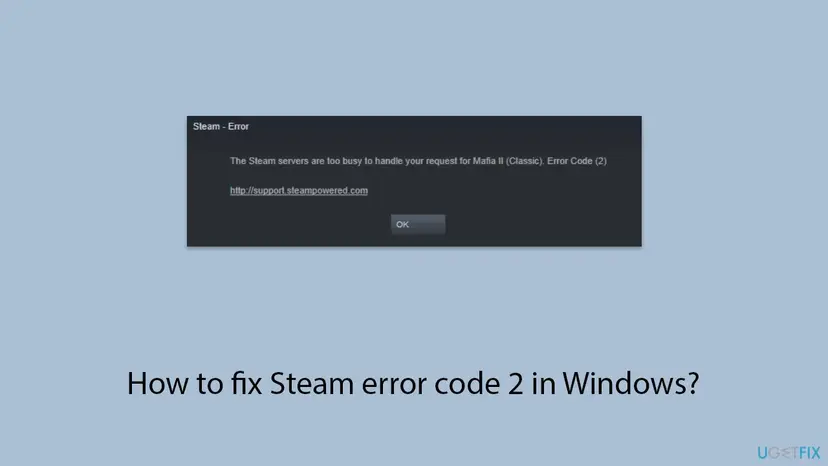
Steam error code 2 is Valve's generic failure result. It appears as "The Steam servers are too busy to handle your request" when a game starts, and as "Error code: 2" in the cart. Codes with a minus sign, such as -102, -118 or -105, are network errors of the browser built into Steam: check that Steam is up, then open the same page in a normal browser.
Look at the sign first. A plain 2 is Steam's own result number for a generic failure, and it usually clears when Steam's servers recover or after you sign in again. A number with a minus, such as -102, comes from the browser engine inside Steam and points at your connection. Start with Fix 1: check whether Steam is down and wait a few minutes. Then use Fix 2, the same page in a normal browser, to see whose side the fault is on.
| Error | Window Steam - Error with the text "The Steam servers are too busy to handle your request for (game). Error Code (2)". In the cart: "There was a problem updating your cart." and "Error code: 2". |
|---|---|
| Where it appears | Code 2: when you start or install a game, and when you add something to the cart. Minus codes: on the Store, Community, profile and other web pages shown inside the Steam client. |
| Main cause | Code 2: Steam's servers could not finish the request, most often because they are overloaded or down. Minus codes: the connection between your PC and Steam failed at one exact stage. |
| Fastest fix | Check whether Steam is down and wait a few minutes (Fix 1). For a minus code, open the same page in a normal browser (Fix 2). |
| Also written as | Steam error 2, error code (2), Steam servers are too busy, error code 2 Steam cart, Steam error code -102, -118, -101, -105, -109, -107, -21, -310, -379. |
| What the number is | 2 is k_EResultFail, "Generic failure.", in Valve's public result list. A minus number is an entry of Chromium's network error list: -102 is CONNECTION_REFUSED. The full table is below. |
| Valve's status | Not a bug with a patch. Steam Support has a page for the "too busy" message and no page for the minus codes. Valve publishes no list of them. |
| Affects | The Steam client on Windows 11 and Windows 10. Microsoft ended support for Windows 10 on 14 October 2025, which does not change these errors. The cart message also appears in any browser. |
| Time to fix | Nothing to do but wait when Steam is down. 5 to 20 minutes for the network, security software and client fixes. |
Facts checked on 14 October 2026. Steps written for the Steam client on Windows 11 (25H2 and 26H2) and Windows 10 22H2, read against Steam Support, the Steam client's own text files and Chromium's error list.
What Steam error code 2 means, and why -102 is a different kind of code
Steam shows numbers from two unrelated lists, and the minus sign tells you which list you are in. We read both on 14 October 2026: the text files of the current Steam client for Windows, and the public lists the numbers come from.
The client's text file holds this sentence: "The Steam servers are too busy to handle your request for %game%. Error Code (%error%)". The window title is Steam - Error. The client puts the name of your game and a number into the two placeholders, so the same sentence serves every failure of that request.
| Screen | Text | Kind of number |
|---|---|---|
| Steam - Error, when a game starts or installs | The Steam servers are too busy to handle your request for (game). Error Code (2) | Steam's result number |
| Cart message in the store | There was a problem updating your cart. Error code: 2 | Steam's result number |
| Steam - Game Launch Failed | (game) failed to start (error code 2). | Not documented by Valve. See the note below. |
| Error page in place of the Store or Community | Error Code: -102, followed by one sentence such as "Failed to load web page (unknown error)." | Chromium network error |
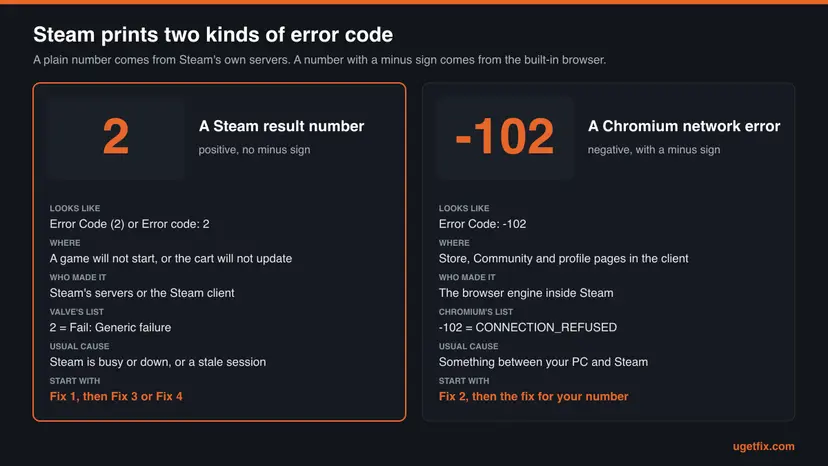
The Store, Community and profile pages in the client are web pages. The client downloads a package named bins_cef_win64 for them: CEF is the Chromium Embedded Framework, the engine of Chrome built for use inside other programs. CEF's source says its error values are Chromium's network error list. That is why -102 in Steam and ERR_CONNECTION_REFUSED in Chrome are the same failure.
- The error page has six possible sentences. Besides the unknown error one, the client file holds "Unable to connect to server. Server may be offline or you may not be connected to the internet." and "Unable to connect to HTTP Proxy. Your proxy may be misconfigured or offline."
- Code 2 at sign-in is another screen. There it is printed as
e2under a sign-in message. That case is covered in our guide to the Steam sign-in error. - "Failed to start (error code 2)" is not confirmed. Valve does not say which list that number comes from. Treat it as a launch problem of the game and start with Fix 4.
Steam error codes decoded: 2, -102, -118, -101, -105, -379, -21, -109, -107, -310 and -201
The first table is Valve's own list, published for game developers in the Steamworks documentation under the name EResult. Valve does not state that the number in the "too busy" window is an EResult. It fits: in the cart's code the number is passed in a variable called result, and 2 is the list's generic failure.
| Code | Valve's name and description | Where you meet it | Fix |
|---|---|---|---|
2 | k_EResultFail: "Generic failure." | "Too busy" window at game start, the cart, sign-in as e2 | Fix 1, then Fix 3 (cart) or Fix 4 (game) |
3 | k_EResultNoConnection: "Your Steam client doesn't have a connection to the back-end." | The same windows while the client is offline | Fix 1, then Fix 5 |
16 | k_EResultTimeout: "Operation timed out." | Cart and store requests under load | Fix 1 |
20 | k_EResultServiceUnavailable: "The requested service is currently unavailable." | During outages and maintenance | Fix 1 |
53 | k_EResultDataCorruption: "Operation canceled because data is ill formed or unrecoverable." | Named on Steam Support's "too busy" page as Error Code 53 | Steam Support: look for interfering programs. Fix 7, then Fix 9 |
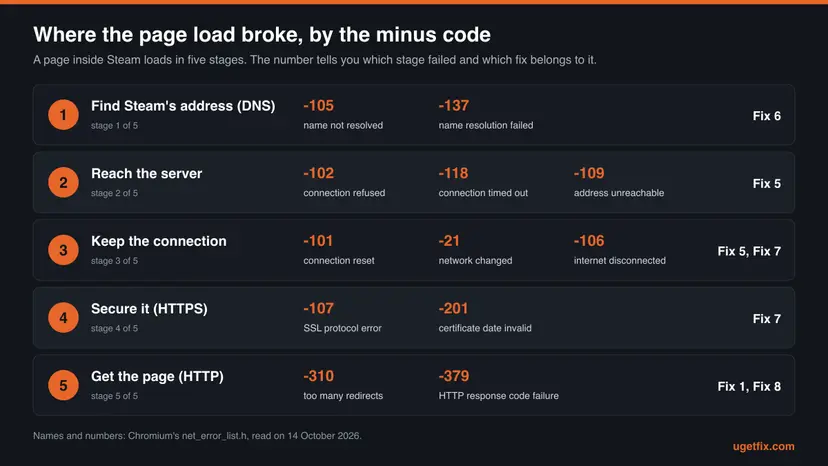
The second table is Chromium's list, the file net_error_list.h in the browser's source. The middle column quotes the comment that the Chromium authors wrote above each entry. Chrome shows the same entries with ERR_ in front of the name.
| Code | Chromium's name | Chromium's comment | Fix |
|---|---|---|---|
-21 | NETWORK_CHANGED | "The network changed." | Reload the page. If it returns: Fix 5 |
-101 | CONNECTION_RESET | "A connection was reset (corresponding to a TCP RST)." | Fix 7, then Fix 5 |
-102 | CONNECTION_REFUSED | "A connection attempt was refused." | Fix 2, then Fix 5 and Fix 7 |
-105 | NAME_NOT_RESOLVED | "The host name could not be resolved." | Fix 6 |
-107 | SSL_PROTOCOL_ERROR | "An SSL protocol error occurred." | Fix 7 |
-109 | ADDRESS_UNREACHABLE | "The IP address is unreachable. This usually means that there is no route to the specified host or network." | Fix 5 |
-118 | CONNECTION_TIMED_OUT | "A connection attempt timed out." | Fix 1, then Fix 5 |
-201 | CERT_DATE_INVALID | The certificate, "by our clock", is not yet valid or has expired. One listed reason: "Our clock is wrong." | Fix 7 (the clock part) |
-310 | TOO_MANY_REDIRECTS | "Attempting to load an URL resulted in too many redirects." | Fix 8 |
-379 | HTTP_RESPONSE_CODE_FAILURE | "The server returned a non-2xx HTTP response code." | Fix 1, then Fix 8 |
- Neighbours you may also see:
-100is a closed connection,-106"The Internet connection has been lost.",-130a failed connection to a proxy server,-137a failed name resolution,-138network access denied, which Chromium ties to a firewall. - The ranges help with any other number. Chromium's file sorts them: 100 to 199 are connection errors, 200 to 299 certificate errors, 300 to 399 HTTP errors.
Valve does not document which number its client prints in which situation. The "Fix" columns are our reading of each description, not Valve's instruction. One search, "Steam error -201 status 2", we could not trace to any Steam screen. In Chromium, -201 is the certificate date error. We found no source for what "status 2" adds to it.
What causes Steam error code 2 and the minus codes, from most to least likely
Valve publishes no numbers on this, so the order is ours. It follows Steam Support's page for the "too busy" message, its network troubleshooting page, and the meaning of each code in the two lists above.
| Cause | How to tell | Fix |
|---|---|---|
| Steam's side. An outage, maintenance or a rush of users. Steam Support: you may not be able to use Steam "if the Steam Network is experiencing a large amount of traffic". | It began suddenly, during a big sale or release, and other people report it. Code 2, -118 or -379 everywhere at once. | Fix 1 |
| A stale session. The client or the store page holds a sign-in that the servers no longer accept, or a purchase it has not registered yet. | Code 2 for one game right after buying it, or in the cart only, while the rest of Steam works. | Fix 3, Fix 4 |
| A VPN, proxy or the router. The request leaves your PC and is refused, dropped or sent the wrong way. | -102, -118, -109, -21 or -130. A VPN is on, or it works on a phone hotspot. | Fix 5 |
DNS. Windows or the router cannot turn store.steampowered.com into an address. | -105 or -137. Other sites may fail in the browser as well. | Fix 6 |
| Security software or a firewall. It inspects or blocks the client's web traffic. Steam Support: it can start right after a Steam update. | -101, -107, -138 in the client while a browser opens the same page. It started after an update or a new antivirus. | Fix 7 |
| The client's stored web data. Old cookies or cached pages send the built-in browser in circles. | -310, or one page that fails while the others load. | Fix 8 |
| Damaged client files. Steam Support: "It is possible that over time your Steam files have become corrupted." | Code 2 or 53 for many games on a healthy network, also after a restart. | Fix 9 |
The usual list for code 2 is: run Steam as administrator, turn off Family Sharing, verify the game files. None of the three is on Steam Support's page for this message, and we found no Valve source that ties them to it. Its page names the download region, the client's files, the network and interfering programs.
How to fix Steam error code 2 and the codes with a minus sign
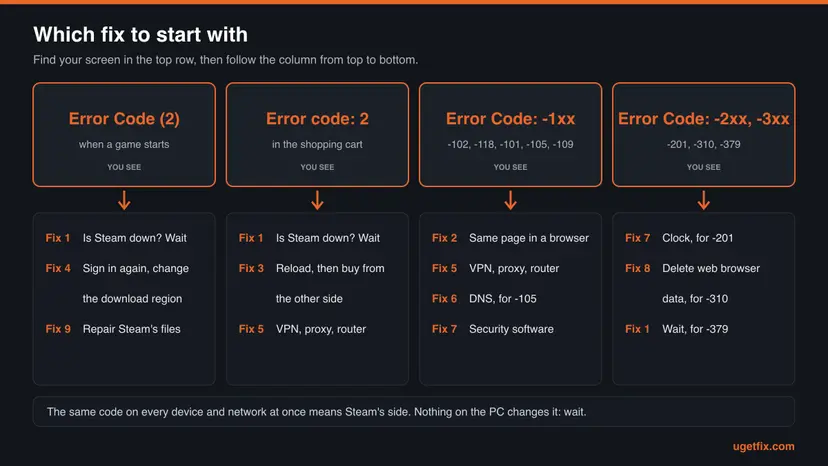
Fixes 1 and 2 are for everyone: they show whether the fault is on Steam's side or on yours. Fixes 3 and 4 are for the plain code 2, in the cart and at game start. Fixes 5 to 8 belong to the minus codes, one group of numbers each. Fix 9 repairs the client and is the last step for both kinds.
| What you see | Start with |
|---|---|
| Any of these codes, a moment ago, and you have not checked Steam's status yet. | Fix 1 |
| "The Steam servers are too busy to handle your request", Error Code (2), when a game starts or installs. | Fix 1, then Fix 4 |
| "There was a problem updating your cart." with Error code: 2. | Fix 1, then Fix 3 |
-102, -118, -109 or -21 on the Store or Community page in the client. | Fix 2, then Fix 5 |
-105 or -137. | Fix 6 |
-101, -107 or -201, often after a Steam update or with a new antivirus. | Fix 7 |
-310, or -379 on one page while Steam is up. | Fix 8 |
| Code 2 or 53 for many games, on every network, after all of the above. | Fix 9 |
Fix 1. Check whether Steam is down, then wait and try once
2 minutes, then waitingNo riskEveryone starts here, with code 2 as well as with any minus code.
The text of code 2 says it openly: the servers are too busy. A generic failure from the server cannot be repaired on your PC, and the codes -118 and -379 can also appear on a healthy PC while Steam's web servers are overloaded.
- Select OK on the error and write down the full text with the number and its sign.
- In a normal browser, open
https://store.steampowered.com/stats/. Steam Support links this address as its server status page. - Watch how the page behaves. Steam Support: timeout errors on Steam's sites mean "it is very likely that there is a system-wide issue".
- Ask one more device: open the Steam store on your phone over mobile data, not over the same Wi-Fi.
- If both are slow or fail, stop here and wait. If both are fine, the cause is closer to you: go on to Fix 2.
- After the wait, repeat the action once: start the game, or add the item to the cart.
| Question | Valve's answer | Source |
|---|---|---|
| How long does planned work take? | "When we have planned downtime, it usually lasts less than an hour." | Steam Downtime and Server Maintenance |
| How long should I wait? | The client's own text for busy content servers: "Please try again in a few minutes." | Steam client text file |
The address Steam Support gives opened Steam Charts when we loaded it, with the number of players online. It is not a board of green and red lights. A count that has fallen off a cliff tells you something. Independent trackers that collect user reports are not run by Valve, so treat them as a hint.
It worked if: After a few minutes to an hour the same game starts, or the cart accepts the item, with no change on your PC.
If not: If Steam is up for others and the code stays, go to Fix 2 to find out which side is at fault.
Fix 2. Open the same page in a normal browser
3 minutesNo riskYou have a minus code, or a cart error, and do not know whether it is Steam, your network or the client.
The pages inside the client are ordinary web pages from the same servers. A browser on the same PC uses the same network but its own engine, cookies and proxy handling. One load there splits the causes in two.
- Open Chrome, Edge or Firefox on the same PC.
- Go to
https://store.steampowered.com/if the Store failed, orhttps://steamcommunity.com/if a Community or profile page failed. - Sign in with your Steam account if the action needs it, such as the cart.
- Repeat the exact action that failed in the client.
- Compare the result with the table below.
| Result in the browser | What it means | Next |
|---|---|---|
| The page opens and the action works. | Steam is up and your network reaches it. Only the client's built-in browser fails. | Fix 7, then Fix 8 |
The browser shows an error with the same name, such as ERR_CONNECTION_REFUSED or ERR_CONNECTION_TIMED_OUT. | The network path fails for every program on this PC. | Fix 5, or Fix 6 for a DNS name |
| The cart shows "Error code: 2" in the browser too. | Steam's servers or your session, not the client. | Fix 1, then Fix 3 |
| No site opens at all. | The internet connection itself is down. | How to check your internet connection in Windows |
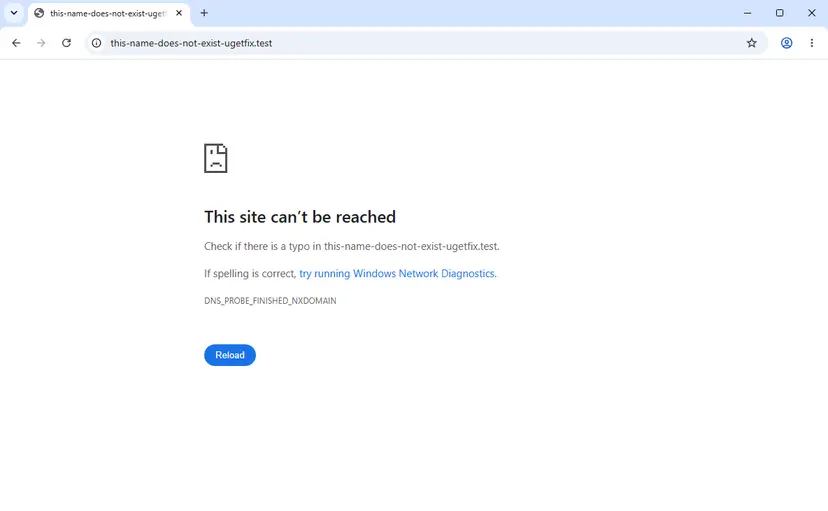
While the pages in the client are broken, the store, the cart, the Community and Steam Support all work in the browser with the same account.
It worked if: You know which half the problem is in: the client's browser on one side, the network or Steam on the other.
If not: If the result changes from one attempt to the next, the connection is unstable. Go to Fix 5 and test another network.
Fix 3. Cart error code 2: reload, sign in again, buy from the other side
5 minutesNo riskYou see "There was a problem updating your cart." with Error code: 2 when you add, remove or change an item.
The cart message is built by the store page itself and prints the result number its request received. A generic failure there is either the server, covered in Fix 1, or the session of this one page. A fresh page and a fresh sign-in replace the session.
- Close the message and reload the store page. In a browser press F5. In the client, right-click the page and select Reload.
- Add the item again, once.
- If the code returns in the client, open
https://store.steampowered.com/cart/in a normal browser, sign in to the same account and add the item there. - If the code returns in the browser, do it the other way round and use the Store page of the client.
- Still there on both sides: sign out of the store website, sign in again and add the item once more.
- Check the item's store page for a note that it is not available in your country or that you own it. Those cases have their own messages in the cart.
- Users report a router restart helped. In a Steam Community thread from May 2024, the poster could not sign in to the website either, and restarting the modem and router cleared the cart code. That is a connection fault: see Fix 5 and Fix 6.
- Others report that a page refresh was enough, or a restart of Steam from Task Manager. That is the stale session this fix is written for.
- These are reports, not Valve's advice. Valve has no support page for the cart code.
We read the cart text and the way the number is printed in the store's own script on 14 October 2026. Why the server answers with a generic failure in a given case is not visible from outside.
It worked if: The item appears in the cart and the cart page opens with its price, in the client or in the browser.
If not: If neither side accepts the cart while Steam is up, test another network with Fix 5 before you contact Steam Support.
Fix 4. Error Code (2) when a game starts: sign in again and change the download region
5 to 10 minutesLow riskYou see "The Steam servers are too busy to handle your request" for one or more games while Steam itself is up.
Both steps come from Steam Support's page for this message. It advises a new sign-in after a recent purchase, to see whether the purchase was processed. Another download region should send the request for the game's data to other content servers.
- Select OK on the error and wait a minute. Start the game once more.
- In the top left corner of the client, open the Steam menu and select Change Account...
- After Steam restarts, sign in with your account name and password.
- Start the game. If the error is gone, stop here.
- Open the Steam menu again and select Settings, then the Downloads page.
- Under Download region, select a different but relatively close region. That wording is Steam Support's.
- Start or install the game once more.
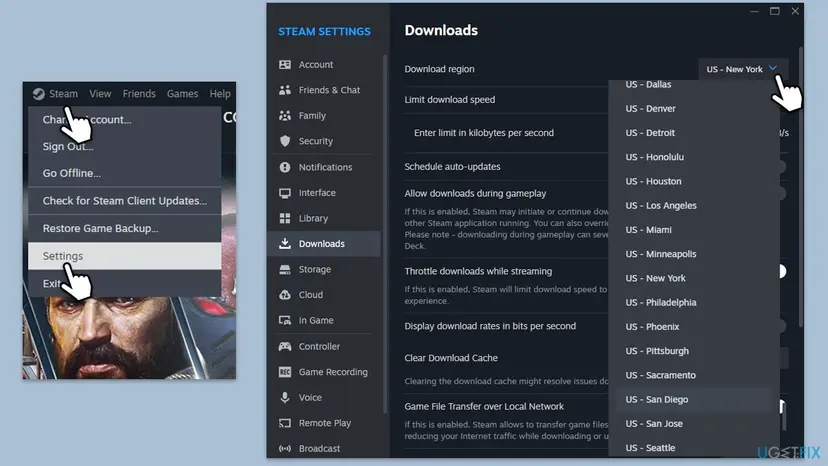
If the region did not help, the same page has one more control. Next to Clear Download Cache, select Clear Cache. The client's own description reads: "Clearing the download cache might resolve issues downloading or starting apps".
Steam warns before it acts: "This will clear your local download cache and restart Steam. You will need to login to Steam again." Have your password and your Steam Guard code or phone ready. Installed games are not removed.
- Set the region back later. A region far from you slows every download. Return to your own when the error is gone.
- One game only, for days. The fault may be on the game's side of Steam. Look at the game's Community hub for an announcement before you change more on the PC.
It worked if: The game's window opens, or the download starts, without the Steam - Error window.
If not: If every game shows code 2 on a network that otherwise works, check the network with Fix 5, then repair the client with Fix 9.
Fix 5. Codes -102, -118, -109 and -21: turn off the VPN and proxy, restart the router
10 minutesLow riskYou have -102, -118, -109, -21 or -130, or the browser test in Fix 2 failed in the same way.
These numbers say that the connection was refused, got no answer, had no route or lost its network. Steam Support names VPN software as able to keep the client from the Steam network, and a router restart as the step to take "before trying anything else".
- Disconnect the VPN and exit its app, so that it cannot reconnect in the background.
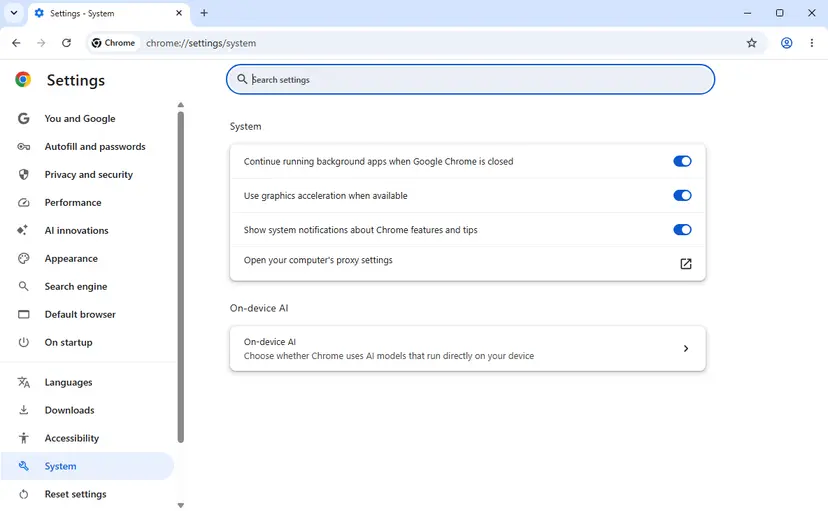
- Press Win + I and open Network & internet, then Proxy.
- Under Manual proxy setup, next to Use a proxy server, select Set up.
- Turn Use a proxy server off and select Save.
- Switch the modem and the router off, wait half a minute and switch them on again.
- When the connection is back, exit Steam through the Steam menu and Exit, then start it again.
- Open the Store page in the client.
| Code | Typical situation | Check |
|---|---|---|
-102 refused | A proxy or filter on the PC says no in place of Steam, or a local proxy is set that is not running. | The proxy switch, then Fix 7 |
-118 timed out | The request left and nothing came back: an outage, a VPN server or a provider that shapes traffic. | Fix 1 again, then another network |
-109 unreachable | No route to Steam's address, often through a VPN. | VPN off, router restart |
-21 network changed | The PC switched between Wi-Fi, cable or VPN while the page loaded. | Reload, keep one connection |
- Test a second network. Connect the PC to your phone's hotspot and open the Store once. Steam Support advises a test on "an entirely different network, preferably from a different internet service provider".
- It works on the hotspot. The home router or the provider is the cause. Steam Support lists router services to switch off for a test: stateful inspection, dynamic packet filtering, QoS and UPnP.
- It fails only at certain hours. Steam Support: the provider may be blocking or "shaping" your connection. Test at another time of day and contact the provider.
- A proxy was on and you did not set it. On a work PC it belongs to the organisation. On your own PC it deserves a scan: How to scan for malware with Microsoft Defender
It worked if: The Store and Community pages load in the client, and the Error page with the minus code does not come back.
If not: If the code is -105, go to Fix 6. If a browser opens the same page while the client does not, go to Fix 7.
Fix 6. Code -105: flush the DNS cache and check the DNS server
5 minutesNo riskYou have -105 or -137, or the browser says it cannot find the site's address.
-105 means the name store.steampowered.com could not be turned into an address. Windows remembers failed lookups for a while. Microsoft's documentation for ipconfig /flushdns says it lets you "discard negative cache entries from the cache", which is exactly that memory.
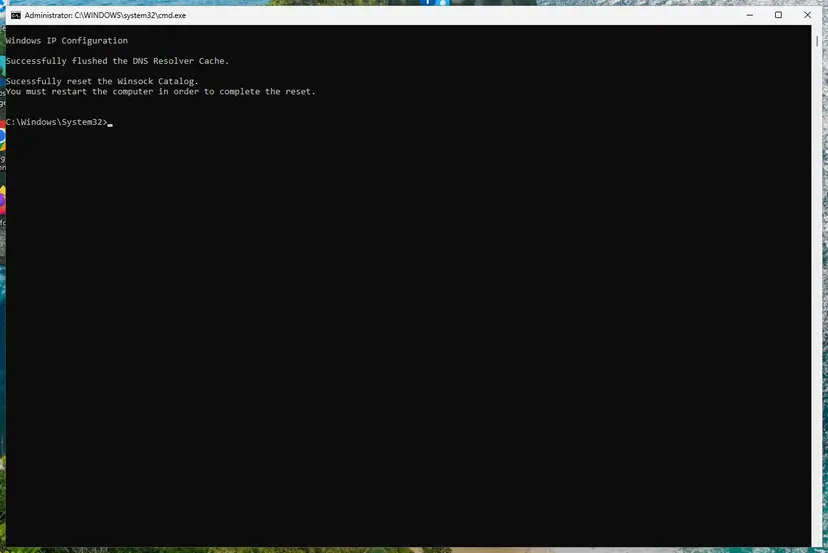
- Open an elevated command window. Right-click Start and select Terminal (Admin), or type cmd in the search box, right-click Command Prompt and select Run as administrator. Select Yes when Windows asks for permission.
- Flush the DNS cache. Type the command below and press Enter. Windows forgets the website addresses it looked up earlier and asks for them again.
ipconfig /flushdns
These steps were written for Windows 11 24H2 and later. The full page with the other versions and what each result means: Reset the network and flush DNS
- Exit Steam through the Steam menu and Exit.
- Start Steam again and open the Store page.
- If
-105returns, restart the router. In most homes the router is the DNS server that Windows asks. - Open
https://store.steampowered.com/in a browser on a phone that uses the same Wi-Fi. - If the phone fails as well, the router or the provider's DNS is at fault, not the PC.
- Only Steam's names fail. A DNS filter is the usual reason: parental controls in the router, an ad blocker that works through DNS, or a security product with web filtering. Allow the domains from the table in Fix 7.
- A VPN is on. Many VPN apps replace the DNS server while they are connected. Disconnect, flush again and retest.
It worked if: The Store page loads in the client. In the browser the address opens without a message about a site that cannot be reached.
If not: If names resolve in the browser but the client still shows -105, something on the PC filters the client only. Go to Fix 7.
Fix 7. Codes -101, -107 and -201: security software, the firewall and the clock
10 to 15 minutesLow riskYou have -101, -107, -138 or -201, or a browser opens the page that the client cannot.
A reset connection or a failed secure handshake inside the client usually means that a program on the PC stepped into the traffic. Steam Support says antivirus software "hooks very deep into user systems" and can affect network operations. -201 is simpler: Chromium blames the clock.
- For
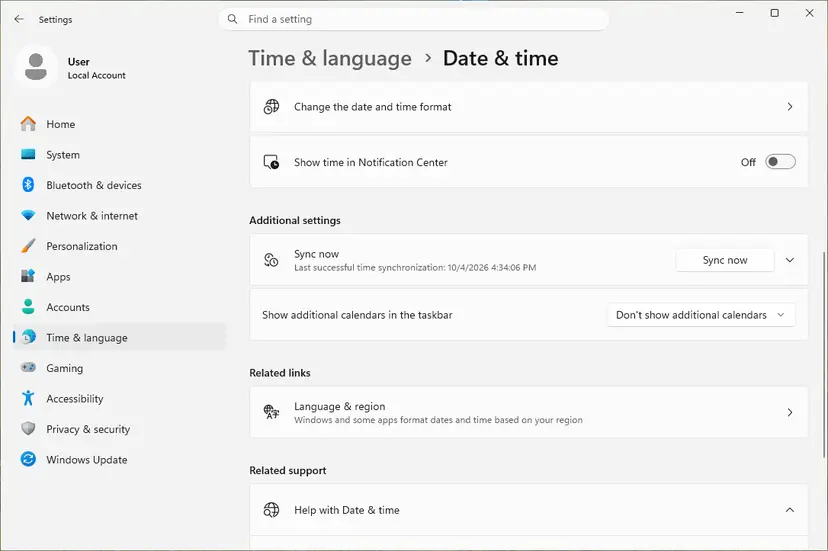
-201, set the Windows clock first: turn on automatic time and sync it. Step by step: How to fix the date and time in Windows - Exit Steam through the Steam menu and Exit.
- Open the settings of your firewall program and remove every entry for
steam.exeandsteaminstall.exefrom its permissions. This is Steam Support's method. - Start Steam. The firewall should ask for new permissions. Allow Steam on all TCP and UDP ports.
- In your antivirus, add the Steam folder to the exceptions. The default is
C:\Program Files (x86)\Steam. - If the antivirus has a setting for scanning encrypted or HTTPS connections, exclude Steam from it. The name of the setting differs by product.
- Restart the PC, start Steam and open the Store page.
| Purpose | Ports or domains |
|---|---|
| To log into Steam and download content | HTTP (TCP remote port 80) and HTTPS (443), UDP remote port 27015 to 27050, TCP remote port 27015 to 27050 |
| Web requests, to allow in a proxy or a web filter | steampowered.com, steamcommunity.com, steamgames.com, steamusercontent.com, steamcontent.com, steamstatic.com, akamaihd.net |
- After a Steam update. Steam Support warns that a firewall may block Steam after an update "even if Steam worked correctly before the update was applied".
- One test with protection paused. Pause real-time protection, open the Store once and turn protection back on at once: Turn off Microsoft Defender protection for a moment
- An old antivirus version. In a Kaspersky forum thread from May 2024, users report that -101 stopped while the product was off, and the forum's answer was to update the product. This is a report, not a statement by Valve.
- University, office or hotel networks. Steam Support: many of them block Steam's ports, and the ports "can not be re-mapped to HTTP or reconfigured to a custom port range". Only the administrator can open them.
If the pages load only while the firewall or the antivirus is paused, the answer is an exception for Steam in that program. Steam Support says so itself: "We do not recommend leaving your firewall disabled."
It worked if: The Store opens in the client with the firewall and the antivirus running, and the code does not return after a restart.
If not: If no security program explains it, clear the client's stored web data with Fix 8.
Fix 8. Codes -310 and -379: delete the web browser data of the Steam client
3 minutesLow riskYou have -310, or -379 on one page while Steam is up, or the browser test in Fix 2 worked.
Too many redirects is the classic sign of a bad cookie: the page sends the browser to a sign-in address, which sends it straight back. The built-in browser keeps its own cookies and cache, apart from Chrome or Edge, and the client has a button that empties them.
- In the client, open the Steam menu in the top left corner and select Settings.
- Open the In Game page.
- Next to Delete Web Browser Data, select Delete.
- Confirm the question "Delete all Steam browser cached files, cookies, and history?"
- Open the Steam menu and select Exit. Do not only close the window.
- Start Steam again and open the Store page.
We took the labels from the text file of the current client, where they belong to the In Game settings. In user reports from June 2023 the same control sat on a page called Web Browser. If your client is older or newer, look for the words Web Browser Data on those two pages.
- -310 in a normal browser too. Then the cookie lives in that browser. Delete the cookies for
steampowered.comandsteamcommunity.comthere: Clear the browser cache and cookies - -379 on every page. That is a server answering with an error status, not your cache. Go back to Fix 1 and wait.
- The Settings window does not open. The settings are drawn by the same web engine. Use Fix 9, which rebuilds it.
It worked if: The Store page loads. Steam may ask you to sign in to the store pages inside the client once more.
If not: If the pages still fail in the client while a browser opens them, repair the client's files with Fix 9.
Fix 9. Repair the files of the Steam client
15 to 20 minutesRead the warningCode 2 or 53 for many games, or minus codes in the client only, after the fixes above.
Steam Support's page for the "too busy" message has a section called "Repairing corrupted Steam files". The client's web engine and its text files are part of what gets downloaded again, so the same repair also serves the minus codes that only the client shows.
Do not uninstall Steam through Windows for this. Steam Support: an uninstall "will delete all game and userdata content". In the steps below, keep the steamapps folder, which holds your games. Copy the userdata folder to another drive first if you use local settings, screenshots or saves without Steam Cloud.
- Exit Steam through the Steam menu and Exit.
- In a browser, open
https://store.steampowered.com/about/and download the installer. - Run it and install into the folder where Steam already is. Steam Support: this "will preserve all installed games".
- Start Steam and repeat the action that failed.
If the code is still there, do the deeper repair from the same Support page. It deletes the client and lets steam.exe download every file again.
- Exit Steam. In Task Manager, end any entry that still starts with Steam: Close a frozen app (Task Manager, Force Quit)
- Open the Steam folder in File Explorer. Steam Support gives the default as
C:\Program Files (x86)\Steam\. - Select everything except
steam.exe, thesteamappsfolder and theuserdatafolder. - Delete the selected files and folders.
- Start
steam.exefrom inside the folder and let it update. - Sign in and repeat the action that failed.
Steam Support's steps for this error keep only steam.exe and steamapps. We add userdata, because Valve's own warning names userdata next to games as the content an uninstall destroys. Keeping the folder costs nothing and does not weaken the repair of the program files.
It worked if: Steam updates itself on the first start. Your installed games are in the Library without a new download, and the game or page opens.
If not: If a clean client on a second network still shows the code, the cause is not on your PC. Collect the details in the next section for Steam Support.
If the Steam error code is still there: the log to read and what to send to Steam Support
The first record is the screen: the window title, the full sentence and the number with its sign. For game starts and downloads the client also writes a log. Valve's Steamworks documentation names it: the file logs\content_log.txt in the Steam folder "lists all logged SteamPipe operations and errors". SteamPipe is Steam's system for delivering game content.
- Take a screenshot of the error with the number visible.
- Note the time, the game or page, and your network: home, VPN, campus, hotspot.
- Open
C:\Program Files (x86)\Steam\logsin File Explorer and findcontent_log.txt. - Open it in Notepad and scroll to the end. Look for lines from the minute of the error that name your game.
- Sign in at
https://help.steampowered.comin a browser and choose the game or the purchase the error belongs to. - Describe what you tried and attach the screenshot. Add the log only if Support asks for it.
Valve does not document which file records a page that failed to load inside the client. For the minus codes, the number on the Error page and the result of the browser test in Fix 2 are the evidence to send.
- When it is the provider, not the PC: it works on a hotspot and fails at home. Steam Support keeps a list of providers that were found to block Steam traffic and tells you to contact your provider.
- When it is another program: Steam Support names VPN clients, peer-to-peer programs, IP filters and download managers. Start Windows once without them: How to perform a clean boot in Windows
- When it is the router: Steam Support notes that Steam does not support a network DMZ, and that wireless and powerline links cause intermittent failures. Test once with a cable.
- When it is Steam and nobody else: code 2 for one game, for every owner, after an update of that game. Only the publisher or Valve can repair that.
- When it is the drive: Steam Support names disk and memory errors as causes of damaged Steam files. If Fix 9 helps for a week and the error returns, test the drive that holds the Steam folder.
How to keep Steam error code 2 and the minus codes from coming back
- Write the number down with its sign before you search. A missing minus leads to the wrong advice.
- Leave the download region on the one closest to you once the error is gone.
- Give Steam a permanent exception in your firewall and antivirus, and check it after every Steam update.
- Keep Windows time on automatic. A wrong clock breaks every secure page, not only Steam's.
- Exit Steam through the Steam menu before you switch a VPN on or off, then start it again.
- During a big sale, buy from a normal browser if the Store page in the client struggles.
- Do not click the action again and again while Steam is busy. Each attempt adds load and none repairs anything.
- Do not uninstall Steam through Windows to cure an error code. It removes your games.
- Do not leave the firewall or the antivirus switched off after a test.
- Do not run Steam through a download accelerator, an IP filter or a proxy you do not need. Steam Support lists all three as interfering programs.
- Do not let a cleaner program wipe the Steam folder. Missing files are how the repair in Fix 9 becomes necessary.
The two families of codes need two habits. Code 2 mostly asks for patience, because the failing part is on Valve's servers. The minus codes ask for a tidy path between your PC and Steam: one connection, no stray proxy, and security software that knows the client.
Frequently asked questions
What is Steam error code 2?
It is Steam's number for a generic failure. In Valve's public result list, 2 is named k_EResultFail and described as a generic failure. You meet it in a window that says the Steam servers are too busy to handle your request for a game, and in the cart as "Error code: 2" under the text about a problem updating your cart. In Turkish searches it is written as Steam hata kodu 2, and the meaning is the same. The number does not name a cause. Most of the time Steam's servers are overloaded or down, and the error clears by itself within minutes to an hour.
What does error code -102 mean on Steam?
It means that the connection to the page was refused. The Store and Community pages inside the client are shown by a built-in Chromium engine, and -102 is Chromium's CONNECTION_REFUSED: "A connection attempt was refused." Something answered the request with a no before Steam's page could load. The usual suspects are a proxy setting that points to a program which is not running, a VPN, or security software that filters the client's traffic. Open the same page in a normal browser first. If it loads there, the network is fine and the client's browser is being blocked.
What do Steam error codes -118, -101 and -105 mean?
They are three different stages of a failed page load. Code -118 is CONNECTION_TIMED_OUT: the request left your PC and no answer came back, which happens during Steam outages and on VPNs. Code -101 is CONNECTION_RESET: the connection was opened and then cut, often by security software or a filter on the network. Code -105 is NAME_NOT_RESOLVED: Windows could not find the address behind Steam's name, a DNS problem. So -118 starts with waiting and the network check, -101 with the firewall and antivirus, and -105 with flushing the DNS cache.
How do I fix "There was a problem updating your cart" with error code 2 on Steam?
Reload the store page and add the item once more, then try from the other side. If the cart fails in the Steam client, open store.steampowered.com/cart in a normal browser with the same account. If it fails in the browser, use the client. Signing out of the store and back in replaces a stale session. When both sides fail, either Steam's store servers are busy or your connection does not reach them properly. Users on the Steam forums report that restarting the modem and router cleared it. Valve has no support page for this code.
What are Steam error codes -379, -310, -21, -109 and -107?
All five are entries of Chromium's network error list. Code -379 is HTTP_RESPONSE_CODE_FAILURE: the server answered with an error status, so wait and retry. Code -310 is TOO_MANY_REDIRECTS, usually a bad cookie, which the Delete Web Browser Data button in Steam's settings clears. Code -21 is NETWORK_CHANGED: the PC switched connection while the page loaded, so reload it. Code -109 is ADDRESS_UNREACHABLE, a missing route that often comes from a VPN. Code -107 is SSL_PROTOCOL_ERROR, a failed secure handshake that points at software inspecting encrypted traffic.
What is "Steam error -201 status 2"?
We could not find a Steam screen with exactly that text, and Valve documents no such message. The first half can be decoded. In Chromium's list, -201 is CERT_DATE_INVALID: the certificate of the site looks expired or not yet valid by the clock of your PC, and Chromium names a wrong clock as one reason. So check the Windows date, time and time zone first, and sync the clock. What "status 2" adds is unknown to us. If the message comes from a game and not from Steam itself, ask the game's support with a screenshot.
Is Steam down right now, and how can I check?
Open store.steampowered.com/stats in a browser, the address Steam Support gives as its status page. When we loaded it, it opened Steam Charts with the number of players online. Steam Support's rule of thumb is simple: if Steam's own sites give timeout errors, a system-wide issue is very likely and Steam will not work until Valve resolves it. Check from a second connection too, such as a phone on mobile data. If Steam is slow there as well, wait. Valve says planned downtime usually lasts less than an hour.
Is error code 2 the same as the e2 code on the Steam sign-in screen?
It is the same result number on a different screen. At sign-in, Steam prints the letter e and the number under the text "Something went wrong while attempting to sign you in", so a generic failure shows as e2. The meaning is identical, but the fixes differ: at sign-in, repeated attempts can get your network address limited for a while, and Steam Guard adds its own failure points. If your code appears on the sign-in window, use the guide for that screen, which we link in the first section of this page.
Does running Steam as administrator or turning off Family Sharing fix error code 2?
We found no Valve source for either. Both tips are repeated across the web for code 2, and the older version of this page listed them too. Steam Support's page for the "too busy" message does not mention administrator rights or Family Sharing. It names the download region, damaged client files, the network, interfering programs and a purchase that the client has not registered yet. If one of the two tips seemed to help, the restart of Steam that it involved is the more likely reason.
Sources
- Chromium source: net/base/net_error_list.h (names, numbers and comments of the network errors) (github.com)
- Chromium Embedded Framework source: cef_types.h (cef_errorcode_t is built from Chromium's network error list) (github.com)
- Steam client text file steamui_english.txt, as mirrored by SteamTracking (the "too busy" sentence and its window title) (github.com)
Did this fix work?
One click, no account. It tells the next reader which guides are worth their time.
Questions and experiences: fix Steam error code 2 in Windows
Still broken, or found a fix we did not cover? Ask here: members and our editors answer. Reading is open; writing needs a free account.
…