
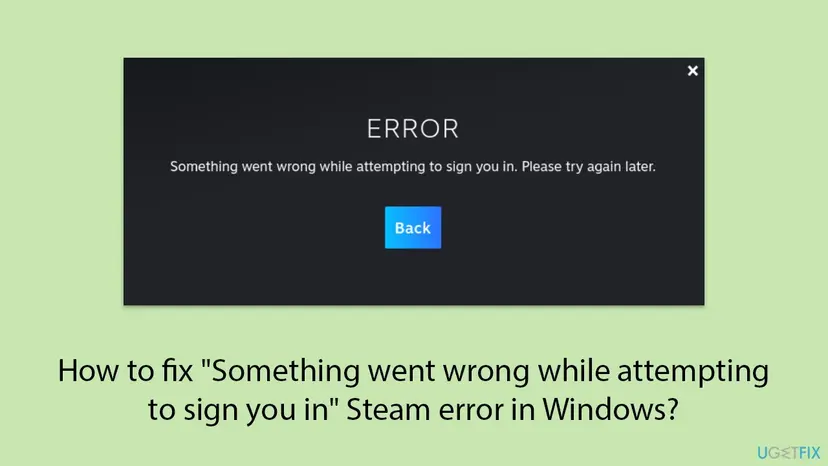
How to fix "Something went wrong while attempting to sign you in" Steam error in Windows?

Prefer to fix it yourself? The manual steps follow.
- 7methods
- 5 minutes to a few hours of waiting
- Easy
Applies to Steam client on Windows 11 and Windows 10; the same sign-in form on the Steam website
7 methods in this guide
I'm unable to log in to Steam for some reason. The error message says "Something went wrong while attempting to sign you in" but that does not tell me much. What is "Something"? Where do I even begin?
"Something went wrong while attempting to sign you in" is the text Steam shows for every sign-in failure that has no message of its own. The real reason is the small Error Code line under it. Stop retrying, check that Steam is up, then test the same account on the Steam website.
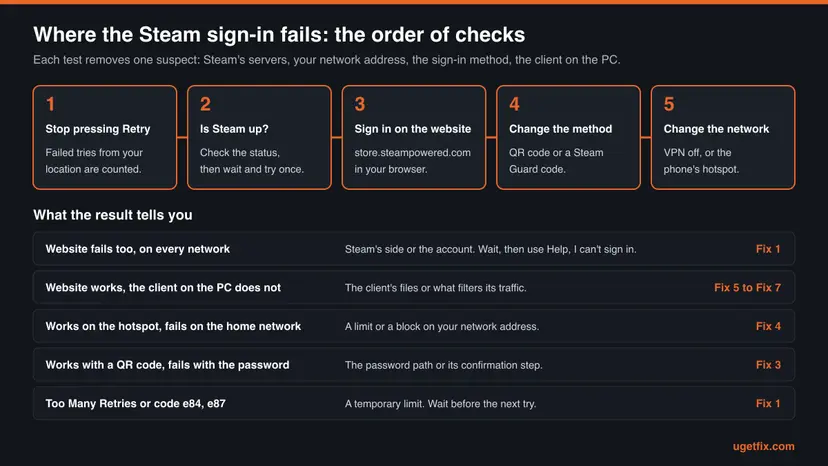
The message is Steam's default sign-in error, so it has many causes. Do not keep pressing Retry: failed attempts from your network are counted and can lock you out for a while. Check that Steam is up and wait (Fix 1), then sign in at store.steampowered.com in a browser (Fix 2). If the website works, the fault is in the client on your PC. If it fails too, read the code under the message.
| Error | Title Error, text "Something went wrong while attempting to sign you in. Please try again later.", a Retry button and a grey line such as Error Code: e87. |
|---|---|
| Where it appears | In the sign-in window of the Steam client and on the sign-in page of the Steam website, after you enter the password, confirm with Steam Guard or scan the QR code. |
| Main cause | Steam's servers refused or could not finish the sign-in: an outage or maintenance, a temporary limit after failed attempts from your network address, or a VPN or filter between you and Steam. |
| Fastest fix | Stop retrying, check that Steam is up and wait (Fix 1). Then test the account on the website (Fix 2). |
| Also written as | Steam something went wrong, Steam error e84, e87, e20 or e8, "Too Many Retries", "Connection Problem", something went wrong while trying to sign you in. |
| The code under it | The letter e plus the result number that Steam's servers returned. e84 is a rate limit, e87 a throttled sign-in, e20 an unavailable service. The full table is below. |
| Valve's status | Not a bug with a patch. Steam Support's page for this problem says Steam may be under maintenance or your network may be at fault, and that you "may need to wait a few hours and try again". |
| Affects | Windows 11 and Windows 10, where the Steam client is supported, and any browser. Valve ended Steam support for Windows 7, 8 and 8.1 on 1 January 2024. Microsoft ended support for Windows 10 on 14 October 2025, which does not change this error. |
| Time to fix | Nothing to do but wait when Steam is down or the limit is active. 5 to 20 minutes for the network and client fixes. |
| Not the cause | A wrong password. Steam answers that on the form itself, with a text such as "Please check your password and account name and try again.", not with this screen. |
Facts checked on 14 October 2026. Steps written for the Steam client on Windows 11 (25H2 and 26H2) and Windows 10 22H2, and the sign-in form of store.steampowered.com.
What "Something went wrong while attempting to sign you in" means
We read the sign-in code that Steam's own website serves, on 14 October 2026. In its language file the sentence has the name Login_Error_Default_Description. The word default is the whole story: the form has a few failures it can name, and everything else falls through to this one sentence.
So "Something" is not a secret. Steam's servers sent back a result number, the form had no special text for it, and it printed the general one. The number is not thrown away. It is printed under the text in small grey letters, as Error Code: followed by a short code.
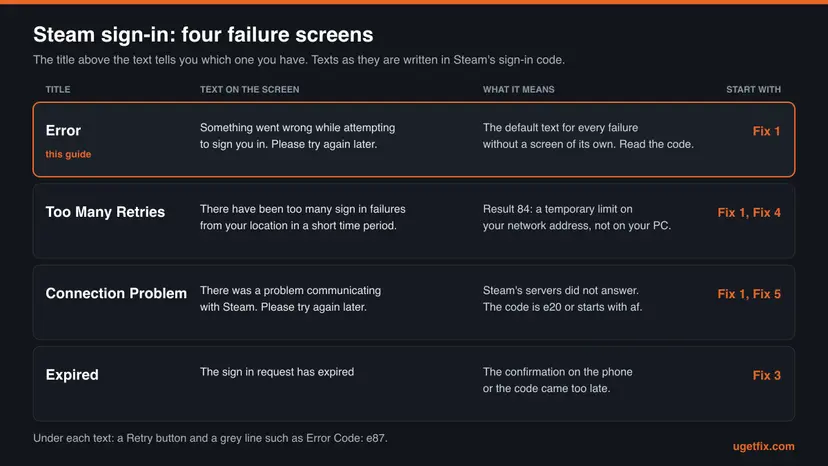
| Title | Text | When the form shows it |
|---|---|---|
| Error | Something went wrong while attempting to sign you in. Please try again later. | Any result without a screen of its own, a failure to start the sign-in at all, and a failed QR code sign-in. |
| Too Many Retries | There have been too many sign in failures from your location in a short time period. Please wait and try again later. | Result 84, the rate limit. Printed with Error Code: e84. |
| Connection Problem | There was a problem communicating with Steam. Please try again later. | Result 20 or 3, or the form could not reach Steam. In the client it adds "You can try running Steam in Offline Mode." and the button Enter Offline Mode. |
| Expired | The sign in request has expired | The Steam Guard confirmation or code arrived after the sign-in request had run out. |
The same code checks whether it runs inside the Steam client or in a browser, so the window on your PC and the page at store.steampowered.com are one form. Steam Support adds that the client "accesses your Steam account differently than your web browser does". That difference is what Fix 2 uses.
- A wrong password is a different message. The form stays open and says "Please check your password and account name and try again."
- A wrong Steam Guard code is a different message too: "Incorrect code, please try again".
- Other spellings people search for are the same screen: something went wrong while trying to sign you in, something went wrong signing you in, Steam login error something went wrong.
The error code under the message: e84, e87, e20, e8 and the others
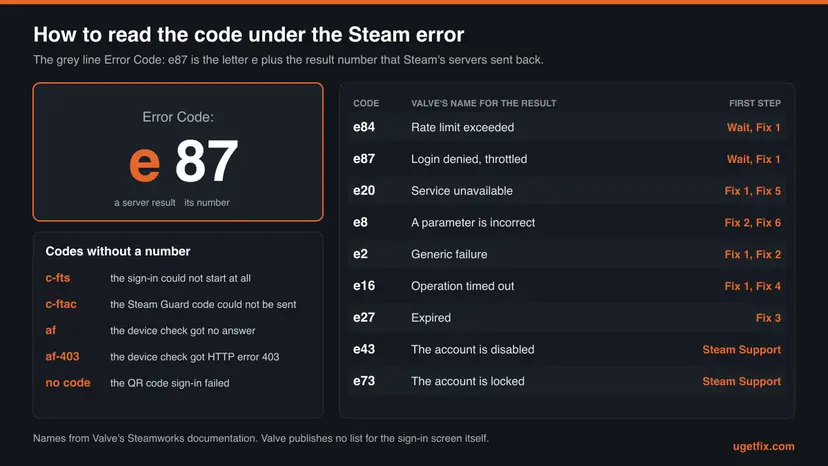
In the sign-in code the reference is built in one line: the letter e and the result number. Valve publishes no list for this screen. It does publish the meaning of the numbers for game developers, in the Steamworks documentation. The table joins the two.
| Code | Valve's description | What to do |
|---|---|---|
e84 | Rate limit exceeded: "Temporary rate limit exceeded, try again later". | Wait. Fix 1, then Fix 4 if you share a network address. |
e87 | Account login denied, throttle: "Login attempt failed, try to throttle response to possible attacker." | Wait and do not retry. Fix 1. |
e20 | Service unavailable: "The requested service is currently unavailable." The form also prints e20 for result 3, no connection. | Fix 1, then Fix 5 and Fix 7. |
e8 | Invalid parameter: "A parameter is incorrect." | Fix 2 to compare, then Fix 6. |
e2 | Fail: "Generic failure." | Fix 1, then Fix 2. |
e16 | Timeout: "Operation timed out." | Fix 1, then Fix 4. |
e43 | Account disabled: "The account is disabled." | No fix on the PC. Contact Steam Support. |
e73 | Account locked down: "likely due to a hijacking and pending ownership verification". | Recover the account through Steam Support. |
c-fts, c-ftac | Not server results. The form could not start the sign-in, or could not send your Steam Guard code. | Fix 5, then Fix 6. |
af, af- and a number | The device check request got no answer, or an HTTP error with that number. Shown with Connection Problem. | Fix 4 and Fix 7. |
Valve does not say which results its sign-in servers send in which situation, or how long a limit lasts. The "What to do" column is our reading of each description, not Valve's instruction. One detail changed over time: in user reports from October 2022, e84 appeared under the general text. Today's code gives it the Too Many Retries screen.
- No code at all under the text usually means the QR code sign-in failed. That path sets the general error without a reference.
- A bare number without the letter is a result the sign-in page already had when it opened. Read it like the same number with an
e. - Write the code down before you close the window. It is the one thing Steam Support can use.
What causes the Steam sign-in error, from most to least likely
Valve publishes no numbers on this, so the order below is ours. It follows three things: the text itself ("try again later"), the page Steam Support wrote for people who cannot sign in to the client, and the meaning of the codes.
| Cause | How to tell | Fix |
|---|---|---|
| Steam's side. An outage, maintenance or overload of the sign-in servers. | It began suddenly, other people report it at the same time, the Steam website is slow or times out. Codes e20, e2, e16. | Fix 1 |
| Too many failed attempts from your network address in a short time. | You retried many times, or mistyped the password or code. Too Many Retries, e84 or e87. | Fix 1 |
| A VPN, proxy or shared network. Steam sees an address used by many people, or the traffic is filtered. | A VPN is on, or you are on a campus, office or hotel network. It works on mobile data. | Fix 4 |
| The Steam Guard step. The confirmation on the phone expired, the phone's clock is off, or the code belongs to another account. | The error comes after you enter the password, at the confirmation or code step. Expired screen. | Fix 3 |
| The client on this PC. A stuck background process or damaged client files. | The website signs you in, the client does not. Codes e8, c-fts, c-ftac. | Fix 2, Fix 5, Fix 6 |
| Security software, firewall or router blocks the client's connection. | The website works, the client shows Connection Problem or af. It started after a Steam update or a new antivirus. | Fix 7 |
| The account itself. Disabled, or locked after a suspected hijack. | Fails on every device and network. Codes e43, e73. | Steam Support, see below |
Clearing the download cache or the web browser data in Steam's settings is the usual first tip. Those settings are inside the client, behind the sign-in you cannot pass. Turning the firewall off for good is no fix either: Steam Support itself writes "We do not recommend leaving your firewall disabled."
How to fix "Something went wrong while attempting to sign you in" on Steam
Fixes 1 and 2 are for everyone: they tell you whether the fault is on Steam's side, on your network or in the client. Fixes 3 and 4 change the way and the address you sign in from. Fixes 5 to 7 repair the client on the PC and are only worth doing when the website signs you in.
| What you see or have | Start with |
|---|---|
| The error appeared a moment ago and you have retried once or twice. | Fix 1 |
Too Many Retries, or Error Code: e84 or e87. | Fix 1, wait, then Fix 4 |
| You do not know whether it is Steam, your account or your PC. | Fix 2 |
| It fails after the password, at the phone confirmation or the Steam Guard code. | Fix 3 |
| A VPN or proxy is on, or you are on a campus, office or hotel network. | Fix 4 |
| The website signs you in, the client on the PC does not. | Fix 5, then Fix 6 |
Connection Problem, e20 or af in the client only, after an update or a new security program. | Fix 7 |
e43 or e73, on every device and every network. | Steam Support, see the section after the fixes |
Fix 1. Stop retrying, check that Steam is up, then wait
5 minutes, then waitingNo riskEveryone starts here, and it is the only fix for Too Many Retries, e84 and e87.
The text ends with "Please try again later" because most of its causes sit on Steam's servers, where nothing on your PC can reach them. Steam also counts sign-in failures from your location, so every extra attempt during an outage works against you.
- Stop selecting Retry. Write down the title of the screen and the
Error Codeline under the text. - Close the sign-in window. Leave Steam alone while you check the rest.
- In a browser, open
https://store.steampowered.com/stats/. Steam Support calls this page the Steam Server Status page. - Look at how the page behaves. Steam Support says a timeout on Steam's sites means it is very likely a system-wide issue.
- Wait before the next attempt. Valve names no length, so we suggest 15 minutes at least and longer after many retries.
- Sign in once, slowly, with the account name and password typed by hand.
| Situation | Valve's words | Source |
|---|---|---|
| Planned downtime | "When we have planned downtime, it usually lasts less than an hour." | Steam Downtime and Server Maintenance |
| Unplanned downtime | "Some downtime isn't planned." Hardware or network failures happen when they happen. | Steam Downtime and Server Maintenance |
| You cannot sign in to the client | Steam may be under maintenance, or your network or ISP has a problem: "you may need to wait a few hours and try again." | I can't sign in to the Steam Client |
| Too many failures | "Please wait and try again later." No length is given. | The sign-in form |
The address Steam Support gives now opens Steam's charts, with the number of players online. It is not a list of green and red lights. Independent trackers such as steamstat.us describe themselves as showing the status of the Steam client, store and community. They are not run by Valve, so treat them as a hint.
Valve schedules planned work in the business hours of its office in the Pacific time zone of the United States. It also says that Steam's busiest time is around 12:00 Pacific Time. An error that begins in that part of the day and hits many people at once is rarely yours to fix.
It worked if: After the wait the same password signs you in, and the Steam Guard step appears as usual.
If not: If the error is back after a real wait, find out where it fails with Fix 2.
Fix 2. Sign in on the Steam website in a browser
3 minutesNo riskYou do not know yet whether the fault is Steam, your account or the client on this PC.
The website and the client use the same account and the same sign-in form, but the client reaches Steam in its own way. One attempt in a browser therefore splits the causes in two: account and servers on one side, the program on your PC on the other.
- Open a browser on the same PC and go to
https://store.steampowered.com/login/. - Under Sign in with account name, type your Steam account name.
- Type the Password and select Sign in.
- Confirm with Steam Guard as you normally do: in the Steam Mobile App or with the code from the e-mail.
- Compare the result with the table below. Make one attempt only.
| Result | What it means | Next |
|---|---|---|
| The website signs you in. | Your account, password and Steam Guard are fine, and Steam's sign-in servers answer. The client on the PC is what fails. | Fix 5, Fix 6, Fix 7 |
| The website shows the same error and code. | The cause is not on this PC: Steam's servers, a limit on your network address, or the account. | Fix 1, then Fix 4 |
| The website says the password is wrong. | A different problem. Use Help, I can't sign in on the form. | Reset the password, see the note on restrictions below |
| The website does not load at all. | Your connection, or Steam as a whole, is down. | How to check your internet connection in Windows |
While the client is broken you can still use the store and Steam Support in the browser. The help site itself says that signing in lets you "review purchases, account status, and get personalized help".
It worked if: You know which half the problem is in. If the website signs you in, your account is safe and the remaining work is on the PC.
If not: If the website fails as well, the client fixes will not help. Go to Fix 3 for the Steam Guard step or Fix 4 for the network.
Fix 3. Sign in another way: QR code or a Steam Guard code
5 minutesNo riskThe error comes after the password, while Steam waits for the phone, or you see the Expired screen.
Steam offers three ways to confirm a sign-in, and they travel different paths. A QR code sign-in skips the name and password. A typed code skips the notification to the phone. If one path fails, another may still work.
- On the phone, set the date and time to automatic. Steam Support: the codes "are generated using the phone's time, and if the time is off, the codes will be incorrect".
- Open the Steam Mobile App and go to the Steam Guard page, the middle shield icon in the bottom bar.
- On the PC, open the Steam sign-in window so that the QR code is visible.
- In the app, use the Scan a QR code prompt and hold the phone up to the screen.
- Check the confirmation page in the app. It shows a map and the approximate location of the device that is signing in.
- Approve the request if the details are yours.
If the QR code fails too, go the other way round. Enter the account name and password, and when Steam waits for the phone, select Enter a code instead. In the app, select Show Steam Guard code on the Steam Guard page and type the code. It changes every 30 seconds and works once.
- More than one account in the app. Steam Support: "make sure you are entering codes for the correct account". The account is chosen in the drop-down on the Steam Guard page.
- The phone is lost or the app was deleted. Select Use backup code if you saved backup codes. If not, use Help, I no longer have access to my Steam Mobile App on the form.
- Steam Guard by e-mail. Enter the newest code only. Steam Support says older codes do not work, and that signing in again sends a new e-mail.
- No e-mail arrives. Check the spam folder and add
[email protected]and[email protected]to your trusted senders. Steam asks you to contact Support if nothing has come after 3 hours.
If the app asks you to confirm a sign-in while you are not signing in, or the map shows a place that is not yours, decline it. Steam Support repeats that nobody from Valve will ever ask for your password or your authenticator code.
It worked if: The client opens your library after the QR approval or after the typed code.
If not: If every method ends in the same error, the Steam Guard step is not the cause. Go to Fix 4.
Fix 4. Turn off the VPN or proxy, or change the network
10 minutesLow riskA VPN or proxy is on, you are on a shared network, or the limit screens keep coming back.
Steam's limit text speaks of failures "from your location", not from your account. On a VPN server, a campus or an office network many people share one address. Steam Support also lists VPN software among the programs that can keep the client from reaching the Steam network.
- Disconnect the VPN and exit its app completely, so that it does not reconnect by itself.
- Press Win + I and open Network & internet, then Proxy.
- Under Manual proxy setup, next to Use a proxy server, select Set up.
- Turn Use a proxy server off and select Save. Leave Automatically detect settings on.
- Restart the modem and the router. Steam Support advises this before anything else on the network side.
- Start Steam and sign in once.
If that changes nothing, test a different network. Turn on the hotspot of your phone, connect the PC to it and sign in once. Steam Support recommends this test in its own words: connect "to an entirely different network, preferably from a different internet service provider".
- It works on the hotspot. Your home address is limited or blocked. Wait as in Fix 1. If it never clears, see the ports in Fix 7 and ask your provider.
- A proxy was set and you did not set it. On a work or school PC it belongs to the organisation. On your own PC an unknown proxy is worth a malware scan: How to scan for malware with Microsoft Defender
- University and business networks. Steam Support: many of them block the ports Steam needs, and those ports "can not be re-mapped to HTTP or reconfigured to a custom port range". Only the network administrator can open them.
- It fails only in the evening. Steam Support notes that a provider may be blocking or shaping the connection at certain hours, and tells you to test at another time of day.
Valve does not explain how it measures "your location". That a shared address collects other people's failures is our reading of the text, supported by user reports that switching the VPN server made e84 go away. It is not a statement by Valve.
It worked if: With the VPN off, or on the other network, the sign-in goes through and the code under the error is gone.
If not: If Steam fails on every network but the website works, the client on the PC is next: Fix 5.
Fix 5. Close Steam completely, then restart the PC
5 minutesNo riskThe website signs you in but the client keeps showing the error, with any code.
Steam Support describes a client whose process keeps running in the background without working properly. Its first step for any misbehaving client is to restart Steam and the computer, which resets caches and releases locks on files.
- Close the sign-in window.
- Press Ctrl + Shift + Esc to open Task Manager and stay on Processes.
- Find every entry that starts with Steam, such as Steam and Steam Client WebHelper.
- Right-click each one and select End task until none is left.
- Restart Windows from the Start menu.
- Start Steam and sign in once.
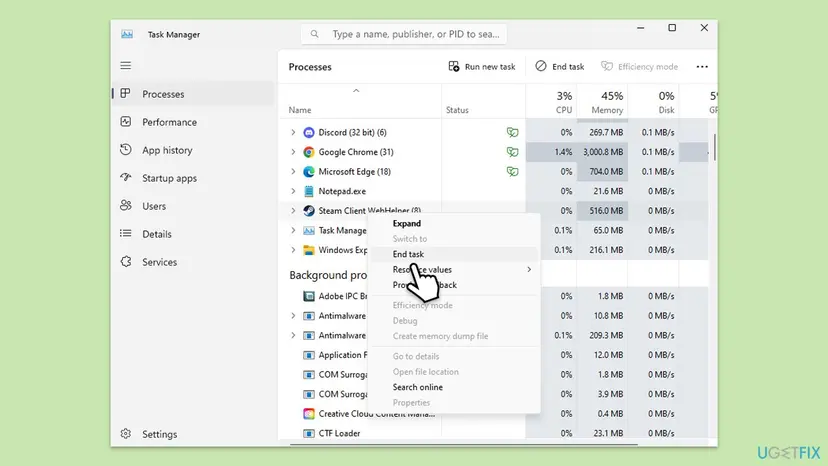
Task Manager works the same way in Windows 10. If an entry refuses to close, the full procedure is here: Close a frozen app (Task Manager, Force Quit)
Steam Support asks that steam.exe does not run in compatibility mode. Right-click steam.exe in the Steam folder, select Properties, open the Compatibility tab and clear every box that is ticked.
It worked if: The sign-in window opens fresh, takes your password and moves on to the Steam Guard step.
If not: If the same code returns in the client while the website still works, repair the client's files with Fix 6.
Fix 6. Reinstall Steam over itself, then rebuild its files
15 to 20 minutesRead the warningThe website works, a restart did not help, and the client shows e8, c-fts, c-ftac or the plain error.
Steam Support names damaged client files as a cause of connection and sign-in trouble and gives two repairs. Running the installer into the same folder replaces the client and its service files. Deleting the client's files makes Steam download all of them again.
Never remove Steam through Windows for this. Steam Support warns that an uninstall "will delete all game and userdata content". Keep the steamapps folder (your games) and the userdata folder. After a reinstall Steam may treat the PC as a new device and ask for Steam Guard again. With Steam Guard by e-mail, a new device cannot trade or use the Community Market for 7 days.
- Close Steam and end its processes as in Fix 5.
- In a browser, open
https://store.steampowered.com/about/and select Install Steam. - Run the downloaded installer.
- Install into the folder where Steam already is. The default is
C:\Program Files (x86)\Steam. - Start Steam and sign in once.
Steam Support says of this repair that installing into the same location "will preserve all installed games". If the error is still there, do the deeper one. It is the method from Steam Support's pages on unavailable servers and on a client that will not open.
- Close Steam and end its processes again.
- Open the Steam folder in File Explorer:
C:\Program Files (x86)\Steamunless you chose another one. - Select everything except the
steamappsfolder, theuserdatafolder andsteam.exe. - Delete the selected files and folders.
- Restart the PC.
- Start
steam.exefrom inside the Steam folder, not from an old shortcut. Steam downloads its files again and shows the sign-in window.
Valve's pages differ. Two of them say to keep only steam.exe and steamapps. The page on moving a Steam installation keeps steamapps and userdata. We follow the more careful one, because Steam Support names userdata next to game content as what an uninstall destroys.
It worked if: Steam updates itself on the first start, then signs you in. Your installed games are in the library without a new download.
If not: If a clean client still fails while the website works, something between the client and Steam blocks it. Go to Fix 7.
Fix 7. Let Steam through the firewall and the security software
10 to 15 minutesLow riskThe website works, the client shows Connection Problem, e20 or af, often after a Steam update or a new security program.
A browser needs only ports 80 and 443. The client also uses a range of its own, and it is a separate program for every firewall. Steam Support warns that a firewall can start blocking Steam right after a client update, even if Steam worked before.
- Close Steam completely as in Fix 5.
- Open Windows Security from the Start menu and select Firewall & network protection.
- Select Allow an app through firewall, then Change settings. Windows may ask for an administrator password.
- Find the Steam entries in the list and select the check box next to each of them.
- If Steam is not listed, select Allow another app and enter the path
C:\Program Files (x86)\Steam\steam.exe. - Select OK, restart the PC and start Steam.
| Traffic | Ports or addresses |
|---|---|
| To log into Steam and download content | HTTP (TCP remote port 80) and HTTPS (443), UDP remote ports 27015 to 27050, TCP remote ports 27015 to 27050 |
| Domains a proxy must allow for Steam's web requests | steampowered.com, steamcommunity.com, steamgames.com, steamusercontent.com, steamcontent.com, steamstatic.com, akamaihd.net |
- Another firewall program. Steam Support's method: remove every entry of
steam.exeandsteaminstall.exefrom its permissions, start Steam and allow it when the firewall asks. Give it all TCP and UDP ports. - Antivirus. Steam Support says such software "hooks very deep into user systems" and can affect network operations. Add an exception for the Steam folder in its settings.
- One test with protection paused. Pause real-time protection, sign in once and turn it back on at once: Turn off Microsoft Defender protection for a moment
- The router. Steam Support lists four services to turn off for a test: stateful inspection, dynamic packet filtering, QoS and UPnP. It adds that Steam does not support a network DMZ.
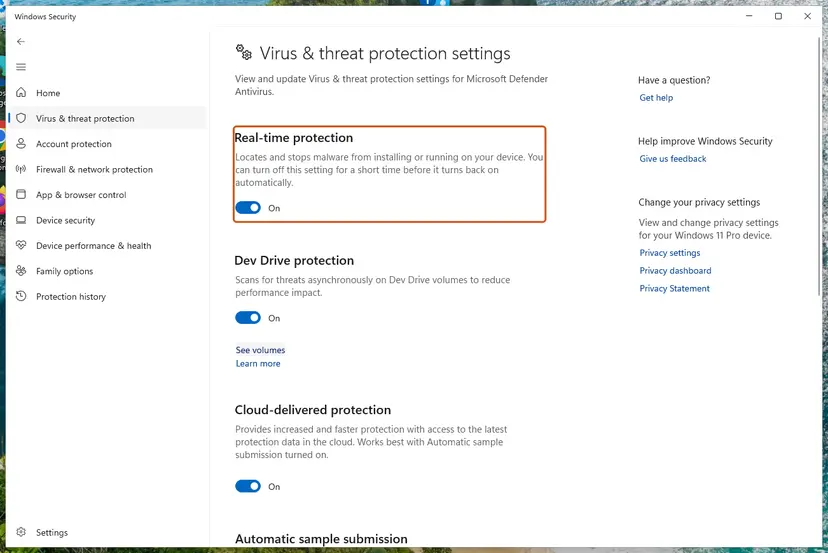
If Steam signs in only with the firewall or the antivirus paused, the fix is an exception for Steam in that program, not a PC without protection. Steam Support says the same: "We do not recommend leaving your firewall disabled."
It worked if: The client signs in with the firewall and the antivirus running, and the Connection Problem screen does not return.
If not: If nothing on the PC or the network explains it, collect the details listed in the next section and write to Steam Support.
If Steam still says something went wrong: what to send to Steam Support
The place where the real cause is written is the screen itself: the title, the text and the Error Code line. Steam also keeps a logs folder inside its installation folder. Valve does not document which file records a failed sign-in, so send a log only when Support asks for one.
- Take a screenshot of the error with the code visible. Steam Support asks for exactly this.
- Note the time, your network (home, VPN, campus) and whether the website signed you in.
- Open
https://help.steampowered.comin a browser and select Help, I can't sign in. - Pick the line that fits: a forgotten name or password, a stolen account, no Steam Guard code, or a deleted or lost Steam Guard Mobile Authenticator.
- For a client that will not sign in while the website does, open Steam Support's page I can't sign in to the Steam Client. It has a form for a help request with attachments.
- Attach the screenshot and describe what you tried, with the fix numbers of this guide if you like.
In user reports from 2022 a password reset cleared the error for some people. Valve has not confirmed it, and it has a price. After a reset through the help site you cannot trade or use the Community Market for 5 days, or 30 days if the account was inactive for over two months. Removing the mobile authenticator blocks both for 15 days. Steam Support cannot lift these restrictions.
- When it is the account, not the PC:
e43(disabled) ore73(locked down) on every device. Valve describes the lock as likely due to a hijacking and pending ownership verification. Use My Steam Account was stolen and I need help recovering it. - When it is the provider: it fails on the home network at certain hours and works on mobile data. Steam Support lists providers that were found to block Steam traffic and tells you to contact the provider.
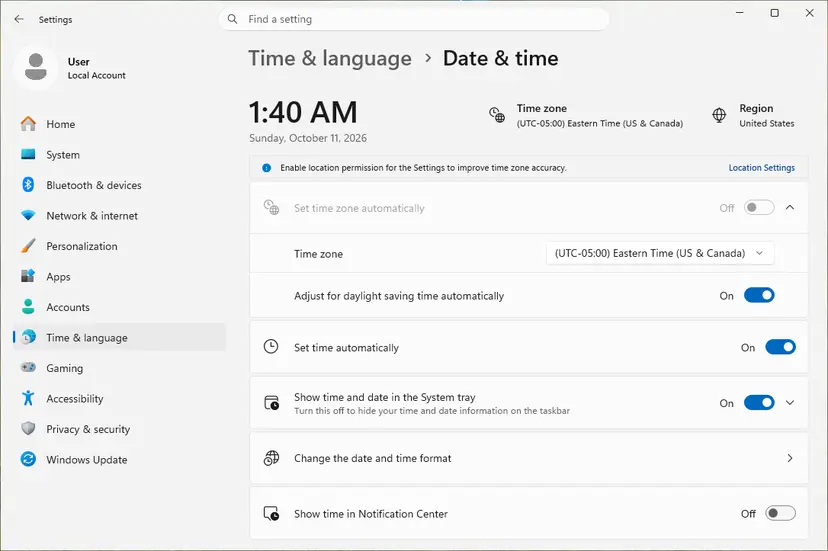
- When it is the clock: Valve's result list has an entry for time that is "out of range or tolerance". Set the PC clock to automatic: How to fix the date and time in Windows
- When the connection itself is unstable: other sites fail too. Reset the network stack once, then test again: Reset the network and flush DNS
- When another program interferes: Steam Support names VPN clients, download managers, peer-to-peer programs and IP filters. Start Windows without them once: How to perform a clean boot in Windows
You can keep playing while you wait. On the Connection Problem screen the client offers Enter Offline Mode. Steam Support notes its limits: most games need one start while connected before they work offline, and games that need a live connection or their own launcher do not work at all.
How to avoid the Steam sign-in error next time
- Tick Remember me on your own PC. Steam then asks for the password only from time to time, so there are fewer sign-ins to fail.
- Add the Steam Guard Mobile Authenticator and a phone number. Steam Support says the number makes recovery much easier.
- Create backup codes under Account Details, then Manage Steam Guard, then Get Backup Codes. Print them.
- Write down the recovery code. The app shows it on the Steam Guard page, behind the gear icon, under Recovery Code.
- Keep the date and time automatic on the phone and on the PC.
- Close Steam before you shut the PC down. Steam Support asks for this so that the information Steam stores for Offline Mode is not lost.
- Do not hammer Retry. Failures from your location are counted.
- Do not sign in through a VPN server that many strangers share when you can avoid it.
- Do not let cleaner programs delete Steam's files or your browser cookies. Steam then sees a new device every time.
- Do not uninstall Steam through Windows to cure a sign-in error. It removes your games.
- Do not type your password or a Steam Guard code into a page that is not run by Valve.
Most of this list comes from one fact: the sign-in is a conversation between your device and Valve's servers, and the general error appears when that conversation breaks at any point. Fewer sign-ins, a stable address and a second way to confirm leave fewer places for it to break.
Frequently asked questions
What does "Something went wrong while attempting to sign you in. Please try again later." mean on Steam?
It means the sign-in failed for a reason the form has no special text for. In Steam's sign-in code this sentence is the default description: a wrong password, too many retries, a lost connection and an expired request each have their own message, and every other result gets this one. The actual reason is the code printed under it, the letter e and a result number from Steam's servers. Most of the time the cause is temporary and on Steam's side, which is why the text asks you to try again later.
What do the Steam error codes e84 and e87 mean?
Both say that Steam is slowing you down on purpose. Valve's developer documentation describes result 84 as a temporary rate limit and result 87 as a failed login that is throttled as a response to a possible attacker. In today's sign-in form e84 has its own screen, Too Many Retries, which speaks of too many sign-in failures from your location in a short time. The cure for both is the same: stop trying, wait and then sign in once. If you share a network address through a VPN, switch it off first.
How long do I have to wait after too many sign-in attempts on Steam?
Valve does not publish a length. The form only says "Please wait and try again later", and Steam Support's page for people who cannot sign in to the client says you may need to wait a few hours. Our own suggestion, not Valve's: start with 15 minutes to an hour, and give it several hours if you retried many times. Every new attempt during the limit is another failure from your location, so one patient attempt is worth more than ten fast ones. Steam counts by location, so a different network, such as a phone hotspot, should not be under the same limit.
Is Steam down, or is it my PC?
The browser test answers that in three minutes. Open store.steampowered.com/login in a browser and sign in once. If the website shows the same error, or does not load, the cause is Steam's servers, your network address or the account, and nothing on the PC will change it. If the website signs you in, Steam is up and your account is fine, so the client on the PC is at fault. Steam Support also points to its stats page: when Steam's own sites time out, it is very likely a system-wide problem.
Why does the Steam app on my phone or my Steam Deck show the same message?
Because the sign-in happens on Valve's servers, whatever device asks. This guide was written for the Steam client on Windows, and we read the website's sign-in code, not the mobile app's. What carries over is everything on the server side: wait when Steam is down, stop retrying when a limit is active, and switch between Wi-Fi and mobile data to test another network address. The steps for Task Manager, the Steam folder and Windows Security apply to Windows only.
What does "Oops! Something went wrong. Please log in using the Steam web version" mean?
That is a different message from the one on this page, and we did not find its text in the sign-in code of the Steam website that we read on 14 October 2026. Users on the Steam forums report it from the Steam app, with a Login button under it. We could not confirm from Valve what triggers it. What it asks for is the same as Fix 2 here: open store.steampowered.com in a browser and sign in there. If the website works, the app or the client on that device is at fault.
Will resetting my Steam password fix the sign-in error?
Sometimes, according to user reports, but it is not a first step. In forum threads from October 2022 some people got past code e84 after a password reset. Valve has never confirmed that, and the error is not about a wrong password in the first place. A reset through the help site also has a cost: Steam blocks trading and the Community Market for 5 days afterwards, and for 30 days on an account that was inactive for more than two months. Try waiting, the browser test and another network before you reset anything.
Can a VPN cause "Something went wrong while attempting to sign you in"?
Yes, in two ways. Steam Support lists VPN software among the programs that can prevent the client from accessing the Steam network at all. And Steam counts sign-in failures by location, so an address shared by many VPN users can reach the limit without any mistake of yours. Disconnect the VPN, exit its app and sign in once on your normal connection. If you need the VPN for other things, connect it after Steam has signed in and check whether Steam stays online.
Will I lose my games if I reinstall Steam to fix this?
Not if you do it the way Steam Support describes. Run the Steam installer into the folder where Steam already is: Valve says this preserves all installed games. For the deeper repair, delete the contents of the Steam folder except the steamapps folder, the userdata folder and steam.exe. What you must not do is uninstall Steam through Windows. Steam Support warns that this deletes all game and userdata content. Your purchases are tied to the account either way, but a full download of a large library takes time.
Does this error mean that my Steam account was hacked?
Not by itself. The message is a general failure and usually comes from Steam's servers or your network. Two things would point at the account: the code e73, which Valve describes as an account locked down, likely due to a hijacking, and e-mails from Steam about sign-ins or changes you did not make. In that case do not keep trying to sign in. Open help.steampowered.com, select Help, I can't sign in and then the line about a stolen account. Steam Support handles recovery only through that site.
Sources
- Microsoft Support: Use a proxy server in Windows (support.microsoft.com)
- Microsoft Support: Risks of allowing apps through Windows Firewall (support.microsoft.com)
- Steam Support: I can't sign in to the Steam Client (help.steampowered.com)
Did this fix work?
One click, no account. It tells the next reader which guides are worth their time.
Questions and experiences: fix "Something went wrong while attempting to sign you in" Steam error in Windows
Still broken, or found a fix we did not cover? Ask here: members and our editors answer. Reading is open; writing needs a free account.
…