
How to fix "Sorry, we couldn't connect you" error in Microsoft Teams?

Prefer to fix it yourself? The manual steps follow.
- 9methods
- 1 to 30 minutes
- Easy
Applies to New Microsoft Teams on Windows 11 and Windows 10, and Teams on the web; calls and meetings
9 methods in this guide
- What the error means
- Causes, ranked
- Only 1:1 calls fail
- The fixes
- 1. Retry or call again
- 2. Test Teams on the web
- 3. Check the connection
- 4. Test without VPN or proxy
- 5. Sign out and back in
- 6. Reset Teams
- 7. Update or reinstall Teams
- 8. Reset the network
- 9. Test without security app
- Still failing: next steps
- Prevent it
- FAQ
Hello. For some reason I can't connect to Teams. I keep getting a "Sorry, we couldn't connect you" error every time. Is there anything I can do to fix it?
Sorry, we couldn't connect you is the message Teams shows when a call or meeting could not be set up or dropped and could not reconnect. Select Retry or call again first (Fix 1), then make the same call in Teams on the web to learn whether the Teams app or your network is at fault.
The message means Teams could not open the audio and video link of a call or meeting, or lost it and could not get it back. Select Retry or call again (Fix 1). If it repeats, make the same call in Teams on the web (Fix 2). Works there: reset Teams on your PC (Fix 6). Fails there too: test another network with the VPN off (Fix 3 and Fix 4).
| Error | Sorry, we couldn't connect you. Some calls add Something went wrong, you may need to call again in order to reconnect. The box has Retry and Dismiss buttons. No error code is shown. |
|---|---|
| Where it appears | In a Teams call or meeting window: when you join, when you answer a 1:1 call, or in the middle of a call when the connection drops. The caller can see it when you answer. |
| Main cause | The call's media link cannot be made or kept: an unstable or busy internet connection, a VPN, a stuck Teams app with damaged local data, or an old sign-in. |
| Fastest fix | Select Retry, or leave and call or join again (Fix 1). Then test the same call in Teams on the web (Fix 2). |
| Also written as | Sorry we couldn't connect you Teams, we couldn't connect you to the meeting, Sorry we couldn't connect your call. Make sure you're connected to the internet and try again. |
| Affects | New Teams on Windows 11 and Windows 10, Teams on the web and the mobile apps. A Microsoft Q&A case shows it only in the desktop app, only for 1:1 calls, with a VPN on. |
| Microsoft's status | No single cause or fix is documented for this message. Microsoft's own advice for reconnect problems is network checks, sign out, cache, reinstall, VPN and the web version. |
| Time to fix | 1 minute for Fix 1, 5 minutes for the web and network tests, up to 30 minutes for a reinstall. |
Facts checked on 15 October 2026. Steps written for the new Microsoft Teams for work or school on Windows 11 (25H2 and 26H2) and Windows 10 22H2, and Teams on the web, read against Microsoft Support, Microsoft Learn and a Microsoft Q&A staff answer.
What "Sorry, we couldn't connect you" means in Teams
A Teams call has two parts. Chat and sign-in work over ordinary web traffic, while the voice and video of the call run over a separate media connection. Sorry, we couldn't connect you means that media connection could not be built when the call started, or broke during the call and could not be rebuilt.
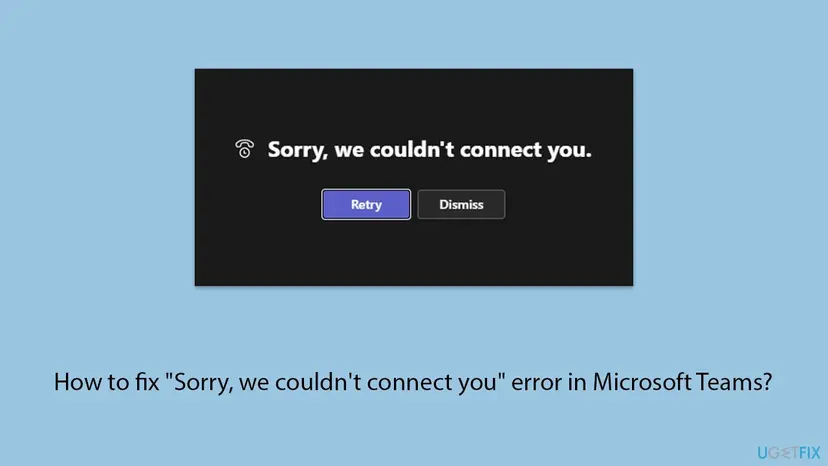
That is why chat can keep working while every call fails. The message is about the call, not about your Teams account as a whole. If Teams does not load at all and you see no chats, you have a different problem: see our guide to We've run into an issue in Teams.
| Message you see | What it tells you |
|---|---|
| Sorry, we couldn't connect you. | The call or meeting media link failed. This guide. |
| Something went wrong, you may need to call again in order to reconnect. | The link dropped during a call and Teams gave up. Call again, then this guide. |
| Sorry we couldn't connect your call. Make sure you're connected to the internet and try again. | Teams found no working connection for the call. Start with Fix 3. |
| We couldn't connect the call | A related message. If it appears on every call, ask IT to check your calling setup too (see Still failing). |
What causes "Sorry, we couldn't connect you" in Teams, ranked
Microsoft does not publish one cause for this message. The order below is our reading of Microsoft's reconnect article and of a Microsoft Q&A case answered by Microsoft staff. It is not a statistic. Each cause points to the fix that deals with it.
| How often | Cause | Typical sign | Fix |
|---|---|---|---|
| Most often | A short drop or a weak, busy connection | Wi-Fi, other downloads running, the call worked a minute ago | Fix 1, Fix 3 |
| Often | A VPN or proxy in the way of call traffic | Fails with the VPN on, works without it | Fix 4 |
| Often | A stuck Teams app or damaged local Teams data | The same call works in Teams on the web | Fix 2, Fix 6 |
| Less often | An old sign-in after a password change | Calls fail but chat still loads | Fix 5 |
| Less often | An old or damaged Teams installation | Reset did not help, the web works | Fix 7 |
| Rarely | A damaged network setup in Windows or security software | Every call app on this PC has trouble | Fix 8, Fix 9 |
| Rarely, for many people at once | A Microsoft 365 incident, or the fault is on the caller's side | Fails on the web and on other networks | Still failing |
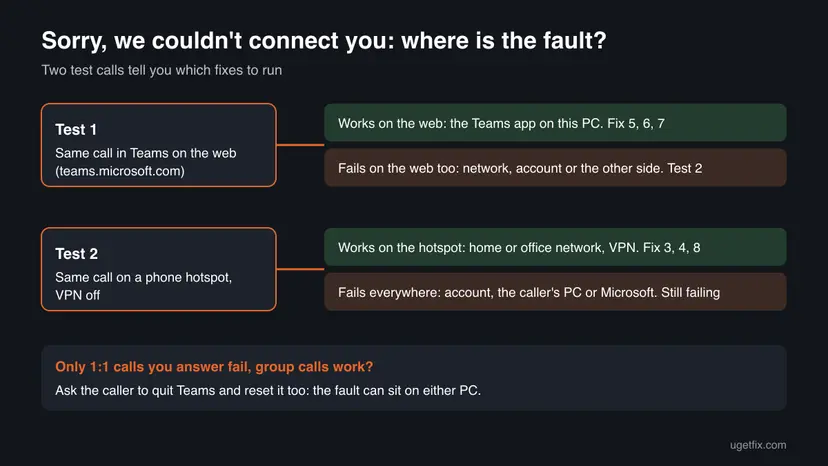
Only 1:1 calls you answer fail, group calls work
In one Microsoft Q&A case the user's 1:1 calls dropped the moment they answered, and the caller saw Sorry, we couldn't connect you. Calls the user started worked, and calls from a group chat worked. It happened only in the desktop app, and the user was on a VPN that colleagues used without trouble.
- Microsoft staff first asked the caller to clear the Teams cache and restart Teams. A 1:1 call depends on both PCs, so the fault can be on the other side.
- Staff then asked whether the call works in Teams on the web, and suggested a test call with the VPN off.
- Staff said a VPN does not break calls for everyone, but it can on one PC. If calls still fail without the VPN, the desktop app is the suspect and Teams on the web is the stopgap.
- A reinstall did not solve that case. We could not confirm its final cause.
How to fix "Sorry, we couldn't connect you" in Microsoft Teams
Go in order and make a test call after each fix, ideally with a colleague who can call you back. Fix 1 and Fix 2 tell you where the fault is, Fix 3 and Fix 4 check the network, Fix 5 to Fix 7 repair Teams on this PC, and Fix 8 and Fix 9 are rare last steps.
| Your case | Start with | Then |
|---|---|---|
| It happened once, mid call | Fix 1 | Fix 3 |
| Every call fails, you do not know why | Fix 2 | Fix 3 |
| The call works in Teams on the web | Fix 6 | Fix 7 |
| You use a VPN or a work proxy | Fix 4 | Fix 2 |
| On Wi-Fi, others stream or download | Fix 3 | Fix 8 |
| Began after a password change | Fix 5 | Fix 6 |
| Only 1:1 calls you answer fail | Fix 4 | Fix 6 on both PCs |
Fix 1. Select Retry, or leave and call or join again
1 minuteNo riskEveryone, first. Above all when the call worked a moment ago and the message came after a drop.
The message itself says you may need to call again in order to reconnect. A short network drop can end the media link for good, and a new call builds a fresh one from scratch.
- Select Retry in the message box and wait 10 to 20 seconds.
- If the box comes back, select Dismiss and hang up with Leave.
- For a meeting, open it again from Calendar or the chat and select Join.
- For a 1:1 call, call the person again from the chat with the Audio call or Video call button.
- If the call connects but drops again within minutes, go to Fix 3.
It worked if: The call connects and you hear the other side.
If not: Do the web test in Fix 2 before you change anything on the PC.
Fix 2. Make the same call in Teams on the web
5 minutesNo riskThe message comes back on every call or meeting.
Microsoft suggests the web version for reconnect problems, and Microsoft staff asked for this test first in the Q&A case. It splits the causes: the web uses the same account and network but not the Teams app on your PC.
- Quit the Teams app: right-click the Teams icon on the taskbar, next to the clock, and select Quit.
- Open Microsoft Edge or Chrome and go to
https://teams.microsoft.com. - Sign in with the same work or school account.
- Allow the microphone and camera when the browser asks.
- Join the same meeting or call the same person.
- Works on the web: your account and network can carry calls. The Teams app on this PC is the problem: go to Fix 5, Fix 6 and Fix 7.
- Fails on the web too: test the network with Fix 3 and Fix 4.
- Web calls fail but you use an ad blocker: Microsoft says to try with ad blockers off in Teams on the web.
It worked if: You learn whether the fault is in the Teams app or outside it, and you can keep calling from the browser meanwhile.
If not: If the call fails in both the app and the web, go to Fix 3.
Fix 3. Check the internet connection and free up bandwidth
5 to 10 minutesNo riskThe call failed on the web too, you are on Wi-Fi, or others on the same network stream or download.
A call needs a steady connection in both directions for the whole call. A weak Wi-Fi signal or a busy line drops the media link even when web pages still load, which is when Teams shows this message.
- Open any website in a browser to check that the internet works at all.
- Pause large downloads, cloud backups, game updates and peer-to-peer apps on this PC.
- Ask others on the same network to pause streaming and downloads for the test call.
- Plug in a network cable if you can, or move closer to the Wi-Fi router.
- Turn the router off, wait 10 to 20 seconds and turn it on again.
- Make a test call. For a clean comparison, connect the PC to a phone hotspot and call once more.

Step by step for a connection that does not work at all: How to check your internet connection in Windows.
It worked if: The test call connects and stays up for several minutes.
If not: If calls work on the hotspot but not at home or in the office, check the VPN and proxy with Fix 4, then reset the network with Fix 8.
Fix 4. Make a test call with the VPN and proxy off
5 minutesLow riskYou use a VPN app or a proxy, or the message appears only on one network.
Microsoft staff say a VPN can affect Teams calls on one PC while colleagues on the same VPN are fine. Call traffic is sensitive to delay, and a tunnel or proxy can block or slow the media link.
- Disconnect your VPN app, or open Settings > Network & internet > VPN and disconnect the connection there.
- Open Settings > Network & internet > Proxy. Under Manual proxy setup, check whether Use a proxy server is on.
- If it is on and this is your own PC, select Edit, set it to Off and select Save.
- Make a test call.
- Turn the VPN back on and call again. Microsoft also suggests simply turning the VPN off and on once.
Do not leave a required work VPN or proxy off. If calls work without it, tell IT which calls failed and when. They can change how Teams traffic goes through the VPN. Leave automatic proxy settings to IT.
It worked if: The call connects with the VPN or proxy off.
If not: Turn everything back on. If calls fail without the VPN too, sign out and in with Fix 5.
Fix 5. Sign out of Teams and sign in again
3 minutesNo riskCalls began failing after a password change, or you have more than one account in Teams.
Each call uses tokens from your sign-in. Microsoft lists signing out and in again as a first step when Teams cannot reconnect, because a fresh sign-in gives Teams new tokens.
- Select your profile picture at the top right of Teams.
- Select Sign out and confirm. Teams closes.
- Open Teams again from the Start menu.
- Sign in with your email address and the password you use today.
- Make a test call.
It worked if: Teams asks for your password, and after sign-in calls connect.
If not: Reset the Teams app with Fix 6, which clears its saved data.
Fix 6. Reset Teams or clear its cache, on your PC and the caller's
5 minutesLow riskThe call works in Teams on the web but not in the app, or only 1:1 calls fail.
Microsoft lists clearing the cache for reconnect problems, and staff asked the caller to do it in the Q&A case. New Teams keeps local data in the MSTeams_8wekyb3d8bbwe package folder; a reset deletes it and Teams rebuilds it on the next start.
- Right-click the Teams icon on the taskbar and select Quit.
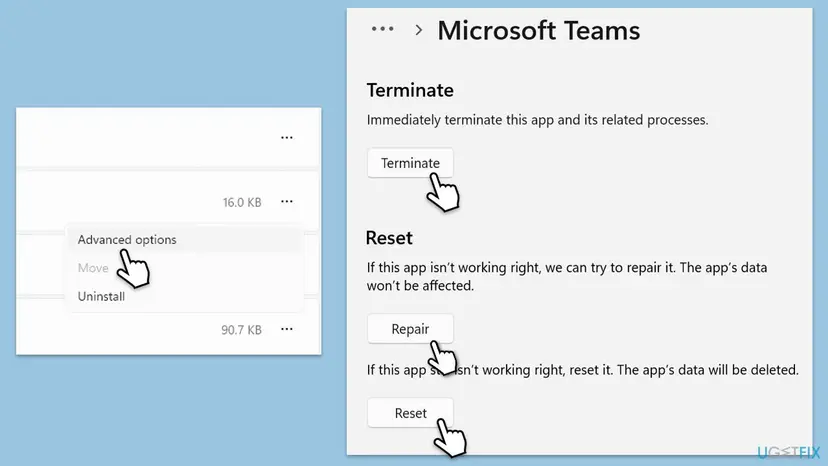
- Open Settings > Apps > Installed apps on Windows 11, or Settings > Apps > Apps & features on Windows 10.
- Type Microsoft Teams in the search box, select More options (three dots) next to it and select Advanced options.
- Select Terminate, then in the Reset section select Reset and confirm.
- Start Teams, sign in and make a test call. The first start is slower because the cache is rebuilt.
Microsoft's second method does the same by hand. Quit Teams, press Win + R, paste this path, select OK and delete everything in the folder:
%userprofile%\appdata\local\Packages\MSTeams_8wekyb3d8bbwe\LocalCache\Microsoft\MSTeamsMicrosoft says a reset deletes the app data, including your personal settings in Teams. Chats, files and meetings stay in your account. The path %appdata%\Microsoft\Teams that older guides give belongs to classic Teams, which Microsoft has replaced with new Teams.
It worked if: After sign-in, calls connect in the Teams app.
If not: If only 1:1 calls fail, ask the caller to do this fix too. Otherwise update or reinstall Teams with Fix 7.
Fix 7. Update Teams, or reinstall it
5 to 20 minutesLow riskReset did not help, and calls work in Teams on the web.
Microsoft lists uninstalling and reinstalling Teams for reconnect problems. An old Teams build, or program files that a reset leaves in place, can keep a fault that the web version does not have.
- In Teams, select Settings and more (three dots) next to your profile picture.
- Select Check for updates and let Teams install what it finds.
- Quit and restart Teams when it asks, then make a test call.
If calls still fail, reinstall Teams:
- Uninstall from the Start menu. Select Start > All apps and find the app. Right-click it (or press and hold) and select Uninstall.
- Or uninstall in Settings. Select Start > Settings > Apps > Installed apps. Find the app, select More (the three dots) > Uninstall, and confirm.
- Or uninstall from Control Panel. Some programs can only be removed here. Type Control Panel in the search box on the taskbar and open it, then select Programs > Programs and Features. Right-click the program and select Uninstall or Uninstall/Change, then follow the program's own uninstaller.
These steps were written for Windows 11 24H2 and 25H2. The full page with the other versions and what each result means: Uninstall a program or app in Windows
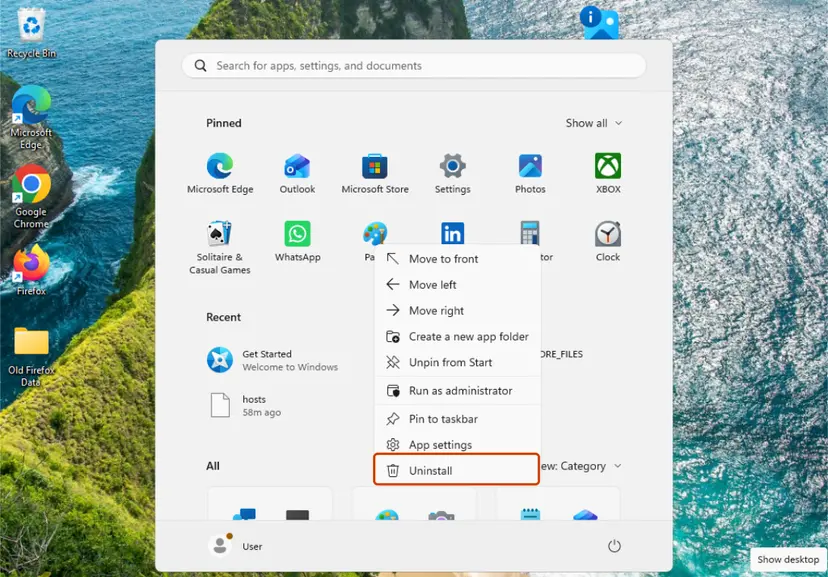
- Remove Microsoft Teams from the installed apps, as above.
- Restart the PC.
- Download a fresh installer from Microsoft:
https://www.microsoft.com/microsoft-teams/download-app. - Run it, sign in and make a test call.
It worked if: The updated or new Teams connects calls without the message.
If not: If the setup fails, read our Installation has failed guide. If calls still fail on this PC only, reset the network with Fix 8.
Fix 8. Reset the Windows network settings
10 minutes plus a restartRead the warningCalls work on other devices on the same network, but no call app works well on this PC.
A damaged network stack or old cached addresses on one PC can break the call connection while other devices on the same router are fine. Flushing DNS and resetting the stack rebuilds it.
A full network reset removes saved Wi-Fi networks and reinstalls network adapters, and VPN adapters may need to be set up again. Write down your Wi-Fi password and VPN details first. On a work PC, ask IT before you do the full reset.
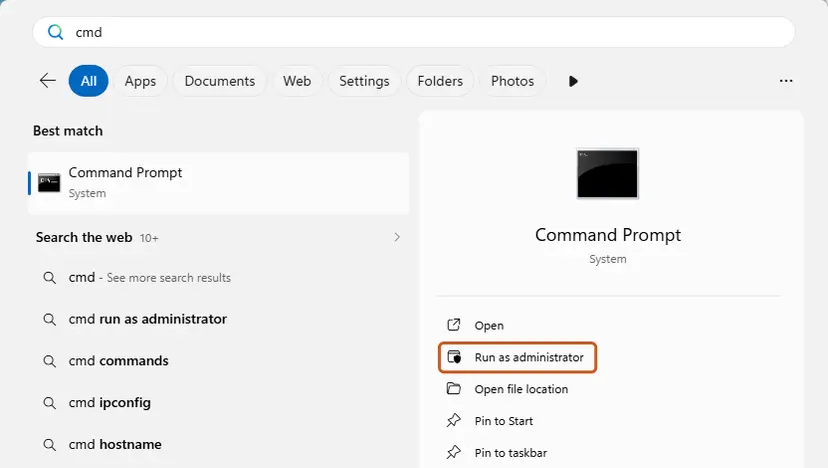
- Select Start, type
cmd, right-click Command Prompt and select Run as administrator. - Type the commands below one at a time and press Enter after each.
- Restart the PC and make a test call.
- If the call still fails, open Settings > Network & internet > Advanced network settings > Network reset, select Reset now and restart.
Run in Command Prompt (Admin):
ipconfig /flushdns
netsh winsock reset
netsh int ip reset
Start with the commands, which only clear cached addresses, and keep the full reset for last. Step by step: Reset the network and flush DNS.
It worked if: After the restart, a test call connects and stays up.
If not: Pause your security software for one test call with Fix 9.
Fix 9. Pause third-party security software for one test call
5 minutesLow riskEvery other fix failed and you use an antivirus or firewall from another company than Microsoft.
Microsoft staff included a temporary antivirus test in the Q&A answer. A web filter or firewall in such a program can block the media link of a call while chat still works.
- Open your antivirus or firewall program from the icon next to the clock.
- Find the option to pause or turn off protection, and pick the shortest time, such as 10 or 15 minutes.
- Make one test call in Teams.
- Turn protection back on right after the call, whatever the result.
Pause protection for one test call only, then turn it back on at once. Step by step: Turn off Microsoft Defender protection for a moment.
If the call works with protection paused, turn it back on and add Microsoft Teams as an allowed app in that program's settings, or ask its maker or your IT team how to allow Teams calls.
It worked if: You learn whether the security program blocks Teams calls.
If not: Turn protection back on and follow the next section to get help.
If Teams still says "Sorry, we couldn't connect you"
Stop changing the PC. Use Teams on the web or the Teams mobile app on mobile data for calls in the meantime, and hand the case to someone who can see the server side.
| What you see | Likely reason | Who can fix it |
|---|---|---|
| Fails on the web, on a hotspot and for colleagues | A Microsoft 365 incident | Wait; Microsoft posts known issues on its MSFT365Status account on X, and IT can see service health |
| Only calls with one person fail | The fault is on the caller's PC or network | The caller runs Fix 3, Fix 4 and Fix 6 |
| Only your account fails, on every device | Calling setup or policy for your account | IT or the Microsoft 365 admin |
| Only this PC fails, the web works elsewhere | The Teams app or Windows profile | Fix 6 and Fix 7, then Create a new user account to test a problem |
- Note the exact message, the time and whether it was a meeting or a 1:1 call.
- Note the results of the web test (Fix 2) and the hotspot test (Fix 3), and whether a VPN was on.
- Note your Windows version from
winverand the Teams version from Settings and more > About. - Say which fixes on this page you tried and what each one changed.
How to keep the error from coming back
- Join important calls on a cable or close to the router, and pause big downloads during calls.
- Quit Teams from the taskbar corner now and then instead of only closing its window.
- Keep Teams current with Settings and more > Check for updates, and install Windows updates.
- Sign out and in again after a password change, before your next call.
- If calls fail only on the VPN, ask IT about it rather than turning the VPN off for good.
- Do not clear the Teams cache for missing chats or messages. Microsoft says it does not fix them and deletes the logs support needs.
Frequently asked questions
What does "Sorry, we couldn't connect you" mean in Teams?
It means Teams could not set up the audio and video connection of a call or meeting, or lost it during the call and could not rebuild it. Chat can still work, because chat and calls use different connections. The longer form, Something went wrong, you may need to call again in order to reconnect, tells you the call already dropped. Select Retry or call again first, then test the same call in Teams on the web.
Why does Teams say "we couldn't connect you to the meeting"?
The meeting itself is usually fine; your PC could not open its media connection. Leave and join again from Calendar (Fix 1). If it repeats, join the same meeting in Teams on the web (Fix 2). If the web works, reset the Teams app (Fix 6). If the web fails too, test a phone hotspot with your VPN off (Fix 3 and Fix 4). If nobody can join, the organizer or IT should check for a service incident.
What does "Sorry we couldn't connect your call. Make sure you're connected to the internet and try again" mean?
It is the same problem, said more plainly: Teams found no working connection for the call. Open a website to check the internet, pause downloads, move closer to the router or use a cable, and restart the router for 10 to 20 seconds (Fix 3). Then try with the VPN off (Fix 4). If websites load but calls still fail, reset Teams (Fix 6).
Why do calls drop when I answer, but group calls work?
That exact pattern is in a Microsoft Q&A case: 1:1 calls dropped on answer and the caller saw the message, while group calls and outgoing calls worked. It happened only in the desktop app and with a VPN on. Microsoft staff asked the caller to clear the Teams cache, and suggested a test without the VPN and a test in Teams on the web. Run Fix 4 and Fix 6 on your PC, and ask the caller to run Fix 6 too.
Is Microsoft Teams not connecting because Teams is down?
Sometimes, but rarely. Make the same call in Teams on the web and on another network such as a phone hotspot. If it works anywhere, the service is up and the problem is on your side. If it fails everywhere and colleagues see the same, check Microsoft's MSFT365Status account on X, which Microsoft names for known issues, or ask IT to look at service health.
Can a VPN cause "Sorry, we couldn't connect you"?
Yes. Microsoft staff say a VPN can affect Teams calls, though not for every user on the same VPN. Make one test call with the VPN off (Fix 4). Microsoft's own article also suggests turning the VPN off and on again. On a work PC, do not leave a required VPN off: if calls work without it, tell IT, because they can change how Teams calls go through the VPN.
Will resetting Teams delete my chats or meetings?
No. Chats, channel messages, files and meetings are kept in your Microsoft 365 account, not on the PC. A reset deletes the local app data of Teams, which Microsoft says includes your personal settings. You sign in again afterwards, and the first start takes longer while Teams rebuilds its cache. Microsoft warns not to clear the cache for missing chats or messages, because it does not fix them.
Teams won't connect at all, not even chat. Is this the same error?
No. This message is about calls and meetings. If Teams keeps trying to reconnect and shows no chats, Microsoft's advice is close to Fix 3 to Fix 7 here. Check the internet, sign out and in, clear the cache, reinstall, try the VPN off and on, and use Teams on the web. If you see We've run into an issue, read our guide to that screen.
Office 365 says "Sorry, we can't connect to your account". Does this page help?
Only partly. That message is about signing in to a Microsoft 365 account, not about a Teams call. Fix 3 (internet) and Fix 5 (sign out and in again) apply to both. If Word, Outlook or another Office app shows it, check your password on the web first, then ask your IT team, because the account or its licence may need attention. We did not research that message for this page.
Sources
- Microsoft Support: I can't reconnect to Microsoft Teams (internet check, sign out, clear cache, reinstall, VPN off and on, Teams on the web, ad blockers, router restart, MSFT365Status) (support.microsoft.com)
- Microsoft Learn: Clear the Teams client cache (reset new Teams, MSTeams_8wekyb3d8bbwe cache path, when not to clear it) (learn.microsoft.com)
- Microsoft Q&A: microsoft teams sorry we couldn't connect you (1:1 calls drop on answer; staff answer on the caller's cache, VPN, connection checks and the web client) (learn.microsoft.com)
Did this fix work?
One click, no account. It tells the next reader which guides are worth their time.
Questions and experiences: fix "Sorry, we couldn't connect you" error in Microsoft Teams
Still broken, or found a fix we did not cover? Ask here: members and our editors answer. Reading is open; writing needs a free account.
…