
How to fix Steam error "MISSING DOWNLOADED FILES" in Windows?

Prefer to fix it yourself? The manual steps follow.
- 8methods
- 2 minutes for the first fix, up to an hour for a repeat download
- Easy
Applies to Any game installed or updated through Steam on Windows 11 or Windows 10
8 methods in this guide
I don't know what's been going on, but when I was trying to install Rainbow Six Siege through Steam, it didn't work. The download bar went fully up to 100% and then it just stopped. To the left of the download bar it said MISSING DOWNLOADED FILES. I tried installing it again and I got the same thing.
"MISSING DOWNLOADED FILES" is one of Steam's update and install errors: the download finished or nearly finished, but files Steam expected on your drive were not there. Start with Steam's own two-minute fixes, Clear Cache and Verify integrity of game files, then repair the library folder.
Steam finished writing the download, then could not find files it expected on your drive. Start with Fix 1: open Steam > Settings > Downloads, click Clear Cache and sign in again. Then do Fix 2, Verify integrity of game files. If the error returns, Fix 3 repairs the Steam library folder, and Fix 4 checks that antivirus is not removing files while they are written.
| Error | "MISSING DOWNLOADED FILES" next to the game's download bar or in the window "An error occurred while installing" or "updating" the game, with the reason in brackets. |
|---|---|
| Where it appears | In the Steam client, in the Library or on the Downloads page, usually at the end of an install or update, often when the bar has reached 100%. |
| Main cause | Steam went to use files it had downloaded and they were not on disk. Steam does not say which file or why; antivirus, a damaged or full drive, a broken library folder and a damaged download cache are the usual suspects. |
| Fastest fix | Steam > Settings > Downloads > Clear Cache, then verify the game's files (Fix 1 and Fix 2). |
| Also written as | Missing download files, missing downloaded files, "Missing installed files" (a neighbouring Steam error), update error 42. |
| Affects | Any game on Steam, on Windows 11 and Windows 10. Windows 10 lost Microsoft support on 14 October 2025, which does not change this error. |
| Vendor status | Valve lists the message in the Steam client but gives no longer explanation. Steam Support has one page for all install and update errors, and these fixes come from it. |
| Time to fix | 2 minutes for Fixes 1 to 3. A reinstall takes as long as the game's download. |
Facts checked on 16 October 2026. Steps written for the Steam client on Windows 11 (25H2 and 26H2) and Windows 10 22H2, read against Steam Support and the Steam client's own error texts.
What "MISSING DOWNLOADED FILES" means on Steam
When Steam cannot finish an install or an update it opens the window "An error occurred while installing" or "An error occurred while updating" with the game's name. Steam Support explains that the specific reason is shown in the parenthesis at the end of the message. Here the reason is "MISSING DOWNLOADED FILES" (the client prints it as "Missing downloaded files"). Some readers see it only as a label beside the download bar, as in the question above.
The wording is plain: the files Steam downloaded, and was about to use, were not on the drive. Valve gives no longer explanation, so what a given file did is unknown. Steam's client file lists the same family of reasons as numbered update errors: "Disk write error" (11), "Corrupt download" (36), "Corrupt disk" (37), "Missing downloaded files" (42) and "Missing installed files" (50). The last one reads almost the same and is fixed the same way, which is why this page answers both searches.
| Text shown | What it says | Covered here? |
|---|---|---|
| Missing downloaded files | Downloaded files were not on disk when Steam needed them | Yes, all fixes |
| Missing installed files | Installed files were not on disk | Yes: the same fixes |
| Disk write error | Steam could not write to the drive | Fix 3 and Fix 6 help, the rest is a different error |
| Content unavailable / No download source | No content server delivered a piece | No: see the No download source guide |
What causes the Steam "MISSING DOWNLOADED FILES" error, from most to least likely
Valve publishes no figures and does not say which cause hits which error. The order below follows what Steam Support lists as the usual reasons for install and update errors, with the cheapest to test first. These are possible causes, not proven ones.
| Possible cause | How to tell | Fix |
|---|---|---|
| Damaged download cache or half-written files after an interrupted download. | The download was stopped, the PC slept or crashed, or the error appears on the first try after a long pause. | Fix 1, then Fix 2 |
| A library folder Steam cannot write to. Steam Support: library folders must be "writable by all users in order to update properly". | Only games on one drive fail, or you moved the Steam folder before. | Fix 3 |
| Antivirus or another program removing files while they are written. Steam Support: some games "can appear as malicious software to an AV scanner". | The error comes at 99% or 100% when the game's .exe is assembled, or your antivirus reports a quarantined file. | Fix 4 |
| Leftover workshop download files. Players report this fix; Valve does not. | The game uses Steam Workshop or mods. | Fix 5 |
| A drive or memory with errors. Steam Support names bad hardware and power surges as causes of corrupted files. | Other programs also lose files, or the PC crashed during the install. | Fix 6 |
| A damaged location on one drive. | The game installs on another drive without the error. | Fix 7, then Fix 8 |
How to fix Steam "MISSING DOWNLOADED FILES"
Fixes 1 to 3 come from Steam Support and take two minutes each. Fix 4 checks the programs that touch the files. Fix 5 is a player report for games with mods. Fixes 6 to 8 check the drive and rebuild the game.
| What you see or did | Start with |
|---|---|
| First install failed at 100%, or the download was interrupted. | Fix 1 |
| The game is already installed and an update fails. | Fix 2 |
| Only games on one drive or library fail. | Fix 3 |
| Your antivirus warns about a file in the game folder. | Fix 4 |
| The game has Steam Workshop mods. | Fix 5 |
| Windows crashed or lost power during the download, or other programs lose files. | Fix 6 |
| Nothing above helped. | Fix 7, then Fix 8 |
Fix 1. Clear Steam's download cache
2 minutesLow riskEveryone starts here, above all after an interrupted download.
Steam Support: clearing the cache "will cause the Steam client to flush locally cached configuration data and acquire it from the Steam servers again". A damaged cache is the cheapest cause to remove.
- Open Steam, choose the Steam menu in the top left corner and select Settings.
- Select Downloads on the left.
- Next to Clear Download Cache, click Clear Cache.
- Confirm. Steam clears the cache and restarts, and you must sign in again.
- Open the Library, select the game and press Install or Update again.
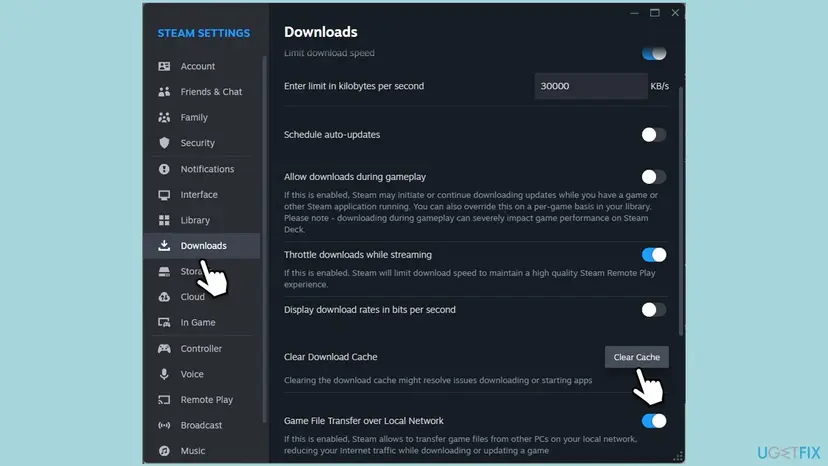
Steam's own warning says the cache clear restarts Steam and you will need to log in to Steam again. Check you can sign in, or have Steam Guard ready, before you click.
It worked if: The game's download starts again and ends without the red message.
If not: Verify the game's files with Fix 2.
Fix 2. Verify the integrity of the game files
5 to 30 minutes, by the size of the gameNo riskThe game is installed and an update stops, or Fix 1 did not help.
Steam Support: Steam "can verify the correctness over installed game files and fix them if necessary". It compares the files on disk with Steam's list and downloads only what is missing.
- Restart and open Steam. Restart your computer and launch Steam.
- Open the game's menu. Right-click the game in your Library, or open the game's Library page and select the gear icon on the far right.
- Open Properties. Select Properties in the menu.
- Verify the files. Select the Installed Files tab and select Verify integrity of game files.
- Wait for the result. Steam checks the game's files. This can take several minutes.
These steps were written for Steam on Windows. The full page with the other versions and what each result means: How to verify game files in Steam, Epic Games, Xbox app, EA app, Battle.net and GOG Galaxy
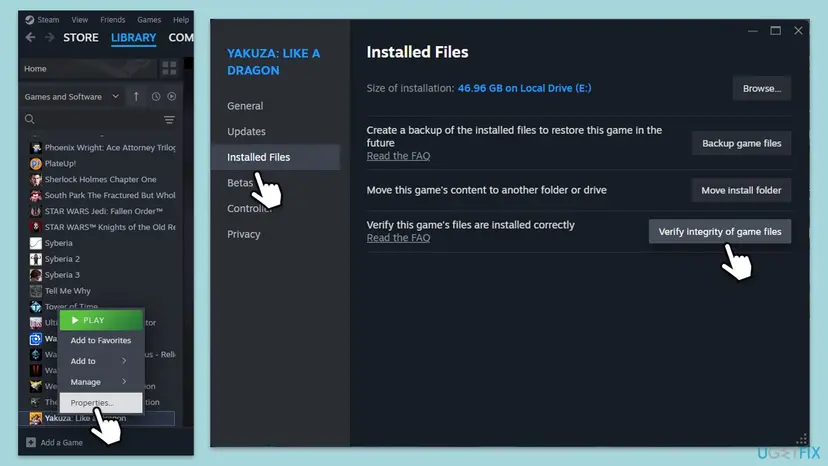
It worked if: Steam reports that all files validated, or that a few files were fetched again, and the game updates or starts.
If not: Repair the library folder with Fix 3.
Fix 3. Repair the Steam library folder
3 minutesLow riskGames on one drive fail while others work, or you moved Steam or a library before.
Steam Support says library folders must be writable by all users and that "sometimes these user permissions break and need to be refreshed". A folder Steam cannot write to makes downloaded files vanish or fail to appear.
- Open the Steam menu, choose Settings and select Storage.
- At the top, pick the drive that holds the game.
- Select the ... button and choose Repair Folder.
- Confirm if Windows asks for administrator rights.
- Wait for Steam to finish, then retry the download.
It worked if: Steam finishes the repair without a message, and the install or update completes.
If not: Check what touches the files while they are written (Fix 4).
Fix 4. Stop antivirus and other programs from removing game files
10 minutesLow riskThe error comes at 99% or 100%, or your antivirus shows a detection for a game file.
Steam Support: antivirus "hooks very deep into user systems and can affect disk and network operations", and some games use copy protection that "can appear as malicious software to an AV scanner". A file removed while the game is assembled is a missing file.
- Open your antivirus program and look in its quarantine or protection history for files from the game or from the Steam folder.
- If it holds a file of the game, restore it and add the game's folder to the exceptions.
- Add the Steam folder, by default
C:\Program Files (x86)\Steam, and your Steam library folders to the exceptions, as Steam Support advises (it suggests excluding library folders from live monitoring). - Close cleaners, system optimizers, recording software and other tools that watch the disk. Valve's page on programs that may interfere with Steam lists the types.
- Retry the install, then run Fix 2 for the game.
If the download works only while protection is paused, leave protection on and keep the exceptions. To pause it for one test only, and to turn it back on right after: Turn off Microsoft Defender protection for a moment
It worked if: Files in the game folder stay where Steam wrote them and the install completes.
If not: If your antivirus shows no detection, go on with the next fix.
Fix 5. Clear the Steam workshop downloads folder (players' fix)
3 minutesLow riskThe game uses Steam Workshop or mods and nothing above worked. This is a player report, not a Valve fix.
Players report on Steam Community that the error cleared once the leftovers in the workshop downloads folder were removed. We found no Valve text on this, so we treat it as a report and keep it behind the official steps.
- Exit Steam through Steam > Exit.
- Press Win + R, paste the path below and press Enter. If you installed Steam elsewhere, use that folder instead.
- Copy the files you find there to a folder on the desktop. Do not delete them yet.
- Delete the contents of the
downloadsfolder, but not the folder itself. - Start Steam and retry the install.
Run box
%ProgramFiles(x86)%\Steam\steamapps\workshop\downloads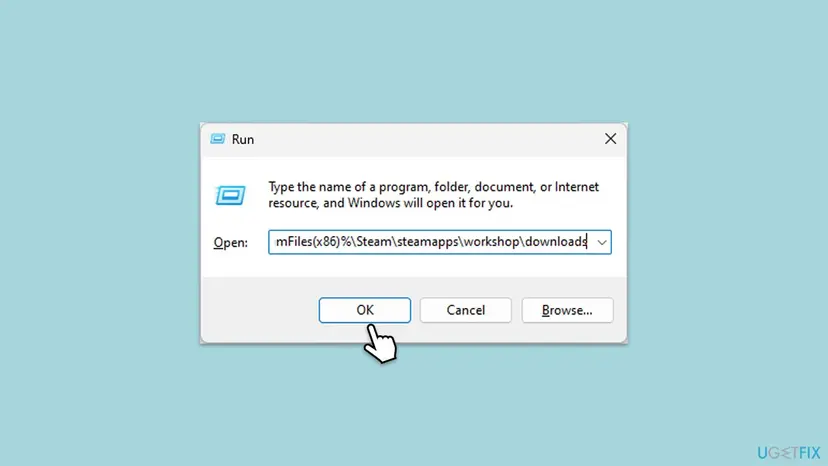
It worked if: Steam starts the download from a clean folder and the error does not return.
If not: Put the copied files back if you want them, and go on with Fix 6.
Fix 6. Check the drive and the memory for errors
15 minutes plus a restartLow riskWindows crashed or lost power during the download, other files go missing, or the error repeats on one drive.
Steam Support: "files on hard-disks and other storage devices become corrupted because of bad hardware, software crashes, power surges", and "memory errors can cause issues with the Steam installation process". It also lists a drive check and a memory test.
- Open Command Prompt as administrator. Type cmd in the search box on the taskbar, right-click Command Prompt and select Run as administrator. Select Yes when Windows asks for permission.
- Scan the drive without changing anything. Type the command below and press Enter. Replace C: with another drive letter to check that drive. This scan only reports; it does not fix anything.
chkdsk C: - If errors were found, run the repair. Run chkdsk with /f to fix file system errors. On the Windows drive (C:) chkdsk cannot lock the drive while Windows is running, so it offers to check it at the next restart.
chkdsk C: /f - Schedule the check and restart. Type Y and press Enter, then restart the PC. chkdsk runs before Windows starts. Do not turn the PC off while it runs.
- Read the result after the restart. The report of a check made at startup is not shown on the desktop. Open PowerShell and run the command below to see it, or open Event Viewer (eventvwr.msc) > Windows Logs > Application and filter by the sources Chkdsk and Wininit.
Get-WinEvent -FilterHashtable @{LogName='Application'} | Where-Object { $_.ProviderName -match 'wininit' } | Select-Object -First 1 | Format-List TimeCreated, Message
These steps were written for Windows 11 and Windows 10 (the steps are the same). The full page with the other versions and what each result means: Check a disk for errors (chkdsk)
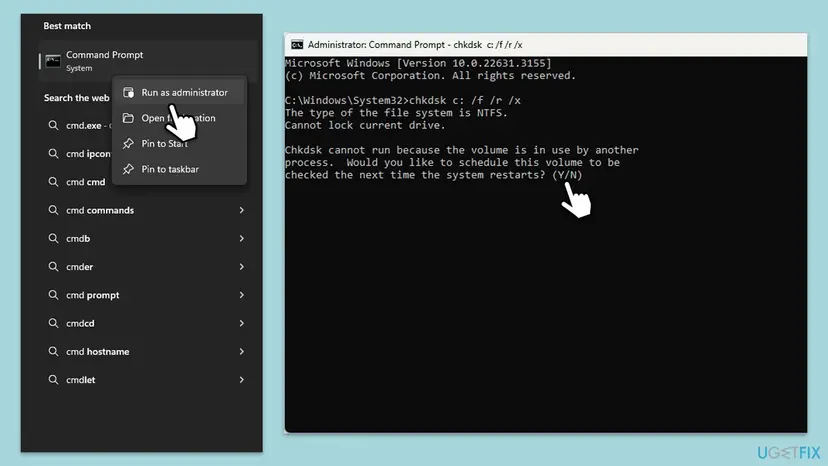
Then test the memory: press Win + R, type mdsched and follow Windows Memory Diagnostic. Step by step: How to test your RAM with Windows Memory Diagnostic
It worked if: The check reports no errors, or Windows repairs them, and the next download completes.
If not: If the check reports bad sectors or the memory test fails, the drive or the RAM is the problem. Move the game with Fix 7.
Fix 7. Move the game to a different library folder
10 to 30 minutesLow riskThe drive check found nothing and only one drive has the error.
Steam Support says it is "very helpful to test the issue by installing on an alternate hard drive". If the game installs there, the first location is the problem, not the game or Steam.
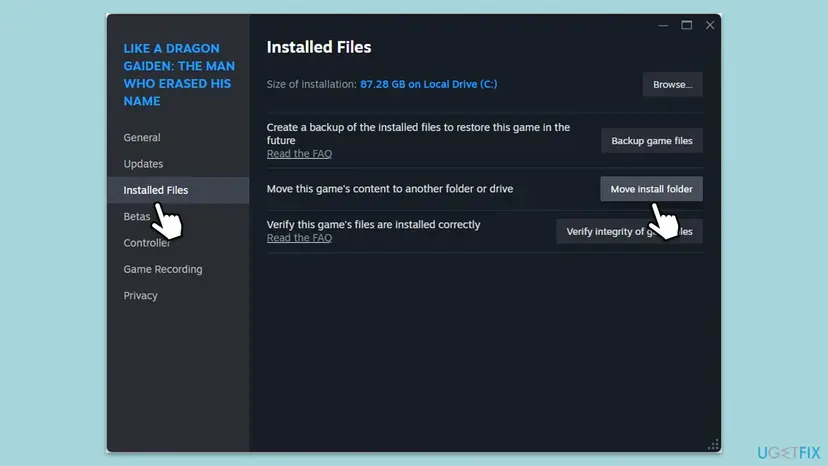
- In Steam open Settings > Storage and click + to add a library folder on another drive.
- Go to the Library, right-click the game and select Properties.
- Open Installed Files and click Move install folder.
- Choose the new library folder and start the move.
- Start the game or retry the update.
It worked if: The game starts or updates from its new location.
If not: Reinstall the game with Fix 8.
Fix 8. Uninstall and reinstall the game
30 minutes or more, by the size of the gameRead the warningOne game fails after everything above.
A clean install gives Steam an empty folder, so no half-written file remains. Steam Support also says to reinstall Steam over the existing copy if the client itself is damaged, which "will preserve all installed games".
Most games keep saves in Steam Cloud, but some keep them in the game folder. Copy anything you cannot lose before you uninstall. Never uninstall Steam through Windows: Steam Support warns it deletes all game content.
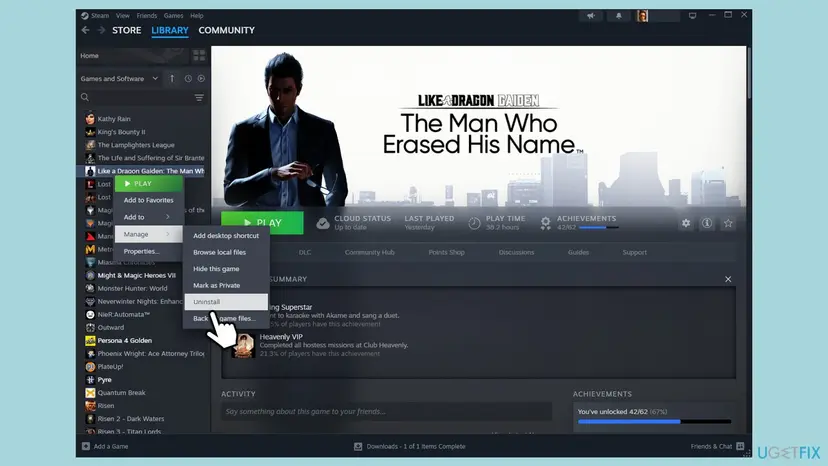
- In the Library right-click the game and choose Manage > Uninstall.
- Confirm and restart the PC.
- Open Steam, select the game and press Install.
- If the client itself fails, download the Steam installer and install it again into the same folder; this keeps your games.
It worked if: The game downloads in full and starts.
If not: Contact Steam Support with the details from the next section.
If Steam still says "MISSING DOWNLOADED FILES": what to send to Steam Support
Steam Support's own page ends with the advice to contact a specialist for the advanced steps. Before you ask, write down what narrows it down.
- The game, the drive and the time of the failed attempt, and whether the error comes at install or at update.
- Which fixes you tried and whether the game installs on another drive (Fix 7). That points to the drive.
- Your antivirus and whether the file was quarantined.
- Steam's log: developers quote
content_log.txtin thelogsfolder of the Steam directory in bug reports. We found no Valve page on it, so use it only to copy the lines around the failure into your message.
Ask through Steam Support, choose the game and the install problem, or post in the game's Steam discussions. If the drive check or the memory test reported errors, the cause is hardware and no Steam setting will cure it.
How to keep "Missing downloaded files" from coming back
- Let installs and updates finish before you sleep or shut down the PC.
- Keep the Steam folder and your library folders in your antivirus exceptions.
- Leave enough free space on the drive for the game and its update.
- Exit Steam with Steam > Exit when a download must stop.
- Do not uninstall Steam through Windows to cure this error; it deletes your games.
- Do not let cleaner or tune-up tools remove files from the Steam folder.
- Do not copy game files from other websites to fill the gap.
- Do not delete game files by hand and expect Steam to ignore it; verify them instead.
Frequently asked questions
What does "Missing downloaded files" mean on Steam?
It means files Steam had downloaded, and was about to use, were not on your drive. Steam shows it as the reason at the end of the "An error occurred while installing" or "updating" message. Valve does not say which file or why. The usual ways to remove it are clearing the download cache, verifying the game's files and repairing the library folder, in that order, as Steam Support lists them.
Why does the download reach 100% and then stop with this error?
At 100% Steam has fetched all the pieces and starts to put them together and check them. If a file is not there at that moment, Steam stops. Possible causes are a program that removed or locked the file, a library folder Steam cannot write to, a damaged cache or a drive problem. Steam does not tell which one, so work through the fixes in order.
Is "Missing installed files" the same error?
It is the neighbouring error and the fixes are the same. Steam's client lists "Missing downloaded files" and "Missing installed files" as separate update errors. The first refers to the files just downloaded, the second to files already installed. For both, clear the download cache, verify the game's files, and repair the library folder.
Do I have to download the whole game again?
Not for most fixes. Clearing the cache and repairing the library folder keep your games. Verifying the files downloads only the pieces that are missing or wrong. Only Fix 8 removes the game and downloads it in full. Steam Support also says that installing Steam again in the same location keeps all installed games, while uninstalling Steam deletes them.
Will I lose my saves?
Usually not. Most games store saves in Steam Cloud, and clearing the cache or verifying files does not touch them. A reinstall removes the game folder, and a few games keep saves there. Copy the save folder before Fix 8 if the game does not list Steam Cloud support. Clearing the cache signs you out of Steam but keeps your library.
Should I turn off my antivirus to fix it?
No, not for good. Steam Support says that a test with the antivirus off may be needed, but the lasting fix is exceptions for the Steam folder and your library folders. Pause protection for one test only, with the steps in Fix 4, and turn it back on at once.
Is it a Windows 11 or Windows 10 problem?
It is a Steam error and appears on both. The Steam menu paths are the same on Windows 11 and Windows 10. Windows 10 lost Microsoft support on 14 October 2025, so update to Windows 11 when your PC can. Players also report the message on the Steam Deck; we did not check those cases, and this page is written for Windows.
Is the error caused by my game or by my account?
Neither, as far as Steam tells. The message is about files on your drive, not about your licence or a ban. If the game is yours and installed fine before, it is a local problem with the cache, the library folder, a program that touches the files or the drive itself, and the fixes above address them in that order.
I searched only "how to fix" or use another launcher. Is this page for me?
This page is for games installed and updated by Steam, with the text MISSING DOWNLOADED FILES. A game from the Epic Games Launcher, the Xbox app or another store has its own repair tool. For most launchers the idea is the same, verify the game files, and How to verify game files in Steam, Epic Games, Xbox app, EA app, Battle.net and GOG Galaxy shows how in Steam, Epic, the Xbox app, EA app, Battle.net and GOG Galaxy.
When should I contact Steam Support?
After Fix 7 and Fix 8, when the error repeats on every drive and with a fresh install. Send the game, the time, what you tried and the lines around the failure from the Steam log, if you have them. Steam Support may ask for more detail or point to the game's developer.
Sources
- Steam Support: Update & Installation Issues (clear download cache, repair library folder, verify local files, change download region, reinstall Steam, move game folder, antivirus, drive and RAM checks) (help.steampowered.com)
- Steam client text file steamui_english.json, as mirrored by SteamTracking (update errors 11, 36, 37, 42 Missing downloaded files, 50 Missing installed files; Clear Download Cache text and warning) (github.com)
Did this fix work?
One click, no account. It tells the next reader which guides are worth their time.
Questions and experiences: fix Steam error "MISSING DOWNLOADED FILES" in Windows
Still broken, or found a fix we did not cover? Ask here: members and our editors answer. Reading is open; writing needs a free account.
…