
How to fix Steam library folder not writable error in Windows?

Prefer to fix it yourself? The manual steps follow.
- 9methods
- 5 minutes for the first fix, up to 30 minutes for the rest
- Intermediate
Applies to Steam client on Windows 11 and Windows 10
9 methods in this guide
Hello. I can't download or update any games on Steam because I get the "Steam library folder not writable" error. Please help me fix this.
The message "Steam library folder is not writable" means Steam tried to use a folder for your games and could not save anything in it. It usually appears when you install or update a game, or when you add a new drive in the storage settings. Start with Steam's own Repair Folder button, then work down the list.
Steam needs a library folder that every user account can write to. Steam Support says these permissions sometimes break and must be refreshed, so Fix 1 is Steam > Settings > Storage > the three dots > Repair Folder. If the message appears when you add a new drive, Fix 2 is to create the folder yourself and point Steam at it. Permission, drive and reinstall fixes follow.
| Error | "Steam library folder is not writable" (also written "Steam library folder not writable"), shown by the Steam client when it cannot save files in a game library folder. |
|---|---|
| Where it appears | When you install or update a game, or when you add a drive or folder as a new library in Settings > Storage. Games already installed in a healthy library keep working. |
| Main cause | Steam cannot create or change files in the library folder. Steam Support names broken user permissions; users also report a missing folder after a drive was replaced, or a program blocking writes. |
| Fastest fix | Steam > Settings > Storage, open the three dots next to the drive and choose Repair Folder. It takes a minute and changes nothing else. |
| Also written as | Steam folder is not writable, Steam library is not writable, steamapps folder read only, "the Steam folder does not have write permission". |
| Not the same as | "Steam package not writable" and "Steam registry path not writable" are different wordings that this guide does not cover. See the questions at the end. |
| Affects | The Steam client on Windows 11 and Windows 10, on any internal or external drive used as a game library. |
| Vendor status | Valve has no page for this exact message. Its page "Update & Installation Issues" describes the Repair Library Folder step for write problems. |
| Time to fix | 1 to 5 minutes when Repair Folder works; 15 to 30 minutes when permissions or the drive must be checked. |
Facts checked on 16 October 2026. Steps written for the Steam client on Windows 11 (25H2 and 26H2) and Windows 10 22H2, read against Steam Support and Microsoft Learn.
What the Steam library folder not writable error means
A Steam library folder is the place on a drive where Steam keeps your installed games, in a subfolder named steamapps. Steam Support says these folders need to be writable by all users so that games can update. "Not writable" therefore means Steam could not save a file there when it tested the folder. The message does not say which part failed, and Steam has no error number for it.
- The message
- "Steam library folder is not writable." It is Steam's own wording, shown in a small window or in the storage settings, not a Windows error code.
- What Steam needs
- Steam Support: library folders "need to be writable by all users in order to update properly". Sometimes these user permissions break and need to be refreshed.
- What it does not mean
- It does not mean the drive is full or that your games are deleted. The files are usually still there; Steam just cannot write new data.
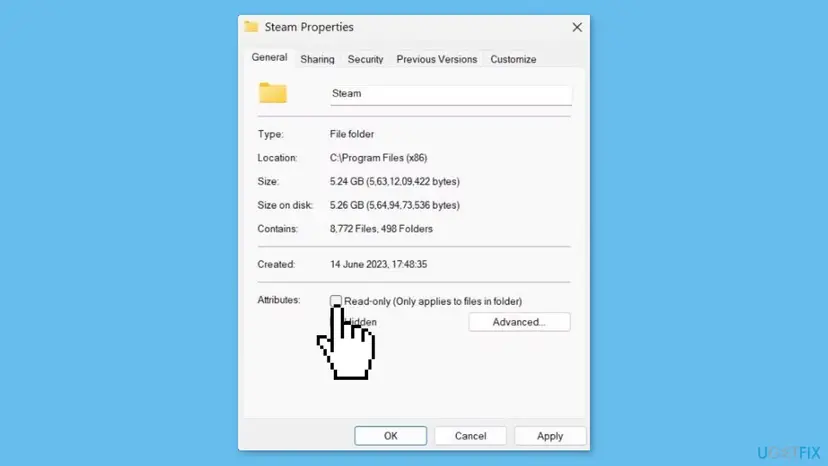
- Read-only box
- The Read-only box on a folder is a weak signal. Answers on Microsoft Learn Q&A say Windows typically ignores it for folders and that real write limits come from NTFS permissions or Controlled folder access.
Because the same words appear in two situations, find yours first. If the message shows up while you add a new drive or folder in Storage, the folder is probably missing or blocked. If it shows up while you install or update a game, the existing library has lost its permissions or a program is blocking Steam.
Why Steam says the library folder is not writable: the causes
Steam Support gives one direct cause: broken user permissions on the library folder. Beyond that we only have what users report on the Steam forums, so the table marks which is which.
| Cause | How to tell | Fix |
|---|---|---|
| Broken permissions on the library folder. Steam Support names this one. | The message appears when you install or update a game in an existing library. | Fix 1, Fix 5 |
| The folder is missing or has a different name. Users report this after a disk is replaced and gets the old drive letter. | The message appears when you add the drive; the path in Steam's libraryfolders.vdf file does not exist on the drive. | Fix 2 |
Steam has no rights to write there. Steam installed in Program Files (x86) and a library on a drive owned by another account. | Running Steam as administrator makes the message go away. | Fix 3, Fix 5 |
| A read-only attribute. The old advice. Windows often ignores it on folders, but it costs nothing to check. | The steamapps folder shows the Read-only box filled or as a square. | Fix 4 |
| Controlled folder access. A Windows Security feature that stops unknown programs from changing protected folders. | The message started after turning on ransomware protection, and the drive is in a protected location. | Fix 6 |
| A drive with file system errors. A damaged drive can refuse writes. | Other programs also fail to save on that drive, or Windows asked you to scan it. | Fix 7 |
| Stale Steam data or a damaged client. Less likely, but both are cheap to test. | Nothing above matches and Steam acts oddly in other places too. | Fix 8, Fix 9 |
Windows 10 22H2 is out of support since 14 October 2025, so on that system keep Windows Update running. If Steam also refuses to start games, read the Steam must be running to play this game guide.
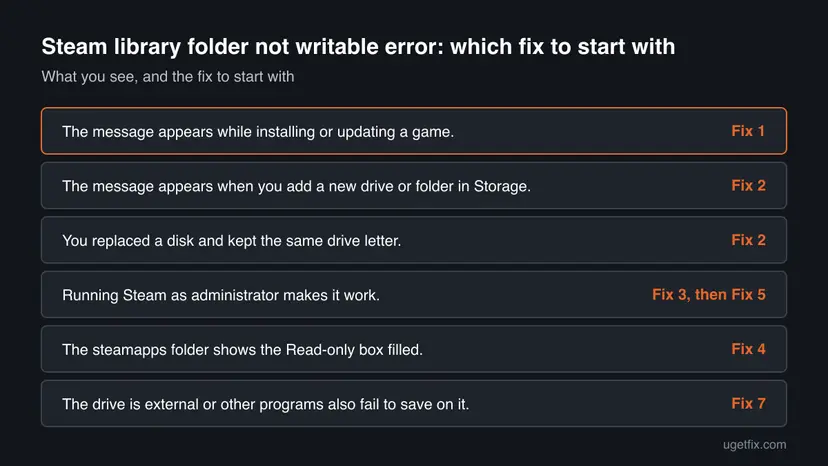
How to fix the Steam library folder not writable error
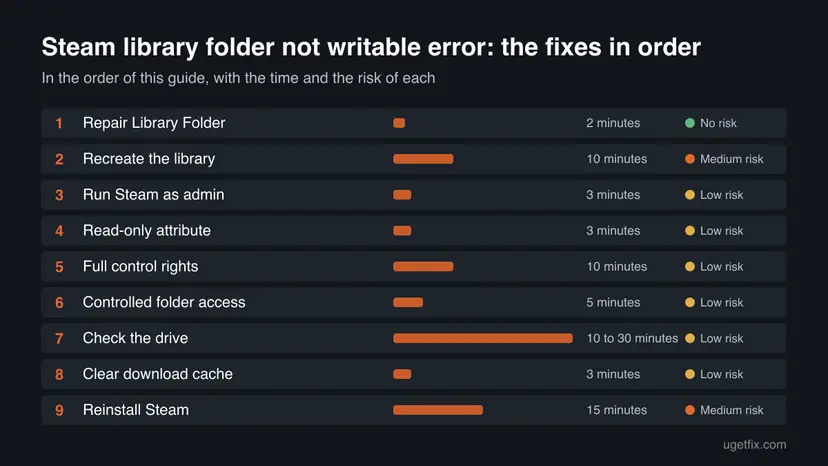
Fix 1 is Steam's own repair and costs nothing. Fix 2 handles the case where the message appears while you add a new drive. Fixes 3 to 6 deal with Windows permissions and protection, Fix 7 checks the drive, and Fixes 8 and 9 reset Steam's data. Try them in order and test a download after each.
| What you see | Start with |
|---|---|
| The message appears while installing or updating a game. | Fix 1 |
| The message appears when you add a new drive or folder in Storage. | Fix 2 |
| You replaced a disk and kept the same drive letter. | Fix 2 |
| Running Steam as administrator makes it work. | Fix 3, then Fix 5 |
| The steamapps folder shows the Read-only box filled. | Fix 4 |
| The drive is external or other programs also fail to save on it. | Fix 7 |
Fix 1. Repair the Steam library folder
2 minutesNo riskEveryone should start here, above all when the message appears during an install or update.
Steam Support says library folders must be writable by all users and that these user permissions sometimes break. The Repair Folder command refreshes exactly that, so it addresses the documented cause before anything is changed by hand.
- Open Steam and select Steam in the top left corner, then Settings.
- Select Storage in the left list.
- Next to the drive that shows the problem, select the three dots button and choose Repair Folder.
- Select Yes in the User Account Control window.
- When the repair finishes, select Close and start the game download again.
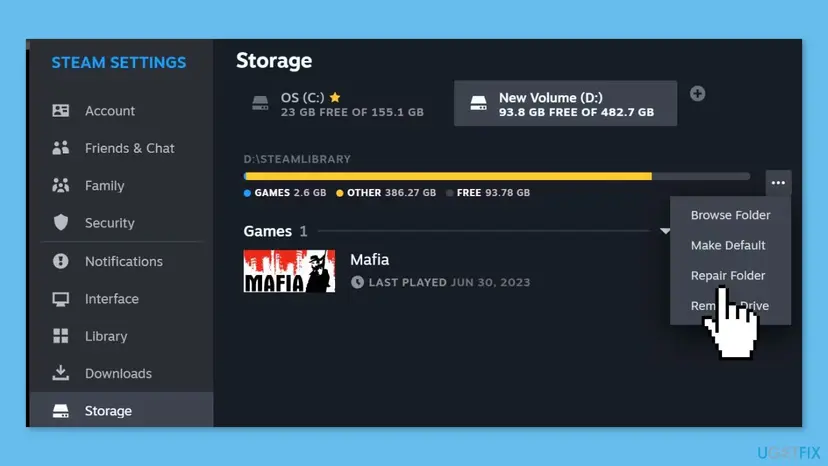
It worked if: The repair window finishes without an error, and the install or update starts and keeps going.
If not: If Repair Folder fails or the message returns at once, go to Fix 2 when you are adding a drive, or to Fix 3 for the rights.
Fix 2. Create the folder yourself and add it again
10 minutesRead the warningThe message appears while adding a drive, or after you replaced a disk and kept the drive letter.
Users on the Steam forums report that the message appears when Steam expects a folder that does not exist, for example after a disk was swapped. A folder you create yourself exists and belongs to your account, so Steam can test it and write to it.
Removing a library only takes it off Steam's list in our reading of the users' reports; we found no Steam page that says what happens to the files. Never tick a delete option and do not delete the old folder. Copy your SteamLibrary folder to another drive first if you are unsure.
- In File Explorer, open the drive that Steam refuses and create a new folder named
SteamLibraryin its root, for exampleE:\SteamLibrary. - If the drive was a library before, open
C:\Program Files (x86)\Steam\config\libraryfolders.vdfin Notepad and note the path that Steam stored for the drive. Users report that creating a folder at exactly that path fixes the message. - In Steam, open Settings > Storage and, if the old entry for that drive is listed, open its three dots and choose Remove Drive.
- Open the drive menu at the top, choose Add Drive, then Let me choose another location.
- Select the
SteamLibraryfolder you created and confirm with Add. - Restart Steam and start a download into that library.
Users report that Steam lists the new location under the drive name instead of the folder name, which is normal.
It worked if: The new location is listed in Storage without the message, and a game installs into it.
If not: If Steam still refuses the new folder, check the rights in Fix 3 and Fix 5, or the drive in Fix 7.
Fix 3. Run Steam as administrator
3 minutesLow riskSteam is installed in Program Files or the library drive is owned by another account.
An administrator process can write to places a normal one cannot. If the message disappears this way, the library folder is fine and your normal account lacks rights there, which Fix 5 repairs for good.
Step by step: How to run a program as administrator or in compatibility mode
- Press Ctrl + Shift + Esc, find Steam in the list, select it and choose End task, so no Steam process is left running.
- Press the Windows key, type Steam, and choose Run as administrator in the result.
- Select Yes in the User Account Control window.
- Try the install or update again.
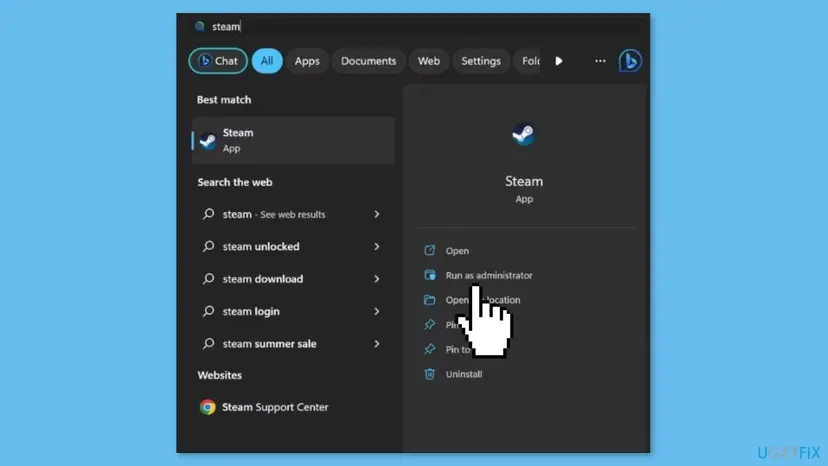
It worked if: The download starts in the library that failed before.
If not: If it works only this way, do Fix 5 to give your account rights. If it fails the same, the cause is not rights; continue with Fix 6.
Fix 4. Clear the Read-only box on the steamapps folder
3 minutesLow riskThe steamapps folder shows the Read-only box filled, or you want to rule out the old advice.
Older guides tell you to clear this box. Answers on Microsoft Learn Q&A say Windows typically ignores a folder's Read-only attribute and that it does not stop writing, so this rarely fixes the message alone, but a stuck attribute is easy to check and to remove.
- Press Windows + E to open File Explorer.
- Go to the folder where Steam is installed. By default this is
C:\Program Files (x86)\Steam; on your PC it may be another drive. - Right-click the steamapps folder and select Properties.
- On the General tab, find Attributes and clear the Read-only box.
- Select Apply, choose to apply the change to the folder, subfolders and files, then OK.
- Restart Steam and try the download.
If the box fills itself again after you clear it, that is normal for folders in Windows and not a sign of a fault.
If your library is not inside the Steam folder, repeat the steps for the steamapps folder in your SteamLibrary folder.
It worked if: The Read-only box stays clear or shows the square, and the download works.
If not: If nothing changes, the limit is a permission, not an attribute. Go on to Fix 5.
Fix 5. Give your account Full control of the Steam folder
10 minutesLow riskSteam works as administrator only, or the library is on a drive that came from another PC or account.
Writing needs the Modify or Full control right in the folder's Security tab. Setting it for your account removes the need for administrator mode, and it is the permission fix that Steam Support's wording points to.
- In File Explorer, right-click the library folder (the Steam folder, or the
SteamLibraryfolder on the other drive) and select Properties. - Open the Security tab and select Edit.
- Select your user name or the Users group in the list. If it is missing, select Add and enter your user name.
- In the lower list, tick Full control in the Allow column.
- Select Apply, then OK, then close Properties.
- Restart Steam and test a download.
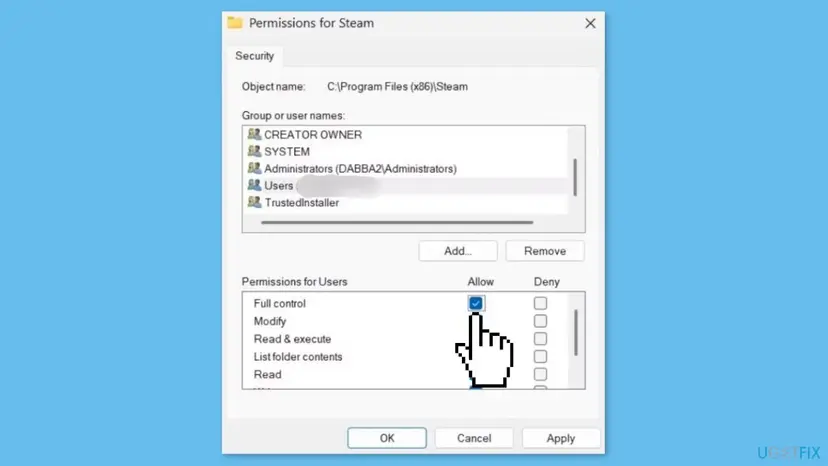
It worked if: Steam writes to the folder without administrator mode.
If not: If Windows says access is denied, you are not an administrator: sign in with an administrator account. If the change applies and the error remains, continue with Fix 6.
Fix 6. Check Controlled folder access in Windows Security
5 minutesLow riskThe message started after ransomware protection was turned on or after a Windows Security update.
Controlled folder access blocks programs it does not know from changing files in protected folders. Microsoft Learn answers name it as one of the things that can block writing. When Steam is blocked, allowing the app is better than turning the feature off.
- Open Windows Security from the Start menu and select Virus & threat protection.
- Select Manage ransomware protection. If Controlled folder access is off, this is not your cause; go on to Fix 7.
- If it is on, select Block history and look for
steam.exeorsteamservice.exeblocked at the time of the error. - Go back, select Allow an app through Controlled folder access, then Add an allowed app and choose Recently blocked apps or browse to
steam.exe. - Restart Steam and test a download.
Do not turn off Windows Security or your antivirus to fix this. Allowing one app is enough. Pausing real-time protection for one test is covered in Turn off Microsoft Defender protection for a moment, and only as a last step.
It worked if: Block history shows no new block for Steam, and the install works.
If not: If Controlled folder access is off or shows no Steam entries, move on to the drive check in Fix 7.
Fix 7. Check the drive for errors
10 to 30 minutesLow riskThe library is on an external or old drive, or other programs fail to save on it too.
A drive with file system errors can refuse writes, and Windows can mount it in a limited way until it is checked. The Check Disk tool scans for these errors and repairs them when you ask it to.
Step by step: Check a disk for errors (chkdsk)
- Close Steam and save open work.
- Run the scan on the drive that holds the library, first without repair.
- If errors are found, run the repair and restart when asked.
- Start Steam and try the download.
It worked if: The scan reports no errors, or it repairs them, and Steam writes to the folder.
If not: If the drive reports errors again soon after, the drive may be failing: copy your files elsewhere and replace it.
Fix 8. Clear the Steam download cache
3 minutesLow riskThe first fixes did not help and downloads act strangely in other ways too.
Steam Support says clearing the download cache makes the client flush locally cached configuration data and fetch it from the Steam servers again. It does not touch installed games or permissions, so it fixes stale data only.
- Open Steam and select Steam, then Settings.
- Select Downloads.
- Next to Clear Download Cache, select Clear Cache.
- Confirm. Steam restarts, and you have to sign in again, so have your password ready.
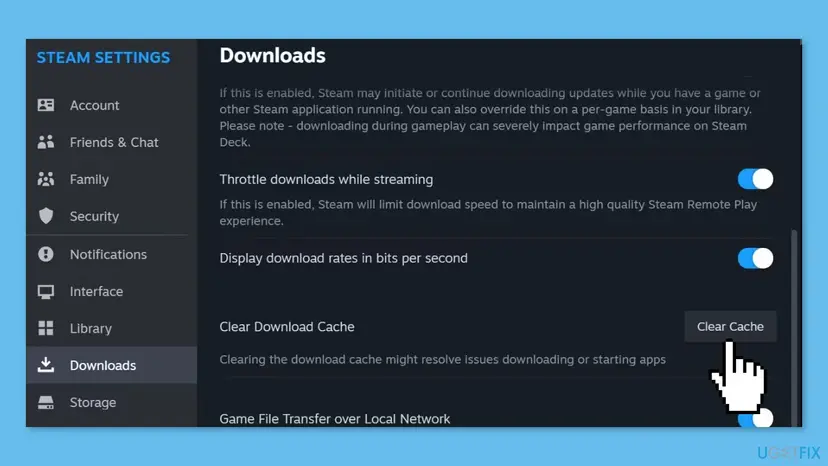
It worked if: Steam restarts and shows your library; the install no longer shows the message.
If not: If the message is still there, the cause is on the folder or the PC. Go to Fix 9 or the section on getting help.
Fix 9. Reinstall Steam into the same folder
15 minutesRead the warningEvery earlier fix failed and the message appears in more than one library.
Steam Support says reinstalling Steam to the location where it already is can fix problems with the client and its service files, and that games are kept. Users also report that this solved the message when permissions were damaged.
Steam Support warns that uninstalling Steam deletes all game content. Install over the existing copy instead and keep a copy of your steamapps folder on another drive first.
- Close Steam completely: end the Steam task in Task Manager.
- Copy the
steamappsfolder to a safe place on another drive, if you have the room. - Download the Steam installer from the official Steam website.
- Run it and choose the same folder where Steam is already installed.
- Start Steam, sign in and test a download.
It worked if: Steam starts with your library intact and installs without the message.
If not: If it persists, collect the details in the next section and contact Steam Support. Some users on the forums report a clean install of Steam into a fresh folder; their games were re-detected from the library folders.
If the Steam library folder is still not writable: what to check and what to send
By now you know whether the message appears only on one drive, which of the fixes changed anything, and whether administrator mode helps. Together they point at the cause.
| Your result | What it points at | What to do |
|---|---|---|
| Works as administrator only | Your account lacks rights on the folder | Repeat Fix 5 on the library folder and on the drive root. |
| Fails on one drive only | The drive, its folder or its rights | Fix 2, Fix 5 and Fix 7 on that drive. |
| Fails on every drive | Steam's data or a program blocking Steam | Fix 6, Fix 8 and Fix 9; test again after a Windows restart. |
| Games fail to start, not just to update | Damaged game files | Run the Steam variant of How to verify game files in Steam, Epic Games, Xbox app, EA app, Battle.net and GOG Galaxy for that game. |
When you write to Steam Support, name the message, the drive and its file system, whether administrator mode helps, and which fixes you tried. Do not send passwords or a screenshot of your account page.
How to keep the Steam library folder from becoming not writable
- Create the library folder yourself before you add a drive, and keep the path in Steam's settings the same.
- Use Repair Folder after a disk swap or a restore from backup.
- Eject external drives safely so the file system stays clean.
- Allow Steam in Controlled folder access instead of turning protection off.
- Do not delete the old library folder to fix a message.
- Do not uninstall Steam to fix this, because it deletes game content.
- Do not change drive letters of libraries that are in use.
- Do not apply permission changes from random scripts.
The cause usually returns after a disk swap, an interrupted drive or a rights change on the drive. Fix 1 takes a minute, so use it first.
Frequently asked questions
What does Steam library folder not writable mean?
It means Steam could not save a file in the folder you picked as a game library. Steam Support says library folders need to be writable by all users so games can update, and that these user permissions sometimes break and need to be refreshed. The message does not say whether the cause is a missing folder, a permission, a blocking program or the drive. Start with Repair Folder in the storage settings.
Why does the Steam library folder is not writable message appear when I add a new drive?
Users on the Steam forums report that Steam expects a particular folder on the drive and cannot write when it is missing, for example after a disk was replaced and kept the same drive letter. Creating a folder yourself, such as SteamLibrary, and adding it with Let me choose another location is reported to fix this. Fix 2 gives the steps.
Will I lose my games if I remove the library folder in Steam?
We found no Steam page that states what Remove Drive does with the files, so do not rely on it. In the cases users describe, the files stayed on the disk and only the list changed. Copy the SteamLibrary folder to another drive before you remove anything, and never choose a delete option.
Does clearing the Read-only box on the steamapps folder fix it?
Seldom. Answers on Microsoft Learn Q&A say Windows typically ignores the Read-only attribute on a folder and that it does not stop files being written; real limits come from NTFS permissions or Controlled folder access. Clearing the box is harmless and takes a minute, so it is Fix 4, but Fix 1, Fix 2 and Fix 5 are more likely to help.
Is the steamapps folder read only a virus sign?
Not by itself. A filled Read-only box on a folder is common in Windows and does not mean infection. If the message started at the same time as strange pop-ups, new browser add-ons or other odd behavior, run a scan with Windows Security. We have no source that links this message to malware.
What do the Steam folder does not have write permission and the Steam package not writable messages mean?
"The Steam folder does not have write permission" with advice about system preferences and a host or DAW app belongs to a music-making plug-in on macOS that is also called Steam, not to the Steam game client. "Steam package not writable" is a different wording that we found no Steam Support page for. This guide covers the Windows library folder message only.
What does the Steam registry path not writable error mean?
We found no Steam Support page for it, so we cannot say what it means. It is not the library folder message. This guide does not tell you to edit the registry. If you see that wording, send the exact text, your Windows version and a note of what you were doing when it appeared to Steam Support, so they can tell which component produced it.
Should I run Steam as administrator all the time?
No. Running as administrator is a test to learn whether rights are the cause. If it helps, give your account Full control of the library folder (Fix 5) so you do not need administrator mode. Always running with higher rights makes mistakes and malicious files more dangerous, because anything the program starts then runs with the same elevated rights as well.
Can I move my Steam library to another drive to avoid the error?
Yes, in principle: add a new library in Settings > Storage and move games to it with the three dots menu or the Move option in the game's properties. The new folder must be writable, so create it first (Fix 2). Do not move files by hand while Steam is running.
Does the Steam library folder not writable error occur on Windows 10 and Windows 11?
Yes, users report it on both. The steps in this guide were read against Windows 11 25H2 and 26H2 and Windows 10 22H2. Windows 10 22H2 has been out of support since 14 October 2025, so install the latest updates you can, keep your files backed up and plan the move to Windows 11 before you rely on this PC for new games.
Sources
- Steam Support: Update & Installation Issues (Repair Library Folder, Clear Download Cache, Reinstall Steam) (help.steampowered.com)
- Microsoft Learn Q&A: Win 11 folders in all drives keep reverting to Read-only status (answers, not a Microsoft article) (learn.microsoft.com)
- Steam Community forum: "Steam Library Folder is Not Writable" (users report) (steamcommunity.com)
Did this fix work?
One click, no account. It tells the next reader which guides are worth their time.
Questions and experiences: fix Steam library folder not writable error in Windows
Still broken, or found a fix we did not cover? Ask here: members and our editors answer. Reading is open; writing needs a free account.
…