
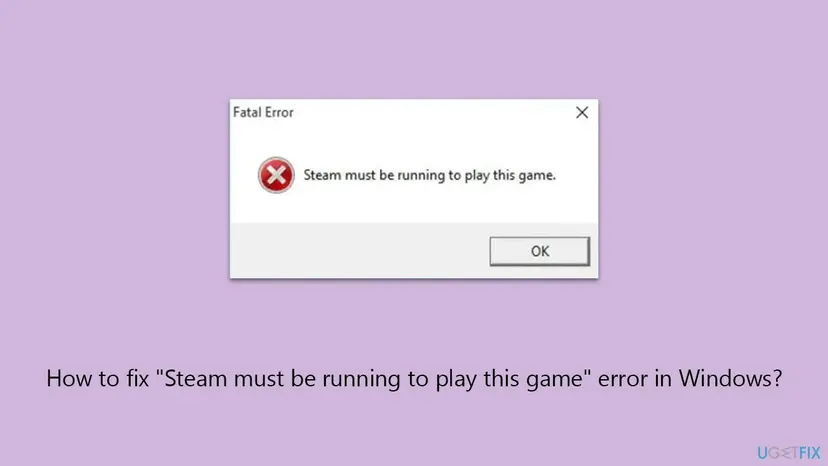
How to fix "Steam must be running to play this game" error in Windows?

Prefer to fix it yourself? The manual steps follow.
- 7methods
- 1 minute for the first check, 5 to 20 minutes for the repairs
- Easy
Applies to Games bought on Steam and started on Windows 11 or Windows 10
7 methods in this guide
Hello. I keep getting "Steam must be running to play this game" whenever I attempt to launch a game. All the other games work fine, so I am baffled as to what I am supposed to do to fix this. I am running Windows 10 version 22H2 and have a high-end PC setup (RTX 3070 Ti, 16GB RAM, Intel i5-13600KF).
"Steam must be running to play this game" is printed by the game, not by Steam, when its first call to Steam fails. Valve lists five reasons, and the two most common are a game started outside Steam and a game and Steam running at different permission levels. Start the game from your Steam Library first.
The game asked Steam who you are and got no answer. Usually it was started from its .exe file or a desktop shortcut, or Steam and the game run at different permission levels, one as administrator and one not. Start with Fix 1: exit the game, open Steam, sign in to the account that owns the game and press Play in the Library. If Steam is open and it still fails, go to Fix 2.
| Error | A window titled Fatal Error with the text "Steam must be running to play this game." Some games add "(SteamAPI_Init() failed)". |
|---|---|
| Where it appears | Right after you start a game, before its menu loads. The window belongs to the game, not to the Steam client, which is why it can appear while Steam is open. |
| Main cause | The game's call SteamAPI_Init failed: Steam is not running, the game was started outside Steam, or Steam and the game run under a different user or permission level. |
| Fastest fix | Exit the game, start Steam, sign in to the account that owns the game and launch it with Play in the Library (Fix 1). |
| Also written as | Steam must be running to play, Steam client must be running to play this game, Fatal Error - Steam must be running, Steam must be running to play this title, Steam is not running. You must start Steam in order to play this game. |
| What Steam is here | Steam is Valve's game store and launcher. Games that use Steam's programming interface, Steamworks, need the client running and signed in before they can start. |
| Vendor status | Not a bug with a patch. The text is Valve's own sample message for a failed SteamAPI_Init, and Valve's documentation lists the five conditions behind it. Activision's note for Call of Duty: WWII says to restart Steam because an update may be pending. |
| Affects | Any Steam game that uses Steamworks, on Windows 11 and Windows 10. Microsoft ended support for Windows 10 on 14 October 2025, which does not change this error. |
| Time to fix | 1 minute for Fixes 1 to 3. 5 to 20 minutes for verifying files, a clean boot or a repair of Steam. |
Facts checked on 15 October 2026. Steps written for the Steam client on Windows 11 (25H2 and 26H2) and Windows 10 22H2, read against the Steamworks documentation, Steam Support, Activision's troubleshooting notes for Call of Duty: WWII and the Steam client's own text files.
What "Steam must be running to play this game" means and where it comes from
A Steam game that uses Steam's features (achievements, cloud saves, multiplayer, the ownership check) has to connect to the Steam client first. It does that with a function called SteamAPI_Init. When the function returns false, the game cannot go on, so it shows a message and closes.
The text you see is not Steam's own error. It is the sample message from Valve's Steamworks documentation, and many developers copy it into their games. Valve's sample reads: "Fatal Error - Steam must be running to play this game (SteamAPI_Init() failed)." That is why the window is titled Fatal Error and why the wording changes a little from game to game.
| Text on screen | Who writes it | Same cause? |
|---|---|---|
| Steam must be running to play this game. | The game, with Valve's sample wording | Yes |
| Fatal Error - Steam must be running to play this game (SteamAPI_Init() failed). | The game, the full sample from Valve's documentation | Yes |
| Steam client must be running to play this game / Steam must be running to play this title | The game, with the developer's own wording | Yes |
| Steam is not running. You must start Steam in order to play this game. | The game, with the developer's own wording | Yes |
| Failed to start game (app already running) | The Steam client | No: a game process is still running. Fix 3 covers it. |
"Steam is running" is not enough. The game must also reach that copy of Steam: under the same Windows user, at the same permission level, signed in to the account that owns the game. When any of the three is wrong, the game sees no Steam at all.
What causes the "Steam must be running" error, from most to least likely
Valve's documentation for SteamAPI_Init lists five conditions that make it fail. The order below is ours: Valve publishes no numbers. It follows how often each condition fits what readers describe, and the fixes Steam Support and Activision give for this message.
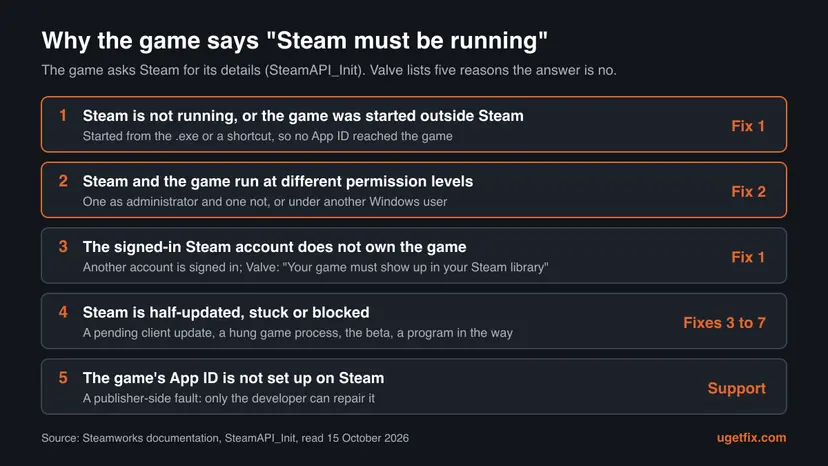
| Cause | How to tell | Fix |
|---|---|---|
| Started outside Steam. Valve: when a player starts the executable directly, "the Steam context associated with your application (including your App ID) will not be set up". | You used a shortcut in the game folder, a pinned taskbar icon, another launcher, or Steam was closed. | Fix 1 |
| Different permission level or Windows user. Valve: the game is "not running under the same OS user context as the Steam client, such as a different user or administration access level". | One game fails while Steam is open. The game's .exe or Steam has Run this program as an administrator ticked. | Fix 2 |
| A pending or half-done Steam update, or a hung game process. | It began after Steam updated, or right after the game crashed. | Fix 3 |
Damaged or missing game files, such as the steam_api64.dll the game uses to talk to Steam. | One game only, after a crash, a cleaner program or an antivirus alert. | Fix 4 |
| The Steam client beta. | Client Beta Participation is set to a beta. | Fix 5 |
| A program in the way: antivirus, a tune-up tool, a VPN. | It started after you installed such a program. It works after a clean boot. | Fix 6 |
| Damaged Steam client files. | Several games fail and the steps above changed nothing. | Fix 7 |
| Wrong account, or an App ID not set up. Valve: "Your game must show up in your Steam library." | The game is not in the Library of the signed-in account, or every owner reports it after an update. | Fix 1, then the game's support |
Many guides say to tick Run this program as an administrator for Steam and leave it there. That can cause this very error: Valve names a different administration access level as a reason for failure. Steam and the game have to match. Fix 2 explains how.
How to fix "Steam must be running to play this game"
Fixes 1 and 2 answer the two causes behind most cases and take a minute each. Fixes 3 to 5 repair the Steam client and the game's files. Fix 6 looks for another program, and Fix 7 rebuilds Steam without deleting your games.
| What you see or did | Start with |
|---|---|
| You started the game from a desktop shortcut, the game folder, the taskbar or another launcher. | Fix 1 |
| Steam is open and signed in, the game is in the Library, and it still fails. | Fix 2 |
| It began after a Steam update, or right after the game crashed. | Fix 3 |
| Call of Duty: WWII. | Fix 3, then Fix 2 |
| One game only, other Steam games start fine. | Fix 2, then Fix 4 |
| Every Steam game shows it. | Fix 5, then Fix 6 and Fix 7 |
Fix 1. Start Steam first, sign in to the right account and launch the game from the Library
1 minuteNo riskEveryone starts here, and above all if you used a shortcut, the game's .exe or a launcher other than Steam.
Valve's documentation says that a game started directly does not get its App ID from Steam, and that SteamAPI_Init then fails. A launch through Steam hands the game its App ID and the signed-in account in one step.
- Select OK on the error and make sure the game window is closed.
- Start Steam from the Start menu and wait until it has signed in and the Library has loaded.
- Check the account name in the top right corner. It must be the account that bought the game.
- Open Library and find the game in the list on the left. If it is not there, this account does not own it: sign in to the right one with Steam > Change Account...
- Select the game and press Play.
- If you use a desktop icon, create a new one from Steam: right-click the game and select Manage > Add desktop shortcut. That icon starts the game through Steam.
- Bought on Steam, started from another launcher. Some games open a second launcher, such as the EA app, Ubisoft Connect or Battle.net. A copy bought on Steam is still checked through Steam, so keep Steam running and signed in to the account that owns it.
- Two Steam accounts on one PC. Valve's rule is that the game "must show up in your Steam library". A game bought on the other account fails here even with Steam open.
It worked if: The game's own splash screen or menu appears instead of the Fatal Error window.
If not: If you launched from the Library of the right account and the error stays, the game and Steam probably run at different levels. Go to Fix 2.
Fix 2. Run Steam and the game at the same permission level
3 minutesLow riskSteam is open and signed in, the game is in the Library, and it still says Steam must be running. Often one game only.
Valve lists "a different user or administration access level" as a reason SteamAPI_Init fails. A game started as administrator cannot see a Steam that runs as a normal user, and the other way round. The fix is to make the two match.
- Exit Steam completely: open the Steam menu and select Exit.
- Open the game's folder: in the Library right-click the game, select Manage > Browse local files.
- Right-click the game's .exe file and select Properties, then the Compatibility tab.
- If Run this program as an administrator is ticked, clear it. If the box is grey, select Change settings for all users and clear it there too.
- Select Apply and OK.
- Do the same for Steam: right-click the Steam shortcut or
C:\Program Files (x86)\Steam\steam.exe, select Properties > Compatibility and clear the box. - Start Steam normally, not with Run as administrator, and press Play in the Library.
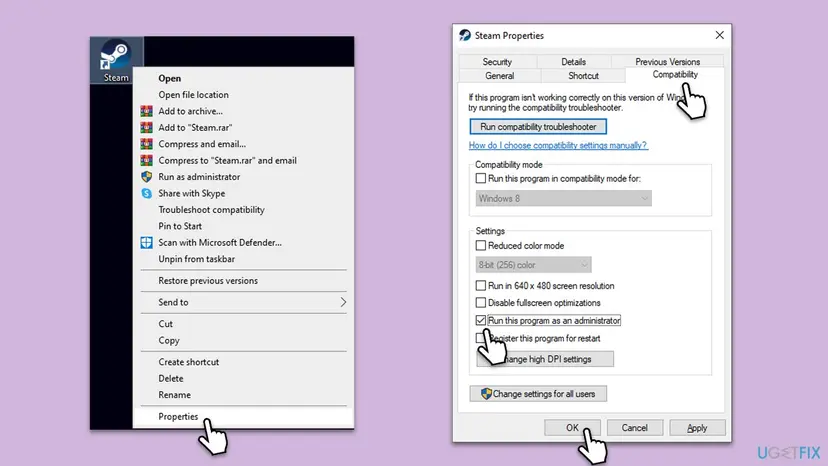
Some games need administrator rights to start at all. Activision's troubleshooting guide for Call of Duty: WWII says: "Ensure that you are running both Call of Duty: World War II and Steam as an Admin." In that case tick the box for both programs, not for one. The steps for the Compatibility tab: How to run a program as administrator or in compatibility mode
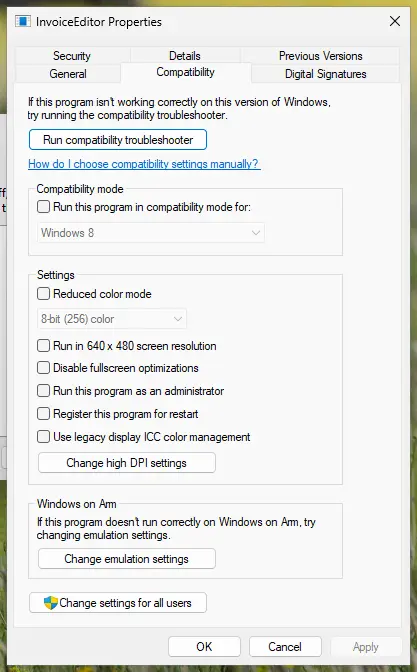
Steam Support notes that a game "may already be running under a different user account" on the PC. If someone else is signed in to Windows with Steam open, sign them out, restart the PC and try again from your own account.
It worked if: With both programs at the same level, the game starts from the Library without the error.
If not: If the boxes were already the same, restart Steam and look for a pending update with Fix 3.
Fix 3. Exit Steam fully, end a stuck game process and install the pending Steam update
3 to 5 minutesNo riskIt started after a Steam update, after the game crashed, or with Call of Duty: WWII.
Activision's note for Call of Duty: WWII says: "please restart Steam, you may have a pending Steam update." A client that is half way through an update, or a game process that never closed, leaves the game unable to reach Steam.
- Open the Steam menu and select Exit. Closing the window only hides Steam in the system tray.
- Press Ctrl + Shift + Esc to open Task Manager.
- On Processes, look for the game's name and for any entry starting with Steam. Select each one and select End task.
- Start Steam again and wait until it has finished any update it offers.
- Open the Steam menu and select Check for Steam Client Updates... Install what it finds and let Steam restart.
- Press Play in the Library.
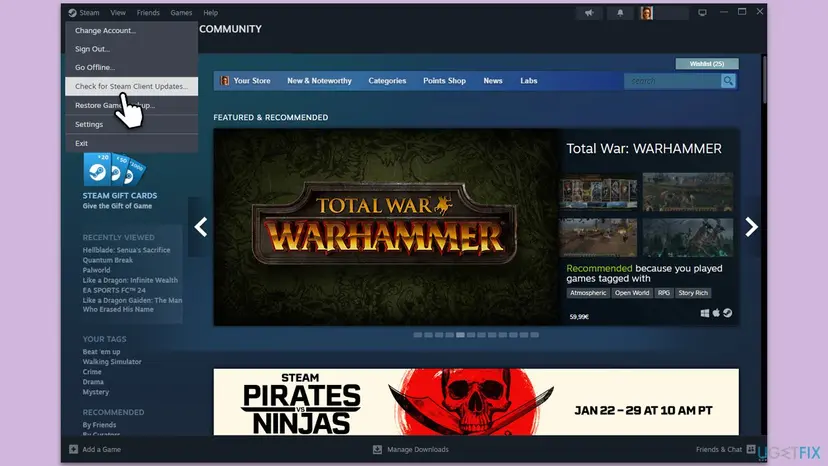
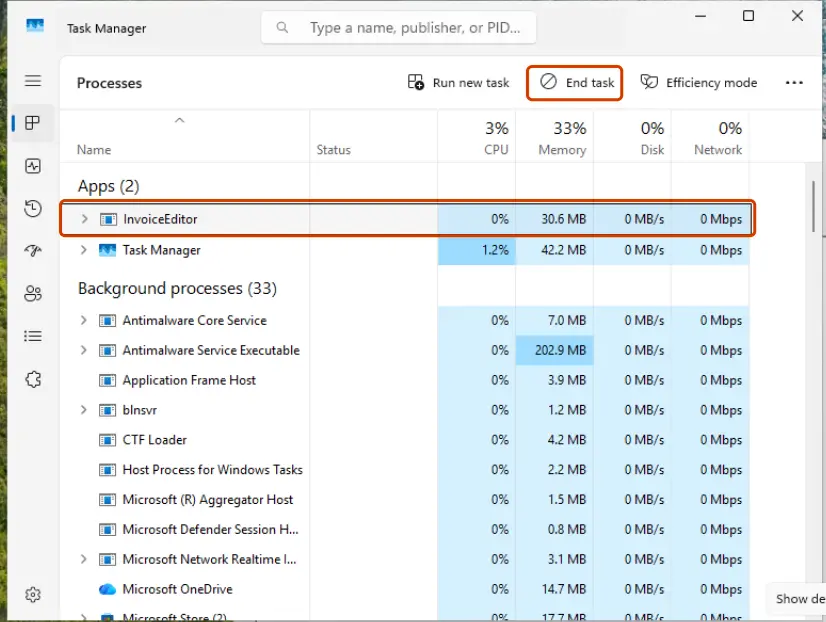
Steam Support's page for the related message "Failed to start game (app already running)" gives the same advice: close the hung game process in Task Manager, and restart the PC if Windows cannot close it. Step by step: Close a frozen app (Task Manager, Force Quit)
It worked if: Steam starts, reports that it is up to date, and the game opens from Play.
If not: If only this game still fails, check its files with Fix 4. If every game fails, go to Fix 5.
Fix 4. Verify the game's files in Steam
5 to 30 minutes, by the size of the gameLow riskOne game fails while others start, especially after a crash, a cleaner program or an antivirus alert.
The game reaches Steam through files in its own folder, such as steam_api64.dll. If one of them is missing or damaged, SteamAPI_Init cannot run. Verifying downloads the original files again. Activision lists it first for Call of Duty: WWII.
- Restart and open Steam. Restart your computer and launch Steam.
- Open the game's menu. Right-click the game in your Library, or open the game's Library page and select the gear icon on the far right.
- Open Properties. Select Properties in the menu.
- Verify the files. Select the Installed Files tab and select Verify integrity of game files.
- Wait for the result. Steam checks the game's files. This can take several minutes.
These steps were written for Steam on Windows. The full page with the other versions and what each result means: How to verify game files in Steam, Epic Games, Xbox app, EA app, Battle.net and GOG Galaxy
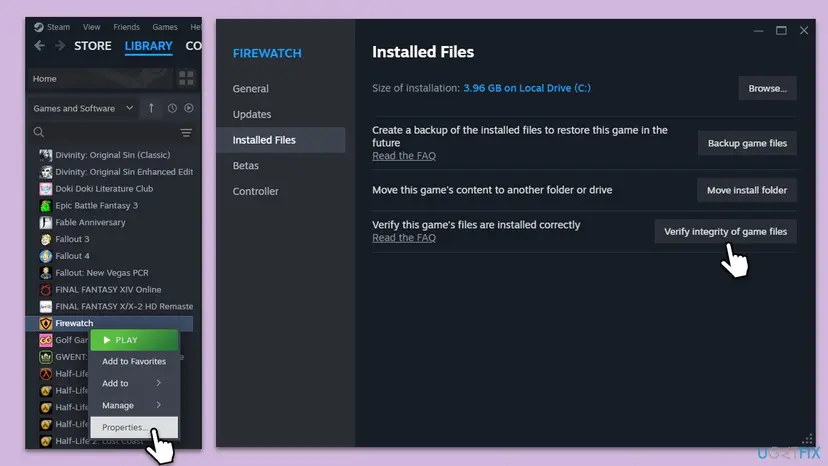
Steam Support: "One or more files may fail to verify. This is normal for most Steam games." Those are local settings files and are not replaced. Do not verify while an antivirus scan or a disk defragment runs.
If the game reports a missing steam_api.dll or steam_api64.dll by name, our guide to the steam_api.dll error covers that file. Never download it from a DLL website.
It worked if: Steam reports that all files were validated, or that it reacquired some, and the game starts.
If not: If verifying finds nothing and the error stays, uninstall the game from the Library (Manage > Uninstall), restart the PC and install it again. Then try Fix 5.
Fix 5. Leave the Steam client beta
2 minutesNo riskYou take part in the Steam client beta, or are not sure whether you do.
A beta client is a version of Steam that games have not been tested against yet. Steam Support lists opting out of the beta for launch failures and asks beta users to test both versions.
- Open the Steam menu and select Settings.
- Select Interface on the left.
- Open the list next to Client Beta Participation.
- Select No beta chosen.
- Select Restart Now when Steam asks.
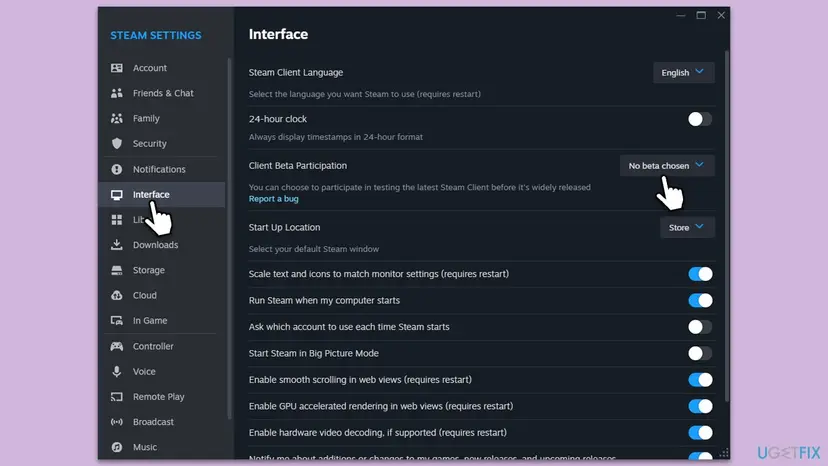
It worked if: Steam restarts on the normal release and the game starts.
If not: If you were not in the beta, or the error stays on the normal release, look for a program in the way with Fix 6.
Fix 6. Find the program that blocks the game from reaching Steam
10 to 15 minutesLow riskSeveral games fail, or the error began after you installed security software, a tune-up tool or a VPN.
Steam Support warns that anti-virus software "hooks very deep into user systems" and that VPNs, anti-spyware tools and firewalls can come between Steam and its games. A clean boot starts Windows without them and shows whether one of them is the cause.
- In your antivirus, add the game's folder to the exceptions. Activision gives the folder for Call of Duty: WWII as
C:\Program Files (x86)\Steam\steamapps\common\Call of Duty WWII. - Add the Steam folder too. The default is
C:\Program Files (x86)\Steam. - Disconnect a VPN and exit its app.
- Start the game from the Library.
- If it still fails, do a clean boot: Windows starts with Microsoft services only. Step by step: How to perform a clean boot in Windows
- After the restart, start Steam and the game.
- If it works now, turn the services and startup apps back on in small groups until the error returns. The last group holds the cause.

- Users report a tune-up tool as the cause. In the Steam Community thread "Fatal Error - Steam Must Be Running To Play This Game [SOLVED]", the poster found that AVG PC TuneUp was the conflicting program. That is a report, not Valve's advice.
- One test with protection paused. If you cannot add exceptions, pause real-time protection for one launch and turn it back on at once: Turn off Microsoft Defender protection for a moment
If the game starts only while the antivirus is paused, the answer is an exception for Steam and the game folder in that program. Leave real-time protection on. When the clean boot test is over, undo it with the last steps of the procedure so that your programs start normally.
It worked if: The game starts with your antivirus running, or the clean boot points at one program that you can update, set up or remove.
If not: If the error stays after a clean boot, the Steam client itself is damaged. Go to Fix 7.
Fix 7. Repair Steam by installing it over itself, without uninstalling
10 minutesRead the warningEvery Steam game shows the error and Fixes 1 to 6 did not help.
A fresh copy of the client replaces damaged Steam files, including the parts the games talk to. Steam Support gives a way to do it that keeps your games: install into the same folder.
Steam Support: "Uninstalling Steam through any other method will delete all game and userdata content." The userdata folder holds local settings and saves of games without Steam Cloud. Copy it to another drive first if you are unsure.
- Exit Steam through the Steam menu and Exit.
- In a browser, open
https://store.steampowered.com/about/and download the Steam installer. - Run it and choose the folder where Steam is already installed, by default
C:\Program Files (x86)\Steam. Steam Support: "Installing into same location will preserve all installed games." - Start Steam, let it update and sign in.
- Press Play in the Library.
Our guide to Steam error code 2 has the deeper repair from Steam Support, which deletes everything in the Steam folder except steam.exe, steamapps and userdata. Use it only if the reinstall over itself did not help.
It worked if: Steam starts, updates itself, and your games are still in the Library without a new download. The game opens.
If not: If a repaired Steam still shows the error for one game, the cause is on the game's side. Contact its support as described below.
If the game still says Steam must be running: what to check and whom to ask
The error has no log file of its own: the game writes the message and closes. What you can send to support is the exact text, how you started the game and what you tried. Steam Support says that when a game still fails to launch, "you will need to contact the support team for that game".
- Take a screenshot of the error window with its title.
- Write down how you started the game: Library, shortcut, another launcher.
- Note whether the boxes in Fix 2 were ticked for Steam, for the game or for both.
- In the Library, select the game and choose Support from the tabs above the Activity section. Steam Support says the game's support contact is there.
- Send the screenshot and the list of fixes you tried.
- When it is the game, not your PC: every owner reports it after the same game update. Valve names an App ID that is not set up, such as one in "Release State: Unavailable", as a cause. Only the publisher can repair that.
- When it is the account: the game is not in the Library of any account you can sign in to. Steam Support can check a purchase at
https://help.steampowered.com. - When it is not a legal copy: a copy from outside Steam fails with this message because it has no Steam licence behind it. No fix on this page applies. See the FAQ.
- When it is the drive: the files fail to verify again soon after Fix 4. Check the drive that holds the game: Check a disk for errors (chkdsk)
How to keep the "Steam must be running" error from coming back
- Start games from the Steam Library, or from shortcuts that Steam created with Add desktop shortcut.
- Keep Steam and your games at the same permission level. Normal for both is the default.
- Exit Steam through the Steam menu after a crash, before you try again.
- Let Steam finish its updates before you press Play.
- Give Steam and your game folders a permanent exception in your antivirus.
- Do not tick Run this program as an administrator for Steam alone.
- Do not start games from the .exe in the game folder or from an old pinned taskbar icon.
- Do not let a cleaner or tune-up program remove files from the Steam folder.
- Do not uninstall Steam through Windows to cure the error. It removes your games.
- Do not download
steam_api.dllorsteam_api64.dllfrom a DLL website.
The rule behind all of this is short. The game must find a running, up to date Steam, under the same Windows user and at the same permission level, signed in to the account that owns it. Keep those four the same and the message stays away.
Frequently asked questions
Why does a game say Steam must be running when Steam is already open?
Because the game cannot reach that copy of Steam. Valve's documentation lists the reasons: the game runs under another Windows user or at another administration level than Steam, the signed-in account does not own the game, or the game was started outside Steam and has no App ID. The most common case is a box ticked on the Compatibility tab: Run this program as an administrator for Steam but not for the game, or the other way round. Clear it for both, or tick it for both, then start the game from the Library.
How do I fix "Steam must be running to play this game" in Call of Duty: WWII?
Restart Steam first. Activision's troubleshooting guide for Call of Duty: WWII on Steam names this message. Its advice: "please restart Steam, you may have a pending Steam update." Exit Steam from the Steam menu, end any leftover Steam or game process in Task Manager and start Steam again. The same guide asks you to run both the game and Steam as administrator, to verify the game files and to add the game folder to your antivirus exceptions. That is Fixes 3, 2, 4 and 6 on this page, in that order.
Does the same fix work for Modern Warfare 2 and other Call of Duty games?
The cause is the same, because every Call of Duty game sold on Steam checks Steam when it starts. Start with Fix 1 and Fix 2: launch from the Steam Library of the account that owns the game, and keep Steam and the game at the same permission level. Then restart Steam and verify the files. We found Activision's own note for this message only for Call of Duty: WWII. For other titles we could not confirm a game-specific fix, so if the steps here fail, contact Activision through the game's Support tab in the Library.
Can I play the game without Steam, or fix the error on a cracked copy?
No, and this page does not help with that. A game that shows this message was built to check your Steam licence when it starts, so it needs the Steam client running and signed in to an account that owns it. On a copy downloaded from outside Steam the check fails for exactly that reason, and no setting on your PC repairs it. Searches for a crack or a way around Steam lead to files that often carry malware. If you own the game, start it through Steam as Fix 1 shows.
What does "Fatal Error" and "SteamAPI_Init() failed" mean in the message?
"Fatal" only means that the game cannot go on and will close. It does not mean your PC or Steam is damaged. SteamAPI_Init is the function a game calls to connect to Steam when it starts. Valve's Steamworks documentation uses "Fatal Error - Steam must be running to play this game (SteamAPI_Init() failed)." as its sample message, and many developers kept that wording. When the function fails, the game has no account, no licence and no Steam features, so it stops with this window.
Should I always run Steam as administrator?
Not by default. Steam installs and updates games without it, and a Steam running as administrator gives every game it starts full access to Windows. For this error the rule is to match: Valve lists a different administration level between the game and Steam as a reason the game cannot reach Steam. So either both run normally, which is the default, or both run as administrator because a game such as Call of Duty: WWII asks for it. Ticking the box for Steam alone can cause the error instead of fixing it.
Will verifying the game files or repairing Steam delete my saves?
Verifying does not. Steam compares the installed files with the originals and downloads only what is missing or changed, and it leaves local settings files alone. Reinstalling Steam into the same folder keeps your installed games, Steam Support says. The danger is uninstalling Steam through Windows Settings or the Control Panel: Steam Support warns that it deletes all game and userdata content. Games with Steam Cloud keep their saves online, but copy the userdata folder to another drive before any repair if you are not sure.
I searched in Korean, Arabic, Persian or Spanish. Is this the same error?
Yes. Readers search for this message as "해결법" (solution), "حل مشكلة" (solve the problem), "مشکل" (problem) or the Spanish "Steam debe estar funcionando para jugar este juego". The window shows the text the game's developer wrote, so it can be in English or in your language, but the cause is the same: the game could not reach Steam. The fixes on this page do not depend on the language of Windows or of Steam. Only the menu names differ, so follow the order of the steps.
What does "Please make sure Steam is running and you are logged in to an account entitled to the game" mean?
It is another developer's wording of the same check, and it names two of Valve's five reasons openly. Steam must run, and the signed-in account must be "entitled", which in Valve's words means it owns "a license for the App ID". Open Steam, check the account name in the top right corner and look for the game in the Library. If it is not there, sign in to the account that bought it with Steam, then Change Account. Then start the game with Play.
Sources
- Steam client text file steamui_english.json, as mirrored by SteamTracking (menu and settings labels) (github.com)
- Steamworks Documentation: steam_api.h, SteamAPI_Init and SteamAPI_RestartAppIfNecessary (the five failure conditions and the sample message) (partner.steamgames.com)
- Steamworks Documentation: Steamworks API Overview, Initialization and Shutdown (partner.steamgames.com)
Did this fix work?
One click, no account. It tells the next reader which guides are worth their time.
Questions and experiences: fix "Steam must be running to play this game" error in Windows
Still broken, or found a fix we did not cover? Ask here: members and our editors answer. Reading is open; writing needs a free account.
…