
How to fix Steam_api.dll missing or not found error?

Prefer to fix it yourself? The manual steps follow.
- 6methods
- 5 to 40 minutes
- Easy
Applies to Windows 11 and Windows 10, games bought on Steam that ship steam_api.dll or steam_api64.dll
6 methods in this guide
Hi, I was not able to launch the game because of the "Steam_api.dll is missing" error. How do I fix this?
steam_api.dll, and its 64-bit twin steam_api64.dll, is the Steamworks library a game ships in its own folder, not a Windows file. When it is missing, an antivirus quarantined it or the game's installation is damaged. Check Windows Security's Protection history first, then let Steam verify the game's files.
steam_api.dll belongs to the game, not to Windows or Steam. Open Windows Security > Virus & threat protection > Protection history: if it removed the file, restore it for a game you bought on Steam (Fix 1). Otherwise verify the game's files in Steam, which downloads the genuine copy again (Fix 2). Never download the DLL from a DLL site, and treat a cracked game's replaced file as a malware risk.
| Error | "The code execution cannot proceed because steam_api.dll was not found", or the same with steam_api64.dll. Older wording: "The program can't start because steam_api.dll is missing from your computer". |
|---|---|
| Where it appears | In a small System Error window the moment you start a game, before any game window opens. The title bar names the game's .exe. |
| Main cause | An antivirus quarantined or deleted the file from the game's folder. Next most common: a damaged or incomplete game installation. |
| Fastest fix | Restore the file from Windows Security's Protection history (Fix 1), or let Steam's Verify integrity of game files download it again (Fix 2). |
| Also written as | steam_api64.dll, steam api dll, steam.api.dll, steamapi.dll, steam_api dll, steam api not found. All mean the same file or its 64-bit build. |
| The file | The Steamworks API library from Valve's Steamworks SDK. Each game ships its own copy next to its .exe, in steamapps\common\<game>. |
| Who makes it | Valve, in the Steamworks SDK. The game's developer includes it. Windows and the Steam client installer do not install the game's copy. |
| Valve's status | Not a known Steam bug. Steam Support's advice for antivirus interference is to create exclusions and verify the game's files. |
| Do not | Download steam_api.dll from a DLL site, copy it from another game, put it in System32, or run regsvr32 on it. |
| Time to fix | About 5 minutes to restore a quarantined file. 10 to 40 minutes when Steam verifies or reinstalls a large game. |
Facts checked on 14 October 2026. Steps written for Steam on Windows 11 (25H2 and 26H2) and Windows 10 22H2.
What steam_api.dll is and what "steam_api.dll was not found" means
steam_api.dll is the Steamworks API library. Valve's Steamworks documentation tells developers to link steam_api[64].lib into the game and to "ship the steam_api[64].dll in your run-time directory (next to your program's executable, or in your dll search path)". The game calls it for achievements, cloud saves, the overlay, multiplayer lobbies and the ownership check.
- Two builds
steam_api.dllfor 32-bit games andsteam_api64.dllfor 64-bit games. The documentation writes both assteam_api[64].dll.- Where it comes from
- The
redistributable_binfolder of Valve's Steamworks SDK. The developer copies it into the game, and Steam downloads it with the game's files. - What it needs
- A running Steam client. Valve says the client provides the implementations of the Steamworks interfaces, so the DLL alone does nothing.
- Other systems
- On macOS the same library is
libsteam_api.dylib, on Linuxlibsteam_api.so. This page is about the Windows.dll.
The error box comes from Windows, not from Steam. Windows reads the list of DLLs the game's .exe needs before the game runs a single line of its own code. If one of them cannot be found in the game's folder or any other folder Windows searches, it stops the start and shows the box.
| What the window says | Status | What it tells you |
|---|---|---|
| "The code execution cannot proceed because steam_api.dll was not found. Reinstalling the program may fix this problem." | 0xC0000135 STATUS_DLL_NOT_FOUND | The file is not in the game's folder. Removed by an antivirus, never downloaded, or deleted. |
| "The program can't start because steam_api.dll is missing from your computer." | The same status, in older Windows wording | The same case. Searches for "steam_api.dll is missing" mean this box. |
| "steam_api64.dll is either not designed to run on Windows or it contains an error." (title Bad Image) | 0xC000007B STATUS_INVALID_IMAGE_FORMAT | A file is there but damaged, or a 32-bit copy sits where the 64-bit one should be. |
| "The procedure entry point (name of a SteamAPI function) could not be located in the dynamic link library steam_api64.dll." | 0xC0000139 STATUS_ENTRYPOINT_NOT_FOUND | The copy that loaded lacks a function the game calls: a copy from another game or another SDK version. |
- Same file, other spellings: steam api dll, steam.api.dll, steamapi.dll, steam_api dll and "steam api not found" in searches all mean steam_api.dll. Windows ignores upper and lower case, so Steam_api.dll is the same name.
- The 64-bit name: a 64-bit game asks for steam_api64.dll. Everything on this page applies to it in the same way.
- Windows 11 and Windows 10: the box and the fixes are the same on both. Windows 10 left support on 14 October 2025, which does not change this error.
- Not this error: "Steam must be running to play this game" or "SteamAPI_Init() failed" appear when the file is present but cannot reach Steam. Fix 6 covers them.
Where the steam_api.dll file belongs: the game's folder, not Windows
Every game that uses Steamworks carries its own copy. Steam Support gives the default place of installed games as C:\Program Files (x86)\Steam\steamapps\common\, with one folder per game. If you added another Steam library on a second drive, the same steamapps\common structure sits there. The DLL lies next to the game's .exe, which in some games is a subfolder such as bin.
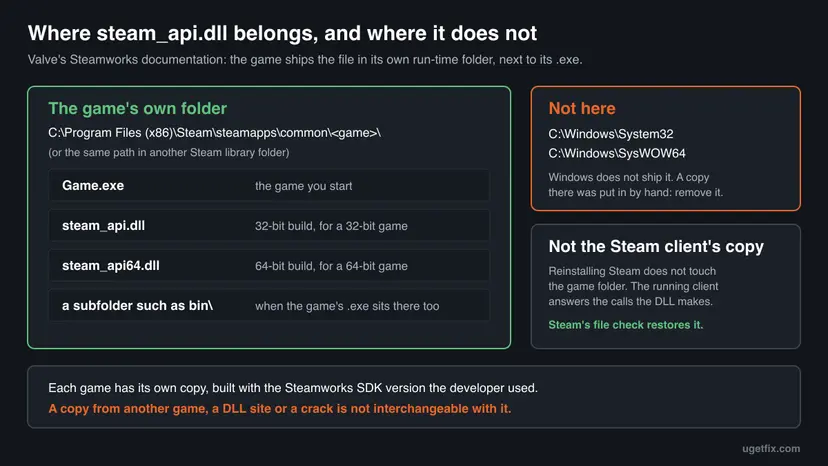
- Not a Windows file. Windows does not ship steam_api.dll, so DISM, SFC and Windows Update cannot restore it. A copy in
C:\Windows\System32orSysWOW64was put there by hand or by a tool and does not belong. - Not the Steam client's copy. Reinstalling Steam does not rewrite the folders of your games, which is why the earlier version of this guide's first tip rarely helped.
- Not shared between games. Each game ships the build from the Steamworks SDK version its developer used. Copying the file from one game to another can trade the missing-file box for an entry point error.
- Open the folder from Steam. Right-click the game in your Library and select Manage > Browse local files. That opens the exact folder, even on a second drive.
Read the name in the box before you do anything. A 64-bit game that asks for steam_api64.dll will not use a steam_api.dll lying next to it, and the reverse. Steam's file check knows which one your game needs, which is one more reason to let it restore the file instead of placing one yourself.
What causes the steam_api.dll missing or not found error, from most to least common
Most often an antivirus removed the file. Cracked copies of games replace steam_api.dll with a modified one, so security software watches for changed copies of this name and sometimes flags a genuine one too. Less often the game's installation is incomplete or damaged. Rarely, the copy of the game never came from Steam at all.
| Cause | How often | How to tell | Fix |
|---|---|---|---|
| Microsoft Defender or another antivirus quarantined or deleted steam_api.dll from the game's folder. | Most often | Protection history shows an entry with a path in steamapps\common from about the time the error began. | Fix 1, then Fix 3 |
| The game's installation is incomplete or damaged: an interrupted download or update, a disk error, a cleanup tool. | Often | No antivirus entry. The game is in your Steam library and worked before. | Fix 2, then Fix 4 |
| The antivirus keeps removing the restored file. | Sometimes | The file is back after Fix 1 or Fix 2 and gone again after the next start or scan. | Fix 3 |
| The copy is not from Steam: a repack, a crack, a copied folder, or an "emulator" that replaced the DLL. | Sometimes | The game is not in your Steam library, or its folder has files Steam did not install. | Fix 5 |
| The file is present, but the game cannot connect to a running, signed-in Steam. | Rarely, with this box | The box changed to "Steam must be running" or "SteamAPI_Init failed". | Fix 6 |
DirectX, graphics drivers and regsvr32 keep appearing as fixes. None of them can bring back a file that belongs to the game. DirectX and drivers do not contain steam_api.dll, and regsvr32 registers DLLs as components in the registry, while Windows finds steam_api.dll by looking in the game's folder. They were in the earlier version of this guide and are gone now.
steam_api.dll download: why a DLL site or a cracked file is the wrong fix
Search for the file name and DLL sites fill the first page. For steam_api.dll that route is worse than for most DLLs, because the genuine file is already available to you for free: Steam puts back the exact copy your game was built with when you verify its files. A downloaded file can only be a guess.
- Wrong version. Each game ships its own SDK build. A copy of another version can fail with the entry point error, crash later, or break achievements and cloud saves.
- Wrong build. A site may give you steam_api.dll when your game needs steam_api64.dll, and the result is the Bad Image window.
- Unknown builder. The game loads this file into its own process, with your rights, every time it starts. A file of unknown origin runs there too.
- Cracked replacements. Steam "emulators" work, by their own README, by replacing the game's steam_api(64).dll with theirs. Repacks ship such files. Anything that replaces this DLL is code from an unknown author running inside the game.
- Real campaigns. Malwarebytes reported in June 2026 a campaign hidden in cracked and repacked games that researchers estimate infected more than 400,000 devices, delivering password-stealing malware.
We do not give help to run cracked games. What matters for your PC is that a replaced steam_api.dll is not Valve's file and runs inside the game with your rights. If an antivirus flagged it, do not allow it. Remove the game and scan the PC as in Fix 5.
The same rule holds for other missing DLLs, but the cure differs by family. A Microsoft runtime file has an official installer, as our guide to the VCRUNTIME140_1.dll was not found error shows. steam_api.dll has no installer of its own: its only genuine source is the game's own files on Steam.
How to fix the steam_api.dll missing or not found error
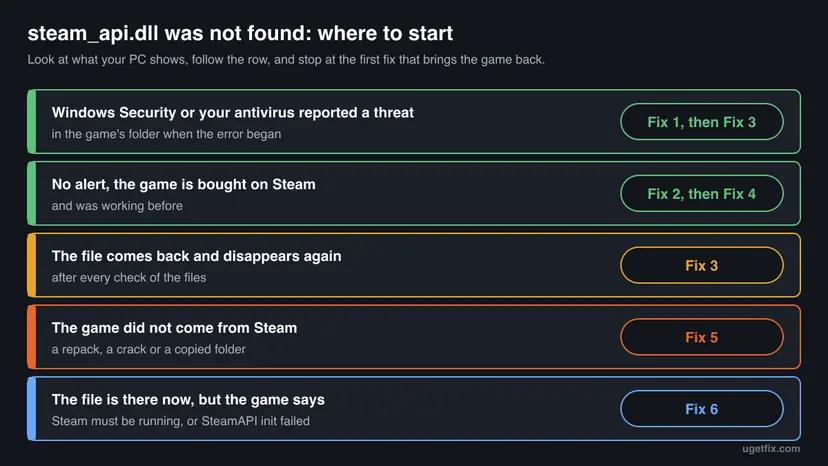
Fix 1 checks whether your antivirus took the file and brings it back. Fix 2 lets Steam replace it with the genuine copy, and Fix 3 stops the antivirus from removing it again. Fix 4 reinstalls the game. Fix 5 is for a copy that did not come from Steam, and Fix 6 for the case where the file is back but the game cannot reach Steam.
| What you see or have | Start with |
|---|---|
| Windows Security or another antivirus showed an alert, or the error began right after a scan. | Fix 1, then Fix 3 |
| No alert, and the game is in your Steam library. | Fix 2 |
| The file comes back after Fix 1 or Fix 2 and disappears again. | Fix 3 |
| Verifying finds nothing, or the box returns right after a verify. | Fix 4 |
| The game is not in your Steam library: a repack, a crack or a folder copied from somewhere. | Fix 5 |
| The DLL is in place now, but the game says Steam must be running or SteamAPI init failed. | Fix 6 |
Fix 1. Restore steam_api.dll from Microsoft Defender quarantine
5 minutesLow riskYour game is bought on Steam and Windows Security, or another antivirus, removed the file.
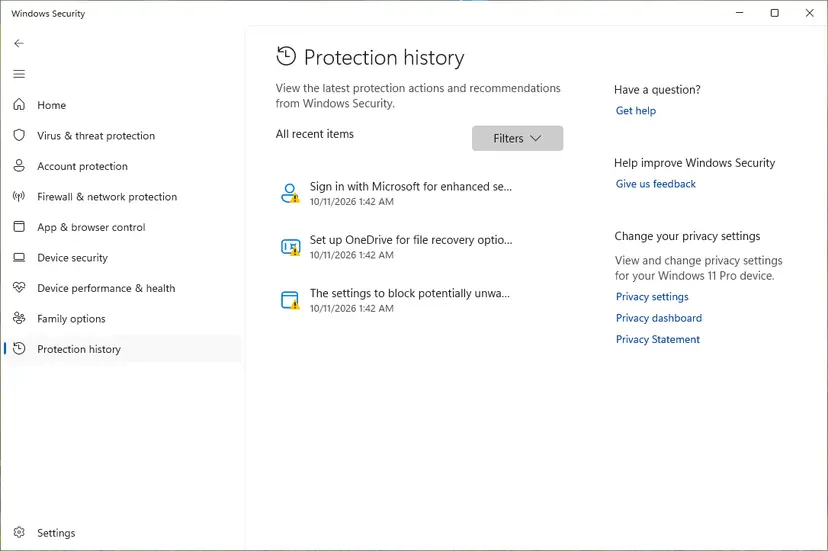
An antivirus that quarantines a file moves it out of the game's folder, and Windows then reports it as not found. Protection history shows whether this happened, the exact path and the detection name. Restoring a genuine Steam file puts it back where the game expects it.
- Close the game and keep Steam open.
- Open Windows Security from the Start menu and select Virus & threat protection.
- Under Current threats, select Protection history. Use Filters > Quarantined items if the list is long.
- Open the entry whose Affected items path ends in
steam_api.dllorsteam_api64.dllinsidesteamapps\common. Note the detection name and the path. - Decide: if the path is your own Steam game folder and you never added a patch or crack, select Actions > Restore.
- Microsoft says a restored file is detected again and shows up as Threat found - action needed. Open that entry and select Allow on device only for the genuine Steam file.
- Start the game from Steam.
| What the entry shows | What to do |
|---|---|
| A path in your Steam game folder, a game you bought, no mods or patches added | Restore and allow, or skip this and use Fix 2 to get a fresh copy from Steam. |
| A path in a folder Steam did not create, or a game not in your Steam library | Do not restore. Select Remove and go to Fix 5. |
| A detection name that is a trojan, stealer or backdoor rather than a hack tool | Do not restore. Remove it and run a full and an offline scan, as in Fix 5. |
| No entry at all | The antivirus did not take it. Go to Fix 2. |
- Another antivirus. Avast, AVG, Bitdefender, Kaspersky, Norton and others keep their own quarantine, often called Virus Chest or Quarantine. The idea is the same: find the entry with the game's path, restore it, then add the exception from Fix 3. Their menus differ, so follow the vendor's help.
- When Restore does nothing. Users report that Restore can fail silently on some PCs. Then skip it: Fix 2 downloads a fresh copy from Steam, which is just as good.
Allow on device tells Microsoft Defender to stop acting on that exact threat. Microsoft warns that if the item was in fact a threat, your data, personal information or device may be at risk. If you are not sure the file came from Steam, do not allow it: remove it and let Steam put the genuine copy back with Fix 2.
It worked if: The DLL is back in the game's folder, Protection history lists it as allowed or restored, and the game starts without the box.
If not: If restoring fails or you are unsure about the file, use Fix 2. If the file is removed again later, go to Fix 3.
Fix 2. Verify the integrity of the game's files in Steam
5 to 30 minutesNo riskThe game is in your Steam library, whether or not an antivirus was involved.
Steam compares every installed file of the game with the version on its servers and downloads what is missing or changed. That includes the exact steam_api.dll or steam_api64.dll the developer shipped, so you get the right build and version without guessing.
- Restart the PC and open Steam, as Steam Support's own steps begin.
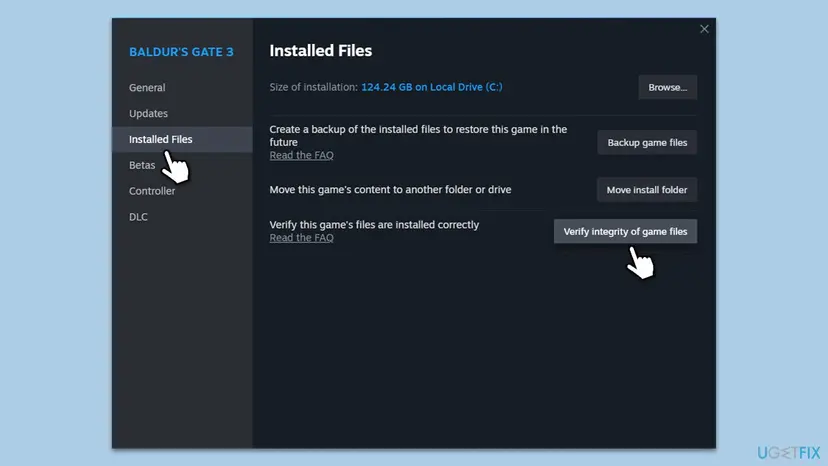
- Right-click the game in your Library, or select the gear icon on the game's Library page.
- Select Properties.
- Open the Installed Files tab and select Verify integrity of game files.
- Wait until Steam finishes. Do not run a virus scan or verify another game at the same time.
- Start the game from Steam.
The other launchers have the same check, and a game bought there may also ship steam_api.dll when it is a Steam build sold elsewhere. Steps for Steam, Epic Games, the EA app, the Xbox app, Battle.net and GOG Galaxy: How to verify game files in Steam, Epic Games, Xbox app, EA app, Battle.net and GOG Galaxy
Steam Support says that one or more files failing to verify is normal for most games: they are local configuration files that should not be replaced. You can ignore the message. What counts is whether steam_api.dll is back in the folder and the game starts.
Open the game's folder with Manage > Browse local files and look for steam_api.dll or steam_api64.dll. Turn on View > Show > File name extensions in File Explorer to see the full names. If it is there and disappears again within minutes, your antivirus is taking it again: go to Fix 3.
It worked if: Steam reports that it reacquired one or more files, the DLL is back next to the game's .exe, and the game starts.
If not: If the file is removed again, go to Fix 3. If it stays but the box remains, reinstall the game with Fix 4.
Fix 3. Stop your antivirus from removing steam_api.dll again
10 minutesLow riskThe genuine Steam file keeps disappearing after Fix 1 or Fix 2, and you are sure the game is from Steam.
Steam Support says antivirus programs can flag games by mistake, and that players can create exclusions for confirmed false positives and then verify the files again. A narrow exclusion for one game's folder keeps the restored file in place without lowering protection for the rest of the PC.
- First report the false positive. In Windows Security > Virus & threat protection > Manage settings, select Submit a sample manually and send the flagged steam_api.dll to Microsoft.
- Still under Manage settings, scroll to Exclusions and select Add or remove exclusions.
- Select Add an exclusion > Folder.
- Choose the one game's folder in
steamapps\common, not your whole Steam folder and not a drive. - Verify the game's files again with Fix 2, so Steam puts back anything that was removed.
- Start the game. Remove the exclusion after the next game update if detection updates have fixed the false positive.
Microsoft cautions that an exclusion means Microsoft Defender Antivirus no longer checks those files, which could leave your device vulnerable. Exclude one folder of a game you bought on Steam, never a folder with downloaded patches, cracks or trainers. Exclusions apply to real-time scanning only; scheduled scans may still check the folder.
| Choice | Verdict |
|---|---|
The single game folder, for example steamapps\common\<game> | The narrowest exclusion that keeps the file. Use this. |
The single file steam_api64.dll | Also narrow, but Steam updates may replace the file and the detection can return. |
| The whole Steam folder, the whole drive, or the file type .dll | Too broad. It hides every future download from the scanner. |
| Turning off real-time protection for good | Never. Microsoft notes it turns back on by itself after a short while anyway. |
Steam Support also notes that many antivirus vendors offer a Game Mode or exclusions for game files and processes. In a third-party antivirus, look for those names in its settings. To test whether the antivirus is the cause at all, a short pause with protection turned back on afterwards is allowed: Turn off Microsoft Defender protection for a moment
It worked if: The DLL stays in the game's folder through restarts and scans, and the game starts each time.
If not: If the antivirus still removes it, or flags it under a trojan or stealer name, stop and treat the copy as suspect: Fix 5.
Fix 4. Uninstall and reinstall the game from your Steam library
15 to 60 minutes, depending on the game's sizeRead the warningVerifying did not bring the file back, or the box returns right after a verify.
Verifying repairs files Steam knows about. A folder that was moved, copied in by hand, or mixed with leftover files from mods or another version can still load the wrong DLL. A clean installation leaves only what Steam itself puts there, including the matching steam_api.dll.
Many games keep saves in Steam Cloud or in your Documents or AppData folder, and those survive an uninstall. Some keep them inside the game folder, which is deleted. If you are unsure, copy the game folder's save and config subfolders to another place first: Back up your files (Windows Backup, File History, Time Machine)
- Right-click the game in your Steam Library and select Manage > Uninstall. Confirm.
- Open
steamapps\commonin the same library and delete the game's folder if Steam left it behind, after saving anything you need. - Restart the PC.
- Select the game in your Library and select Install. Pick the library folder and drive.
- Let the download finish, then start the game from Steam before adding any mods.
- Low disk space or a failing drive. Downloads that stop halfway leave games incomplete. Make sure the drive has room for the full game, and check it with Check a disk for errors (chkdsk) if downloads keep failing.
- A game moved by hand. Steam Support describes how to move a library or a game properly. A game folder copied between drives without Steam knowing may lack files: reinstall it in the library Steam shows.
- A game shown as not installed. If Steam lists the game as uninstalled although the folder exists, Steam Support says starting the installation makes Steam recognise the existing files and download only what is missing.
It worked if: The game installs again, its folder holds steam_api.dll or steam_api64.dll, and it starts from Steam.
If not: If a fresh installation is quarantined again, go to Fix 3. If the box appears with every game, read the section on what to check at the end.
Fix 5. Remove a copy of the game that did not come from Steam, and scan the PC
30 to 60 minutesRead the warningThe game is not in your Steam library: a repack, a crack, a trainer pack or a folder copied from elsewhere.
A non-Steam copy either has no genuine steam_api.dll or carries a replaced one. Antivirus programs remove the replacements because they are modified code from unknown authors. No legitimate fix makes such a file load, and the safe end is to remove it and check the PC.
Removing the game deletes its saves if they are inside its folder. A full scan does not delete your documents, but it may remove other files it detects. Back up your personal files before you start if you have no recent copy: Back up your files (Windows Backup, File History, Time Machine)
- Do not restore or allow the flagged steam_api.dll in Protection history. Select Remove on its entry.
- Uninstall the game from Settings > Apps > Installed apps, or delete its folder if it had no installer: Uninstall a program or app in Windows
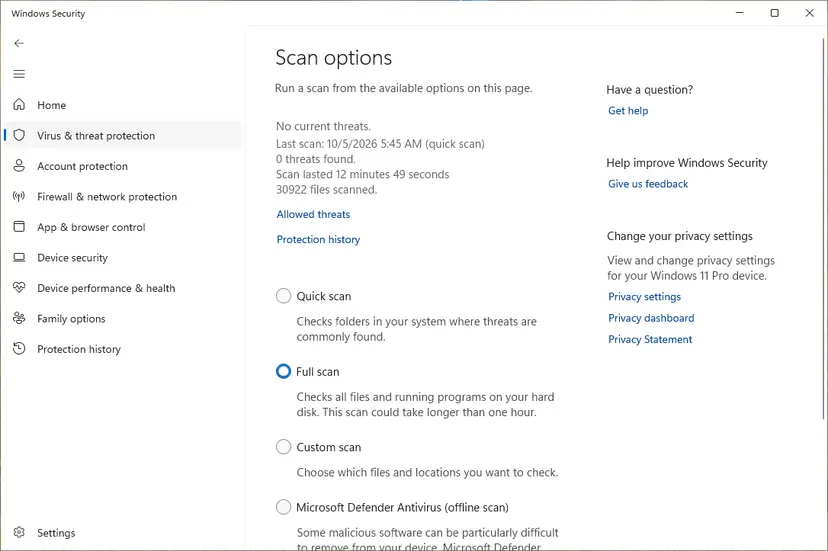
- Run a Full scan in Windows Security, then a Microsoft Defender Antivirus (offline scan), which Microsoft says runs before Windows loads so persistent malware has a harder time hiding: How to scan for malware with Microsoft Defender
- Open Protection history after the offline scan and read what it found.
- If anything was found under a stealer, trojan or backdoor name, change the passwords of your important accounts from another, clean device.
- Get the game from Steam or another official store. Its own files include the genuine DLL.
Users on Microsoft Q&A describe the typical end of this road: a decade-old cracked steam_api.dll suddenly blocked by Microsoft Defender, exclusions that do not help, and a file that cannot even be deleted. The answers there point to reinstalling and excluding, but the honest fix for a file Defender rates as a threat is to stop using it.
It worked if: The scans finish clean or with the found items removed, and the game you then install from an official store starts without the box.
If not: If the scans keep finding new threats, follow Start Windows or a Mac in Safe Mode and scan again there, then consider a clean reinstall of Windows.
Fix 6. Start the game through a running Steam when the file is there but the API fails
5 minutesNo risksteam_api.dll is back, but the game now says Steam must be running, or SteamAPI_Init failed.
The DLL only forwards calls to the Steam client. Valve's documentation lists why the start of the Steamworks API fails: Steam is not running, Steam cannot tell which game this is, the game runs under another user or admin level than Steam, or the signed-in account does not own it.
- Start Steam and sign in with the account that bought the game.
- Start the game from the Steam Library, not from a desktop shortcut to its .exe.
- If you set the game's .exe to Run as administrator, turn that off in its Properties > Compatibility, or run Steam the same way. Valve says the game and Steam must run under the same user context and access level.
- In Steam, check that the game appears in your Library and is not a Family Sharing copy that the owner is using right now.
- Restart Steam fully with Steam > Exit, then start it again and launch the game.
| Valve's reason | What it means for you |
|---|---|
| The Steam client isn't running. | Start Steam first. The DLL needs the running client. |
| The Steam client couldn't determine the App ID of the game. | Start the game from Steam. Started directly, the game may not tell Steam which app it is. |
| Your application is not running under the same OS user context as the Steam client. | Do not run only the game as administrator, or as another Windows user. |
| Ensure that you own a license for the App ID on the currently active Steam account. | Sign in with the account that owns the game. |
Valve's documentation describes a steam_appid.txt file next to the .exe as a developer tool for running a game outside Steam during testing, and tells developers to remove it before upload. A player does not need to create one. If the game only starts with a hand-made steam_appid.txt, something else is wrong.
It worked if: The game starts from the Steam Library with the Steam overlay and achievements working.
If not: If the message stays, ask the game's developer in its Steam discussion forum, with the exact text, as described in the next section.
If the steam_api.dll error is still there: what to check and what to send
When the box survives the fixes for your case, collect facts before you change anything else. Four places hold them: the box itself, the game's folder, Protection history and the Windows Application log.
- Write down the full text of the box, its title and which name it shows: steam_api.dll or steam_api64.dll.
- List every copy of the DLL in the game's folder and its subfolders. Replace the path with the real one from Browse local files.
dir /s /b "C:\Program Files (x86)\Steam\steamapps\common\GameName\steam_api*.dll" - Open Windows Security > Virus & threat protection > Protection history and note any entry with the game's path, its date and the detection name.
- Open Event Viewer and go to Windows Logs > Application. Look for Application Error or Application Popup entries at the time of the box. They name the program and, for a crash, the faulting module.
- Check that no copy of steam_api.dll sits in
C:\Windows\System32orC:\Windows\SysWOW64. If one does, somebody put it there by hand: remove it.
- What to send to the developer: the box text, the game's build or version, your Windows version, the
dirresult and whether Protection history shows the file. Post it in the game's Steam discussions or the developer's support page. - What to send to Steam Support: only problems with Steam itself, such as downloads that never finish. Steam Support's help wizard is at help.steampowered.com.
- When it is the game, not your PC: the file is present, nothing is quarantined, other Steam games start, and the box appears right after a game update. Then the update shipped broken and the developer has to fix it.
- When it is a different problem: a box that names another file, such as a Visual C++ runtime or a DirectX file, has its own cause and fix.
If several games lose files, or verifies keep finding damaged files without any antivirus entry, the disk may be failing. Check it with Check a disk for errors (chkdsk) before you reinstall anything again. Memory errors can corrupt downloads too: How to test your RAM with Windows Memory Diagnostic
How to keep the steam_api.dll error from coming back
- Buy and install games from Steam or another official store, so their files include the genuine DLL.
- Check Protection history whenever a game suddenly stops starting after a scan or a Defender update.
- Report a false positive to Microsoft or your antivirus vendor instead of turning protection off.
- Keep exclusions narrow: one game folder, and remove them once they are not needed.
- Let Steam finish updates before you close it or shut down the PC.
- Do not download steam_api.dll or steam_api64.dll from a DLL site.
- Do not copy the DLL from one game into another.
- Do not put any copy into System32, SysWOW64 or the Windows folder.
- Do not allow a steam_api.dll that came with a crack, repack or trainer.
- Do not run cleanup tools that delete DLL files they call unused.
The common thread is the source. A steam_api.dll that Steam installed with the game is the one file that fits that game. Anything that replaces it, whether a DLL site, another game or a crack, can only make things worse, and a missing genuine copy is always one verify away.
Frequently asked questions
What is steam_api.dll?
steam_api.dll is the Steamworks API library that Valve provides to game developers in the Steamworks SDK. A game that uses Steam features such as achievements, cloud saves, the overlay or multiplayer lobbies ships it next to its own .exe. 64-bit games use steam_api64.dll instead. Valve's documentation says developers must ship the file in the game's run-time directory. It is not part of Windows and not something the Steam client installs for all games, so each game has its own copy and Steam's Verify integrity of game files restores it.
Where is steam_api.dll located?
In the game's own folder, next to the game's .exe file. For Steam games that folder is under C:\Program Files (x86)\Steam\steamapps\common\ by default, one subfolder per game, or under steamapps\common in another Steam library you added. Some games keep the .exe and the DLL in a subfolder such as bin. The fastest way to find it is to right-click the game in your Steam Library and select Manage > Browse local files. It does not belong in System32 or SysWOW64.
Is steam_api.dll a virus?
The genuine file from Steam is not a virus. It is Valve's library and comes with games you buy. Copies with the same name are a different matter: cracks and Steam emulators replace the game's steam_api.dll with modified code, and antivirus programs detect many of those. Sometimes a genuine copy is flagged by mistake, which Steam Support calls a false positive. If the file came from Steam, restore it or verify the game's files. If it came with a cracked game, remove it and scan the PC as in Fix 5.
Can I download steam_api.dll or steam_api64.dll from a DLL site?
You should not, and you do not need to. Each game ships the build of steam_api.dll from the Steamworks SDK version its developer used, and Steam puts back that exact file when you verify the game's files. A download from a DLL site may be the wrong version, the wrong 32-bit or 64-bit build, or a modified file of unknown origin that loads inside the game with your rights. If the game is not from Steam, there is no genuine source for its steam_api.dll at all.
Why does Windows Defender keep deleting steam_api.dll?
Because modified copies of this file are common in cracked games, security software looks closely at it. If your copy is a crack, the detection is correct and you should not override it. If the game is from Steam, it may be a false positive. Restore the file from Protection history or verify the game's files, submit the file to Microsoft as a sample, and add an exclusion for that one game's folder as in Fix 3. Steam Support describes the same order: exclusion first, then verify.
Will reinstalling Steam fix steam_api.dll was not found?
Usually not. Reinstalling the Steam client replaces Steam's own program files, while steam_api.dll lives inside each game's folder in steamapps\common. The earlier version of this guide listed reinstalling Steam as the first fix, but it does not touch those folders. What restores the game's copy is Verify integrity of game files in the game's Properties, or reinstalling the game itself from your Library. Reinstall Steam only when Steam itself is broken and cannot start, update or verify.
Does regsvr32 steam_api.dll fix the error?
No. regsvr32 registers a DLL as a component in the Windows registry by calling a registration function inside it. Games do not find steam_api.dll through the registry: Windows looks for it in the game's folder when the game starts. Registering it would change nothing even if the file had such a function, and if the file is missing there is nothing to register. The earlier version of this guide suggested regsvr32. Use Fix 1 or Fix 2 to put the file back.
What does Steam API doesn't return the URL to download the file mean?
That message does not come from Steam or from steam_api.dll. It is shown by unofficial Steam Workshop downloader sites when Steam's public interface does not give them a download link for a Workshop item. Users report it for mods of games they do not own on Steam. The official way to get Workshop content is to subscribe to it in Steam, which needs the game in your library. This page is about the missing DLL; we do not help to get Workshop files for unowned games.
Does the steam_api.dll error look different on Windows 11?
No. Windows 11 shows the same System Error window as Windows 10: the code execution cannot proceed because steam_api.dll was not found, or the same with steam_api64.dll. The causes and fixes are identical on both, because the file belongs to the game and the antivirus behaviour is the same. The only difference you may notice is the look of Windows Security, where Protection history and Exclusions sit under Virus and threat protection on both versions. Windows 10 left support on 14 October 2025.
Sources
- Microsoft Learn: Restore quarantined files in Microsoft Defender Antivirus (learn.microsoft.com)
- Microsoft Support: Protection History in the Windows Security app (Restore, Allow on device) (support.microsoft.com)
- Microsoft Support: Virus and Threat Protection in the Windows Security app (exclusions, sample submission, offline scan) (support.microsoft.com)
Did this fix work?
One click, no account. It tells the next reader which guides are worth their time.
Questions and experiences: fix Steam_api.dll missing or not found error
Still broken, or found a fix we did not cover? Ask here: members and our editors answer. Reading is open; writing needs a free account.
…