
How to fix VCRUNTIME140_1.dll missing or not found error in Windows?

Prefer to fix it yourself? The manual steps follow.
- 7methods
- 5 to 20 minutes
- Easy
Applies to Windows 11 and Windows 10 on Intel, AMD and Arm processors; any program or game built with Microsoft Visual C++ 2019 or later
7 methods in this guide
Hi, every time I try to open Firefox, I receive an error message instead. It states that VCRUNTIME140_1.dll was not found. Any idea on how to fix this? Help would be much appreciated.
VCRUNTIME140_1.dll was not found means a 64-bit program needs a Microsoft Visual C++ runtime file that Windows cannot find. The file belongs to the Microsoft Visual C++ v14 Redistributable, not to the program and not to Windows itself. Install Microsoft's x64 and x86 packages and start the program again.
Download vc_redist.x64.exe and vc_redist.x86.exe from Microsoft's page of latest supported Visual C++ Redistributable downloads, run both and restart the PC (Fix 1). The x64 package is the one that contains vcruntime140_1.dll. If setup reports that it is already installed, repair it (Fix 2). If only one program fails, repair that program (Fix 3). Do not download the single DLL file from a DLL site.
| Error | "The code execution cannot proceed because VCRUNTIME140_1.dll was not found. Reinstalling the program may fix this problem." |
|---|---|
| Where it appears | In a small error box at the moment a 64-bit program or game starts. The program window never opens. |
| Main cause | The x64 Microsoft Visual C++ v14 Redistributable is missing, damaged or older than the version that first carried this file (Visual Studio 2019). |
| Fastest fix | Install Microsoft's vc_redist.x64.exe and vc_redist.x86.exe, then restart (Fix 1). |
| Also written as | vcruntime140_1.dll missing, vcruntime140_1.dll not found, vcruntime140_1 dll, vcruntime140 1 dll, vcruntime140-1.dll, vcruntime140.1.dll, vc runtime140_1.dll. |
| The file | C:\Windows\System32\vcruntime140_1.dll, described as Microsoft C Runtime Library, signed by Microsoft Corporation. In the package we unpacked: version 14.51.36247.0, 50,112 bytes. |
| Affects | Windows 11 and Windows 10. Microsoft's latest v14 package supports only Windows 10, Windows 11 and Windows Server 2016 or later. |
| Microsoft's status | Not a Windows bug. Microsoft added the file with Visual Studio 2019, and its installer has put it on PCs ever since. The download is free. |
| Do not | Download the DLL alone from a DLL site, copy it between folders, or run regsvr32 on it. None of these is a supported repair. |
| Time to fix | About 5 minutes for both packages and a restart. Up to 20 minutes when the program itself needs a repair. |
Facts checked on 14 October 2026. Steps written for Windows 11 (25H2 and 26H2) and Windows 10 22H2, with the Visual C++ v14 Redistributable 14.51.36247.
What the VCRUNTIME140_1.dll was not found error means
Programs written in C++ with Microsoft's tools do not carry all of their basic code inside the .exe file. They borrow it from shared runtime libraries, and vcruntime140_1.dll is one of them. When you start the program, Windows looks for every library the program lists. If one is absent, Windows stops before the first line of the program runs and shows the box.
Windows has a status code for this situation: STATUS_DLL_NOT_FOUND, number 0xC0000135. Microsoft's list of status codes describes it with nearly the same words as the box: the application has failed to start because a file was not found, and reinstalling the application might fix the problem.
- Full text
- The code execution cannot proceed because VCRUNTIME140_1.dll was not found. Reinstalling the program may fix this problem.
- What the name says
vcruntimeis the Visual C++ runtime,140is its version family (v14) and_1marks an addition to the originalvcruntime140.dll.- What the file does
- It holds a newer routine for C++ error handling, named
__CxxFrameHandler4, that 64-bit programs call. - Who installs it
- The Microsoft Visual C++ v14 Redistributable, x64 package. Some programs also bring their own copy in their folder.
Microsoft's C++ team introduced vcruntime140_1.dll in Visual Studio 2019 and made the new error handling the default in version 16.3. A PC with an older Visual C++ 2015 or 2017 package has vcruntime140.dll but not vcruntime140_1.dll. A program built with newer tools then fails on that PC, although Visual C++ is listed as installed.
The second sentence of the box, about reinstalling the program, is right only sometimes. The file is shared and comes from Microsoft, so a new copy of the program often changes nothing. The fixes below start with Microsoft's package for that reason.
- Same error, other spellings: vcruntime140_1.dll missing, vcruntime140_1.dll is missing, vcruntime140_1.dll not found, vcruntime140 1 dll, vcruntime140-1.dll, vcruntime140.1.dll and vc runtime140_1.dll all mean this one file.
- A different file:
vcruntime140.dll, without_1, is the older main runtime library. It comes from the same Microsoft package, so Fix 1 repairs both errors. - Often seen together: a box about
MSVCP140.dll. It is the C++ Standard Library from the same package, and the same fix applies.
Where vcruntime140_1.dll belongs: System32, SysWOW64 and the program folder
Windows does not search the whole disk for a library. Microsoft documents a fixed order: the folder the program was started from comes first, then the system folder, then the Windows folder, the current folder and the folders in the PATH variable. The search ends at the first copy.
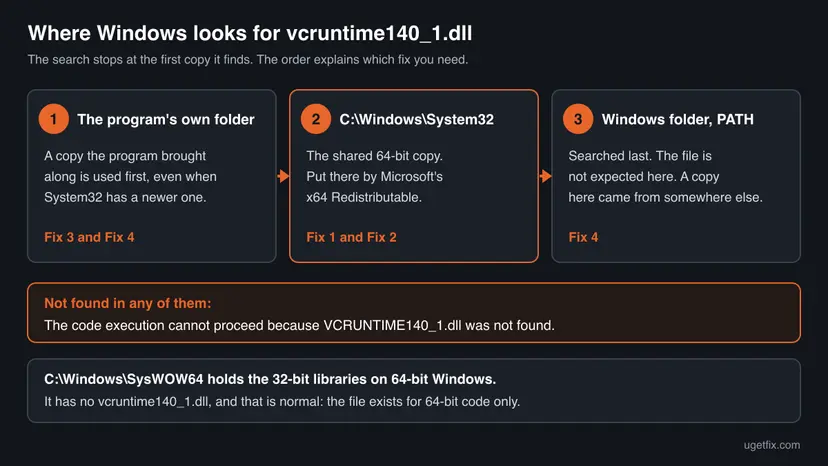
| Folder | What it holds | What to expect |
|---|---|---|
C:\Windows\System32 | The 64-bit system libraries. Microsoft reserves this folder for 64-bit applications on 64-bit Windows. | vcruntime140_1.dll is here after the x64 package is installed. |
C:\Windows\SysWOW64 | The 32-bit libraries. Windows silently sends 32-bit programs here when they ask for System32. | vcruntime140.dll is here after the x86 package is installed. No vcruntime140_1.dll, and that is normal. |
| The program's own folder | Whatever the program's installer placed next to its .exe file. | Some programs keep their own copy here. It is used before the one in System32. |
The names are confusing: System32 is the 64-bit folder and SysWOW64 is the 32-bit one. That confusion is behind a common mistake, a 64-bit file copied into SysWOW64 or a file of unknown type dropped into System32.
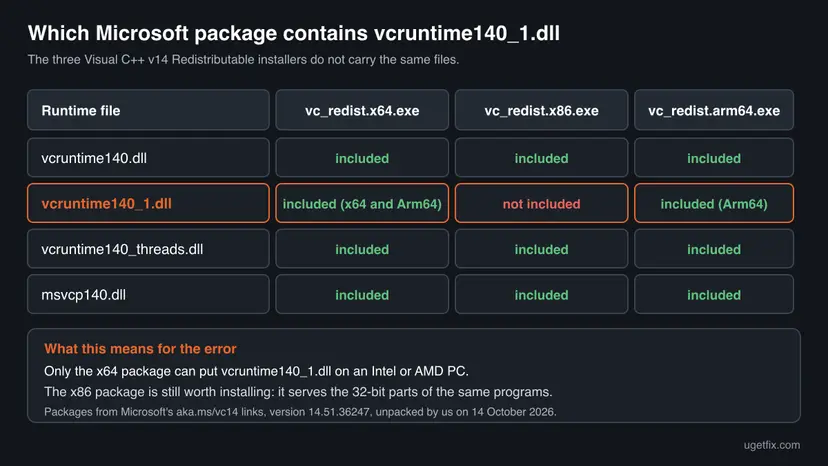
We downloaded the three packages from Microsoft's permanent links and unpacked them without running them. All three were version 14.51.36247. The x64 package held vcruntime140_1.dll in an x64 and an Arm64 build. The x86 package held vcruntime140.dll and vcruntime140_threads.dll but no vcruntime140_1.dll. Microsoft's own description from 2019 agrees: the new error handling was built for x64 only.
What causes the vcruntime140_1.dll missing error, from most to least common
Most often the x64 package was never installed, or the installed one is older than Visual Studio 2019. Less often the package is listed but its files are gone or damaged. Rarely the cause sits in one program: its own copy of the file is broken, or a file from a DLL site blocks the real one.
| Cause | How often | How to tell | Fix |
|---|---|---|---|
| The x64 Visual C++ v14 Redistributable is not installed, or only an old 2015 or 2017 version is. | Most often | A new program or game fails on first start. C:\Windows\System32 has no vcruntime140_1.dll. | Fix 1 |
| The package is installed, but its files were deleted or damaged. | Often | The Microsoft installer opens with Modify Setup, and several programs fail at once. | Fix 2, then Fix 5 |
| The program expects its own copy in its folder, and that copy is missing or broken. | Sometimes | One program fails, others start. An update of that program came just before the error. | Fix 3 |
| A DLL from a download site or another folder was copied in by hand. | Sometimes | The error changed to another one, or came back after it seemed fixed. | Fix 4 |
| The Microsoft installer itself cannot finish. | Rarely | The installer ends with Setup Failed. | Fix 6 |
| The PC has an Arm processor and the wrong package, or Windows 10 on Arm. | Rarely | System type in Settings names an ARM-based processor. | Fix 7 |
Three tips keep being repeated. Registering the file with regsvr32 cannot work, because that tool registers components in the registry and this library is found by folder, not by registry. Installing the Visual C++ 2015 package cannot work either: version 14.0.24212 predates this file, and Microsoft ended its support on 15 October 2025. Removing every Visual C++ entry, including 2008 to 2013, breaks older programs for no gain.
vcruntime140_1.dll download: why a DLL site is the wrong place
Searching for a download of the file leads to sites that offer single DLL files. It looks like the shortest way: one small file instead of an installer. It is the one route we advise against, and Microsoft's documentation gives the reasons.
- Unknown origin. A program loads a DLL as part of itself. Microsoft's page on DLL security describes what follows from a planted file: the copy runs inside the application and gains the privileges of the user. You cannot see from a file name who built the file.
- Wrong version. Microsoft requires the runtime to be the same version as the tools that built your program, or newer. A DLL site gives you whatever version it happens to host. An older file can start the program and crash it later.
- Wrong architecture. Some sites list a 32-bit and a 64-bit download for this name. Microsoft's own x86 package contains no such file, so a 32-bit copy does not come from the package. A file of the wrong type leads to a new error, often
0xc000007b, which Microsoft lists asSTATUS_INVALID_IMAGE_FORMAT. - No updates. Microsoft services the shared copy in System32 through its installer and Windows Update. A file you dropped into a folder is never updated, and it keeps overriding the good copy because the program's folder is searched first.
- The rest is still missing. The package installs a set of libraries that work together. A program that lacks one of them usually lacks the others, and you would chase one error box after another.
Microsoft's troubleshooting page states: "Never install a Visual C++ Redistributable installer that wasn't downloaded from a Microsoft site. Never install a Visual C++ Redistributable installer that Microsoft didn't sign." The same care applies to a single file taken out of that installer by somebody else.
| Source | Address or place | Use it when |
|---|---|---|
| Microsoft's x64 package | https://aka.ms/vc14/vc_redist.x64.exe | Always first. It contains vcruntime140_1.dll. |
| Microsoft's x86 package | https://aka.ms/vc14/vc_redist.x86.exe | Together with x64, for the 32-bit parts of programs. |
| Microsoft's Arm64 package | https://aka.ms/vc14/vc_redist.arm64.exe | On an Arm-based PC, see Fix 7. |
| The program's own installer or launcher | The vendor's site, Steam, the Microsoft Store | The program keeps its own copy in its folder (Fix 3). |
The three addresses are the permanent links from Microsoft's page "Microsoft Visual C++ Redistributable latest supported downloads". They always lead to the current version, so no version number is part of the address. The download is free and needs no account.
How to fix VCRUNTIME140_1.dll was not found
Fix 1 solves the error for most readers, and Fix 2 covers the case where the package is installed but damaged. Fixes 3 and 4 deal with one program and with files copied in by hand. Fixes 5 to 7 are for the cases where Microsoft's installer does not do its job, and for Arm-based PCs.
| What you see or have | Start with |
|---|---|
| The error appeared the first time you started a new program or game. | Fix 1 |
| Microsoft's installer opens with Modify Setup, or several programs fail with the same box. | Fix 2 |
| Only one program fails, for example Firefox, an Office app or one game, and everything else starts. | Fix 3 |
| You once copied the DLL into a folder by hand, or took it from a DLL site. | Fix 4 |
Repair finished, but C:\Windows\System32\vcruntime140_1.dll is still not there. | Fix 5 |
| The Microsoft installer ends with Setup Failed. | Fix 6 |
| The PC has a Snapdragon or another Arm processor. | Fix 7 |
Fix 1. Install the latest Visual C++ Redistributable, x64 and x86
5 minutesNo riskThe error appeared on a new program or game, or you do not know which Visual C++ packages the PC has.
The x64 package is the only one of Microsoft's installers for Intel and AMD PCs that contains vcruntime140_1.dll, and it places the file in System32 where every 64-bit program finds it. The x86 package adds the 32-bit libraries that launchers and helper tools of the same programs often need.
- Close the program that shows the error.
- Open Microsoft's page Microsoft Visual C++ Redistributable latest supported downloads and find the table Latest supported redistributable version.
- Download the X64 file,
vc_redist.x64.exe, and the X86 file,vc_redist.x86.exe. - Run
vc_redist.x64.exe. Tick I agree to the license terms and conditions and select Install. - Wait for Setup Successful. Select Close, or Restart if the window offers it. You can restart after the second package instead.
- Run
vc_redist.x86.exethe same way. - Restart the PC and start the program.
Microsoft's documentation says that vc_redist.x86.exe installs the 32-bit libraries for both x86 and x64 computers, and vc_redist.x64.exe installs the 64-bit libraries. The missing file comes from the x64 one. The x86 one costs a minute and prevents the next error box, because many 64-bit programs start through a 32-bit launcher or updater.
| Window | Meaning | Next |
|---|---|---|
| Setup Successful | The libraries are in place. | Restart and test the program. |
| Setup Successful with "You must restart your computer before you can use the software." | Files were in use and are replaced at the next start. | Select Restart. |
| Modify Setup with Repair, Uninstall and Close | This exact version is already installed. | Select Repair. Details in Fix 2. |
| Setup Failed | Either a newer version is already installed, or setup was blocked. | Fix 2 for the first case, Fix 6 for the second. |
The same installer works without clicks, which helps on several PCs. Microsoft documents the options /install, /repair, /uninstall, /passive, /quiet and /norestart. Open Command Prompt in the folder with the downloads and run:
Command Prompt: install both packages with a progress bar only
vc_redist.x64.exe /install /passive /norestart
vc_redist.x86.exe /install /passive /norestartMicrosoft states that the latest v14 package supports only Windows 10, Windows 11 and Windows Server 2016, 2019, 2022 and 2025. On Windows 8.1 or Windows 7 the current installer is not supported, and we could not confirm from Microsoft's pages which older version still installs there. Windows 10 itself left support on 14 October 2025, but the package still installs on it.
It worked if: Both installers end with Setup Successful, and after the restart the program opens without the box.
If not: If the installer opened with Modify Setup or the error is still there, repair the installed package with Fix 2.
Fix 2. Repair the Visual C++ Redistributable that is already installed
5 minutesNo riskMicrosoft's installer says the package is already there, or several programs show the same box.
Windows can list the package as installed while the file itself is gone, for example after a cleanup tool or a restore. Repair makes the installer put every file of the package back, including vcruntime140_1.dll, without touching your programs.
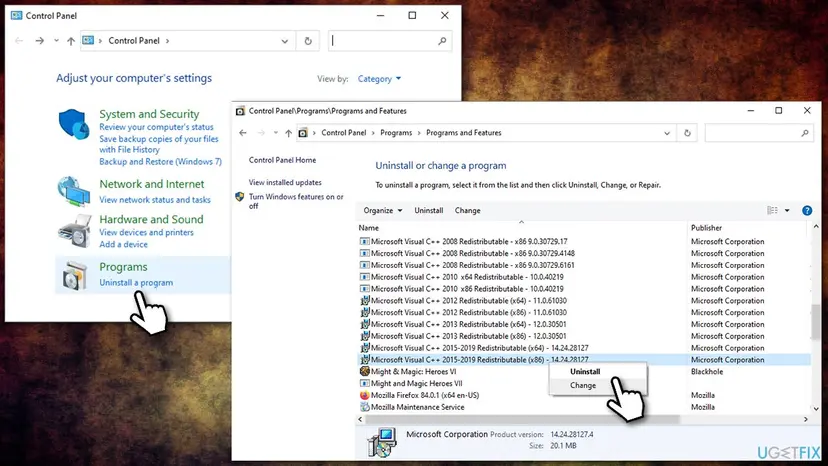
- Open Programs and Features. Type control panel in the search box on the taskbar and select Control Panel. Select Programs > Programs and Features.
- Find the installed versions. Look for the entries that start with Microsoft Visual C++. Each one shows a year and an architecture, x64 or x86. Several entries side by side are normal: older versions stay installed next to newer ones.
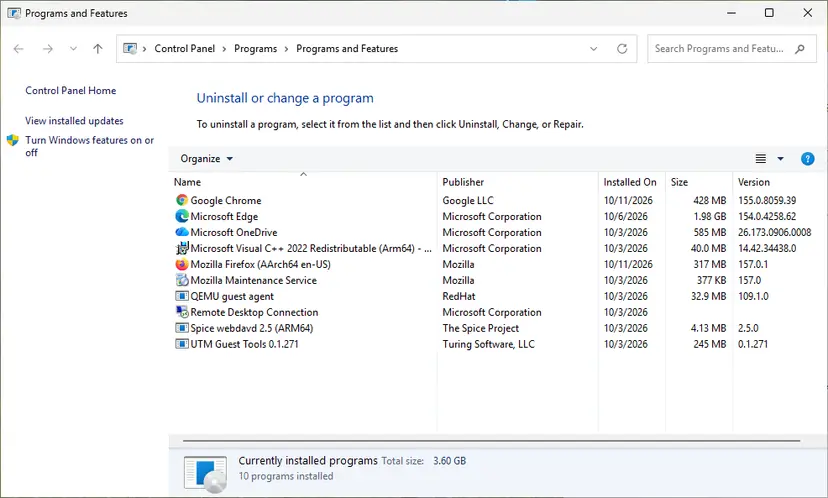
Each Visual C++ version is its own entry in Programs and Features. Screenshot: Windows 11 26H2. - Repair each Visual C++ entry. Right-click an entry and select Change, then select Repair in the window that opens. Do the same for every Microsoft Visual C++ entry.
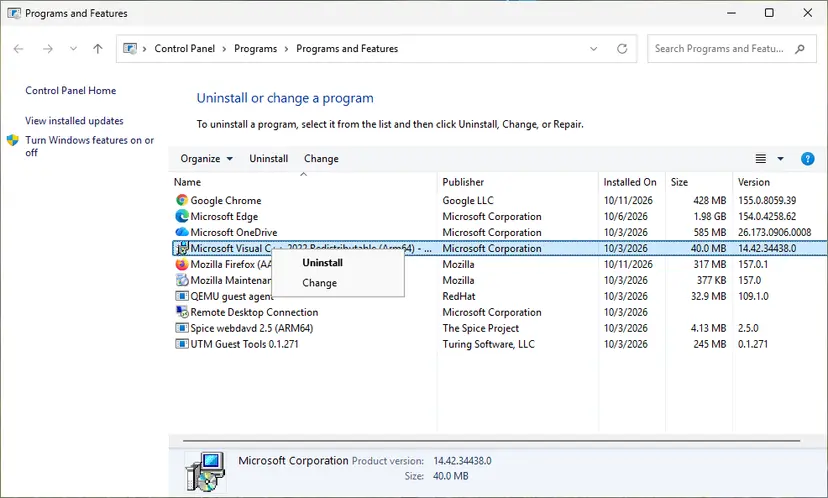
Right-click the entry and select Change to reach the repair option. Screenshot: Windows 11 26H2.
These steps were written for Windows 11 25H2 and 26H2, Windows 10 22H2. The full page with the other versions and what each result means: How to repair Microsoft Visual C++ Redistributable and .NET Framework
For this error the entries that count are the newest ones. With the current version they are named Microsoft Visual C++ v14 Redistributable (x64) and (x86), followed by the version number. Older releases of the same package appear as Microsoft Visual C++ 2015-2022 Redistributable or 2015-2019. Repair the x64 entry first, then the x86 one.
- In the window that opens after Change, check that the heading is Modify Setup.
- Select Repair and confirm the Windows prompt that asks for administrator rights.
- Wait for Setup Successful and select Close or Restart.
- Repeat for the (x86) entry of the same year or version.
- Restart the PC and start the program.
- Faster way: run the downloaded
vc_redist.x64.exeagain. When the same version is installed it opens straight at Modify Setup. From Command Prompt the documented form isvc_redist.x64.exe /repair /passive /norestart. - A newer version is installed than the file you downloaded: Microsoft explains that the package then does not install and reports that setup failed. Download the current file from the page in Fix 1, or repair from Programs and Features as above.
- Leave the old years alone. Entries for 2005, 2008, 2010, 2012 and 2013 are separate products that install side by side. They do not contain this file and do not disturb it.
It worked if: Repair ends with Setup Successful, and C:\Windows\System32\vcruntime140_1.dll exists again.
If not: If one program still fails while others start, go to Fix 3. If the file is still missing from System32, go to Fix 5.
Fix 3. Repair or reinstall the program that shows the error
10 to 20 minutesLow riskThe Microsoft package is installed and repaired, and one program or game still shows the box.
Microsoft allows developers to place the runtime files in the program's own folder, and its C++ team confirms that this works for vcruntime140_1.dll too. A program built that way looks at its own folder first, so a broken or half-updated copy there keeps failing whatever System32 holds.
Here the advice in the error box is right: the program's own installer has to put its files back. Use the route that matches where the program came from.
| The program came from | What to do | Why it helps |
|---|---|---|
| A setup file from the vendor's website, for example Firefox | Download the current installer from the vendor and run it over the existing installation. | Firefox's packaging list includes vcruntime*.dll next to the program, so its installer writes these files itself. |
| Steam | Verify the game files. Steps for every launcher: How to verify game files in Steam, Epic Games, Xbox app, EA app, Battle.net and GOG Galaxy | Valve's documentation says Steam installs common redistributables such as Microsoft Visual C++ only if necessary, in 64-bit and 32-bit form. |
| Microsoft 365 or Office (Excel, Word, Outlook) | Run Quick Repair, then Online Repair: How to repair Microsoft 365 or Office | The repair replaces Office's program files. Do Fix 1 first. |
| The Microsoft Store | Use Repair, then Reset, in the app's advanced options: How to repair or reset an app in Windows | Store apps get their runtime from Store framework packages, not from System32. |
| Any other desktop program | Uninstall it, restart, install the current version: Uninstall a program or app in Windows | A fresh installation runs the program's own check for the runtime. |
- Finish Fix 1 first, so the shared copy in System32 is in order.
- Close the program completely, including its icon near the clock.
- Repair or reinstall the program by the route in the table.
- If the installer of the program offers to install Microsoft Visual C++, let it. A newer version already on the PC is kept.
- Restart the PC and start the program.
We found no Microsoft Support article that explains this error for Excel or other Office apps. In a Microsoft Q&A thread from June 2026, a user reports the box with Office 2016 on Windows 10, and the answer there points to the Visual C++ 2015 download. That package predates the file, so use the current x64 and x86 packages from Fix 1, then repair Office.
Check where your saves and settings are kept. A repair or a file check keeps them. A full removal may not, depending on the program. If you are unsure, copy the program's data folder first: Back up your files (Windows Backup, File History, Time Machine)
It worked if: The program starts, and its folder again holds the runtime files its installer placed there.
If not: If the box returns, something in the program's folder or in System32 is not the genuine file. Check it with Fix 4.
Fix 4. Check that the file is there and is Microsoft's, and remove stray copies
10 minutesLow riskA DLL was copied in by hand at some point, the error changed to another one, or you want proof before going further.
Windows uses the first copy it finds, and the program's folder comes before System32. One wrong file there, of unknown origin or the wrong type, defeats a perfectly installed package. Three read-only commands show what is really on the disk.
- Open Command Prompt and list the runtime files in the 64-bit system folder. You should see
vcruntime140.dllandvcruntime140_1.dll.dir C:\Windows\System32\vcruntime140*.dll - List the 32-bit folder.
vcruntime140.dllbelongs here after the x86 package. Avcruntime140_1.dllhere did not come from Microsoft's x86 package.dir C:\Windows\SysWOW64\vcruntime140*.dll - Open Windows PowerShell and read the version of the file. It should match the version of the package you installed.
(Get-Item C:\Windows\System32\vcruntime140_1.dll).VersionInfo | Format-List FileVersion, FileDescription, CompanyName - Check the signature. Status must be
Valid, and the signer's line must name Microsoft Corporation.Get-AuthenticodeSignature -FilePath C:\Windows\System32\vcruntime140_1.dll | Format-List Status, SignerCertificate - Look for extra copies in the folder of the program that fails. Replace the path with the real folder of the program.
dir /s /b "C:\Program Files\ProgramName\vcruntime140_1.dll" - Run the signature command from step 4 on every copy that step 5 lists.
- Leave a copy with a
ValidMicrosoft signature alone: the program brought it. Rename any other copy by adding.oldto its name, then repair the program with Fix 3.
If a file in a Windows folder fails the check, do not remove it yourself. Run Repair from Fix 2, which replaces the file properly. If a wrong file sits in SysWOW64, uninstall and reinstall the x86 package in the same way. Then scan the PC, because somebody or something put that file there: How to scan for malware with Microsoft Defender
| What you find | What it means | Next |
|---|---|---|
No vcruntime140_1.dll in System32 | The x64 package is missing or damaged. | Fix 1, then Fix 2 |
| The file is in System32, signed and current, and one program still fails | That program looks at its own folder or is damaged. | Fix 3 |
| A copy in the program's folder without a valid Microsoft signature | A file from a DLL site or another unknown source. | Rename it, Fix 3, then a malware scan |
A new box with 0xc000007b after a file was copied | Microsoft lists this code as STATUS_INVALID_IMAGE_FORMAT: a file of the wrong type was loaded. | Remove the copied file, Fix 2 |
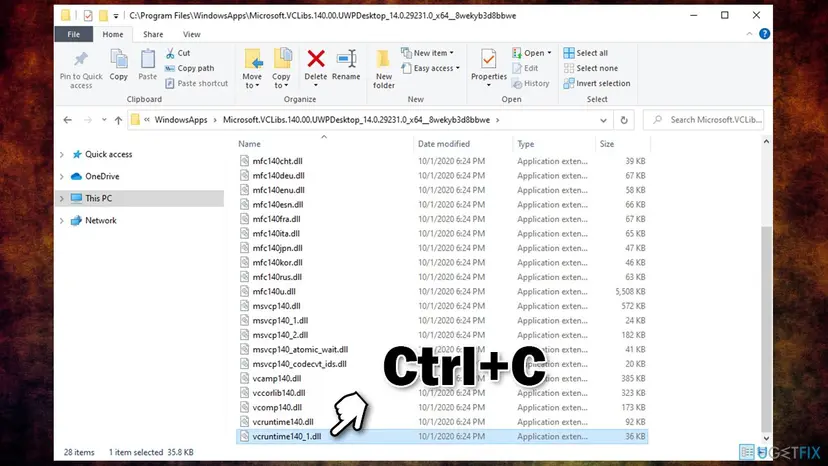
The earlier version of this guide advised copying the file out of C:\Program Files\WindowsApps. We no longer do. That copy is genuine, but it belongs to a Store framework package with its own version, and a file copied by hand is never updated again.
It worked if: System32 holds a signed vcruntime140_1.dll of the current version, and no unsigned copy is left in the program's folder.
If not: If System32 still has no such file after Fix 1 and Fix 2, remove the package and install it fresh with Fix 5.
Fix 5. Remove the v14 Redistributable and install it fresh
10 minutesLow riskRepair ended without an error, but the file is still missing or the box still appears in several programs.
A repair works from the installer's saved copy of the package. If that saved copy is itself damaged, repair puts back nothing useful. Removing the entry and installing a freshly downloaded package replaces both the files and the saved copy.
Download vc_redist.x64.exe and vc_redist.x86.exe before you remove anything, so you are not left without the runtime. Remove only the entries named v14, 2015-2022, 2015-2019, 2017 or 2015. Programs that need them will not start until you finish the last step. Entries for 2005 to 2013 stay.
- Download both packages from Microsoft's page as in Fix 1 and keep them in the Downloads folder.
- Close all programs.
- Open Control Panel, then Programs, then Programs and Features.
- Right-click the Microsoft Visual C++ v14 Redistributable (x64) entry, or its 2015-2022 or 2015-2019 form, and select Uninstall. In the window that opens, select Uninstall again.
- Do the same for the (x86) entry.
- Restart the PC.
- Run
vc_redist.x64.exe, thenvc_redist.x86.exe, each to Setup Successful. - Restart once more and start the program.
Removing a program in Windows, with pictures for Settings and Control Panel, is shown here: Uninstall a program or app in Windows. If Windows refuses to remove the entry and names error 1714, that case has its own steps in Fix 6.
It worked if: After the fresh installation, the dir command from Fix 4 lists vcruntime140_1.dll in System32, and the program starts.
If not: If the installer itself stops with Setup Failed, read its code and follow Fix 6.
Fix 6. Clear what blocks Microsoft's installer when it ends with Setup Failed
15 minutesLow riskvc_redist.x64.exe or vc_redist.x86.exe ends with Setup Failed, and no newer version is installed.
Without a finished installation the file never reaches System32, so the error cannot go away. Microsoft publishes the return codes of this installer and what clears each one, which is quicker than trying general repairs.
The failure window says "One or more issues caused the setup to fail" and links to the log file. Open it and search for the words Error, Failed or System Error. Microsoft's troubleshooting page lists the codes below.
| Code | Microsoft's meaning | What Microsoft says to do |
|---|---|---|
5 | Access denied, a permissions problem. | Run the installer as administrator. Protection software may be blocking it. |
32 | A file is locked by another process. | Close running software. If it still fails, restart the PC to release locked files. |
1603 | A generic failure from Windows Installer. | The code alone says too little. Read the log for the real reason. |
1620, 0x80091007, 0x80070654 | A package could not be opened or failed verification: a corrupted cache. | Download the installer again from Microsoft and retry. |
1714 | The older version cannot be removed, because its saved installer is damaged. | Note the version in the log, remove that old version with its own installer, then retry. |
- Close every program, then restart the PC so no runtime file is in use.
- Install pending updates in Settings > Windows Update and restart again. Microsoft notes that outdated system components cause this on rare occasions.
- Right-click the installer and select Run as administrator.
- If the code was 1620 or a verification error, delete the downloaded file and download it again from Microsoft's page.
- If the code was 1714, the log names the old version, for example 14.40.33816. Download that exact version from Microsoft and run it with Uninstall, then install the current one.
- If it still fails, pause real-time protection for this one installation and turn it back on right after: Turn off Microsoft Defender protection for a moment
Microsoft's troubleshooting page gives address patterns for earlier installers, by version range. For versions 14.30 to 14.44 the pattern is https://aka.ms/vs/17/release/<version>/VC_redist.<arch>.exe. For 14.50 or later it starts with https://aka.ms/vs/18/release/. Download installers only from a Microsoft address.
Running a program with administrator rights is shown step by step here: How to run a program as administrator or in compatibility mode. Microsoft's page itself suggests the pause of protection as a temporary test and tells you to turn the protection back on afterwards.
It worked if: The installer finishes with Setup Successful, and the file appears in System32.
If not: Collect the installer logs as described under "If the error is still there" and report the failure to Microsoft.
Fix 7. Pick the right package on an Arm-based PC
10 minutesNo riskSystem type in Settings shows an ARM-based processor, for example a Snapdragon X laptop.
On Arm, a program can be native Arm64, emulated x64 or emulated 32-bit x86, and each kind needs its own runtime. Microsoft's x64 package was made to cover two of them at once: it contains both the ARM64 and the X64 binaries.
- Open Settings > System > About and read System type under Device specifications.
- If it names an ARM-based processor, download
vc_redist.x64.exeandvc_redist.x86.exefrom Microsoft's page, as in Fix 1. - Run
vc_redist.x64.exe. On an Arm64 device it installs the Arm64 files together with the x64 ones. - Run
vc_redist.x86.exefor 32-bit programs. - Restart the PC and start the program.
| The program is | Windows 11 on Arm | Windows 10 on Arm |
|---|---|---|
| 64-bit x64 (most games and desktop programs) | Runs under emulation. Needs the x64 package. | Does not run. Microsoft states that 64-bit (x64) apps don't work on Windows 10 Arm-based PCs. |
| 32-bit x86 | Runs under emulation. Needs the x86 package. | Runs under emulation. Needs the x86 package. |
| Native Arm64 | Needs the Arm64 files, which the x64 package also installs. | Needs the Arm64 package, vc_redist.arm64.exe. |
- Windows 11 on Arm. Microsoft says it emulates both x86 and x64 apps, and that x64 apps load the system files from the same folders as Arm64 apps, with no separate folder. So the fix is the same as on an Intel PC.
- Windows 10 on Arm. A program that asks for vcruntime140_1.dll is 64-bit. If it is an x64 build, no runtime package makes it run there. Look for an Arm64 or a 32-bit version of the program.
- What we could not confirm. Microsoft's pages do not say whether the separate Arm64 package is still needed once the x64 package is installed on an Arm64 device. Installing it in addition does no harm.
It worked if: The x64 installer ends with Setup Successful on the Arm PC, and the emulated program starts.
If not: If only this one program fails, ask its vendor whether the version you have supports Windows on Arm, and repair it with Fix 3.
If the VCRUNTIME140_1.dll error is still there: what to check and what to send
When the box survives all seven fixes, stop guessing and collect facts. Two places tell you what is installed and what went wrong: the registry value that the package writes, and the installer's own logs.
- Read the installed version of the x64 runtime. Microsoft documents this key, with the value Version, as the place where the package records itself.
reg query "HKLM\SOFTWARE\Wow6432Node\Microsoft\VisualStudio\14.0\VC\Runtimes\x64" /v Version - If the command reports that the key cannot be found, the x64 package is not installed, whatever the list of programs shows. Go back to Fix 1.
- For installer failures, download Microsoft's log collection tool from
https://aka.ms/vscollectand runCollect.exe. - Open
%TEMP%\vscollect.zip. Inside itsTempfolder, the files whose names start withdd_vcredist_are the logs of the package. - Search those logs for Error, Failed or System Error, and compare the code with the table in Fix 6.
- What to send to the program's support: the full text of the box, the program's version, your Windows version, the Version value from the command above and the result of the
dircommand from Fix 4. With these four facts a vendor can tell whether its installer is at fault. - What to send to Microsoft: installer failures go to the Developer Community with the collected logs. Microsoft asks for the version you tried to install and the versions already installed, and says that reports without logs cannot be acted on.
- When it is the program, not your PC: the file is in System32, signed and current, other programs start, and the same program fails on a second PC too. Its vendor has to fix the installer.
- When it is not this error any more: a box with
0xc000007b, or one that names a different DLL, is a new problem. A different missing Visual C++ file is repaired by the same Fix 1. Other names need their own search.
Many guides put sfc /scannow first for this error. Microsoft's documentation describes the Universal C Runtime as the part that is a Windows component. The vcruntime files arrive with the Redistributable, so the package repair in Fix 2 is the tool for them. Run the system file check only when Windows itself misbehaves, for example when the installer and Windows Update both fail: Run DISM and SFC to repair Windows system files
This is not a hardware fault. A missing library is a missing file on the disk, and nothing in Microsoft's material ties it to memory, the processor or the graphics card. If files keep disappearing after every repair, check the disk and look for a cleanup or security tool that removes them.
How to keep the vcruntime140_1.dll error from coming back
- Keep both the x64 and the x86 entry of the newest Visual C++ Redistributable installed.
- Let a program's or game's installer finish its "installing Microsoft Visual C++" step, even when it seems slow.
- Install Windows updates. Microsoft recommends the shared installation because it can update these libraries through Windows Update.
- Download the package again from Microsoft's page when a program asks for a newer runtime. One current package serves programs built with Visual Studio 2017 to 2026.
- Keep the old entries for 2005 to 2013. Older programs need them.
- Do not download single DLL files from DLL sites.
- Do not copy runtime files between System32, SysWOW64 and program folders.
- Do not remove Visual C++ entries to tidy up the list of installed programs.
- Do not let a cleanup tool delete files from the Windows folders or from the installer cache in
C:\ProgramData\Package Cache. - Do not install a Visual C++ package that came from anywhere but a Microsoft address.
The advice about the installer cache follows from Microsoft's description of error 1714. The failure logs it quotes point at a missing file under C:\ProgramData\Package Cache, the folder where the package keeps the copy it later needs for repair and removal.
Microsoft's lifecycle page calls the v14 Redistributable an in-place cumulative update. Each release works with programs built by the tools of Visual Studio 2015 and later, as long as the installed version is the same as those tools or newer. That is why installing the newest one is always the safe choice.
Frequently asked questions
What is vcruntime140_1.dll?
It is a runtime library from Microsoft that 64-bit programs written in C++ load when they start. Microsoft's C++ team added it in Visual Studio 2019 to hold a new, smaller routine for C++ error handling called __CxxFrameHandler4. The file is installed by the Microsoft Visual C++ v14 Redistributable, x64 package, into C:\Windows\System32. Its properties describe it as Microsoft C Runtime Library from Microsoft Corporation. It is not a part of Windows itself and not a part of any single program, although some programs carry their own copy in their folder.
Where can I download vcruntime140_1.dll safely?
From Microsoft only, and as part of its installer, not as a single file. Open Microsoft's page of latest supported Visual C++ Redistributable downloads and take vc_redist.x64.exe, which contains the file, and vc_redist.x86.exe for 32-bit programs. The permanent addresses are aka.ms/vc14/vc_redist.x64.exe and aka.ms/vc14/vc_redist.x86.exe. The installer puts the file into the right folder and keeps it updated. A single DLL from a download site has an unknown origin and may be the wrong version or the wrong type, and Microsoft itself warns against Visual C++ installers that do not come from a Microsoft site.
What does the vcruntime140_1.dll was not found error mean in Windows 11?
It means the same on Windows 11 and Windows 10: a 64-bit program asked Windows for the library vcruntime140_1.dll, and Windows did not find it in the program's folder, in System32 or in the other folders it searches. Windows then stops the start of the program and shows the box. The usual reason is that the x64 Visual C++ v14 Redistributable is missing, damaged or older than Visual Studio 2019. Installing the current x64 and x86 packages from Microsoft and restarting the PC removes the error in most cases.
Do I need both the x64 and the x86 Visual C++ Redistributable?
On a 64-bit PC, yes, install both. The x64 package is the one that carries vcruntime140_1.dll, so it is the one that cures this error. The x86 package installs the 32-bit libraries, and Microsoft documents that it is meant for both x86 and x64 computers. Many 64-bit programs and games start through a 32-bit launcher, updater or helper tool, and those need the 32-bit set. When we unpacked the x86 package on 14 October 2026, it contained no vcruntime140_1.dll, which fits Microsoft's statement that the file was made for 64-bit code.
Why is the error still there after I installed the Visual C++ Redistributable?
Usually for one of four reasons. You installed only the x86 package, which does not contain the file. You installed the old Visual C++ 2015 package, which predates the file. The program uses its own copy in its folder, and that copy is broken, so the program itself needs a repair. Or a DLL that was copied in by hand sits in the program's folder and is found before the good one. Check with the dir command whether C:\Windows\System32\vcruntime140_1.dll exists, then follow Fix 2, Fix 3 or Fix 4 accordingly.
What is the difference between vcruntime140.dll and vcruntime140_1.dll?
They are two separate files from the same Microsoft package. The file vcruntime140.dll is the main runtime library for native code and exists in 32-bit and 64-bit form. The file vcruntime140_1.dll was added later, with Visual Studio 2019, and holds only the newer routine for C++ error handling on 64-bit systems. A 64-bit program built with recent tools usually needs both. If the box names vcruntime140.dll without the _1, the cause and the cure are the same: install or repair the x64 and x86 Visual C++ v14 Redistributable from Microsoft.
Can I fix the error by registering the file with regsvr32?
No. Microsoft's reference says regsvr32 registers DLL files as components in the registry. That is meant for libraries which programs find through the registry. vcruntime140_1.dll is a plain runtime library that Windows finds by looking through folders in a fixed order, so there is nothing to register. If the file is missing, the command has nothing to work on, and if it is present, registering changes nothing about where Windows looks. Older guides, including the earlier version of this page, listed this step. Use Fix 1 and Fix 2 instead.
Is vcruntime140_1.dll a virus, and is it safe to delete it?
The genuine file is not a virus, and you should not delete it. It is a Microsoft library signed by Microsoft Corporation, and programs that need it stop starting when it is gone. A file with the same name can still be harmful when it came from a DLL site or sits in an odd folder, because a program runs whatever library it loads. Check a suspicious copy with Get-AuthenticodeSignature as shown in Fix 4. The Status must be Valid and the signer must be Microsoft. If it is not, rename the copy, repair the program and run a malware scan.
Excel or Firefox shows VCRUNTIME140_1.dll was not found. What should I do?
Start with the Microsoft packages, then repair the program. Install vc_redist.x64.exe and vc_redist.x86.exe from Microsoft and restart. If Firefox still fails, download its current installer from Mozilla and run it over the existing installation, because Firefox keeps its own runtime files next to the program. If an Office app such as Excel still fails, run Quick Repair and then Online Repair for Microsoft 365 or Office. We found no Microsoft Support article about this error in Office, so treat it like any other program that depends on the Visual C++ runtime.
Does this error appear on a Mac?
Not in macOS itself. vcruntime140_1.dll is a Windows library, and Mac programs do not use it. You can meet the box on a Mac only inside Windows, for example in a virtual machine that runs Windows 11 on Arm. In that case the Windows inside the virtual machine needs the fix, not macOS: install Microsoft's x64 package there, which also contains the Arm64 files, and the x86 package for 32-bit programs. Fix 7 explains which kinds of programs run on Windows on Arm.
Sources
- Microsoft Learn: Microsoft Visual C++ Redistributable latest supported downloads (learn.microsoft.com)
- Microsoft C++ Team Blog: Making C++ Exception Handling Smaller On x64 (vcruntime140_1.dll and __CxxFrameHandler4) (devblogs.microsoft.com)
- Microsoft Learn: Troubleshoot Visual C++ Redistributable installation problems (learn.microsoft.com)
Did this fix work?
One click, no account. It tells the next reader which guides are worth their time.
Questions and experiences: fix VCRUNTIME140_1.dll missing or not found error in Windows
Still broken, or found a fix we did not cover? Ask here: members and our editors answer. Reading is open; writing needs a free account.
…