
How to fix streaming error code 232001 in Windows?

Prefer to fix it yourself? The manual steps follow.
- 8methods
- 5 to 15 minutes
- Easy
Applies to Websites that embed the JW Player (JWX) web player, watched in Chrome, Edge or Firefox on Windows 11 and Windows 10; site owners who run that player
8 methods in this guide
- What the error means
- Causes, ranked
- Your side or theirs
- The fixes
- 1. Reload and retry
- 2. VPN, proxy, other network
- 3. Private window, extensions
- 4. Check the request in DevTools
- 5. Flush DNS, check connection
- 6. Site data, browser update
- 7. Owners: check the manifest
- 8. Owners: log player errors
- Still not working
- Prevent it
- FAQ
I keep getting this error message when trying to stream a video online: "This video file cannot be played. (Error Code: 232001)." This happens with YouTube and some other websites. How can I fix this?
Error code 232001 comes from JW Player, the video player many news, sports and streaming sites embed: the player asked the server for the stream's playlist file and no answer came in time. Reload once, then test without your VPN or proxy and on another network, because the cause is almost always the connection path or the website itself.
232001 means a timeout: the video player waited for the stream's playlist (the .m3u8 manifest) and the server did not answer in time. Your video card, drivers and Windows are not involved. Start with Fix 1: wait a minute and reload the page. If it fails again, turn off your VPN or proxy and try another network (Fix 2). If every network fails, the website has to fix its stream.
| Error | 232001, shown as "This video file cannot be played. (Error Code: 232001)". JW Player's own description: "An HLS manifest request timed out." |
|---|---|
| Where it appears | Inside the video frame of a website that embeds JW Player, in Chrome, Edge, Firefox or another browser, usually seconds to a minute after you press Play. |
| Main cause | The request for the stream's playlist file (.m3u8) got no answer in time: a busy or broken video server, or a slow path to it through a VPN, proxy, filtering DNS or weak connection. |
| Fastest fix | Wait a minute and reload the page (Fix 1). Then test with the VPN or proxy off and on another network (Fix 2). |
| Also written as | error 232001, error code: 232001, code 232001, 232001 error, error 232 001, error code 23 2001, and in other languages: código de error 232001, code erreur 232001, kode kesalahan 232001. |
| Affects | Any browser on Windows 11 and Windows 10 that plays HLS through JW Player's HLS.JS component. It is a website player error, not a Windows error. |
| Vendor status | Documented, not a bug waiting for a patch. JW Player's errors reference (updated September 2026) lists it in the HLS.JS manifest group next to 232002, 232011 and 2324xx. |
| Not the cause | Graphics acceleration, graphics drivers, codecs and DRM. Those failures carry other codes (224xxx, 232632, 246xxx), because they happen later than the manifest request. |
| Time to fix | A minute for a reload, about 5 minutes for the network tests. If the site is at fault, only the site owner can fix it (Fix 7 and Fix 8). |
Facts checked on 14 October 2026. Steps written for Chrome 155, Microsoft Edge and Firefox on Windows 11 (25H2 and 26H2) and Windows 10 22H2.
What error code 232001 means: "This video file cannot be played"
232001 is a code from JW Player, a commercial video player that thousands of websites embed instead of building their own. Its documentation now carries the JWX name. When the player cannot go on, it shows a short message and puts the code in brackets, so the reader sees This video file cannot be played. (Error Code: 232001).
- JW Player's reason
- "An HLS manifest request timed out."
- Text on the screen
- "This video file cannot be played."
- Group
- Media Playback HLS.JS, the part of the player that plays HLS streams in browsers
- Kind
- An error, not a warning: it stops the player and shows the code to the viewer
- Other spellings people search
- 232 001, 23 2001, 23200 1, error code: 232001, (error code: 232001)
HLS (HTTP Live Streaming) cuts a video into short pieces. Before the first piece can load, the player downloads a small text file, the playlist or manifest, whose address ends in .m3u8. It lists the qualities and the pieces. 232001 says that this very first request did not finish in time. The video file itself was never reached, so the message "This video file cannot be played" is misleading: the file may be perfectly fine.
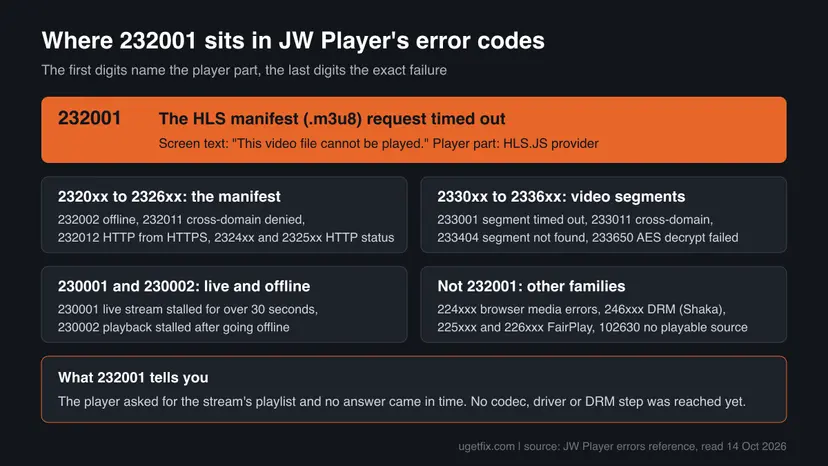
How long the player waits depends on how the website set it up. In the current release of hls.js, the open-source library behind this part of the player, a manifest request gets 20 seconds to finish and is retried up to 2 times after a timeout. We could not confirm which hls.js version or settings JW Player ships, so the wait you see before the code can be shorter or longer.
What causes error 232001, from most to least common
A timeout has two ends: the server that should answer and the path your request takes to it. The order below is our reading of the code's meaning and of what users report on forums. No vendor publishes how often each cause happens.
| How often | Cause | What points to it | Fix |
|---|---|---|---|
| Most often | The video server or its CDN is slow, overloaded or down | Every video on the site fails, on every network and device. Often during a big live event | Fix 1, then report it (Still not working) |
| Often | A VPN, proxy or DNS filter delays or drops the request | The video plays on phone data with Wi-Fi and VPN off | Fix 2 |
| Sometimes | An ad blocker or privacy extension holds the request | The video plays in a private window, where extensions are usually off | Fix 3 |
| Sometimes | A weak or unstable connection on this PC | Other sites load slowly too, the error comes and goes | Fix 5 |
| Rarely | An old copy of the page or an outdated browser | Only one site fails, after a tab was left open for hours | Fix 6 |
| Site owner | Wrong or slow manifest address, origin or CDN settings | The .m3u8 address is slow from any network | Fix 7 and Fix 8 |
Many pages tell you to switch off graphics acceleration or update the graphics driver. Those settings affect decoding the picture, which starts only after the manifest and the first pieces arrive. A decode problem shows codes like 224002 or 224003, not 232001.
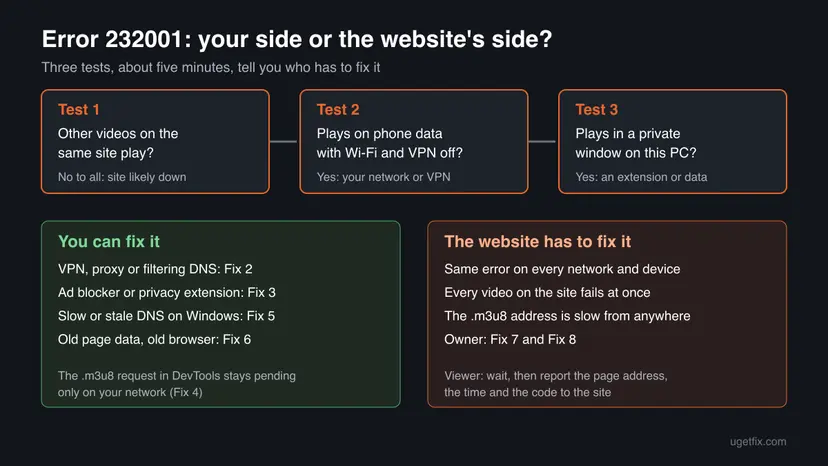
Three tests that show whether 232001 is your problem or the website's
Before you change any setting, spend five minutes finding out who can fix it. If the website's server is slow, nothing on your PC will help, and the best move is to wait and report it.
- Test 1: open two or three other videos on the same website. If none of them plays, the site's video service is the likely cause.
- Test 2: turn off your VPN, connect the PC to your phone's mobile hotspot, and play the same video. If it plays, the problem sits in your usual network path.
- Test 3: open the page in a private window (Ctrl + Shift + N in Chrome and Edge, Ctrl + Shift + P in Firefox). If it plays there, an extension or stored site data is involved.
How to fix error code 232001
Fixes 1 to 6 are for viewers, ordered from the most common cause to the least. Fixes 7 and 8 are for people who run a website with JW Player. Use the table to start at the right place.
| What you see | Start with |
|---|---|
| The error appeared once, or during a big live event | Fix 1 |
| You use a VPN, a proxy, a work network or a DNS filter | Fix 2 |
| The video plays in a private window but not in a normal one | Fix 3 |
| You want proof of which request hangs before you report it | Fix 4 |
| Many sites are slow or fail on this PC, not only video | Fix 5 |
| Only one site fails and the tab has been open for a long time | Fix 6 |
| Your own website's visitors report error 232001 | Fix 7, then Fix 8 |
Fix 1. Wait a minute, reload the page and try another video
2 minutesNo riskEveryone who sees the error for the first time, especially during a live event.
A timeout is often a moment of overload: the server answers again a minute later. A full page reload also asks the website for a fresh player setup and, on many sites, a new stream address.
- Wait about one minute. Do not press Play again and again: every attempt sends the same request to a server that is already slow.
- Reload the whole page with F5 or the Reload button, not only the player.
- Press Play and give the video up to a minute to start.
- If it fails, open another video on the same site and play it.
- If no video on the site plays, look at the site's or its social media account's status messages, then go to Still not working to report it.
When thousands of viewers press Play at the same second, the manifest server can fall behind. Waiting two or three minutes after the start is often enough. JW Player gives a stalled live stream its own code, 230001, so 232001 at the start of a live event points to the first request, not to a stream that ended.
It worked if: The video starts after the reload, or another video on the site plays, which shows that your browser and network work.
If not: If no video on the site plays, wait and report it. If other sites' videos play but this one never does, go to Fix 2.
Fix 2. Turn off the VPN or proxy and try another network
5 minutesNo riskYou use a VPN, a proxy, a work or school network, or a DNS service that blocks ads or trackers.
A VPN or proxy adds a hop between you and the video server. If that hop is slow, overloaded or blocked by the video service, the manifest request waits until the player gives up. Users report 232011 and 232001 together with VPN services, which fits this path.
- Disconnect your VPN in its own app, or switch it to a server in your own country.
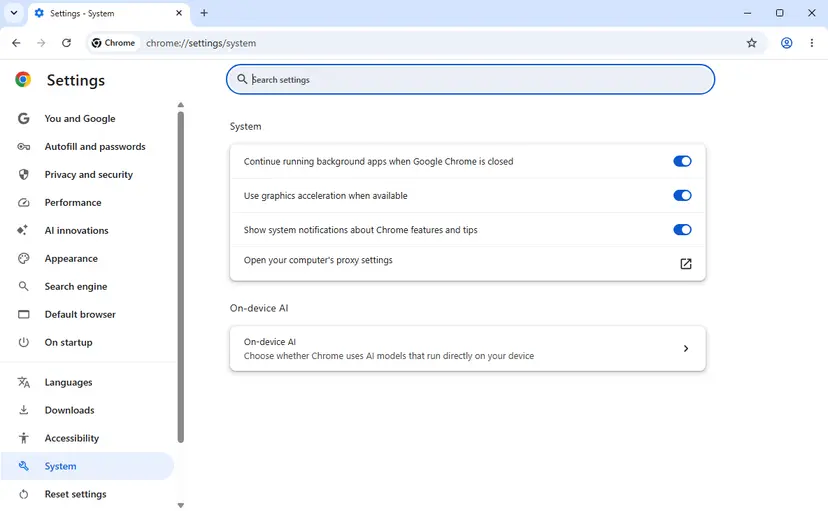
- In Chrome open More > Settings > System and select Open your computer's proxy settings. Windows opens Settings > Network & internet > Proxy.
- Under Manual proxy setup, check whether a proxy server is turned on. If it is and you did not set it up, note its address before you change anything.
- Reload the video page and press Play.
- If it still fails, connect the PC to your phone's mobile hotspot with the phone's Wi-Fi off, and try again.
A company or school proxy may be set by the administrator, and Windows then shows that some settings are managed by your organization. Do not try to bypass it. Ask the IT team whether the video site is allowed.
If you use a DNS filter such as a Pi-hole or a parental control service, pause it for one test or add the video site's domains to its allow list. A filter that sends the stream's domain into a dead end can turn into a timeout for the player.
It worked if: The video plays with the VPN or proxy off, or on the phone's connection. Then you know which part of your path slows the request.
If not: If the video fails on every network, the cause is likely on the website's side. If it plays on the hotspot but not at home, go to Fix 5.
Fix 3. Play the video in a private window, then turn off extensions one by one
5 minutesNo riskThe video fails in your normal browser window but you have not tested a private window yet.
Ad blockers, privacy tools and download helpers watch every request a page makes, including the .m3u8 request. Chrome and Edge do not run extensions in private windows unless you allow it, so a private window is a quick test without them.
- Press Ctrl + Shift + N in Chrome or Edge, or Ctrl + Shift + P in Firefox, to open a private window.
- Paste the video page's address and press Play.
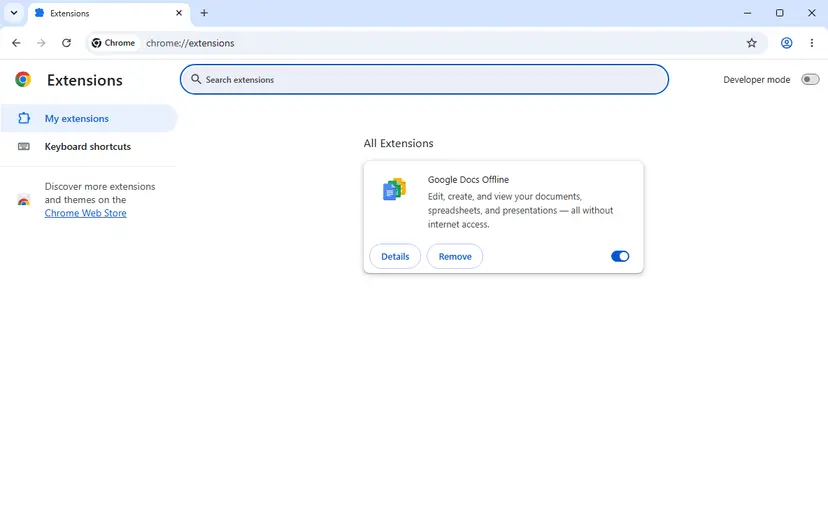
- If it plays, go back to a normal window and open
chrome://extensions(Chrome),edge://extensions(Edge) orabout:addons(Firefox). - Turn off one extension with its switch, reload the video page and press Play.
- Repeat until the video plays. The last extension you turned off is the one that interferes.
- Turn the other extensions back on. For the culprit, add the video site to its allow list or keep it off on that site.
- Ad blockers and script blockers: most often involved, because video players load ads and the stream from related domains.
- Privacy and tracker blockers: they may hold back requests to a CDN they do not trust.
- Video download helpers and "force HD" tools: they rewrite or repeat stream requests.
- VPN or proxy extensions: they act like Fix 2 inside the browser only.
It worked if: The video plays with one extension turned off, and keeps playing after the others are back on.
If not: If it fails in the private window too, extensions are not the cause. Go to Fix 4 to see which request hangs, or Fix 5.
Fix 4. Find the request that times out in the browser's developer tools
5 minutesNo riskYou want to know for sure whether the manifest hangs before you report it or change more settings.
The browser's Network panel lists every request with its status and timing. The .m3u8 row shows directly whether the player's request waited for the server, failed, or was blocked on your PC.
- On the video page press F12 (or Ctrl + Shift + I) and open the Network tab.
- Type
m3u8in the Filter box. - Reload the page with F5 and press Play.
- Watch the rows that appear. Note the Status of the first
.m3u8row and how long it stays without a status. - Select the row and open the Timing tab. A long Waiting (TTFB) time means the server is slow to answer. Long DNS Lookup, Initial connection or Proxy negotiation times point to your path.
- To save proof for the site's support, right-click any row and choose Copy > Save all listed as HAR (sanitized).
| What the .m3u8 row shows | What it means | Next step |
|---|---|---|
| Stays without a status, then fails | The request waited and timed out: this is 232001 | Compare with the hotspot (Fix 2); same result means the site |
| Long Waiting (TTFB) | The server took too long to answer | Report it with the HAR file |
| Long DNS Lookup or Initial connection | Your DNS or connection is slow | Fix 5 |
| (blocked:other) or blocked by client | The browser or an extension blocked it | Fix 3 |
| 403 or 404 | The server refused or lost the file, a 2324xx code family | Report it; nothing to fix on your PC |
| No .m3u8 row at all | The site may use another format or player | This guide may not match your case |
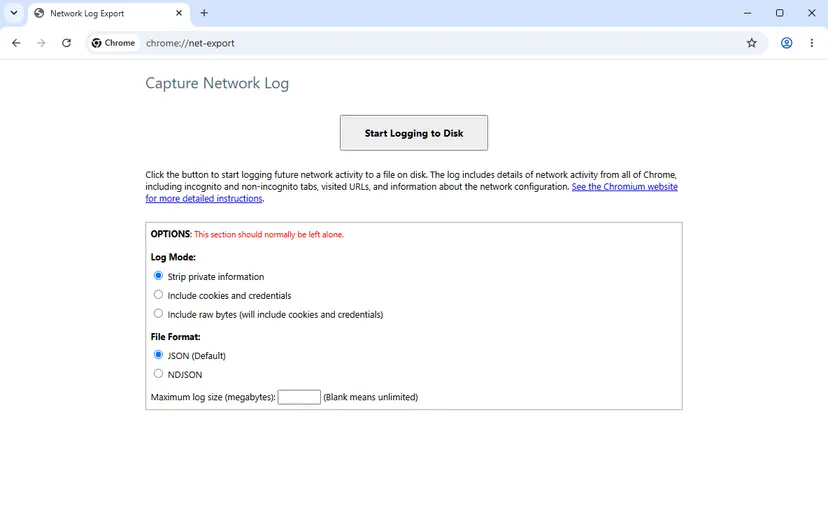
Chrome's own network log is a second option for a support ticket. Open chrome://net-export, select Start Logging to Disk, reproduce the error and stop the log. Leave Strip private information selected.
It worked if: You see the .m3u8 row and its timing, and you know whether the delay is in your path or on the server.
If not: If the timing points to DNS or the connection, go to Fix 5. If it points to the server, report it as described under Still not working.
Fix 5. Clear the DNS caches and check the connection on Windows
10 minutesLow riskSeveral sites load slowly on this PC, or the DevTools timing showed a long DNS lookup or connection time.
Video services move their streams between CDN servers. A stale or slow DNS answer can point the browser to an address that no longer answers fast, so the manifest request runs into the timeout.
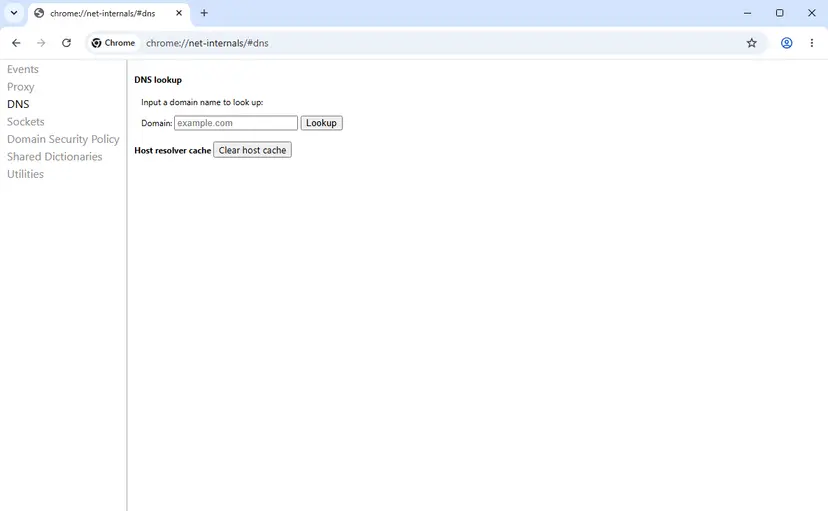
Start with Chrome's own DNS cache. Open chrome://net-internals/#dns and select Clear host cache. Then reload the video page.
Then clear the Windows DNS cache. These are the first two steps of the network reset; you do not need the full reset for this error. Step by step: Reset the network and flush DNS
- Open an elevated command window. Right-click Start and select Terminal (Admin), or type cmd in the search box, right-click Command Prompt and select Run as administrator. Select Yes when Windows asks for permission.
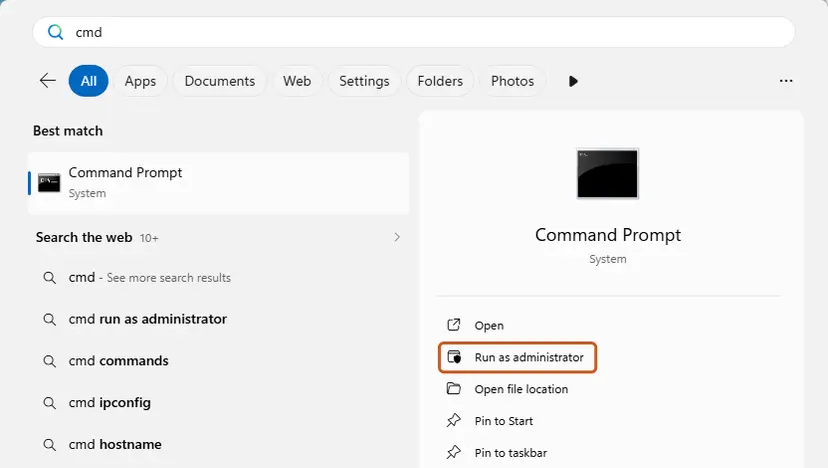
Search for cmd and choose Run as administrator. Screenshot: Windows 11 26H2. - Flush the DNS cache. Type the command below and press Enter. Windows forgets the website addresses it looked up earlier and asks for them again.
ipconfig /flushdns
These steps were written for Windows 11 24H2 and later. The full page with the other versions and what each result means: Reset the network and flush DNS
- Restart the router if other devices at home are slow too.
- Run the connection checks in How to check your internet connection in Windows to see whether the PC has a weak link, high latency or packet loss.
- If you use Wi-Fi, test once with a cable or closer to the router.
- Reload the video page and press Play.
It worked if: Pages and the video start faster, and the .m3u8 row in DevTools gets a status within a second or two.
If not: If the connection is fine and only this site fails, go to Fix 6. If the connection itself is poor, contact your internet provider.
Fix 6. Delete the site's stored data and update the browser
5 minutesLow riskOnly one website fails, it works in a private window, and no extension was the cause.
Some sites sign stream addresses with a token that expires. An old copy of the page or old site data can hold such an address. An outdated browser can also miss fixes in the way it handles media requests.
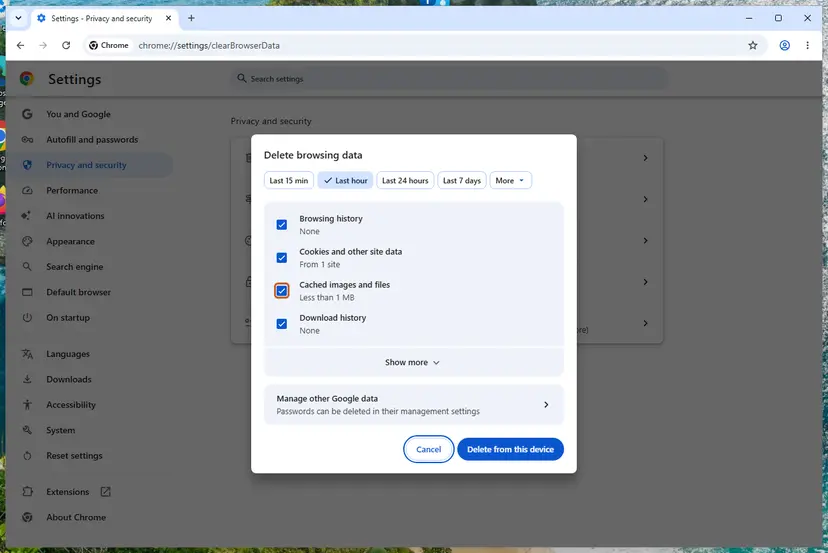
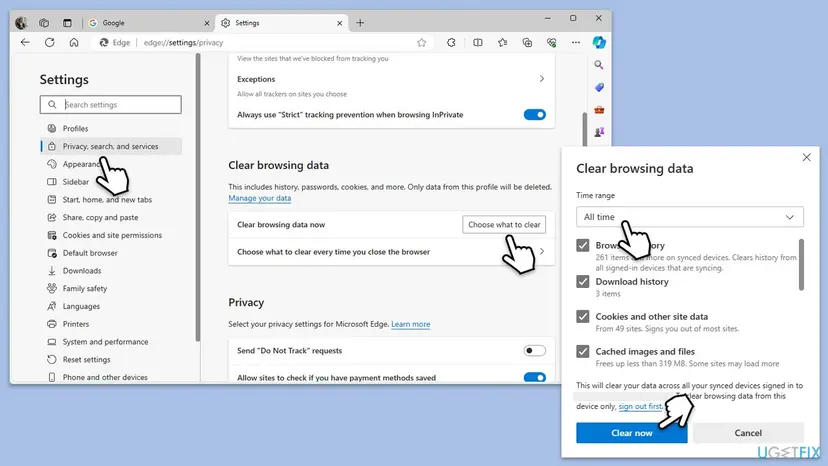
Deleting cookies signs you out. Delete the data of the one video site if your browser offers it, or keep cookies unchecked and clear only cached images and files first.
Clear the cached files, and the cookies of the site if needed. Step by step for Chrome, Edge and Firefox: Clear the browser cache and cookies
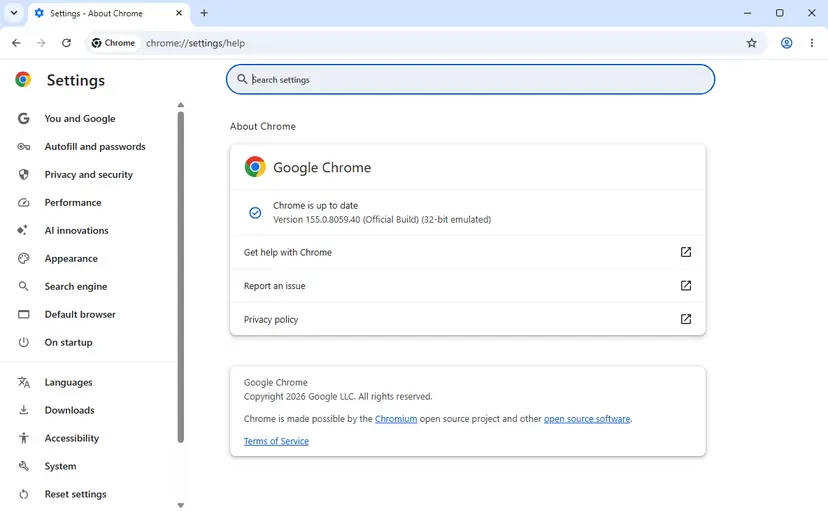
- Chrome: open More > Help > About Google Chrome, let it check for updates and select Relaunch.
- Edge: open Settings and more > Help and feedback > About Microsoft Edge and restart when asked.
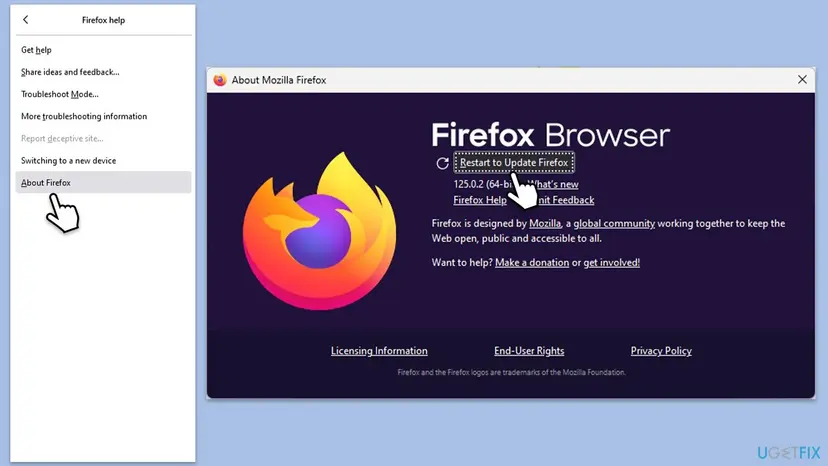
- Firefox: open the menu, then Help > About Firefox, and select Restart to update Firefox when the download ends.
- Open the video page again and press Play.
It worked if: After the site data is gone and the browser restarts, the video page loads a fresh player and the video starts.
If not: If it still fails on every network, the problem is on the website. Read Still not working and report it with the details there.
Fix 7. For site owners: measure and fix the manifest response
15 minutesNo riskYou run a website with JW Player and visitors report error 232001.
232001 is raised when the manifest request does not finish in time. The fix is on the server side: the .m3u8 address must answer quickly from your visitors' networks, also when caches are cold and traffic peaks.
- Copy the exact
.m3u8address the player requests: from the player setup (fileorsources) or from the DevTools Network panel as in Fix 4. - From a Windows PC, run the
curl.execommand below a few times. Usecurl.exe, because in Windows PowerShell 5.1curlalone is another command. - Read the numbers: a slow first byte time means the origin or CDN is slow to build or serve the manifest. A slow connect time points to the network or the CDN edge.
- Run the same command from another network or a cloud server to rule out your own office connection.
- Check the CDN: is the manifest cached for VOD, and for live is it served from the edge with a short cache time that matches the segment length?
- Check the origin under load: live packagers and signed-URL services often slow down first when many viewers start at the same time.
- After a change, play the stream in the browsers your visitors use and watch the
.m3u8timing in DevTools.
Time a manifest request from Command Prompt or PowerShell (replace the address)
curl.exe -s -o NUL -w "dns %{time_namelookup}s connect %{time_connect}s first byte %{time_starttransfer}s total %{time_total}s http %{http_code}\n" "https://cdn.example.com/stream/master.m3u8"If visitors report 232011 or 233011, the manifest or segment request lacks cross-domain (CORS) permission. 232012 means an HTTP address requested from an HTTPS page. 2324xx and 2325xx carry the HTTP status in the last three digits, so 232404 is a 404.
It worked if: The manifest answers within a second or two from several networks, and visitors stop reporting 232001.
If not: If the manifest is fast in tests but visitors still see the code, log the errors from the player (Fix 8) to find which visitors, regions or networks are affected.
Fix 8. For site owners: log the player's error code and source error
20 minutesLow riskYou run JW Player on your site and need data on who gets 232001 and why.
JW Player reports every error as an object with code, message, type and sourceError, the lower-level error the player caught. Logging it shows which streams, browsers and regions time out, instead of guessing from single reports.
- Add an
errorlistener and asetupErrorlistener to the player in your page code, as in the example below. - Send the code, the message, the stream address, the browser and the time to your logging or analytics tool.
- Group the reports by code: 232001 is a manifest timeout, 233001 a segment timeout, 2324xx an HTTP error on the manifest.
- Compare the times of the 232001 reports with your CDN and origin logs and with traffic peaks.
- Test a fix on a staging page before you change the live player.
Log JW Player errors (JavaScript, web player)
const player = jwplayer("player");
function report(e) {
  console.warn("JW Player", e.type, e.code, e.message, e.sourceError);
  // send e.code, e.message and the stream address to your own logging here
}
player.on("error", report);
player.on("setupError", report);
JW Player's errors reference describes the sourceError object as the lower-level error or event the player caught. For HLS errors it usually holds the hls.js details, which name the failing request. We could not confirm its exact fields for every player version, so log it as a whole.
It worked if: Your logs show how many viewers get 232001, on which streams and at what times, so you can match them to server or CDN events.
If not: If the reports point to JW Player's own hosting, contact JW Player support with the error codes, stream addresses and times.
Still getting error 232001? What to send the website
If the video fails on every network, in a private window and after a wait, the cause is not on your PC. Only the website can fix its stream. A good report gets an answer faster:
- The page address of the video and the exact text: This video file cannot be played. (Error Code: 232001).
- The date, the time and your time zone, and whether it was a live stream or a recorded video.
- Your browser and version (from the About page), and that it also failed on another network.
- The HAR file or
chrome://net-exportlog from Fix 4, if the support team asks for one. Use the sanitized option.
A site that says you must install a special player, codec pack or browser extension to fix 232001 is not telling the truth: the code is about a server request, not a missing program. Such downloads are a common way to spread unwanted software.
If the code changes while you test, follow the new code. 232011 and 233011 point to cross-domain permission on the server, 230001 to a live stream that stalled, 233001 to a video piece that timed out, and 246xxx to DRM licences.
How to avoid error 232001 next time
- Give a big live event two or three minutes after the start before you press Play.
- Keep a VPN server close to you, or pause the VPN for video sites that do not need it.
- Allow the video site in your ad blocker if you trust it.
- Keep the browser updated; Chrome, Edge and Firefox update themselves after a restart.
- Do not serve the manifest only from the origin: put it behind the CDN with cache times that fit VOD or live.
- Do not sign stream addresses with tokens shorter than a viewing session without refreshing them.
- Do not mix HTTP stream addresses into HTTPS pages (232012).
- Do not wait for viewer complaints: log
errorevents (Fix 8) and alert on 2320xx spikes.
A timeout cannot be fully prevented on the viewer's side, because the server's load is outside your control. What you can do is keep your own path short and clean, so that when the error appears you know quickly whether it is the site.
Frequently asked questions
What does error code 232001 mean?
It means the video player on the website asked for the stream's playlist file, the HLS manifest that ends in .m3u8, and the request timed out. The code comes from JW Player. Its errors reference gives the reason "An HLS manifest request timed out" and shows the viewer the text "This video file cannot be played". The video file itself was never reached, so the message does not mean the file is damaged. The cause is a slow or unreachable video server, or a slow path to it from your network.
Is error 232001 a Windows problem?
No. The code comes from a video player that runs inside a web page, so it is the same in Chrome, Edge and Firefox, on Windows 11, Windows 10 and other systems. Windows only matters when its network settings slow the request down, such as a proxy, a stale DNS cache or a weak Wi-Fi link. That is why this guide's Windows steps are limited to the proxy settings and the DNS cache, and why system file checks or driver updates do not help.
Why does it say "This video file cannot be played" when the file is fine?
JW Player uses a few short, general messages for many technical codes. "This video file cannot be played" is shown for 232001 and also for codes like 233001, 232600 and 224003, which have very different causes. The number in brackets is the useful part. For 232001 the player never got the stream's playlist, so it could not even start loading the file. The file can be perfectly fine on the server.
Can a VPN cause error code 232001?
Yes, it can. A VPN routes the request through its own server, which adds distance and a point where traffic can be slow or blocked. Some video services also slow down or refuse traffic from VPN addresses. Users on VPN forums report 232011 and 232001 together with VPN use. Test once with the VPN off or on mobile data, as in Fix 2. If the video then plays, pick a VPN server closer to you or pause the VPN for that site.
Will turning off hardware acceleration or updating the graphics driver fix 232001?
Usually not. Graphics acceleration and drivers matter when the browser decodes the picture, and that starts only after the manifest and the first video pieces have arrived. 232001 happens before that step. Decode problems show other JW Player codes, such as 224002. In Chrome 155 the switch is now called Use graphics acceleration when available under Settings > System, if you want to test it for a different problem.
I get error 232001 on YouTube. Is this the same error?
The code 232001 belongs to JW Player, and we found no YouTube documentation that uses it. YouTube has its own player and its own messages. If you see this exact text and code, check the page you are on: the video may be embedded from another site, or the page may be a copy of a YouTube video played through JW Player. The fixes in this guide still apply to that player.
What about error codes 232011, 230001, 233001, 232500 and 2324?
They are neighbours in the same JW Player family. Code 232011 means the manifest request lacked cross-domain permission, and 233011 the same for a video piece. Code 230001 means a live stream stalled for more than 30 seconds. Code 233001 means a video piece timed out. The 2324xx and 2325xx codes carry an HTTP status, so 232500 is a server error 500 and 232404 a missing file. "Error code 2324" as written is not a JW Player code; it is most likely the start of a 2324xx code.
What is código de error 232001, code erreur 232001 or kode kesalahan 232001?
It is the same error in another language. JW Player can translate its messages, so a Spanish, French or Indonesian site shows the text in that language, but the number stays 232001. The meaning does not change: the stream's playlist request timed out. All the fixes on this page apply, and the menu names in your browser will simply appear in your language.
How long does it take for the website to fix error 232001?
There is no fixed time, because it depends on what failed. A short overload during a live event often clears within minutes. A broken CDN setting or a failed origin server can take hours until the site's team notices and fixes it. That is why a clear report, with the page address, the time and the code, helps. Meanwhile nothing on your PC will make the stream load if the server does not answer.
Sources
- hls.js: API documentation, LoadPolicy and manifest timeouts (github.com)
- hls.js source: default configuration (manifestLoadPolicy) (github.com)
- Google Chrome Help: Browse in Incognito mode (support.google.com)
Did this fix work?
One click, no account. It tells the next reader which guides are worth their time.
Questions and experiences: fix streaming error code 232001 in Windows
Still broken, or found a fix we did not cover? Ask here: members and our editors answer. Reading is open; writing needs a free account.
…