
How to fix System Restore error 0xc000a004 in Windows?

Prefer to fix it yourself? The manual steps follow.
- 6methods
- 10 minutes for Fix 1, up to 1 hour to build new media
- Intermediate
Applies to Recovery drives, System Repair Discs and backup rescue media on Windows 11 and Windows 10
6 methods in this guide
Hello. I tried restoring my Windows PC back to a previous state using the System Restore utility, but I received the 0xc000a004 error code. What do I do?
Error 0xc000a004 appears when you start the PC from a recovery drive, a System Repair Disc or a backup program's rescue media, not inside Windows. Windows itself usually still starts fine. If you only need System Restore, run it from Windows or its built-in recovery instead, then rebuild the media.
0xc000a004 is not a broken restore point. It is a blue Recovery screen that says the kernel ntoskrnl.exe is missing or contains errors, shown when the PC starts from recovery media. Your restore points are still on the drive. Run System Restore from Windows or from Advanced startup (Fix 1), then make new Windows installation media or rebuild the recovery drive after installing all updates (Fixes 2 and 3).
| Error | "The operating system couldn't be loaded because the kernel is missing or contains errors. File: \windows\system32\ntoskrnl.exe Error code: 0xc000a004" |
|---|---|
| Where it appears | On a blue Recovery screen ("Your PC/Device needs to be repaired") right after you boot from a USB recovery drive, a System Repair Disc, or rescue media made by Veeam, Acronis, ESET or similar backup tools. |
| Main cause | The media holds boot files and a recovery image of different ages. Veeam's forum ties the failures to Microsoft's Secure Boot changes for CVE-2023-24932 (KB5025885). |
| Fastest fix | Skip the media: start System Restore from Windows or Advanced startup (Fix 1). For working media, boot Windows installation media made today (Fix 2). |
| Also written as | 0XC000A004, error code 0xc000a004, "kernel is missing or contains errors", "ntoskrnl.exe 0xc000a004", "PC/device needs repair" from a recovery USB. |
| Affects | Windows 10 and Windows 11 PCs with Secure Boot, reported since 2023. Windows 10 left support on 14 October 2025. |
| Vendor status | We found no Microsoft page for this code. Veeam product staff discuss it in their KB5025885 thread and advise new recovery media and a new full backup. |
| Where the cause is written | Only on the Recovery screen itself. The media writes no log, so the file name and code on that screen are the evidence to keep. |
| Time to fix | 10 minutes for Fix 1, 30 to 60 minutes to make new installation media or a recovery drive. |
Facts checked on 15 October 2026. Steps written for Windows 11 (25H2 and 26H2) and Windows 10 22H2.
What error 0xc000a004 means
The old version of this page treated 0xc000a004 as a System Restore failure inside Windows. The reports we read say something else: the code shows up when the PC boots from recovery media and the small Windows on that media, Windows RE, refuses to load its own kernel. The installed Windows on the internal drive keeps starting normally.
The full text on the blue screen reads:
Recovery
Your PC/Device needs to be repaired
The operating system couldn't be loaded because the kernel is missing or contains errors.
File: \windows\system32\ntoskrnl.exe
Error code: 0xc000a004- Where you see it: after choosing the USB stick or disc in the boot menu, before any recovery menu appears. People hit it while testing a fresh recovery drive, or when they want System Restore from outside Windows.
- The file it names:
ntoskrnl.exeis the Windows kernel. Here it is the copy on the media, not the one on your drive, so SFC on the running Windows does not change anything. A Microsoft Q&A poster ransfc /scannowand the media still failed. - What it is not: a damaged restore point, a failing drive, or malware. Your restore points and files stay where they are.
- A telling sign: older media made a year or more ago from the same PC still boots, while media made today does not. Several posters on Microsoft Q&A and Super User report exactly that.
Then you do not need the media. As long as Windows starts, System Restore runs from inside it or from the recovery environment on your own drive. That is Fix 1.
Why 0xc000a004 appears, from most to least common
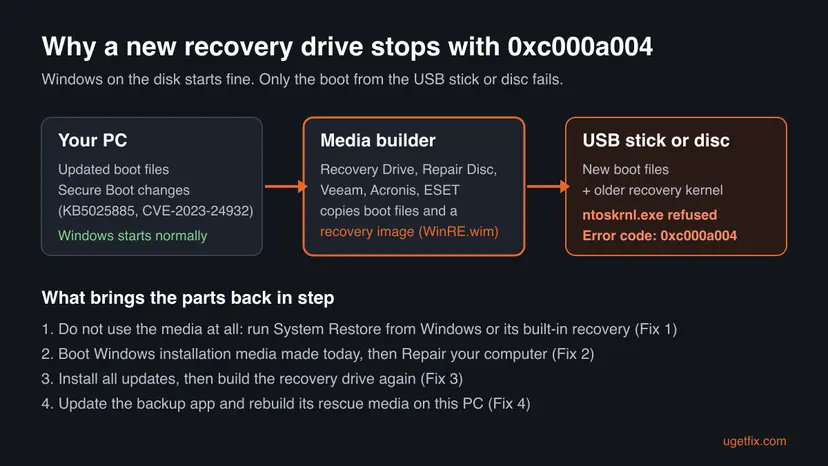
- Most often: boot files and recovery image do not match. The media builder copies the boot files of your updated PC and a recovery image (
WinRE.wim) that may be older. In the Veeam forum thread on KB5025885, product staff and users link the failures to these Secure Boot changes. Fixes 2, 3 and 4. - Often: the recovery image on the PC itself is outdated. Windows' own Recovery Drive and System Repair Disc tools fail in the same way, which points at the image they copy, not at the backup program. Fix 3.
- With backup programs: the rescue media was built from old files. Veeam staff advise a new full backup so the agent collects fresh files, and Super User answers suggest a tool that builds its image from Microsoft's current Windows kits. Fix 4.
- Rarely: Secure Boot refuses the media outright. Some Veeam forum posters could only start the media with Secure Boot off. That is a test, not a fix. Fix 6.
| Cause | Sign | Start with |
|---|---|---|
| You only wanted System Restore | Windows still starts from the drive | Fix 1 |
| Mixed boot files and recovery image | Media made today fails, older media boots | Fix 2 or Fix 3 |
| Outdated recovery image on the PC | Windows' own Recovery Drive fails too | Fix 3 |
| Old files in a backup program's media | Only Veeam, Acronis or ESET media fails | Fix 4 |
| Secure Boot refuses the media | Every new media fails, even after updates | Fix 6 |
How to fix error 0xc000a004
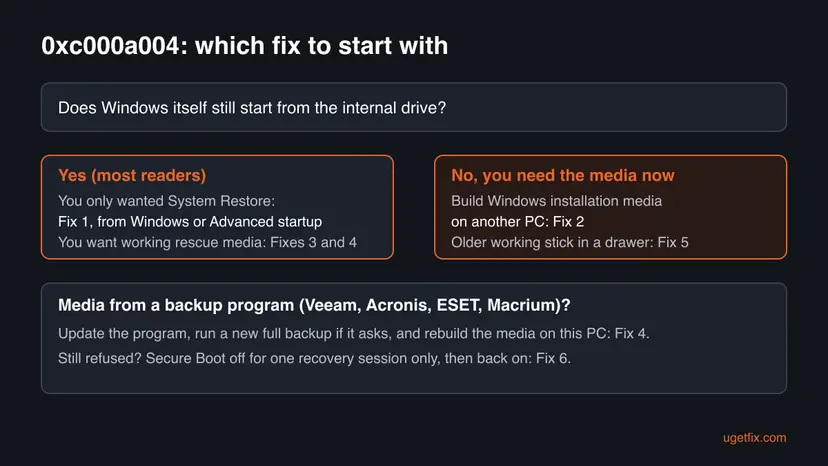
Fix 1 gets you to System Restore today without any media. Fixes 2 to 4 give you recovery media that boots again. Fix 5 uses media you already have, and Fix 6 is a one-time Secure Boot test for when nothing else boots.
| What you see or need | Start with |
|---|---|
| Windows starts, you only wanted System Restore | Fix 1 |
| Windows does not start and you need recovery now | Fix 2, made on another PC |
| Your new Windows recovery drive or repair disc fails | Fix 3 |
| Rescue media from Veeam, Acronis, ESET or another backup app fails | Fix 4 |
| You have an older recovery stick that once worked | Fix 5 |
| Every media you build still stops with 0xc000a004 | Fix 6 |
Fix 1. Run System Restore from Windows or Advanced startup instead
10 minutes plus the restoreLow riskWindows still starts from the internal drive and you only wanted to roll back to a restore point.
The error comes from the kernel on the media, not from your restore points. System Restore in Windows, or in the recovery environment stored on your own drive, never loads that media.
- Press Win + R, type
rstrui.exeand press Enter. - Select Next. Tick Show more restore points if the one you need is not listed.
- Pick a point from before the problem, select Scan for affected programs to see what changes, then Next and Finish.
- If System Restore fails inside Windows, open Settings > System > Recovery on Windows 11, or Settings > Update & Security > Recovery on Windows 10, and select Restart now under Advanced startup.
- Choose Troubleshoot > Advanced options > System Restore and pick the same restore point.
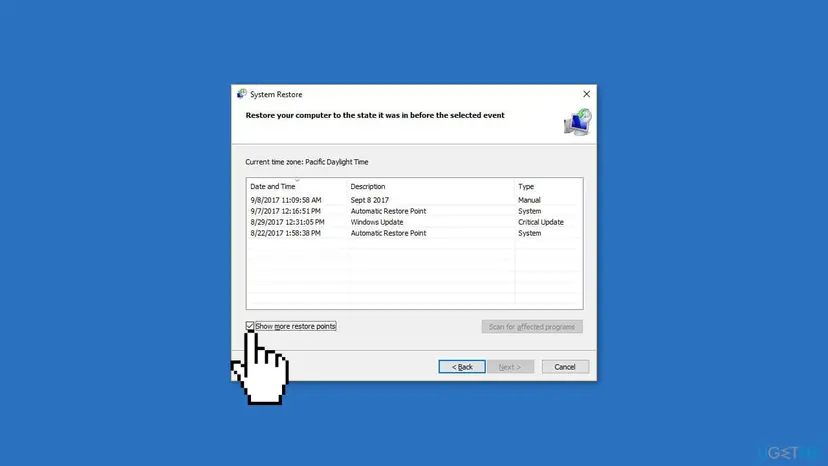
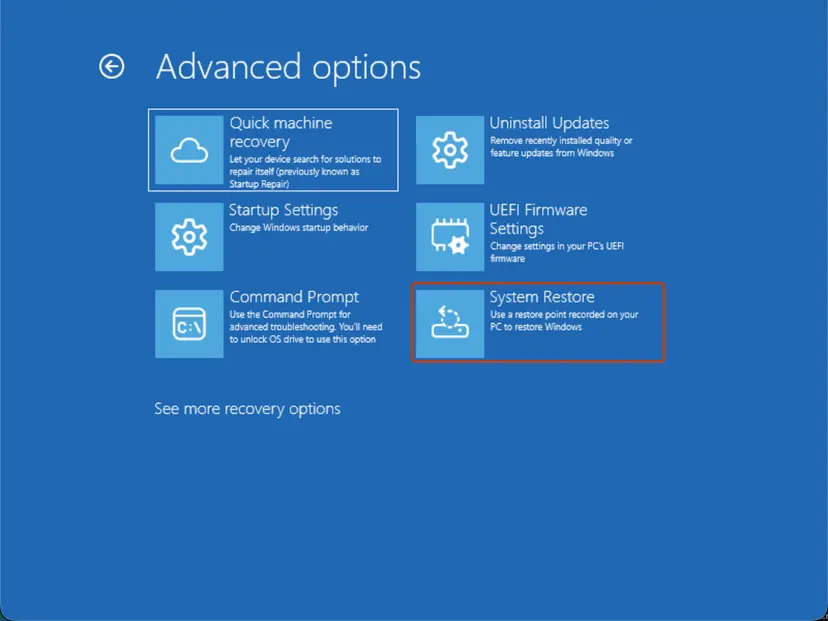
Full steps for both ways: Undo recent changes with System Restore.
It worked if: System Restore opens, lists your restore points and finishes with "System Restore completed successfully" after the restart.
If not: If Windows no longer starts at all, build installation media on another PC with Fix 2.
Fix 2. Boot from Windows installation media made today
30 to 60 minutesLow riskYou need a recovery environment from USB, or Windows on the drive no longer starts.
Installation media made today carries matching current boot files and a current kernel. Its Repair your computer link opens the same recovery tools, and a Microsoft Q&A poster whose repair disc failed with 0xc000a004 reached System Image Recovery this way.
- On any working PC, open Microsoft's download page: Windows 11 or Windows 10. Use the version your PC runs.
- Download and run the Media Creation Tool. Choose USB flash drive and a stick of at least 8 GB. Everything on the stick is erased.
- Plug the stick into the PC with the problem and open its boot menu while it starts. The key differs by maker, often F12, F11, Esc or F9.
- Choose the USB stick. On the first setup screen select Next, then Repair your computer at the bottom left, not Install now.
- Select Troubleshoot > Advanced options and choose System Restore, System Image Recovery or Startup Repair.
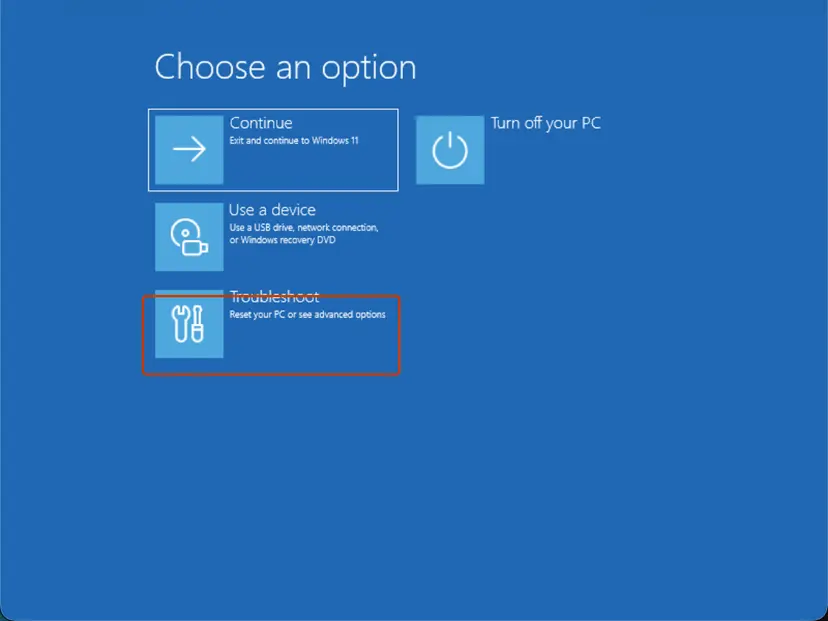
It worked if: The PC starts from the stick without the blue Recovery screen and shows Choose an option.
If not: If the installation media also stops with 0xc000a004, try the Secure Boot test in Fix 6.
Fix 3. Install every update, then build the recovery drive again
30 to 60 minutesLow riskThe recovery drive or System Repair Disc you made with Windows' own tool fails, and Windows starts normally.
Windows' own tools copy the recovery image that sits on your PC. Veeam staff in the KB5025885 thread advise updating that recovery image and creating the media again, so the boot files and kernel come from the same state.
- Open Settings > Windows Update and select Check for updates. Install everything, optional quality updates included.
- Restart the PC, even if Windows does not ask, and check for updates once more.
- Select Start, type Create a recovery drive and open it. Approve the User Account Control prompt.
- Keep Back up system files to the recovery drive ticked and select Next. Pick a USB stick: it is erased.
- When it finishes, restart and boot from the stick to test it right away, before you need it.
The disc tool in Control Panel > Backup and Restore (Windows 7) copies the same recovery image. Rebuild it after the updates too, or use a USB recovery drive instead.
To install a single update by hand: Install an update from the Microsoft Update Catalog.
It worked if: The new stick boots to Choose your keyboard layout and then Choose an option, with no Recovery screen.
If not: If the rebuilt stick still fails, use installation media from Fix 2 as your rescue stick. It does the same job.
Fix 4. Update the backup program and rebuild its rescue media
20 to 60 minutesLow riskRescue media from Veeam, Acronis, ESET or another backup app stops with 0xc000a004.
These tools wrap their recovery app around a Windows RE image. Veeam staff advise a new full backup so fresh files are collected, and creating the media on the machine itself. A Super User answer points to tools that build the image from Microsoft's current Windows kits.
- Update the backup program to its latest version from its maker.
- Install all Windows updates first, as in Fix 3, so the program copies current files.
- In Veeam Agent, run an Active Full backup. Veeam staff say this collects new files for the recovery media and keeps the backup bootable after a bare metal restore.
- Create the rescue media again on the PC you want to protect. Veeam's tool is
C:\Program Files\Veeam\Endpoint Backup\Veeam.Endpoint.RecoveryMedia.exe. - If the program can build its image from the Windows ADK instead of the PC's own recovery image, as Macrium Reflect can, choose that option.
- Boot from the new media once to test it.
It worked if: The rescue media starts the backup program's recovery screen.
If not: If it still fails, ask the program's support which Windows RE version its media needs, and keep Windows installation media from Fix 2 as a fallback.
Fix 5. Use an older recovery stick or disc that still boots
5 minutesLow riskYou have recovery media from before the problem began, and you need it today.
Posters on Microsoft Q&A and Super User report that older Windows 10 recovery media from the same PC still boots while new media fails. That fits the mismatch: the old media's files are all from one, older state.
- Plug in the older stick or insert the older disc.
- Open the boot menu and choose it.
- If it reaches Choose an option, use Troubleshoot > Advanced options as usual.
- Label the media with the date it was made and keep it until new media from Fix 2 or Fix 3 works.
It worked if: The older media opens the recovery menu.
If not: We could not confirm how long older media keeps booting once Microsoft's Secure Boot changes are fully applied. If it fails, use Fix 2.
Fix 6. Test with Secure Boot off for one recovery session
15 minutesRead the warningEvery media you build stops with 0xc000a004 and you must recover the PC today.
Some posters in the Veeam KB5025885 thread could start their media only with Secure Boot off. This confirms the Secure Boot link and gets you through one recovery. It is not a fix to leave in place.
Changing Secure Boot can make Windows ask for the BitLocker recovery key at the next start. Find it first in your Microsoft account under devices, or on the printout you saved. Turn Secure Boot back on as soon as the recovery is done, or the PC stays less protected against boot malware.
- Note your BitLocker recovery key, as the warning above says.
- Open the UEFI settings: Settings > System > Recovery > Advanced startup > Restart now, then Troubleshoot > Advanced options > UEFI Firmware Settings.
- Find Secure Boot, usually under Boot or Security, set it to Disabled, save and exit.
- Boot from the recovery media and do the one task you need.
- Open the UEFI settings again, set Secure Boot back to Enabled, save and exit.
It worked if: The media boots, and after you turn Secure Boot back on Windows starts normally from the drive.
If not: If the media fails even with Secure Boot off, the media itself is bad. Build installation media with Fix 2 on another PC.
If 0xc000a004 still appears: what to check and what to send to support
- Take a photo of the whole Recovery screen. The media writes no log file, so this screen is the record.
- Note how the media was made: Windows Recovery Drive, System Repair Disc, Media Creation Tool, or a backup program and its version.
- Note the date of the media and whether an older one boots.
- Press Win + R, type
winverand press Enter inside Windows. Write down the version and build. - Send these four things to the backup program's support, or post them on Microsoft Q&A.
This page is about recovery media. If the same "kernel is missing or contains errors" screen appears when Windows starts from its own drive, the problem is on the drive. Run Startup Repair from installation media (Run Startup Repair), and back up your files before anything else if the drive also clicks or slows down.
How to keep your recovery media working
- Boot from new recovery media once, right after you make it.
- Rebuild recovery drives and rescue media after large Windows updates.
- Keep one Windows installation stick made with the Media Creation Tool as a spare.
- Keep System Protection on, so restore points exist when you need Fix 1.
- Do not trust a stick that has never been tested.
- Do not leave Secure Boot off after a recovery session.
- Do not run SFC or CHKDSK on the PC to fix the media: the damage is not on the PC.
If System Restore inside Windows fails with a different code, our guide to System Restore error 0x81000202 covers the shadow copy service behind restore points.
Frequently asked questions
What is error code 0xc000a004?
It is the code on a blue Recovery screen that says "The operating system couldn't be loaded because the kernel is missing or contains errors" and names \windows\system32\ntoskrnl.exe. In the reports we read, it appears when a PC boots from a recovery drive, a System Repair Disc or backup rescue media, while Windows on the internal drive keeps working. The media holds boot files and a recovery kernel that do not fit together, so the recovery environment never loads.
How do I fix this?
First decide what you need. If you only wanted System Restore and Windows still starts, run rstrui.exe or use Advanced startup > Troubleshoot > Advanced options > System Restore (Fix 1). If you need bootable media, make Windows installation media today with the Media Creation Tool and use Repair your computer (Fix 2). Then install all updates and build the recovery drive again (Fix 3).
Is my PC damaged if the recovery drive shows 0xc000a004?
Usually not. The kernel the screen names is the one on the USB stick or disc, not the one on your drive. Posters who hit the code report that their PCs work normally, and that only new media fails while older media boots. If Windows itself shows the same screen when starting from its own drive, that is a different case and the second section after the fixes covers it.
Will SFC or CHKDSK fix 0xc000a004?
Not in the reports we read. A Microsoft Q&A poster ran sfc /scannow and the new repair disc still failed with the same code. Both tools repair the running Windows and its drive, while the error comes from files on the media. Use them only if Windows itself misbehaves. For the media, rebuild it after updates or switch to installation media.
Does KB5025885 cause error 0xc000a004?
Veeam's forum thread on KB5025885, Microsoft's Secure Boot update for the CVE-2023-24932 boot manager flaw, collects many 0xc000a004 reports, and Veeam staff answer there. We could not confirm from Microsoft that this update is the only cause. The practical answer is the same either way: media built from current, matching files boots, so update Windows and rebuild the media.
Why does my old recovery USB work but the new one does not?
The old stick holds boot files and a recovery kernel from the same, older moment, so they fit together. The new stick takes boot files from your updated PC but may carry an older recovery image, and that mix is refused. We could not confirm how long the old stick keeps working, so build new media with Fix 2 or Fix 3 and test it.
Veeam recovery media shows 0xc000a004. What should I do?
Update Veeam Agent, install all Windows updates, run an Active Full backup and create the recovery media again on the same PC, as Veeam staff advise in their KB5025885 thread. Test the new media at once. If you must restore today and it still fails, a one-time Secure Boot test (Fix 6) is the last resort, with your BitLocker key ready.
Does 0xc000a004 happen on Windows 11 too?
Yes. People search for the code with Windows 10 and Windows 11, and the fixes are the same on both. Windows 11 places Advanced startup under Settings > System > Recovery, Windows 10 under Settings > Update & Security > Recovery. Windows 10 left support on 14 October 2025, so its recovery images get no new fixes without Extended Security Updates.
Is it safe to switch Secure Boot to Disabled to get past the error?
Only for one recovery session. Secure Boot blocks boot-level malware, so turn it back on right after you finish. Changing it can also make Windows ask for the BitLocker recovery key, so have the key ready before you start. If the media boots only with Secure Boot off, build new media with Fix 2 or Fix 3 instead of keeping it off.
Sources
- Microsoft Q&A: Loading System Repair disk results in Error Code 0xc000a004, kernel is missing or contains errors (learn.microsoft.com)
- Veeam Community Forums: Impact of Microsoft KB5025885 Secure Boot Patch for CVE-2023-24932 on Veeam Recovery Media (answers by Veeam product staff) (forums.veeam.com)
- Super User: Windows 10 RE, kernel is missing or contains errors (superuser.com)
Did this fix work?
One click, no account. It tells the next reader which guides are worth their time.
Questions and experiences: fix System Restore error 0xc000a004 in Windows
Still broken, or found a fix we did not cover? Ask here: members and our editors answer. Reading is open; writing needs a free account.
…