
How to fix Task Scheduler error 0xE0434F4D in Windows?

Prefer to fix it yourself? The manual steps follow.
- 7methods
- 5 minutes to find the cause, 10 to 30 minutes to fix
- Intermediate
Applies to Windows 11, Windows 10, Windows Server
7 methods in this guide
What are the causes and solutions for the Task Scheduler error 0xE0434F4D in Windows? Is it easy to fix?
0xE0434F4D in the Last Run Result column means the program your task started crashed with an unhandled .NET exception. Task Scheduler itself works; the program it launched failed. First start that program by hand to see whether the task setup or the program is to blame.
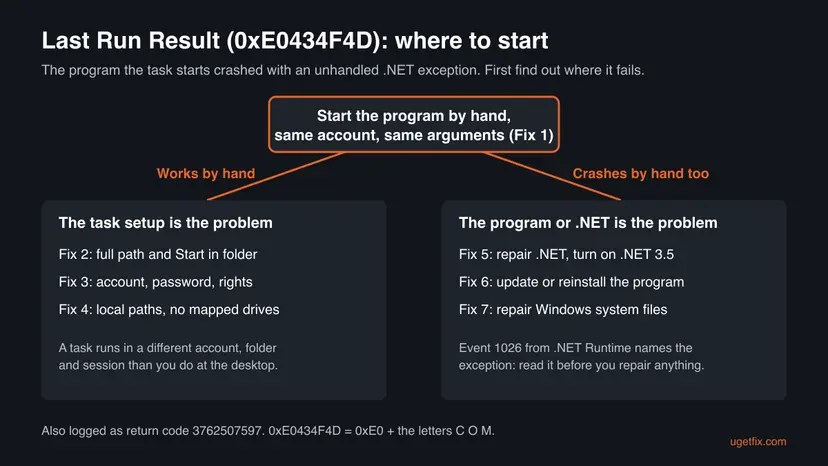
0xE0434F4D is the exit code of a .NET program that crashed, not a Task Scheduler fault. Start the program by hand and read event 1026 from .NET Runtime (Fix 1). If it works by hand, the task setup is wrong: fix the path and the Start in folder (Fix 2), then the account and its rights (Fix 3). If it crashes by hand too, repair .NET or the program.
| Error | Last Run Result: (0xE0434F4D) for a scheduled task, also logged as return code 3762507597. |
|---|---|
| Where it appears | In Task Scheduler in the Last Run Result column of the task list, right after the task ran and the program it started closed. |
| Main cause | The program the task starts is a .NET program, and it hit an error its own code did not catch. In tasks this is most often a wrong working folder, a missing right or a network path the task account cannot reach. |
| Fastest fix | Start the program by hand and read event 1026 (Fix 1). If it works by hand, set the Start in folder and the full path in the task's action (Fix 2). |
| Also written as | 0xe0434f4d, e0434f4d, E0434F4D, (0xE0434F4D), 3762507597, "unknown software exception (0xe0434f4d)". A related code, 0xE0434352, means the same kind of crash. |
| Logged together with | Event 1026 from .NET Runtime in Windows Logs > Application, which names the exception, for example System.IO.FileNotFoundException. |
| Affects | Any scheduled task that runs a .NET Framework program, a .NET app or a PowerShell host, on Windows 11, Windows 10 and Windows Server. |
| Vendor status | Not a Windows bug and no update fixes it. Microsoft's answer for the related 0xE0434352 points to the .NET version, the working directory, the user account and its permissions. |
| Time to fix | About 5 minutes to find out where it fails. A task setting takes minutes; a .NET or program repair 20 to 30 minutes. |
Facts checked on 15 October 2026. Steps written for Windows 11 (25H2 and 26H2) and Windows 10 22H2.
What Task Scheduler error 0xE0434F4D means
A scheduled task starts a program and waits for its exit code. Task Scheduler then shows that code as the Last Run Result, where a result of 0x0 means the program finished well. The code 0xE0434F4D is the native exception code for a managed exception: the program runs on .NET, an error happened inside it, and its own code did not handle it. The .NET runtime ended the program, and that code became the task's result.
- As shown in Task Scheduler
- (0xE0434F4D) in the Last Run Result column
- In decimal
- 3762507597, as some history entries and scripts show it
- In a crash dialog
- The exception unknown software exception (0xe0434f4d) occurred in the application at location
- What the hex means
- 0xE0 followed by the letters C, O and M in ASCII, a code the .NET runtime uses for its own exceptions
- Close relative
- 0xE0434352 (CCR), also a .NET crash, logged with event 1026 from .NET Runtime
0xE0434F4D only says that some .NET error was not caught. The error itself, such as a missing file or a denied folder, is written in event 1026 or in the program's own log. That is why the same code appears for very different tasks, and why Fix 1 comes first.
We could not confirm from Microsoft which .NET versions report 0xE0434F4D and which report 0xE0434352. Both mean the same for you: a .NET program crashed, and the steps on this page apply to both.
Why scheduled tasks end with 0xE0434F4D: causes ranked
We have no counts. The order below follows the cases reported on Stack Overflow, Server Fault and Microsoft Q&A for this code: most programs that fail as a task run fine by hand, so the difference between the task and your desktop is the usual cause.
| Cause | Typical sign | Fix |
|---|---|---|
| The program looks for its files in the wrong folder, because the task has no Start in folder. | Works when you double-click it, crashes as a task. Event 1026 names FileNotFoundException or DirectoryNotFoundException. | Fix 2 |
| A wrong or stale path in the task's action. | The task was copied, or the program moved. Re-entering the path fixed it in one reported case. | Fix 2 |
| The task account lacks rights to a folder, a file or the network. | UnauthorizedAccessException, or the task runs under another account or SYSTEM. | Fix 3 |
| Do not store password is ticked while the program writes to a network share. | Fails only when nobody is logged on, or only for network work. | Fix 3 |
| The program runs from a network share or uses a mapped drive letter. | The path starts with \\server or a letter like Z:. | Fix 4 |
| The .NET version the program needs is missing or damaged. | Crashes by hand too. Older programs need .NET Framework 3.5. | Fix 5 |
| A bug in the program or a damaged install. | Crashes by hand too, at the same moment every time. | Fix 6 |
How to fix Task Scheduler error 0xE0434F4D
Fix 1 takes five minutes and tells you which half of the list is yours. Fixes 2 to 4 are for programs that work by hand and fail only as a task, which is the more common case. Fixes 5 to 7 are for programs that crash by hand too.
| What you see or have | Start with |
|---|---|
| You only see (0xE0434F4D) and do not know why. | Fix 1 |
| The program works when you double-click it, but fails as a task. | Fix 2 |
| The task runs under another account, SYSTEM, or with Run whether user is logged on or not. | Fix 3 |
| The program or its files sit on a network share or a mapped drive. | Fix 4 |
| The program crashes by hand too, or it is old and made for .NET 2.0 to 3.5. | Fix 5 |
| The program crashes by hand at the same moment every time. | Fix 6 |
| Several .NET programs and tasks fail, not only one. | Fix 7 |
Fix 1. Find the failing program and read its .NET error in Event Viewer
5 minutesNo riskEveryone who sees 0xE0434F4D and does not know yet what the program tripped over.
The code only says a .NET program crashed. The .NET runtime writes the exception's name and the code line where it happened into event 1026, and that text decides which fix applies.
- Press Win + R, type
taskschd.mscand select OK. - Select Task Scheduler Library and find the task whose Last Run Result reads (0xE0434F4D). Tasks of apps can sit in subfolders.
- Double-click the task, open the Actions tab and note Program/script, Add arguments and Start in.
- On the General tab, note the account under When running the task, use the following user account.
- Press Win + R, type
eventvwrand select OK. Open Windows Logs > Application. - Look for an Error from .NET Runtime with event ID 1026 at the time the task ran. Read the Application and Exception Info lines.
- Start the program from the task's action by hand, with the same arguments, and see whether it crashes there too.
PowerShell: every task whose last result was 0xE0434F4D
Get-ScheduledTask | Get-ScheduledTaskInfo |
  Where-Object { $_.LastTaskResult -eq 3762507597 } |
Select-Object TaskPath, TaskName, LastRunTime- Works by hand, fails as a task: the task setup differs from your desktop. Go to Fix 2.
- Exception Info names
UnauthorizedAccessException: go to Fix 3. - Crashes by hand too: go to Fix 5 or Fix 6.
- No event 1026 at all: turn on Enable All Tasks History in the right pane of Task Scheduler, run the task once and read its History tab.
It worked if: You know the program, the account it runs under and the exception name from event 1026, and whether it crashes by hand.
If not: If the program writes its own log file, read that next to the program or in its data folder. A guide on reading event 1026 in depth: .NET Runtime error 1026.
Fix 2. Set the full program path and the Start in folder in the task
5 minutesLow riskThe program works when you double-click it but fails as a task, or event 1026 names a file or folder that was not found.
Many programs open settings and data files by a relative path. When you double-click them, Windows starts them in their own folder. A task without a Start in folder starts them elsewhere, so the files are not found and the program crashes.
- In Task Scheduler, double-click the task and open the Actions tab.
- Select the action and select Edit.
- Select Browse next to Program/script and pick the program file again, so the path is current and complete.
- In Start in (optional), type the folder that holds the program, for example
C:\Tools\Backup. - Put arguments only in Add arguments (optional), not after the path.
- Select OK twice, enter the account password if asked, then right-click the task and select Run.
- Press F5 and read Last Run Result.
If the task starts a .bat file or a PowerShell script that then starts the program, set Start in to the script's folder too, and use full paths inside the script. A script that works from its own folder can fail from C:\Windows\System32, where tasks often start.
It worked if: Last Run Result reads The operation completed successfully. (0x0) after the next run.
If not: If the result is still (0xE0434F4D), check event 1026 again. A denied folder or file points to Fix 3, a network path to Fix 4.
Fix 3. Give the task account the rights and the stored password it needs
10 minutesLow riskThe task runs under another account or SYSTEM, runs when nobody is logged on, or event 1026 names UnauthorizedAccessException.
A task runs with the rights of its account, not yours. On Stack Overflow the cause was a task account without rights to some folders and files, and on Server Fault a ticked Do not store password blocked a program writing to a network share.
- Double-click the task and stay on the General tab.
- Check the account under When running the task, use the following user account. Select Change User or Group if it is wrong.
- If the task must run when nobody is logged on, select Run whether user is logged on or not.
- If the program reads or writes on the network, clear Do not store password.
- Tick Run with highest privileges only if the program needs administrator rights, for example to write in
C:\Program Files. - Select OK and enter the account's current password. A changed or expired password stops tasks too.
- Give that account rights to the folders the program uses: right-click the folder, select Properties > Security > Edit and add it with Modify.
To test whether the program works under that account, run it by hand with Shift + right-click > Run as different user and sign in with the task account. If it crashes there and not under your account, the rights are the cause.
It worked if: The task runs with Last Run Result (0x0), also when you are signed out.
If not: If the program still crashes only as a task, check its paths for network locations (Fix 4).
Fix 4. Run the program from a local folder and use UNC paths, not drive letters
10 minutesLow riskThe program or the files it uses sit on a network share, or the task uses a mapped drive letter such as Z:.
A .NET program started from a network share can be blocked for security reasons, as a Server Fault answer explains. Mapped drive letters belong to your desktop session, so a task running in its own session does not see them.
- Copy the program folder from the share to a local folder, for example
C:\Tools\ProgramName. - Edit the task's action so Program/script and Start in point to the local copy (Fix 2).
- Replace drive letters in arguments and settings with the full share path, such as
\\server\share\folder. - Make sure the task account has rights on that share (Fix 3).
- Run the task and read Last Run Result.
It worked if: The task runs from the local folder and reaches the share by its full path, with Last Run Result (0x0).
If not: If it still fails, the program itself is likely the problem. Run it by hand and go on with Fix 5.
Fix 5. Repair .NET Framework and turn on .NET Framework 3.5
20 minutesLow riskThe program crashes by hand too, it is an older program made for .NET 2.0 to 3.5, or several .NET programs fail.
In one Server Fault report the task failed with this code until the missing .NET 3.5 service pack was installed. On Windows 10 and 11, .NET 3.5 is an optional feature that is off by default, and the 4.8 line can be repaired.
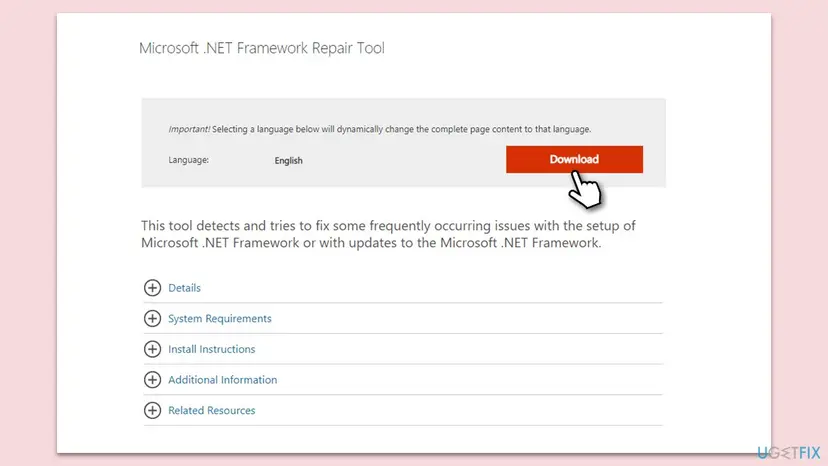
- Run the .NET Framework Repair Tool. Download the Microsoft .NET Framework Repair Tool and run NetFxRepairTool.exe. The wizard looks for setup problems, asks for your consent before it applies fixes, then repairs the installed .NET Framework versions. The tool is in English only.
- Turn on .NET Framework 3.5 if a program asks for it. Select Start, search for Windows Features and open it. In Turn Windows features on or off, select the .NET Framework 3.5 (includes .NET 2.0 and 3.0) check box and select OK. Windows downloads the files, so stay online.
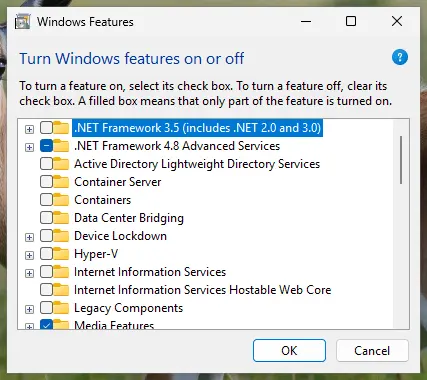
.NET Framework 3.5 is turned on in Windows Features. Screenshot: Windows 11 26H2. - Restart and test. Restart the PC and start the program that showed the error.
These steps were written for Windows 11 25H2 and 26H2, Windows 10 22H2. The full page with the other versions and what each result means: How to repair Microsoft Visual C++ Redistributable and .NET Framework
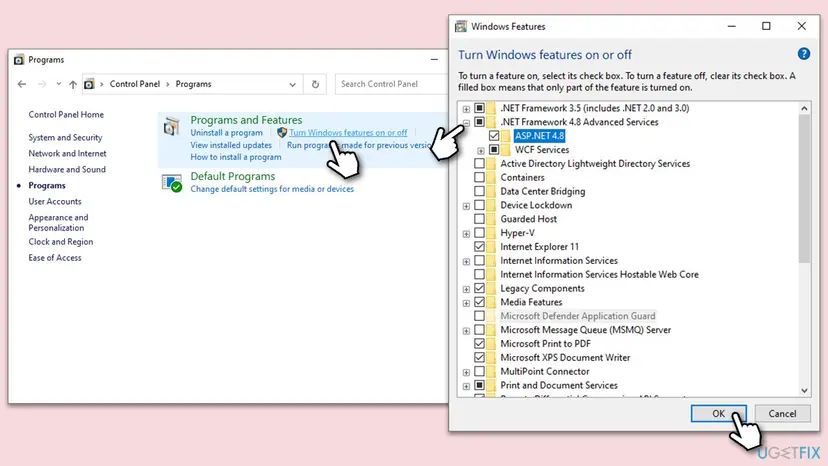
- Do not uninstall .NET Framework 4.8 or 4.8.1. It is part of Windows 10 and 11.
- Programs on .NET 6, 8 or later do not use .NET Framework. If the maker says the program needs one of them, install the matching .NET Runtime from dotnet.microsoft.com.
It worked if: The program starts by hand without a crash, and the next task run shows (0x0).
If not: If the program still crashes by hand with the same exception, the cause is inside the program. Go to Fix 6.
Fix 6. Update or reinstall the program the task starts
15 to 30 minutesLow riskThe program crashes by hand too, at the same moment every time, or event 1026 names a missing file inside the program's folder.
A damaged install is fixed only by putting the program's files back, and a bug only by a newer version from its maker. For your own program, logging the unhandled exception shows the exact cause.
- Check for an update in the program's Help or About menu, or on the maker's website.
- If none exists, press Win + I and open Apps > Installed apps (Windows 10: Apps > Apps & features).
- Select the three dots next to the program and run Modify or Repair if offered, otherwise Uninstall.
- Install the newest version from the maker's own website.
- Check that the task's action still points to the program's path (Fix 2), then run the task.
Every way to remove a program: Uninstall a program or app in Windows If you wrote the program yourself, add a handler for AppDomain.CurrentDomain.UnhandledException and log e.ExceptionObject.ToString(). That gives the message and the stack trace of the crash.
It worked if: The program runs by hand and as a task, with Last Run Result (0x0).
If not: If a clean install crashes with the same exception, send event 1026 to the maker (see below). If several programs fail, try Fix 7.
Fix 7. Repair Windows system files with DISM and SFC
20 to 40 minutesNo riskSeveral .NET programs and tasks fail, not only one, and Fix 5 did not help.
.NET Framework 4.8 is part of Windows 10 and 11, so damaged Windows files can break it for every program. DISM restores the Windows image and SFC replaces damaged system files from it.
- Open an elevated command window. Right-click Start and select Terminal (Admin), or type cmd in the search box, right-click Command Prompt and select Run as administrator. Select Yes when Windows asks for permission.

Search for cmd and choose Run as administrator. Screenshot: Windows 11 26H2. - Run DISM first. Type the command below and press Enter. DISM downloads clean copies of damaged components from Windows Update, so it can take several minutes. Wait until it says The operation completed successfully.
DISM.exe /Online /Cleanup-Image /RestoreHealth
DISM /RestoreHealth running. Screenshot: Windows 11 26H2. - Run System File Checker. In the same window, type the command below and press Enter. Do not close the window until the verification reaches 100%.
sfc /scannow
sfc /scannow at 100%. Screenshot: Windows 11 26H2. - Read the result and restart. Compare the last message with the table below this guide, then restart the PC so that repaired files are loaded.

The result line tells you what SFC did. Screenshot: Windows 11 26H2.
These steps were written for Windows 11 24H2 and 25H2. The full page with the other versions and what each result means: Run DISM and SFC to repair Windows system files
It worked if: SFC reports no integrity violations or that it repaired them, and the tasks run after a restart.
If not: If tasks still fail, see the next section on what to send and to whom.
If 0xE0434F4D keeps coming back: what to check and send
When the program crashes as a task after Fixes 2 to 4, and by hand after a clean install, the bug sits inside the program. Only its maker can fix it, and they need the exact exception, not the task code.
- Event 1026 from .NET Runtime with all Exception Info and "at" lines.
- The task's settings: export the task with right-click Export and send the XML file.
- The task history: the entries of the failed run from the History tab.
- Your Windows version: press Win + R and type
winver. - What you already tried: Start in folder, account, local copy, reinstall.
| What you found | Who to ask |
|---|---|
| The program crashes by hand with the same exception. | The program's maker. |
| The program works by hand, but not under the task account. | Your IT admin, for folder and share rights. |
| Many .NET programs fail after Fixes 5 and 7. | Microsoft Support or Microsoft Q&A. |
0xE0434F4D is not a sign of failing hardware. If .NET programs crash at random places together with blue screens, test the memory with How to test your RAM with Windows Memory Diagnostic before you replace anything.
How to keep scheduled tasks from failing with 0xE0434F4D
- Always fill in Start in when you create a task, and use full paths in the action and in scripts.
- Use a dedicated account for tasks, give it rights only to the folders it needs, and update the task when its password changes.
- Avoid mapped drive letters in tasks; use full
\\server\sharepaths. - Keep Windows updated. .NET Framework fixes arrive through Windows Update. Windows 10 left support on 14 October 2025, so a Windows 10 PC without extended updates no longer gets them.
- Test a new task with Run right after you create it, and check Last Run Result.
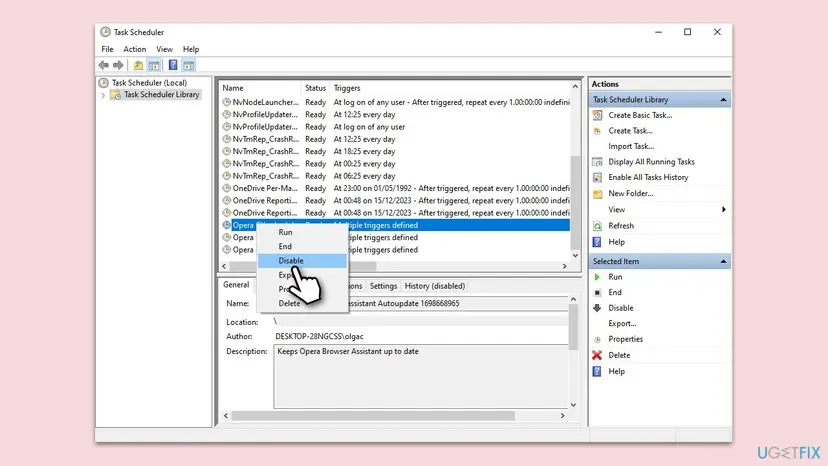
One old (0xE0434F4D) for a task you do not use needs no action. You can right-click it and select Disable. Start looking when a task you need fails again and again.
Frequently asked questions
What does 0xE0434F4D mean?
It is the exception code Windows uses for a .NET exception that the program did not catch. When it shows as a task's Last Run Result, the program the task started ran on .NET, hit an error and was ended by the .NET runtime. The code itself does not say which error. Event 1026 from .NET Runtime in Event Viewer names it, for example a missing file or a denied folder. Fix 1 shows how to find it.
Is 0xE0434F4D a Task Scheduler error?
Not really. Task Scheduler only reports what the program it started returned. The task did run, and the program crashed inside. That is why the fixes are about the program's working folder, its account, its paths and its .NET runtime, not about the Task Scheduler service. If the task did not start at all, you would see another code or a message that the task could not start.
Why does my program work when I double-click it but fail as a scheduled task?
Because a task runs in a different setting than your desktop. It may start in another folder, under another account, without your mapped drives and without your rights to network shares. A program that opens files by relative path or writes to a share then crashes. Set the Start in folder (Fix 2), check the account and Do not store password (Fix 3), and replace drive letters with full share paths (Fix 4).
What is "The exception unknown software exception (0xe0434f4d) occurred in the application at location"?
It is the same crash shown in an error dialog instead of a task result. A .NET program hit an error it did not handle, and Windows reports it with the location in memory. The location number only helps a developer. Read event 1026 from .NET Runtime at the same time to see the real exception, then follow the chooser table. If the program is old, turning on .NET Framework 3.5 (Fix 5) often matters.
What is the difference between 0xE0434F4D and 0xE0434352?
Both are codes for an unhandled .NET exception. In ASCII, 0xE0434F4D spells COM after 0xE0, and 0xE0434352 spells CCR. Microsoft's answer on Q&A calls 0xE0434352 a low-level CLR exception logged with event 1026. We could not confirm which .NET versions use which code. For you the steps are the same: read event 1026, then fix the task setup or the program.
What does return code 3762507597 mean in the task history?
It is 0xE0434F4D written as a decimal number. Some task history entries and scripts show return codes that way. It means the same: the program the task started crashed with an unhandled .NET exception. The related code 3762504530 is 0xE0434352. To find such tasks quickly, run the PowerShell command from Fix 1, which looks for this number.
Should I delete the task that shows 0xE0434F4D?
Only if you know what it does and do not need it. Many tasks belong to apps, such as updaters, and deleting them can stop those updates. A safer choice is right-click and Disable, which you can undo. If the task belongs to a program you use, fix it with the steps on this page or reinstall that program, which usually creates its task again.
Does 0xE0434F4D look different on Windows 10 and Windows 11?
No. The code, the Task Scheduler window and the fixes are the same on Windows 10, Windows 11 and Windows Server. Windows 11 includes .NET Framework 4.8.1, and both systems keep .NET Framework 3.5 as an optional feature. Windows 10 left support on 14 October 2025, so .NET fixes no longer reach a Windows 10 PC without extended updates.
I searched for f4d4 or a phrase in another language. Is this the right page?
If you saw the Task Scheduler code 0xE0434F4D, yes: the code ends in 4F4D, and short searches like f4d4 often come from a part of it. This page is in English, but the code, the Last Run Result column and event 1026 look the same on Windows in every language. A search such as دا سه وایی is about something else, and this page cannot answer it.
Sources
- Microsoft Q&A: Task Scheduler BatchJob with Last Run Result error code 0xE0434352 (event 1026, .NET version, working directory, account and permissions) (learn.microsoft.com)
- Stack Overflow: Scheduled Task will not run, returns e0434f4d as last result (native exception code for a managed exception, task account rights) (stackoverflow.com)
- Server Fault: Error 0xE0434F4D as Last Run Result of a Windows Scheduled Task (network share, stored password, working directory, .NET 3.5 SP1) (serverfault.com)
Did this fix work?
One click, no account. It tells the next reader which guides are worth their time.
Questions and experiences: fix Task Scheduler error 0xE0434F4D in Windows
Still broken, or found a fix we did not cover? Ask here: members and our editors answer. Reading is open; writing needs a free account.
…