
How to fix tasklist.exe Application Error in Windows?

Prefer to fix it yourself? The manual steps follow.
- 8methods
- 10 minutes to find a recent startup tool, 20 to 30 minutes to trace the caller
- Medium
Applies to Windows 11, Windows 10
8 methods in this guide
- What the error means
- Causes, most common first
- Note when it appears
- The fixes
- 1. Check recent startup tools
- 2. Name the caller
- 3. Check scheduled tasks
- 4. Clean boot test
- 5. Fix the memory code
- 6. Check the file and scan
- 7. Repair system files
- 8. Repair-install Windows
- If it still appears
- Keep it from returning
- FAQ
Hi. I keep getting the following error regardless of what I'm doing: "tasklist.exe Application Error in Windows - The application could not start correctly." I am not sure what the reason for this is, as there is no specific trigger. Help, please.
The tasklist.exe Application Error means a program tried to run tasklist.exe, the Windows command that lists running processes, and it failed to start. The fault is almost always in that calling program, not in tasklist.exe. Find which background tool runs it, most often one that reacts to shut down, and update or remove that tool.
You do not run tasklist.exe yourself: a background program starts it to check which processes are running, and the start fails. With code 0xc0000142, often at shut down, open Task Manager > Startup apps, update or turn off the newest device, game or vendor tool and test a restart (Fix 1). If that does not name it, record the program that starts tasklist.exe with process auditing (Fix 2). With 0xc000012d, Windows is out of memory (Fix 5).
| Error | tasklist.exe - Application Error: The application was unable to start correctly (0xc0000142). Click OK to close the application. |
|---|---|
| Where it appears | A small window titled tasklist.exe - Application Error, most often while Windows shuts down or restarts, sometimes at sign in or at random moments. It can hold up the shut down until you select OK. |
| Main cause | A third-party background program or script runs tasklist.exe at a moment it cannot start, most often while the session is closing. Microsoft's support answer for this error says a program conflicting with Windows at shut down. |
| Fastest fix | Update or turn off the most recently installed startup tool, then restart to test (Fix 1). Process auditing names the exact caller (Fix 2). |
| What tasklist.exe is | A Microsoft command in C:\Windows\System32 that displays the processes running on the local or a remote computer. It replaced the older tlist tool. Windows does not run it by itself in normal use. |
| Codes in the window | 0xc0000142 (STATUS_DLL_INIT_FAILED, the usual one), 0xc000012d (STATUS_COMMITMENT_LIMIT, out of virtual memory). Also written as 0x000142, tasklist exe error on shutdown. |
| Affects | Windows 11 and Windows 10, every edition. Windows 10 left support on 14 October 2025, but the error and the fixes are the same on both. |
| Microsoft's status | Not a known Windows bug and no update fixes it. Microsoft's answer is to find the conflicting program with Safe Mode and a clean boot. |
| Time to fix | 10 minutes when the caller is a recent startup tool, 20 to 30 minutes with auditing or a clean boot. |
Facts checked on 15 October 2026. Steps written for Windows 11 (25H2 and 26H2) and Windows 10 22H2.
What the tasklist.exe Application Error means
The window reads tasklist.exe - Application Error and then: The application was unable to start correctly (0xc0000142). Click OK to close the application. Some readers see 0xc000012d in the same place. The window names tasklist.exe because that is the process that failed, but tasklist.exe did not decide to start.
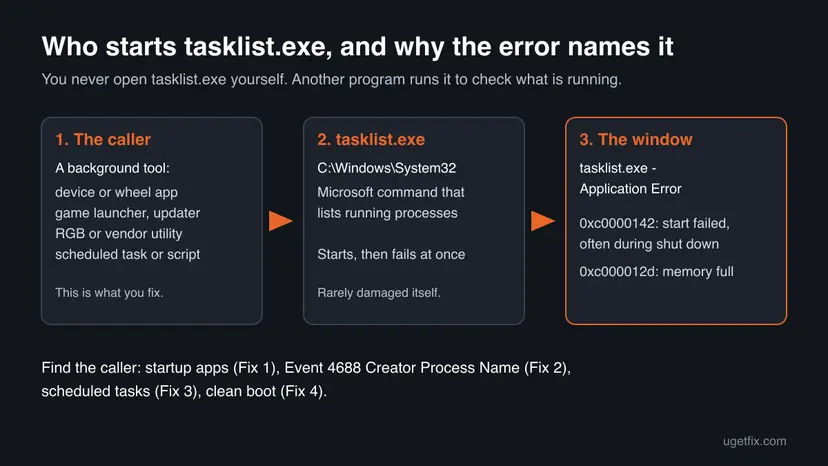
- What tasklist.exe does: Microsoft describes it as a command that displays a list of currently running processes on the local or a remote computer. It lives in
C:\Windows\System32\tasklist.exeon Windows 10 and Windows 11. - Who runs it: scripts, installers, updaters, game launchers and device tools call it to check whether a process is still running, for example before they close or update themselves. You never see it, because it runs for a fraction of a second.
- 0xc0000142: in Microsoft's NTSTATUS list this is
STATUS_DLL_INIT_FAILED. A library tasklist.exe loads at start could not initialise, so Windows stopped it at once. - 0xc000012d: this is
STATUS_COMMITMENT_LIMIT, "Your system is low on virtual memory". Here the cause is memory, not the caller, and Fix 5 applies.
When Windows shuts down, it closes your session and tells programs to exit. A tool that reacts by running tasklist.exe starts a new process just as the session is closing. That new process cannot set itself up, and the result is 0xc0000142. This is our reading of the pattern; Microsoft's own answer only says a program conflicts with Windows at shut down.
Why tasklist.exe fails to start, most common cause first
The causes differ by the code and by when the window appears. The table ranks them. The first two are the same idea: a third-party program calls tasklist.exe at a bad moment.
| How often | Cause | Signs | Fix |
|---|---|---|---|
| Most often | A background tool runs tasklist.exe while Windows shuts down or restarts. | Code 0xc0000142, only at shut down or restart. It started after you installed or updated a device, game or vendor app. | Fix 1, Fix 2 |
| Often | A scheduled task, logon script or startup tool runs tasklist.exe during the session. | The window appears at sign in or at fixed times, even while you do nothing. | Fix 2, Fix 3 |
| Less often | Windows is out of virtual memory, so no new process can start. | Code 0xc000012d. Other programs fail too, and memory in Task Manager is near the limit. | Fix 5 |
| Rarely | Software that hooks into every new process, such as some security or encryption tools, breaks the start. | Other small programs also fail with 0xc0000142, not only tasklist.exe. | Fix 4 |
| Rarely | Damaged Windows files, or a fake tasklist.exe outside System32. | SFC reports errors, or the file sits in another folder. | Fix 6, Fix 7, Fix 8 |
Users on Reddit have reported the error with 0xc0000142 at every shut down and blamed a racing wheel control app for it. We could not confirm which other tools do the same, so the fixes below find the caller on your PC rather than guess.
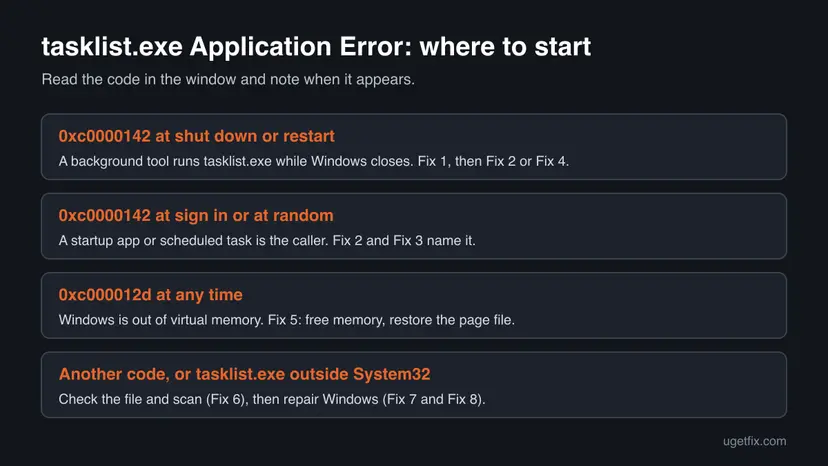
When the tasklist.exe window appears tells you which fix to use
Before you change anything, note the code in the window and the moment it appears. These two facts decide where to start. Windows also records every such window: in Event Viewer, open Windows Logs > System and look for events from the source Application Popup at the time you saw it. The event repeats the text of the window, so you can check the code later.
How to fix the tasklist.exe Application Error
Fixes 1 to 4 find and stop the program that runs tasklist.exe, which solves most cases. Fix 5 is only for code 0xc000012d. Fixes 6 to 8 check and repair Windows itself and come last.
| What you see or have | Start with |
|---|---|
| 0xc0000142 at shut down or restart, after a new app or driver tool | Fix 1 |
| 0xc0000142 and you do not know which program it could be | Fix 2 |
| The window appears at sign in or at the same time every day | Fix 3 |
| Several small programs fail with 0xc0000142, not only tasklist.exe | Fix 4 |
| The code is 0xc000012d | Fix 5 |
| tasklist.exe is somewhere other than System32, or nothing above helped | Fix 6, then Fix 7 |
Fix 1. Update or turn off the newest background tool, then test a restart
10 minutesLow riskThe error appears at shut down or restart, and it began after you installed or updated an app, a game launcher or a device tool.
The program that runs tasklist.exe almost always starts with Windows and sits in the background. Turning startup entries off one at a time and restarting shows which one it is, without removing anything.
- Press Win + I, open Apps > Installed apps and set Sort by to Install date. Note the apps installed or updated around the time the error began.
- Press Ctrl + Shift + Esc to open Task Manager and select Startup apps (on Windows 10, the Startup tab).
- Find the tools from your list: device, wheel, controller, RGB, audio, launcher or updater apps.
- Right-click the newest one and select Disable.
- Restart the PC twice and watch for the tasklist.exe window.
- If it is gone, install the newest version of that tool from its maker and turn it back on. If the error returns, leave it off or uninstall it.
- If the error stays, turn that entry back on and repeat with the next tool on your list.
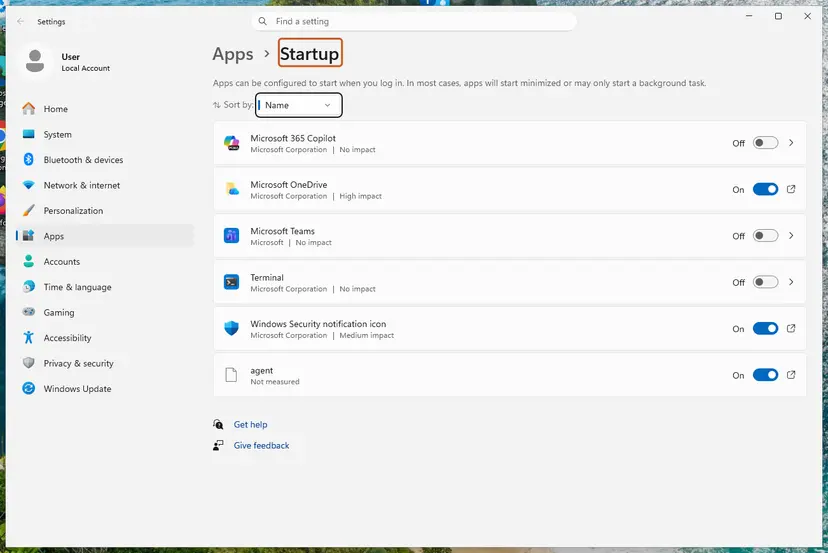
Step by step with screenshots: Stop apps from opening at startup.
It worked if: After you turn off one tool, Windows shuts down and restarts without the tasklist.exe window.
If not: If no startup entry makes a difference, the caller may be a service or a scheduled task. Go to Fix 2.
Fix 2. Record which program starts tasklist.exe with process auditing
20 minutesLow riskYou do not know which program it could be, or Fix 1 found nothing. Works on every edition of Windows 10 and 11.
Windows can log an event each time a process starts. Event 4688, A new process has been created, holds both the New Process Name and the Creator Process Name, so the event for tasklist.exe names the program that ran it.
- Right-click Start and select Terminal (Admin) on Windows 11 or Windows PowerShell (Admin) on Windows 10, then select Yes.
- Run the first command below to turn on auditing of process creation.
- Use the PC and shut it down or restart it as usual, so the error appears once. Note the time.
- After the restart, press Win + R, type
eventvwr.mscand press Enter. - Open Windows Logs > Security, select Filter Current Log, type
4688in the event ID box and select OK. - Select Find and search for
tasklist.exe. Open the event close to the time you noted. - Read Creator Process Name: that is the program that ran tasklist.exe.
- Run the second command below to turn auditing off again.
Turn auditing on, then off when you are done
auditpol /set /subcategory:"Process Creation" /success:enable
auditpol /set /subcategory:"Process Creation" /success:disable- Creator is a program in
Program Files, such as a device app or launcher: update it from its maker, or turn it off in Fix 1. - Creator is
cmd.exe,powershell.exeorwscript.exe: a script runs tasklist.exe. Find the 4688 event for that script just before, and read its creator in the same way, or check scheduled tasks in Fix 3. - Creator is
svchost.exe: the call comes from a scheduled task or a service. Go to Fix 3. - Creator is in
AppData,Tempor has a random name: scan the PC as in Fix 6.
The same method finds the source of any window that flashes up by itself. Our guide to the cmd.exe window popping up uses it in more detail.
It worked if: A 4688 event shows C:\Windows\System32\tasklist.exe as New Process Name, and Creator Process Name names the program to update or remove.
If not: If no 4688 event shows tasklist.exe, the error came before logging could record it. Try a clean boot in Fix 4.
Fix 3. Find scheduled tasks and logon scripts that run tasklist.exe
15 minutesLow riskThe window appears at sign in, at fixed times, or Fix 2 named svchost.exe or a script host as the creator.
Updaters and vendor tools often register scheduled tasks that run a script at logon or on a timer. A task that runs a batch file with tasklist.exe in it triggers the error with no window of its own.
- Open Terminal or Command Prompt; no administrator rights are needed to list tasks.
- Run the first command below. It lists every task whose action names tasklist directly.
- If it shows nothing, run the second command to list all task actions, and look through the Task To Run lines for
.bat,.cmd,.vbsor.ps1files from third-party folders. - Press Win + R, type
taskschd.mscand press Enter. Find the task by its name in Task Scheduler Library. - Right-click the task and select Disable, then test as before. Do not delete tasks under Microsoft > Windows.
List scheduled tasks that run tasklist, then all task actions
schtasks /query /fo LIST /v | findstr /i "TaskName tasklist"
schtasks /query /fo LIST /v | findstr /i /r "TaskName Task.To.Run"Right-click a .bat or .cmd file from the task and select Edit or Open with > Notepad. If you see tasklist in it, you have the caller. Fix or remove the program that installed it; editing its script only lasts until the next update.
It worked if: After you disable the task, the window no longer appears at sign in or at the same time of day.
If not: If no task runs tasklist.exe, go to Fix 4 to test all background services at once.
Fix 4. Start Windows with a clean boot to find the conflicting program
20 to 30 minutesLow riskFixes 1 to 3 did not name the caller, or several small programs fail with 0xc0000142.
Microsoft's support answer for this exact error is Safe Mode and then a clean boot. A clean boot starts Windows without third-party services and startup tools, so if the window stops, one of them is the cause.
- Open System Configuration. Select Search on the taskbar, type msconfig and select System Configuration from the results.
- Hide Microsoft services. On the Services tab, select the Hide all Microsoft services check box. Only services from other companies stay in the list.

With Hide all Microsoft services ticked, only third-party services stay in the list. Screenshot: Windows 11 26H2. - Disable the remaining services. Select Disable all, then select Apply.
- Open Task Manager. On the Startup tab of System Configuration, select Open Task Manager.

The Startup tab only links to Task Manager. Screenshot: Windows 11 26H2. - Disable the startup apps. On the Startup apps tab in Task Manager, select each item whose status is Enabled and select Disable. Write down or take a screenshot of the items you disable: you need the list to turn them back on.

Select an app, then Disable. Screenshot: Windows 11 26H2. - Confirm the changes. Close Task Manager. On the Startup tab of System Configuration, select OK.
- Restart and test. Restart the PC. Windows now starts in a clean boot environment: try again the thing that failed (run the app, install the update, uninstall the program).
These steps were written for Windows 11 25H2 and 26H2. The full page with the other versions and what each result means: How to perform a clean boot in Windows
If shut down is clean in the clean boot, turn the services back on in halves, restarting each time, until the error returns. The last group holds the caller. Update that program or uninstall it with Uninstall a program or app in Windows.
It worked if: In the clean boot, Windows shuts down without the tasklist.exe window, and halving the services leads you to one program.
If not: If the error appears even in a clean boot, the cause is in Windows itself or in memory. Check the code: 0xc000012d goes to Fix 5, anything else to Fix 6.
Fix 5. Free memory and restore the page file when the code is 0xc000012d
10 to 20 minutesLow riskThe window shows 0xc000012d instead of 0xc0000142.
0xc000012d is STATUS_COMMITMENT_LIMIT: Windows has no virtual memory left, so it refuses to start tasklist.exe or any other new process. Raising the limit, not finding a caller, is the fix.
- Press Ctrl + Shift + Esc, select Performance > Memory and read Committed, for example 15.1/15.8 GB.
- If the first number is close to the second, close the program with the largest memory use.
- Press Win + R, type
SystemPropertiesAdvancedand select OK. - Under Performance select Settings, open Advanced and, under Virtual memory, select Change.
- Tick Automatically manage paging file size for all drives, select OK in each window and restart.
The full set of memory fixes, including free disk space and a custom page file, is in our guide to error 0xc000012d.
It worked if: Committed stays well below the limit, and the window no longer appears.
If not: If memory fills up again within hours, a program leaks memory; the 0xc000012d guide shows how to find it.
Fix 6. Check that tasklist.exe is the real Windows file and scan the PC
15 minutes, longer for a full scanLow riskFix 2 named a creator in AppData or Temp, or you find a tasklist.exe outside System32.
Malware sometimes uses names of Windows tools to look harmless. The real tasklist.exe is only in System32 and SysWOW64 and is signed by Microsoft, so any other copy that runs is suspect.
- Open File Explorer and go to
C:\Windows\System32. Right-click tasklist.exe, select Properties and open Digital Signatures. The signer is Microsoft Windows. - Open Task Manager, select Details and look for any process named tasklist.exe that keeps running. The real one runs for a moment only.
- If one stays, right-click it and select Open file location. A folder other than
System32orSysWOW64is a warning sign. - Run a full scan with Microsoft Defender, as shown below.
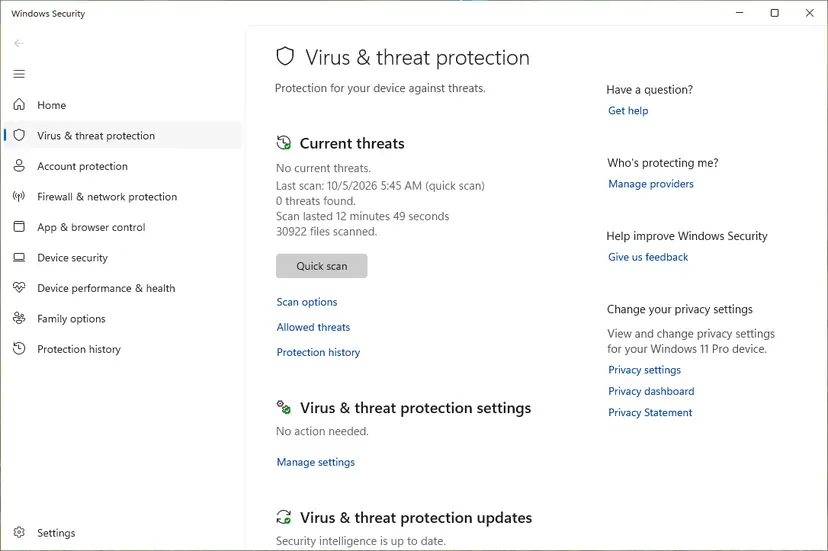
Step by step: How to scan for malware with Microsoft Defender.
It worked if: Only the signed System32 file exists, and the scan finds nothing, or it removes what started the fake process.
If not: If the file is genuine and the scan is clean, repair Windows files in Fix 7.
Fix 7. Repair Windows system files with SFC and DISM
20 to 30 minutesNo riskThe error appears even in a clean boot, and the code is not 0xc000012d.
Code 0xc0000142 means a library failed to initialise. If no program is to blame, a damaged system library is the remaining cause, and SFC with DISM replaces damaged Windows files without touching your data.
- Open an elevated command window. Right-click Start and select Terminal (Admin), or type cmd in the search box, right-click Command Prompt and select Run as administrator. Select Yes when Windows asks for permission.

Search for cmd and choose Run as administrator. Screenshot: Windows 11 26H2. - Run DISM first. Type the command below and press Enter. DISM downloads clean copies of damaged components from Windows Update, so it can take several minutes. Wait until it says The operation completed successfully.
DISM.exe /Online /Cleanup-Image /RestoreHealth
DISM /RestoreHealth running. Screenshot: Windows 11 26H2. - Run System File Checker. In the same window, type the command below and press Enter. Do not close the window until the verification reaches 100%.
sfc /scannow
sfc /scannow at 100%. Screenshot: Windows 11 26H2. - Read the result and restart. Compare the last message with the table below this guide, then restart the PC so that repaired files are loaded.

The result line tells you what SFC did. Screenshot: Windows 11 26H2.
These steps were written for Windows 11 24H2 and 25H2. The full page with the other versions and what each result means: Run DISM and SFC to repair Windows system files
It worked if: SFC reports that it repaired damaged files, or found no integrity violations. Restart and test a shut down.
If not: If SFC cannot repair files or the error stays, go to Fix 8.
Fix 8. Repair Windows with an in-place reinstall that keeps your files
1 to 2 hoursRead the warningEvery other fix failed and the error also appears in a clean boot.
An in-place reinstall replaces every Windows file, including tasklist.exe and the libraries it loads, while keeping your apps and data. It ends any cause inside Windows itself.
The repair keeps your files and apps when you choose to keep them, but a power cut or failed install can still cost data. Copy important files to an external drive or cloud storage before you start: Back up your files (Windows Backup, File History, Time Machine).
- Open Recovery in Settings. Open Settings > System > Recovery. Next to Fix problems using Windows Update, select Reinstall now. This keeps your apps, files and settings.

Fix problems using Windows Update reinstalls the current version and keeps apps, files and settings. Screenshot: Windows 11 26H2. - Start the reinstall. Choose whether the PC may restart on its own 15 minutes after the installation, then select OK.
- Wait and restart. Windows Update downloads and installs a repair copy of your current Windows version. Keep the PC plugged in and online, and restart it when asked.
- If that did not help: Reset PC. Back in Settings > System > Recovery, next to Reset this PC, select Reset PC. This keeps your personal files but removes installed apps and settings.
- Choose Keep my files. Select Keep my files. Do not select Remove everything.
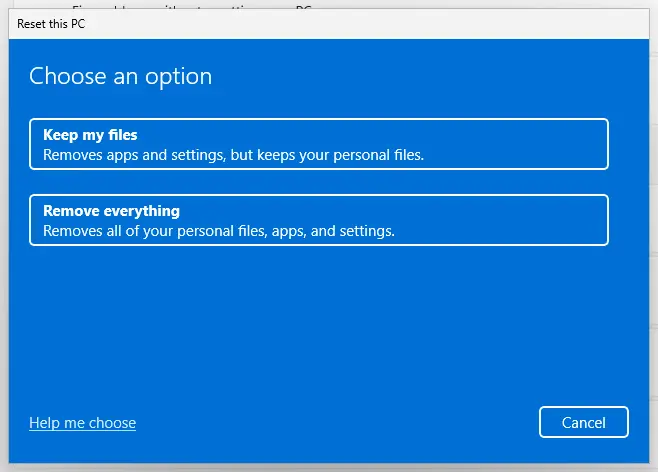
Keep my files removes apps and settings but keeps personal files. Screenshot: Windows 11 26H2. - Choose where Windows comes from. Select Cloud download to download a fresh copy of Windows, or Local reinstall to use the files already on the PC (faster, but may not include the latest updates).
- Reset. Review the summary and select Reset. The PC restarts several times.
These steps were written for Windows 11 22H2 and later. The full page with the other versions and what each result means: Reinstall Windows without losing files
It worked if: Windows starts with the same apps and files, and shut down no longer shows the tasklist.exe window.
If not: If the error returns after you reinstall your tools, one of them is the caller. Repeat Fix 1 after each one.
If the tasklist.exe Application Error still appears
The error is a software problem in nearly every case. Two things help you, or the maker's support, close it out.
- Read the record. In Event Viewer, Windows Logs > System, the Application Popup event repeats the window's text and time. In Windows Logs > Security, the 4688 event from Fix 2 names the caller.
- Contact the caller's maker. Send them the Creator Process Name, the code (0xc0000142 or 0xc000012d), when it happens, and your Windows version from
winver. Only they can change when their tool runs tasklist.exe. - Ignore it only as a last resort. A failed tasklist.exe at shut down harms nothing by itself, but it can stop the shut down until you select OK, and it hides a tool that misbehaves.
- Hardware signs: if many programs fail with different codes and the PC also freezes or restarts, test the memory with How to test your RAM with Windows Memory Diagnostic.
How to keep the tasklist.exe error from coming back
The error returns when a background tool runs tasklist.exe at the wrong moment, or when memory runs short. Keep both in check.
- Keep device, game and vendor tools on their newest versions.
- Turn off startup tools you do not use every day.
- Keep the page file system-managed and free space on drive C:.
- Note what you installed before a new error appears.
- Delete or rename tasklist.exe; scripts that need it will fail in other ways.
- Download tasklist.exe or DLL files from file sites.
- Use registry cleaners for this error; they do not touch the caller.
- Turn off your antivirus for good to test; pause it for one test only.
Frequently asked questions
What is tasklist.exe?
tasklist.exe is a Microsoft command-line tool that ships with Windows 10 and Windows 11. Microsoft describes it as a command that displays a list of currently running processes on the local or a remote computer, and it replaced the older tlist tool. The file is in C:\Windows\System32. Windows does not need it for normal work, but scripts, installers and background tools call it to check whether a program is running.
Is tasklist.exe a virus?
No, the file in C:\Windows\System32 is a genuine Windows tool signed by Microsoft. It runs for a moment and closes, so you rarely see it in Task Manager. A file with the same name in another folder, or a tasklist.exe process that keeps running, is suspect. Check its location and digital signature and run a Microsoft Defender scan, as in Fix 6.
Why do I get the tasklist.exe error on shutdown?
A background program runs tasklist.exe while Windows is closing your session, often to check whether its own processes have ended. The new process cannot start at that moment and fails with 0xc0000142. Microsoft's support answer for this error says a program conflicts with Windows at shut down and recommends Safe Mode and a clean boot. Turning off recent startup tools one at a time (Fix 1) usually finds it.
What does 0xc0000142 mean in the tasklist.exe window?
0xc0000142 is STATUS_DLL_INIT_FAILED in Microsoft's list of NTSTATUS codes. It means a library that tasklist.exe loads at start could not initialise, so Windows ended the process at once. With tasklist.exe, this usually happens because it was started at a bad moment, such as during shut down, not because the file is damaged. Some readers see it written as 0x000142.
How do I fix this problem if no program seems to cause it?
Use process auditing to let Windows name the caller. Turn on auditing with auditpol, wait for the error, then open the Security log in Event Viewer and filter for event 4688. The event for tasklist.exe shows the Creator Process Name, the program that ran it. If that fails, a clean boot shows whether any third-party service is involved. Only if the error appears in a clean boot too should you repair Windows with SFC and DISM.
The error is still occurring after SFC and a malware scan. What now?
That is common, because those tools check Windows and do not look for the program that runs tasklist.exe. In the Microsoft Q&A thread for this error, the user had already run sfc /scannow, a registry cleaner and an antivirus scan, and the error stayed. Go back to Fix 1 to Fix 4, which find the caller. Repair Windows only when the error also appears in a clean boot.
I am using Windows 10. Are the fixes different?
No. tasklist.exe, the error codes and all fixes work the same on Windows 10 22H2 and Windows 11. The only differences are labels: Task Manager calls the startup list Startup on Windows 10 and Startup apps on Windows 11, and the admin console is Windows PowerShell (Admin) on Windows 10. Windows 10 left support on 14 October 2025, so it receives no new fixes.
Can I delete tasklist.exe to stop the error?
No. tasklist.exe is a protected Windows file, and Windows Resource Protection and the next SFC run would restore it. Even if you removed it, the program that calls it would fail in another way, maybe without telling you. The window is a symptom: stop or update the program that runs tasklist.exe at the wrong time, and the error goes away with the file left in place.
Is the taskkill.exe or taskmgr.exe Application Error the same problem?
It is similar but not the same page. The file taskkill.exe is the sister command that ends processes, and background tools call it the same way as tasklist.exe, so Fix 1 to Fix 4 find its caller too. The file taskmgr.exe is Task Manager itself, which you open yourself; an error there points to damaged system files or memory, so Fix 5 and Fix 7 apply.
Sources
- Microsoft Learn: tasklist (command reference, Windows 10 and Windows 11) (learn.microsoft.com)
- Microsoft Learn: [MS-ERREF] NTSTATUS Values (0xC0000142 STATUS_DLL_INIT_FAILED, 0xC000012D STATUS_COMMITMENT_LIMIT) (learn.microsoft.com)
- Microsoft Q&A: Error every time I try to shut down my PC, tasklist.exe the application was unable to start correctly (support answer: Safe Mode and clean boot) (learn.microsoft.com)
Did this fix work?
One click, no account. It tells the next reader which guides are worth their time.
Questions and experiences: fix tasklist.exe Application Error in Windows
Still broken, or found a fix we did not cover? Ask here: members and our editors answer. Reading is open; writing needs a free account.
…