
How to fix "The application was unable to start correctly" error 0xc000012d in Windows?

Prefer to fix it yourself? The manual steps follow.
- 7methods
- 5 minutes to check memory, 10 to 20 minutes for the page file fix
- Easy
Applies to Windows 11, Windows 10, any desktop program or game
7 methods in this guide
Hello. When I try to launch certain applications in Windows, I keep getting a "The application was unable to start correctly" message with the error 0xc000012d. Is there a way to fix this?
Error 0xc000012d means Windows ran out of virtual memory: the programs already running have used up the commit limit, so a new one cannot start. It is a memory and page file problem, not a broken program. Close what uses the most memory first, then let Windows manage the page file again.
0xc000012d is STATUS_COMMITMENT_LIMIT: your RAM plus the page file is full, so Windows refuses to start another program. Open Task Manager, check Committed under Memory and close the program that uses the most (Fix 1). Then turn Automatically manage paging file size for all drives back on and restart (Fix 2). If drive C: is nearly full, free space so the page file can grow (Fix 3).
| Error | The application was unable to start correctly (0xc000012d). Click OK to close the application. |
|---|---|
| Where it appears | A small window titled with a program file name and Application Error, when you start a program or a game, or while a game freezes. It often names WerFault.exe, the Windows crash reporter. |
| Main cause | The system commit limit is reached. Microsoft defines that limit as installed RAM plus all page files, so a small, turned off or blocked page file, or a program that takes too much memory, triggers it. |
| Fastest fix | Close the program with the largest memory use, then let Windows manage the page file size again and restart (Fix 1 and Fix 2). |
| Code meaning | 0xC000012D is STATUS_COMMITMENT_LIMIT in Microsoft's NTSTATUS list: "{Out of Virtual Memory} Your system is low on virtual memory." |
| Also written as | 0xc000012d, 0xc00012d, 0x000012d, oxc000012d, 0xc0000012d. Decimal form: 3221225773. |
| Sister codes | 0xC0000017 (STATUS_NO_MEMORY) and 0xC000012C (STATUS_PAGEFILE_QUOTA_EXCEEDED) are the other out of memory codes and share these fixes. |
| Affects | Windows 11 and Windows 10, any program. Windows 10 left support on 14 October 2025, but the page file settings are the same on both. |
| Microsoft's status | Not a bug and no update fixes it. Microsoft's own text for the code says to increase the size of the virtual memory paging file. |
| Time to fix | 5 minutes to check memory use, 10 to 20 minutes for the page file and a restart. |
Facts checked on 15 October 2026. Steps written for Windows 11 (25H2 and 26H2) and Windows 10 22H2.
What error 0xc000012d "The application was unable to start correctly" means
The full message reads: The application was unable to start correctly (0xc000012d). Click OK to close the application. Unlike most codes shown in this window, this one names its cause plainly. In Microsoft's NTSTATUS list, 0xC000012D is STATUS_COMMITMENT_LIMIT, with the text "{Out of Virtual Memory} Your system is low on virtual memory. To ensure that Windows runs correctly, increase the size of your virtual memory paging file."
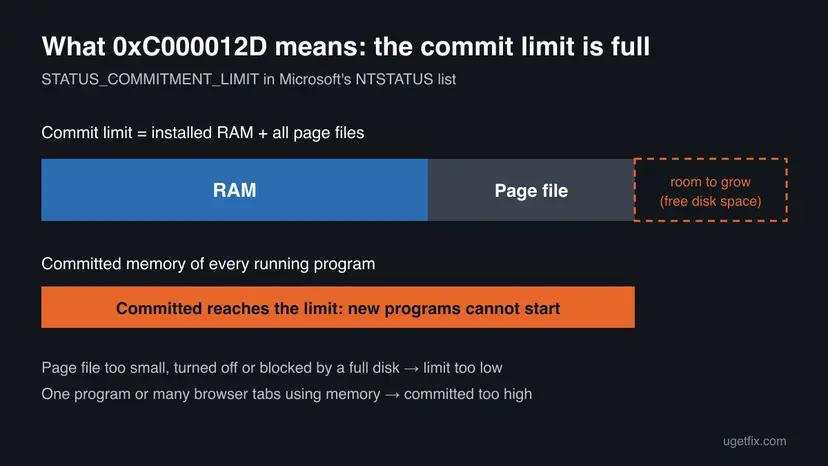
- Commit limit: Microsoft defines it as the sum of physical memory and all page files. Task Manager shows it as the second number of Committed, for example 14.2/15.8 GB.
- Commit charge: the memory all running programs have reserved. When it reaches the limit, Microsoft says processes might not get committed memory, which can cause freezing, crashing and other malfunctions.
- Why a new program fails first: a program that is starting must reserve memory before it can draw a window. With nothing left to reserve, Windows stops it and shows this window.
- Why it names WerFault.exe: when a running game or program crashes for the same reason, Windows starts its error reporter,
WerFault.exe. That process needs memory too, so it can fail with the same code.
0xc000012d, 0xc00012d (one zero missing), 0x000012d, oxc000012d (letter o), 0xc0000012d and "error 0x12d" all mean the same code. On Windows 7 the same code appeared as "The application failed to initialize properly (0xc000012d)".
Why Windows runs out of virtual memory and shows 0xc000012d
Only two things can cause the error: the limit is too low, or the programs use too much. The table ranks the usual reasons. Microsoft's text for the code points at the first group, the page file.
| How often | Cause | Signs | Fix |
|---|---|---|---|
| Most often | One program, a game or a browser with many tabs takes most of the memory. | The error appears while a heavy game or editor runs, or after hours of use. A restart clears it for a while. | Fix 1, Fix 5 |
| Often | The page file was turned off or set to a small fixed size, often by a tuning tool or old advice for SSDs. | The commit limit in Task Manager is about the same as your installed RAM. | Fix 2 |
| Often | Drive C: is almost full, so a system-managed page file has no room to grow. | Little free space on C:, and the error comes with a low disk space warning. | Fix 3, Fix 4 |
| Less often | A background tool or service leaks memory and keeps growing until the limit is hit. | Committed rises hour by hour although you run nothing new. | Fix 5, Fix 6 |
| Rarely | Little RAM for the work you do, for example 8 GB with a large game and a browser. | The limit is reached even with a working page file and free disk space. | Fix 4, then more RAM |
Many guides, and the first answers in a Microsoft Q&A thread for this code, suggest SFC, DISM, driver updates and full control permissions on the program file. None of these adds memory. In that thread the user said none of it worked. They fit only when memory is clearly not the problem (Fix 7).
How to read Committed in Task Manager before you change anything
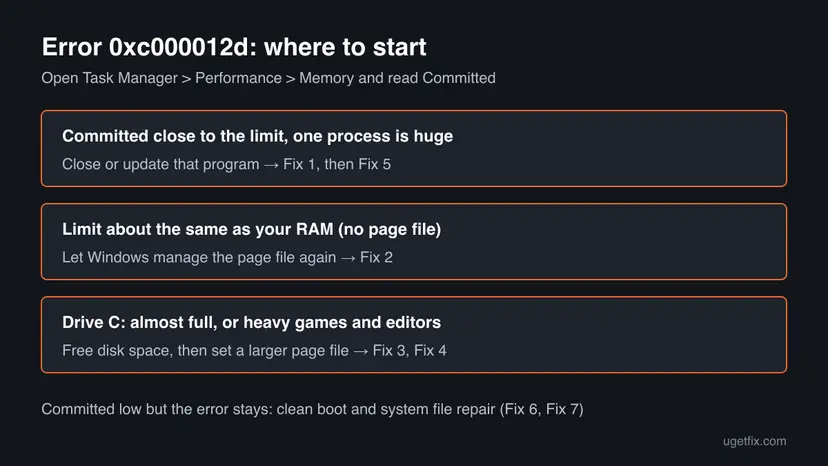
One number tells you which group of fixes you need. Press Ctrl + Shift + Esc, open Performance and select Memory. Read the Committed value, shown as two numbers: what is in use and the limit.
| What Task Manager shows | What it means | Start with |
|---|---|---|
| Used is close to the limit (for example 15.1/15.8 GB) | Memory is full now; something is using it | Fix 1 |
| The limit is about the same as In use plus Available, your installed RAM | There is no page file, or it is very small | Fix 2 |
| The limit is well above RAM but the error came during a game | The game reached the limit at its peak | Fix 3, Fix 4 |
| Used is far below the limit and the error still appears | Memory is not the cause right now | Fix 6, Fix 7 |
How to fix "The application was unable to start correctly" error 0xc000012d
Fix 1 frees memory now and shows what used it. Fixes 2 to 4 raise the limit through the page file and fix most cases for good. Fixes 5 to 7 are for a program that keeps eating memory or when memory is not the cause.
| What you see or have | Start with |
|---|---|
| The error appears now, while other programs are open | Fix 1 |
| The commit limit in Task Manager is no bigger than your RAM | Fix 2 |
| Drive C: has little free space left | Fix 3 |
| Heavy games or editors hit the limit even with a page file | Fix 4 |
| Memory use grows over hours although you open nothing new | Fix 5, then Fix 6 |
| Memory is far from the limit and programs still fail | Fix 7 |
Fix 1. Check memory use in Task Manager and close the program that uses the most
5 minutesLow riskEveryone, right after the error appears. It also tells you which of the other fixes you need.
The code means the commit limit is reached at this moment. Closing the program that has reserved the most memory gives some of it back at once, and the Commit size column shows which program that is.
- Press Ctrl + Shift + Esc to open Task Manager.
- Select Performance, then Memory, and write down the Committed value, for example 15.1/15.8 GB.
- Select Details. Right-click any column heading, choose Select columns, tick Commit size and select OK.
- Select the Commit size heading to sort the list, largest first.
- Save your work in the program at the top of the list, then close it normally. If it does not respond, select it and select End task.
- Check Committed again, then start the program that showed the error.
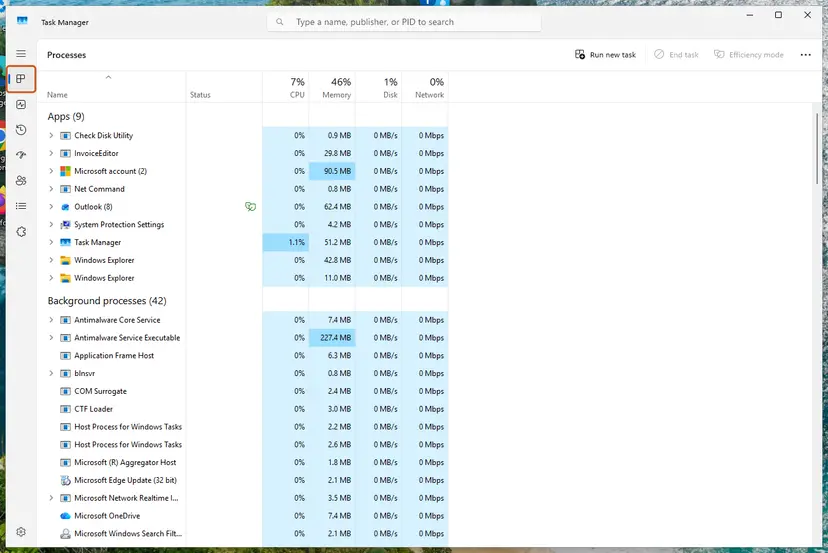
A browser appears as dozens of processes, one for each tab and extension. Their commit sizes add up. Closing tabs you do not need, or the whole browser, often frees more than closing one large program.
It worked if: Committed drops well below the limit, and the program starts without the error.
If not: If the limit itself is about the size of your RAM, go to Fix 2. If memory fills up again within hours, go to Fix 5.
Fix 2. Let Windows manage the page file size again
10 minutesLow riskThe commit limit is about the same as your RAM, or someone changed the virtual memory settings before.
Microsoft's text for 0xc000012d tells you to increase the paging file. A system-managed page file grows by itself when the commit charge reaches 90 percent of the limit, so the limit rises before programs start to fail.
- Press Win + R, type
SystemPropertiesAdvancedand select OK. - On the Advanced tab, under Performance, select Settings.
- Open the Advanced tab of Performance Options and, under Virtual memory, select Change.
- Tick Automatically manage paging file size for all drives.
- Select OK in each window, then restart the PC.
- After the restart, open Task Manager again and check that the commit limit is now larger than your RAM.
Old tuning advice says to remove the page file to save an SSD. Without it, the commit limit equals your RAM, and any memory peak ends in 0xc000012d or a crash. Microsoft's text for this code asks for a larger page file, not none.
It worked if: Under Virtual memory, the window shows a currently allocated size above 0 MB, and the commit limit in Task Manager is above your installed RAM.
If not: If the option was already ticked, the page file may have no room to grow. Go to Fix 3.
Fix 3. Free space on drive C: so the page file can grow
10 to 20 minutesLow riskDrive C: is nearly full, or Windows warns about low disk space.
A system-managed page file lives on a drive and grows only into free space on it. Microsoft caps that growth at one eighth of the volume size, so on a small or full drive C: the limit stays low however you set it.
- Open File Explorer, select This PC and check the free space under Local Disk (C:).
- Remove temporary files and old update files with Storage Sense or Disk Cleanup, as shown in the procedure below.
- Move large videos, game installs or downloads you do not need on C: to another drive.
- Restart the PC and check the commit limit in Task Manager again.
Step by step with screenshots: Free up disk space and delete temporary files.
It worked if: Drive C: has several gigabytes free, and the page file can grow when memory runs short.
If not: If C: is small and cannot hold more, place the page file on a second internal drive in Fix 4.
Fix 4. Set a larger custom page file for heavy games and editors
10 minutesLow riskGames, video editors or 3D tools still hit the limit with a system-managed page file.
A system-managed page file grows to three times the RAM or 4 GB, whichever is larger, and no more than one eighth of the drive. A fixed size gives the limit room at once, without waiting for it to grow during a game.
- Open the Virtual memory window again, as in Fix 2 (Win + R,
SystemPropertiesAdvanced, Settings, Advanced, Change). - Clear the tick at Automatically manage paging file size for all drives.
- Select drive C:, or a second internal drive with more free space, and choose Custom size.
- Enter an Initial size (MB) of at least the RAM in MB, for example
16384for 16 GB. - Enter a Maximum size (MB) of up to three times the RAM, as far as the drive's free space allows, for example
49152for 16 GB. - Select Set, then OK, and restart the PC.
If anything works worse afterwards, tick Automatically manage paging file size for all drives again and restart. Write down the old values before you change them.
It worked if: After the restart, the commit limit in Task Manager is your RAM plus the size you set, and the game or editor starts.
If not: If the limit is still reached, a program is using far more memory than it should. Go to Fix 5.
Fix 5. Update or replace the program that keeps taking more memory
15 minutesLow riskCommitted keeps rising over hours, and the same program sits at the top of the Commit size list each time.
A program with a memory leak reserves memory and never gives it back. No page file is big enough for it in the end. A newer version from its maker is the only real cure, and a restart only resets the count.
- Restart the PC and open Task Manager on the Details page with the Commit size column, as in Fix 1.
- Use the PC as usual and look again after an hour or two. Note the process whose commit size keeps growing.
- Right-click that process and select Open file location to see which program it belongs to.
- Install the newest version from the maker, or the newest driver if it is a driver tool from your graphics, audio or RGB vendor.
- If there is no fix and you do not need the program, uninstall it in Settings > Apps > Installed apps.
If the process starts with Windows, you can stop it from starting until its maker ships a fix: Stop apps from opening at startup.
It worked if: Committed stays at a steady level over a full day, and the error does not return.
If not: If no single process grows but memory still fills up, test the background services with a clean boot in Fix 6.
Fix 6. Start Windows with a clean boot to find a background memory user
20 minutesLow riskMemory fills up although no program in the Commit size list stands out, or the culprit is a service.
Background services do not show as apps, and some of them, such as old system tools and RGB or tuning utilities, can hold memory. A clean boot starts Windows without them, so you see whether the limit is still reached.
- Open System Configuration. Select Search on the taskbar, type msconfig and select System Configuration from the results.
- Hide Microsoft services. On the Services tab, select the Hide all Microsoft services check box. Only services from other companies stay in the list.

With Hide all Microsoft services ticked, only third-party services stay in the list. Screenshot: Windows 11 26H2. - Disable the remaining services. Select Disable all, then select Apply.
- Open Task Manager. On the Startup tab of System Configuration, select Open Task Manager.
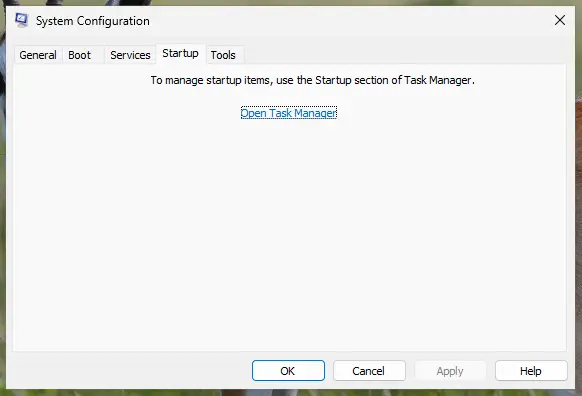
The Startup tab only links to Task Manager. Screenshot: Windows 11 26H2. - Disable the startup apps. On the Startup apps tab in Task Manager, select each item whose status is Enabled and select Disable. Write down or take a screenshot of the items you disable: you need the list to turn them back on.
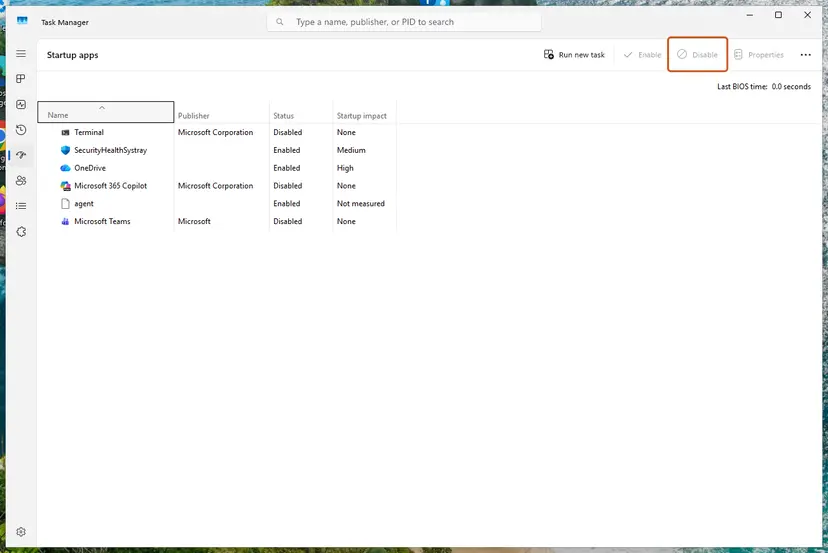
Select an app, then Disable. Screenshot: Windows 11 26H2. - Confirm the changes. Close Task Manager. On the Startup tab of System Configuration, select OK.
- Restart and test. Restart the PC. Windows now starts in a clean boot environment: try again the thing that failed (run the app, install the update, uninstall the program).
These steps were written for Windows 11 25H2 and 26H2. The full page with the other versions and what each result means: How to perform a clean boot in Windows
If memory stays low in the clean boot, turn the services back on in small groups until Committed starts to grow again. The last group holds the cause. Update that tool or remove it.
It worked if: In the clean boot, Committed stays low and the program starts. You find the service that took the memory.
If not: If memory is low and programs still fail with the same code, go to Fix 7.
Fix 7. Repair Windows system files with SFC and DISM
20 to 30 minutesNo riskMemory is far below the limit, the page file is fine, and programs still fail with 0xc000012d.
With enough memory free, the out of memory code is unusual. Damaged Windows memory management files are a rare cause, and SFC with DISM checks them without changing anything on a healthy PC, so it comes last.
- Open an elevated command window. Right-click Start and select Terminal (Admin), or type cmd in the search box, right-click Command Prompt and select Run as administrator. Select Yes when Windows asks for permission.

Search for cmd and choose Run as administrator. Screenshot: Windows 11 26H2. - Run DISM first. Type the command below and press Enter. DISM downloads clean copies of damaged components from Windows Update, so it can take several minutes. Wait until it says The operation completed successfully.
DISM.exe /Online /Cleanup-Image /RestoreHealth
DISM /RestoreHealth running. Screenshot: Windows 11 26H2. - Run System File Checker. In the same window, type the command below and press Enter. Do not close the window until the verification reaches 100%.
sfc /scannow
sfc /scannow at 100%. Screenshot: Windows 11 26H2. - Read the result and restart. Compare the last message with the table below this guide, then restart the PC so that repaired files are loaded.

The result line tells you what SFC did. Screenshot: Windows 11 26H2.
These steps were written for Windows 11 24H2 and 25H2. The full page with the other versions and what each result means: Run DISM and SFC to repair Windows system files
It worked if: SFC reports that it found and repaired damaged files, or found no integrity violations. Restart and test the program.
If not: If the error remains, read "If error 0xc000012d still appears" below.
If error 0xc000012d still appears
If the commit limit is reached with a working page file, free disk space and no leaking program, the PC has too little memory for the work it does. That is a hardware limit, not a fault in Windows.
- Compare RAM with the program's needs. Games and editors list their minimum and recommended RAM. A PC at the minimum hits the limit quickly with a browser open in the background.
- Check the RAM Windows sees. In Task Manager, Memory shows the installed size. If it is less than the PC has, a module may be loose or faulty. Test it with How to test your RAM with Windows Memory Diagnostic.
- On a laptop with shared graphics, part of the RAM goes to the graphics chip and is not available to programs.
- For the program's support, send the Committed value, the page file size from the Virtual memory window, your RAM size and the Windows version from
winver.
If the same window shows a different code, the cause is different too. For example, our guide to error 0xc0000141 covers a program that fails at start for reasons other than memory.
How to keep error 0xc000012d from coming back
The error comes back whenever memory use meets a low limit. Keep the limit high enough and the use in check.
- Keep the page file system-managed unless a heavy program needs a fixed larger size.
- Keep at least several gigabytes free on drive C:.
- Close browser tabs and programs you no longer use before starting a large game.
- Keep programs and drivers that run all day on their newest version.
- Turn the page file off to save SSD space or wear.
- Use memory cleaner tools that promise free RAM; they do not raise the commit limit.
- Download DLL files or registry fixes for this error; it is not caused by a missing file.
- Reinstall Windows for this error before checking memory and the page file.
Frequently asked questions
What does error 0xc000012d mean?
It means Windows has run out of virtual memory. In Microsoft's NTSTATUS list, 0xC000012D is STATUS_COMMITMENT_LIMIT: Your system is low on virtual memory, and Microsoft's text asks you to increase the size of your virtual memory paging file. The commit limit is your RAM plus the page file. When running programs have reserved all of it, a new program cannot start and Windows shows The application was unable to start correctly.
How do I fix error 0xc000012d?
Open Task Manager, check Committed under Performance and Memory, and close the program that uses the most. Then open the Virtual memory window through SystemPropertiesAdvanced and tick Automatically manage paging file size for all drives, and restart. If drive C: is nearly full, free space so the page file can grow. Heavy games may need a larger custom page file. SFC and DISM come last, only when memory is clearly not the problem.
Why does the error mention WerFault.exe?
WerFault.exe is Windows Error Reporting, the process that starts when another program crashes. When memory runs out, a game or program often crashes first, and Windows then tries to start WerFault.exe to report it. With no memory left to reserve, the reporter fails too, so the window reads WerFault.exe Application Error with code 0xc000012d. The fix is the same as for any other program named in the window.
Is 0xc000012d the same on Windows 10 and Windows 11?
Yes. The code, the message and the fixes are the same on Windows 10 22H2 and Windows 11. Task Manager, the Virtual memory window and the SystemPropertiesAdvanced command work the same way on both. Windows 10 left support on 14 October 2025, so it gets no new fixes, but this error does not need one: it is about memory and page file settings on your own PC.
How big should the page file be?
For most PCs, let Windows manage it. Microsoft says a system-managed page file grows up to three times the physical memory or 4 GB, whichever is larger, and no more than one eighth of the volume size. It grows when the commit charge reaches 90 percent of the limit. A fixed size helps only when a heavy program hits the limit faster than the page file grows; then set a maximum of up to three times your RAM.
Does more RAM fix 0xc000012d?
More RAM raises the commit limit by the same amount, so it helps when the limit is reached with a working page file, free disk space and no leaking program. It does not help when a program leaks memory, because the leak fills any amount over time. Check those first. A page file costs nothing and fixes most cases; more RAM is the answer when you regularly run more than the PC can hold.
Can a game cause this error?
Yes, games are the most reported case. A user in the Microsoft Q&A thread for this code saw it in two games, after the game froze. Large games reserve a lot of memory at peaks such as loading a new map. With a browser and launchers open in the background, that peak can reach the commit limit. Close other programs and check the page file before you reinstall the game.
Will SFC, DISM or a driver update fix 0xc000012d?
Rarely. These are the usual answers in forums, but the code says memory is full, and neither tool adds memory or changes the page file. In the Microsoft Q&A thread the user tried them and the error stayed. Run them only when Task Manager shows plenty of free committed memory and the error still appears. A driver update helps only if a driver tool is the process that keeps growing in Fix 5.
What is STATUS_COMMITMENT_LIMIT?
It is the name Windows gives to the code 0xC000012D. It means a request to commit memory failed because the system commit limit, RAM plus all page files, was reached. Programs see it as a failure to reserve memory; you see it as The application was unable to start correctly. Related codes are STATUS_NO_MEMORY (0xC0000017) and STATUS_PAGEFILE_QUOTA_EXCEEDED (0xC000012C), which have the same kind of fix.
Sources
- Microsoft Learn: [MS-ERREF] NTSTATUS Values (0xC000012D STATUS_COMMITMENT_LIMIT, 0xC000012C, 0xC0000017) (learn.microsoft.com)
- Microsoft Learn: Introduction to the page file (commit limit, system-managed page file growth) (learn.microsoft.com)
- Microsoft Q&A: What is the application was unable to start correctly (0xc000012d) error (user report from games, answers given) (learn.microsoft.com)
Did this fix work?
One click, no account. It tells the next reader which guides are worth their time.
Questions and experiences: fix "The application was unable to start correctly" error 0xc000012d in Windows
Still broken, or found a fix we did not cover? Ask here: members and our editors answer. Reading is open; writing needs a free account.
…