
How to fix "The driver may be corrupted or missing. (Code 39)" in Windows

Prefer to fix it yourself? The manual steps follow.
- 7methods
- 5 to 60 minutes
- Intermediate
Applies to Windows 11 and Windows 10 PCs where a camera, network card, USB device, drive or other hardware shows Code 39 in Device Manager
7 methods in this guide
Hello. After I updated my Windows computer, my camera stopped working. When I tried to update the driver, I received the "Windows cannot load the device driver for this hardware. The driver may be corrupted or missing. (Code 39)" error. How do I fix this?
Code 39 means Windows found the device but could not load its driver file, so the device has a yellow warning sign and does not work. Microsoft's own fix is to uninstall the device and let Windows install the driver again. Start there.
Code 39 means the driver file for the device could not be loaded: it is damaged, missing, made for another Windows version or blocked by Memory integrity. Uninstall the device in Device Manager, tick the box to remove its driver, restart and let Windows install it again (Fix 1). If that does not help, install the driver from the device or PC maker (Fix 2), or roll back a driver update (Fix 3).
| Error | Windows cannot load the device driver for this hardware. The driver may be corrupted or missing. (Code 39). Microsoft's internal name is CM_PROB_DRIVER_FAILED_LOAD. |
|---|---|
| Where it appears | In Device Manager, in the Device status box of the device's Properties. The device has a yellow warning sign and does not work. |
| Main cause | The driver file or a file it depends on is damaged or missing, often after a Windows update or a failed driver install. |
| Fastest fix | Uninstall device with the driver removal box ticked, restart, then Action > Scan for hardware changes (Fix 1). |
| Also written as | code 39, driver code 39, code 39 driver error, driver error 39, error code 39, device status code 39, device manager code 39, CM_PROB_DRIVER_FAILED_LOAD. |
| Affects | Any device with a driver: network and PCI Ethernet controllers, cameras, USB drives and controllers, CD or DVD drives, audio. Windows 11 and Windows 10. |
| Vendor status | Microsoft documents Code 39 and recommends reinstalling or getting a new driver. No Microsoft known issue tied to it was listed on 15 October 2026. |
| Where the cause is logged | C:\Windows\INF\setupapi.dev.log (lines starting with !!!) and a A driver can't load on this device notice when Memory integrity blocked it. |
| Time to fix | 5 to 10 minutes for a reinstall. 30 to 60 minutes when a maker's driver, System Restore or a Windows repair is needed. |
Facts checked on 15 October 2026. Steps written for Windows 11 (25H2 and 26H2) and Windows 10 22H2.
What "The driver may be corrupted or missing (Code 39)" means
Code 39 is a Device Manager problem code. Microsoft's driver documentation names it CM_PROB_DRIVER_FAILED_LOAD and shows one message for it: Windows cannot load the device driver for this hardware. The driver may be corrupted or missing. (Code 39). In plain words, Windows knows which driver the device needs, but when it tried to load that driver into memory, the load failed.
That is different from a device with no driver at all (Code 28) or a driver that loads and then reports a fault (Code 43). With Code 39 the driver never starts, so the device does nothing: a camera shows no picture, a network card has no connection and a USB drive does not appear in File Explorer.
| What you see or type | What it means |
|---|---|
| Windows cannot load the device driver for this hardware. The driver may be corrupted or missing. (Code 39) | The full English message in the device's Device status box |
code 39, driver code 39, driver error 39, error code 39 | Short searches for the same Device Manager code |
device status code 39, device manager code 39 | The same code, named by where it is shown |
CM_PROB_DRIVER_FAILED_LOAD | The code's name in Microsoft's documentation and in PowerShell output |
pci ethernet controller code 39 | Code 39 on a network card that Windows shows by its generic name |
Device Manager lists the device, so Windows can see the hardware. Code 39 is about the driver file. Try the fixes below before you replace the camera, card or drive.
Why Windows cannot load the driver: the causes, most common first
Microsoft lists four reasons for this code. The driver file is corrupted or cannot be read, or it links to another file that is not on the PC. It may be built for a Windows version with functions this one lacks. Or it is not compatible with Hypervisor-Protected Code Integrity, which Windows Security calls Memory integrity.
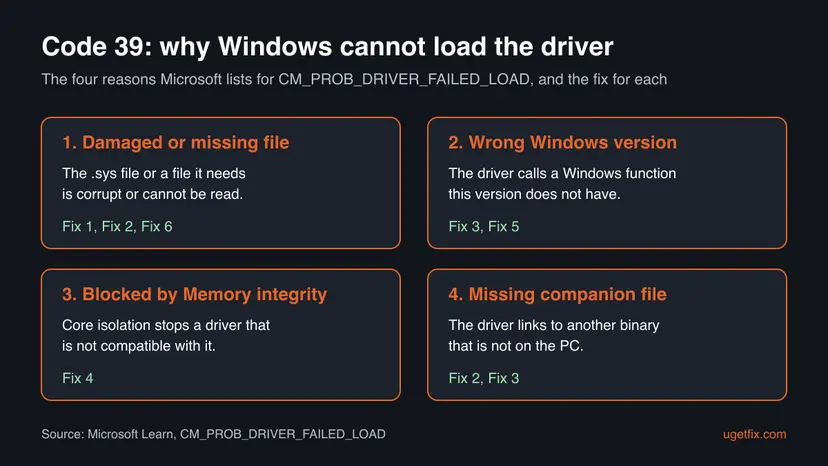
| How often | Cause | Sign | Fix |
|---|---|---|---|
| Most often | The installed driver package is damaged or half installed | Code 39 on one device, no clear trigger | Fix 1 |
| Often | Windows has only a generic driver, or a file of the maker's package is missing | The device has a generic name such as PCI Ethernet Controller | Fix 2 |
| Often | A new driver does not match this Windows version | Code 39 began right after a driver update | Fix 3 |
| Less often | Memory integrity blocks an old driver | Windows showed A driver can't load on this device | Fix 4 |
| Less often | A Windows update or upgrade left an old driver behind | Code 39 began after Windows updated, as in the reader's question | Fix 5 |
| Rarely | Damaged Windows system files or a failing disk | Several devices show Code 39 at once | Fix 6, Fix 7 |
Find which driver failed before you change anything
Two minutes of checking tells you which device and which driver package are involved, so you download the right driver. Right-click Start and select Terminal (Admin).
- List the devices that have a problem and their problem code:
Get-PnpDevice | Where-Object Status -ne 'OK' | Format-Table FriendlyName, Class, Problem, InstanceId - Look for
CM_PROB_DRIVER_FAILED_LOADin the Problem column. Note the device name and its InstanceId. - Count the rows with that problem. One device points to Fixes 1 to 4. Several devices at once point to Fix 6.
- Open Device Manager, right-click the device, select Properties and open the Driver tab. Note the Driver Provider, Driver Date and Driver Version.
Windows writes each driver install to C:\Windows\INF\setupapi.dev.log. Open it in Notepad, search for the device's name and read the lines that start with !!! near the time Code 39 began. They name the file that failed to copy or load.
How to fix Code 39 in Device Manager
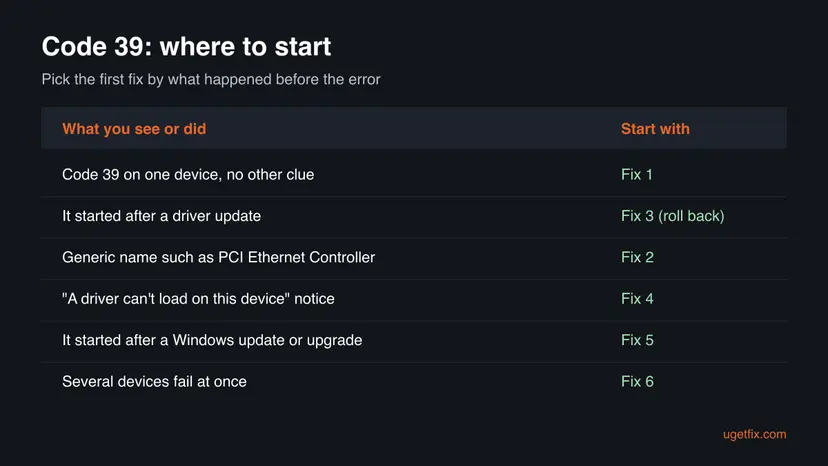
Restart the PC once first, then check Device Manager again. If Code 39 is still there, Fix 1 is Microsoft's own advice and helps most readers. Each fix tells you what to try next. For a network card, download its driver on another device before you start.
| What you see or have | Start with | Then |
|---|---|---|
| Code 39 on one device, no other clue | Fix 1 | Fix 2 |
| A generic name, such as PCI Ethernet Controller or a USB device | Fix 2 | Fix 1 |
| It started right after a driver update | Fix 3 | Fix 2 |
| Windows showed "A driver can't load on this device" | Fix 4 | Fix 2 |
| It started after a Windows update or upgrade | Fix 5 | Fix 1 |
| Several devices fail at once | Fix 6 | Fix 7 |
Fix 1. Uninstall the device and its driver, then let Windows install it again
10 minutesLow riskCode 39 is on one device and you do not know what caused it.
Microsoft's recommended resolution for Code 39 is to reinstall the driver. Removing the device together with its driver package deletes the damaged copy, so Windows installs a clean one instead of loading the same broken file again.
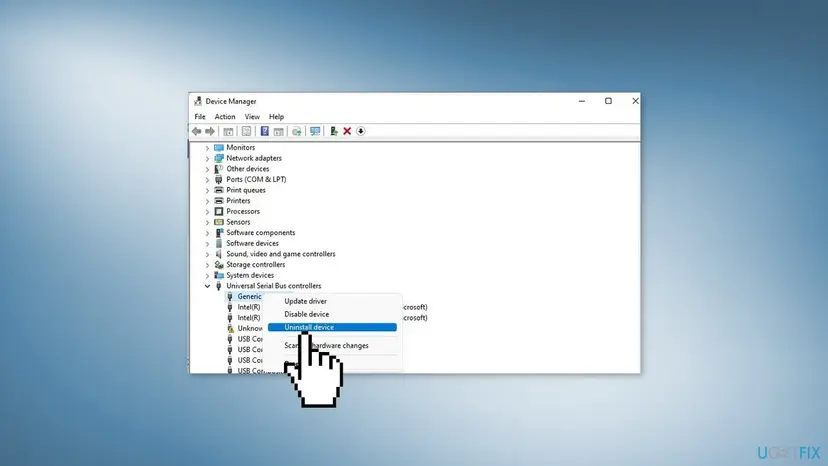
- Right-click Start and select Device Manager.
- Expand the category with the yellow warning sign, for example Cameras, Network adapters or Universal Serial Bus controllers.
- Right-click the device with Code 39 and select Uninstall device.
- Tick Attempt to remove the driver for this device and select Uninstall.
- Restart the PC.
- If the device does not come back by itself, open Device Manager and select Action > Scan for hardware changes.
- Open the device's Properties and read Device status.
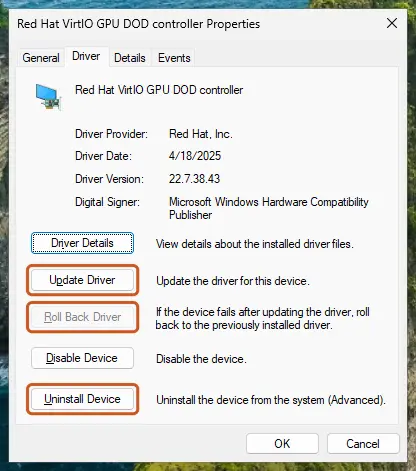
For a USB device, unplug it after step 4 and plug it into a different port after the restart. All driver buttons with screenshots: Update, roll back or reinstall a driver
It worked if: The device appears again without a yellow sign, and Device status reads This device is working properly.
If not: If Code 39 comes back, or Windows installs nothing, go to Fix 2 and install the maker's driver.
Fix 2. Install the driver from the device or PC maker by hand
15 minutesLow riskFix 1 did not help, Windows has no driver of its own for the device, or it shows a generic name such as PCI Ethernet Controller.
Microsoft's Device Manager help says to get the latest driver from the hardware vendor's website when Windows has none. A full maker's package brings every file the driver links to, which is one of the reasons Microsoft gives for Code 39.
- Find your PC or motherboard model in Settings > System > About, or on the sticker of the device.
- On the maker's support site, download the driver for that model and your Windows version. For a network card, look under LAN, Ethernet or Network.
- If the PC has no internet because the network card is the one with Code 39, download the driver on another device and copy it over on a USB stick.
- Run the installer as administrator and restart when it asks.
- If the download is only a folder of files, right-click the device in Device Manager, select Update driver > Browse my computer for drivers and point to that folder.
A generic name means Windows does not have the right driver for that card. The Ethernet driver is on the support page of your laptop or motherboard maker. The Driver tab and the hardware ID under Details > Hardware Ids help you find it.
It worked if: The device shows its real name, such as the network card's brand and model, and This device is working properly.
If not: If Code 39 started right after a driver change, go to Fix 3. If Windows showed a notice that a driver cannot load, go to Fix 4.
Fix 3. Roll back the driver that came with the last update
5 minutesLow riskCode 39 began right after a driver update from Windows Update, a maker's tool or a driver updater program.
Microsoft says Code 39 can mean a driver uses Windows functions this version of Windows does not support. A driver made for a newer or different Windows build fails to load in exactly this way, and rolling back puts the version that worked in its place.
- In Device Manager, right-click the device with Code 39 and select Properties.
- Open the Driver tab and select Roll Back Driver.
- Choose a reason and select Yes.
- Restart the PC and check Device status again.
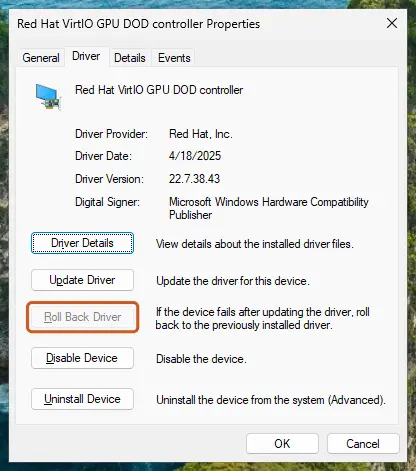
The button is greyed out when Windows kept no older driver. Then install the older version from the maker's site with Fix 2. To stop the same update from coming back, install the maker's driver that works and check Settings > Windows Update > Advanced options > Optional updates before you accept new driver offers.
It worked if: The Driver Version on the Driver tab is the older one, and the device works again.
If not: If the button was greyed out and the maker has no older driver, go to Fix 4 to check Memory integrity.
Fix 4. Get a driver that works with Memory integrity
15 minutesRead the warningWindows showed a notice that says A driver can't load on this device, or the device is old and its driver is several years old.
Microsoft lists a driver that is not compatible with Hypervisor-Protected Code Integrity as one cause of Code 39. Windows Security calls that feature Memory integrity, and when it is on, Windows refuses to load such a driver.
Microsoft warns that turning Memory integrity off on a Secured-core PC takes it out of the Secured-core state. Turn it off only for one test, as in step 5, and turn it back on after. The lasting fix is a newer driver.
- Read the driver name and company in the A driver can't load on this device notice. Microsoft says these are the reliable details about the driver.
- Check Settings > Windows Update > Advanced options > Optional updates for a newer driver of that company.
- Look on the maker's site for a driver for your Windows version and install it with Fix 2.
- If there is none, ask the maker whether a compatible driver is coming.
- To test only, open Start > Settings > Privacy & security > Windows Security > Device security, select Core isolation details, set Memory integrity to Off and restart.
- If the device then works, the old driver is the cause. Turn Memory integrity back On, restart, and replace the driver or the device.
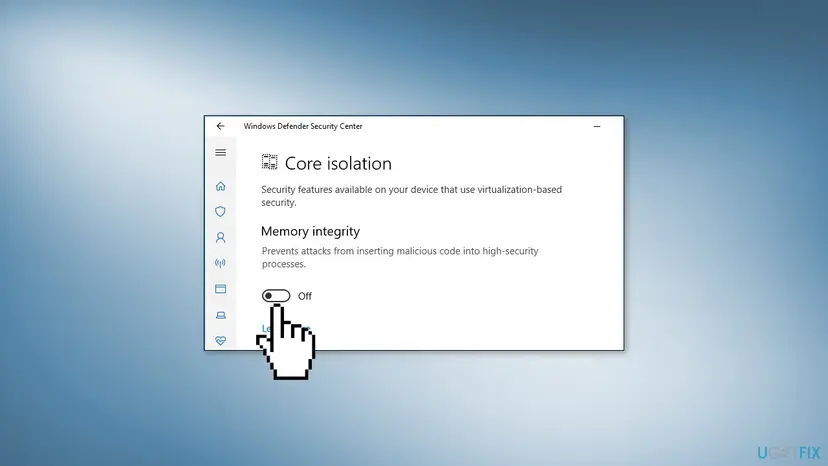
On Windows 10 the path is Start > Settings > Update & Security > Windows Security > Device security. Microsoft says a blocked driver most likely has a minor weakness, not that it is malicious.
It worked if: With a newer driver the device works while Memory integrity stays On.
If not: If the test made no difference, Memory integrity is not the cause: turn it back on and go to Fix 5.
Fix 5. Undo the Windows update that broke the driver, or use System Restore
20 minutesLow riskCode 39 began right after a Windows update or upgrade, as in the reader's question about a camera.
A Windows update can replace system files a driver links to, or leave a driver made for the old build. Going back to the state before the update brings the matching files back, and tells you whether the update is the cause.
First try Fix 1 and Fix 2 once more with the newest driver from the maker: makers often publish a new version after a big Windows update. If that does not help, remove the update or restore.
- Open Settings > Windows Update > Update history and note the update installed on the day the problem began.
- Select Uninstall updates, find that update and select Uninstall. Step by step: How to uninstall a Windows update
- Or press Win + R, type
rstruiand press Enter to open System Restore. - Choose a restore point from before Code 39 appeared and select Scan for affected programs.
- Select Next and Finish, and let Windows restart.
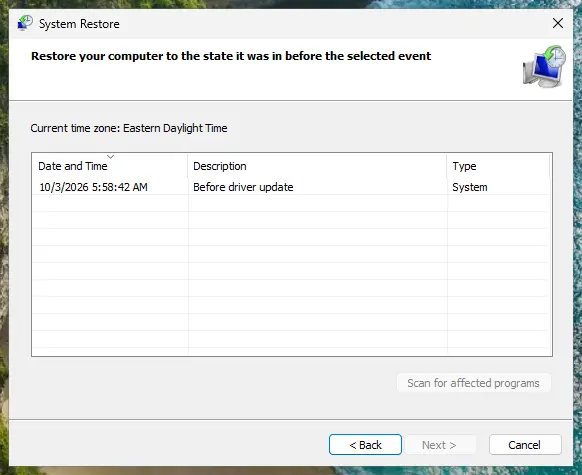
System Restore with screenshots: Undo recent changes with System Restore
It worked if: After the restart the device works. Pause updates for a week and look for a newer driver before the update installs again.
If not: If there was no update or restore point, or Code 39 stays, go to Fix 6.
Fix 6. Repair Windows system files and check the disk
30 minutesLow riskSeveral devices show Code 39 at once, or Fixes 1 to 5 did not help.
Microsoft names a file that is corrupted or cannot be read because of a file I/O problem as a cause. DISM and SFC replace damaged Windows files that drivers depend on, and a disk check finds the read errors behind them.
In Terminal (Admin), one after the other:
DISM.exe /Online /Cleanup-Image /RestoreHealth
sfc /scannow
Step by step with screenshots: Run DISM and SFC to repair Windows system files. If SFC reports files it could not repair, or several drivers failed together, check the disk too: Check a disk for errors (chkdsk)
It worked if: SFC reports no integrity violations or says it repaired them, and after a restart and Fix 1 the device works.
If not: Go to Fix 7 and repair Windows with an in-place reinstall that keeps your files.
Fix 7. Repair Windows with an in-place reinstall, then test the hardware
60 minutes or moreLow riskCode 39 stays after Fixes 1 to 6, and you want to rule out Windows before you blame the device.
A repair install puts a fresh copy of Windows over the old one, with every system file a driver links to, while your files and apps stay. If Code 39 survives that, the device or its driver is the problem, not Windows.
- Back up your important files first. Step by step: Reinstall Windows without losing files
- On Windows 11, open Settings > System > Recovery and select Reinstall now next to Fix problems using Windows Update.
- Without that option, or on Windows 10, run
setup.exefrom Windows installation media and choose Keep personal files and apps. - After the reinstall, run Fix 1 on the device again.
- If Code 39 stays, plug the device into another PC. If it fails there too, the device itself is faulty.
It worked if: Windows starts with your files and apps in place, and the device works after Fix 1.
If not: See the next section: contact the device or PC maker with the details listed there.
Still Code 39: what to check and whom to ask
If a repair install did not clear Code 39, collect what support needs before you ask. Most of it comes from the check near the top of this page.
- The device name and InstanceId from the
Get-PnpDevicecommand. - The Driver Provider, Driver Date and Driver Version from the device's Driver tab.
- The lines starting with
!!!near the error time inC:\Windows\INF\setupapi.dev.log. - Your Windows edition and version from Settings > System > About.
- Whether the device works on another PC, and whether Windows showed a notice that a driver cannot load.
| Where to ask | When |
|---|---|
| The device or PC maker's support | First: they publish the driver for your model and can say whether a version for your Windows exists |
| Microsoft Support or Microsoft Q&A | If Code 39 is on several built-in devices after a clean or repair install |
Code 39 is a driver code. Suspect the device only if it fails on a second PC too, or if Device Manager shows other codes for it after a repair install. A CD or DVD drive has its own Microsoft help page, Your CD or DVD drive is not recognized by Windows or other programs.
How to keep Code 39 from coming back
- Get drivers from the device or PC maker, or from Windows Update.
- Keep the installer of a driver version that works.
- Create a restore point before you install a driver or a big Windows update.
- Keep Memory integrity on and replace devices whose maker has no compatible driver.
- Use third-party driver updater programs.
- Install a driver made for another Windows version or another model.
- Unplug a USB device or turn the PC off while a driver installs.
- Leave Memory integrity off after a test.
Windows 10 left support on 14 October 2025. Device makers may stop publishing drivers for it, so on Windows 10 a newer driver for an old device is less likely to arrive.
Frequently asked questions
What is Code 39 in Device Manager?
Code 39 is the Device Manager code for CM_PROB_DRIVER_FAILED_LOAD. Its message is "Windows cannot load the device driver for this hardware. The driver may be corrupted or missing. (Code 39)". It means Windows knows which driver the device needs, but loading that driver failed, so the device does not work. Microsoft's recommended fix is to reinstall the driver or get a new one. Start with Fix 1: uninstall the device with its driver and restart.
How do I fix Code 39 on Windows 11?
Right-click Start, open Device Manager, right-click the device with the yellow sign and select Uninstall device. Tick Attempt to remove the driver for this device, select Uninstall and restart. Windows installs the driver again. If Code 39 comes back, install the driver from the device or PC maker (Fix 2), or roll back a recent driver update (Fix 3). The steps are the same on Windows 10.
How do I fix code 39 on a PCI Ethernet Controller?
Install the Ethernet driver from your laptop or motherboard maker. The generic name PCI Ethernet Controller means Windows does not have the right driver for the card. Because the card has no connection, download the driver on another device and copy it over on a USB stick. Run the installer, or use Update driver > Browse my computer for drivers in Device Manager, then restart (Fix 2).
Is Code 39 the same on Windows 10?
Yes. Microsoft's Device Manager help applies the same message and the same fix to Windows 11 and Windows 10. Only a few paths differ, such as the Windows Security page in Fix 4, which is under Update & Security on Windows 10. Windows 10 left support on 14 October 2025, so device makers may not publish new drivers for it. If no working driver exists for Windows 10, moving to Windows 11 may be the lasting fix.
Why did my camera get Code 39 after a Windows update?
Most likely the update changed system files the camera driver needs, or left an old driver that does not load on the new build. Microsoft lists both a missing linked file and a driver built for another Windows version as causes. Reinstall the camera in Device Manager first (Fix 1), then get the newest camera driver from the PC maker (Fix 2). If it still fails, uninstall that update or use System Restore (Fix 5).
Can Memory integrity cause Code 39?
Yes. Microsoft lists a driver that is not compatible with Hypervisor-Protected Code Integrity, which Windows Security calls Memory integrity, as one cause of this code. You usually also see a notice that a driver cannot load on this device, naming the driver and its company. The fix is a newer driver from that company. Turning Memory integrity off makes the old driver load, but lowers protection, so use it only as a short test (Fix 4).
Is Code 39 a hardware problem?
Usually not. Device Manager lists the device, so Windows can see the hardware, and the code says the driver failed to load. Damaged driver files, a missing linked file, a driver for another Windows version and Memory integrity are the causes Microsoft names. Suspect the hardware only when the device also fails on a second PC, or when the code stays after a repair install of Windows and a fresh driver.
What is the difference between Code 39, Code 28 and Code 43?
Code 28 means no driver is installed for the device. Code 39 means a driver is installed, but Windows could not load it. Code 43 means the driver loaded, but it reported that the device failed. So Code 28 needs a driver, Code 39 usually needs a clean or different driver, and Code 43 points more often to the device or its firmware. Microsoft recommends reinstalling the driver for both Code 39 and Code 43.
Will uninstalling the device delete my files?
No. Uninstall device removes only the device entry and, when you tick the box, its driver package. Files on your PC stay where they are. For a USB drive or memory card, the data on it is not touched either: the drive simply appears again after Windows installs the driver. Settings stored in the driver, such as a camera's custom options, may go back to their defaults.
Is "error code 39 chrome" the same error?
No. This page is about Code 39 in Windows Device Manager, which is about a device driver. We could not confirm a Google Chrome error with code 39 that is tied to drivers. If the message appears inside Chrome and not in a device's Properties window, it is a different problem, and the fixes on this page do not apply to it.
Sources
- Microsoft Learn: Code 39, CM_PROB_DRIVER_FAILED_LOAD (learn.microsoft.com)
- Microsoft Support: Error codes in Device Manager in Windows (support.microsoft.com)
- Microsoft Support: A driver can't load on this device (support.microsoft.com)
Did this fix work?
One click, no account. It tells the next reader which guides are worth their time.
Questions and experiences: fix "The driver may be corrupted or missing. (Code 39)" in Windows
Still broken, or found a fix we did not cover? Ask here: members and our editors answer. Reading is open; writing needs a free account.
…