
How to fix "The following components are required to run this program" error in Windows?

Prefer to fix it yourself? The manual steps follow.
- 6methods
- 5 to 30 minutes
- Easy
Applies to PC games and programs on Windows 11 and Windows 10 that check for their runtimes before they start, mostly games built with Unreal Engine
6 methods in this guide
Hi, I was trying to play a game on Steam, but I keep getting the following error: "The following components are required to run this program: DirectX Runtime." Any advice on how to fix this?
"The following component(s) are required to run this program" is a check a game runs before it starts, and the line under it names what is missing: DirectX Runtime or Microsoft Visual C++ Runtime. Windows 10 and 11 already have DirectX, so the box asks for older add-on files. Install the package it names from Microsoft and start the game again.
Read the line under the message. If it says DirectX Runtime, install Microsoft's DirectX End-User Runtime (dxwebsetup.exe) and restart (Fix 1). Windows Update does not add these old files. If it says Microsoft Visual C++ Runtime, install both vc_redist.x64.exe and vc_redist.x86.exe from Microsoft (Fix 2). If the box stays, run the game's own prerequisites installer (Fix 3).
| Error | "The following component(s) are required to run this program:" followed by DirectX Runtime, Microsoft Visual C++ Runtime, or both. |
|---|---|
| Where it appears | In a small box with an OK button, the moment you start a game, before its window or logo appears. |
| Main cause | The legacy DirectX SDK files (D3DX, XInput 1.3, XAudio 2.7) or the Visual C++ v14 runtime are missing, so the game's starter program refuses to launch it. |
| Fastest fix | Install the package the box names from Microsoft: the DirectX End-User Runtime (Fix 1) or the Visual C++ v14 Redistributable, x64 and x86 (Fix 2). |
| Also written as | The following components are required to run this program; the following component are required; the following components directx runtime; following components are required directx runtime. |
| Who shows it | Mostly games made with Unreal Engine. Players report it in VALORANT, PUBG Lite, Hogwarts Legacy, The Finals and Palia, among others. |
| Affects | Windows 11 and Windows 10. Windows 10 left support on 14 October 2025, but both packages still install on Windows 10 22H2. |
| Vendor status | Not a Windows bug. Microsoft says DirectX itself is part of Windows; the End-User Runtime only adds optional side-by-side files for older games. Both downloads are free. |
| Time to fix | About 5 minutes per package plus a restart. Up to 30 minutes when the game's files must be checked. |
Facts checked on 15 October 2026. Steps written for Windows 11 (25H2 and 26H2) and Windows 10 22H2, with Steam and the Epic Games Launcher.
What "The following component(s) are required to run this program" means
Many games do not start their main program directly. A small starter program runs first, checks that the libraries the game needs are on the PC, and only then hands over. When a check fails, the starter stops and shows this box. The game itself never ran, which is why it leaves no crash report.
- Full text
- The following component(s) are required to run this program: and, on the next line, the name of what is missing.
- Line 2, case A
- DirectX Runtime
- Line 2, case B
- Microsoft Visual C++ Runtime, sometimes with a year range such as Microsoft Visual C++ 2015-2022 Redistributable
- Where it comes from
- Every game in Google's results for this message is built with Unreal Engine, and Epic's packaging settings include a prerequisites installer for such games. We could not read Epic's code to confirm the exact check.
People search the text in every spelling: "The following component(s) are required to run this program: DirectX Runtime", "the following components are required", "the following component are required to run this program". They are all the same box. Only the second line changes, and it decides which fix you need.
Microsoft states that DirectX is already included in Windows 10 and later and cannot be installed or uninstalled. The box does not mean DirectX is missing. It means the older helper files from the legacy DirectX SDK are missing: D3DX9, D3DX10, D3DX11, XAudio 2.7, XInput 1.3, XACT and Managed DirectX 1.1. Windows does not ship them; Microsoft offers them in a separate package.
What causes the error, from most to least common
Most often the legacy DirectX files were never installed, typically on a new PC or a fresh Windows install. Next comes a missing or outdated Visual C++ runtime. Less often the game's own copy of its prerequisites is missing. Rarely an installer is blocked or a damaged runtime will not repair.
| Cause | How often | How to tell | Fix |
|---|---|---|---|
| The legacy DirectX SDK files are not on the PC. | Most often | The box says DirectX Runtime. The PC is new, or Windows was reinstalled. | Fix 1 |
| The Visual C++ v14 runtime is missing, old, or only one of x64 and x86 is installed. | Often | The box says Microsoft Visual C++ Runtime. | Fix 2 |
| The game ships its own prerequisites setup, and it never ran. | Sometimes | The box asks whether to install the components, or the setup failed when the game was installed. | Fix 3 |
| Files of the game are missing or damaged. | Sometimes | Fixes 1 and 2 finished without errors, but the same box comes back. | Fix 4 |
| The Visual C++ package is installed but damaged. | Rarely | The installer shows Modify Setup or ends with Setup Failed. | Fix 5 |
| Windows system files are damaged. | Rarely | Several installers fail, and other programs show errors too. | Fix 6 |
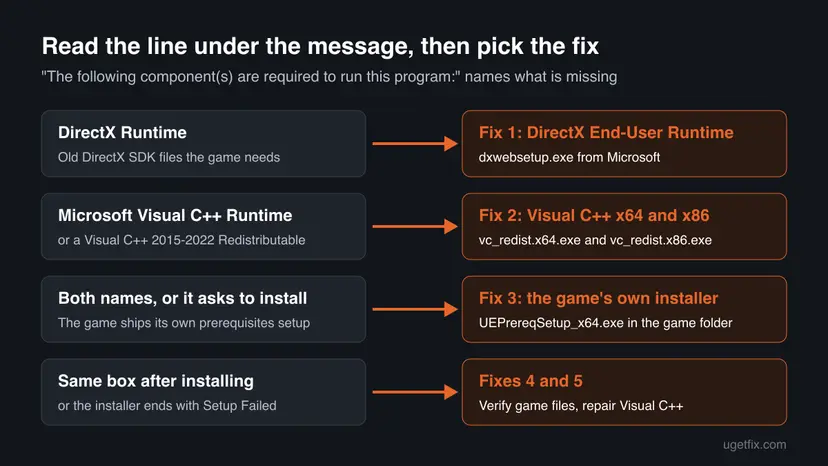
Many pages tell you to run Windows Update to "install DirectX". Microsoft says the opposite about this package: the End-User Runtime does not change the version of DirectX, and DirectX itself only changes with Windows. Windows Update keeps Windows current, but Microsoft offers the legacy files in the separate download in Fix 1.
How to fix "The following components are required to run this program"
Fix 1 is for the DirectX Runtime line and Fix 2 for the Visual C++ line; together they solve the error for most readers. Fix 3 uses the installer the game brings with it. Fixes 4 to 6 are for the cases where the box comes back after the right package is installed.
| What you see or have | Start with |
|---|---|
| The line under the message says DirectX Runtime. | Fix 1 |
| It says Microsoft Visual C++ Runtime or names a Visual C++ year. | Fix 2 |
| It names both, or the box offers to install the components. | Fix 3 |
| You installed the named package and the same box still appears. | Fix 4 |
| The Visual C++ installer shows Modify Setup or Setup Failed. | Fix 5 |
| Installers fail and other programs misbehave too. | Fix 6 |
Fix 1. Install the DirectX End-User Runtime from Microsoft
5 minutesNo riskThe line under the message says DirectX Runtime.
This package is the only Microsoft download that installs the legacy DirectX SDK files such as XInput 1.3, XAudio 2.7 and D3DX that the game's check looks for. It adds them side by side and changes nothing in the DirectX built into Windows.
- Close the game and its launcher.
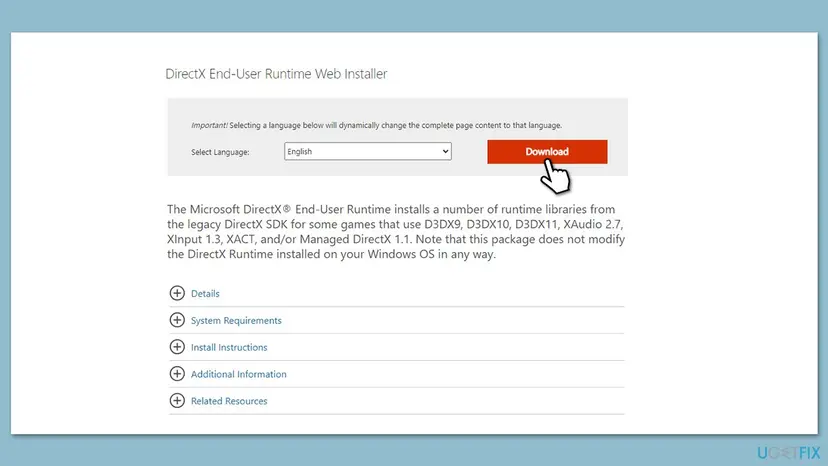
- Open Microsoft's page DirectX End-User Runtime Web Installer in your browser.
- Select Download. The file is
dxwebsetup.exe, version 9.29.1974.1, 288.4 KB. - Run
dxwebsetup.exeand select Yes when User Account Control asks. - Select I accept the agreement and Next. Read each page; if a page offers extra software, clear that box.
- Wait while the installer downloads and installs the files, then select Finish.
- Restart the PC and start the game.
| Included | Not included |
|---|---|
| D3DX9, D3DX10, D3DX11, the HLSL compiler, XInput 1.3, XAudio 2.7, XACT, Managed DirectX 1.1 | Direct3D, DirectInput, DirectSound: they are part of Windows and cannot be installed or uninstalled |
Microsoft also offers the DirectX End-User Runtimes (June 2010) as one offline package with the same components. The download page links to it under Additional Information. The system list on that page stops at Windows 7 because it was never updated; it is the same package that game installers run on Windows 10 and 11.
It worked if: The installer ends with a message that installation is complete, and after the restart the game opens without the box.
If not: If the box now names Microsoft Visual C++ Runtime, go to Fix 2. If it still says DirectX Runtime, go to Fix 3.
Fix 2. Install the Visual C++ Redistributable, x64 and x86
5 minutesNo riskThe line under the message says Microsoft Visual C++ Runtime or names a Visual C++ year, such as 2015-2022.
Games built with Visual Studio 2015 or later all use the same v14 runtime, and Microsoft's latest package replaces every older v14 version in place. A 64-bit game often starts through 32-bit helpers, so the check can fail when only one of the two packages is present.
- Close the game and its launcher.
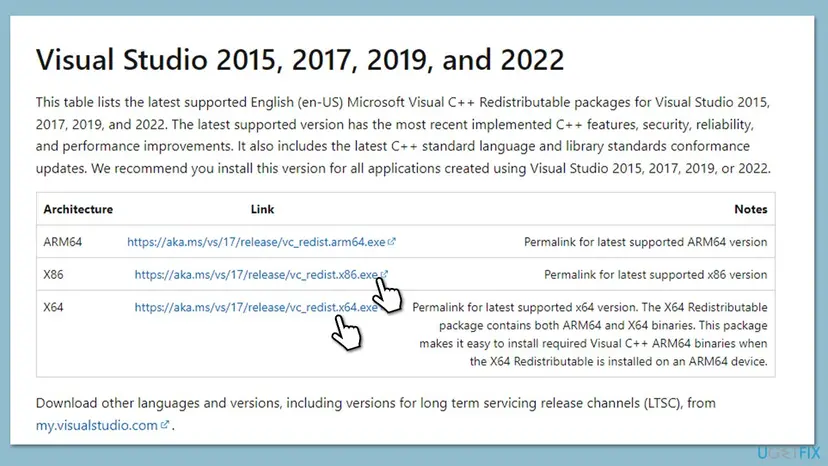
- Open Microsoft's page Latest supported Visual C++ Redistributable downloads.
- Download the X64 file from
https://aka.ms/vc14/vc_redist.x64.exeand the X86 file fromhttps://aka.ms/vc14/vc_redist.x86.exe. - Run
vc_redist.x64.exe, tick I agree to the license terms and conditions and select Install. - Wait for Setup Successful and select Close.
- Run
vc_redist.x86.exethe same way. - Restart the PC and start the game.
| Window | Meaning | Next |
|---|---|---|
| Setup Successful | The runtime is in place. | Restart and test the game. |
| Modify Setup with Repair | This version is already installed. | Select Repair, or see Fix 5. |
| Setup Failed | A newer version is installed, or setup was blocked. | Fix 5. |
Microsoft states that the latest v14 package supports Windows 10 and 11 and Windows Server 2016, 2019, 2022 and 2025. Support for the Visual Studio 2015 package ended on 15 October 2025, so do not install an old 2015 installer from a game folder or another site. The 2013 and older packages stay installed side by side and are not touched.
It worked if: Both installers end with Setup Successful, and the game starts after the restart.
If not: If the box names DirectX Runtime now, go back to Fix 1. If the same Visual C++ line stays, run the game's own installer in Fix 3.
Fix 3. Run the prerequisites installer that came with the game
5 minutesNo riskThe box names both components, offers to install them, or comes back after Fixes 1 and 2.
Epic's packaging settings let a developer include "an installer for prerequisites of packaged games, such as redistributable operating system components". That installer holds exactly the versions this game was built against, so it covers anything the general packages missed.
- If the box asks whether to install the components now, select Yes and follow that installer to the end.
- Otherwise open the game's folder. In Steam, right-click the game and select Manage > Browse local files. In the Epic Games Launcher, select the three dots on the game and then Manage, and open the install folder.
- Type
PrereqSetupin the search box at the top right of File Explorer and press Enter. - Open
UEPrereqSetup_x64.exe, orUE4PrereqSetup_x64.exein older games, and select Yes in User Account Control. - Tick the license box and select Install. If the window offers Repair, select Repair.
- Restart the PC and start the game from its launcher.
Users report that the file sits under Engine\Extras\Redist\en-us inside the game folder. We could not confirm one path for every game from Epic's documentation, which is why the search in step 3 is the safer way to find it. If no such file exists, the game does not ship one; go on to Fix 4.
Some players start the large -Win64-Shipping.exe file directly to get past the box. The game may open, but the missing files are still missing, and it can crash later or lose online features that the launcher sets up. Fix the components instead.
It worked if: The prerequisites installer finishes without errors, and the game starts.
If not: If the installer fails with a Visual C++ error, go to Fix 5. If it finishes and the box stays, check the game's files with Fix 4.
Fix 4. Verify the game files in the launcher
5 to 30 minutesNo riskThe right packages are installed, but the same box still appears for one game.
Epic's settings also let a game keep app-local prerequisites "alongside the game executable". If those files or the game's prerequisites installer are damaged or missing, a file check in the launcher downloads them again.
- Restart and open Steam. Restart your computer and launch Steam.
- Open the game's menu. Right-click the game in your Library, or open the game's Library page and select the gear icon on the far right.
- Open Properties. Select Properties in the menu.
- Verify the files. Select the Installed Files tab and select Verify integrity of game files.
- Wait for the result. Steam checks the game's files. This can take several minutes.
These steps were written for Steam on Windows. The full page with the other versions and what each result means: How to verify game files in Steam, Epic Games, Xbox app, EA app, Battle.net and GOG Galaxy
The same check exists in the Epic Games Launcher (Manage > Verify), the Xbox app (Manage > Files > Verify and repair) and the EA app (Repair). All the variants are in How to verify game files in Steam, Epic Games, Xbox app, EA app, Battle.net and GOG Galaxy. If the check finds nothing and the box stays, uninstall the game, restart, and install it again; the installer then runs its first-time setup once more.
It worked if: The launcher reports that files were checked or replaced, and the game starts.
If not: If the check passes and the box stays, repair the Visual C++ runtime with Fix 5.
Fix 5. Repair the installed Visual C++ packages
10 minutesNo riskThe Visual C++ installer shows Modify Setup, ends with Setup Failed, or the box stays after Fix 2.
Windows can list a Visual C++ package as installed while its files are gone, for example after a cleanup tool. Then a new install refuses to run, and only a repair puts the files back.
- Open Programs and Features. Type control panel in the search box on the taskbar and select Control Panel. Select Programs > Programs and Features.
- Find the installed versions. Look for the entries that start with Microsoft Visual C++. Each one shows a year and an architecture, x64 or x86. Several entries side by side are normal: older versions stay installed next to newer ones.
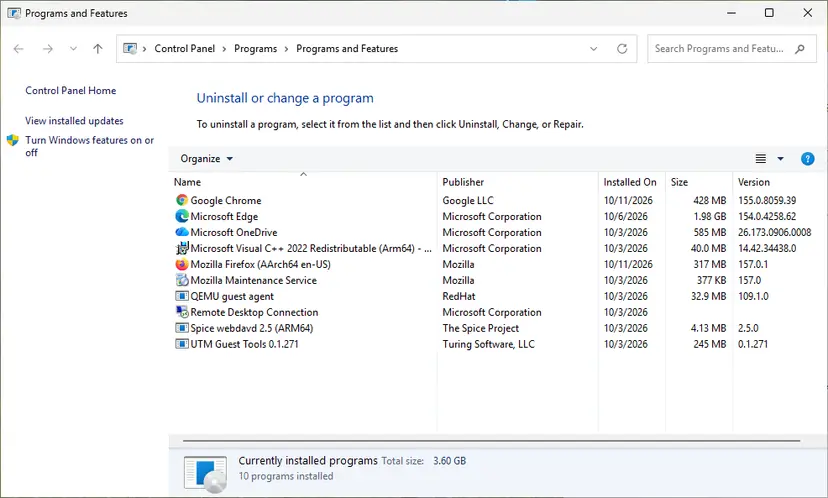
Each Visual C++ version is its own entry in Programs and Features. Screenshot: Windows 11 26H2. - Repair each Visual C++ entry. Right-click an entry and select Change, then select Repair in the window that opens. Do the same for every Microsoft Visual C++ entry.
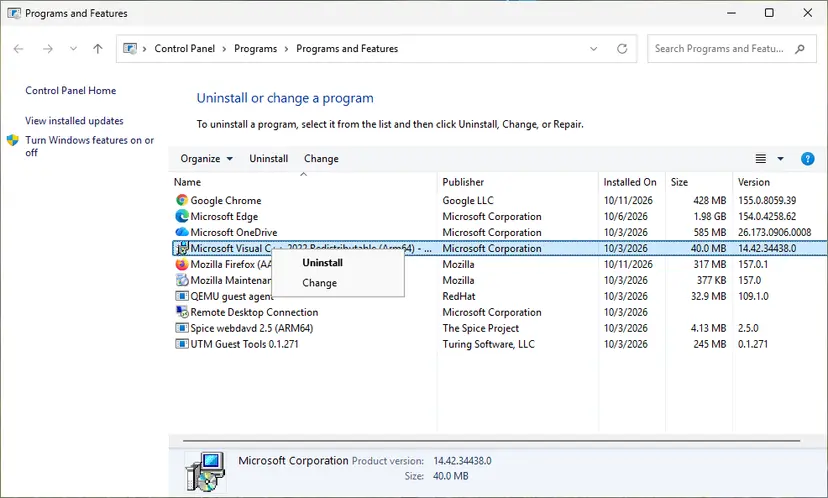
Right-click the entry and select Change to reach the repair option. Screenshot: Windows 11 26H2. - Install the latest supported version. Download the latest Visual C++ v14 Redistributable from Microsoft: Visual C++ Redistributable latest supported downloads and run it. On a 64-bit PC install both X64 and X86, because 32-bit programs need the x86 package. On an ARM64 PC install ARM64. This one version serves programs built with Visual Studio 2017 to 2026.
These steps were written for Windows 11 25H2 and 26H2, Windows 10 22H2. The full page with the other versions and what each result means: How to repair Microsoft Visual C++ Redistributable and .NET Framework
For this error, repair the newest entries first: Microsoft Visual C++ v14 Redistributable (x64) and (x86), shown as Microsoft Visual C++ 2015-2022 Redistributable on PCs with an older release. Do not remove the 2008, 2010, 2012 or 2013 entries. Other programs use them, and removing them only creates new errors.
It worked if: Each repair ends with Setup Successful, and the game starts after a restart.
If not: If a repair also fails, Windows itself may be damaged. Go to Fix 6.
Fix 6. Repair Windows system files with DISM and SFC
15 to 30 minutesNo riskSeveral installers fail, or other programs show errors as well.
Both runtime installers rely on Windows Installer and on system files being intact. When these are damaged, DISM and SFC restore them from Microsoft's copies, and the installers in Fixes 1 and 2 can then finish.
Run DISM first, then SFC, in a Command Prompt opened as administrator. Step by step: Run DISM and SFC to repair Windows system files.
Command Prompt (Admin)
DISM /Online /Cleanup-Image /RestoreHealth
sfc /scannow
When both finish, restart the PC and run Fix 1 or Fix 2 again, whichever matches the line under the message.
It worked if: SFC reports that it found no integrity violations, or that it repaired them, and the runtime installers then complete.
If not: Collect the logs in the next section before you contact the game's support.
Still broken: the logs to read and what to send to support
Because the check runs before the game starts, the game itself usually writes no log about it. The useful evidence comes from the installers and from Windows.
- The DirectX installer log. Look in
C:\Windows\LogsforDirectX.logandDXError.log. The last lines name the file that failed. We could not confirm these names on Microsoft's current pages. - The Visual C++ installer log. Open
%TEMP%from the Win + R box and sort by date. The newest .log file whose name starts withdd_vcredistholds the setup result. We could not confirm this name on Microsoft's pages either. - Event Viewer. Open Windows Logs > Application and look for red Error entries from MsiInstaller or SideBySide at the time you ran the installer.
- A screenshot of the box, the game's name and launcher, and your Windows version from
winver.
This error is not a hardware fault. A card that is too old for the game shows a different message about DirectX 12 or the graphics card. If you see that one, read our guide on DirectX 12 is not supported on your system.
Sites that offer xinput1_3.dll, d3dx9_43.dll or msvcp140.dll one by one give you files of unknown origin and version. The game's check may still fail, and a wrong file blocks the real one. Microsoft's two packages contain every file in one signed installer.
How to avoid the error on the next game or PC
The box appears most on new PCs and after a fresh Windows install, because nothing has installed the old add-on files yet. Two installers right after setup prevent it for most games.
- Install the DirectX End-User Runtime and both Visual C++ v14 packages once after every Windows reinstall.
- Let a game's first-time setup finish, and select Yes when it asks to install components.
- Keep Windows on a supported version: Windows 11, or Windows 10 22H2 with every update.
- Download runtimes only from Microsoft's pages linked in this guide.
- Do not remove Visual C++ entries in Installed apps to tidy up.
- Do not let cleanup tools delete the game's
Redistor_CommonRedistfolders. - Do not start a game by its
Shipping.exefile to skip the check.
Frequently asked questions
What does "The following component(s) are required to run this program: DirectX Runtime" mean?
It means the game's starter program looked for the legacy DirectX SDK files and did not find them. Those are older add-on libraries such as XInput 1.3, XAudio 2.7 and D3DX that some games still use. They are not part of Windows 10 or 11. Your DirectX 12 is fine. Install Microsoft's DirectX End-User Runtime with dxwebsetup.exe, restart, and start the game again (Fix 1).
Where can I get the DirectX Runtime?
Get it only from Microsoft. The page is called DirectX End-User Runtime Web Installer on the Microsoft Download Center, and the file is dxwebsetup.exe, version 9.29.1974.1. It is free and needs no account. Microsoft also offers an offline package, the DirectX End-User Runtimes (June 2010), linked from the same page. Do not download single DirectX DLL files from other sites; they are of unknown origin and often the wrong version.
Which DirectX do I have installed?
Press Win + R, type dxdiag and press Enter. The System tab shows the DirectX version, which is DirectX 12 on every supported Windows 10 and 11 PC. That number does not tell you whether the legacy add-on files from Fix 1 are present, because dxdiag does not list them. If a game asks for DirectX Runtime, install the End-User Runtime even when dxdiag shows DirectX 12.
How do I check if DirectX is corrupted?
Run dxdiag and read the Notes box on the Display tab; it says "No problems found" when the built-in DirectX works. DirectX itself is part of Windows, so damage to it is repaired with DISM and SFC (Fix 6), not with a DirectX download. The legacy files from the End-User Runtime can simply be installed again over the old ones, which is safe and takes a few minutes.
What if the box says Microsoft Visual C++ Runtime instead?
Then the game needs the Microsoft Visual C++ v14 runtime. Install both vc_redist.x64.exe and vc_redist.x86.exe from Microsoft's latest supported downloads page and restart (Fix 2). The x64 package alone is not always enough, because games often start through 32-bit helper programs. If the installer says the package is already installed, select Repair, or follow Fix 5 for a full repair of every Visual C++ entry.
I get this error in VALORANT. Is the fix different?
The message and the fixes are the same, because the check runs before the game's own code. Install the DirectX End-User Runtime and both Visual C++ packages, then restart the PC. If the box stays, repair the game from the Riot Client, which plays the role of Fix 4. VALORANT also uses Riot Vanguard, which has its own errors with their own codes; those are not covered on this page.
Why did the error start after I reinstalled Windows or bought a new PC?
A fresh Windows has DirectX 12 but none of the legacy DirectX files and often no Visual C++ v14 runtime. On the old PC, an earlier game or program had installed them for you. When the first new game checks for them, the box appears. Install the packages in Fix 1 and Fix 2 once, and most games will start without it.
Is "The following component are required to run this program" a virus?
No. It is a normal check built into the game, and the text names a real Microsoft component. The only risk comes from where you download the fix. Use Microsoft's pages linked in Fixes 1 and 2, and never a single DLL file from a download site. If you want to be sure the PC is clean, run a full scan with Microsoft Defender.
Does this happen on Steam Deck or Linux?
Players report the same box on Steam Deck, where Windows games run through Proton. The cause is the same missing components, but the fix there is different: Steam's compatibility layer installs them, not Microsoft's installers. This page is about Windows. On Windows, the fix is always the package named under the message, installed from Microsoft.
Sources
- Microsoft Download Center: DirectX End-User Runtime Web Installer (microsoft.com)
- Microsoft Learn: Latest supported Visual C++ Redistributable downloads (learn.microsoft.com)
- Epic Games: Project section of the Unreal Engine Project Settings (Prerequisites) (dev.epicgames.com)
Did this fix work?
One click, no account. It tells the next reader which guides are worth their time.
Questions and experiences: fix "The following components are required to run this program" error in Windows
Still broken, or found a fix we did not cover? Ask here: members and our editors answer. Reading is open; writing needs a free account.
…