
How to fix "The Steam Client Service service failed to start" error in Windows?

Prefer to fix it yourself? The manual steps follow.
- 7methods
- 2 minutes for the repair command, 10 to 30 minutes for the later fixes
- Easy
Applies to The Steam client and its Steam Client Service on Windows 11 and Windows 10
7 methods in this guide
My Steam no longer starts up automatically, even though it is set up to do so. I checked the Event Viewer and found the following message: "The Steam Client Service service failed to start due to the following error: The service did not respond to the start or control request in a timely fashion." Why is this happening, and how can I make Steam work properly again?
"The Steam Client Service service failed to start" is a Windows log entry: Steam's background service did not answer Windows in time. It often does no visible harm, but when Steam asks to repair its service, or games stop updating, it matters. Start with Valve's repair command for the service.
Windows asked the Steam Client Service to start and gave up waiting. Exit Steam, press Win + R, run "C:\Program Files (x86)\Steam\bin\SteamService.exe" /repair with administrator rights and start Steam again (Fix 1). This is Steam Support's own repair. Then check that the service's startup type is Manual (Fix 2). If the entry keeps coming back at every boot, look for a program that slows the start (Fix 4).
| Error | "The Steam Client Service service failed to start due to the following error: The service did not respond to the start or control request in a timely fashion." |
|---|---|
| Where it appears | In Event Viewer > Windows Logs > System, logged by Service Control Manager, usually at boot or when Steam starts. You rarely see it on screen unless you open the log. |
| Main cause | The service program steamservice.exe did not report "started" within Windows' waiting time: a damaged service install, a program that holds it up, or a slow start of the whole PC. |
| Fastest fix | Steam Support's command SteamService.exe /repair from the Steam bin folder, run as administrator with Steam closed (Fix 1). |
| Also written as | Steam service error, Steam Service Error (install service), A timeout was reached (30000 milliseconds) while waiting for the Steam Client Service service to connect, Event ID 7000 Steam Client Service. |
| What the service is | Valve's helper that "monitors and updates Steam content" (its own description in Services). It runs "C:\Program Files (x86)\Common Files\Steam\steamservice.exe" /RunAsService. |
| Vendor status | Not a listed bug with a patch. Steam Support gives the repair command for a "Steam service failure", and Microsoft documents the time-out itself (KB 922918). |
| Affects | Steam on Windows 11 and Windows 10. Microsoft ended support for Windows 10 on 14 October 2025; the fixes are the same on both. |
| Time to fix | 2 minutes for Fixes 1 and 2. 10 to 30 minutes for a clean boot, the time-out change or a system file check. |
Facts checked on 15 October 2026. Steps written for the Steam client on Windows 11 (25H2 and 26H2) and Windows 10 22H2, read against Steam Support's repair instructions for the Steam service, Microsoft's article on service start time-outs (KB 922918) and the service's own Properties window.
What "The Steam Client Service service failed to start" means
Steam installs a small Windows service called Steam Client Service. Steam uses it for jobs that need more rights than a normal program has, such as installing and updating content. When Windows starts a service, it waits for the service to say "I am running". If that answer does not come in time, the Service Control Manager gives up and writes an error to the System log.
The doubled word "service service" is not a typo on this page. Windows writes the service's name, which here ends in "Service", and then adds the word "service" itself. The full text in Event Viewer reads: "The Steam Client Service service failed to start due to the following error: The service did not respond to the start or control request in a timely fashion."
| Text you see | Where | Same problem? |
|---|---|---|
| The Steam Client Service service failed to start due to the following error: The service did not respond to the start or control request in a timely fashion. | Event Viewer, System log, source Service Control Manager, Event ID 7000 | Yes, this page |
| A timeout was reached (30000 milliseconds) while waiting for the Steam Client Service service to connect. | Event Viewer, System log, logged next to the entry above | Yes: it names the 30-second wait that ran out |
| The Steam service component is not working properly on this computer. Reinstalling the Steam service requires administrator privileges. | A Steam window titled Steam Service Error, with an Install Service button (as users quote it) | Yes: Steam noticed the same broken service. Fix 1 and Fix 3 |
| Steam error code 7 ("код ошибки 7") | The Steam client or store | No: a different error, see the FAQ |
If Steam opens, signs in and updates games, a single entry after a slow boot can be ignored. Fix it when the entry comes back at every start, when Steam shows Steam Service Error, or when updates and installs stall.
Why the Steam Client Service does not start in time
The causes are not equal. Ranked by how often the fix for each one works, from the most common to the rarest:
| Cause | How common | Fix |
|---|---|---|
| The service install is damaged or points to a missing file, often after a Steam update was cut off or files were cleaned | Most often | Fix 1, then Fix 3 |
| The startup type was changed to Automatic, so Windows starts it at boot, when the PC is busiest | Often | Fix 2 |
| Another program holds it up: Steam Support names CCleaner, Cheat Engine, IObit Start Menu 8, DLL injectors, hypervisors and Steam idlers as software that interferes with Steam | Less often | Fix 4 |
| The whole PC starts slowly: a busy hard drive, many startup apps, several services time out at once | Less often | Fix 5 |
| Damaged Windows system files | Rarely | Fix 6 |
| A damaged Steam client as a whole | Rarely | Fix 7 |
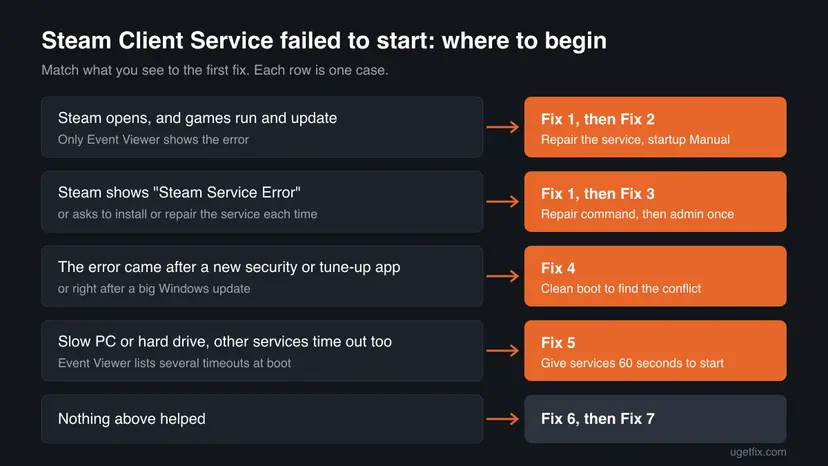
How to fix "The Steam Client Service service failed to start"
Fixes 1 and 2 repair the service itself and take two minutes together. Fix 3 lets Steam reinstall the service. Fixes 4 and 5 deal with a slow or crowded start of Windows, and Fixes 6 and 7 repair Windows files and the Steam client.
| What you see or have | Start with |
|---|---|
| Steam works, only Event Viewer shows the entry. | Fix 1, then Fix 2 |
| Steam shows Steam Service Error or asks to install or repair the service every time. | Fix 1, then Fix 3 |
| The service's startup type is Automatic and the entry appears at every boot. | Fix 2 |
| It started after you installed a security, cleaner or tune-up program. | Fix 4 |
| Several services time out at boot, or the PC has a slow hard drive. | Fix 5 |
| Nothing above helped. | Fix 6, then Fix 7 |
Fix 1. Repair the Steam Client Service with Steam's own repair command
2 minutesNo riskEveryone starts here, and above all if Steam asks to install or repair its service.
Steam Support gives this command for a Steam service failure. It registers the service again and puts its files back, without touching your games or your account.
- Exit Steam through the Steam menu and Exit. Check that the Steam icon is gone from the notification area next to the clock.
- Press Win + R to open the Run box.
- Type or paste this command, with the quotes:
"C:\Program Files (x86)\Steam\bin\SteamService.exe" /repair - Press Ctrl + Shift + Enter instead of Enter, so the command runs as administrator. Steam Support notes that the repair needs administrator rights.
- Select Yes in the User Account Control window.
- Wait. A window may open and close again, and Steam Support says the repair "may take a few minutes".
- Start Steam as usual.
Replace C:\Program Files (x86)\Steam with your Steam folder. To find it, right-click the Steam shortcut, select Open file location and copy the path from the address bar. The file you need is in its bin folder.
It worked if: Steam opens without a service prompt, and no new Steam Client Service entry appears in the System log at the time you started Steam.
If not: If the Run box shows that Windows cannot find the file, the path is wrong: use the tip above. If the error stays, go to Fix 2.
Fix 2. Check the Steam Client Service in Services and set it back to Manual
2 minutesLow riskThe entry appears at every boot, or someone set the service to Automatic to make Steam start with Windows.
With Manual, Windows starts the service only when Steam asks for it, after the desktop has loaded. With Automatic, Windows starts it during boot, when many services start at once and a slow start is more likely to time out.
- Press Win + R, type
services.mscand press Enter. - Click any row and type S to jump down the list. Find Steam Client Service.
- Double-click it. On the General tab, check Path to executable. It should read
"C:\Program Files (x86)\Common Files\Steam\steamservice.exe" /RunAsService. - Set Startup type to Manual if it shows Automatic or Disabled.
- Select Apply, then Start. Wait for the progress bar to close.
- Select OK and restart the PC.
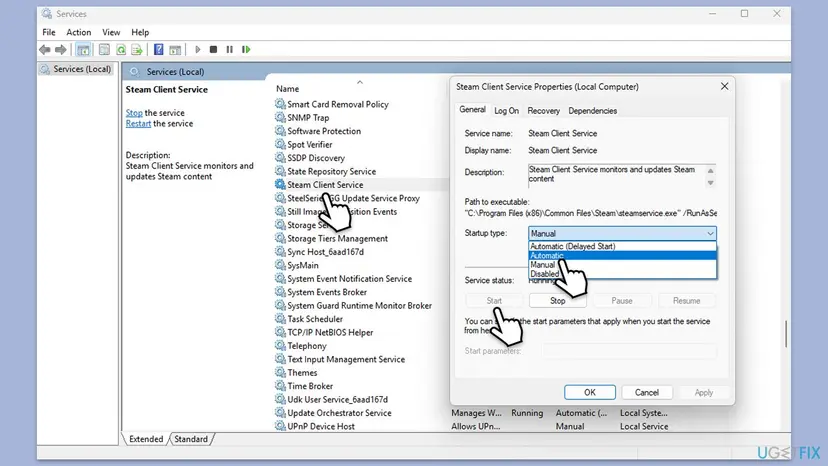
Seeing the service as stopped is normal when Steam is closed: a Manual service runs only while a program needs it. Steam does not need this service to open at sign-in. That is a separate setting in Steam, under Steam > Settings > Interface. For the general steps with screenshots: Check and restart Windows services
It worked if: The service starts when you select Start, and after the restart no new Event ID 7000 entry for Steam Client Service appears at boot.
If not: If Start returns the same "did not respond to the start or control request in a timely fashion" text, the service itself is stuck. Go to Fix 3, and to Fix 4 if Fix 3 does not change it.
Fix 3. Let Steam reinstall its service by running it as administrator once
3 minutesLow riskSteam shows Steam Service Error with an Install Service button, or the repair command in Fix 1 did not finish.
Reinstalling the service needs administrator rights, and Steam's own message says so. Started once as administrator, Steam can register its service again. Users on the Steam forum report this as what fixed the message for them.
- Exit Steam completely through Steam > Exit.
- Right-click the Steam shortcut or Steam in the Start menu and select Run as administrator. Select Yes in the User Account Control window.
- If Steam shows Steam Service Error, select Install Service and wait.
- When Steam has loaded and signed in, exit it again through Steam > Exit.
- Start Steam the normal way, without administrator rights.
Do not tick Run this program as an administrator for Steam on the Compatibility tab. Steam and its games then run at different permission levels, which can cause "Steam must be running to play this game". Our guide to that error explains why. The general way to run a program as administrator once: How to run a program as administrator or in compatibility mode
It worked if: The Steam Service Error window does not come back when you start Steam normally.
If not: If Steam asks to install the service at every start, something removes or blocks it again. Go to Fix 4.
Fix 4. Find the program that holds up the service with a clean boot
20 minutesLow riskThe error began after you installed a security suite, a cleaner, a tune-up tool or a game tool, or it keeps coming back after Fixes 1 to 3.
A clean boot starts Windows with only Microsoft's services and no startup apps. If Steam's service then starts on time, one of the switched-off programs was in its way. Steam Support lists CCleaner, Cheat Engine, IObit Start Menu 8, DLL injectors, hypervisors and Steam idlers as software that interferes with Steam.
- Open System Configuration. Select Search on the taskbar, type msconfig and select System Configuration from the results.
- Hide Microsoft services. On the Services tab, select the Hide all Microsoft services check box. Only services from other companies stay in the list.

With Hide all Microsoft services ticked, only third-party services stay in the list. Screenshot: Windows 11 26H2. - Disable the remaining services. Select Disable all, then select Apply.
- Open Task Manager. On the Startup tab of System Configuration, select Open Task Manager.

The Startup tab only links to Task Manager. Screenshot: Windows 11 26H2. - Disable the startup apps. On the Startup apps tab in Task Manager, select each item whose status is Enabled and select Disable. Write down or take a screenshot of the items you disable: you need the list to turn them back on.

Select an app, then Disable. Screenshot: Windows 11 26H2. - Confirm the changes. Close Task Manager. On the Startup tab of System Configuration, select OK.
- Restart and test. Restart the PC. Windows now starts in a clean boot environment: try again the thing that failed (run the app, install the update, uninstall the program).
These steps were written for Windows 11 25H2 and 26H2. The full page with the other versions and what each result means: How to perform a clean boot in Windows
On the Services tab, after you tick Hide all Microsoft services, Steam Client Service is in the list. Leave its box ticked, so that you test Steam's service without the other programs.
- Error gone in the clean boot: turn the services and startup apps back on in halves, restarting each time, until the entry returns. The last group holds the cause.
- A security program is the cause: pause it for one test only and turn it back on: Turn off Microsoft Defender protection for a moment. Then add Steam's folders to its exceptions, or ask its maker for help.
- A cleaner or tune-up tool is the cause: stop it from removing Steam files or services, then run Fix 1 again.
It worked if: In the clean boot, the System log shows no new Steam Client Service entry, and Steam starts without a prompt.
If not: If the error is there even in a clean boot, the cause is not another program. Go to Fix 5. Return to a normal start with the last steps of the procedure above.
Fix 5. Give Windows services more time to start (ServicesPipeTimeout)
10 minutesRead the warningThe PC starts slowly, has a hard drive rather than an SSD, and Event Viewer lists time-outs for several services, not only Steam's.
Microsoft explains that the Service Control Manager waits for the time set in ServicesPipeTimeout before it logs Event ID 7000. Raising the wait to 60 seconds lets a slow service finish starting before Windows gives up.
A wrong change under HKEY_LOCAL_MACHINE\SYSTEM can stop Windows from starting properly. Export the Control key before you change it, so you can import it back: Back up the registry before editing it. Microsoft calls this a workaround and asks you to raise the value in small steps.
- Press Win + R, type
regeditand press Enter. Select Yes in the User Account Control window. - Go to
HKEY_LOCAL_MACHINE\SYSTEM\CurrentControlSet\Control. - Look for ServicesPipeTimeout in the right pane. If it is not there, select Edit > New > DWORD (32-bit) Value and name it
ServicesPipeTimeout. - Right-click ServicesPipeTimeout and select Modify.
- Select Decimal, type
60000and select OK. The value is in milliseconds, so this is 60 seconds. - Close Registry Editor and restart the PC.
Microsoft's article is filed under Windows Server, and we could not find a separate Microsoft page for Windows 11 or 10. The key it names is the same on both. To undo the change, delete ServicesPipeTimeout or import the backup.
It worked if: After the restart, the Steam Client Service entry and the other time-outs no longer appear in the System log.
If not: Microsoft notes that a slow service may be a symptom of another problem. Undo the change and go to Fix 6, then check the drive as described under "If the Steam Client Service still fails to start".
Fix 6. Repair Windows system files with SFC and DISM
15 to 30 minutesNo riskOther Windows services fail too, or Fixes 1 to 5 did not help.
Steam Support lists a system file check among its repairs for a Steam service failure. A damaged Windows file the service depends on can keep it from starting.
- Open an elevated command window. Right-click Start and select Terminal (Admin), or type cmd in the search box, right-click Command Prompt and select Run as administrator. Select Yes when Windows asks for permission.

Search for cmd and choose Run as administrator. Screenshot: Windows 11 26H2. - Run DISM first. Type the command below and press Enter. DISM downloads clean copies of damaged components from Windows Update, so it can take several minutes. Wait until it says The operation completed successfully.
DISM.exe /Online /Cleanup-Image /RestoreHealth
DISM /RestoreHealth running. Screenshot: Windows 11 26H2. - Run System File Checker. In the same window, type the command below and press Enter. Do not close the window until the verification reaches 100%.
sfc /scannow
sfc /scannow at 100%. Screenshot: Windows 11 26H2. - Read the result and restart. Compare the last message with the table below this guide, then restart the PC so that repaired files are loaded.

The result line tells you what SFC did. Screenshot: Windows 11 26H2.
These steps were written for Windows 11 24H2 and 25H2. The full page with the other versions and what each result means: Run DISM and SFC to repair Windows system files
It worked if: SFC reports that it found no integrity violations, or that it repaired the files it found. After the restart, run Fix 1 once more.
If not: If SFC cannot repair some files, read its log as the procedure says, then go to Fix 7.
Fix 7. Reinstall Steam over itself without deleting your games
10 minutesRead the warningNothing above helped, or SteamService.exe is missing from the Steam bin folder.
A fresh copy of the Steam client brings a new copy of the service program and registers it again. Installing into the same folder keeps the games you already have.
Uninstalling Steam through Installed apps also deletes the games and the userdata folder inside the Steam folder. Install the new copy over the old one instead. If you are unsure, copy userdata to another drive first.
- Exit Steam through Steam > Exit.
- In a browser, open
https://store.steampowered.com/about/and download the Steam installer. - Run the installer and choose the folder Steam is already in, by default
C:\Program Files (x86)\Steam. - Let Steam start, update and sign in.
- Run Fix 1 once more, so the service is registered from the new files.
Our guide to Steam must be running to play this game has this repair with screenshots and Steam Support's wording, in its Fix 7.
It worked if: Steam starts, its games are still in the Library, and the service starts without a time-out.
If not: Read the System log as described in the next section and contact Steam Support with what you find.
If the Steam Client Service still fails to start: what to check and whom to ask
The System log tells you whether Steam's service is the only one that is slow, or one of many. That decides whether the problem is Steam or the PC.
- Right-click Start and select Event Viewer.
- Open Windows Logs > System.
- Select Filter Current Log on the right. Under Event sources choose Service Control Manager, type
7000, 7011in the event ID box and select OK. - Read the times and names. Steam Client Service alone points to Steam, Fixes 1, 3 and 7. Many services at the same boot point to a slow start, Fixes 4 and 5.
- Right-click the Steam entry and select Copy > Copy Details as Text, to paste it into a support request.
- Ask Steam Support at
https://help.steampowered.comwhen only Steam's service fails after Fix 7. Send the copied event, your Windows version and the fixes you tried. - When it is the drive: many services time out, the PC is slow to boot and files fail checks again soon after Fix 6. Check the drive: Check a disk for errors (chkdsk)
- When it is a security program: the error is gone in a clean boot and back with one program. Its maker, not Valve, can change what it blocks.
How to keep the Steam Client Service error from coming back
- Leave Steam Client Service on Manual, as Steam sets it.
- Exit Steam through Steam > Exit before Windows updates and before you shut down during a Steam update.
- Keep Steam's folders out of cleaner and tune-up programs.
- Keep the number of startup apps small, so services have time at boot.
- Run Fix 1 again whenever Steam asks to repair its service.
- Do not set the service to Automatic to make Steam open faster: it does not.
- Do not set it to Disabled: Steam then cannot install or update some content.
- Do not keep Steam permanently on Run as administrator.
- Do not uninstall Steam through Windows to fix the service: games are deleted with it.
If you want Steam to open when you sign in, use Steam's own setting under Steam > Settings > Interface. It starts the client, and the client starts its service when it needs it.
Frequently asked questions
Steam Client Service asks to make changes to my device: yes or no?
Yes, when the User Account Control window names Steam Client Service or Steam and the verified publisher line names Valve. Steam needs administrator rights to install or repair its service, and Steam's own message says so. If you select No, Steam keeps working for most things, but it asks again and some installs and updates can fail. Select No and run a scan when the publisher is unknown, the prompt appears while Steam is closed, or the file is outside the Steam folders. A prompt that comes back at every start means the service is not repaired: run Fix 1.
What is Steam Client Service, and is it safe?
It is Valve's helper service that comes with the Steam client. Its own description in Services reads "Steam Client Service monitors and updates Steam content", and it runs steamservice.exe from C:\Program Files (x86)\Common Files\Steam. It is safe when it sits in that folder and Steam is installed. A file with the same name in another folder, or the service on a PC without Steam, is not normal: run a full scan with your antivirus. You can check the path on the General tab of the service's Properties, as Fix 2 shows.
Does this error stop Steam or my games from working?
Often it does not. Steam can open, sign in and start games while the service failed to start at boot, because Steam starts the service again when it needs it. Problems show when the service never starts: Steam shows Steam Service Error, asks for administrator rights at every start, or installs and updates stall. A single entry in Event Viewer after a slow boot, with Steam working, needs no action. An entry at every boot, or any message inside Steam, is worth Fix 1 and Fix 2.
Why does the Steam Client Service prompt keep popping up?
Because Steam finds its service broken or missing at every start and asks to reinstall it. That needs administrator rights, so Windows shows the User Account Control prompt each time. When the reinstall does not hold, something removes or blocks the service again: a cleaner, a security program or a damaged install. Run the repair command in Fix 1, then start Steam as administrator once as in Fix 3. If the prompt still returns, a clean boot in Fix 4 shows which program undoes the repair.
Should I set Steam Client Service to Automatic so Steam starts with Windows?
No. The startup type of the service does not decide whether Steam opens when you sign in. That is a setting in Steam itself, under Steam > Settings > Interface. The service is set to Manual on a normal installation, so Windows starts it only when Steam asks. Setting it to Automatic makes Windows start it during boot, which is exactly when this time-out error is logged. Put it back to Manual with Fix 2 if you or a tune-up tool changed it.
Can I disable Steam Client Service?
You can, but it causes more trouble than it saves. Steam uses the service for work that needs administrator rights, such as installing and updating content. With the service disabled, Steam asks to install it again or some installs fail. Since a Manual service does not run when Steam is closed, it costs nothing while you are not using Steam. If you want it gone because you no longer use Steam, uninstall Steam and the service is removed with it.
What does "A timeout was reached (30000 milliseconds)" mean for Steam Client Service?
It is the companion entry of the same failure. Windows waited 30,000 milliseconds, that is 30 seconds, for the Steam Client Service to report that it had started, and then gave up. Right after it, Windows usually logs the "failed to start due to the following error" entry this page is about. The fixes are the same: repair the service with Fix 1, keep it on Manual with Fix 2, and only if many services time out, give them more time with Fix 5.
What does "Steam service setup failed" or "Steam Service Error" mean?
Steam tried to install or repair its service and could not finish. The usual reasons are a missing administrator approval, a security program that blocked the install, or a damaged Steam installation. Close Steam and run the repair command in Fix 1 with administrator rights. If that fails, start Steam once with Run as administrator and select Install Service as in Fix 3. When the install fails again, look for the blocking program with a clean boot in Fix 4, then repair Steam with Fix 7.
Is Steam error code 7 (код ошибки 7 Steam) the same problem?
No. This page is about the Windows service that Steam installs and the Event Viewer entry it leaves. Error code 7 is a different Steam error that appears inside the client or the store, not in Event Viewer, and we did not research it for this page. If Steam shows error code 7, search for that code on its own. If Steam also shows Steam Service Error or asks to repair its service, the fixes on this page apply to that part.
Sources
- Steam Support: Disconnected by VAC, section Repair the Steam Service (the SteamService.exe /repair command, its admin rights note and the list of interfering software) (help.steampowered.com)
- Microsoft Learn: A slow service does not start due to time-out error in Windows (KB 922918, events 7000 and 7011, ServicesPipeTimeout) (learn.microsoft.com)
- Steam Community, Help and Tips: Steam Service Error [Solved] (user reports from 2017 and 2018 of the Install Service message, used only as a report) (steamcommunity.com)
Did this fix work?
One click, no account. It tells the next reader which guides are worth their time.
Questions and experiences: fix "The Steam Client Service service failed to start" error in Windows
Still broken, or found a fix we did not cover? Ask here: members and our editors answer. Reading is open; writing needs a free account.
…